
How to Export Your Contacts (CSV / vCard / Excel)
Step-by-step guide to exporting your ChatDaddy contacts as a CSV, vCard, or Excel file — including free and paid export tiers, file format options, and how to filter your selection before downloading.
Also searched as: export contacts ChatDaddy, download contacts CSV, export contacts vCard, export contacts Excel, backup contacts WhatsApp, ChatDaddy contact export, download contact list, export contacts to phone, vCard export ChatDaddy, CSV contact download, contact backup ChatDaddy, export filtered contacts, contact export credits, bulk contact download, export all contacts
ChatDaddy lets you download your contacts as a CSV, vCard, or Excel file — perfect for backing up your list, migrating platforms, or sharing with another team.
Before you begin
- Where it lives: Exporting happens on the Contacts page (left sidebar → Contacts).
- Free export: Export up to 100 contacts at no cost.
- Larger exports: Standard (up to 1,000 contacts) and Full Export (all contacts) are paid — settled with plan credits.
- Formats: CSV (Excel & Google Sheets), vCard (phone contacts for iOS / Android), or Excel.
Step 1: Open Contacts and click Export
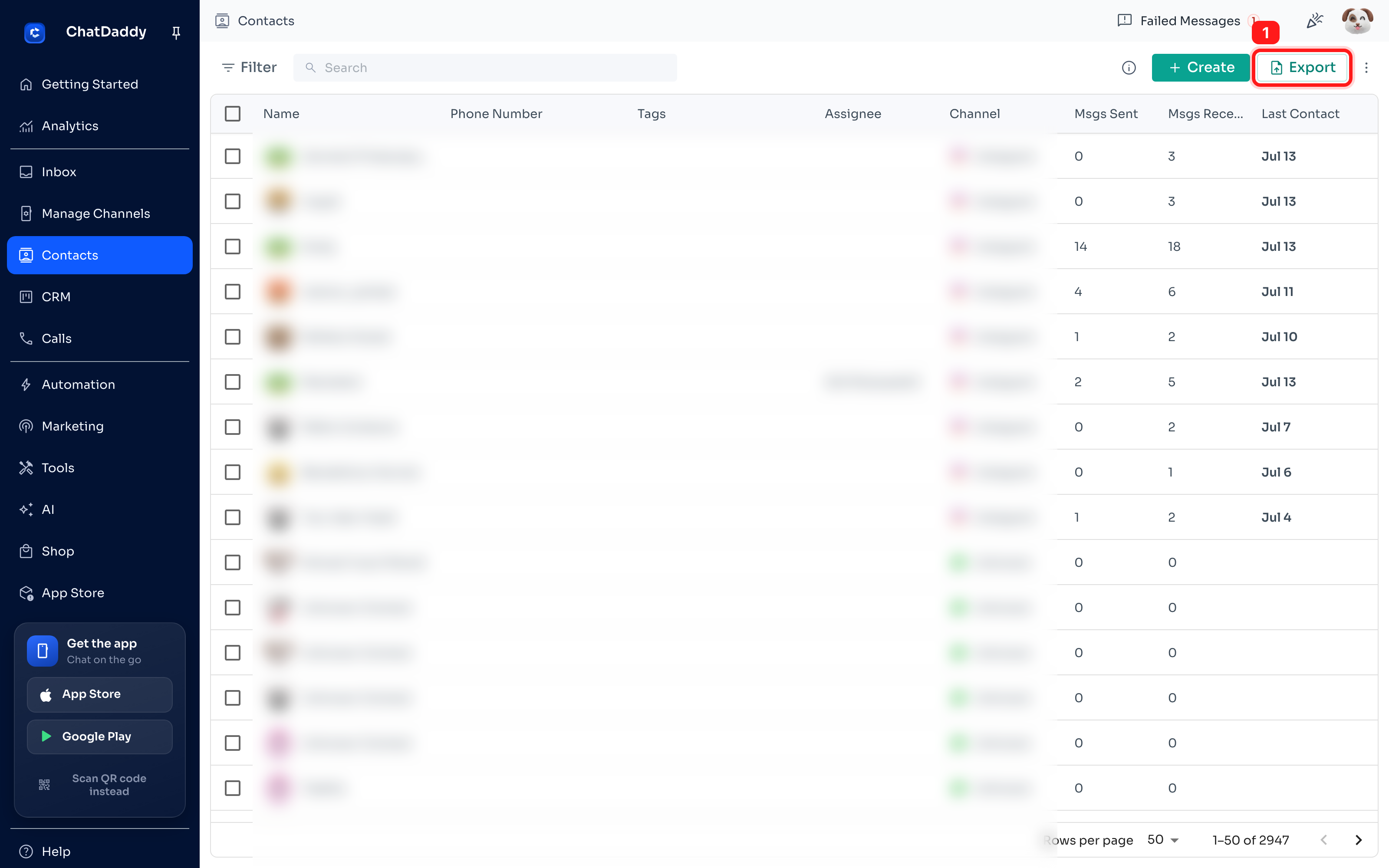
In the left sidebar, open Contacts. In the top-right corner of the contacts table, click the Export button.
Step 2: Choose your export limit
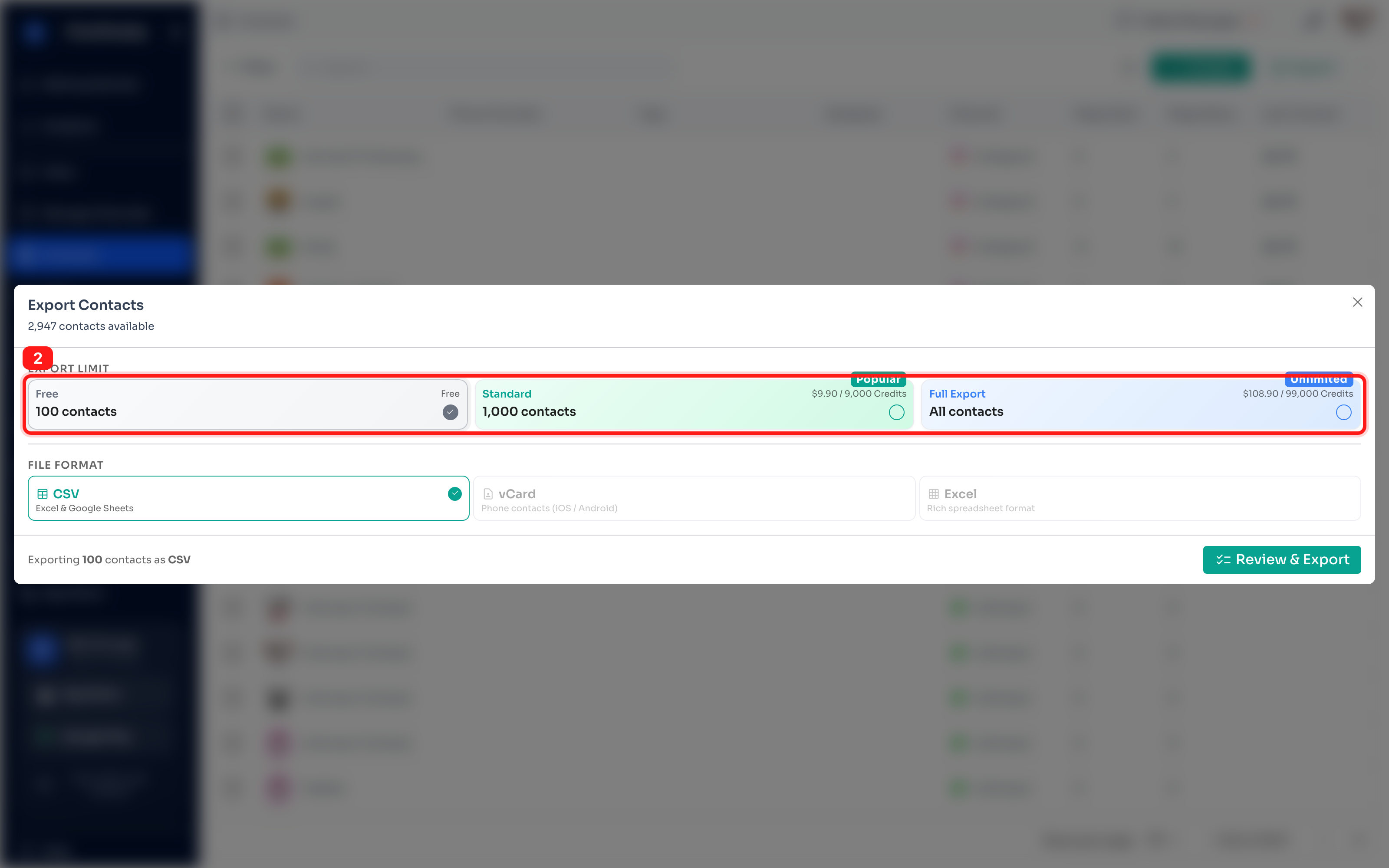
The Export Contacts window opens. Under EXPORT LIMIT, choose how many contacts to export: Free (up to 100 contacts, no cost), Standard (up to 1,000 contacts), or Full Export (all contacts).
Step 3: Choose a file format
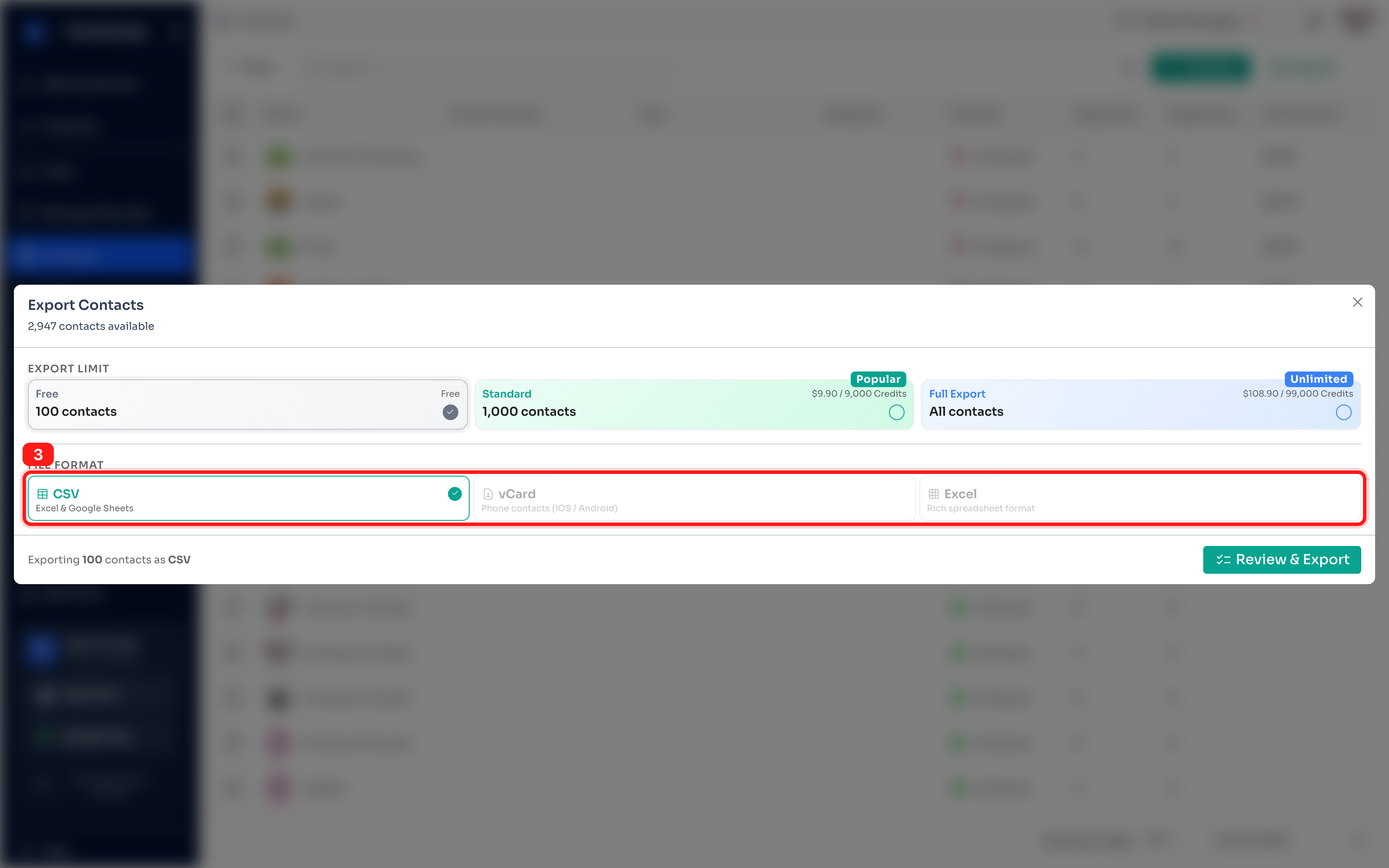
Under FILE FORMAT, pick the type of file you want: CSV (opens in Excel & Google Sheets), vCard (for phone contacts on iOS / Android), or Excel.
Step 4: Review & Export
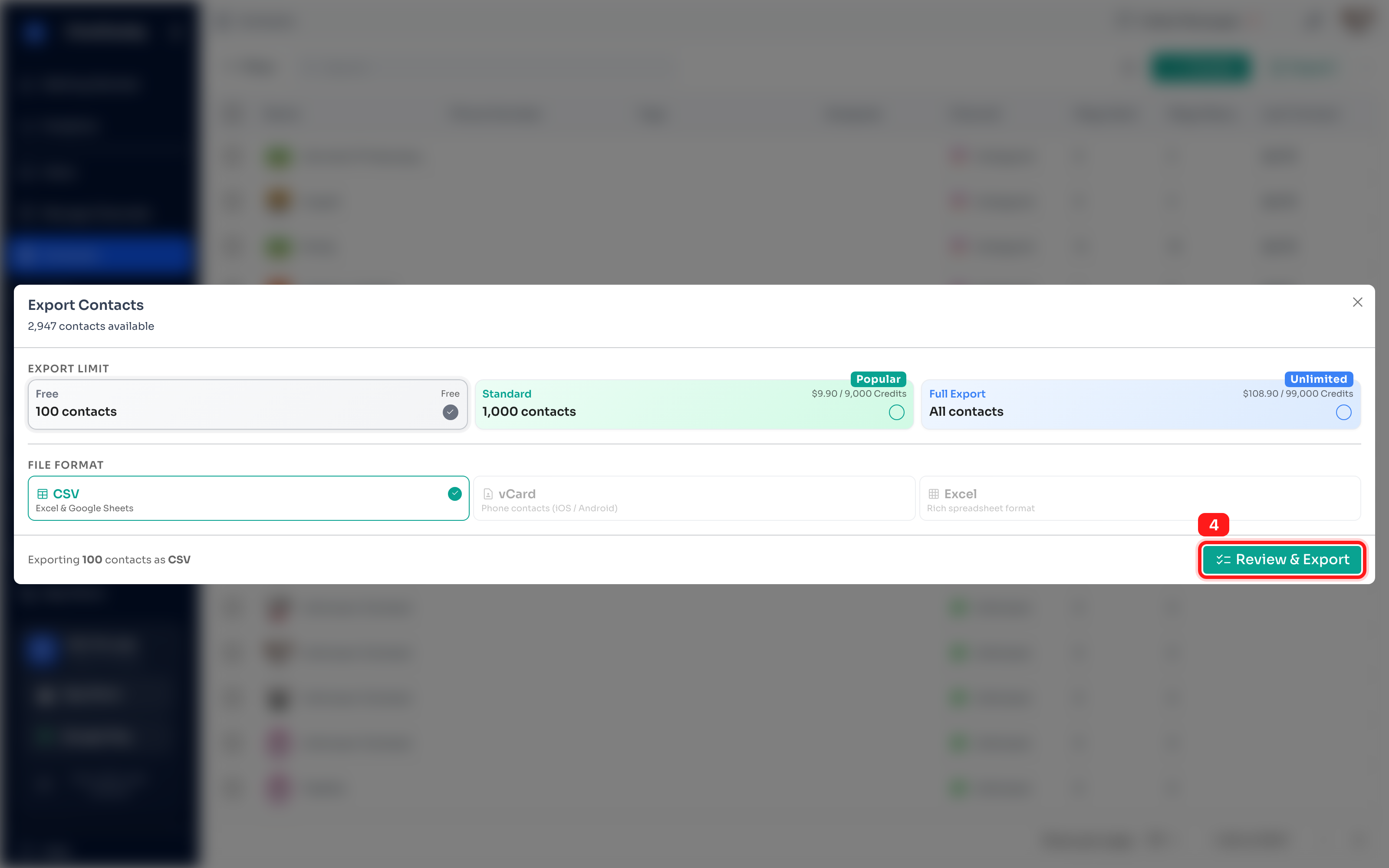
Click Review & Export to move to the confirmation screen.
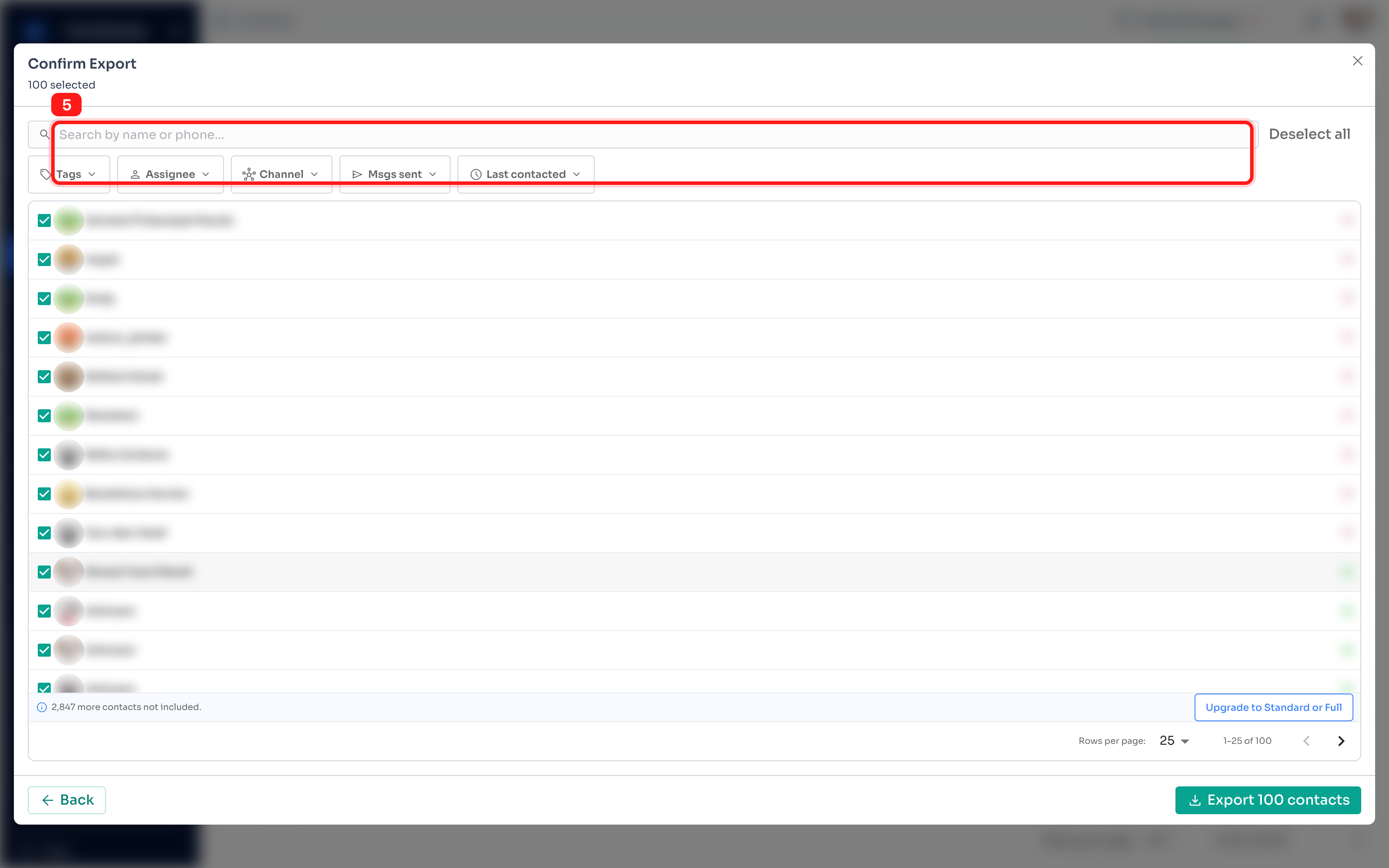
Step 5: Review and refine your selection
On the Confirm Export screen you'll see exactly which contacts will be included. Use the search bar and the Tags, Assignee, and other filters to narrow your selection if needed.
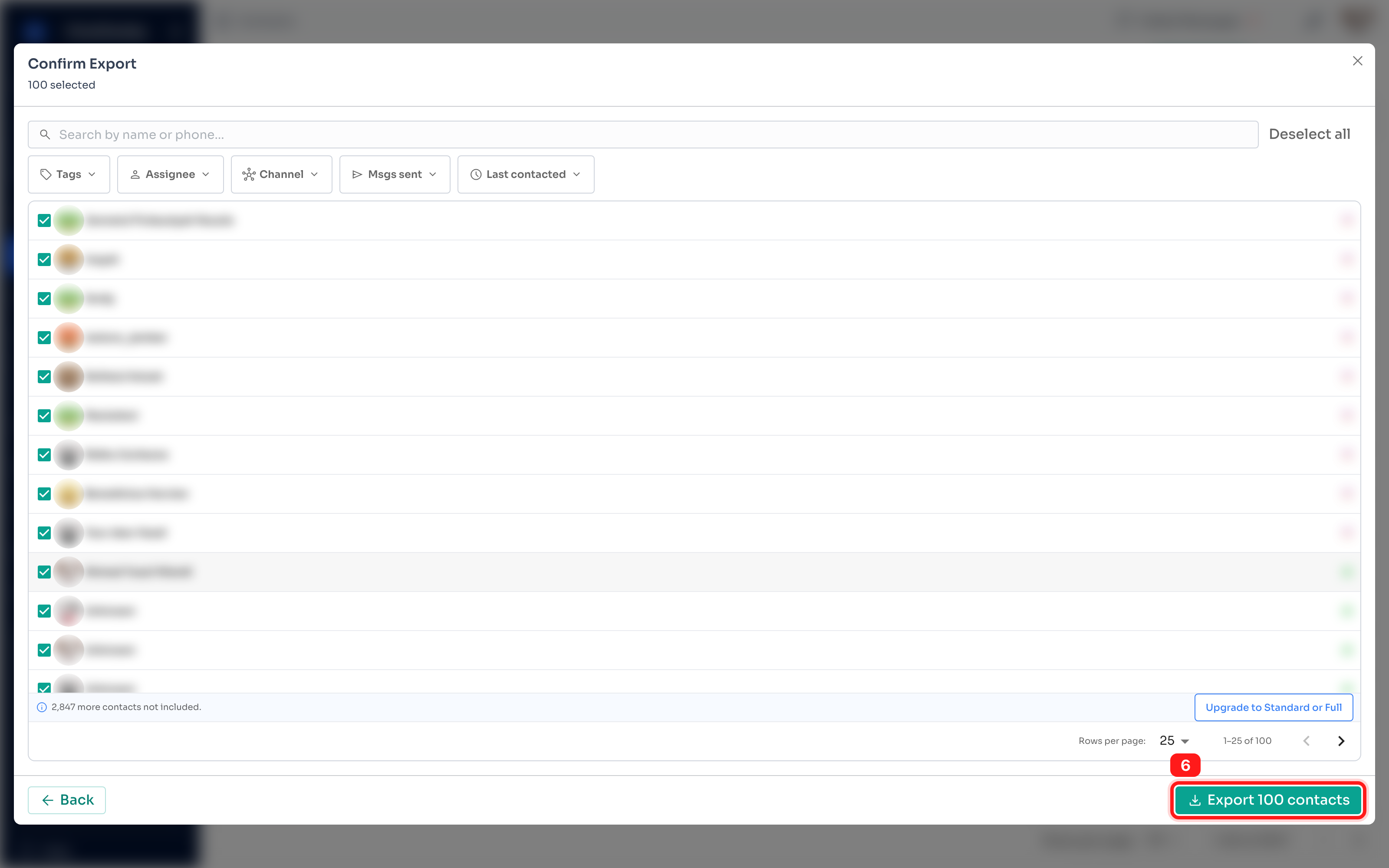
Step 6: Export your contacts
When you're happy with the selection, click Export [N] contacts. On a paid tier you'll first use your plan credits, or buy a one-time top-up if needed.
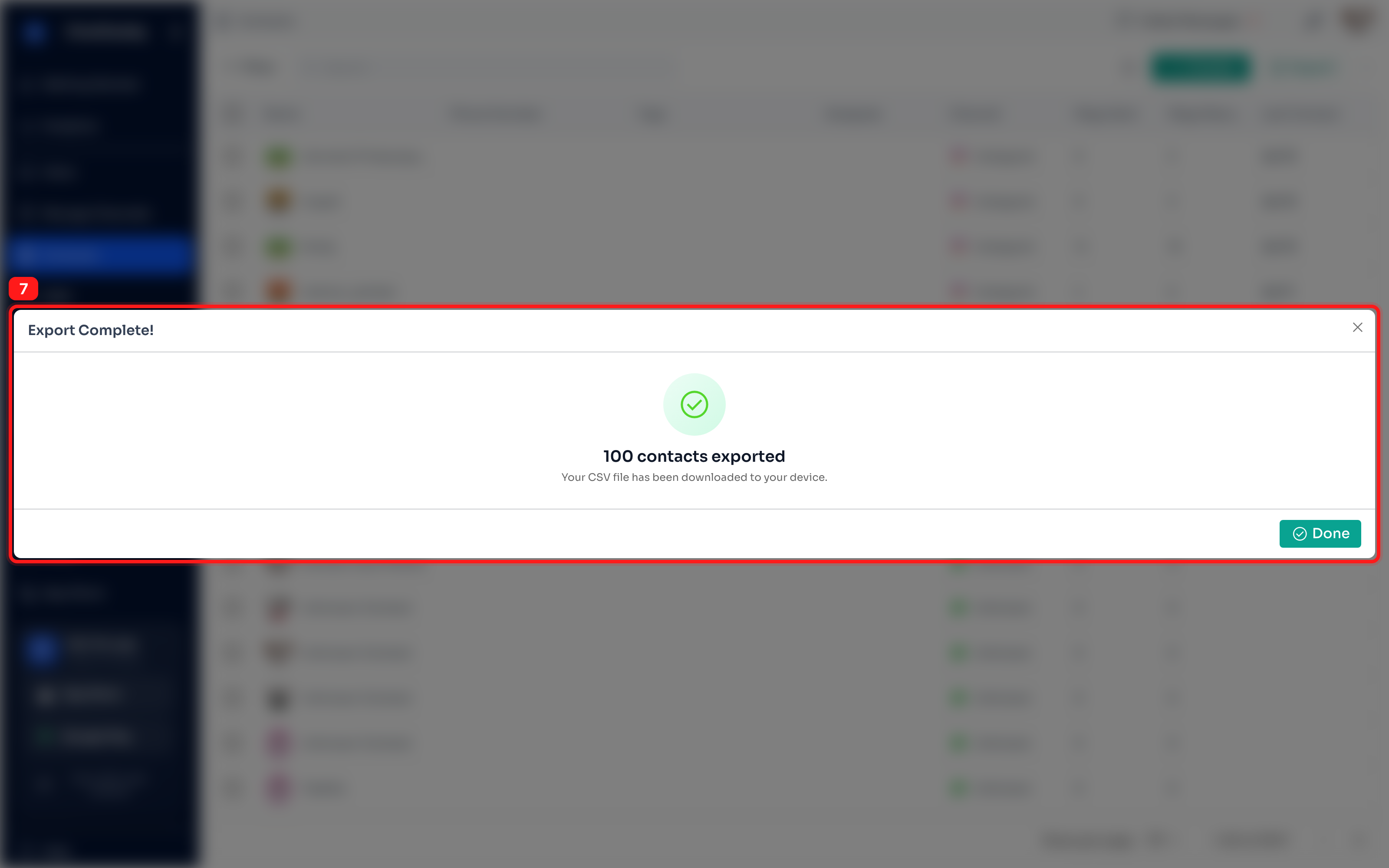
Step 7: Download complete
You'll see an Export Complete! confirmation and the file downloads to your device automatically. Click Done to close the dialog.
Tip — paid tiers & credits: In ChatDaddy, $1 ≈ 1,000 credits. Standard exports use about 9,000 credits; Full Export costs vary by contact list size.