
How to Create Team members?
The Created User System feature enhances the admin's control by allowing them to not only invite new members to their team, but also create users directly…
Intro
The Created User System feature enhances the admin's control by allowing them to not only invite new members to their team, but also create users directly. This feature streamlines user management, providing admins with the ability to manage user credentials, access rights, and active sessions.
How to Create a User
- Go to Settings > Team
- Click on the "Create User" button.
- A popup window appears where you can:
- Enter User's name and choose their role.
- Enter their login phone number and set their password.
Optionally, you can create up to 5 users at once.
- Click on "Create User" in the popup window.
- A confirmation message will appear within the popup displaying the user information entered.
Optionally, you can export the information for the created user in CSV file format for record keeping.
- Click on "Done". Your user is created successfully.
Example Use Case
- As an admin, you can create new users for your account and manage their credentials.
- As an admin, you can log out users from all active sessions and change their passwords to maintain security.
Key Features
Create User
- Allows the admin to create new users directly and set their credentials (username, password).
- User credentials created by the admin can be deleted by the admin.
Note: The same amount of credits will be used to create a user as inviting a new team member.
Log Out User
- Allows the admin to log out a user from all active sessions.
- This feature is useful when changing a user's credentials or access rights.
Access Rights Management
- Admin can manage the access rights of created users.
- Changes in access rights do not affect the number of credits used to create the user.
Channel Management
- Admin can delete/manage created user accounts without the need for user permission.
Note: Admins have personal handling of the account and can manage users and channels without needing user permission.
User already registered in ChatDaddy or invited as Team Member.
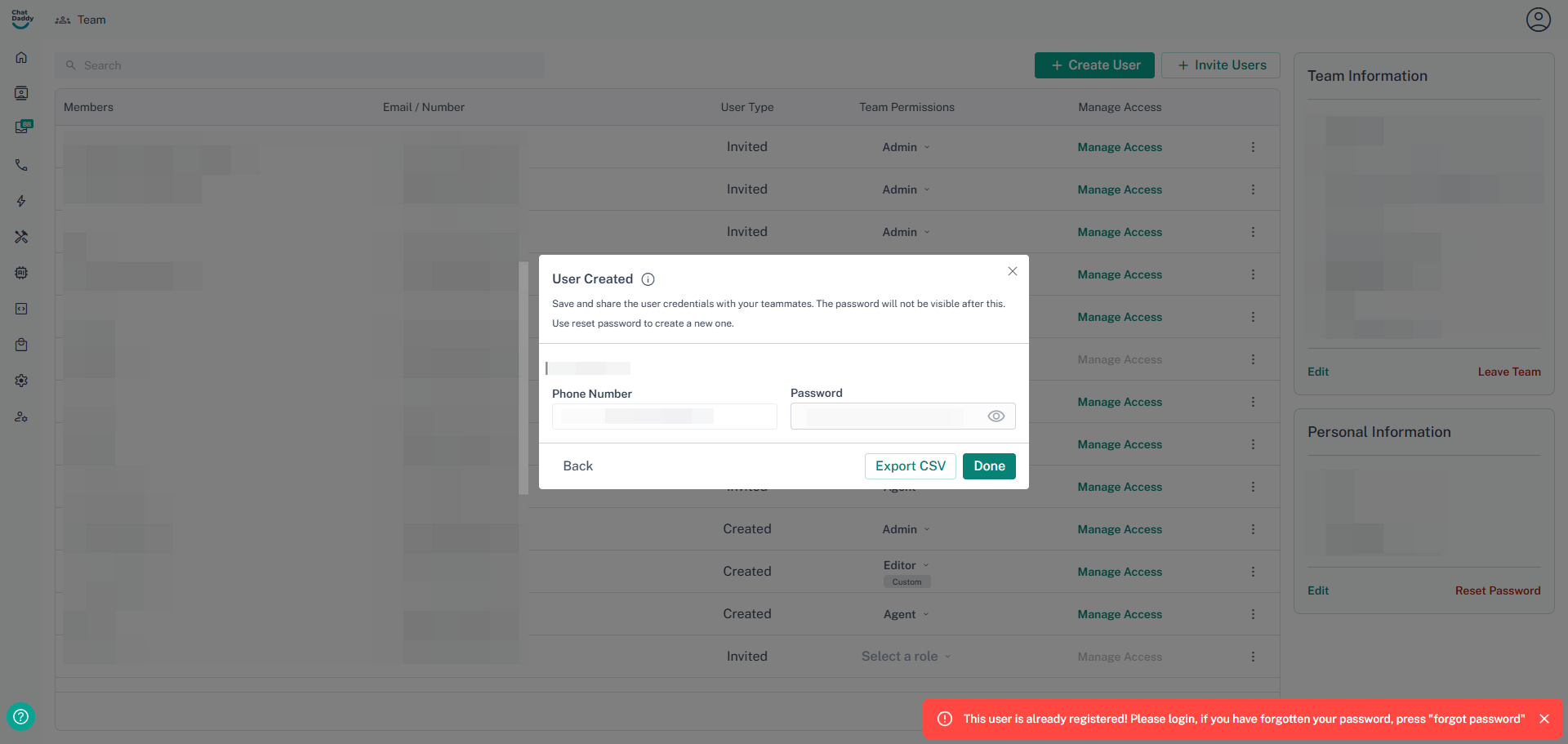
You may encounter an error when creating or inviting existed users to your ChatDaddy account. To resolve this, please follow the steps below:
- Go to Settings > Team Member.
- Ensure the mobile number used is correctly linked to the account.
- Refresh the page to confirm if the newly created or invited mobile number appears on screen.