
How to export contacts from ChatDaddy
Exporting contacts from ChatDaddy simplifies contact list management by allowing users to extract their contacts, along with associated tags, custom fields…
Updated Jul 17, 2026
Exporting contacts lets you extract your contact list — including tags, custom fields and field data — for external use.
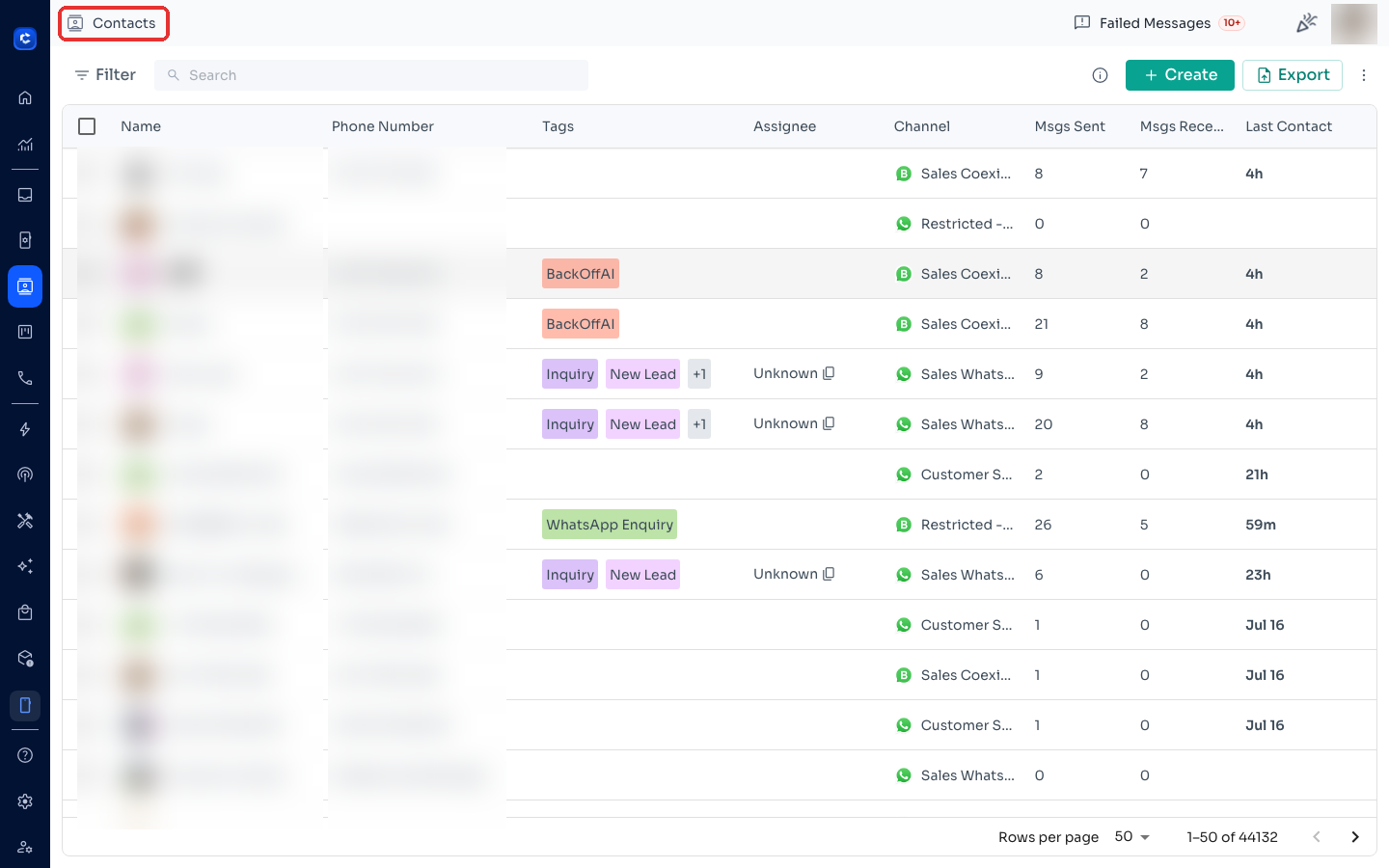
Step 1: Open the Contacts page
Click Contacts in the left sidebar.
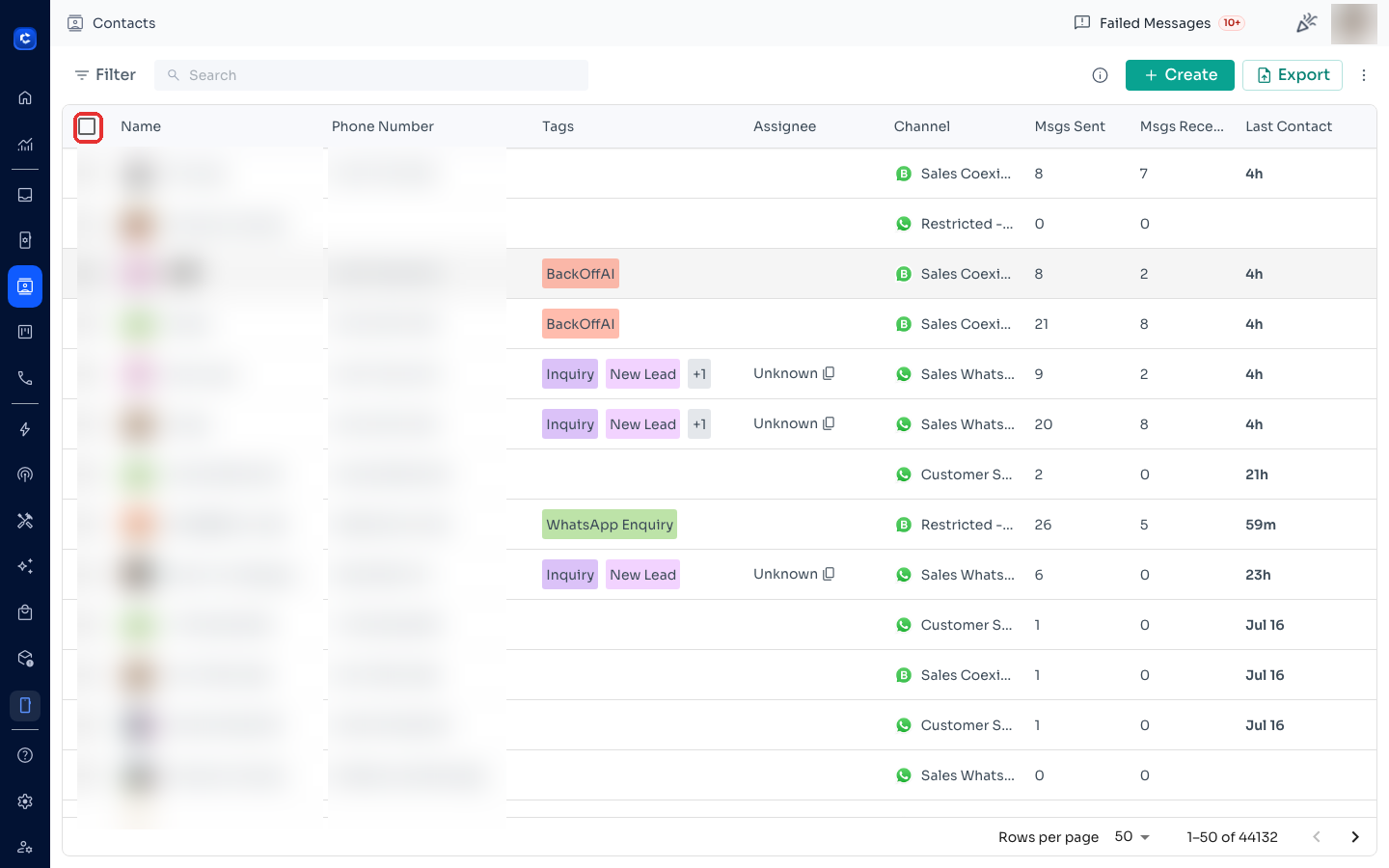
Step 2: Select the contacts to export
- To export everything: tick the checkbox in the table header — it selects all contacts at once.
- To export specific contacts: tick the checkbox next to each contact you want.
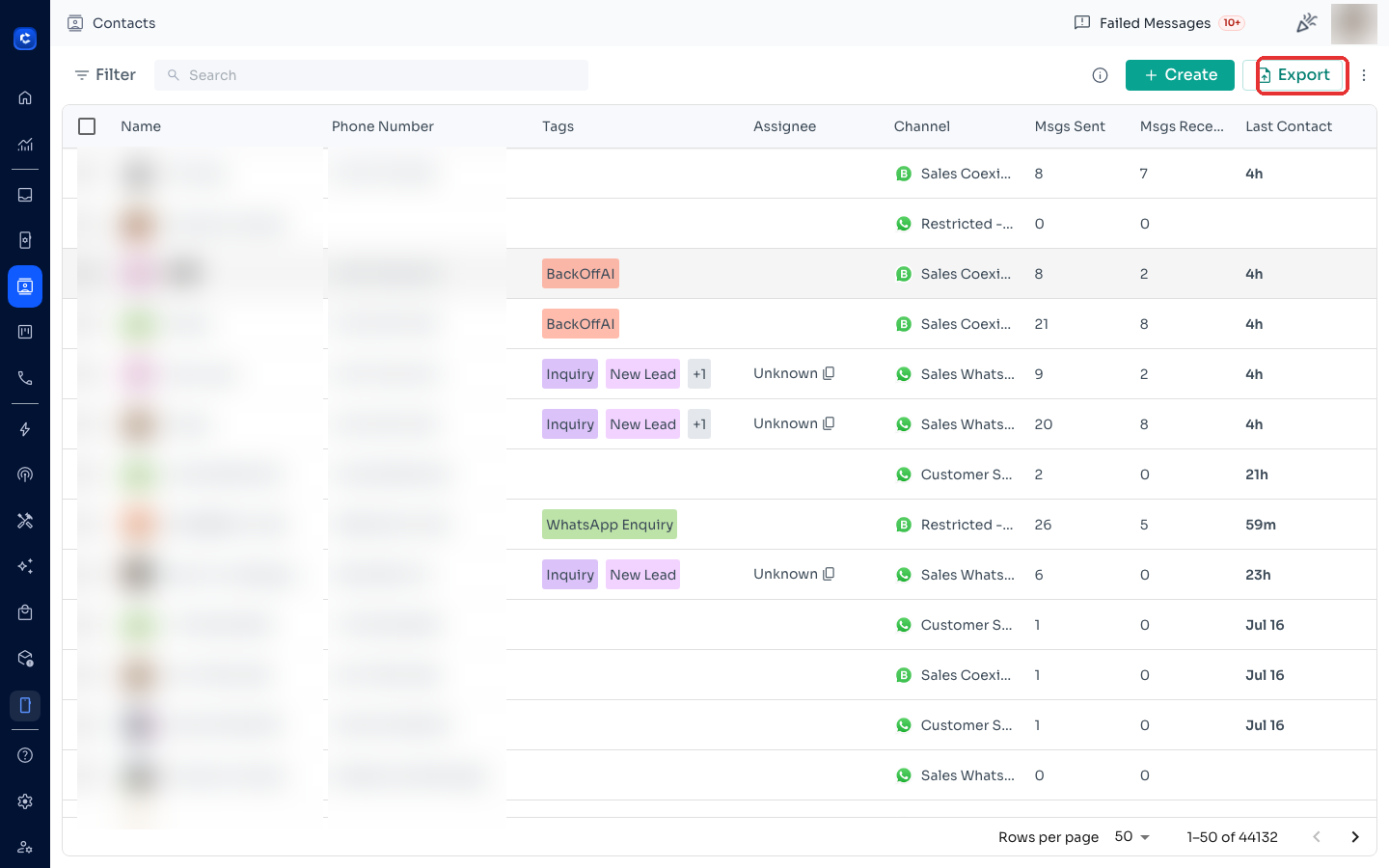
Step 3: Click Export
Click the Export button in the top-right and choose your export limit and file format (CSV, vCard or Excel).
For the full walkthrough of export tiers, formats and filters, see How to Export Your Contacts (CSV / vCard / Excel).
Was this article helpful?