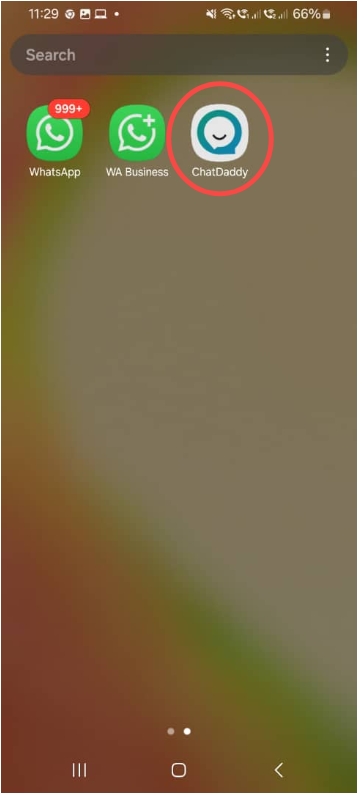
How to Install the WebPhone App?
Note: If you're using an Android phone, please scroll down to the Android part.
How to install the ChatDaddy Mobile App
iOS System >> Safari
Note: If you're using an Android phone, please scroll down to the Android part.

Step 1:
Go to https://app.chatdaddy.tech by using Safari
Step 2:
Click「Share」icon,then you'll see a pop up, scroll up, and click 'Add to Home Screen'
Step 3:
Return to the main screen where you will see ChatDaddy. Click on it to start replying on ChatDaddy mobile app.
Note: Please update your IOS to 17+ or the latest to access ChatDaddy on IOS mobile.
Google Play Store
📲 How to Download ChatDaddy on Android
- Open the Google Play Store Tap the Play Store icon on your phone.
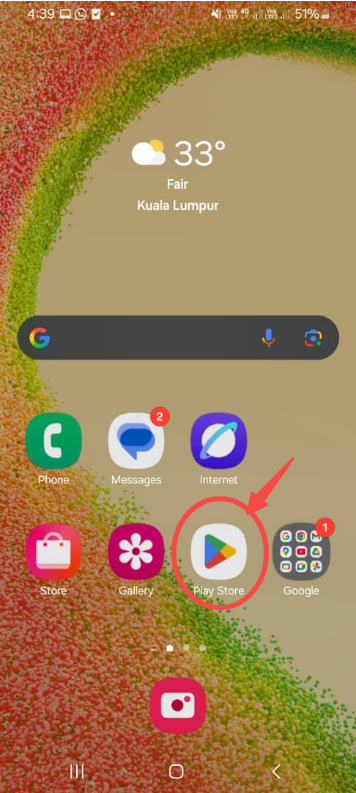
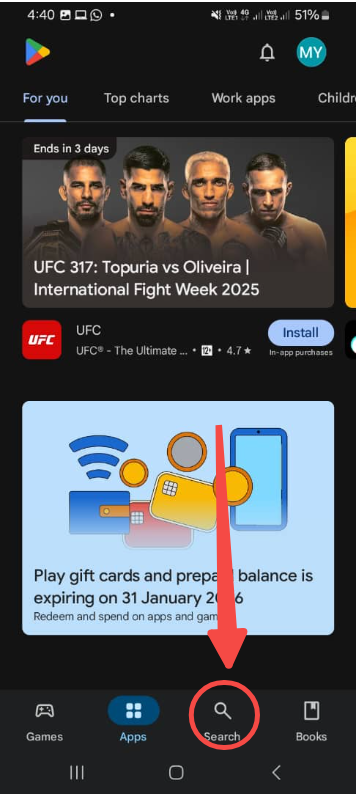
- Search for "ChatDaddy" Use the search bar and type ChatDaddy.
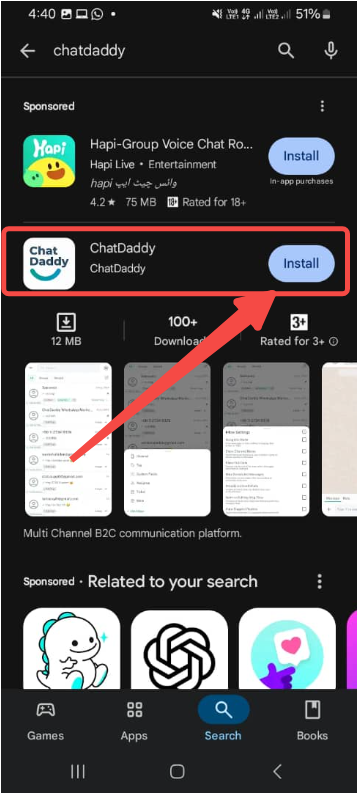
- Select the ChatDaddy App Look for the app with the name ChatDaddy and tap it.
-
Tap “Install” Tap the Install button to download the app.
-
Open the App Once installed, tap Open and sign in or register.
Android System>> Chrome
Note: Please make sure that you've already installed Chrome on your phone
Step 1:
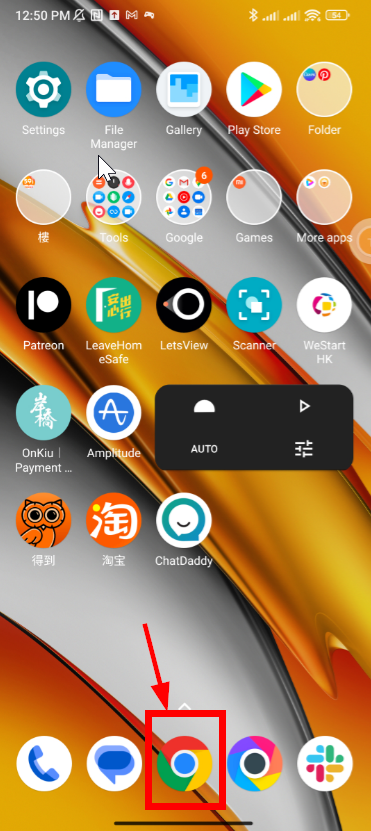
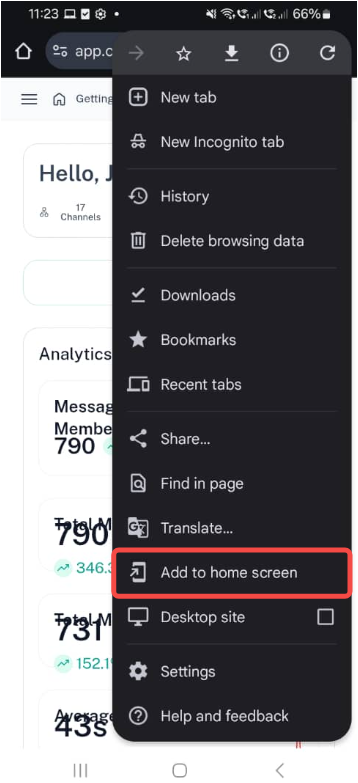
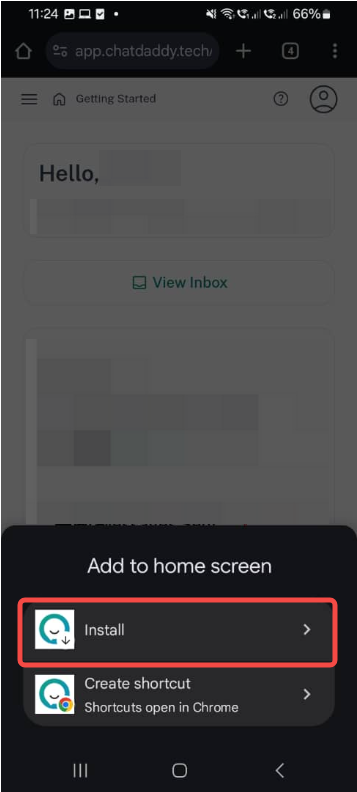
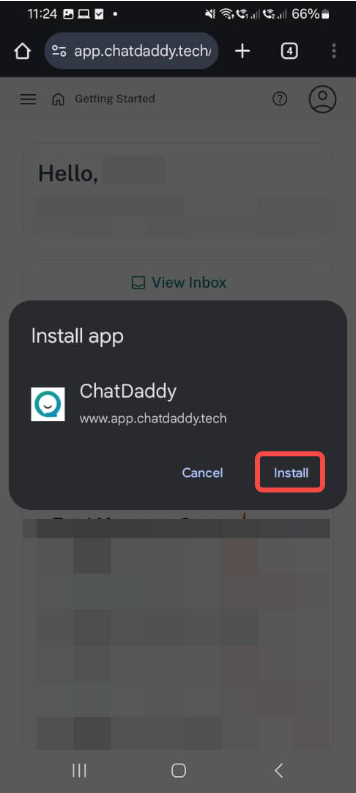
To install the ‘ChatDaddy’ app, open chrome, go to https://app.chatdaddy.tech, and click the three dots on the right upper side. Then, choose ‘Install app’ in the toggle list.
Step 2:
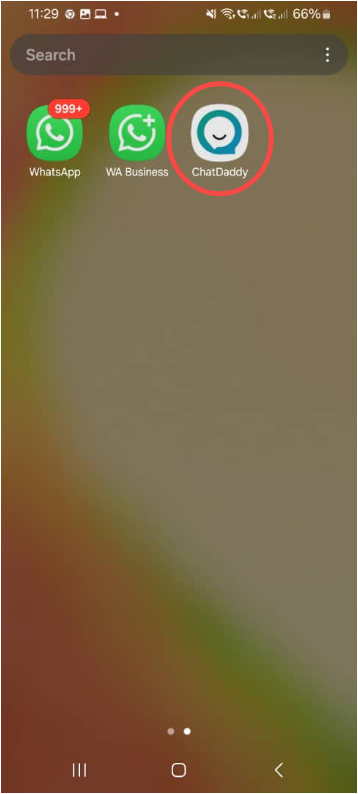
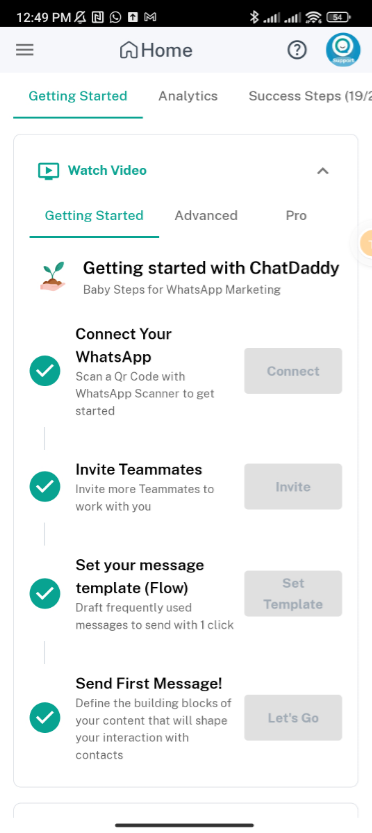
Return to the home page, you can find your installed ‘ChatDaddy’ app. Open the ‘ChatDaddy’ app and the page will show as the image below.
Step 3:
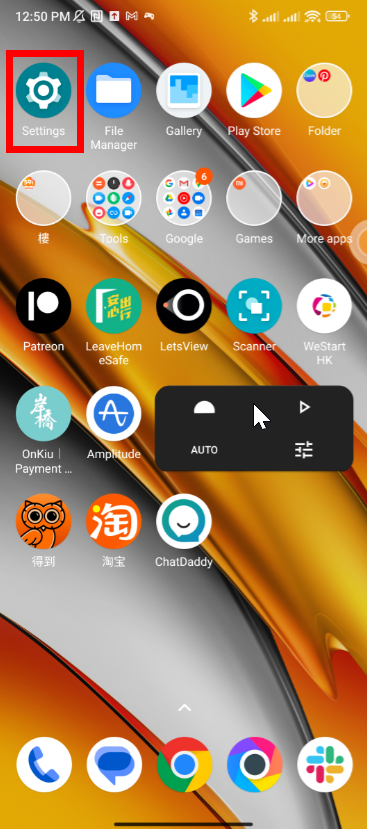
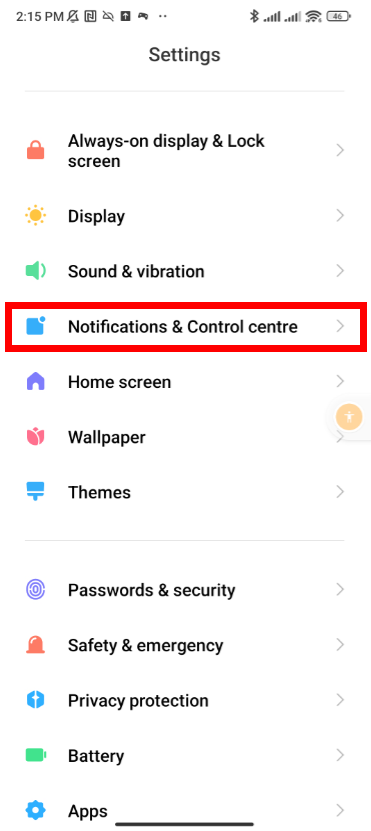
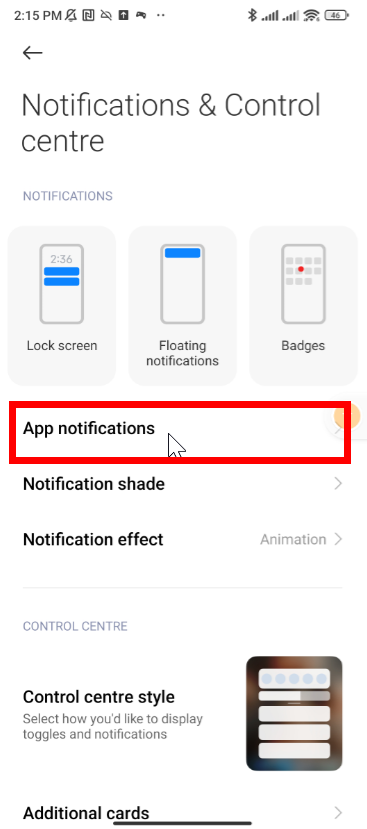
Find and click 'Settings', then click 'Notifications & Control Centre’.
Step 4:
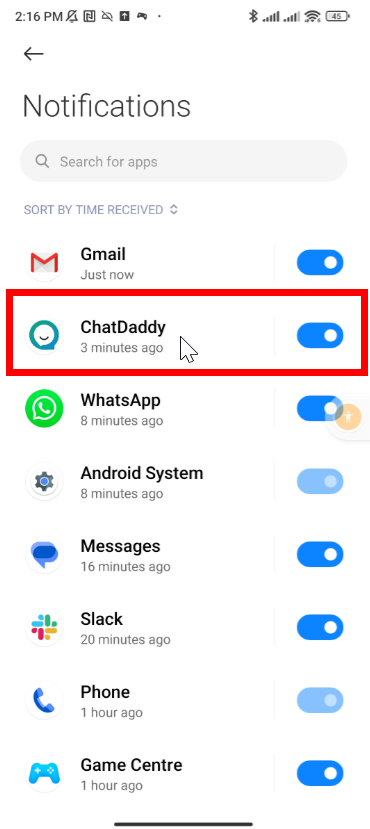
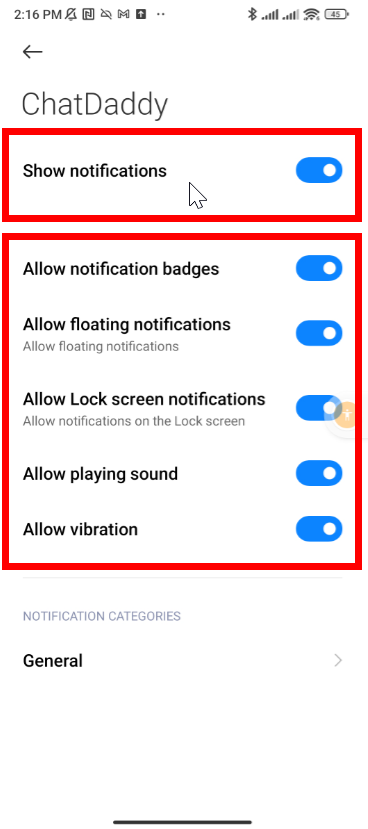
Find and click 'App notifications', then enable the notification for the ‘ChatDaddy’ app. To ensure all the notification settings are enabled, please click on the ‘ChatDaddy’ app’s title to enter the details page. Then, you can adjust and enable all the notification details inside.
Step 5:
If the floating notification still does not show up after enabling all the details notifications, you need to enter the ‘General’ page from the ‘ChatDaddy’ app notification details page. Then, enable ‘Show notifications’ and ‘Allow floating notifications’ again.
Congratulations!🥳