
How to Use Daily AI Analytics (AI-Summarized Daily Reports)
Set up and read your Daily AI Analytics report in ChatDaddy — automatic daily summaries of chat and agent performance, with metric comparisons, AI-written insights, and email delivery.
✨ Daily AI Analytics reads your team's numbers every day and writes a plain-English summary of the last 24 hours compared with the day before — so you can see what changed without opening a dashboard.
Before you start
✅ • You'll find it on the Getting Started page (desktop view). • It unlocks once your workspace has at least 150,000 credits. • It's turned on automatically for workspaces with 500,000+ credits — you can switch it off any time. • Each daily report uses 1,000 credits on the day it is generated.
Step 1: Say hello to the welcome popup
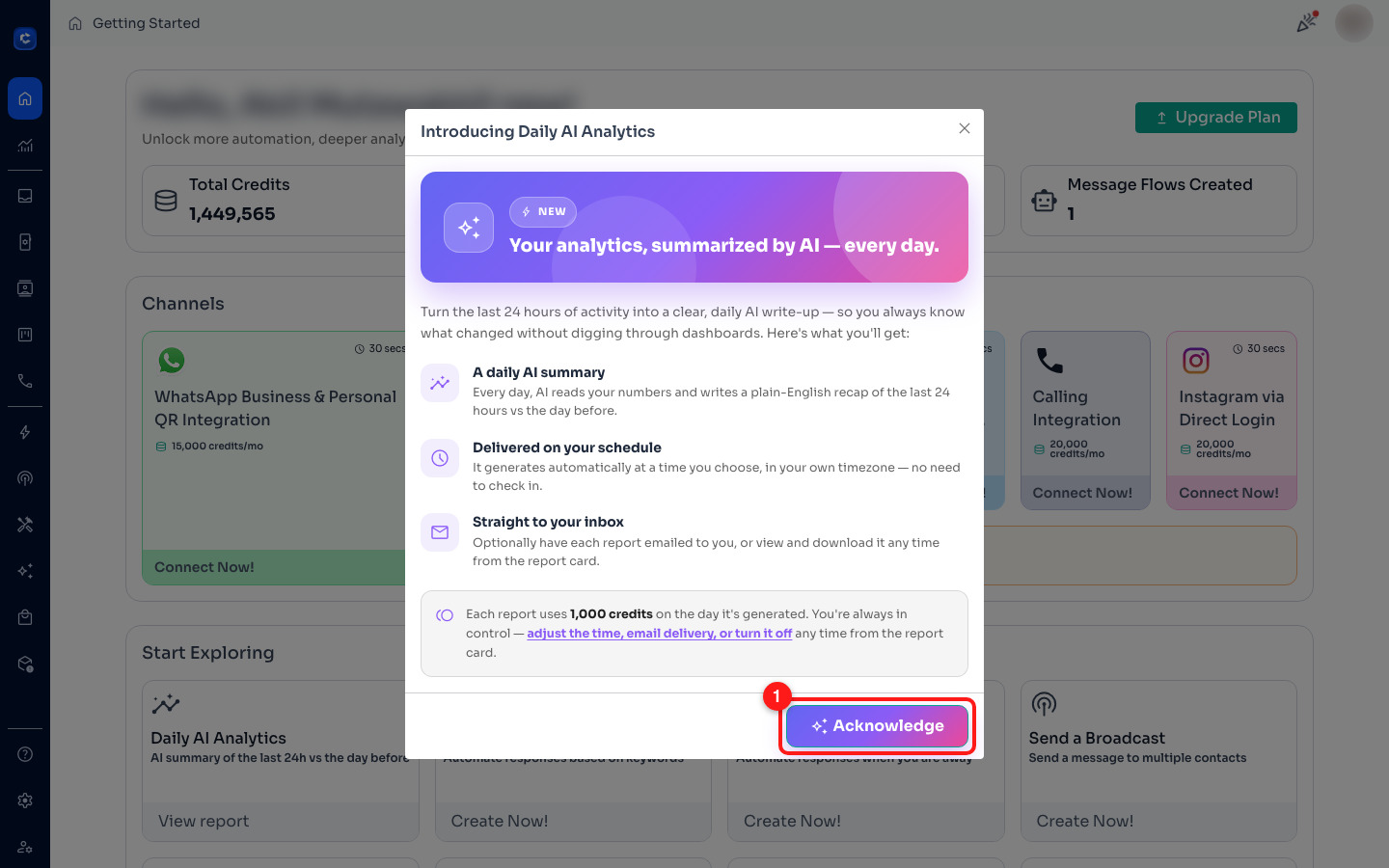
The first time Daily AI Analytics becomes available to your workspace, a welcome popup introduces it — it explains that you'll get a daily AI summary, delivered on a schedule you choose, and optionally emailed to you. Read it and click Acknowledge to turn on your daily report and get started.
ℹ️ This popup only appears once. If you close it or miss it, you can still turn the report on and manage every setting from the report card in the steps below.
Step 2: Open the Daily AI Analytics card
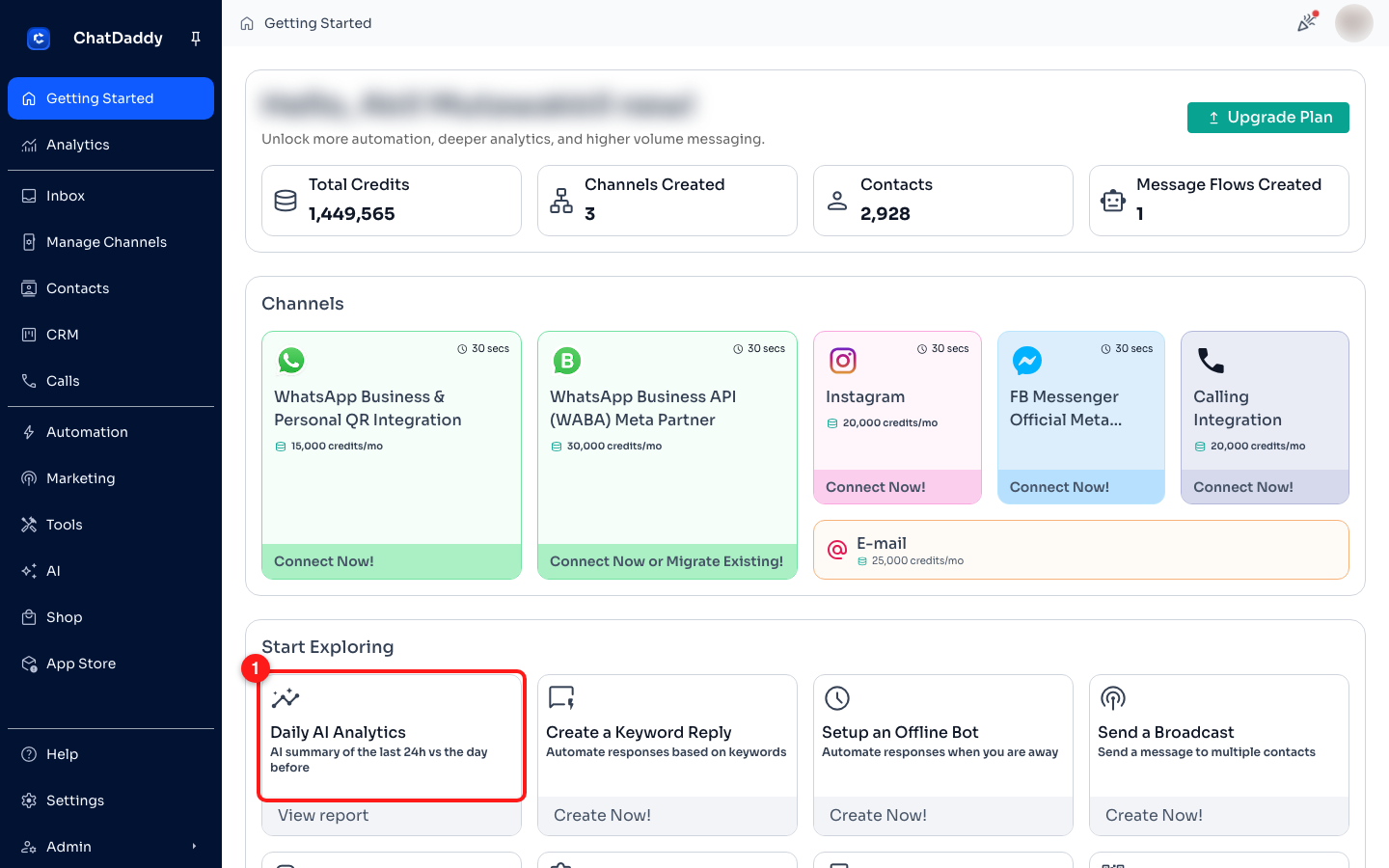
From the left menu, open Getting Started and scroll down to the Start Exploring section. Find the Daily AI Analytics card and click View report.
Step 3: Check your report status and daily cost
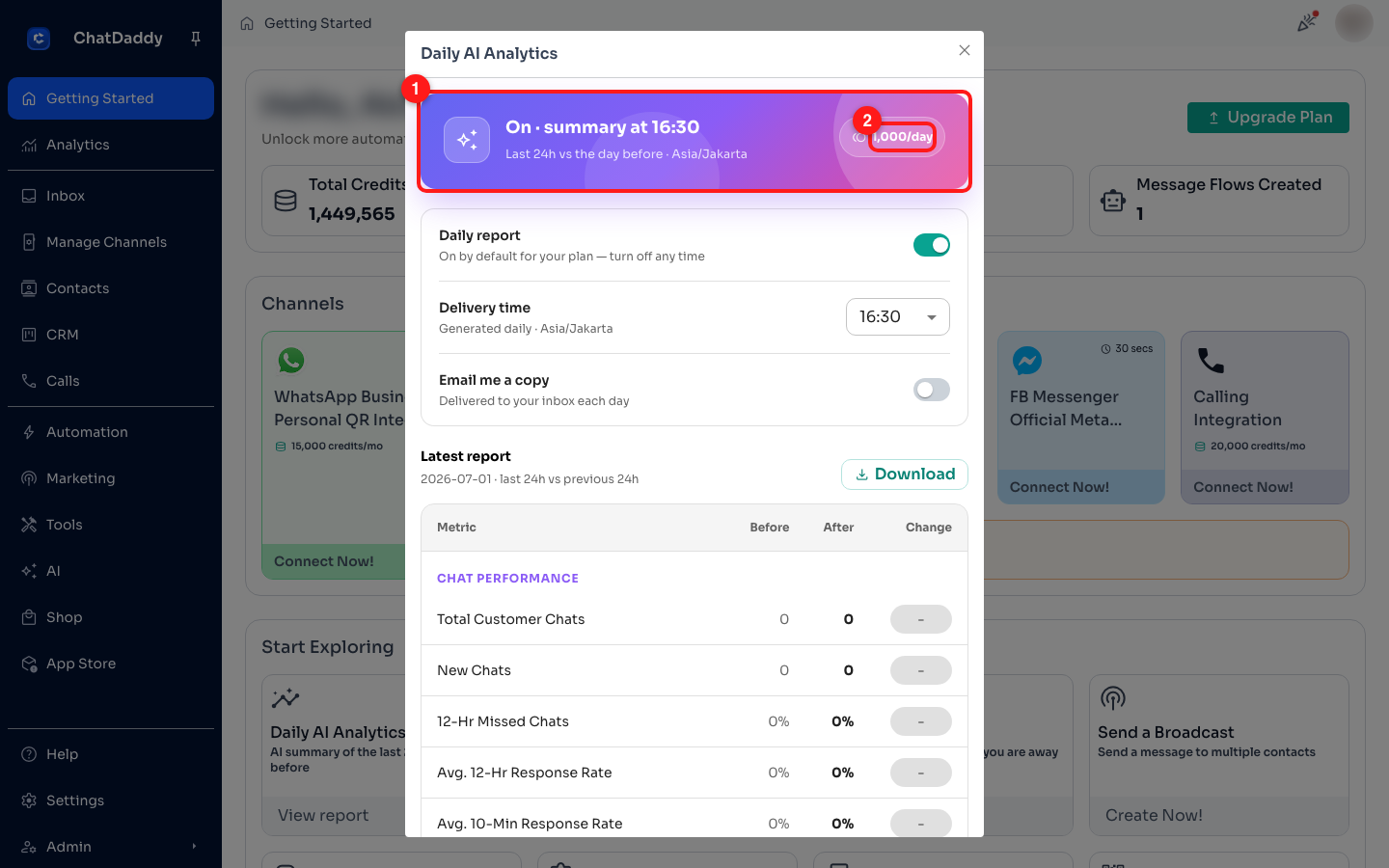
The banner at the top of the panel shows the current status: “On · summary at [time]” with your timezone, or “Paused” when it's off. The pill on the right shows the credit cost — 1,000/day.
Step 4: Turn the daily report on or off
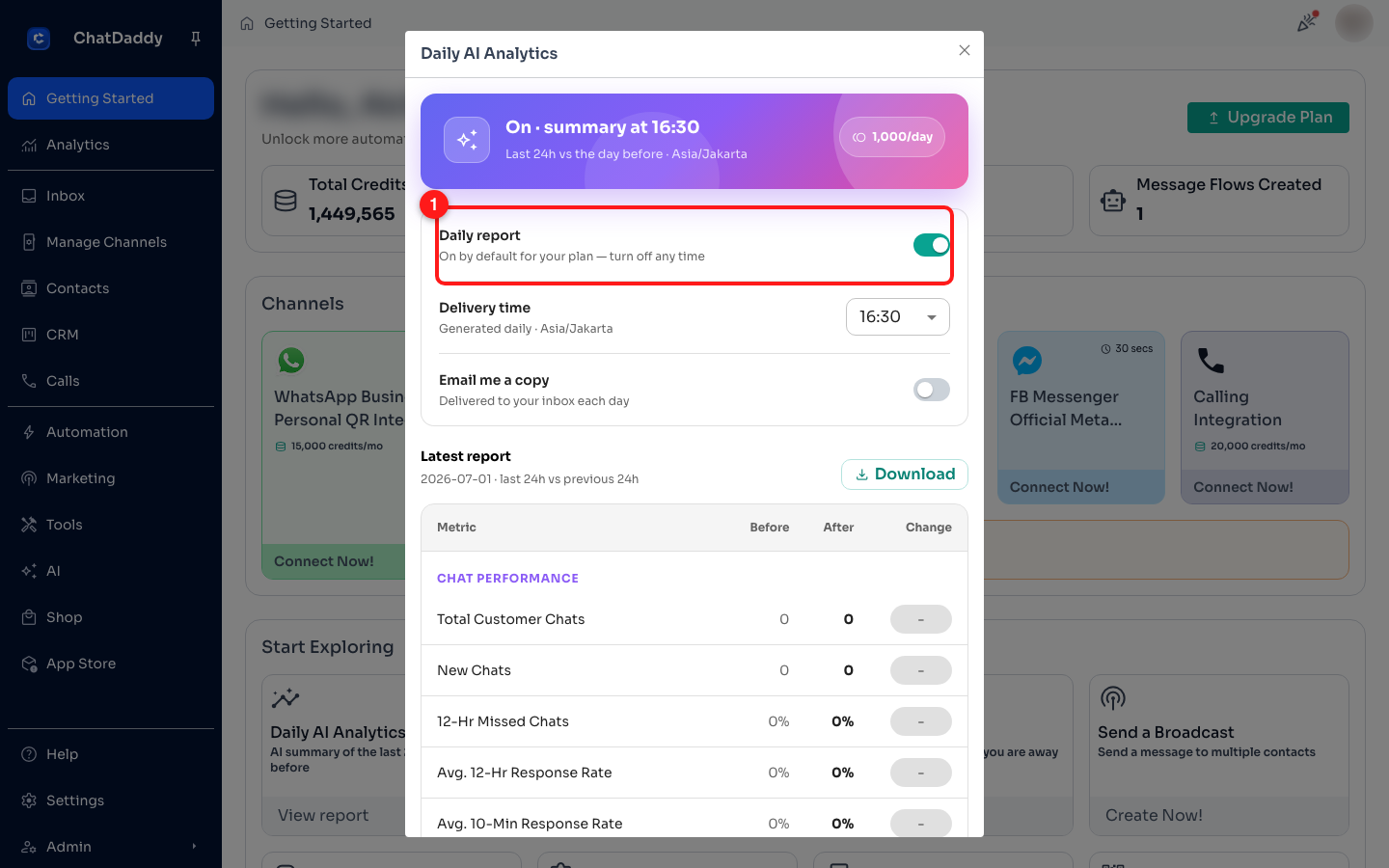
Use the Daily report switch to enable or disable the daily summary. If your plan has it on by default, you'll see “On by default for your plan — turn off any time.”
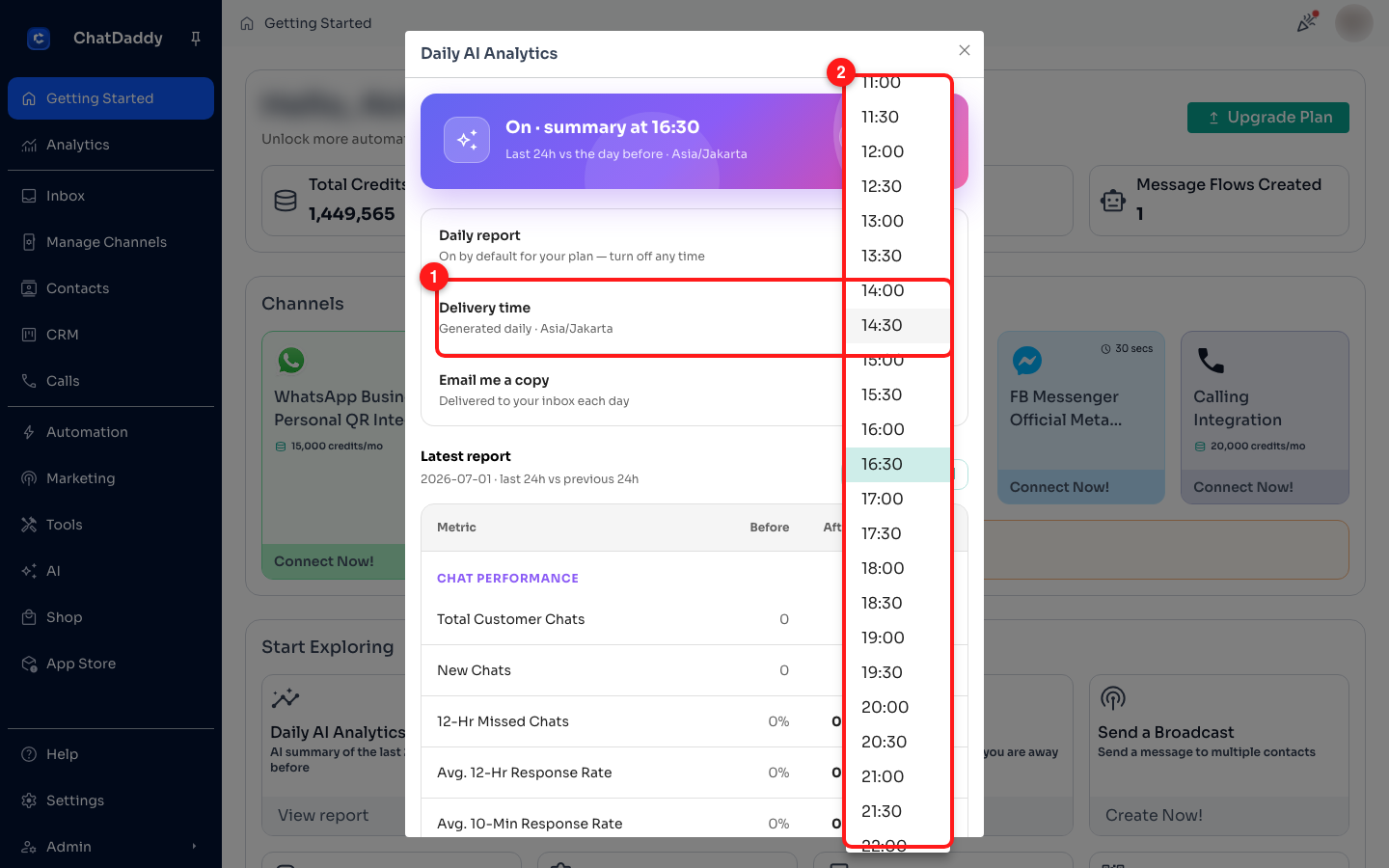
Step 5: Choose your delivery time
Pick when each day's report is generated from the Delivery time dropdown. You can choose any time in 30-minute steps, shown in your own timezone.
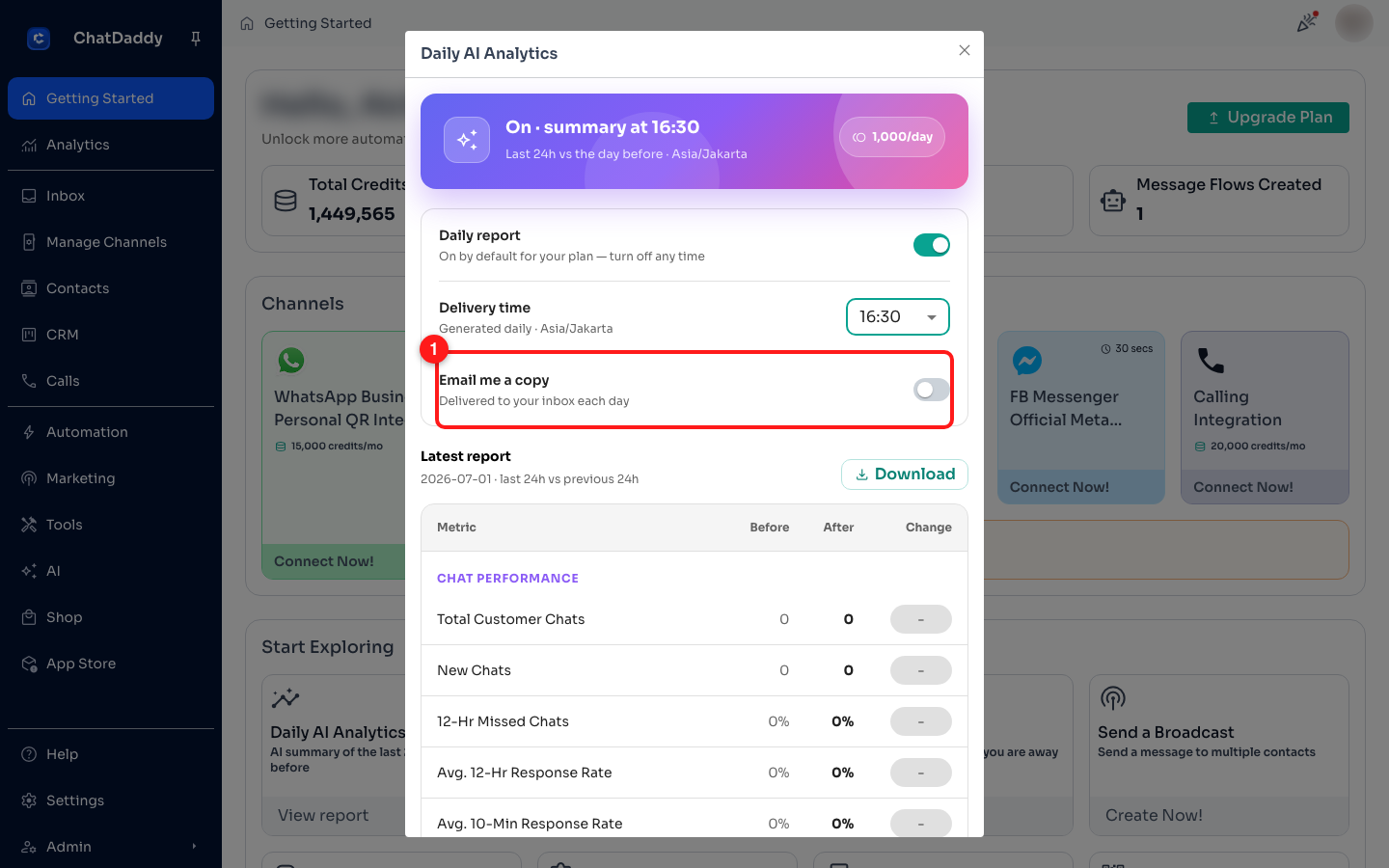
Step 6: Get a copy by email (optional)
Turn on Email me a copy to have each day's report delivered straight to your inbox.
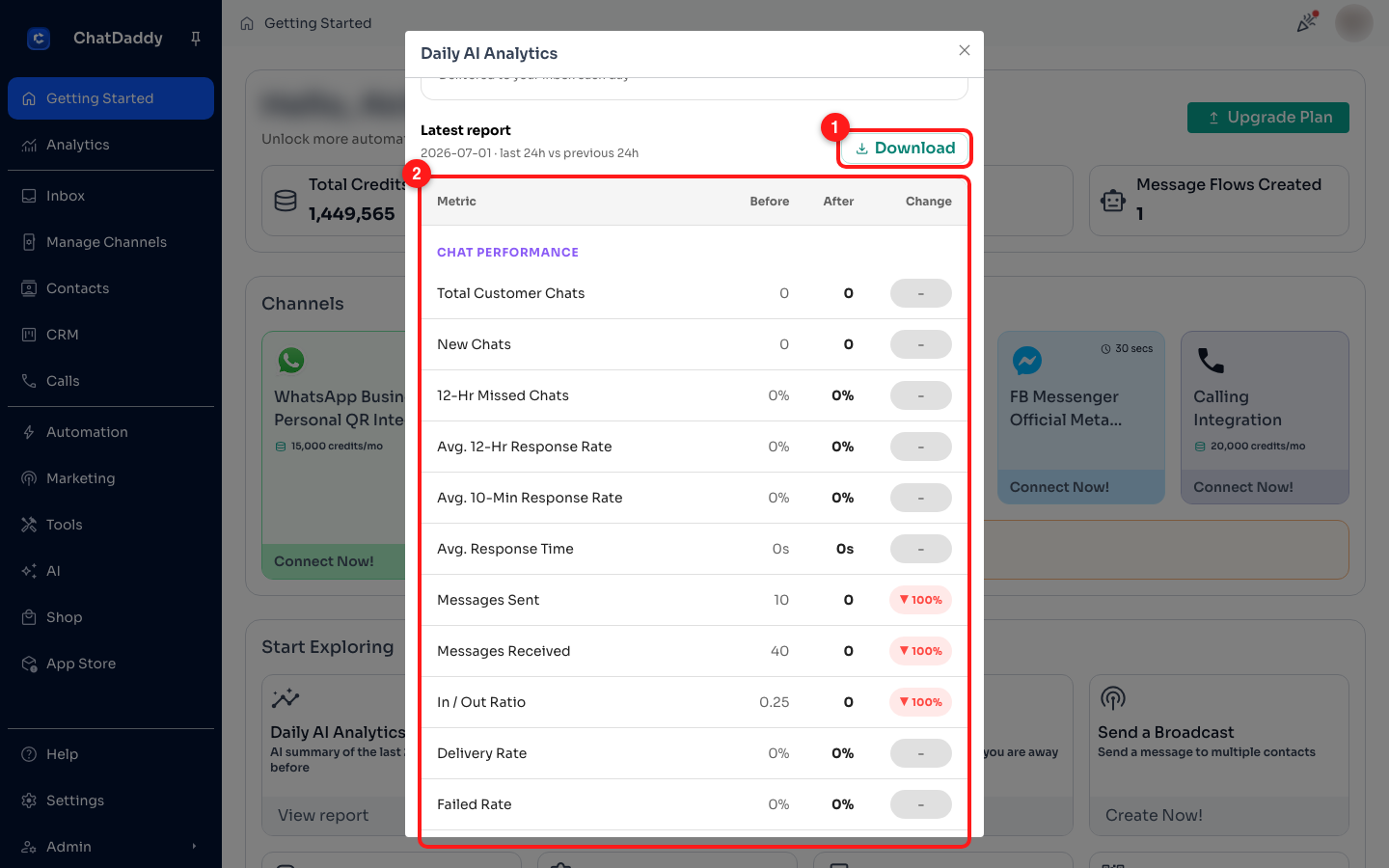
Step 7: Read and download your latest report
The Latest report section shows a Metric / Before / After / Change table comparing the last 24 hours with the previous 24 hours. Coloured badges show whether each number went up or down. Click Download to save the report as a self-contained file you can share.
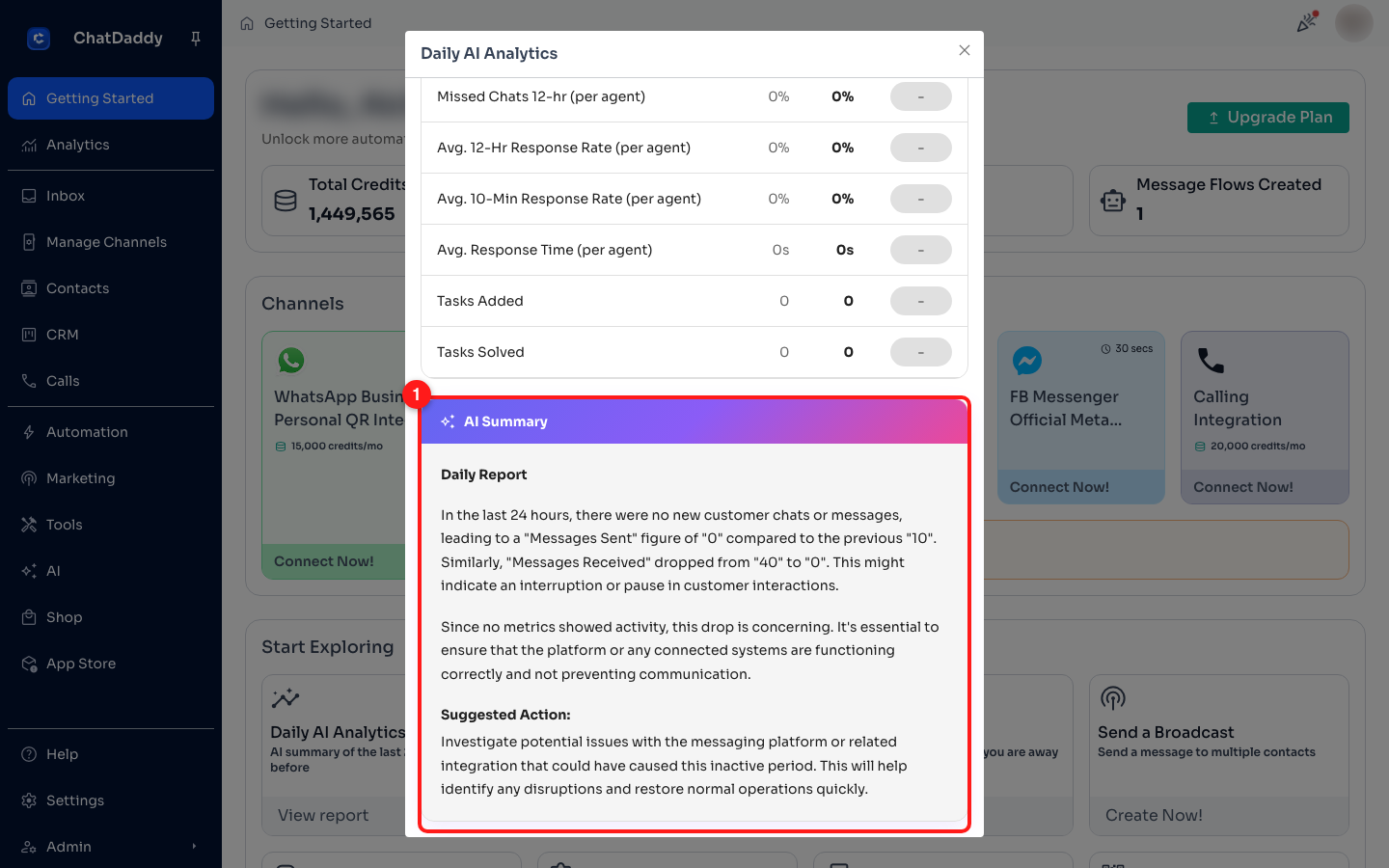
Step 8: Review the AI Summary
At the bottom of the panel, the AI Summary reads your numbers and writes a short recap in plain English — usually with a suggested action to help you decide what to do next.
What's in the report
Metrics are grouped into two sections.
Chat Performance
- **Total Customer Chats **— all customer chats in the period
- **New Chats **— first-time interactions
- **12-Hr Missed Chats **— chats with no reply within 12 hours
- **Avg. 12-Hr Response Rate **— chats responded to within 12 hours
- **Avg. 10-Min Response Rate **— chats responded to within 10 minutes
- **Avg. Response Time **— time to the first agent reply
- **Messages Sent / Received **— outbound and inbound message volume
- **In / Out Ratio **— sent vs. received message ratio
- **Delivery Rate / Failed Rate **— messages successfully delivered vs. failed
Agent Performance
- **Chats Handled **— chat sessions managed by agents
- **Handle Time **— average total chat duration per agent
- **CSAT **— post-chat satisfaction score
- **Missed Chats & response rates (per agent) **— agent-level 12-hr missed chats, 12-hr / 10-min response rates and response time
- **Tasks Added / Solved **— tasks created from chats and resolved by the team
Good to know
- Every report compares the last 24 hours with the previous 24 hours.
- Times and dates use your browser's timezone.
- If your credit balance is too low when a report is due, that day's report is skipped and you'll see “Last report skipped — top up to resume.” Add credits to continue.
- Downloaded reports are self-contained files you can open in any browser or share with your team.