
Academy Module 2 — Channels & WhatsApp API: Connect, Migrate and Stay Unbanned
The written walkthrough of Academy Module 2. Choose between the QR integration and the WhatsApp Business API, connect a number through Coexistence or migrate an existing one, reconnect a channel that has dropped, and read the messaging limit and quality rating that decide whether Meta restricts your number.
Also searched as: Academy Module 2 — Channels & WhatsApp API: Connect, Migrate and Stay Unbanned, What this module covers, Read the Channels page, Open Add Channel and see your options, Understand what the QR route gives up, Understand what the API route changes, Pick one of the three ways onto the API, Coexistence: the rules before you commit, The eligibility check for a new API account, Convert a number that already has WhatsApp on it, Reconnect, reload or remove a channel, Read your messaging limit and quality rating, The nine video lessons in this module, Common questions, Academy
🎓 Part 2 of 11 — ChatDaddy Academy. This is the written version of the Channels & WhatsApp API module: nine video lessons, about 35 minutes of watching, turned into steps you can follow on screen. You can read this on its own, or keep it open beside the videos on the Academy page.
Module 1 got one channel connected. This module is about the decision behind that channel and about keeping it alive. Which of the two WhatsApp routes you pick changes what you can send, what it costs, and how likely Meta is to restrict your number — and it is much easier to choose correctly now than to move a number later.
What this module covers
- The Channels page — reading a channel row and knowing when one needs attention
- The two WhatsApp routes: QR integration versus the Business API, side by side
- The three ways onto the API — Coexistence, a new account, an existing account
- Coexistence: keeping the WhatsApp Business app on your phone while ChatDaddy runs
- Migrating a number that already has a WhatsApp account on it
- Reconnecting, reloading and deleting a channel — and what each one costs you
- Messaging limits and account quality: how Meta decides to restrict a number
⏱️ Time needed: about 25 minutes to read. Connecting through the API adds however long Meta takes to verify — usually minutes, sometimes a day. You need: a ChatDaddy workspace, and for the API routes a Facebook account with a Meta Business account you can log into.
Step-by-step
Step 1 — Read the Channels page
Click the phone icon in the left rail to open Manage Channels. Every number, page and mailbox you have connected is a row here, and the columns are ordered by how often you need them. This is the page you come back to whenever messages stop arriving.
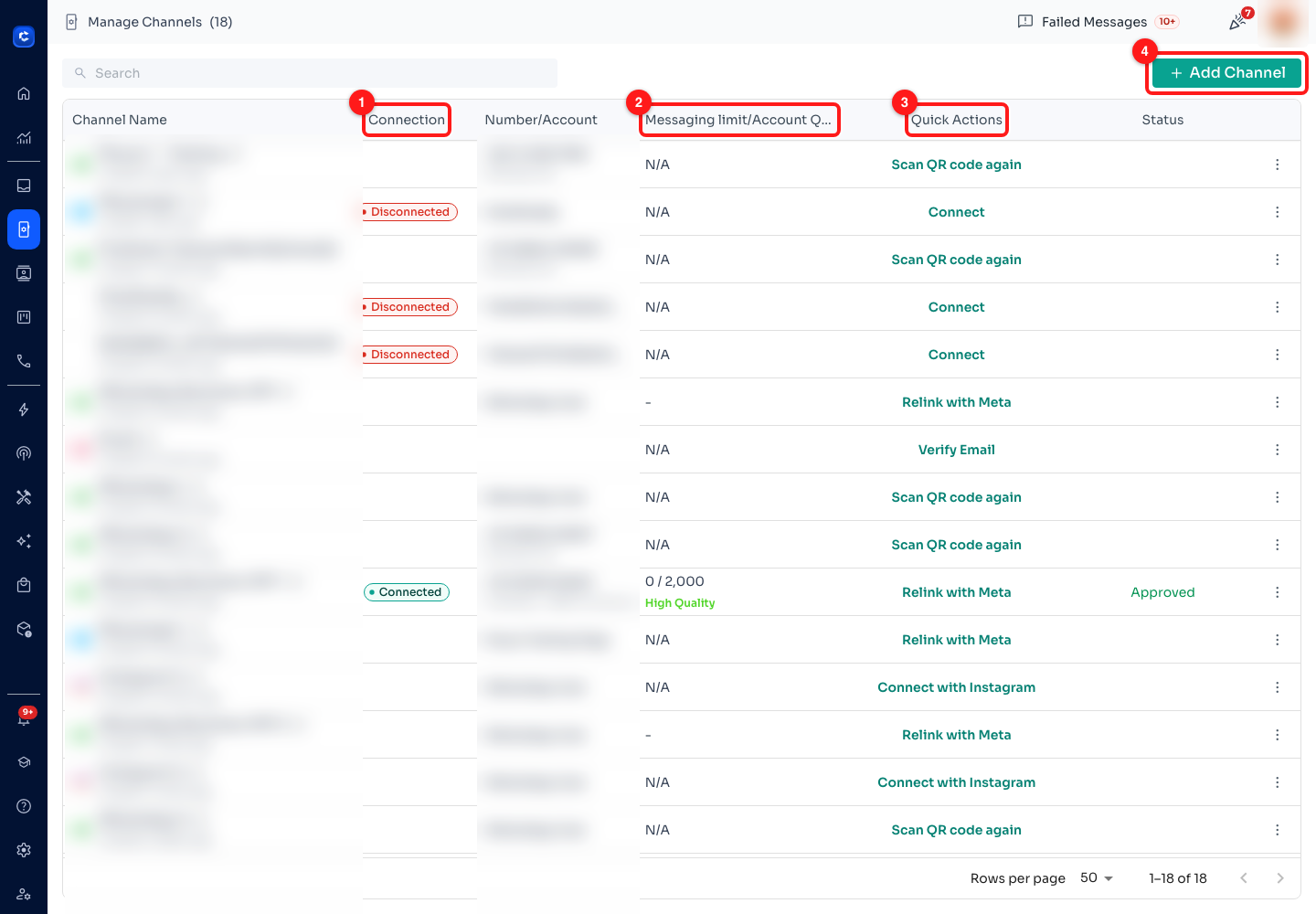
Step 1 — (1) Connection, (2) Messaging limit / Account Quality, (3) Quick Actions, (4) Add Channel. Channel names and numbers are blurred throughout this article; on your own screen you see them in full.
- (1) Connection — a channel is Connected, Connecting or Disconnected. A red Disconnected chip means that number is not receiving anything right now.
- (2) Messaging limit / Account Quality — only WhatsApp Business API channels have these. The figure is how many unique customers you may start conversations with per day, and the coloured text under it is Meta's quality rating. QR channels show N/A.
- (3) Quick Actions — the app works out what this channel needs and offers exactly that: Connect, Re-connect, Scan QR code again, Relink with Meta or Verify Email. If a row offers nothing, that channel is healthy and synced.
- (4) Add Channel — the dialog covered in the next step.
🔎 The Status column is separate from Connection. It reports Meta's review of the number — Approved means Meta has accepted it. A channel can be connected to ChatDaddy and still be waiting on Meta.
Step 2 — Open Add Channel and see your options
Click + Add Channel. WhatsApp appears twice here, and that is the whole point of this module — they are two genuinely different products that happen to use the same messaging app.
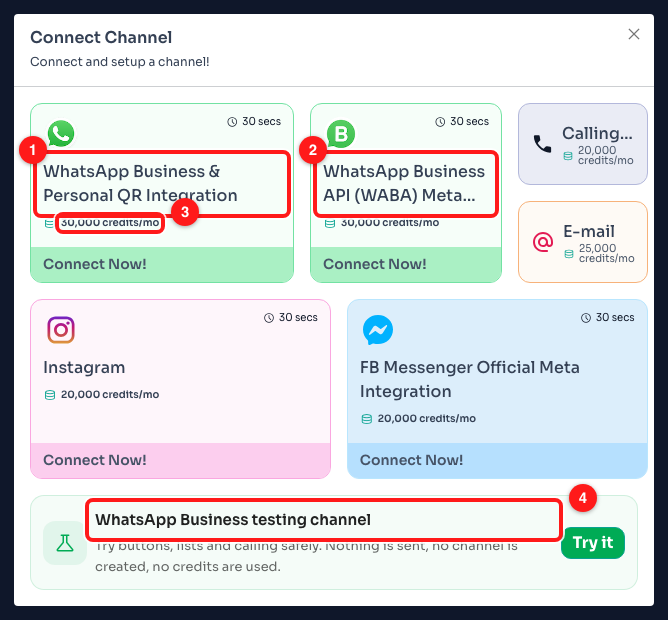
Step 2 — (1) the QR integration, (2) the official Business API, (3) the monthly credit cost shown on each card, (4) the free testing channel.
- (1) WhatsApp Business & Personal QR Integration — scan a code with the phone holding the number, the same way WhatsApp Web works. About 30 seconds to set up.
- (2) WhatsApp Business API (WABA) Meta Partner — the official API, connected through ChatDaddy as a Meta partner. No phone needs to stay online.
- (3) Credits per month — every card shows what that channel costs your workspace each month in credits. The figure differs by channel type and by the plan you are on, so read the card rather than assuming.
- (4) WhatsApp Business testing channel — a sandbox for trying buttons, lists and calling. Nothing is sent, no channel is created and no credits are used. Use it before you commit to either route.
Instagram, FB Messenger, Calling and E-mail live in this same dialog. They are covered in Module 9 — this module stays on WhatsApp.
Step 3 — Understand what the QR route gives up
Click Connect Now! on the QR card. Before it will connect anything, ChatDaddy shows you the trade-offs and makes you tick a box. Read this screen rather than clicking through it — every line is a thing people later raise support tickets about.
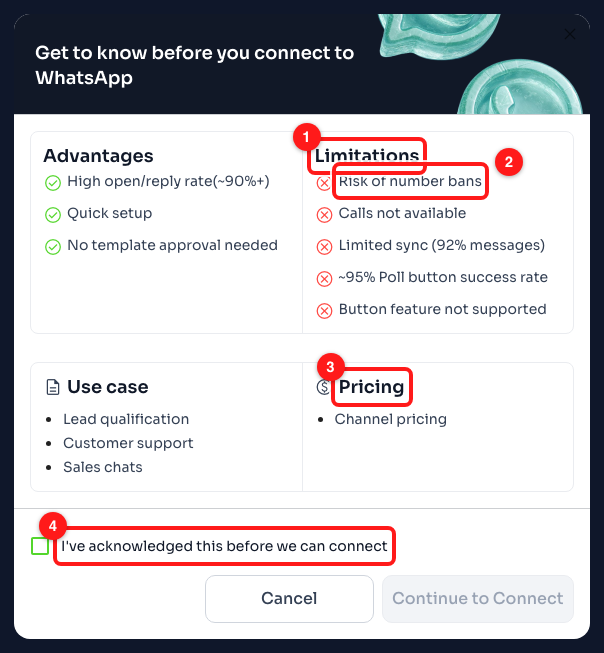
Step 3 — (1) the Limitations column, (2) risk of number bans, (3) Pricing is the channel fee only, (4) the acknowledgement tickbox.
- Advantages — high open and reply rates (~90%+), quick setup, and no template approval: you can send whatever you like without asking Meta first.
- (1) and (2) Limitations — risk of number bans is listed first for a reason. Also: calls are not available, message sync is partial (92% of messages), poll buttons succeed about 95% of the time, and interactive buttons are not supported at all.
- (3) Pricing — channel pricing only. There is no Meta message fee on this route, which is the one real financial advantage it has.
- Use case — ChatDaddy suggests it for lead qualification, customer support and sales chats. Note what is missing from that list: marketing broadcasts.
- (4) You cannot continue until you tick I've acknowledged this before we can connect. Clicking Continue to Connect here creates a paid channel, so use Cancel if you are only looking.
⚠️ The QR integration is an unofficial connection. Meta does not sanction it, which is why risk of number bans appears in its own limitations list. It is fine for trying ChatDaddy out or for a low-volume support line. Do not build a broadcast programme on it.
Step 4 — Understand what the API route changes
Go back and click Connect Now! on the WhatsApp Business API (WABA) card instead. The same screen appears with a completely different set of entries.
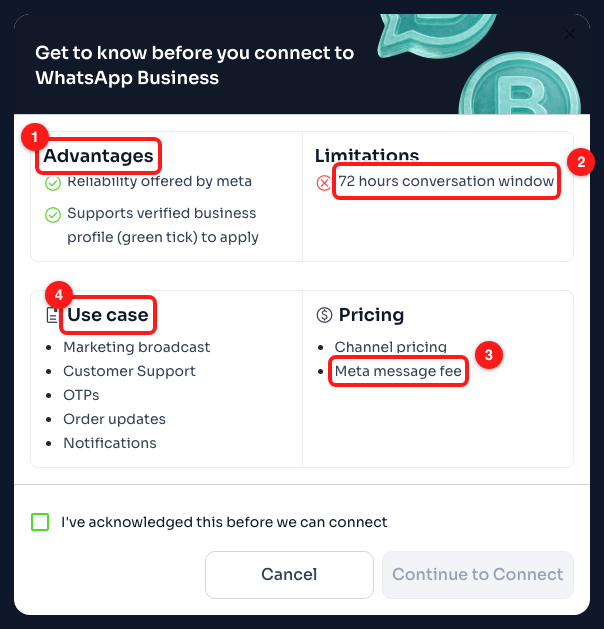
Step 4 — (1) Advantages, (2) the single real limitation, (3) the Meta message fee that the QR route does not have, (4) what the API is meant for.
- (1) Advantages — reliability offered by Meta, and eligibility to apply for a verified business profile (the green tick).
- (2) The 72-hour conversation window — the one limitation listed, and the concept you most need to understand. Outside that window you cannot send free-form text; you must send a message template that Meta has approved. Templates are Module 4.
- (3) Pricing has two lines here — channel pricing and a Meta message fee. On the API you pay ChatDaddy for the channel and Meta for the messages. Budget for both.
- (4) Use case — marketing broadcast, customer support, OTPs, order updates and notifications. This is the route the rest of this course assumes.
Tick the acknowledgement and click Continue to Connect. On this card that does not create anything — it opens the setup wizard covered next.
Step 5 — Pick one of the three ways onto the API
The wizard opens on a choice of three routes. They are not variations on a theme — they suit three different starting positions, and picking the wrong one means backing out and starting again.
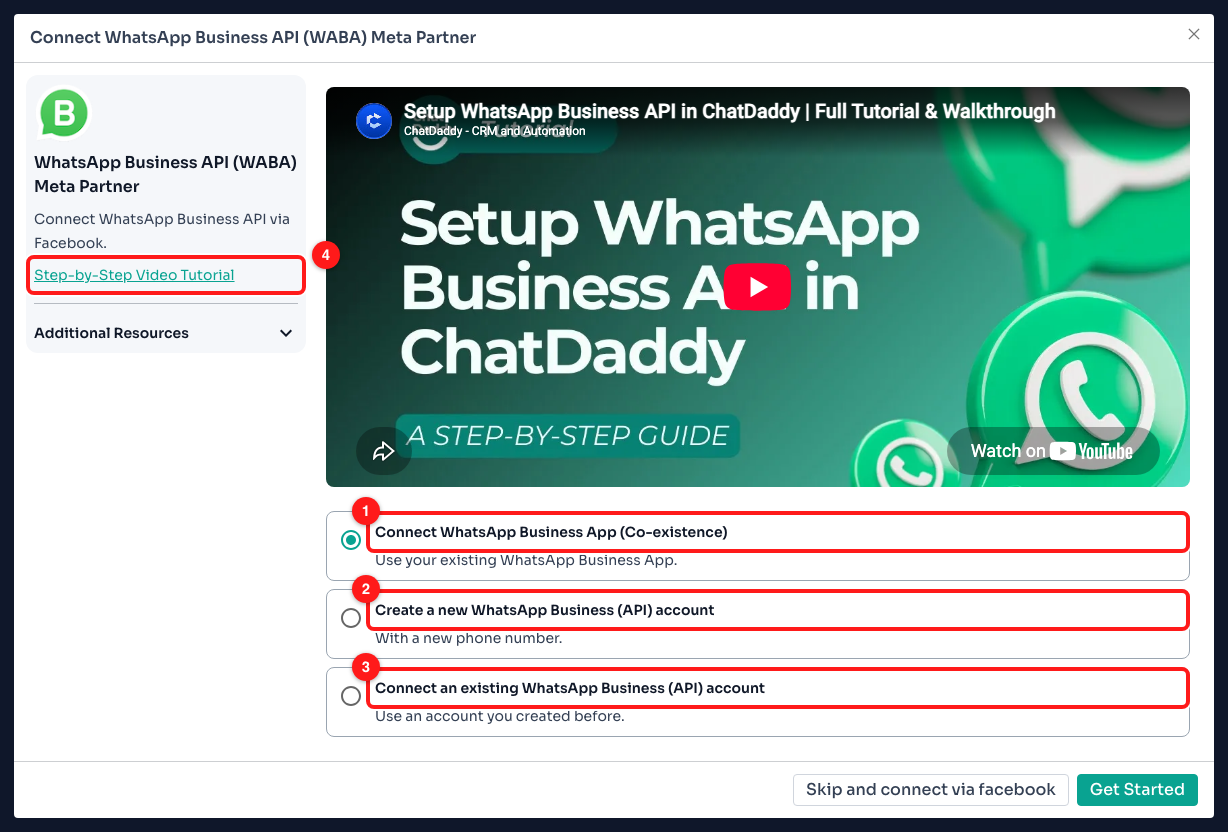
Step 5 — (1) Coexistence, (2) create a new API account, (3) connect an API account you already have, (4) the video walkthrough of this same wizard.
- (1) Connect WhatsApp Business App (Co-existence) — you already use the WhatsApp Business app on a phone and want to carry on using it while ChatDaddy runs on the same number. Step 6 covers what you give up.
- (2) Create a new WhatsApp Business (API) account — you have a phone number that is not yet on WhatsApp, or one you are prepared to convert. Step 7 covers the eligibility check.
- (3) Connect an existing WhatsApp Business (API) account — you are already on the API, perhaps with another provider, and are moving to ChatDaddy. Nothing is created; you log in and pick the number.
(4) Step-by-Step Video Tutorial in the left panel plays the full setup walkthrough without leaving this dialog, and Additional Resources below it expands to more help articles.
Step 6 — Coexistence: the rules before you commit
Choose Connect WhatsApp Business App (Co-existence) and click Get Started. Coexistence is new from Meta and genuinely useful — your team keeps the phone app while ChatDaddy adds automation on the same number — but it comes with conditions, and ChatDaddy lists them before you connect rather than after.
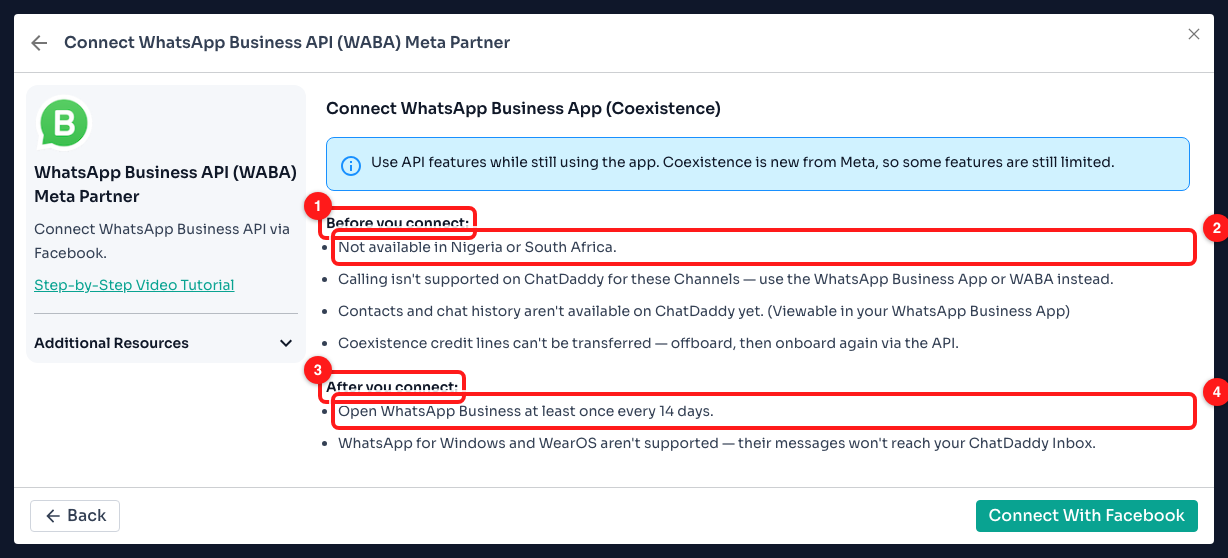
Step 6 — (1) the conditions before you connect, (2) the country restriction, (3) what you must keep doing afterwards, (4) the 14-day rule.
- (1) and (2) Before you connect — Coexistence is not available in Nigeria or South Africa. Calling is not supported on ChatDaddy for these channels. Your existing contacts and chat history do not come across to ChatDaddy yet, though they stay visible in the Business app. And Coexistence credit lines cannot be transferred — moving to the full API later means offboarding and onboarding again.
- (3) and (4) After you connect — you must open WhatsApp Business at least once every 14 days, or the connection lapses. WhatsApp for Windows and WearOS are not supported: messages sent or received there will not reach your ChatDaddy Inbox.
📅 The 14-day rule is the one that catches people out. If the phone holding the number is a spare that lives in a drawer, Coexistence will keep breaking. Either put a recurring reminder on somebody's calendar, or use a full API account instead.
Step 7 — The eligibility check for a new API account
Back out and choose Create a new WhatsApp Business (API) account instead. ChatDaddy asks one question first, because the answer changes the whole path.
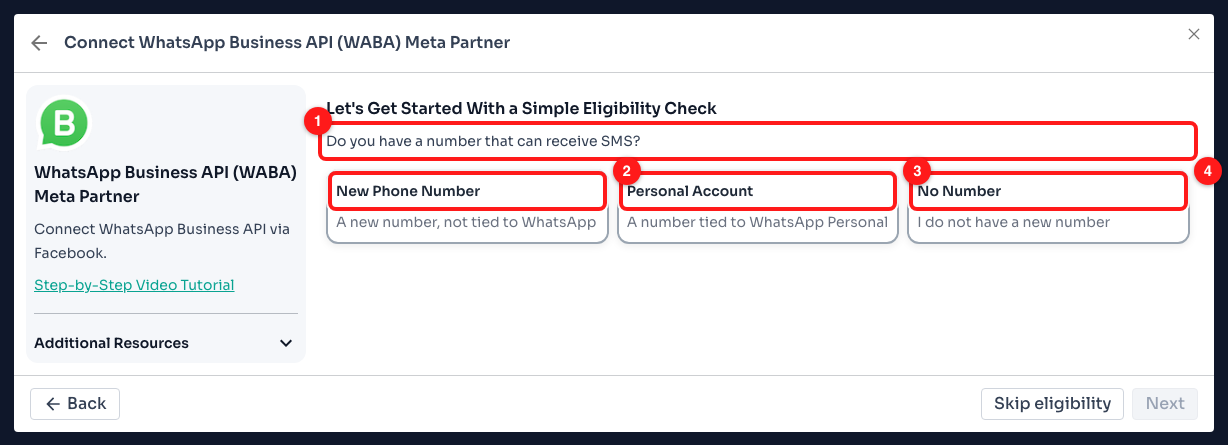
Step 7 — (1) the question that decides your path, (2) a clean number, (3) a number already on WhatsApp, (4) no number yet.
- (2) New Phone Number — a number not tied to WhatsApp at all. This is the smoothest path: it goes straight to the Meta login, with nothing to undo first.
- (3) Personal Account — a number that already has WhatsApp on it. Step 8 is what happens next.
- (4) No Number — you have not got one yet. ChatDaddy offers a free Meta number, or you can bring your own later.
The number you choose must be able to receive an SMS or a voice call — that is how Meta verifies it. Skip eligibility at the bottom right jumps straight to the Facebook login if you already know what you are doing.
Step 8 — Convert a number that already has WhatsApp on it
Answer Personal Account and click Next. This is the screen behind the Convert to a WhatsApp Business account lesson, and it contains the single most consequential sentence in this module.
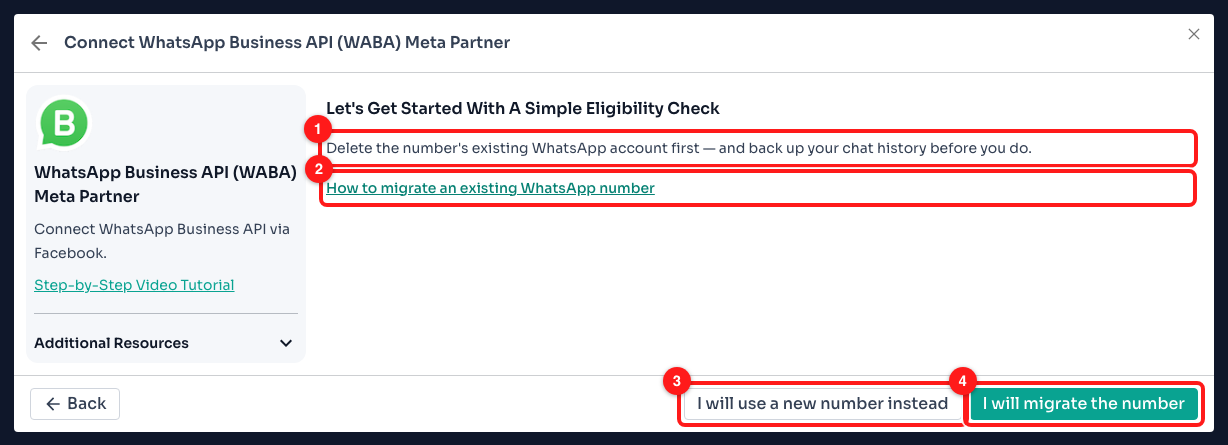
Step 8 — (1) delete the existing WhatsApp account first, (2) the full migration guide, (3) back out and use a different number, (4) go ahead with the migration.
- (1) You must delete the number's existing WhatsApp account first — and back up your chat history before you do. A number cannot be on consumer WhatsApp and on the Business API at the same time.
- (2) How to migrate an existing WhatsApp number opens the full written guide in a new tab. Read it before you delete anything.
- (3) I will use a new number instead takes you back to the eligibility check — the sensible choice if the number is one your customers already message and you are not ready to lose its history.
- (4) I will migrate the number carries on to the Meta login.
🛑 Backing up chat history is on you, and it happens in the WhatsApp app on the phone, before you delete the account. Once the account is deleted the history is gone, and neither ChatDaddy nor Meta can recover it. If losing it is not acceptable, use Coexistence or a different number.
Step 9 — Reconnect, reload or remove a channel
Back on Manage Channels, everything you do to an existing channel is in two places: the Quick Actions column, and the ⋮ menu at the end of each row. Between them they cover the disconnect, reconnect and reactivate lessons in this module.
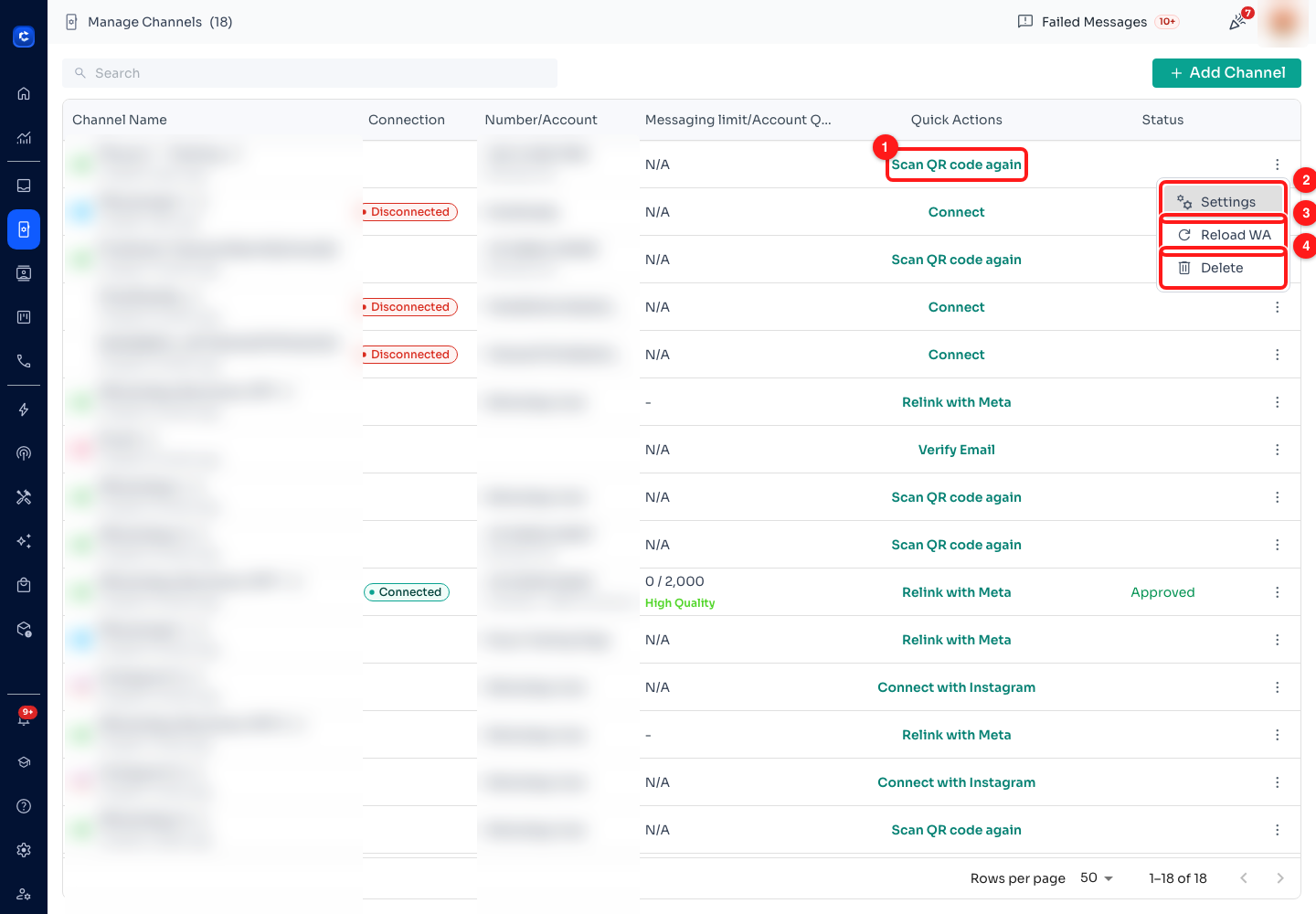
Step 9 — (1) the Quick Action for this row, (2) Settings, (3) Reload WA, (4) Delete.
- (1) The Quick Action changes with the channel's state. Connect on a disconnected channel, Scan QR code again when a QR session has expired, Re-connect on a QR channel that is connected but has not finished syncing chats, Relink with Meta when an API channel's Meta authorisation needs renewing, and Verify Email for an e-mail channel. Start here — it is the fix for whatever is actually wrong.
- (2) Settings — the channel's own configuration: its name, its profile and its advanced options.
- (3) Reload WA — logs the channel out and reconnects it. Your account ID, contacts, messages and chat history are preserved, but you will need to scan the QR code again, so have the phone to hand before you start. This is the reactivation step for a QR channel that has gone stale but is not broken.
- (4) Delete — removes the channel. ChatDaddy shows you what you lose first, including your stored contacts and the broadcasts you have sent, and asks for a second confirmation before deleting permanently.
🔁 Reaching for Delete to fix a broken channel is almost always the wrong move — you lose the channel's history and have to set up its automations again. Try the Quick Action first, then Reload WA. Delete is for a number you are genuinely retiring.
Step 10 — Read your messaging limit and quality rating
On an API channel, click the quality chip in the Messaging limit / Account Quality column. This modal is your ban-risk dashboard, and the last lesson in this module is entirely about keeping it green.
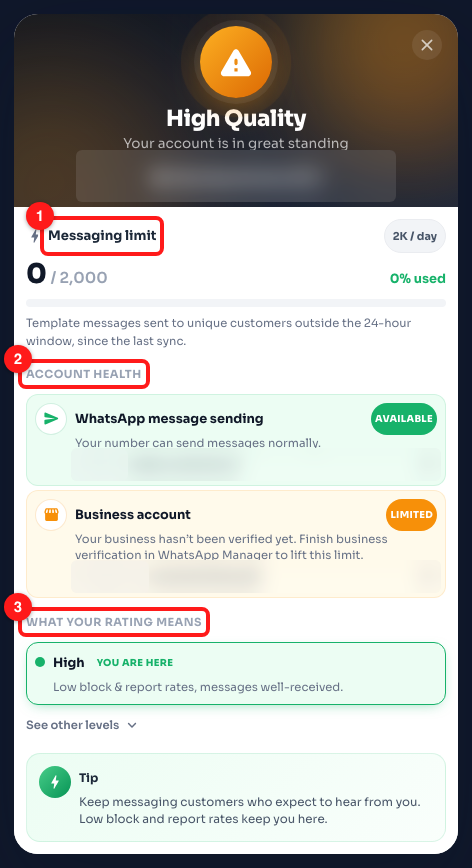
Step 10 — (1) messaging limit and usage, (2) account health, (3) what your rating means. The channel name and the WABA and Business IDs are blurred.
- (1) Messaging limit — how many unique customers you may start conversations with in a rolling day. Meta's tiers are 250, 1K, 2K, 10K, 100K per day and finally Unlimited. The counter tracks template messages sent to unique customers outside the 24-hour window, since the last sync — ordinary replies inside an open conversation do not consume it.
- (2) Account health — two things you can act on. WhatsApp message sending tells you whether the number can send normally. Business account shows Limited until you finish business verification in WhatsApp Manager, which is what lifts that limit.
- (3) What your rating means — High: low block and report rates, messages well received. Medium: quality declining, at risk of limitations. Low: facing restrictions and reduced messaging limits. Unrated: a new account, or not enough feedback yet.
The tip at the foot of the modal changes with your rating, and it is the shortest honest summary of how to avoid a ban: on High, keep messaging customers who expect to hear from you. On Medium, send only to opted-in contacts and trim broad broadcasts. On Low, pause broadcasts entirely and message only engaged customers — quality recovers as block and report rates fall.
🚨 Your rating is driven by what recipients do, not by what you send. Blocks and "report spam" taps are what push it down. That makes the fix unglamorous: message people who asked to hear from you, make it obvious who you are in the first line, and never buy a contact list. A Medium rating is a warning you have days to act on — a Low one is already costing you delivery.
The nine video lessons in this module
Each lesson opens inside ChatDaddy from the Academy page, or on YouTube using the links below. The steps above are ordered for somebody sitting at the Channels page doing the work, so a couple of lessons are covered later in the article than they appear in the video list.
- Connect WhatsApp Business App Coexistence · 3:48 · keeping the phone app while ChatDaddy runs alongside it — Step 6.
- WhatsApp API pricing 2026 & Co-Existence · 7:53 · how Meta's per-message pricing works and what Coexistence changes — Steps 4 and 6.
- WhatsApp API explained · 5:23 · consumer app versus Business app versus Business API — Steps 2 and 3.
- Get to know the WhatsApp Business API · 4:15 · what the API unlocks as you grow — Step 4.
- Convert to a WhatsApp Business account · 2:36 · migrating a number without losing what matters — Steps 7 and 8.
- Create and connect a new channel · 0:41 · adding another number to the workspace — Steps 1 and 2.
- Disconnect and reconnect a channel · 0:45 · taking a channel offline and bringing it back — Step 9.
- Reactivate a channel · 0:56 · getting messages flowing again after a channel goes inactive — Step 9.
- WhatsApp ban risk in 2026 — what to do now · 9:08 · which behaviours trigger bans and the guardrails that keep you safe — Step 10.
Common questions
My channel says Disconnected. What do I do first?
Look at the Quick Actions column on that row before anything else — ChatDaddy has already worked out what the channel needs. "Connect" or "Scan QR code again" means the QR session lapsed and you need the phone. "Relink with Meta" means the Meta authorisation expired and you need to log in to Facebook again. "Verify Email" is an e-mail channel, not WhatsApp. If the Quick Action does not fix it, try Reload WA from the ⋮ menu, which logs the channel out and back in while keeping your contacts, messages and history.
Can I keep using WhatsApp Business on my phone after connecting?
Yes — that is exactly what Coexistence is for. The conditions are real, though: it is not available in Nigeria or South Africa, calling is not supported on those channels, your existing contacts and chat history stay in the phone app rather than coming across to ChatDaddy, and you must open WhatsApp Business at least once every 14 days or the connection lapses. Messages sent from WhatsApp for Windows or WearOS will not reach your ChatDaddy Inbox.
Why is my messaging limit stuck, and how do I raise it?
The limit is Meta's, not ChatDaddy's, and it moves in tiers: 250, 1K, 2K, 10K and 100K per day, then Unlimited. Meta raises it when you send consistently to customers who engage and your quality rating stays high, so the route up is steady volume with low block and report rates rather than a request you can file. Two things you can do directly: finish business verification in WhatsApp Manager if Account health shows your Business account as "Limited", and stop sending to people who did not opt in.
I want to move a number that is already on WhatsApp to the API. What happens to my chats?
You lose them unless you back them up first. A number cannot be on consumer WhatsApp and on the Business API at once, so migrating means deleting the existing WhatsApp account on that number — and once it is deleted, the history is gone for good. Back up in the WhatsApp app on the phone before you start. If the history matters and you cannot risk it, use Coexistence instead, which leaves the phone app and its history intact.
What is the difference between Reload WA and Delete?
Reload WA is a repair: it logs the channel out and reconnects it, keeping your account ID, contacts, messages and chat history. You will need to scan the QR code again afterwards, so have the phone ready. Delete removes the channel and what is attached to it — ChatDaddy shows you the contacts and broadcasts you are giving up and asks for a second confirmation first. Use Reload WA for anything you are trying to fix; use Delete only for a number you are retiring.
➡️ Next: Module 3 — Team Inbox. Now that a channel is live and healthy, the next module is the screen your team will spend all day in: working the shared inbox, assigning conversations, and replying fast without tripping over each other.