
How to Bulk Export Chat Histories from ChatDaddy Inbox (Step-by-Step)
Export the full message history of several chats at once: select the chats you want, then use Bulk Actions → Export Chat History. 4 steps with screenshots.
Need to back up or download more than one conversation at a time? ChatDaddy's Bulk Actions let you select multiple chats in your Inbox and export their full message history in one go — no need to open and export each chat individually.
💡 This is a paid feature. It exports the full message history of every chat you select (oldest to newest) into a downloadable .zip — one .txt file per chat. Media files are not included; they appear as [attachment omitted].
Before you begin
-
Open ChatDaddy and make sure you are signed in: https://www.beta.chatdaddy.tech
-
Bulk export works for your connected channels (WhatsApp, Instagram, Messenger, etc.).
-
If Export Chat History appears greyed out or says "Contact support to enable exports", reach out to ChatDaddy support to turn on exports for your team.
Step-by-step
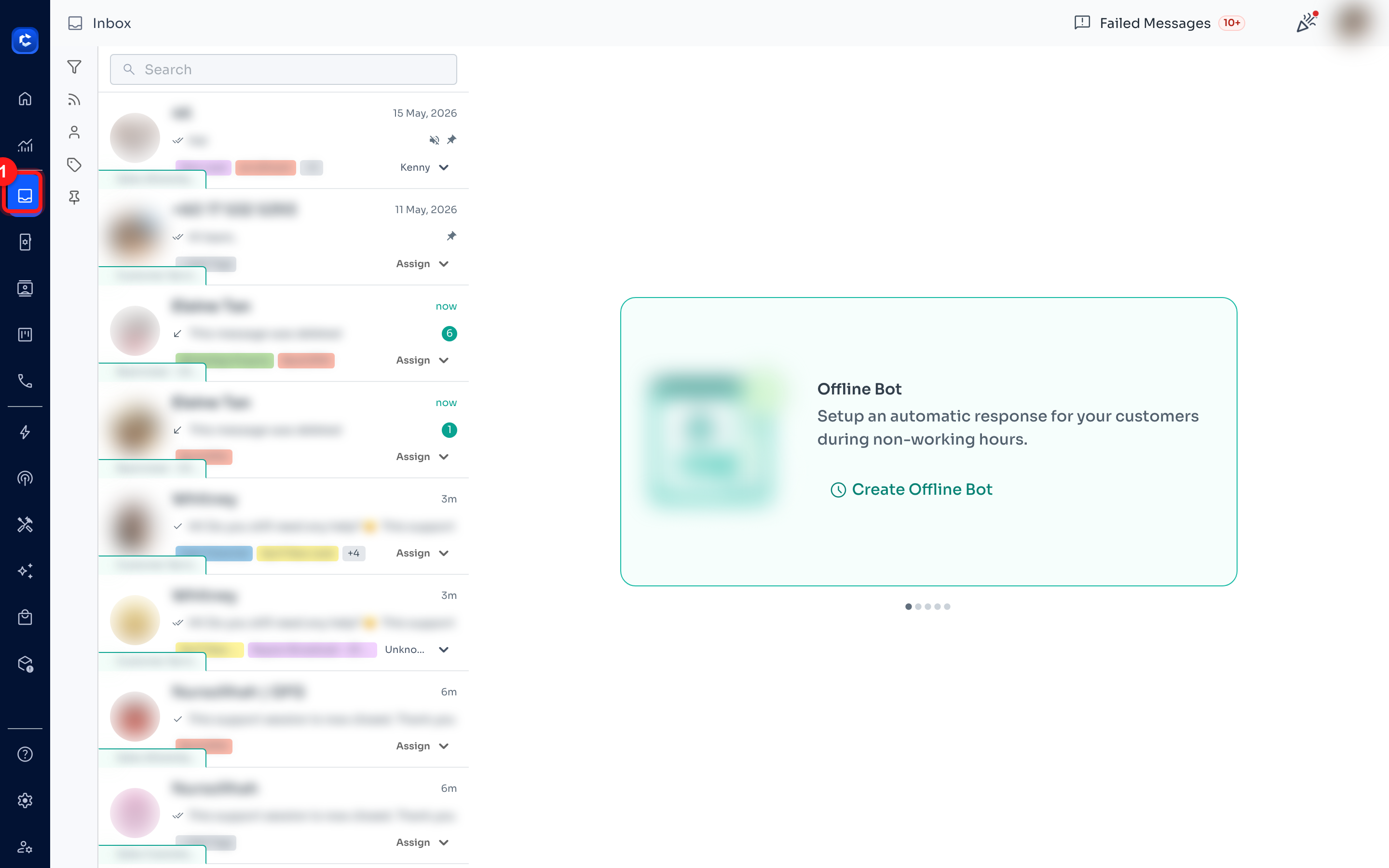
Step 1 — Open the Inbox
From the left sidebar, click the Inbox icon to open your conversations.
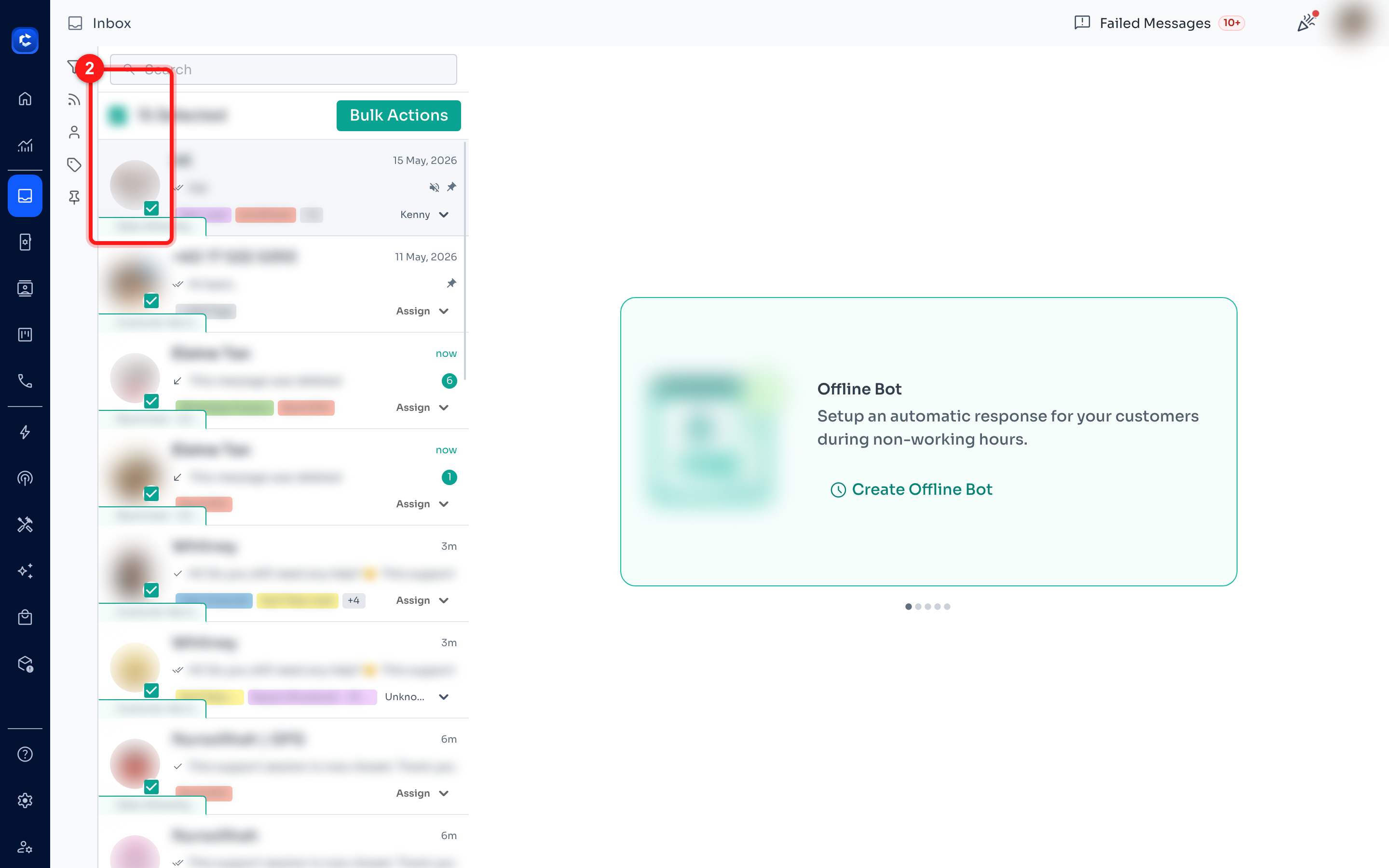
Step 2 — Select the chats you want to export
Hover over a chat in the list and tick the checkbox that appears on its avatar. Repeat for every chat you want to include — each selected chat shows a checkmark, and a “X Selected” bar appears at the top of the list.
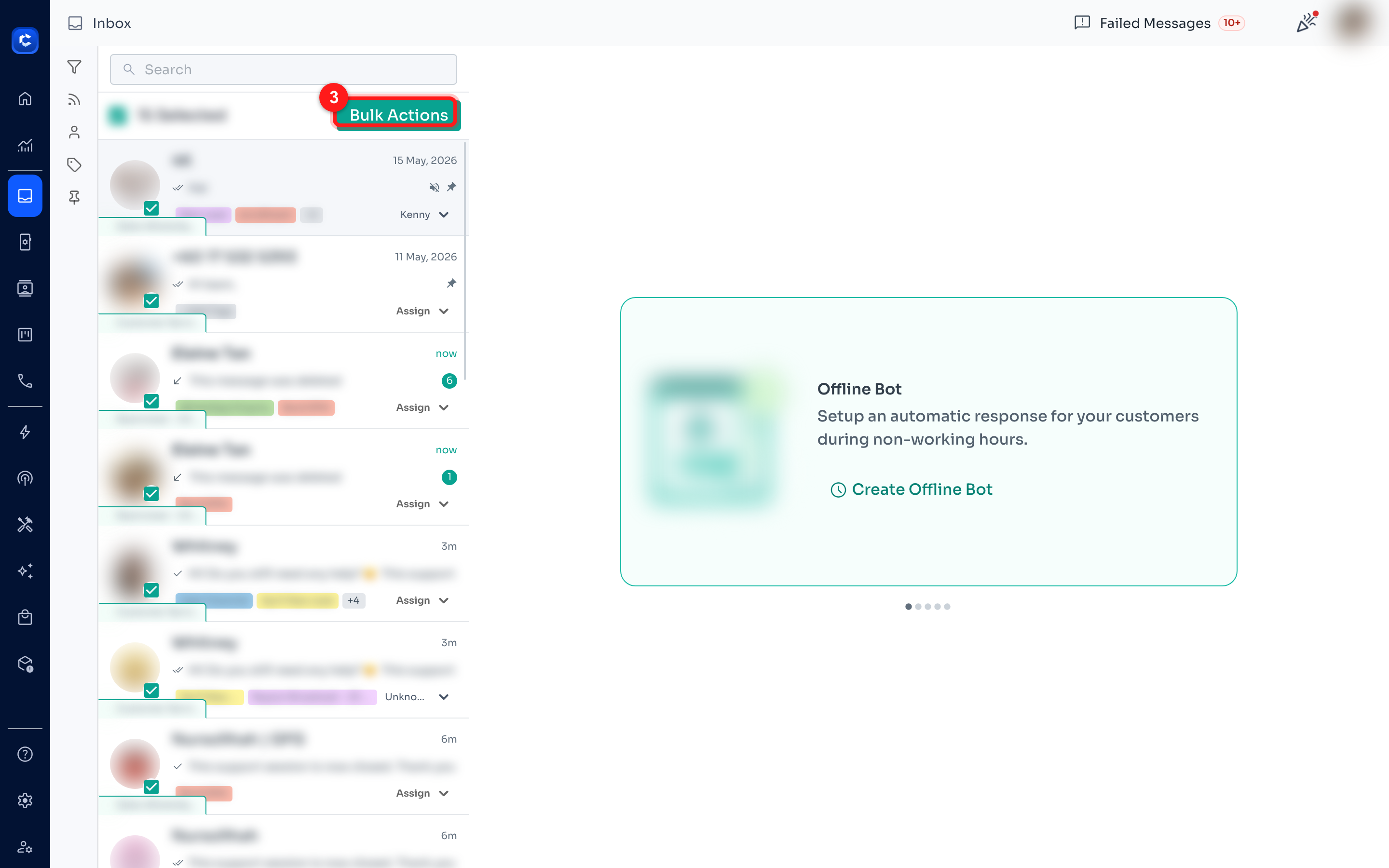
Step 3 — Click “Bulk Actions”
With your chats selected, click the green Bulk Actions button at the top of the chat list to open the actions menu.
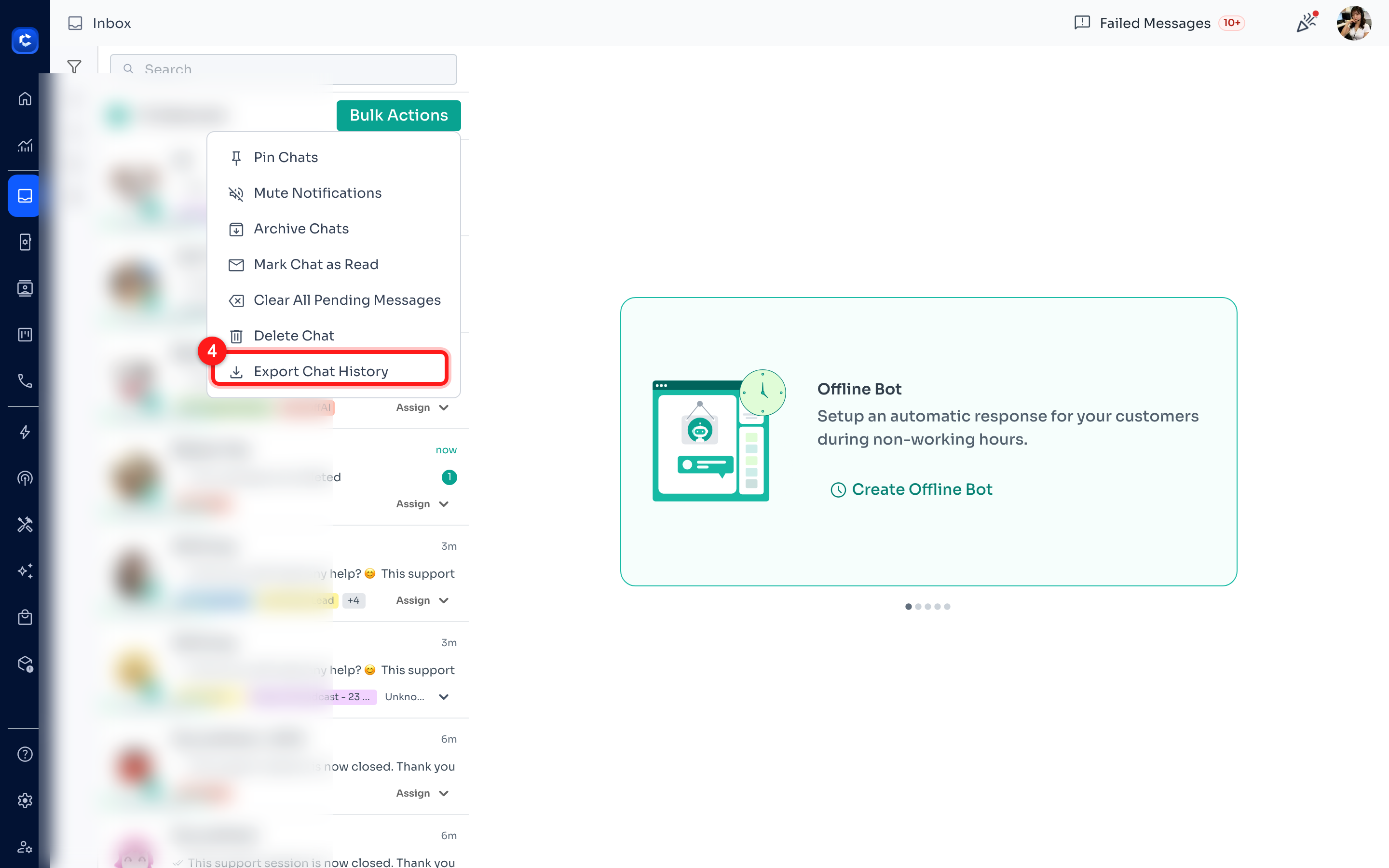
Step 4 — Click “Export Chat History”
In the Bulk Actions menu, click Export Chat History. This opens the Export Chat History dialog, where you choose your export plan and confirm.
Step 5 — Choose your export plan and confirm
Bulk export is a paid feature. In the Export Chat History dialog, pick a plan based on how many chats you're exporting — Standard (up to 10 chats), Full (up to 500 chats), or Custom (all chats, contact sales). Then choose how to pay: Use my plan deducts credits from your balance, or Pay once charges a one-time fee by card. Click Export to confirm — the amount shown updates with your plan and number of chats.
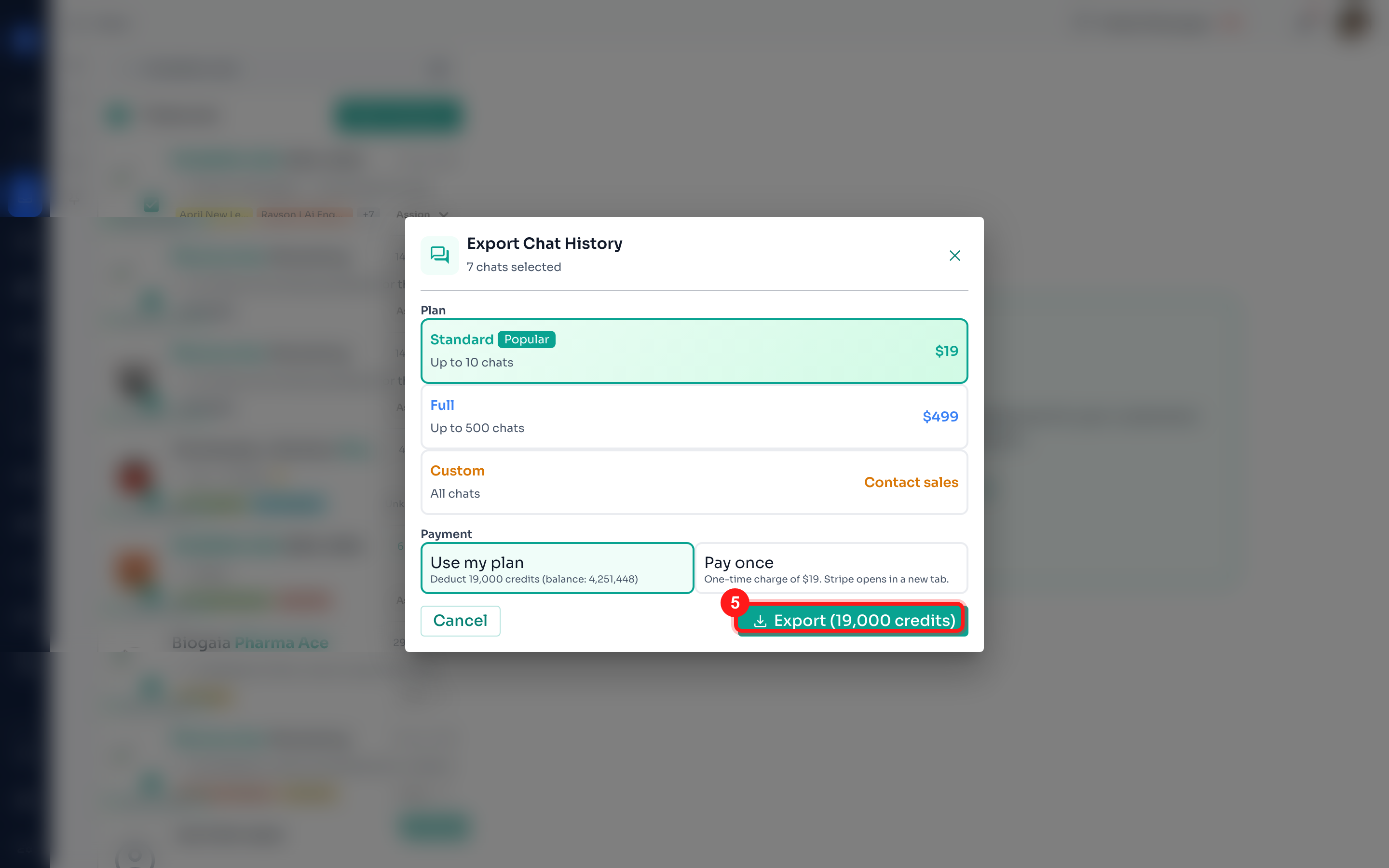
Step 6 — Your chats are exported
ChatDaddy then fetches the messages for each chat (you'll see a “Fetching chats X / Y…” progress bar) and downloads a chat_history_
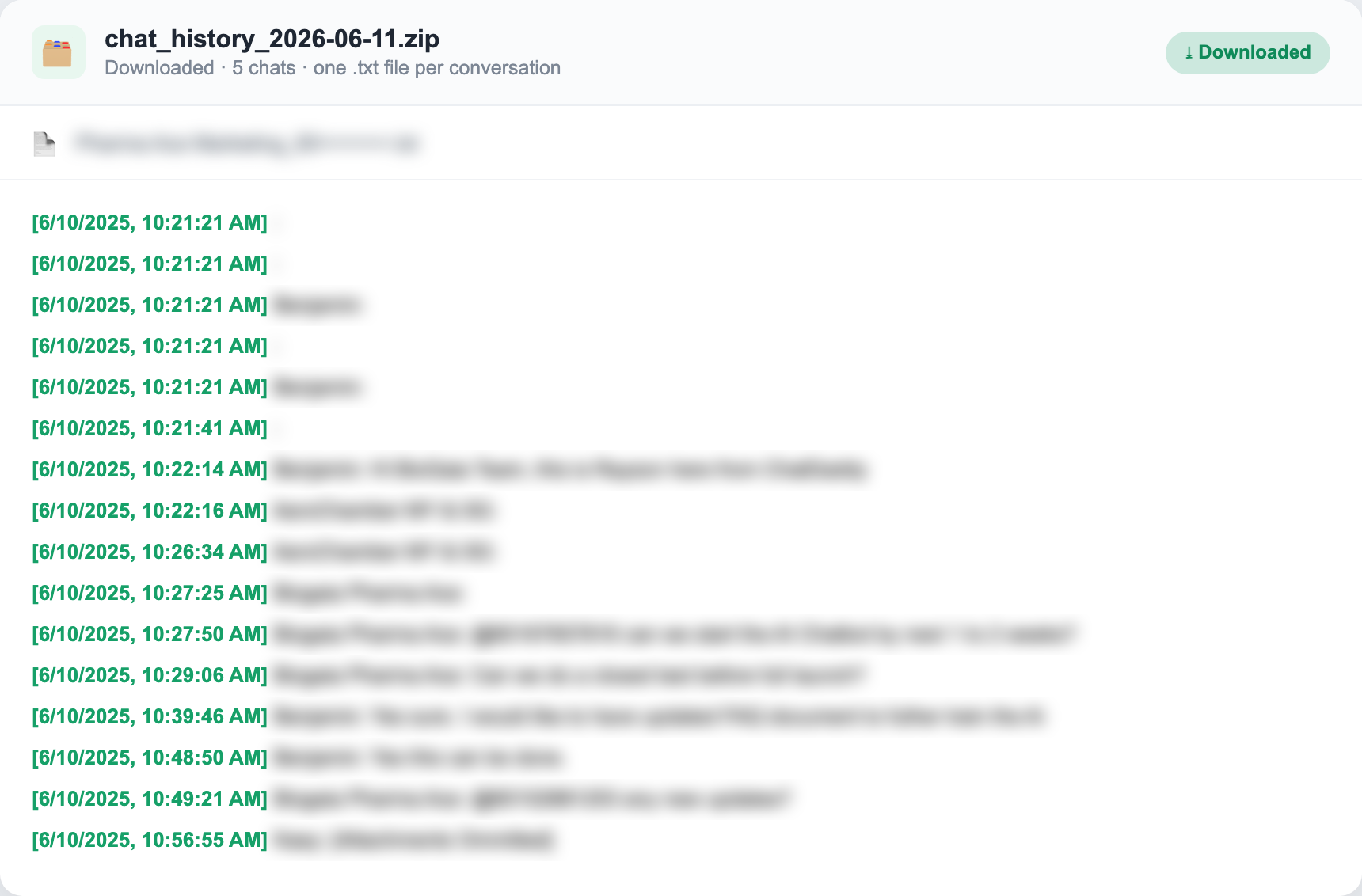
What you'll get
-
A chat_history_
.zip file containing one .txt file per selected chat. -
Messages ordered from oldest to newest, each line formatted as [date & time] Sender: message.
-
Attachments (images, files, audio) are not embedded — they appear as [attachment omitted].
Tip: other bulk actions
The same Bulk Actions menu also lets you Pin, Mute, Archive, Mark as Read, Clear Pending Messages, or Delete all of your selected chats at once.