
How to Change the Tone, Simplify or Rewrite a Message with ChatDaddy AI
Highlight any text in the Inbox message box and let ChatDaddy AI rewrite it — friendlier, more formal, shorter, longer or more apologetic — before you send it.
Also searched as: How to Change the Tone, Simplify or Rewrite a Message with ChatDaddy AI, What this feature does, Type your draft in the message box, Highlight the text you want ChatDaddy AI to change, Change the tone (friendlier), Simplify the wording (Make it Shorter), Make it clearer and more formal, Soften a "no" (Make it Seem Apologetic), Add detail (Make it Longer), Let ChatDaddy AI write it for you (Ask ChatDaddy AI), Always read the result before you send, The same AI tools work on internal Notes, Where else you can use this, Tips, Does it send the message automatically?
✨ You do not have to write the perfect message first time. Type a rough draft in the Inbox message box, highlight it, and ChatDaddy AI will rewrite it for you — a friendlier tone, a more formal tone, shorter, longer, or more apologetic. Nothing is sent until you press Send, so you always see the rewrite before your customer does.
What this feature does
Whenever you select more than a few characters of text inside the message box, a small AI menu pops up above the box. Each option sends only the text you highlighted to ChatDaddy AI, together with the conversation as context, and replaces that highlighted text with the rewritten version.
There are eight options:
| Option | What it does | Best used when |
|---|---|---|
| Ask ChatDaddy AI | Treats the highlighted text as an instruction or a question and writes an answer for you | You want the AI to draft a reply from scratch |
| Make it Longer | Expands your draft into a fuller, more detailed reply | Your draft is too blunt or missing the next steps |
| Make it Shorter | Cuts the draft down to the essential message | Your draft rambles or repeats itself |
| Apply a More Formal Tone | Rewrites the draft in clearer, more professional wording | You are writing to a business customer or handling a complaint |
| Apply a More Assertive Tone | Rewrites the draft so it states your position more firmly | You need to be clear about a policy or a deadline |
| Apply a Friendlier Tone | Adds warmth and a human touch | Your draft reads cold or abrupt |
| Make it Seem Apologetic | Adds empathy and an apology while keeping the facts | The customer is unhappy and you have to say no |
ℹ️ Two rows in the menu are both labelled Apply a More Assertive Tone. They are not duplicates — they are two separate rewrite styles, and the first of the two leans more formal/professional while the second leans firmer. Pick either and read the result; if it is not what you wanted, highlight the text again and try another option.
Before you start
- You need access to the Inbox and an active ChatDaddy plan. If AI is not enabled for your account you will see "Contact ChatDaddy support to gain early access to this feature" instead of a rewrite.
- You must highlight more than five characters — the menu will not open on a short selection such as "ok".
- Each rewrite counts as one AI use and is billed from your ChatDaddy AI credits. Current rates are on your Billing page.
- The rewrite comes back in your dashboard language. If your dashboard is set to English, you get English back.
- The rewrite is inserted as plain text, so any bold or italic formatting inside the highlighted part is not carried over.
Step 1 — Type your draft in the message box
- Go to the Inbox and open the chat you want to reply to.
- Type your message in the message box at the bottom — exactly as it comes to you. It does not need to be polished. In this example the draft is: "no we cant refund you now, policy is 7 days only"
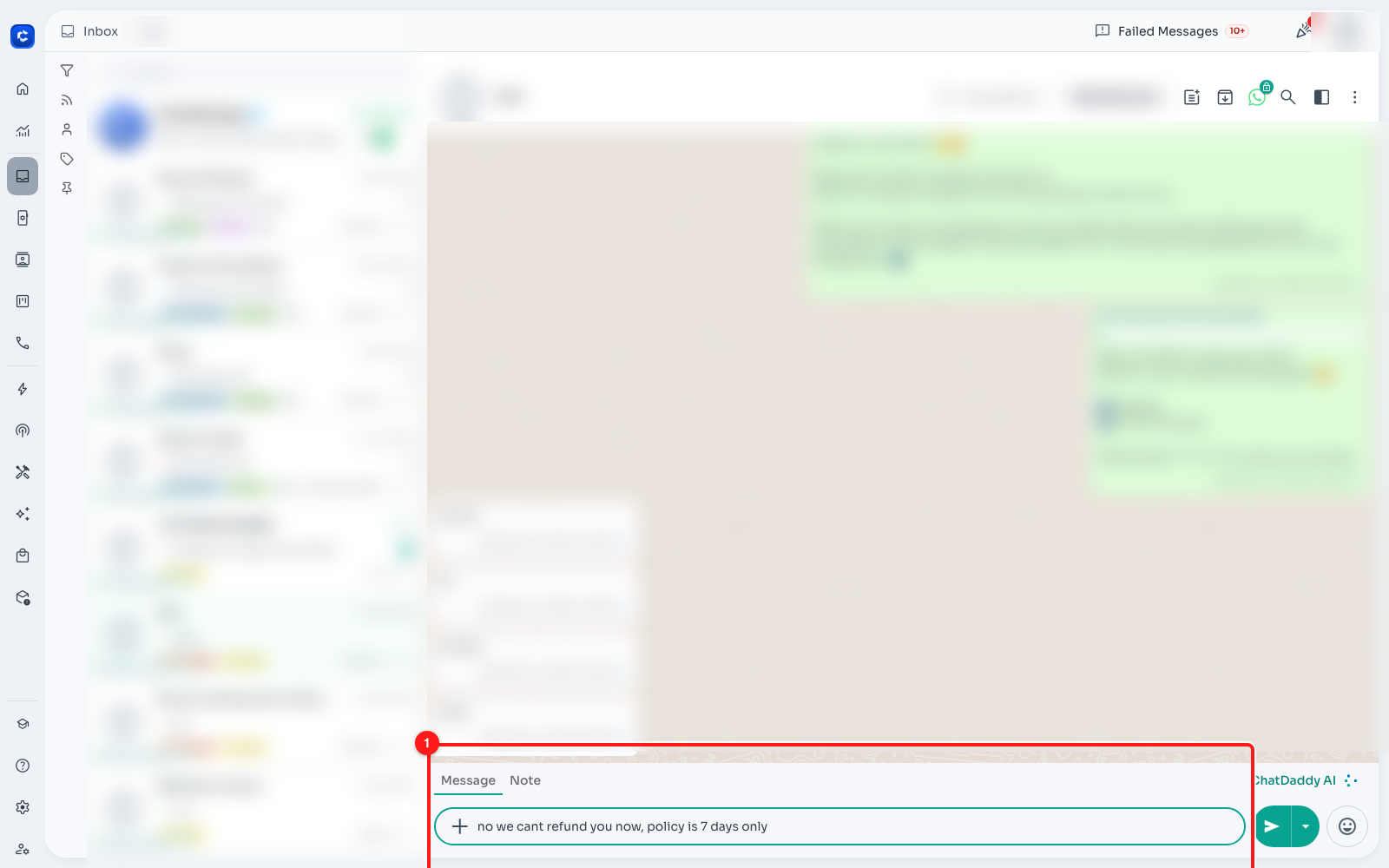
1 — The rough draft typed into the Inbox message box. Nothing is sent yet. Customer names, avatars and message content are blurred throughout this guide.
Step 2 — Highlight the text you want ChatDaddy AI to change
- Select the text with your mouse, or press
Ctrl + A/Cmd + Awhile the cursor is inside the message box to select the whole draft. - As soon as the selection is longer than five characters the AI menu opens above the box.
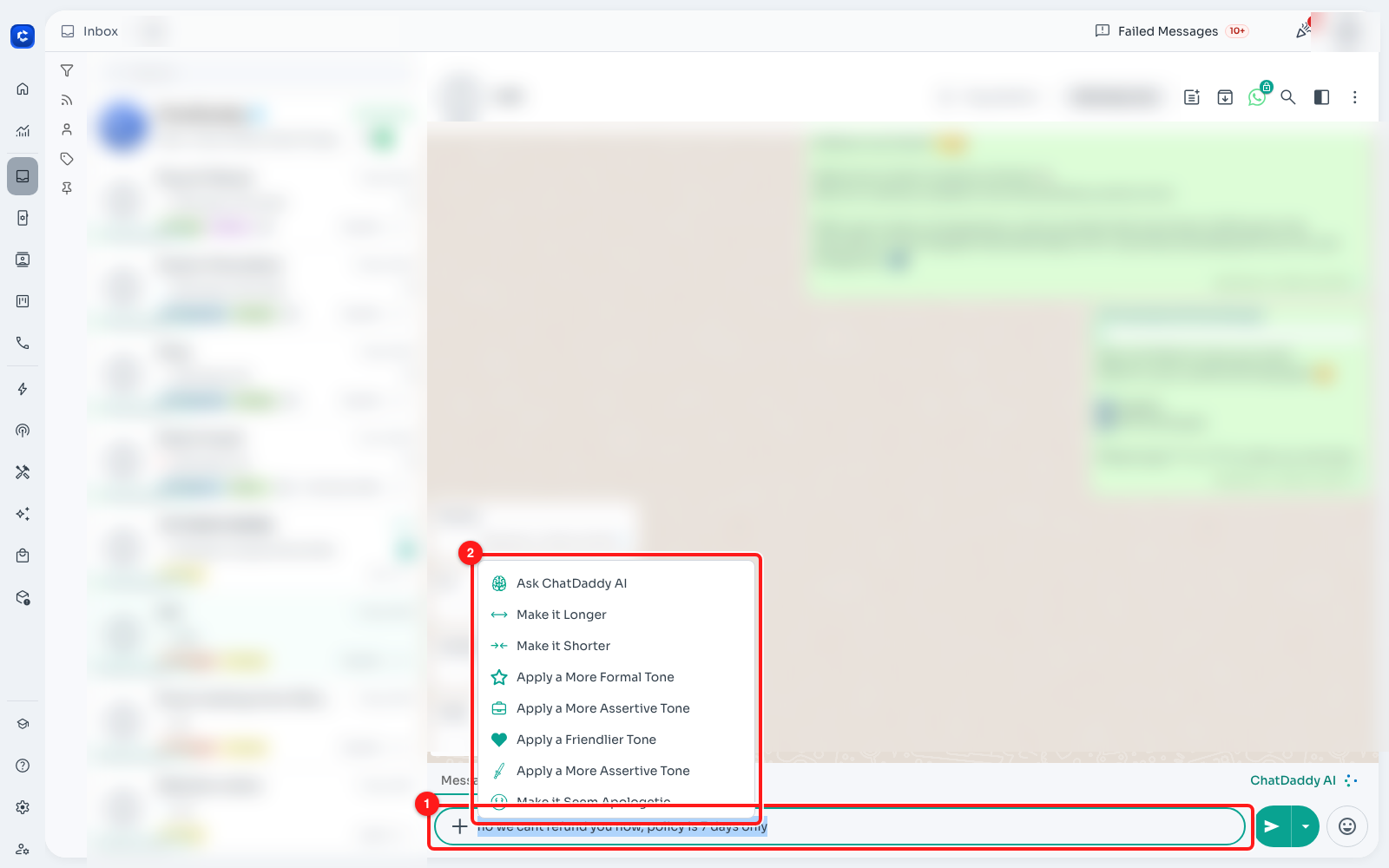
1 — The highlighted draft. 2 — The AI menu that appears above the message box.
Here is the menu on its own, with all eight options:
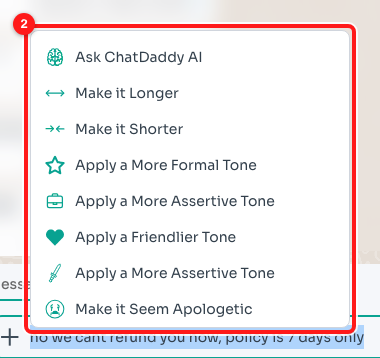
2 — The eight ChatDaddy AI text options.
💡 Only the highlighted part is rewritten. If you want to fix just one sentence of a long message, highlight that sentence — the rest of your draft is left untouched.
Step 3 — Change the tone (friendlier)
With the text still highlighted, click Apply a Friendlier Tone.
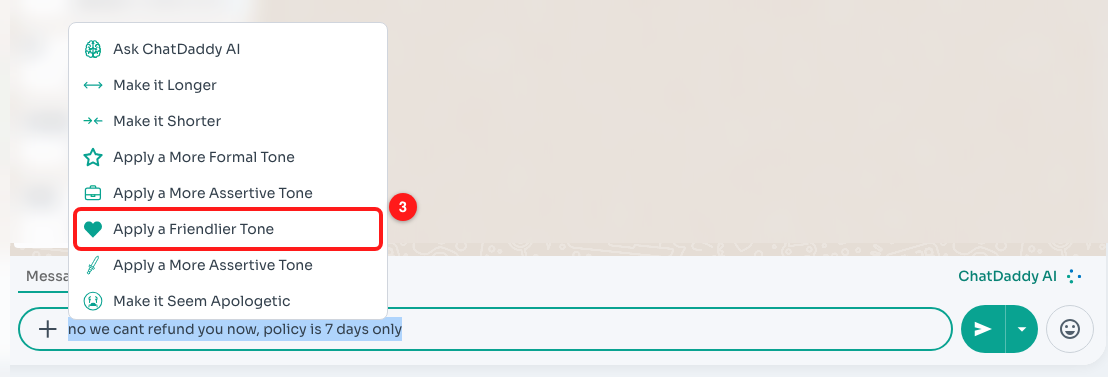
3 — Choosing "Apply a Friendlier Tone" from the AI menu.
The message box greys out and a spinner appears while ChatDaddy AI works. You cannot type during this — it usually takes a few seconds.

4 — ChatDaddy AI is rewriting your text. The box is locked until it finishes.
The rewritten text then replaces what you had highlighted.

5 — The same message, rewritten in a friendlier tone.
- Before: "no we cant refund you now, policy is 7 days only"
- After: "Hi there, I’m really sorry for the hassle. Our refunds are available within 7 days of purchase. If you’re within that window, I can help process a refund right away. If it’s been longer, we can look at alternatives like an exchange or store credit. How would you like to proceed?"
Step 4 — Simplify the wording (Make it Shorter)
Use this when a draft is too wordy, or when you have pasted something long and want the one-line version.
Highlight the text and click Make it Shorter.
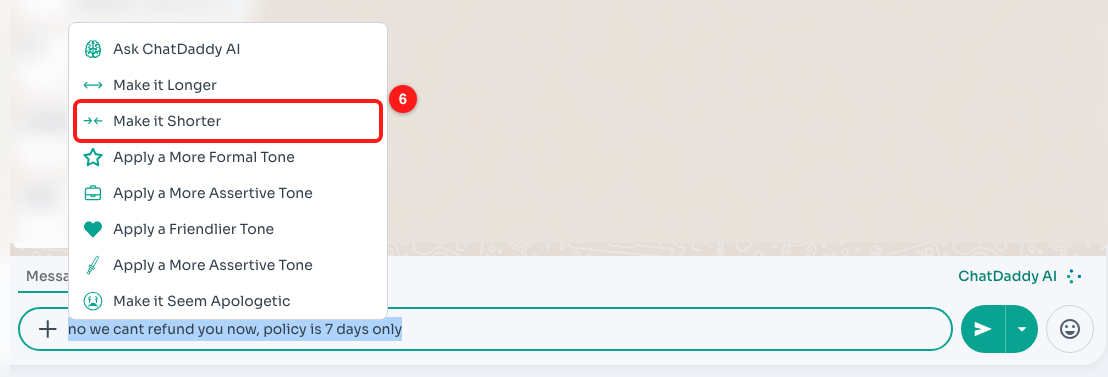
6 — Choosing "Make it Shorter".
ChatDaddy AI strips the draft back to its core message.

7 — The same draft, cut down to a single short sentence.
Step 5 — Make it clearer and more formal
Highlight the text and click Apply a More Formal Tone.
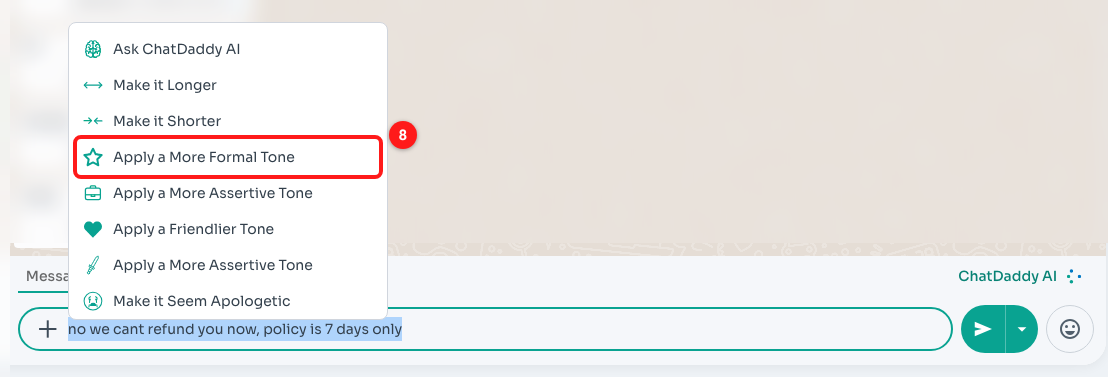
8 — Choosing "Apply a More Formal Tone".
ChatDaddy AI rewrites the draft in clearer, more professional wording. It often returns a few alternatives so you can pick the one that fits your brand.
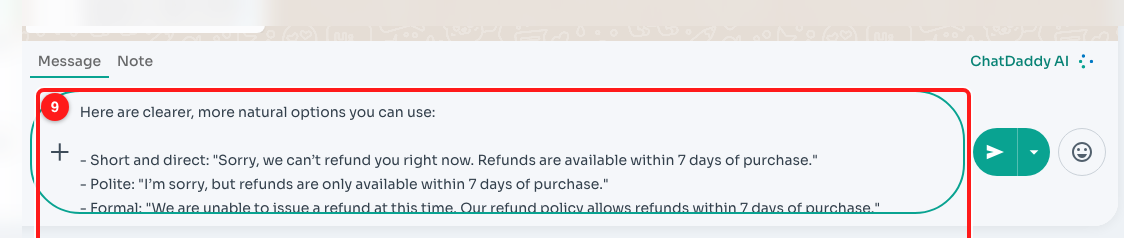
9 — A clearer, more professional rewrite with several options to choose from.
Step 6 — Soften a "no" (Make it Seem Apologetic)
When you have to turn a customer down, this keeps the facts but adds empathy.
Highlight the text and click Make it Seem Apologetic.
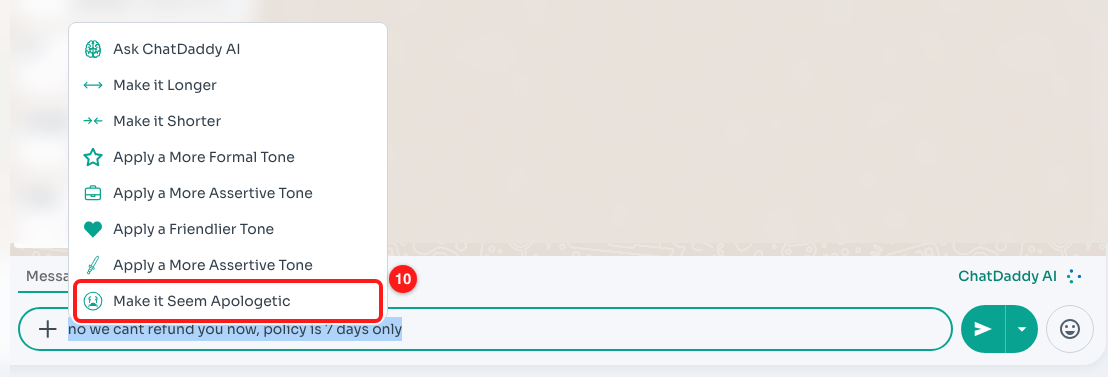
10 — Choosing "Make it Seem Apologetic".
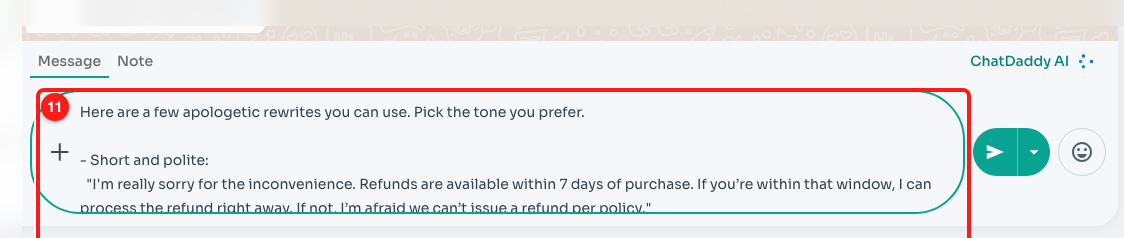
11 — The same refusal, rewritten with an apology and an offer to help.
Step 7 — Add detail (Make it Longer)
Use this when your draft answers the question but leaves the customer without a next step.
Highlight the text and click Make it Longer.
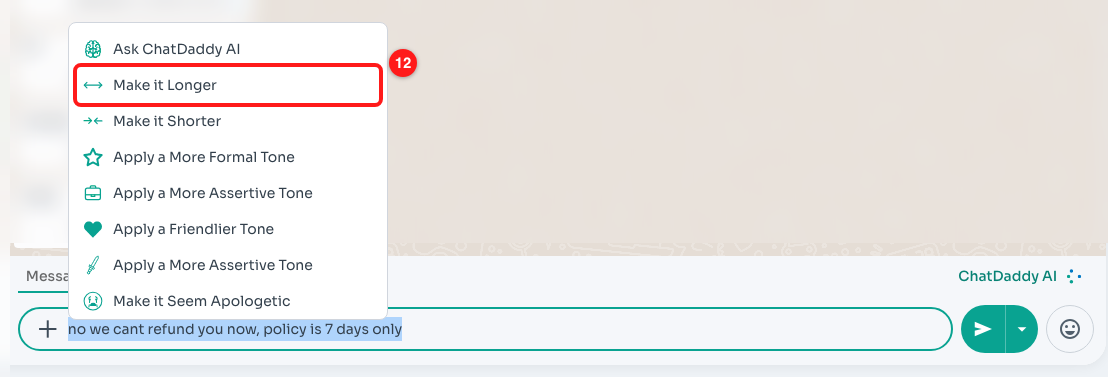
12 — Choosing "Make it Longer".
The reply is expanded with context, alternatives and a clear next step. The message box scrolls — scroll inside it to read the whole thing before sending.
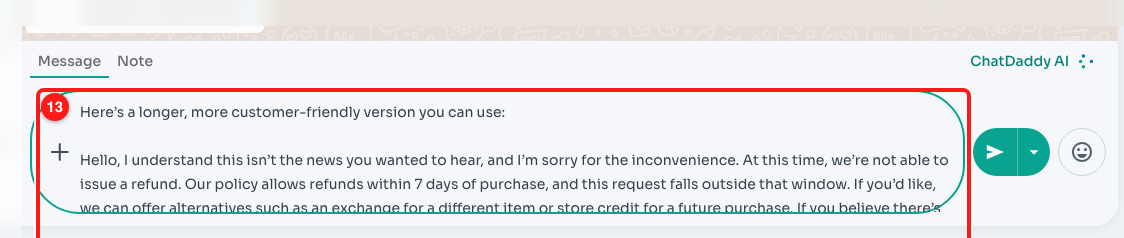
13 — The expanded version. The box scrolls when the text is longer than three lines.
Step 8 — Let ChatDaddy AI write it for you (Ask ChatDaddy AI)
The other seven options rewrite what you typed. Ask ChatDaddy AI is different: it treats what you highlighted as an instruction and writes the reply for you.
- Type what you want, as a note to yourself — for example: "what should i say to a customer asking where their parcel is"
- Highlight it and click Ask ChatDaddy AI.
- Your instruction is replaced by ready-to-send reply options.
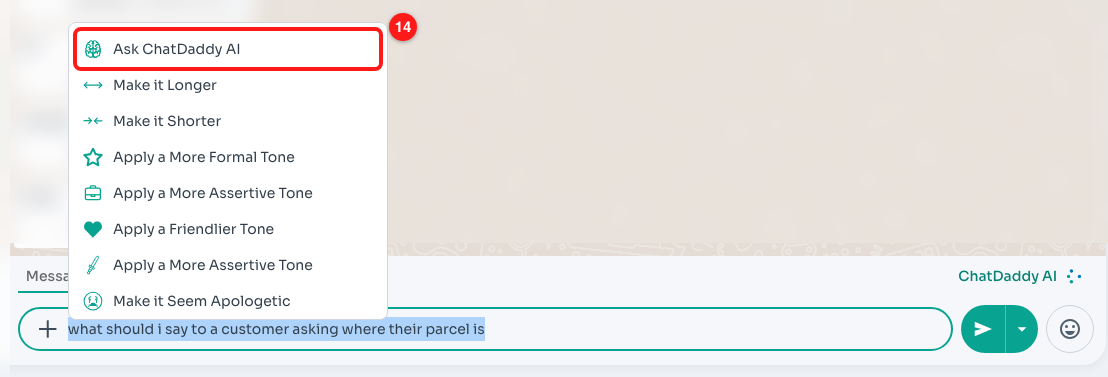
14 — Choosing "Ask ChatDaddy AI".
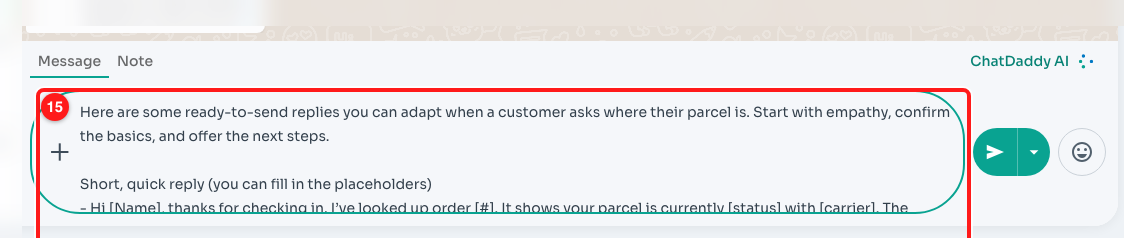
15 — ChatDaddy AI has written the reply options for you.
Step 9 — Always read the result before you send
⚠️ ChatDaddy AI often answers with more than one version ("Here are a few rewrites you can use…"), and it may add placeholders such as
[Name]or[Order #]. Delete everything you do not want and fill in the placeholders before pressing Send — the whole contents of the message box is what your customer receives.
- Not happy with the rewrite? Highlight it again and pick another option — you can run the AI as many times as you like on the same draft.
- Want your original wording back? Press
Ctrl + Z/Cmd + Z, or select everything and retype it. The rewrite is not saved anywhere until you send the message.
The same AI tools work on internal Notes
Notes are the private messages only your team can see. The AI menu works there too — handy for turning shorthand into a handover note a colleague can actually read.
Click the Note tab above the message box. The box turns orange and is marked Team Only.

16 — The Note tab. 17 — The note box, marked "Team Only": nothing here is sent to the customer.
Type your note, highlight it, and the same eight options appear.
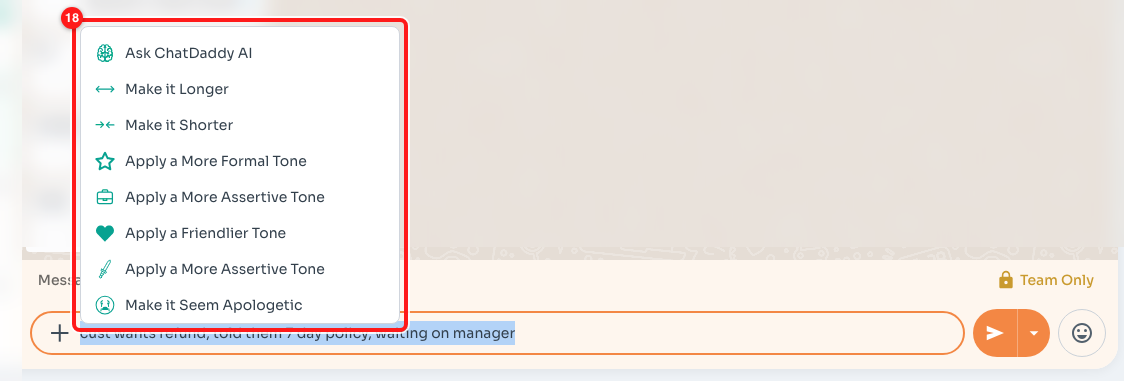
18 — The same ChatDaddy AI options inside a private note.
Where else you can use this
- Inbox message box — replies to customers, as shown above.
- Inbox notes — private team notes.
- Message Flow builder — when you write the message inside a flow node (Automation → Message Flows), highlight the text and the same AI menu appears, so your automated messages can be polished the same way.
Tips
- Write badly on purpose first. A rough, honest draft gives the AI the facts it needs; polish is the part it is good at.
- Highlight one sentence, not the whole message, when only one line is the problem.
- Stack the options: Make it Longer to add the missing detail, then Apply a Friendlier Tone on the result.
- For a reply the AI drafts from the conversation itself (rather than from your text), use Smart Reply AI instead — see How to Use Smart Reply AI (Auto-Suggested Replies) in the Inbox.
FAQ
Does it send the message automatically?
No. The rewrite only replaces the text in the message box. Nothing leaves ChatDaddy until you press Send.
Why is the AI menu not appearing when I select text?
Three common reasons: the selection is five characters or shorter; AI is not enabled for your account or plan; or you are selecting text in the conversation above rather than inside the message box. The menu only works on text inside the message box.
Does it understand the conversation, or only the text I highlighted?
Both. The chat is sent along as context, so the rewrite fits the conversation — but only the highlighted text is replaced.
Can I get the rewrite in another language?
The rewrite comes back in the language your dashboard is set to. To rewrite into a different language, change your dashboard language, or use the per-message Translate button in the conversation.
Does this cost credits?
Yes — each rewrite is one AI use, taken from your ChatDaddy AI credits. See your Billing page for current rates.