
How to Check a Contact's WhatsApp IDs Across Business Managers
The WhatsApp IDs section on the Inbox contact profile lists one card per Meta Business Manager the customer has reached you through — their WhatsApp User ID, when they last messaged that channel, and a link into that conversation.
Also searched as: How to Check a Contact's WhatsApp IDs Across Business Managers, Why one customer can have more than one WhatsApp ID, Open the Inbox, Open a WhatsApp conversation, Open the contact profile panel, Scroll down to WhatsApp IDs, Read the Business Manager count, One card per Business Manager, Read a card, Spot the conversation you already have open, Copy a WhatsApp User ID, Jump to the customer's other conversation, Where Open chat lands you, A customer on a single Business Manager, What the status dot means
🪪 A customer who messages two of your WhatsApp numbers under two different Meta Business Managers arrives in ChatDaddy as two separate contacts with two different WhatsApp User IDs. The WhatsApp IDs section on the Inbox contact profile shows you every one of them — one card per Business Manager — so you can see the other conversation exists and jump straight into it.
This guide shows you where the section is, what every line on a card means, and what to do with it. Nothing in this section changes your data: it is read-only, and it never merges two contacts together.
Why one customer can have more than one WhatsApp ID
Meta scopes a WhatsApp User ID (also called a Business-Scoped User ID, or BSUID) to a business portfolio — what you see in Meta Business Suite as a Business Manager. The id identifies the customer to that portfolio and nowhere else.
So if your team runs WhatsApp numbers under more than one Business Manager, and the same person messages two of them:
- Meta issues that person a different WhatsApp User ID under each Business Manager.
- ChatDaddy receives them as two unrelated contact records, each with its own chat history.
- Neither conversation knows the other exists — which is exactly the gap this section closes.
ℹ️ This is a property of WhatsApp itself, not of ChatDaddy. The ids genuinely are different, and there is no way to make Meta issue one id across two portfolios.
Before you start
- The section covers WhatsApp channels only (WhatsApp Business API and QR-linked WhatsApp). Instagram, Messenger, Telegram and the rest have no Business Manager and no WhatsApp User ID.
- To see more than one card, your team needs at least two WhatsApp channels connected, and the customer must have messaged more than one of them.
- The section is hidden on most contacts — see "When the section does not appear" below.
- You only need normal Inbox access. There is no separate permission to enable.
Step-by-step
Step 1 — Open the Inbox
From the left navigation bar, click the Inbox icon.
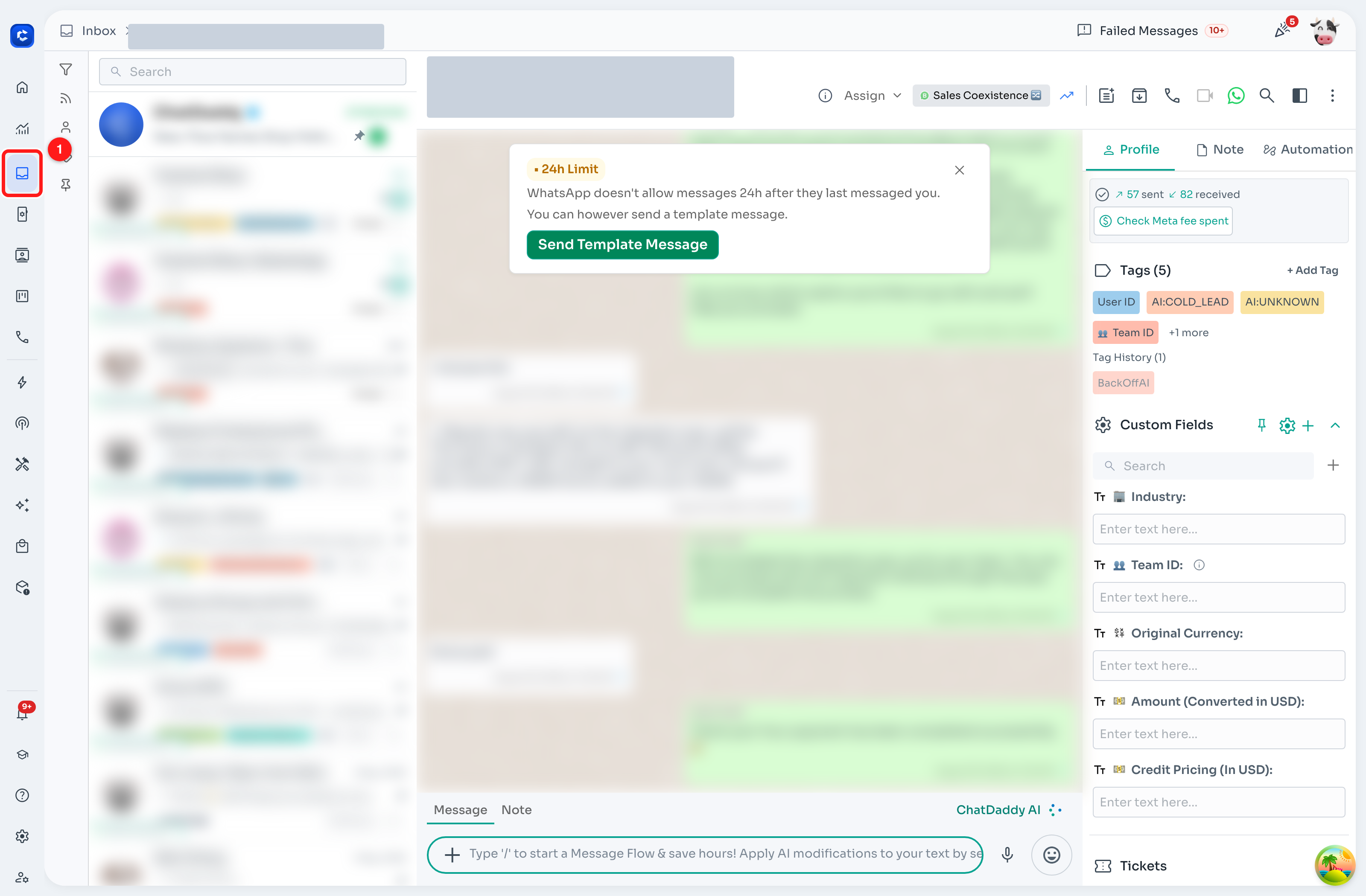
1 — the Inbox icon in the left navigation bar.
Step 2 — Open a WhatsApp conversation
Pick any WhatsApp conversation from the chat list. The section only appears on WhatsApp chats, so choose one with a WhatsApp channel label.
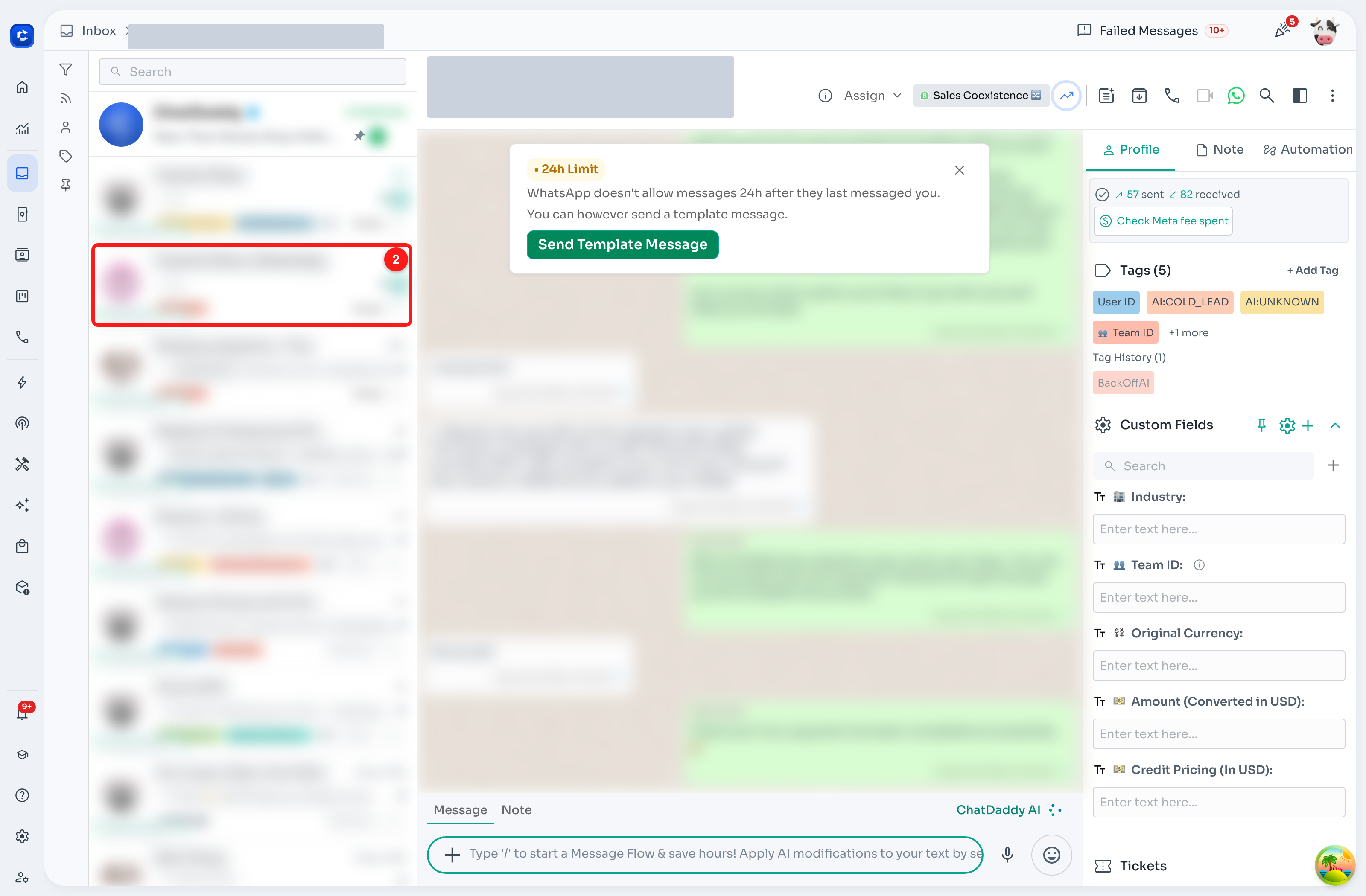
2 — click a conversation in the chat list. Customer names, avatars and message content are blurred throughout this guide.
Step 3 — Open the contact profile panel
The contact profile is the panel on the right. If it is closed, click the panel toggle in the chat header to open it, then make sure you are on the Profile tab.
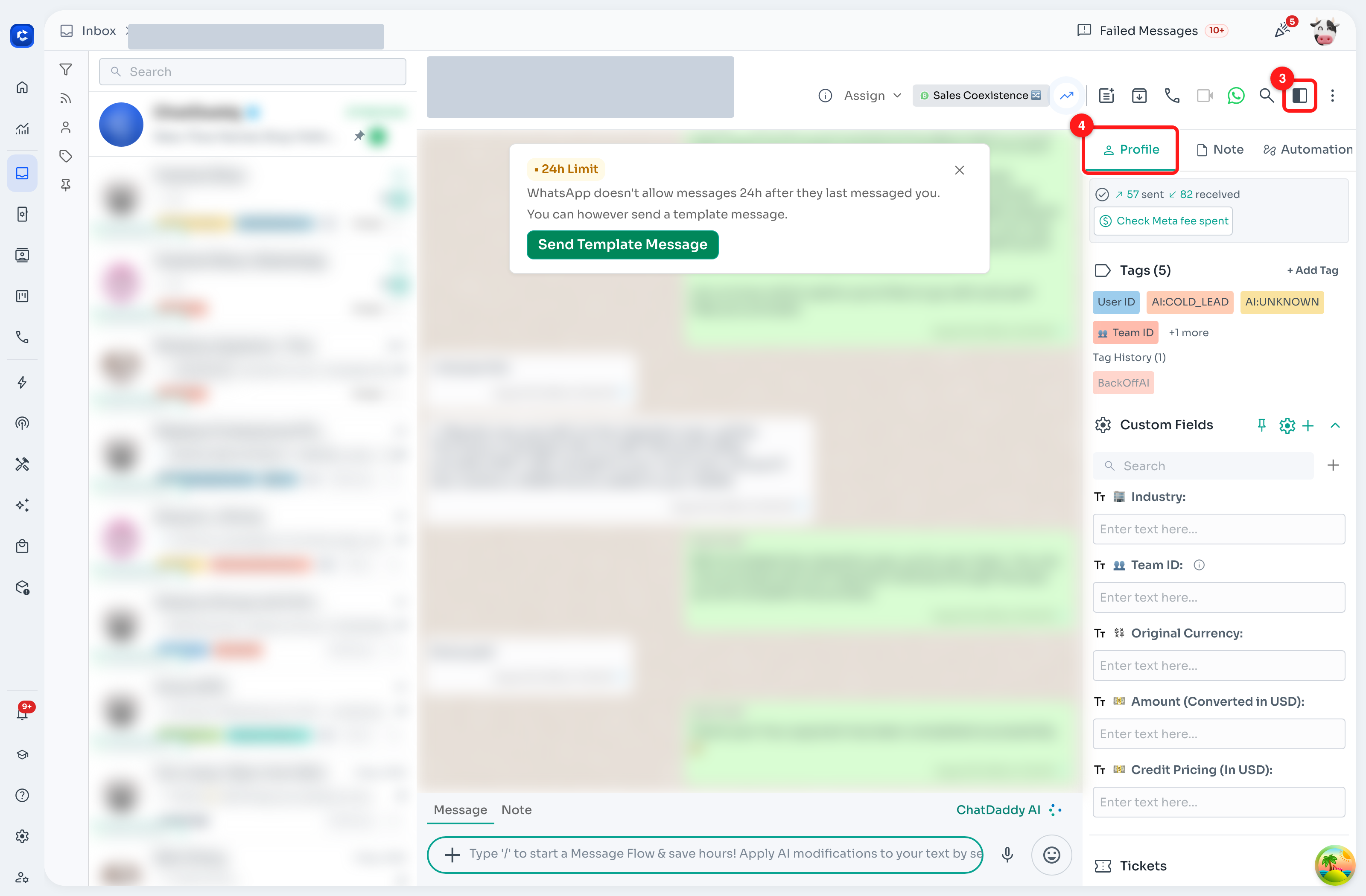
3 — the panel toggle in the chat header. 4 — the Profile tab.
💡 The panel remembers whether you left it open or closed, so you normally only do this once.
Step 4 — Scroll down to WhatsApp IDs
Scroll the profile panel until you reach the WhatsApp IDs section, marked with a fingerprint icon. It sits below Active Hours and is expanded by default.
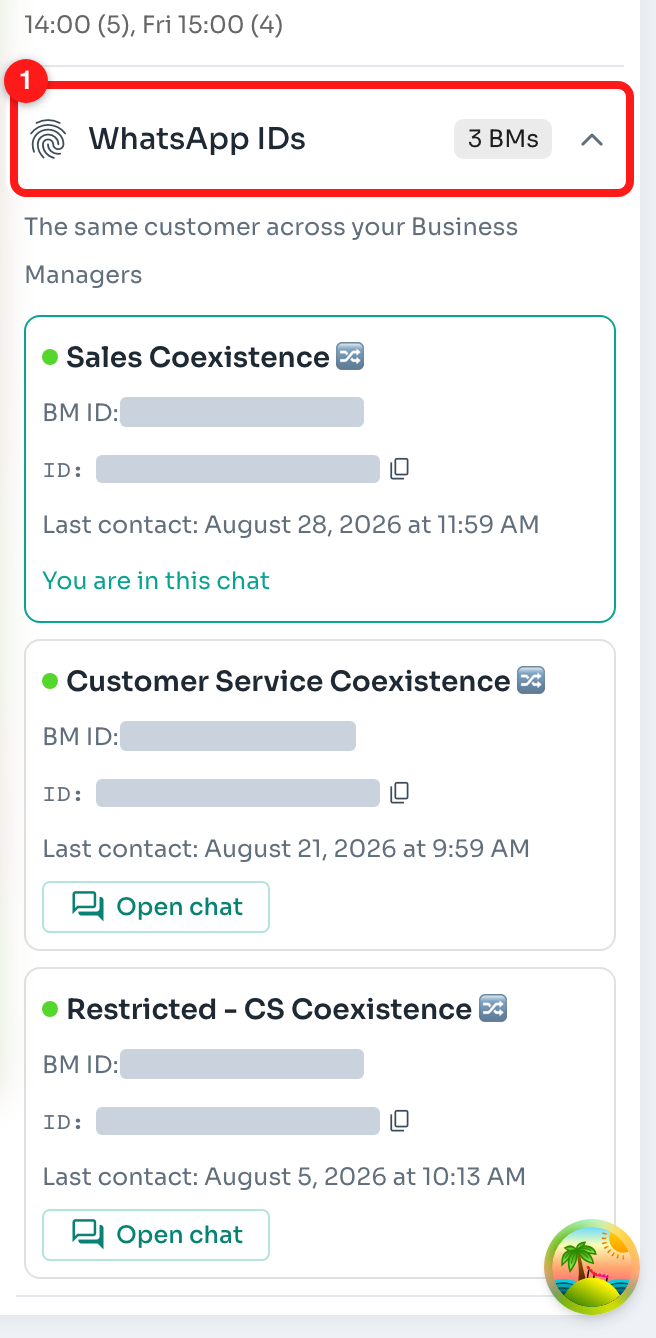
1 — the WhatsApp IDs section header.
The line under the header tells you which case you are looking at: "The same customer across your Business Managers" when there is more than one, or "WhatsApp User ID for this Business Manager" when there is only one.
Step 5 — Read the Business Manager count
When the customer is known to more than one Business Manager, a badge in the section header tells you how many — for example 3 BMs. The badge stays visible even when the section is collapsed, so you can spot a cross-portfolio customer at a glance.
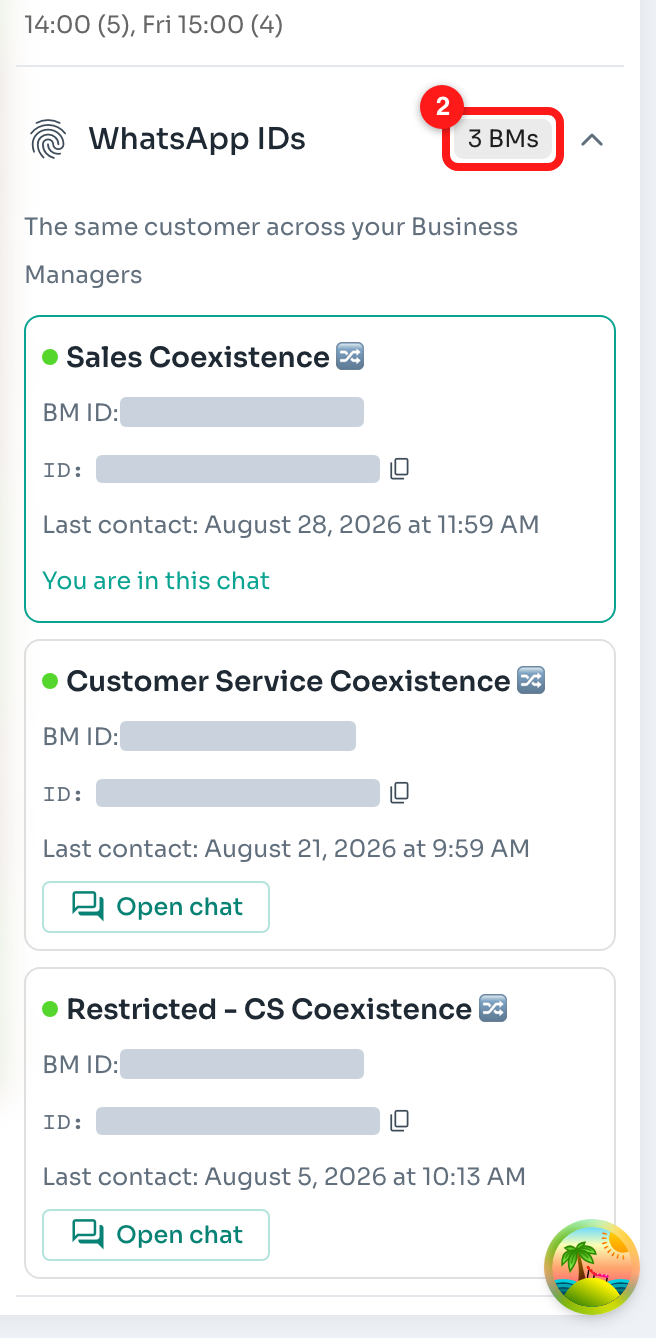
2 — the Business Manager count badge in the section header.
ℹ️ No badge means the customer is known to exactly one Business Manager.
Step 6 — One card per Business Manager
Each Business Manager gets exactly one card. If you have two WhatsApp channels sitting under the same Business Manager, they are one identity as far as Meta is concerned, so they collapse into a single card — represented by whichever channel the customer used most recently.
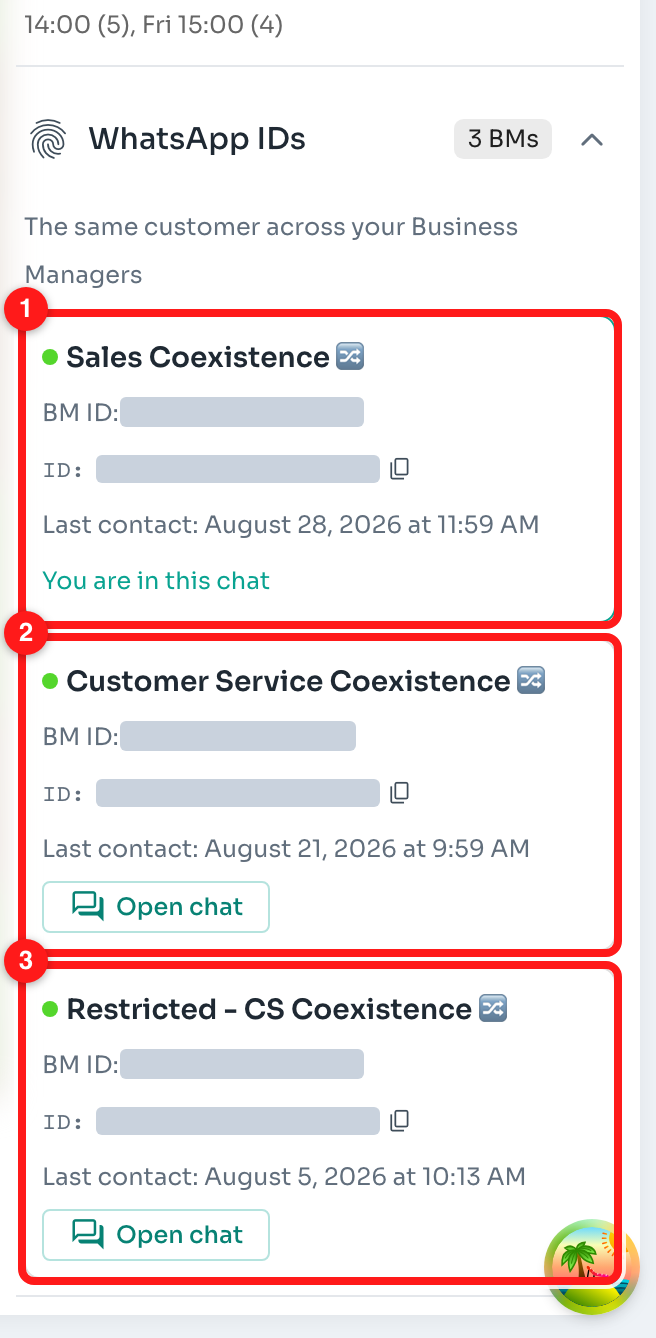
1, 2, 3 — one card for each Business Manager this customer has reached you through.
Cards are ordered by activity, with one exception: the conversation you currently have open is always first, whether or not it is the most recent.
Step 7 — Read a card
Every card carries the same four pieces of information.
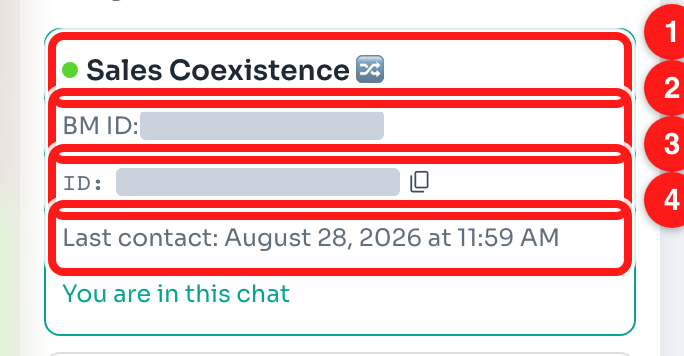
1 — status dot and channel. 2 — BM ID. 3 — WhatsApp User ID and copy button. 4 — last contact.
| Line | What it tells you |
|---|---|
| Status dot + channel name | Which of your WhatsApp channels this is. A green dot means the Business Manager was confirmed with Meta; a grey dot means it could not be confirmed (see below). |
| BM ID | The Meta Business Manager (business portfolio) id. Shown only when the portfolio was confirmed. |
| ID | The customer's WhatsApp User ID under that Business Manager, with a button to copy it. |
| Last contact | When the customer last exchanged a message on that channel — or "No conversation on this channel yet" if there is a recorded id but no chat. |
🔒 The ids in these screenshots are covered for privacy. In your own Inbox they are shown in full.
Step 8 — Spot the conversation you already have open
The card for the chat you are reading is outlined and labelled You are in this chat, so you always know which of the ids belongs to the conversation in front of you.
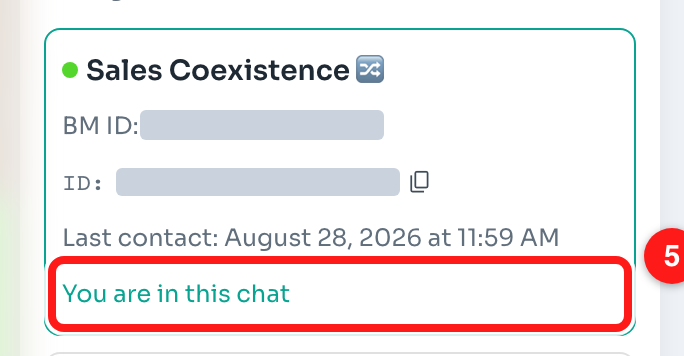
5 — the card for the conversation currently open.
Step 9 — Copy a WhatsApp User ID
Click the copy button beside any ID to put that WhatsApp User ID on your clipboard — useful when you are raising a support ticket, checking a record in another system, or matching the customer against your own database.
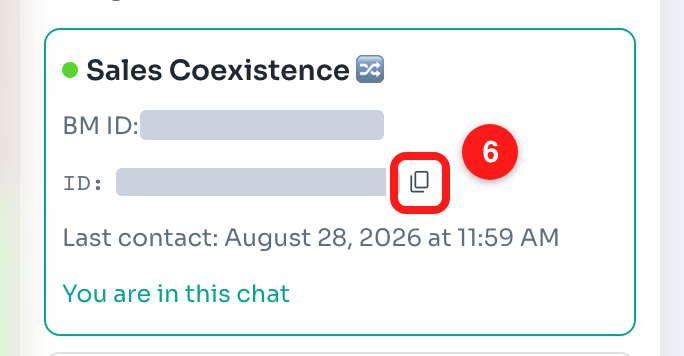
6 — the copy button beside the WhatsApp User ID.
Step 10 — Jump to the customer's other conversation
Any card that is not the chat you have open shows an Open chat button. Click it to go straight to that customer's conversation on that Business Manager.
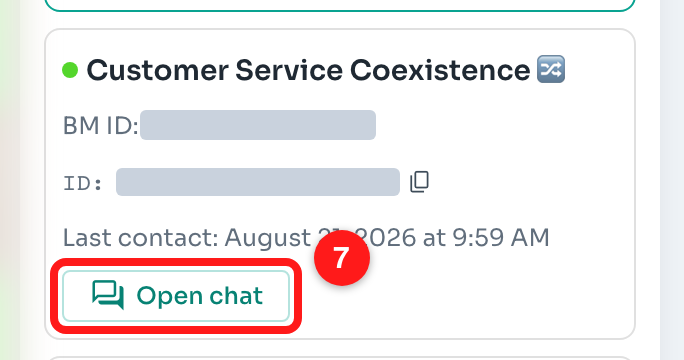
7 — Open chat on another Business Manager's card.
Step 11 — Where Open chat lands you
You are taken to the other conversation, on the other channel, with its own message history. The WhatsApp IDs section reorders itself: the card you just opened moves to the top and is now the one marked You are in this chat, and the card you came from now offers Open chat instead.
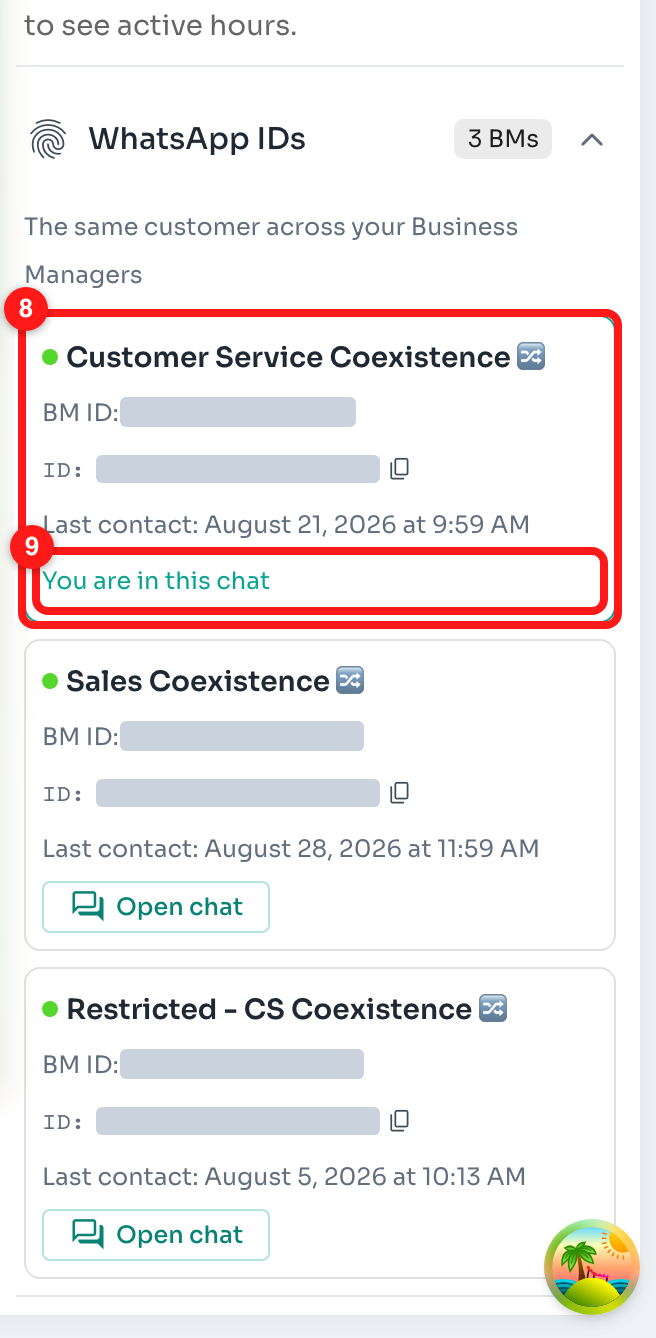
8 — the card you opened is now first. 9 — and is now the current chat.
✅ Nothing was merged, moved or changed. The two conversations remain separate chats on separate channels — you simply navigated between them.
Step 12 — A customer on a single Business Manager
Most customers reach you through one Business Manager only. The section still appears when a WhatsApp User ID is known for them, but with no count badge and a single card, under the heading "WhatsApp User ID for this Business Manager".
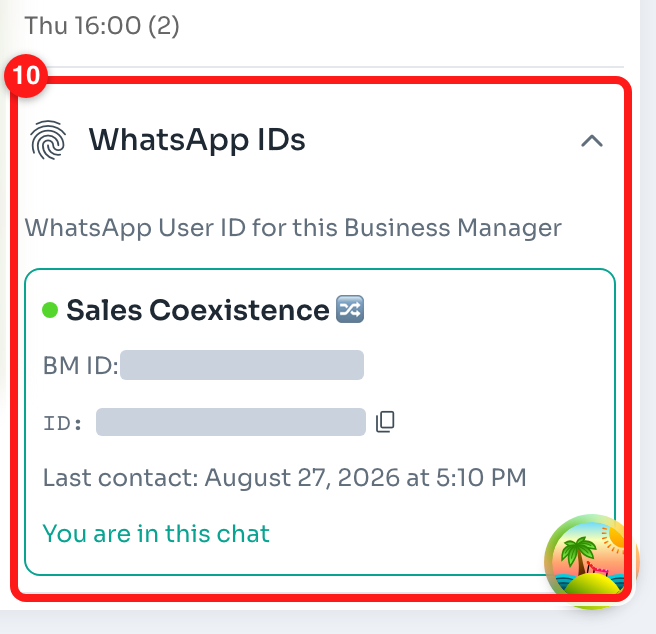
10 — the single-Business-Manager view.
What the status dot means
- Green — ChatDaddy confirmed this channel's Business Manager id with Meta. The BM ID line is shown.
- Grey — the Business Manager id could not be read for that channel right now, so the card is shown without a BM ID line. The channel and the WhatsApp User ID are still correct; only the portfolio id is missing.
A grey dot is not an error and needs no action. ChatDaddy deliberately never treats two channels as the same Business Manager on an id it could not read — that is what keeps the grouping honest.
When the section does not appear
The section hides itself rather than showing an empty box. You will not see it when:
- The chat is not a WhatsApp chat.
- No WhatsApp User ID is known for the customer and they exist on only one Business Manager.
- The contact is a group chat.
- Your team has only one WhatsApp channel and no WhatsApp User ID is recorded for the customer.
If you expect a second card and do not see one, the usual reason is that the customer has genuinely never messaged your other number.
Getting the same information out of Contacts
The same identifiers are included when you export contacts. The export adds a WhatsApp Username column, plus one WhatsApp User ID (
Frequently asked questions
Does this merge the two contacts?
No. The section is read-only. It shows you that the other record exists and lets you navigate to it. The two contacts, their tags, notes and chat histories all stay separate.
How does ChatDaddy know the two records are the same person?
Only by exact identifiers: the customer's phone number, the chat id, and any WhatsApp User ID already recorded for them. Names and profile pictures are never used, so two different people with the same name are never shown as one customer.
What is the difference between the BM ID and the ID?
The BM ID identifies you — your Meta Business Manager (business portfolio). The ID identifies the customer within that portfolio. One BM ID is shared by all your customers on that portfolio; each customer's ID is their own.
Two of my channels are under the same Business Manager. Why is there only one card?
Because Meta issues one WhatsApp User ID per portfolio, not per phone number. Two channels under one Business Manager see the same customer as the same identity, so they are shown as one card — represented by the channel the customer used most recently.
A card says "No conversation on this channel yet". What does that mean?
A WhatsApp User ID is on record for that Business Manager, but there is no chat there right now — for example the conversation was deleted. The id is still real, so the card is kept.
Can I search the Inbox by WhatsApp User ID?
Copy the id from the card and paste it into the Inbox search box. You can also search by the customer's WhatsApp username.
Why does the count badge say "BMs" and not "channels"?
Because the number counts Business Managers, not channels. A team with four WhatsApp numbers under two Business Managers will see at most 2 BMs for a customer, never 4.
Does the customer see any of this?
No. WhatsApp User IDs and Business Manager ids are visible only to your team inside ChatDaddy. Nothing about this section is shown to the customer.