
How to Check Payment Transactions in ChatDaddy
1️⃣ Login to ChatDaddy Open ChatDaddy and log in with your account credentials.
Updated Jun 17, 2026
1️⃣ Login to ChatDaddy
- Open ChatDaddy and log in with your account credentials.
2️⃣ Go to Billing
-
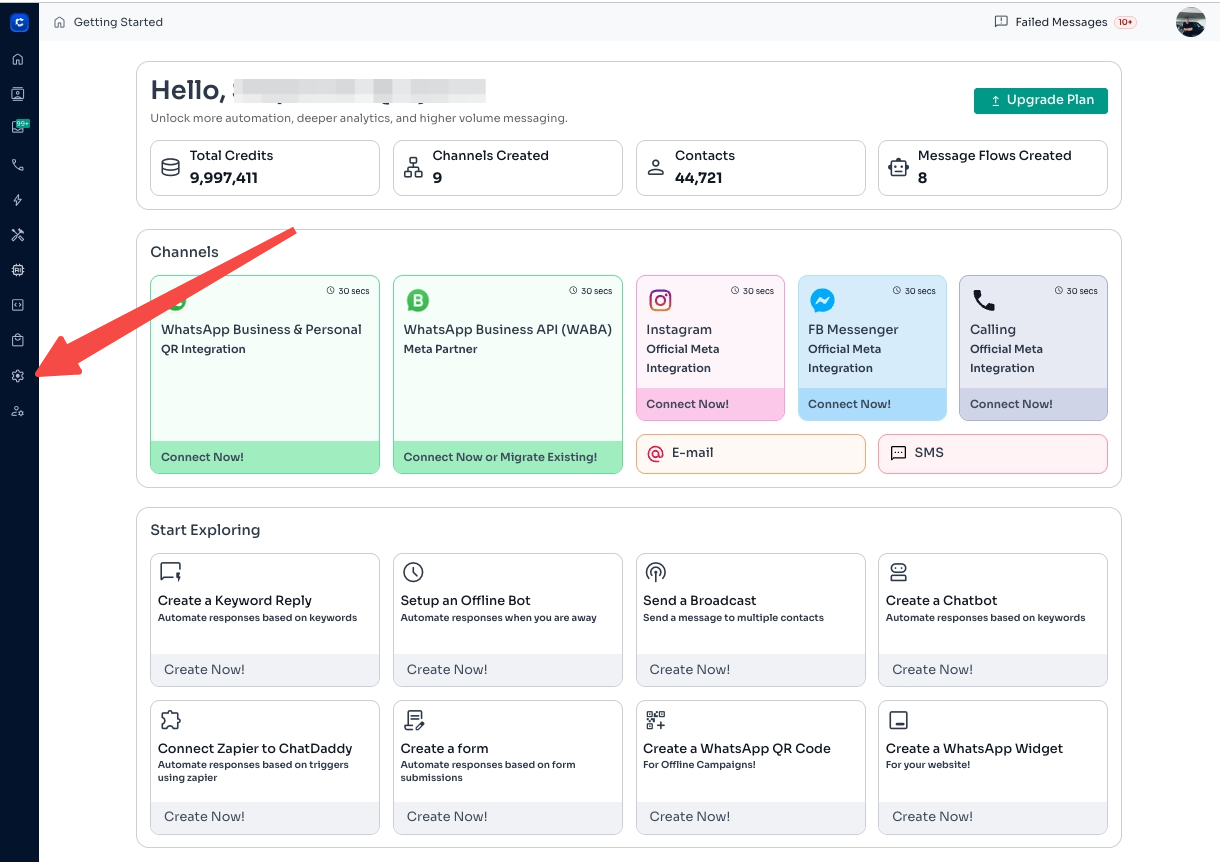
Click Settings ⚙️ in the left-hand menu.
-
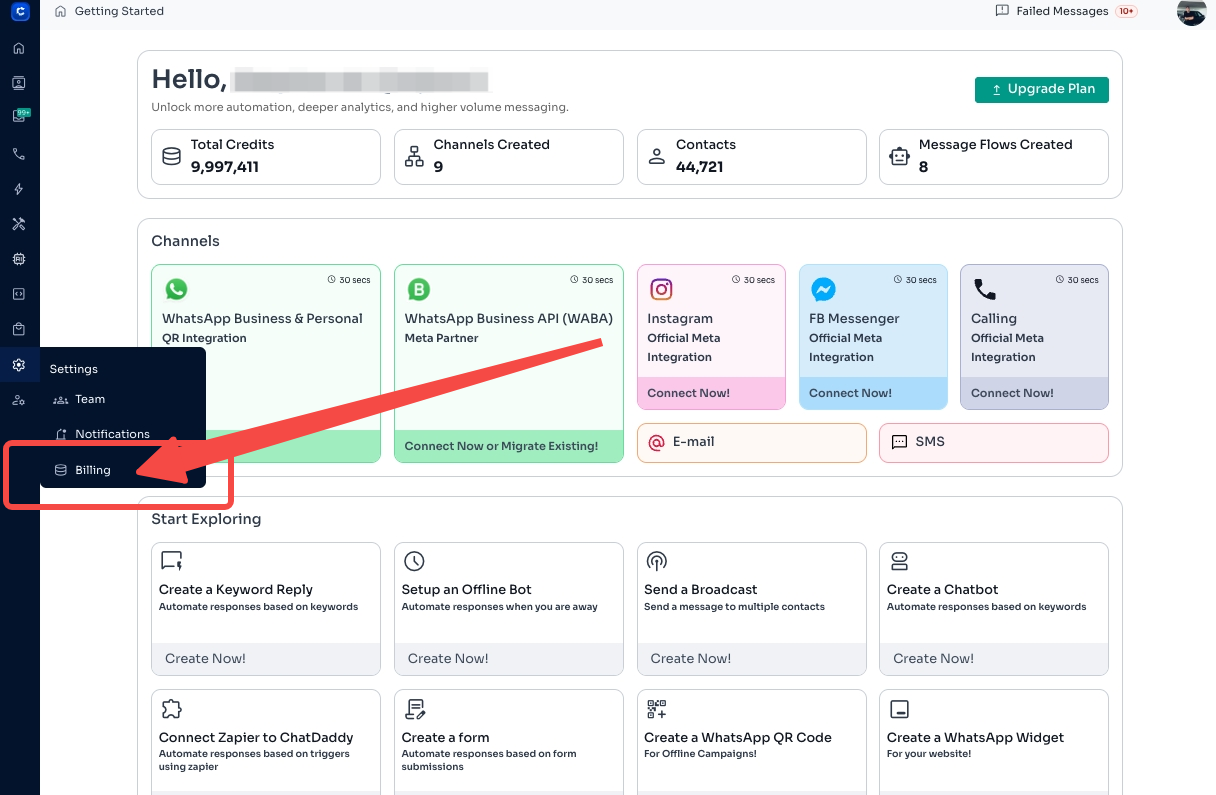
Select Billing.
3️⃣ Explore the 3 Payment Transaction Tabs

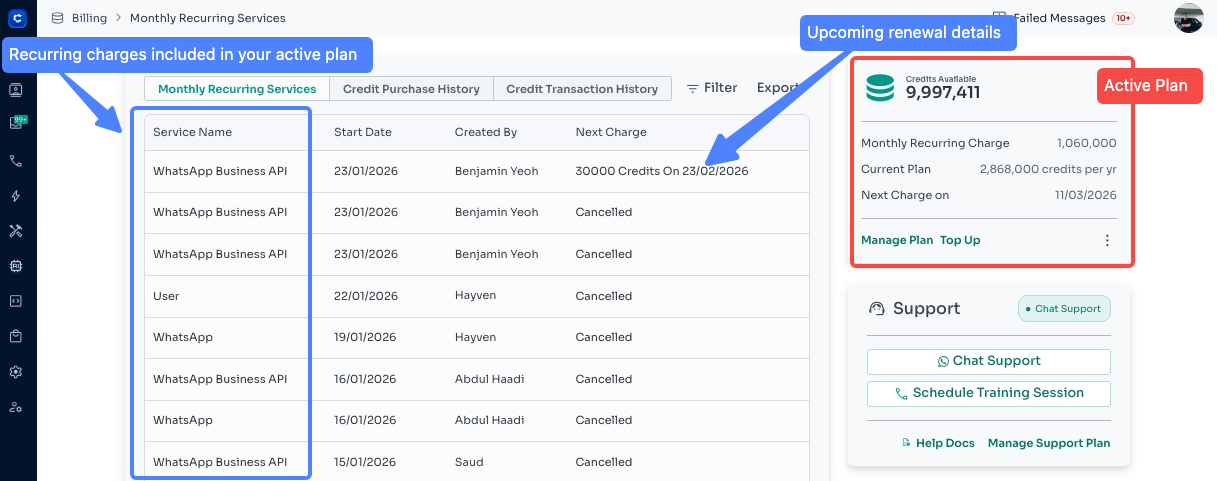
🗓️ Monthly Recurring Services
- Shows your subscription plans billed on a recurring basis.
- You can check:
- Subscription start & expiry dates
- Recurring charges
- Upcoming renewal details
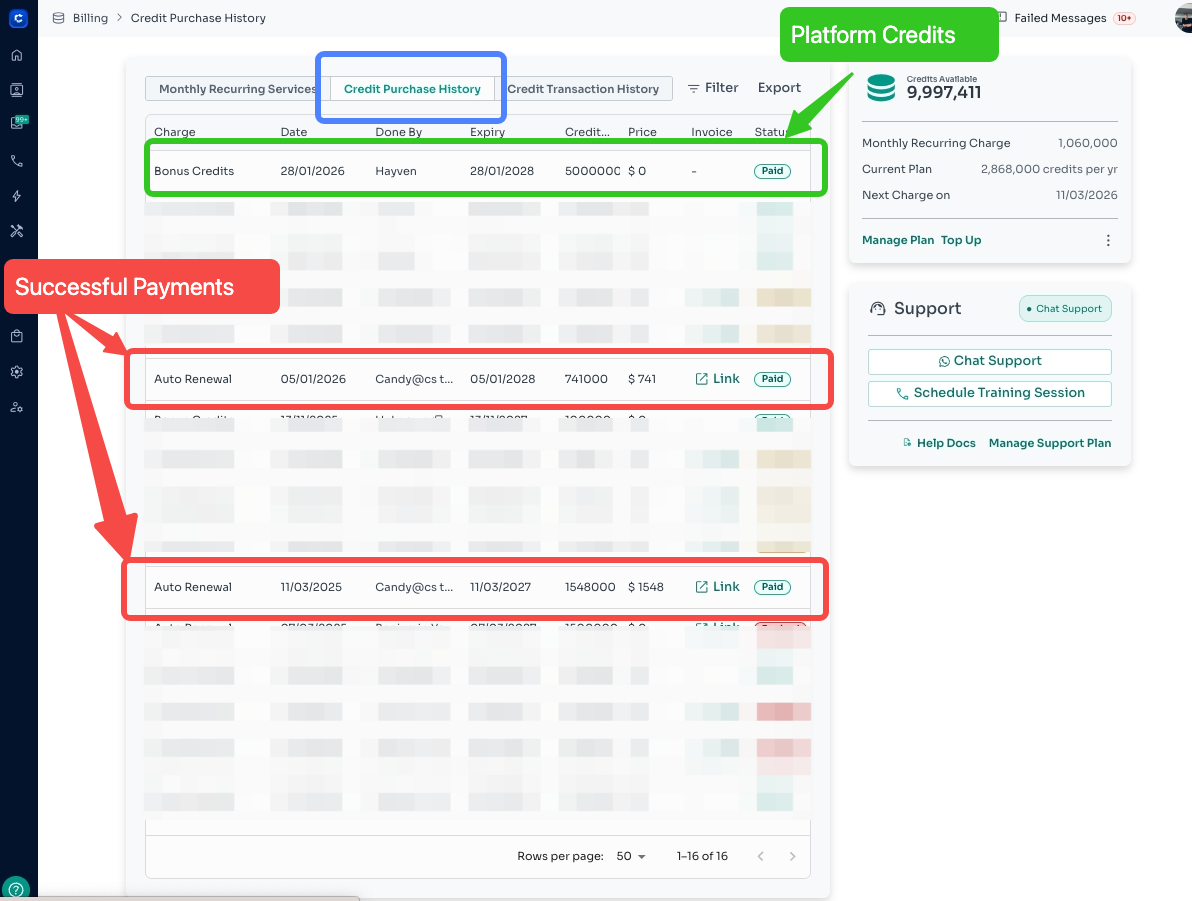
💰 Credit Purchase History
- Displays all purchases of ChatDaddy credits.
- You can check:
- Date of credit purchase
- Amount of credits purchased
- Payment method
- Invoice or receipt
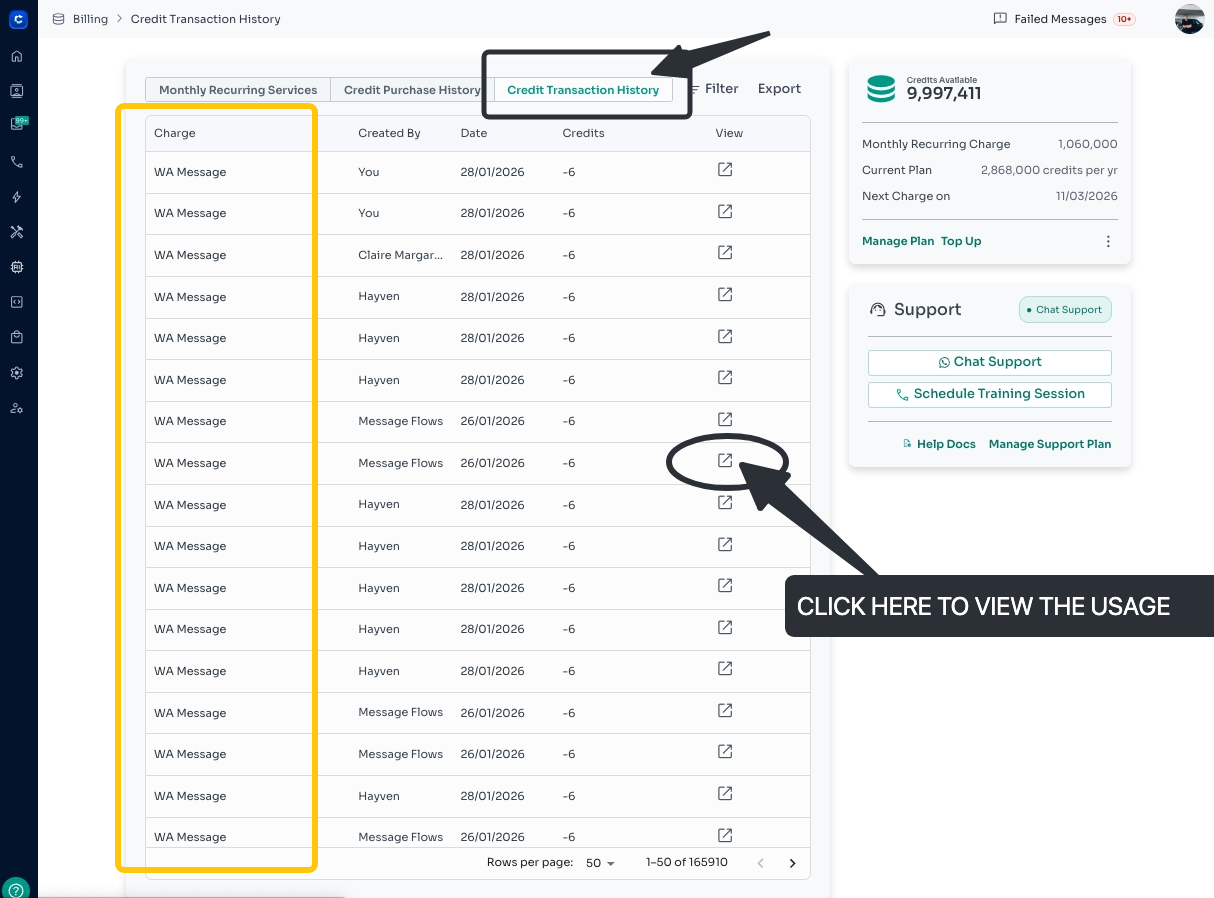
📄 Credit Transaction History
- Tracks how your credits are used in the platform.
- You can check:
- Sent messages deducted from your credits
- Date and time of each usage
✅ Pro Tip: Regularly review these tabs to monitor credit usage and subscription status, so you never run out of credits unexpectedly!
Was this article helpful?