
How to Download Your ChatDaddy Invoice (New Billing)
Use this guide if you are on the New Billing plan. The toggle shows 'New Billing' is active, or there is no toggle visible.
Use this guide if you are on the New Billing plan. The toggle shows 'New Billing' is active, or there is no toggle visible.
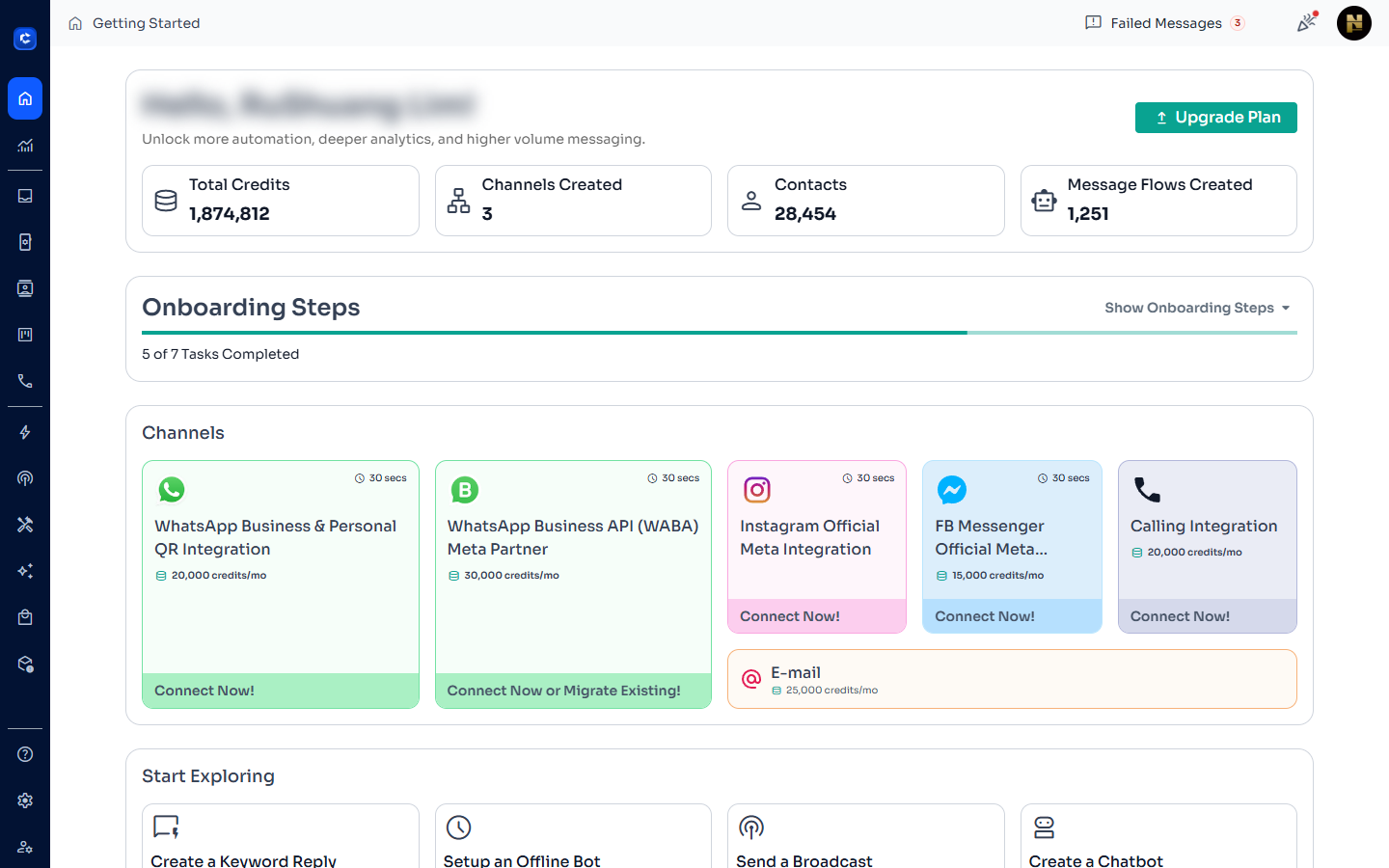
Step 1: Go to the ChatDaddy Dashboard
Log in to your ChatDaddy account at beta.chatdaddy.tech. You will land on the main dashboard.
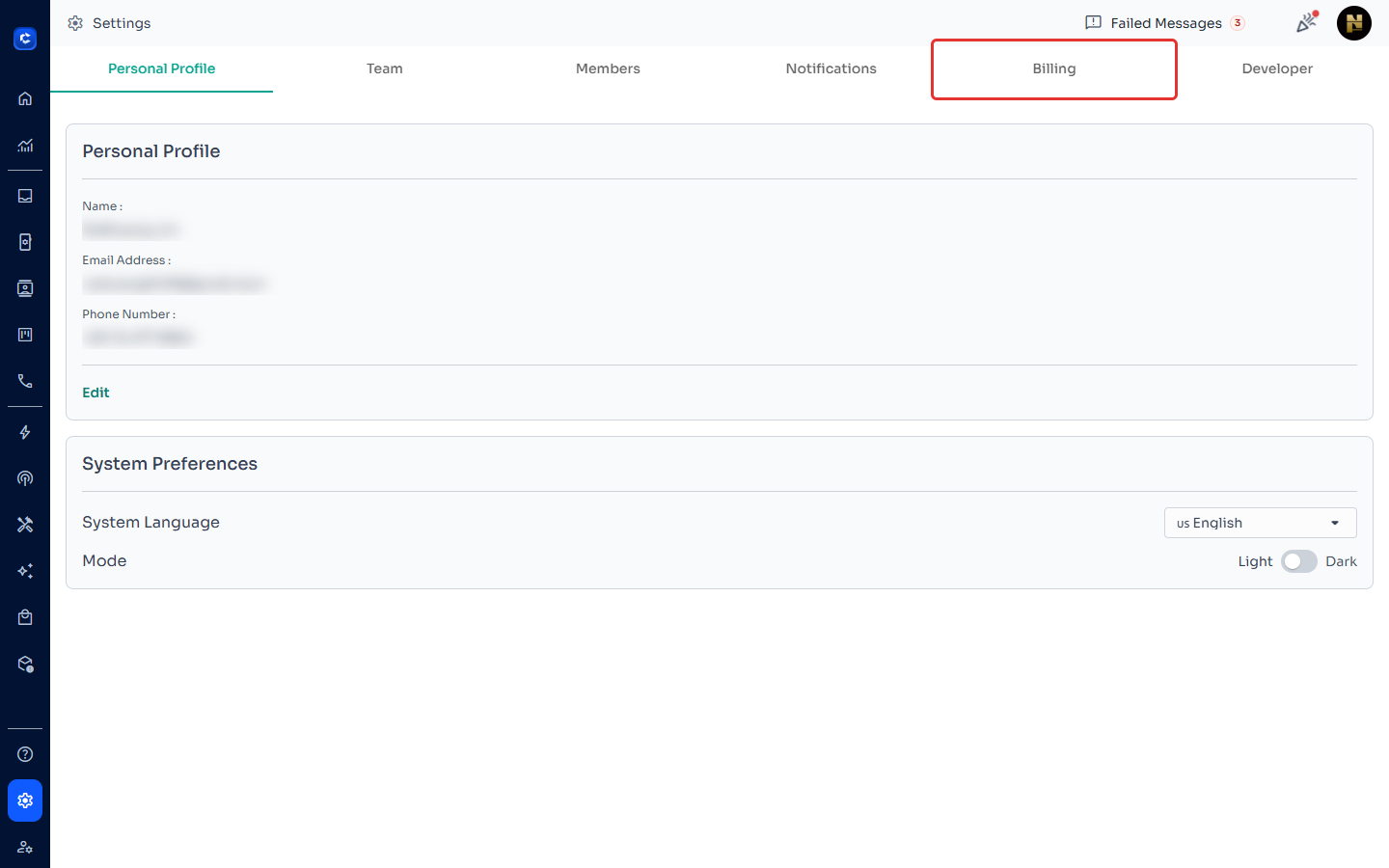
Step 2: Open Settings → Billing Tab
Click the Settings icon on the left sidebar to open Global Settings, then click the Billing tab.
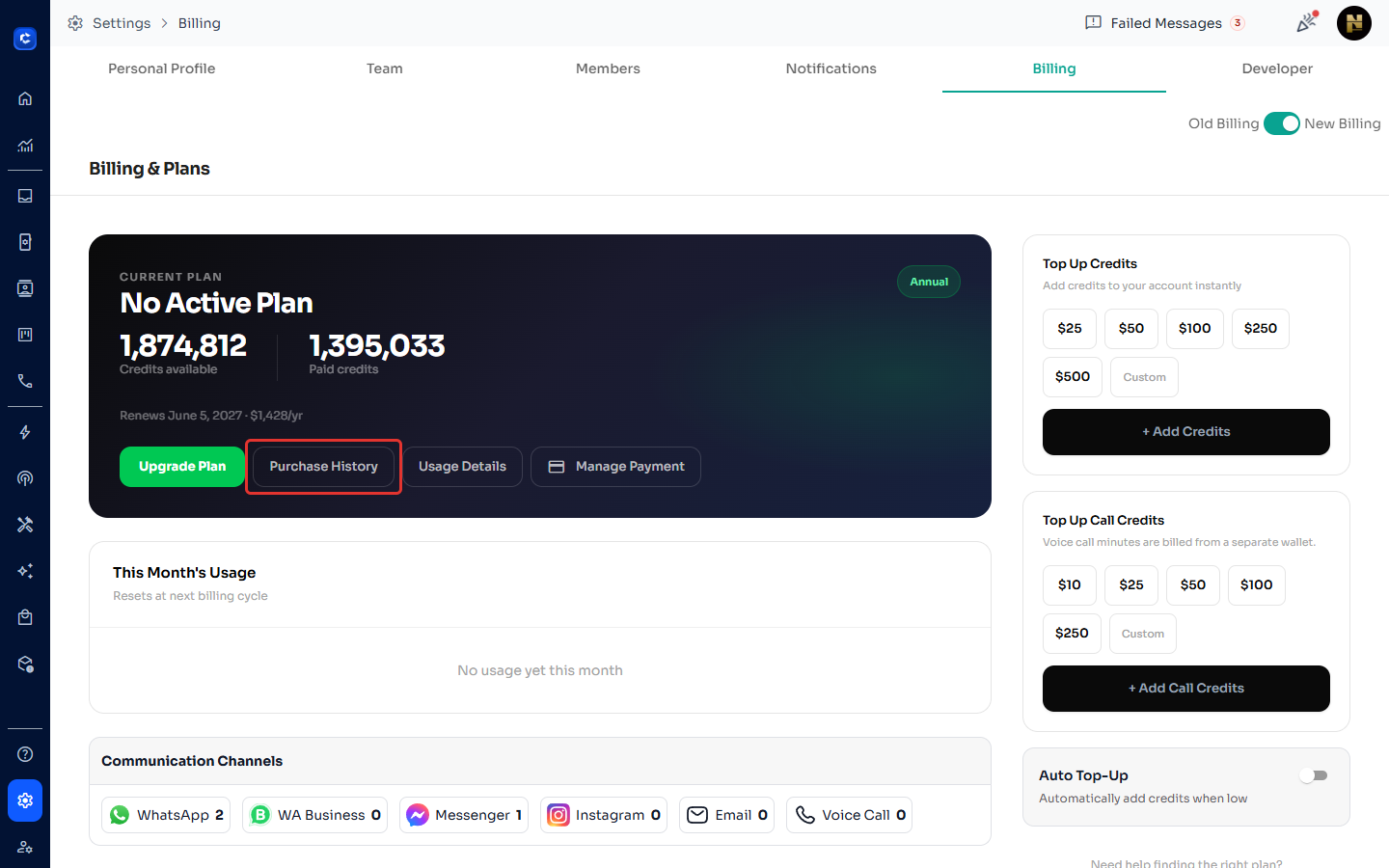
Step 3: Click 'Purchase History'
On the Billing page, click the 'Purchase History' button to see your list of past payments.
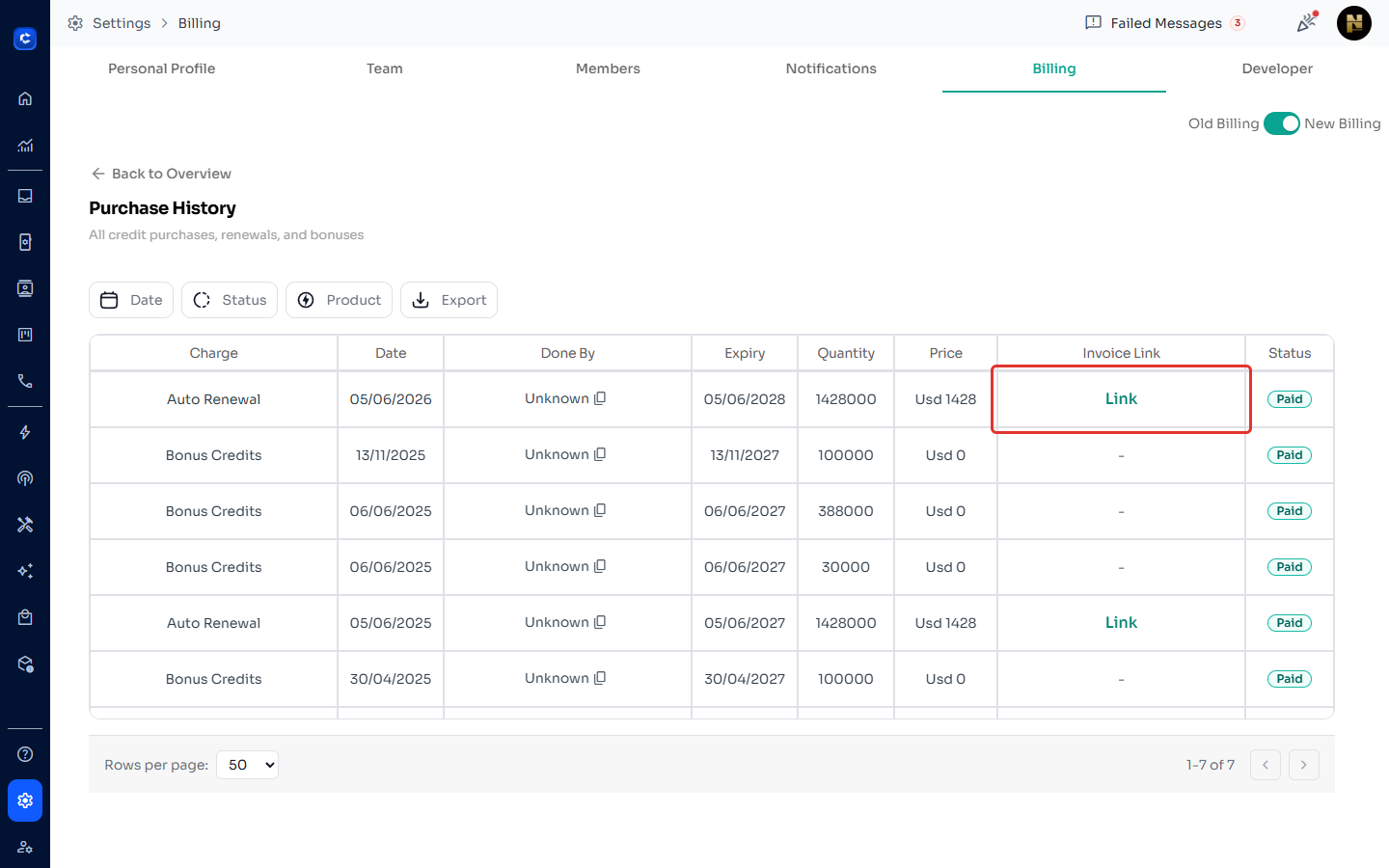
Step 4: Click the Invoice Link
In the Purchase History list, find the payment you want. Click the 'Link' button in the Invoice column to open the Stripe invoice.
Step 5: Download the Invoice
The Stripe invoice page will open. Click 'Download invoice' to save the PDF, or 'Download receipt' for a payment receipt.
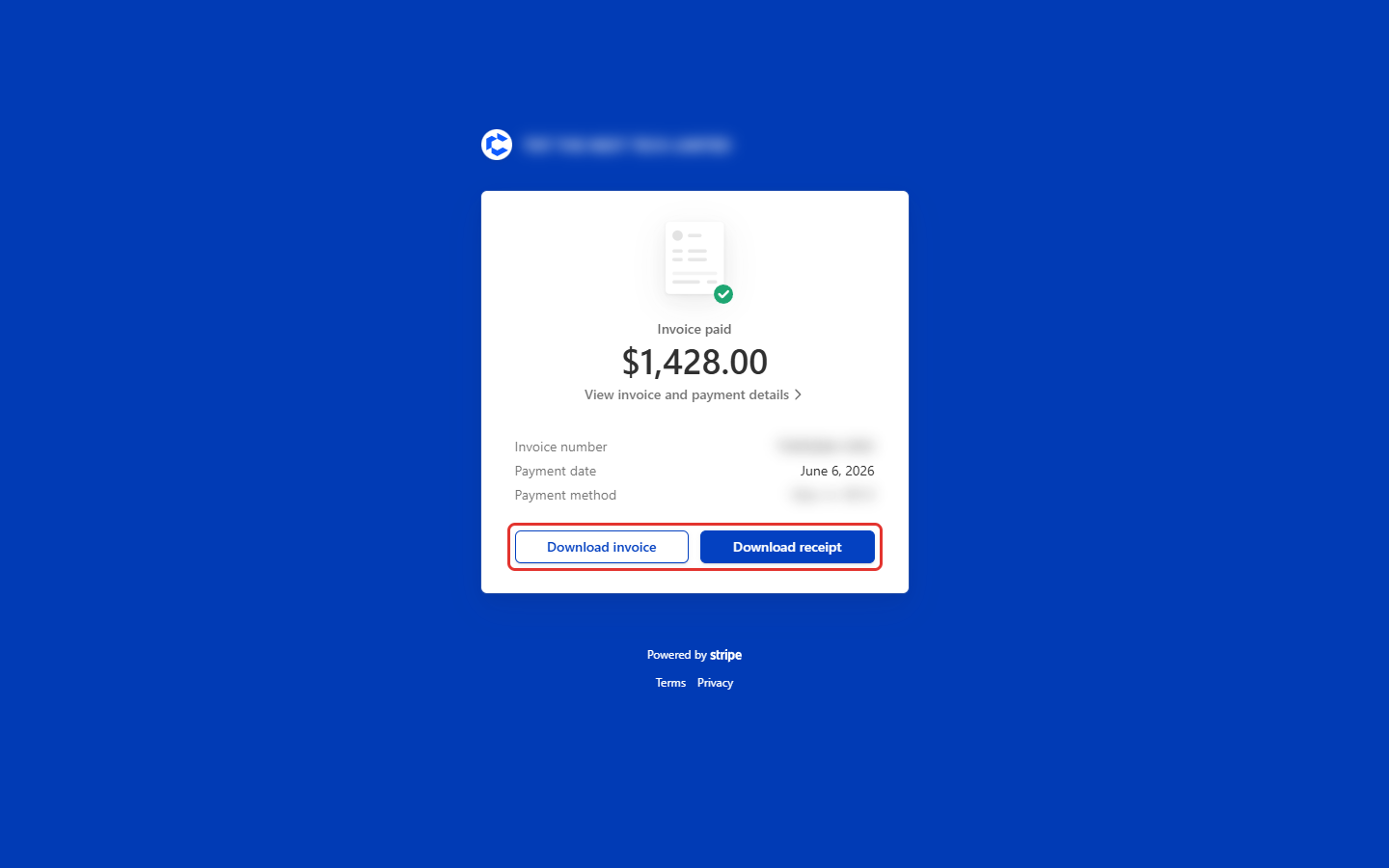
The invoice will be downloaded as a PDF to your device.