
How to Edit and Delete Sent WhatsApp Messages in the Inbox
Learn how to edit a sent WhatsApp message (up to 15 minutes) or delete it for everyone (up to 48 hours) directly from the ChatDaddy Inbox — with step-by-step screenshots.
✏️ Made a typo or sent the wrong thing? You can now edit or delete (unsend) a WhatsApp message you've already sent — right from the ChatDaddy Inbox, without switching to your phone.
This guide walks you through editing and deleting sent messages step by step. Both actions work on native WhatsApp numbers (Personal / QR-linked WhatsApp) and follow WhatsApp's own time limits.
Before you start — good to know
- **Availability: **Works on native WhatsApp channels. Editing is not available on WhatsApp Business API (WABA) numbers, because Meta's Cloud API does not support message editing.
- **Your messages only: **You can only edit or delete messages that you sent.
- **Edit time limit: **A sent text message can be edited for up to 15 minutes after it was sent (WhatsApp's own limit).
- **Delete (unsend) time limit: **A sent message can be deleted for everyone for up to 48 hours after it was sent.
- After the window closes, the Edit / Delete option simply won't appear for that message.
Part 1 — Edit a sent WhatsApp message
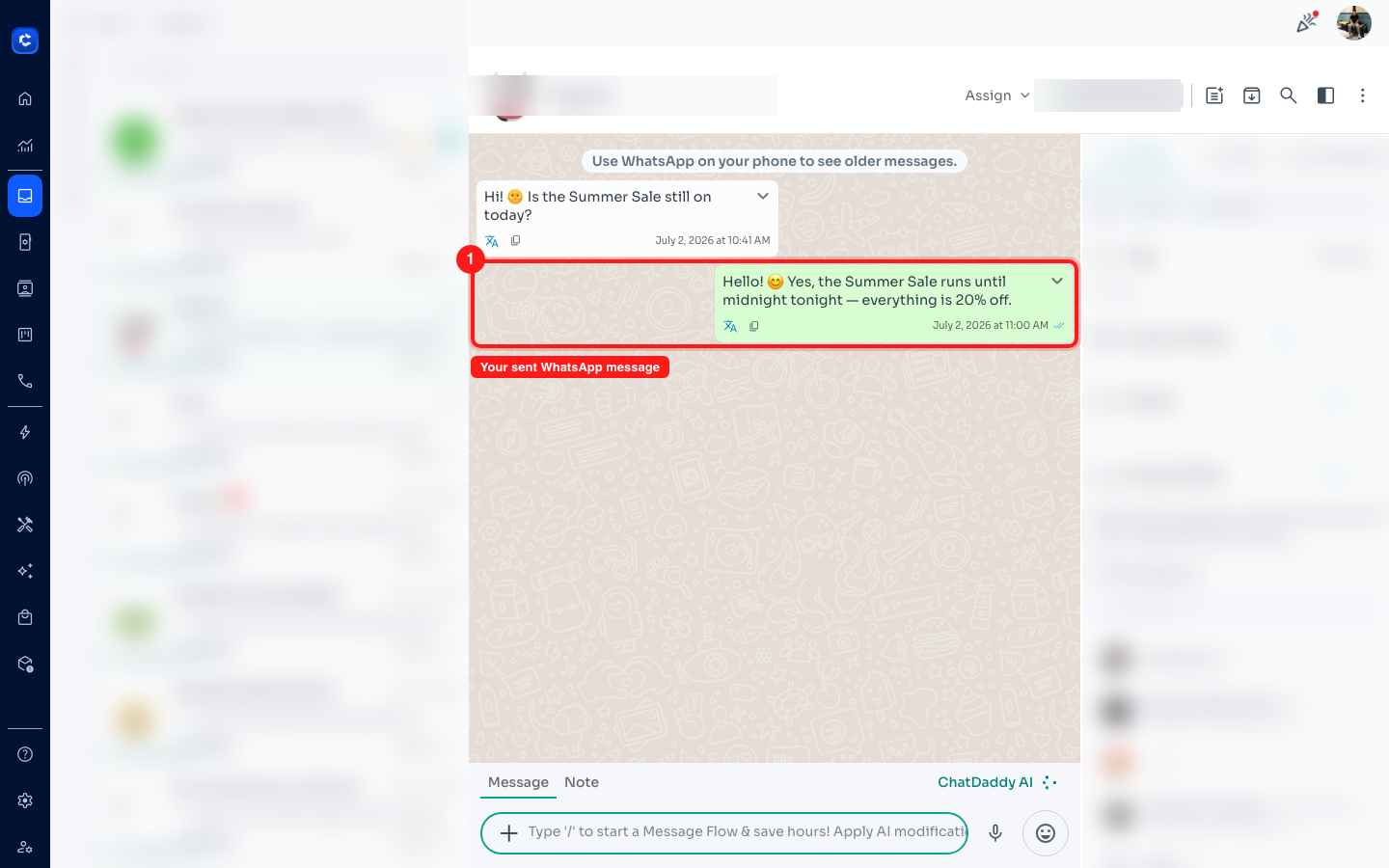
Step 1: Open the chat and find your sent message
In the Inbox, open the conversation and locate the message you sent. Your own messages appear as green bubbles on the right.
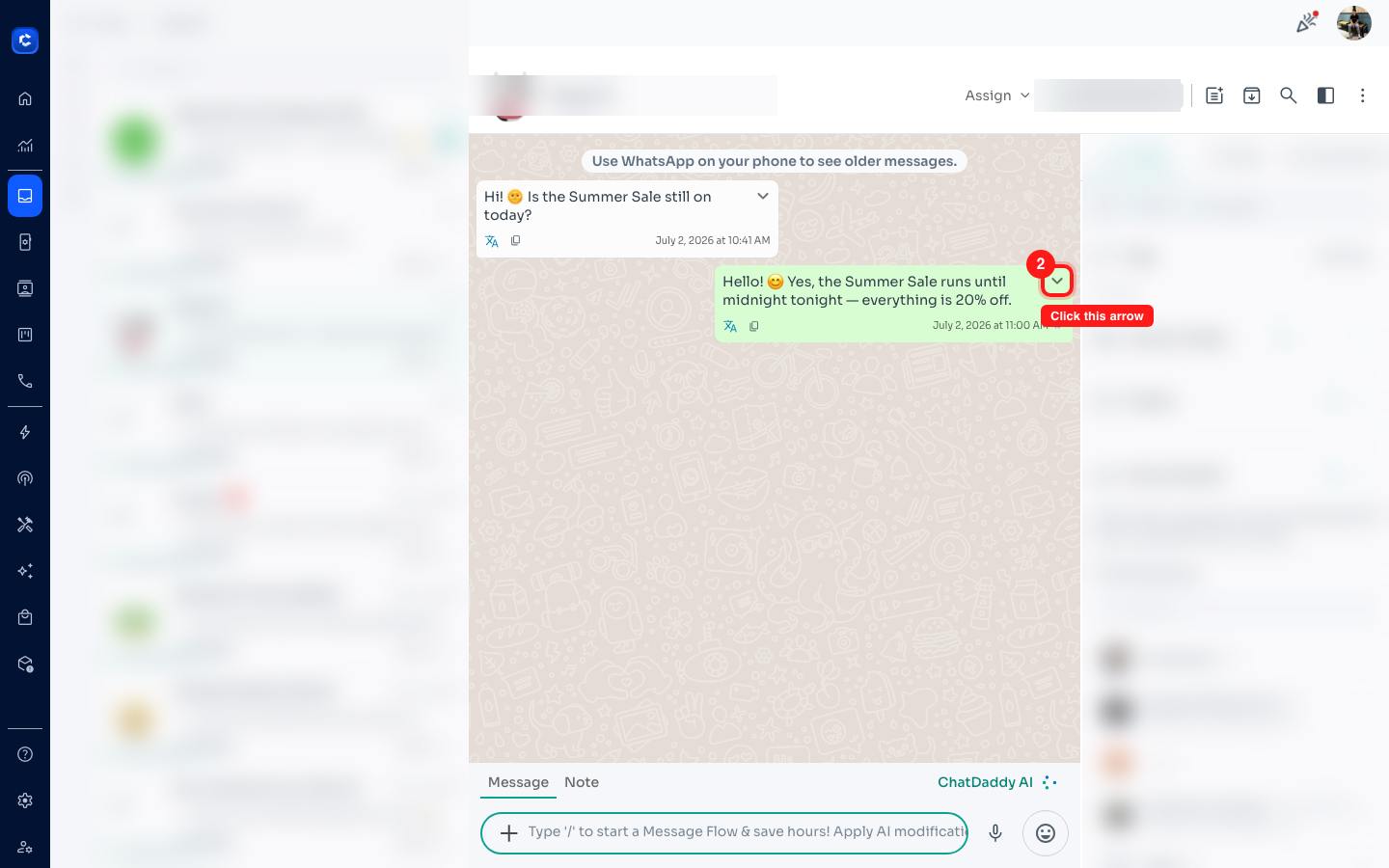
Step 2: Open the message menu
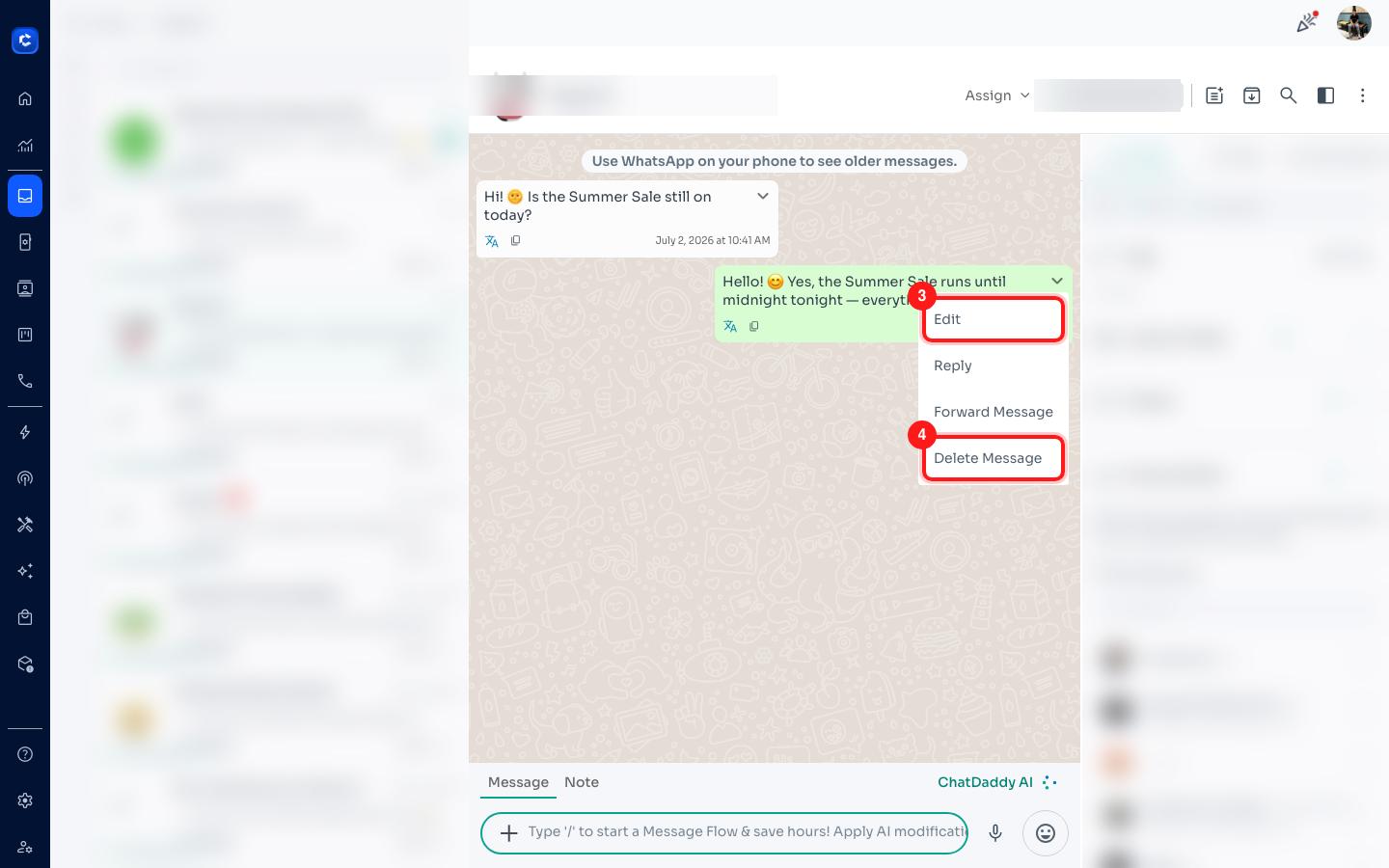
Hover over your sent message and click the dropdown arrow (⌄) that appears in the top-right corner of the bubble.
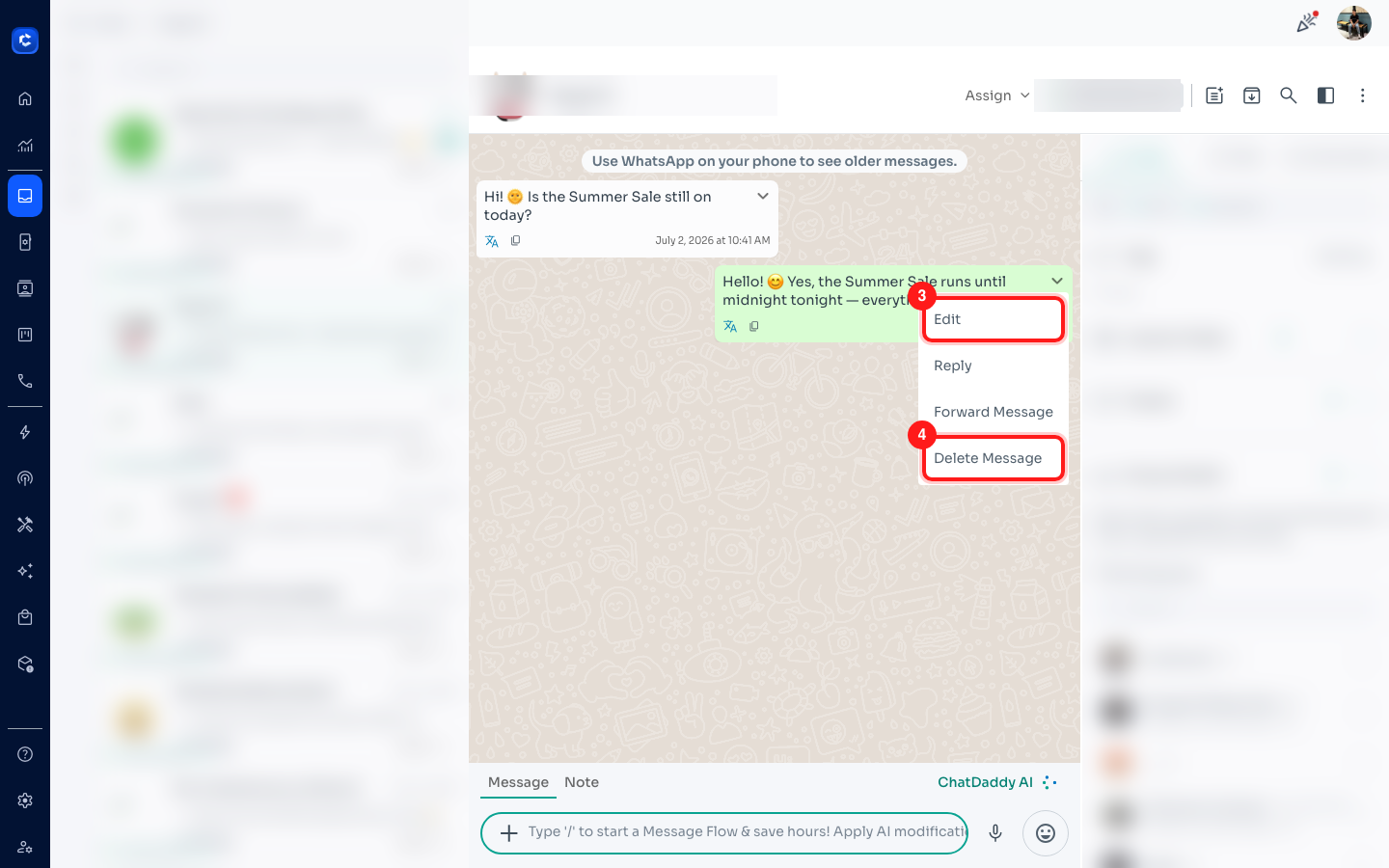
Step 3: Choose “Edit”
From the menu, click Edit. (You'll also see Reply, Forward Message and Delete Message here.)
ℹ️ Don't see Edit? The 15-minute edit window may have passed, the message may not be a text message, or the channel is a WhatsApp Business API number.
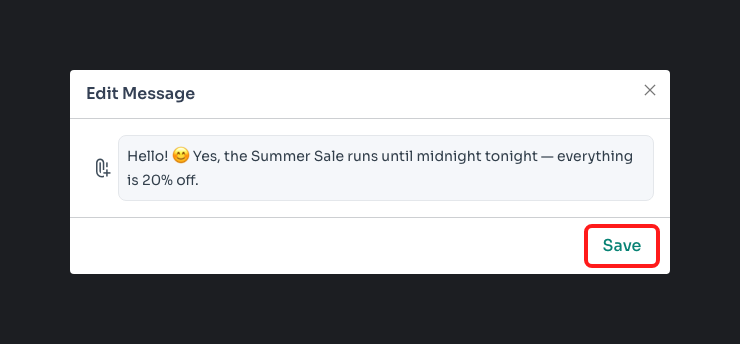
Step 4: Update the text and save
In the Edit Message window, change the text, then click Save. The edited message is updated for you and for the recipient on WhatsApp.
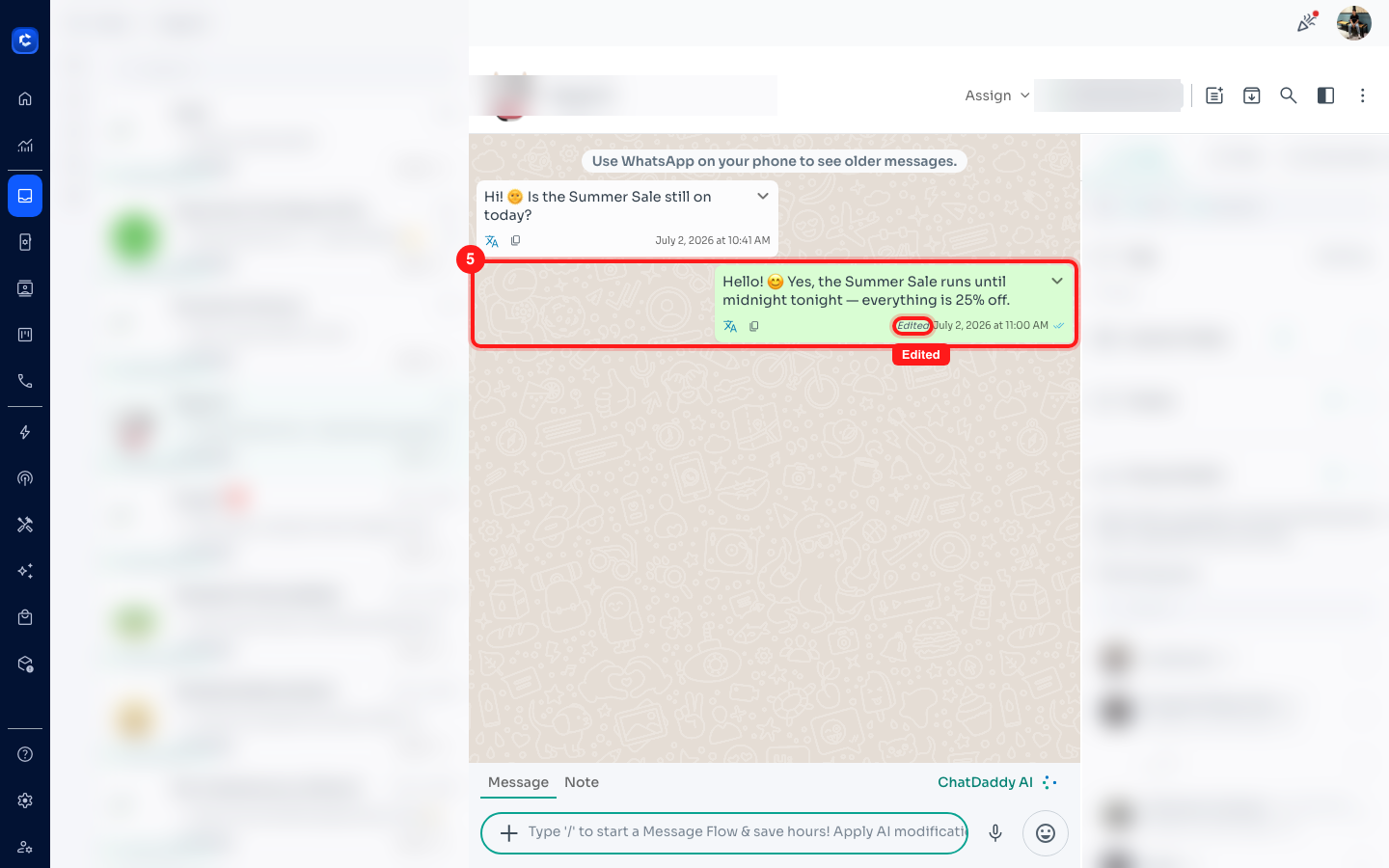
Step 5: Confirm the “Edited” label
Once saved, the message shows a small italic Edited label next to the timestamp — the same way WhatsApp marks edited messages.
Part 2 — Delete (unsend) a sent WhatsApp message
Step 1: Open the message menu
Just like editing, hover over the message you sent and click the dropdown arrow (⌄) in the corner of the bubble.
Step 2: Click “Delete Message”
Choose Delete Message from the menu.
Step 3: Confirm the deletion
A confirmation prompt appears:
Are you sure you want to delete this message for everyone?
Click OK to confirm. This unsends the message for everyone in the chat — the same as “Delete for everyone” on WhatsApp.
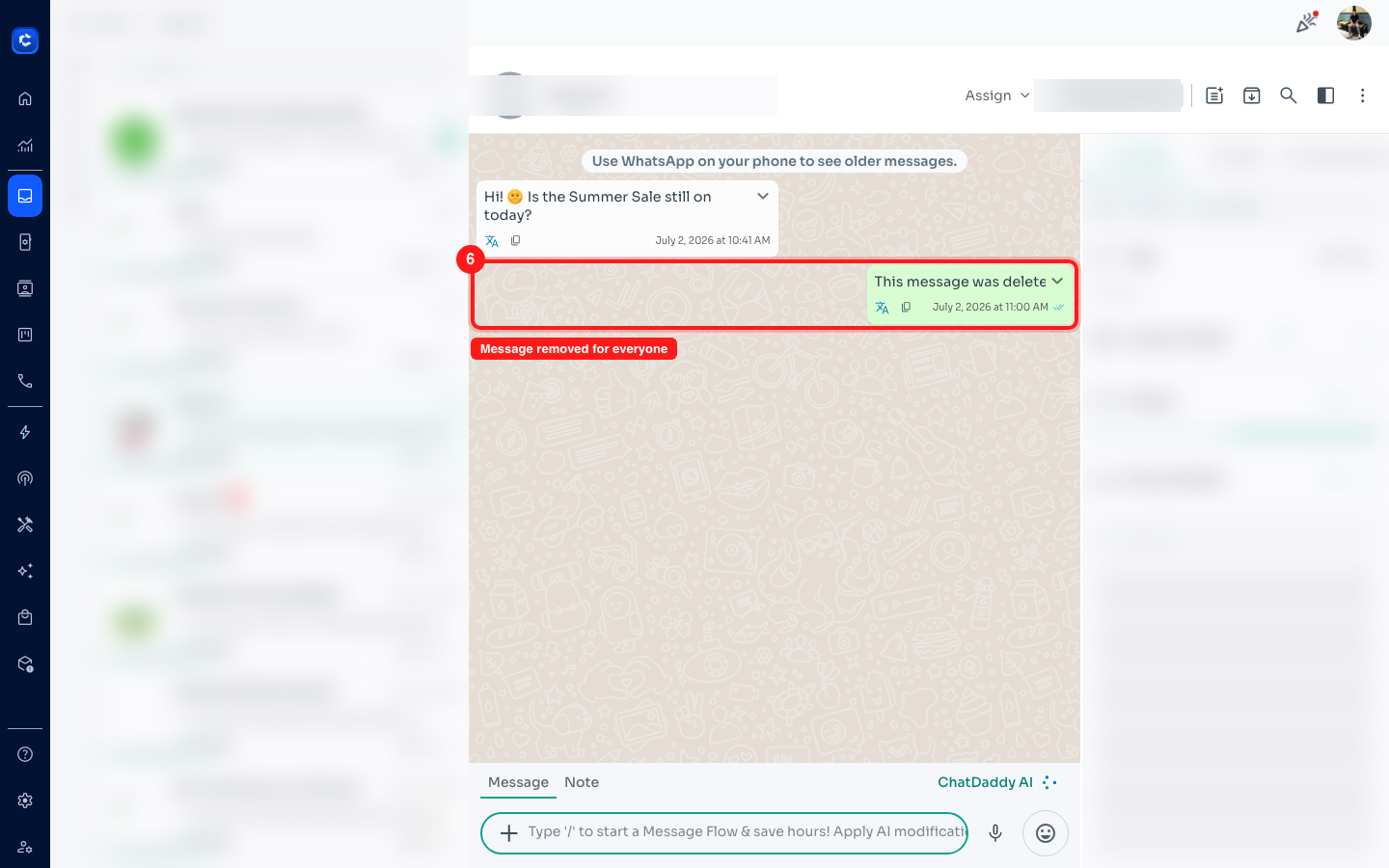
Step 4: The message is removed for everyone
The bubble is replaced with “This message was deleted”, confirming it was unsent for both you and the recipient.
Frequently asked questions
Why can't I edit a message?
-
More than 15 minutes have passed since it was sent.
-
The message isn't a plain text message (e.g. an image, file or forwarded message).
-
The channel is a WhatsApp Business API (WABA) number — editing isn't supported by Meta there. Why can't I delete a message?
-
More than 48 hours have passed since it was sent.
-
It's not a message you sent — you can only delete your own messages.
-
It was already deleted. Does the recipient still see the original?
No. Editing updates the message on WhatsApp for everyone, and deleting unsends it for everyone in the chat. As with WhatsApp itself, recipients may briefly notice a message was edited or deleted.
⏱️ **Tip: **Act quickly. Because both actions follow WhatsApp's time limits (15 minutes to edit, 48 hours to delete), the sooner you catch a mistake, the more options you'll have.