
How to enable Push Notifications on Browser?
Access Notification Settings Open the ChatDaddy app. Look for "Settings" and “Notifications” section within the app. Manage Section Notifications You'll see…
Updated Nov 21, 2025
Access Notification Settings
- Open the ChatDaddy app.
- Look for "Settings" and “Notifications” section within the app.
Manage Section Notifications
- You'll see a list of different sections within the app that can send notifications.
- Each section have its own toggle or settings to enable/disable notifications or customize their behavior.
- The app allows selecting the delivery method for notifications, you'll see options like "Email" or "Push.”
Enable Notifications (if applicable)
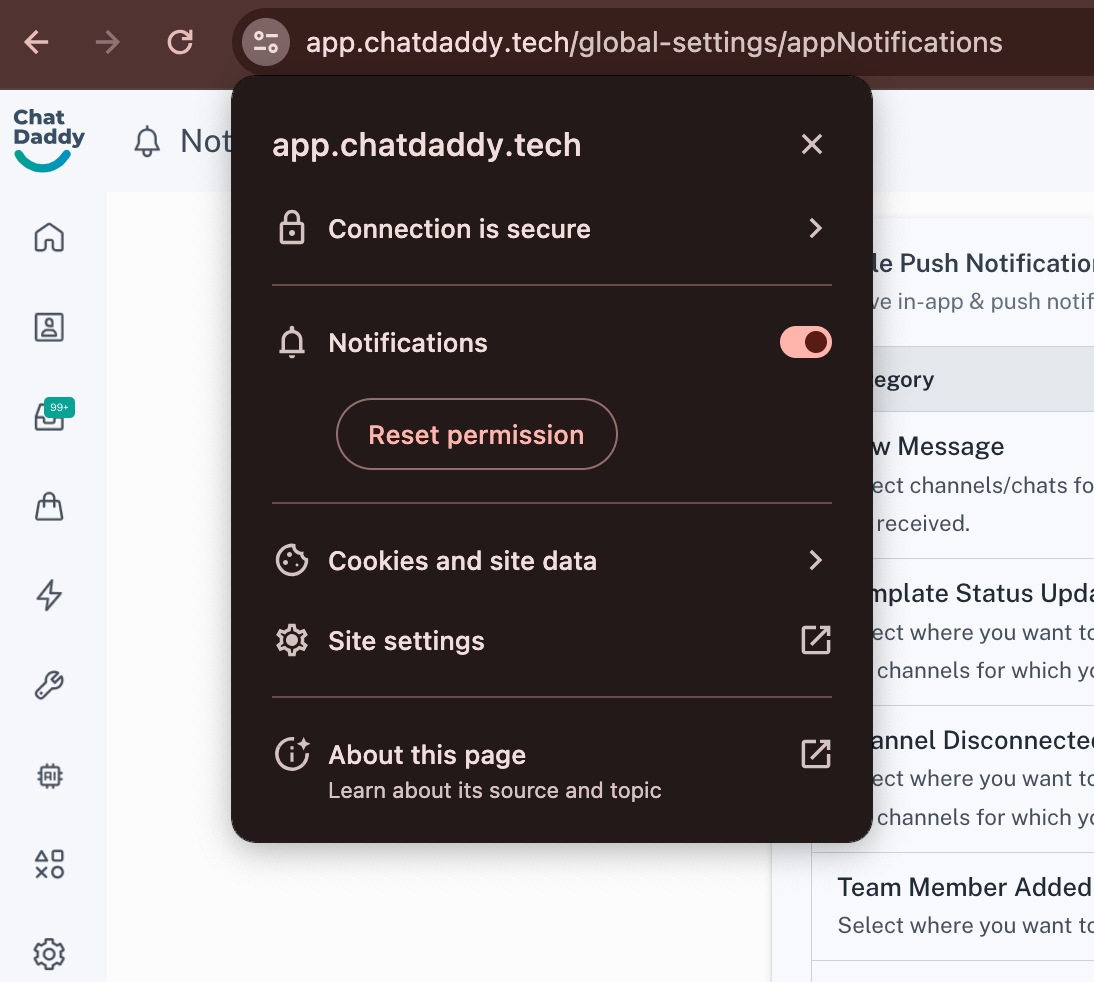
- Enabling notifications involve granting permission through the device's notification settings. In this case, you might see a prompt to "Allow Notifications" when you try to enable them.
- If you encounter this prompt, tap on "Allow" to grant the app permission to send notifications for that section.
- Or you can click on the site settings menu to grant the app permission.
Customize Notification Preferences (Optional)
- Some sections offer options to further personalize notifications.
- Explore the notification settings within the specific section for these customization options.
Note: To enable notification for desktop, you also need to enable the notification in your browser and device.
Use Case
- Choose email or push notifications for different app sections and receive updates on what matters to you.
- Manage notification settings to receive alerts for important updates and silence the ones you don't need.
Was this article helpful?