
How to Find & Download Your ChatDaddy Invoice (Old Billing)
This guide is for accounts on the Old Billing plan. You can switch views any time using the Old Billing / New Billing toggle in the top-right corner of the…
This guide is for accounts on the Old Billing plan. You can switch views any time using the Old Billing / New Billing toggle in the top-right corner of the Billing page. (If you are on New Billing, see the separate New Billing guide.)
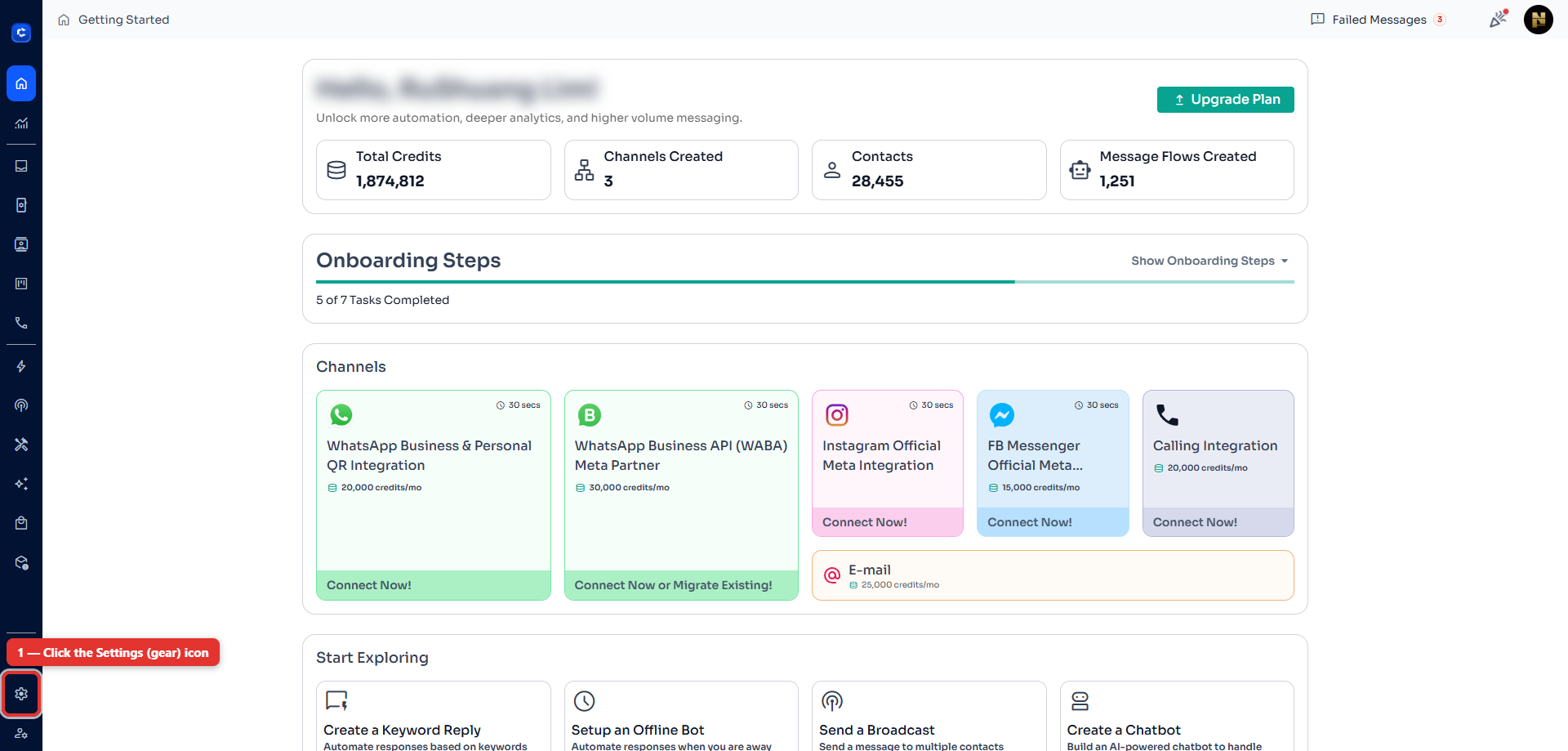
Step 1: Open the Settings menu
Log in to your ChatDaddy dashboard at beta.chatdaddy.tech. In the left sidebar, click the Settings (gear) icon at the very bottom to open Global Settings.
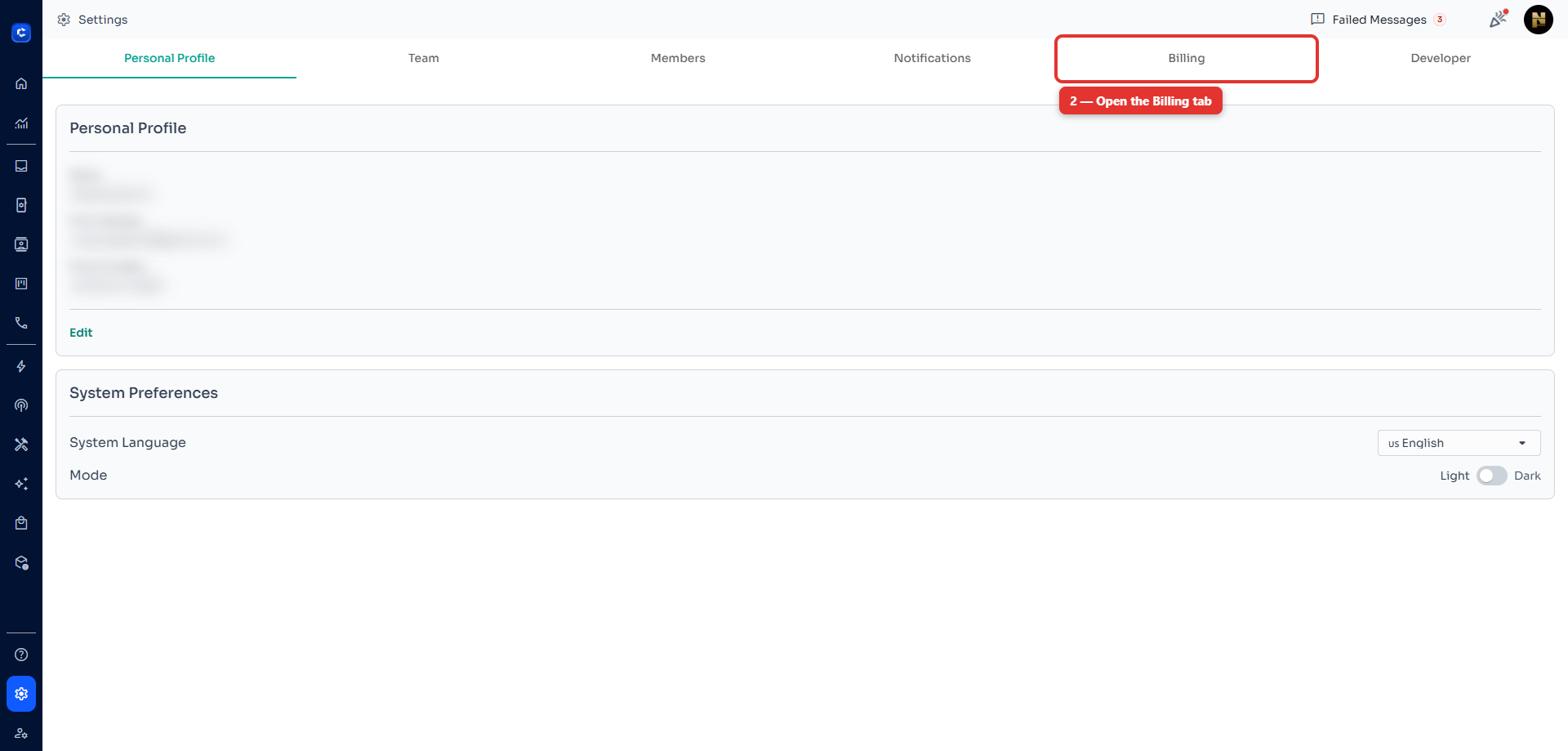
Step 2: Open the Billing tab
Along the top of the Settings page, click the Billing tab.
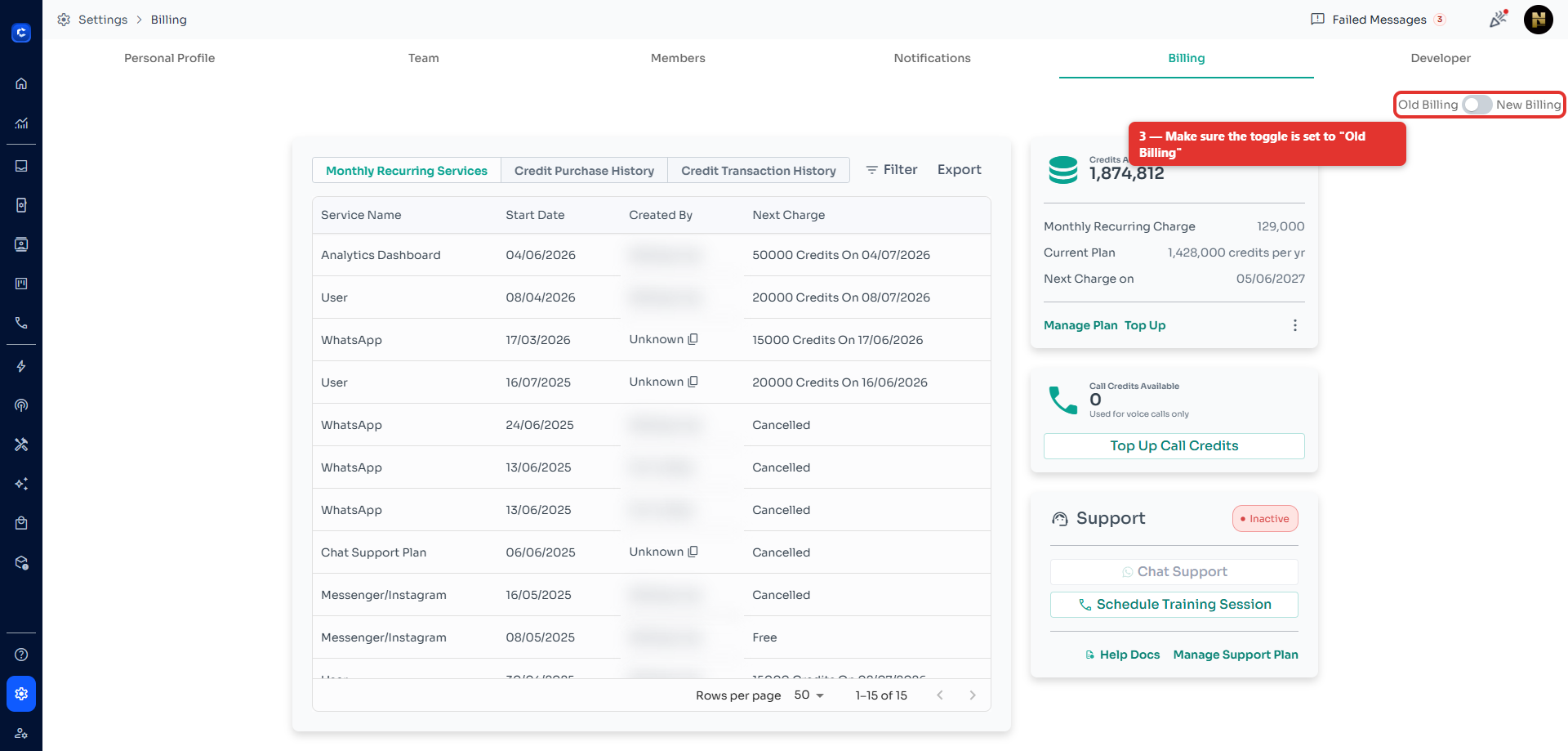
Step 3: Switch the toggle to "Old Billing"
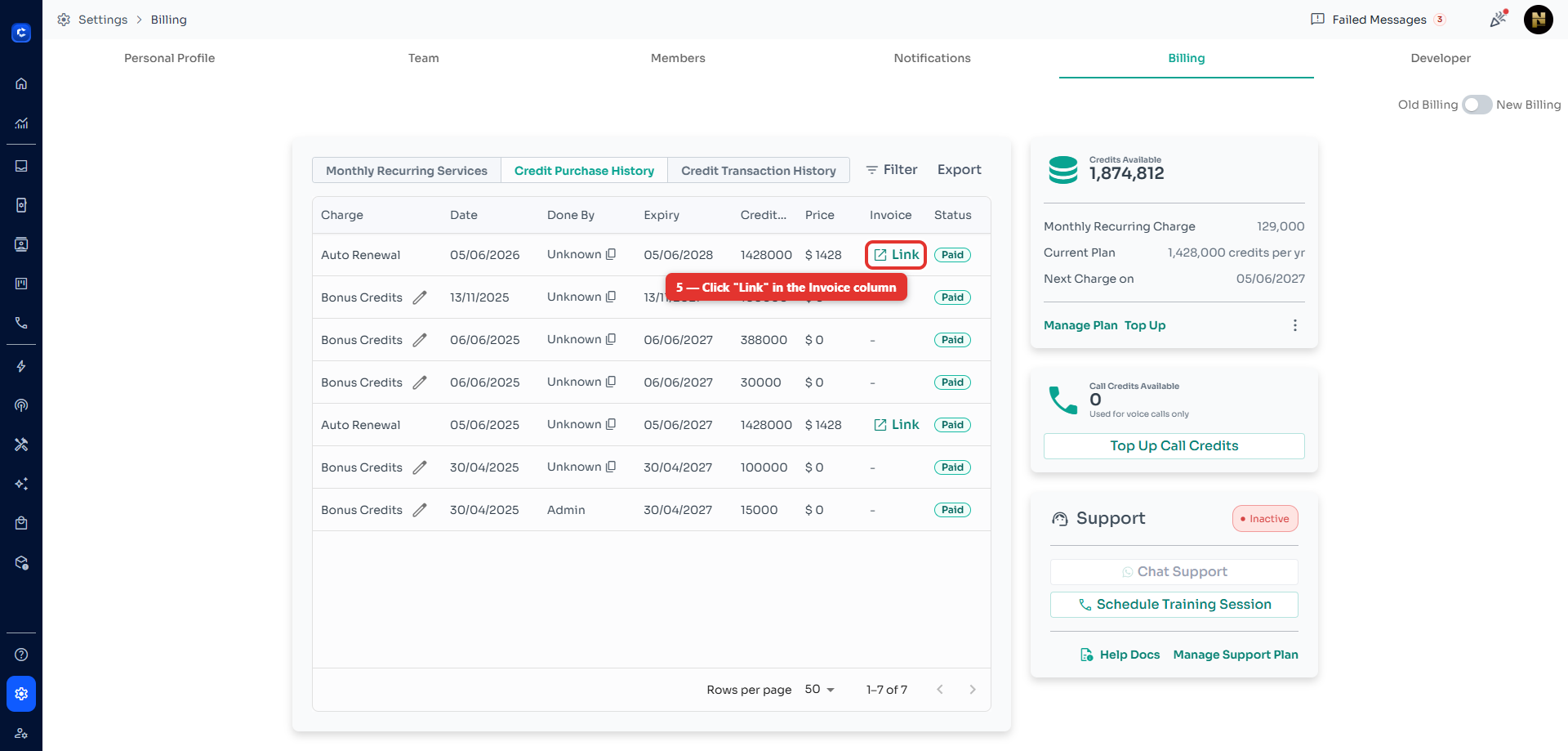
In the top-right corner of the Billing page, find the Old Billing / New Billing toggle and make sure it is set to Old Billing. You will then see the Monthly Recurring Services, Credit Purchase History and Credit Transaction History tabs.
Step 4: Open the "Credit Purchase History" tab
Click the Credit Purchase History tab to see all your past credit purchases and renewals, along with their dates, amounts and payment status.
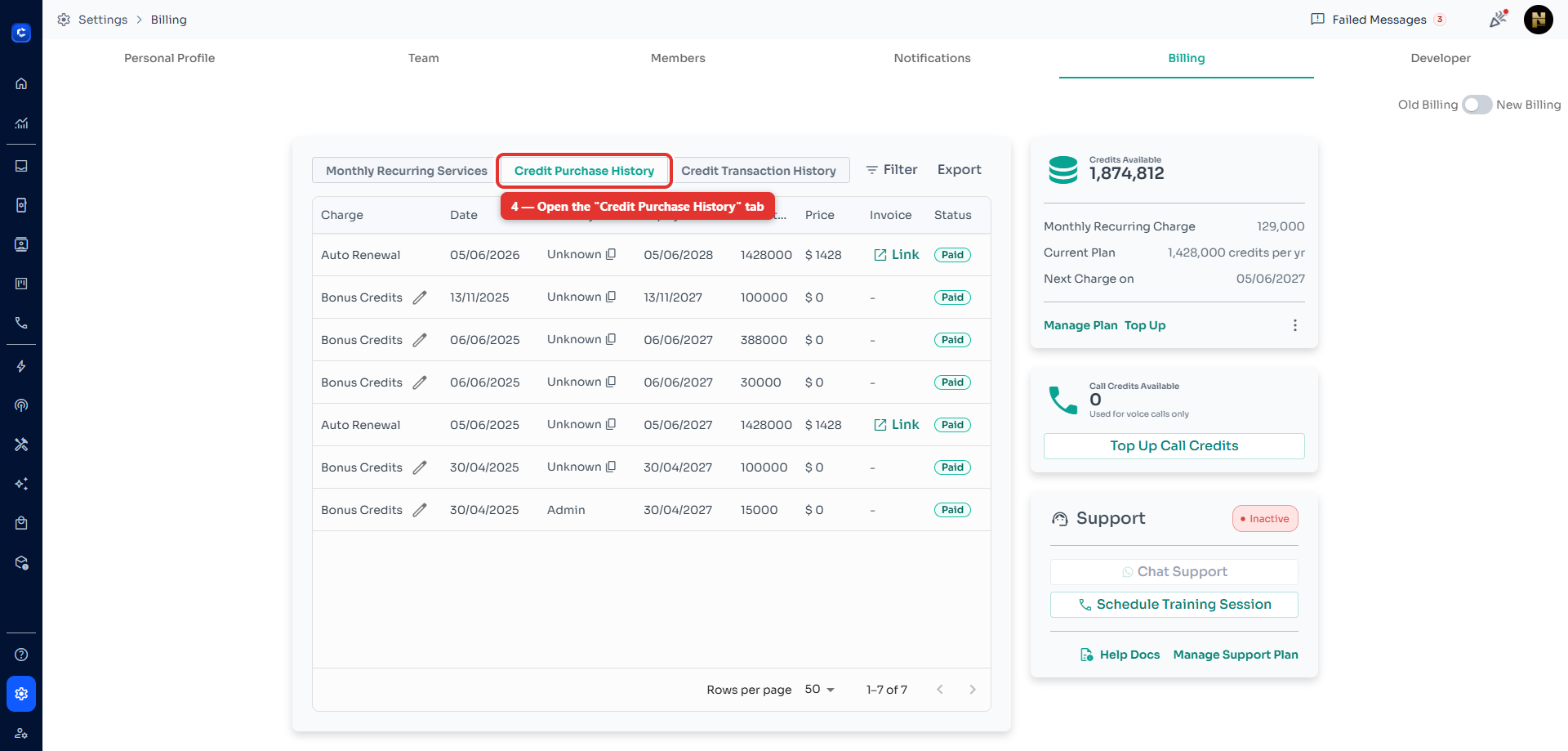
Step 5: Click the invoice "Link"
Find the purchase you need (rows with a Paid status). In the Invoice column, click Link to open that invoice. Note: only charged purchases such as Auto Renewal have an invoice link — bonus or free credits show a dash (–).
Step 6: Download the invoice
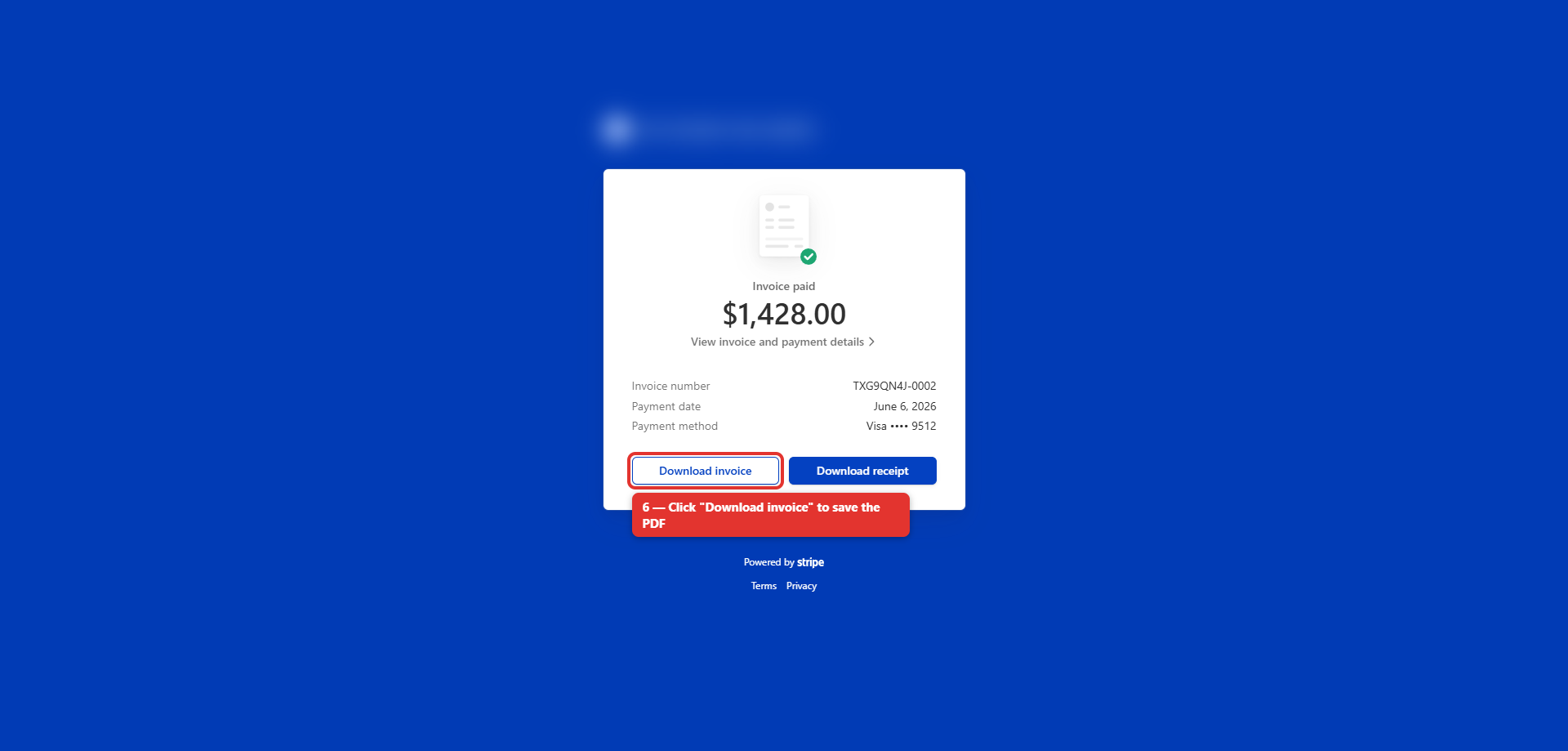
The Stripe invoice page opens in a new tab. Click Download invoice to save the PDF to your device, or Download receipt if you need a payment receipt instead.
That's it — your invoice is saved as a PDF. If you can't see an invoice link for a purchase, it means that purchase wasn't a paid Stripe charge. Still need help? Reach out to ChatDaddy support.