
How to Make and Manage WhatsApp Calls in ChatDaddy (Statuses & Call Log)
Learn how to make and manage WhatsApp calls in ChatDaddy — including call statuses (Completed, Missed, Canceled, Failed), AI transcripts, follow-up labels, call log filters, and how to view call details and recordings.
📞 WhatsApp Calling lets your team make and receive real voice calls with customers directly over WhatsApp Business — fully inside ChatDaddy, right in your browser. No phone line or extra app needed. Every call is logged automatically, and calls you place in the browser are recorded.
Before your first call
- **A connected WhatsApp Business API (WABA) channel. **Calling is only available on WhatsApp Business API channels — the green call button won't appear on other channel types.
- **A working microphone + browser permission. **Calls run in your browser; Google Chrome is recommended. You'll be asked to allow microphone access.
- **Call permission from the contact. **The first time you call a new contact, WhatsApp requires them to approve a call-permission request before the call can connect (explained below).
ℹ️ Recording and the live transcript only work in the browser and tab where the call takes place.
How to make a WhatsApp call
You start a WhatsApp call from the Inbox.
- Open the Inbox and select a chat on a WhatsApp Business API channel.
- In the chat header, click the green WhatsApp Call button.
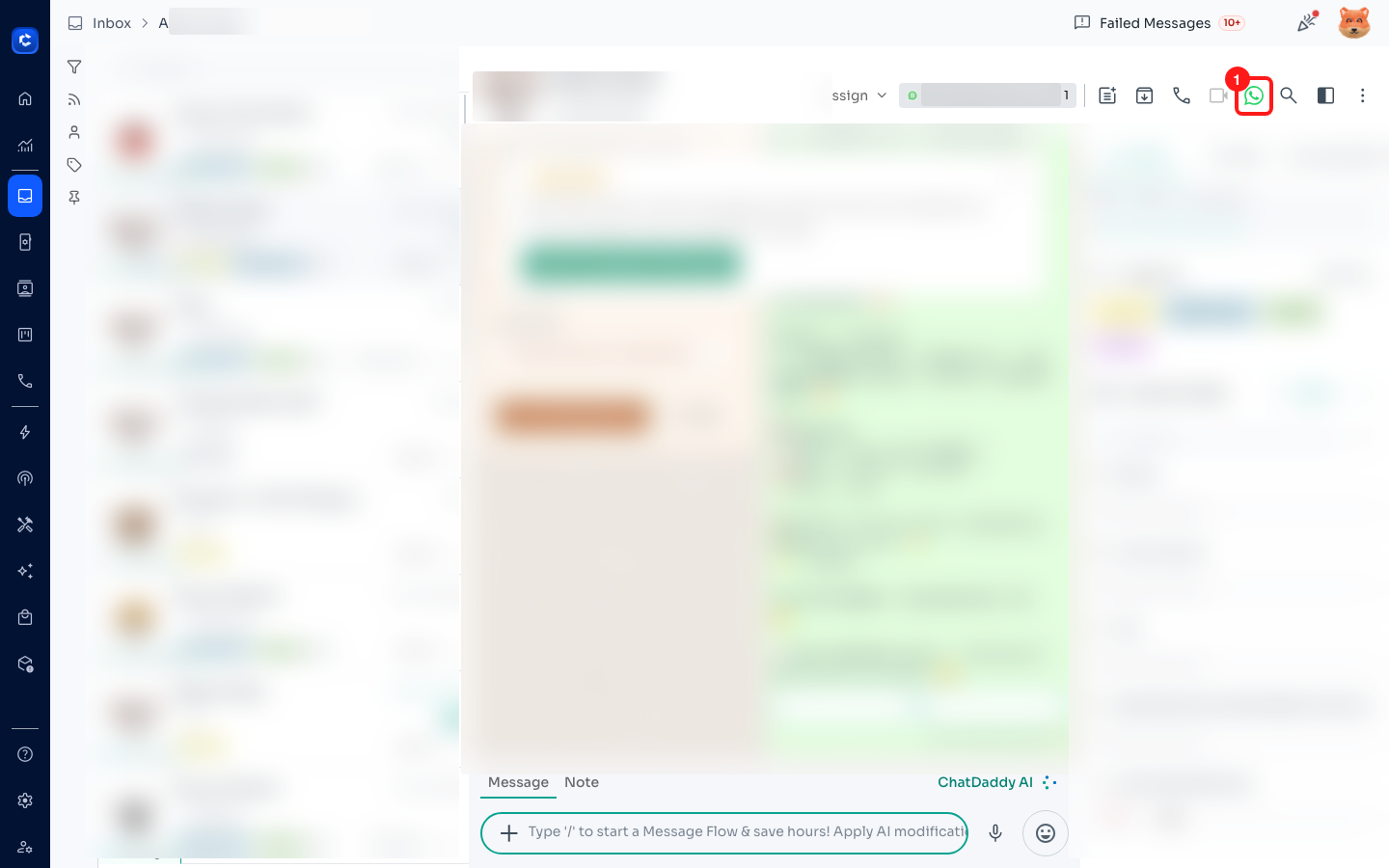
What happens next depends on whether the contact has allowed calls before.
First call to a contact — "Call Permission Required"
ChatDaddy first checks the contact's call permission. If they haven't allowed calls yet, you'll see a Call Permission Required card with the message “{contact} hasn't allowed calls yet. Send them a request first.”
- Click Request Permission. ChatDaddy sends the contact a WhatsApp message asking them to approve calls.
- The card changes to Waiting for {contact} — “Permission request sent via WhatsApp. The call will start once they allow it.”
- Once the contact approves, the call connects automatically.
⏳ If you've already sent several requests you may see “You've reached the permission request limit. Try again later.” After a contact approves once, future calls connect right away without another request.
During the call
When connected, a small green call window appears (you can drag it around or collapse it to a pill). It shows the contact, a live call timer, and these controls:
- Mute / Unmute — turn your microphone off or on.
- End — the large red button hangs up the call.
- Speaker — toggle the speaker.
- Live Transcript — a best-effort, real-time transcript of the conversation, with lines marked You and Them. While the call is connecting you'll see Calling…. If something goes wrong you may see Call failed (“Network error — could not connect the call.”) or Mic access denied (“Microphone access denied. Allow mic in browser settings and try again.”), each with a Retry option.
Receiving a WhatsApp call
When a customer calls your WhatsApp Business number, an Incoming Call card slides in from the top of the screen — on any page in ChatDaddy. It shows the caller and “WhatsApp · Incoming call”.
- Answer (green) — pick up the call.
- Decline (red) — reject the call.
- End & Answer — if you're already on another call, end it and answer the new one. If a teammate answers first, you'll see “Already answered by another agent” and the card disappears.
Finding your WhatsApp call log
- In the left sidebar, click the Calls (phone) icon.
- At the top of the page, switch to the WhatsApp Log History tab. (The first tab, Calls History, is for your phone-line calls.)

Reading the call log
Each row is one WhatsApp call. The columns are:
- From — the WhatsApp Business number / channel involved.
- To — the customer.
- Date — when the call happened.
- Duration — how long the call lasted (00:00 means it never connected).
- Agent — the teammate on the call, or Unassigned.
- Status — the outcome of the call (see the table below).
- AI Transcription — whether a transcript is available.
- Follow-up — the follow-up state for missed calls.
- Notes — opens any notes saved on the call.
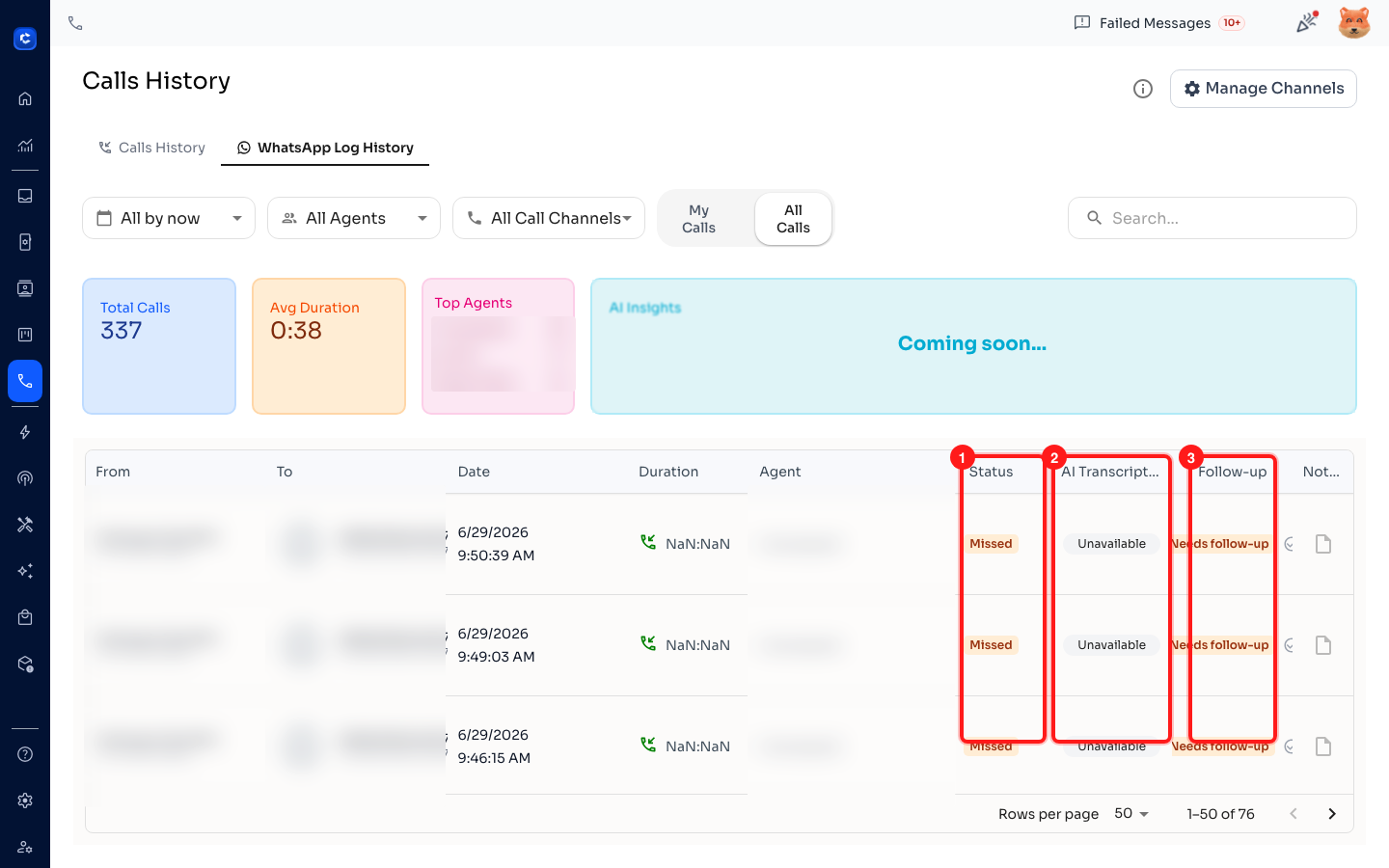
Understanding call statuses
The Status column (and the call details panel) use these labels:
| Status | What it means |
|---|---|
| Completed | The call connected and finished normally. |
| Missed | The call rang but was not answered. |
| Canceled | The call was declined or canceled before it connected. |
| Failed | The call couldn't be completed due to an error. |
| Busy | The line was busy. |
| Ringing | The call is ringing right now. |
| In Progress | The call is currently connected. |
| Queued | The call is queued and about to start. |
📌 Every Missed call is automatically flagged for follow-up so it doesn't slip through the cracks (see “Following up on missed calls” below).
AI Transcription labels
| Label | What it means |
|---|---|
| Ready | A transcript is available to view. |
| Processing | The transcript is being generated. |
| Get transcript | Click to request a transcript for this call. |
| Not applicable | The call was too short to transcribe. |
| Unavailable | No transcript — e.g. the call never connected. |
Follow-up labels
| Label | What it means |
|---|---|
| Needs follow-up | A missed call that no one has returned yet. |
| Called back | Someone has called the customer back. |
| Resolved | The follow-up is complete. |
Inside a chat, calls also appear as message chips, for example Outgoing WABA Call · Answered · 1m 20s, Incoming WABA Call · Missed, or Outgoing WABA Call · Declined by contact.
Your call statistics at a glance
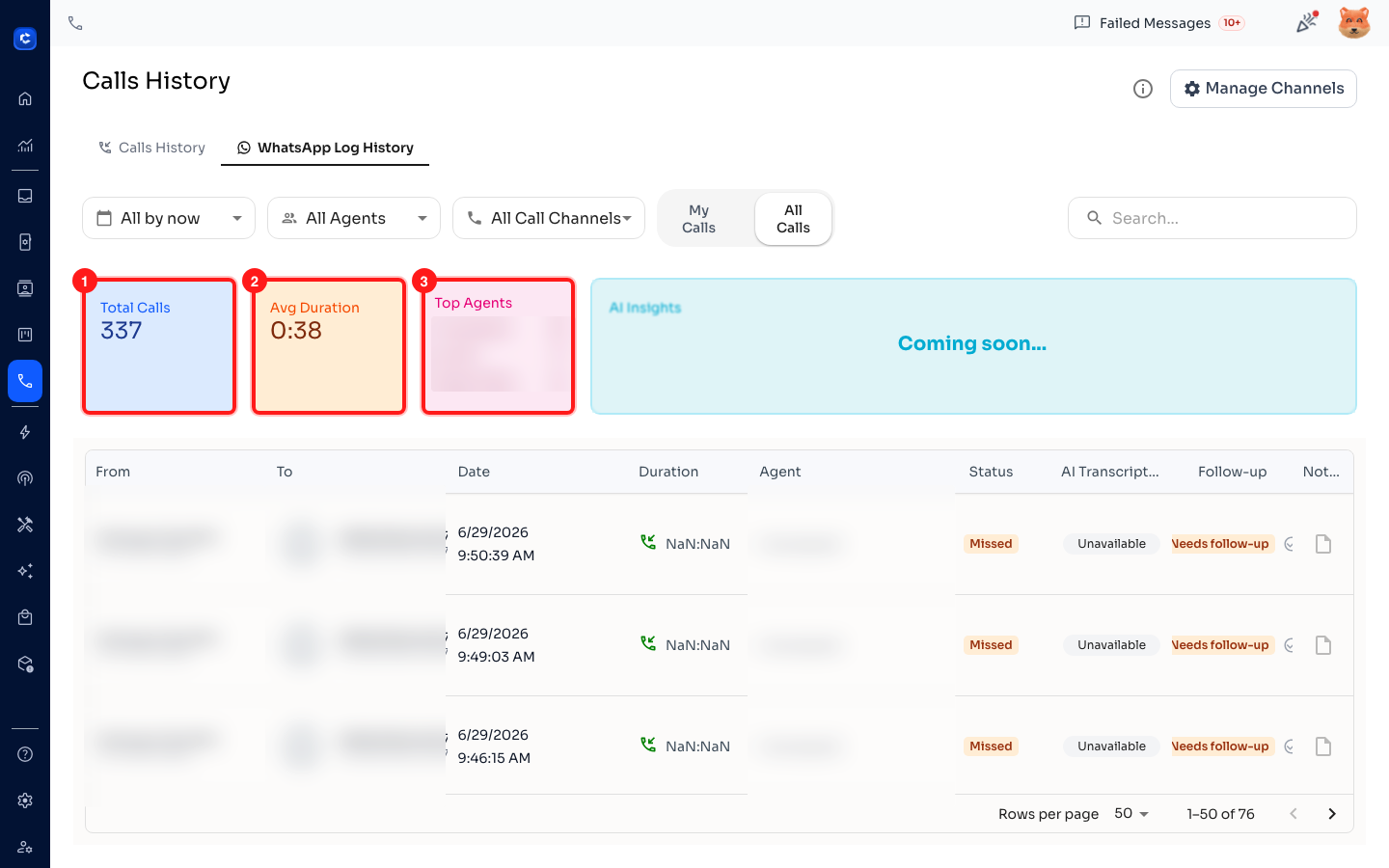
Above the log, summary cards give you a quick overview:
- Total Calls — the number of calls in the current view.
- Avg Duration — the average length of your connected calls.
- Top Agents — the three teammates handling the most calls.
- AI Insights — coming soon.
Filtering and searching your calls
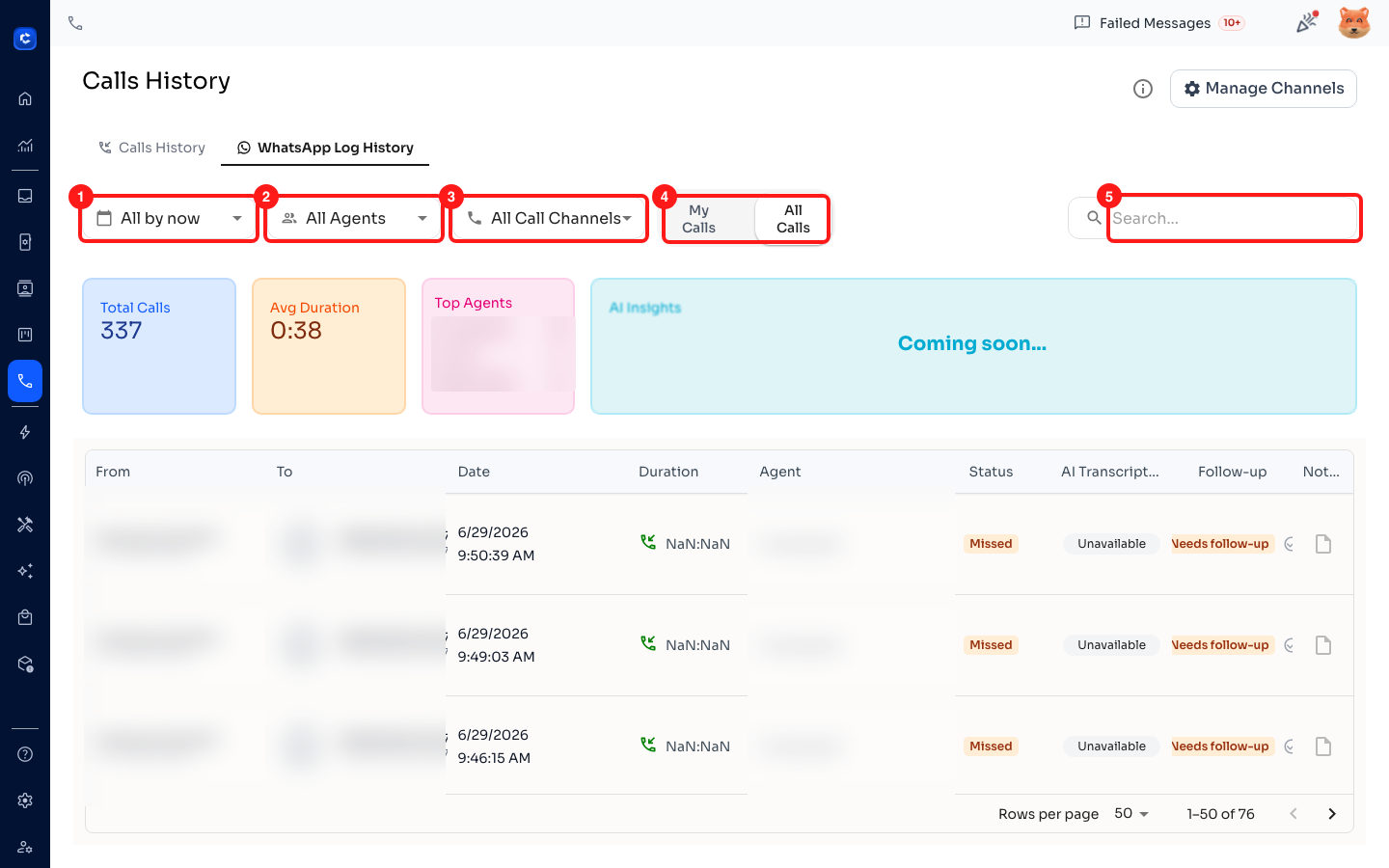
Use the controls above the list to narrow things down:
- Date — e.g. All by now, Last 7 days, Last 30 days.
- All Agents — show a specific teammate's calls.
- All Call Channels — filter by a specific WhatsApp Business number.
- My Calls / All Calls — your calls only, or the whole team's.
- Search — find a call by contact.
Viewing the details of a call
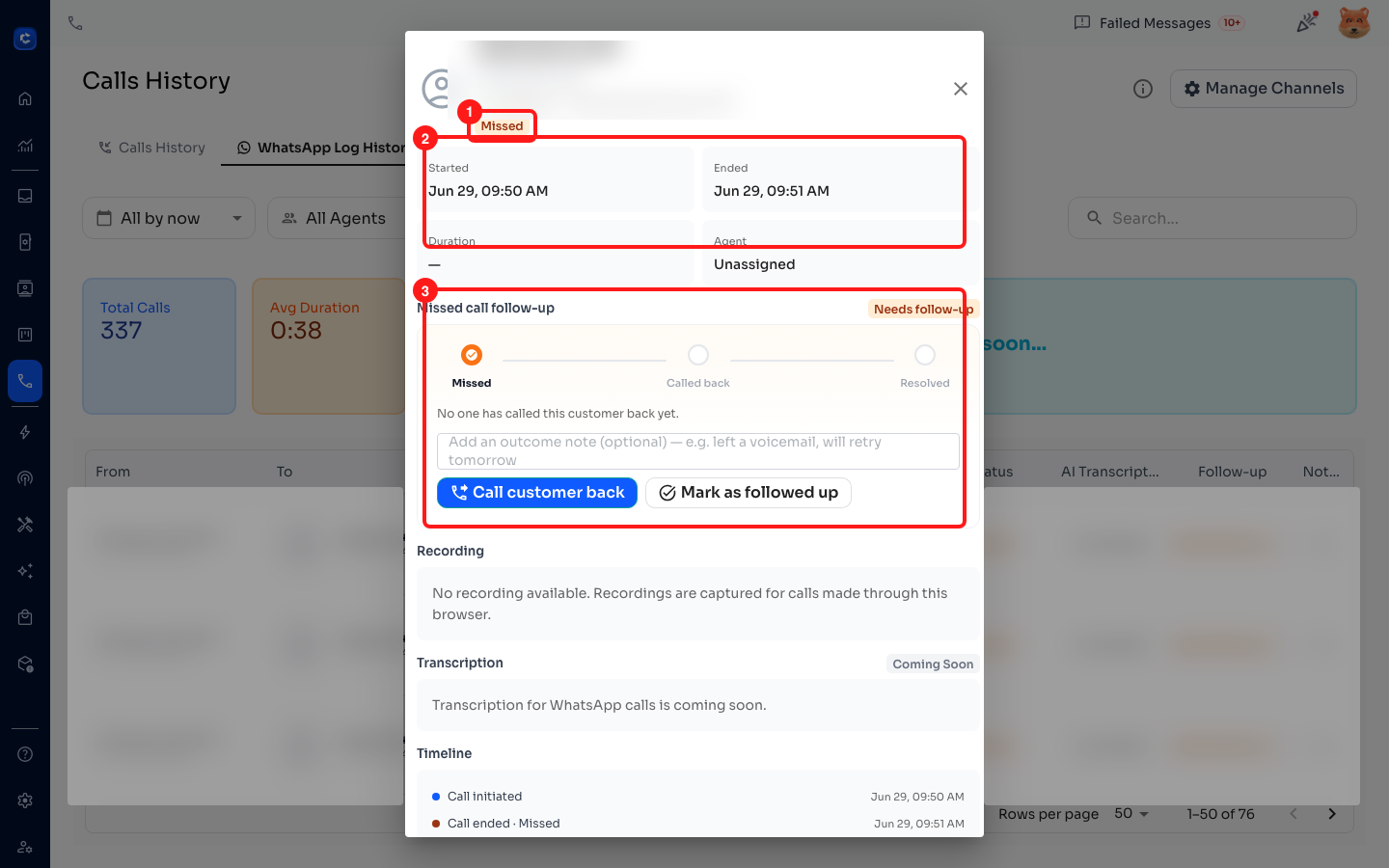
Click any row to open the call details panel. At the top you'll see the contact, the call direction (Inbound or Outbound), the channel, and the Status. Below that are Started, Ended, Duration and Agent.
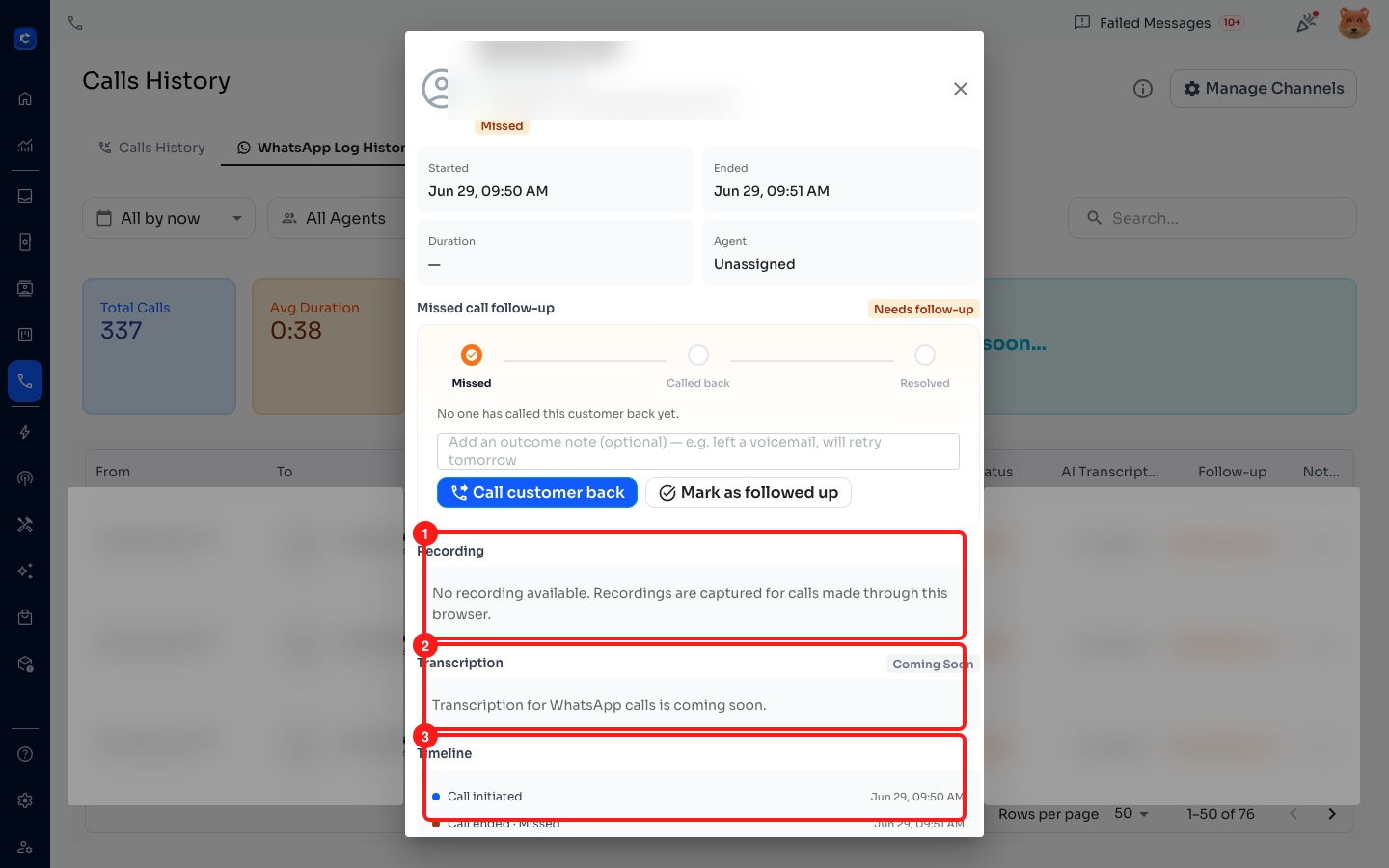
Recording, transcription and timeline
- Recording — play back the recording, change the speed (1x / 1.5x / 2x), or Download recording. Recordings are only captured for calls made through this browser; otherwise you'll see “No recording available.”
- Transcription — saved transcripts for WhatsApp calls are marked Coming Soon.
- Timeline — a step-by-step history of the call (Call initiated, Call ended, recording captured/uploaded, and follow-up actions).
Following up on missed calls
Every missed call gets a follow-up tracker. Open the call and use the Missed call follow-up section:
- It moves through three stages: Needs follow-up → Called back → Resolved.
- Call customer back places a new WhatsApp call to the contact.
- Mark as followed up records that the call was handled — you can add an optional outcome note (e.g. “left a voicemail, will retry tomorrow”).
- When everything's done, the call is marked Resolved (use Reopen follow-up if you need to revisit it). You can also tick a missed call as followed up directly from the Follow-up column in the log.
Tips & FAQ
- **Which channels support calling? **Only WhatsApp Business API channels. The WhatsApp Call button won't appear on other channel types.
- **Why didn't my recording save? **Recordings are captured by the browser that placed or answered the call. Calls handled on another device/tab, or calls that never connected, won't have a recording.
- **Why does my contact have to approve a call? **WhatsApp requires first-time call permission from the customer. After they approve once, future calls connect right away.
- **Best setup? **Use Google Chrome with microphone access allowed for ChatDaddy, on a stable internet connection.