
How to Migrate to ChatDaddy's New Plan-Based Billing (Step-by-Step)
A 4-step guide to migrating your ChatDaddy account to the new plan-based billing system — review your account, pick your plan, confirm what carries over, and switch. Credits, channels and team access all transfer automatically.
💳 ChatDaddy is moving to simpler, plan-based billing. This guide walks you through the migration wizard at app.chatdaddy.tech/billing-migrate — it takes about 2 minutes, and everything you've already built (credits, channels, team, automations) carries over exactly as it is.
Before you start
- You need to be an Owner or Admin of the team to change the billing plan.
- The whole flow is 4 short steps: Account → Your Plan → What Stays → Confirm.
- Nothing is charged until you click Switch to [Plan] on the final Confirm step.
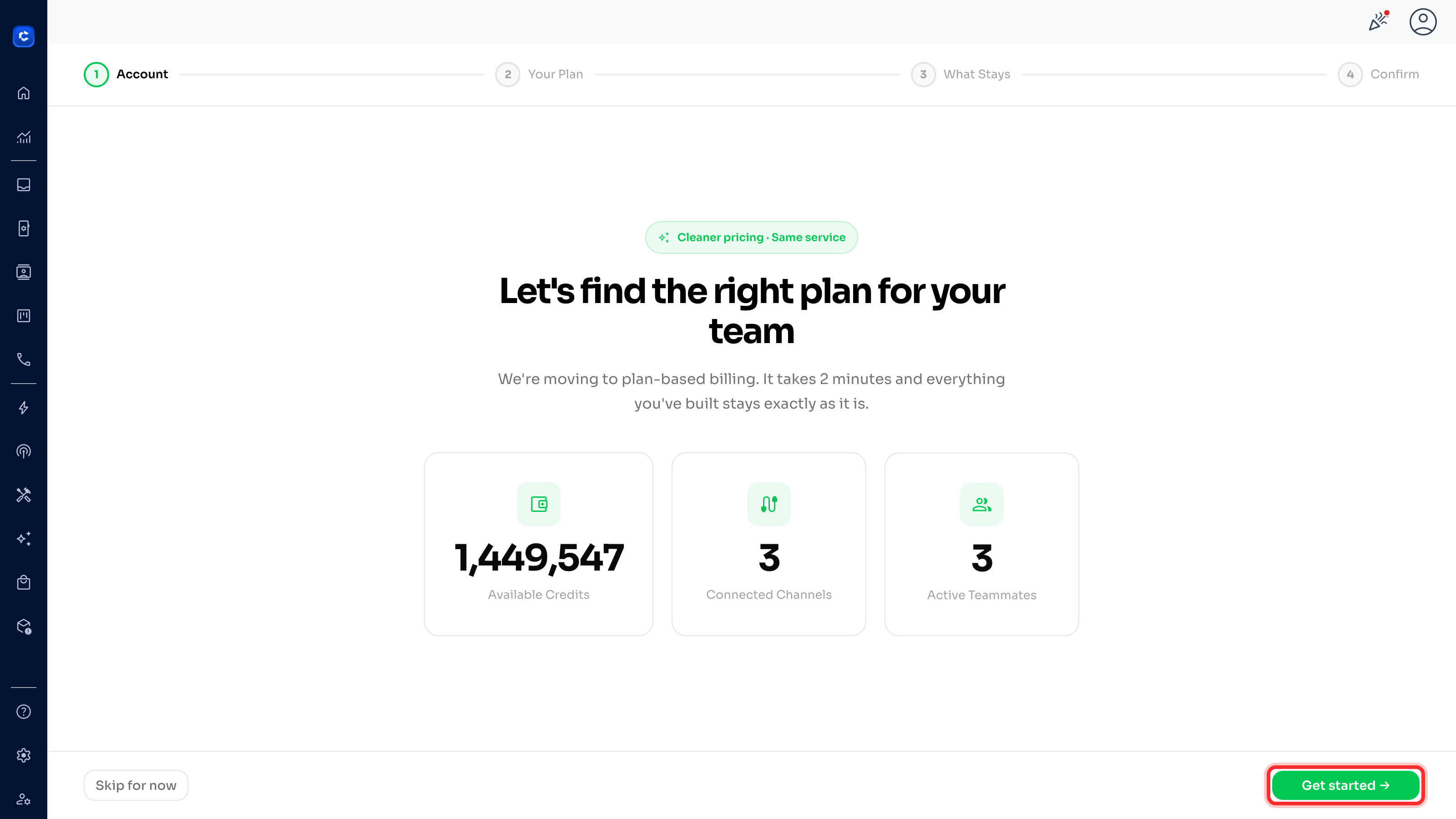
- Not ready yet? You can click Skip for now on the first screen and come back later.
Step 1 — Review your account
Open app.chatdaddy.tech/billing-migrate. The first screen (Account) shows a quick snapshot of your team: your Available Credits, Connected Channels, and Active Teammates. Review these numbers, then click the green Get started → button in the bottom-right to begin.
Step 2 — Pick your plan
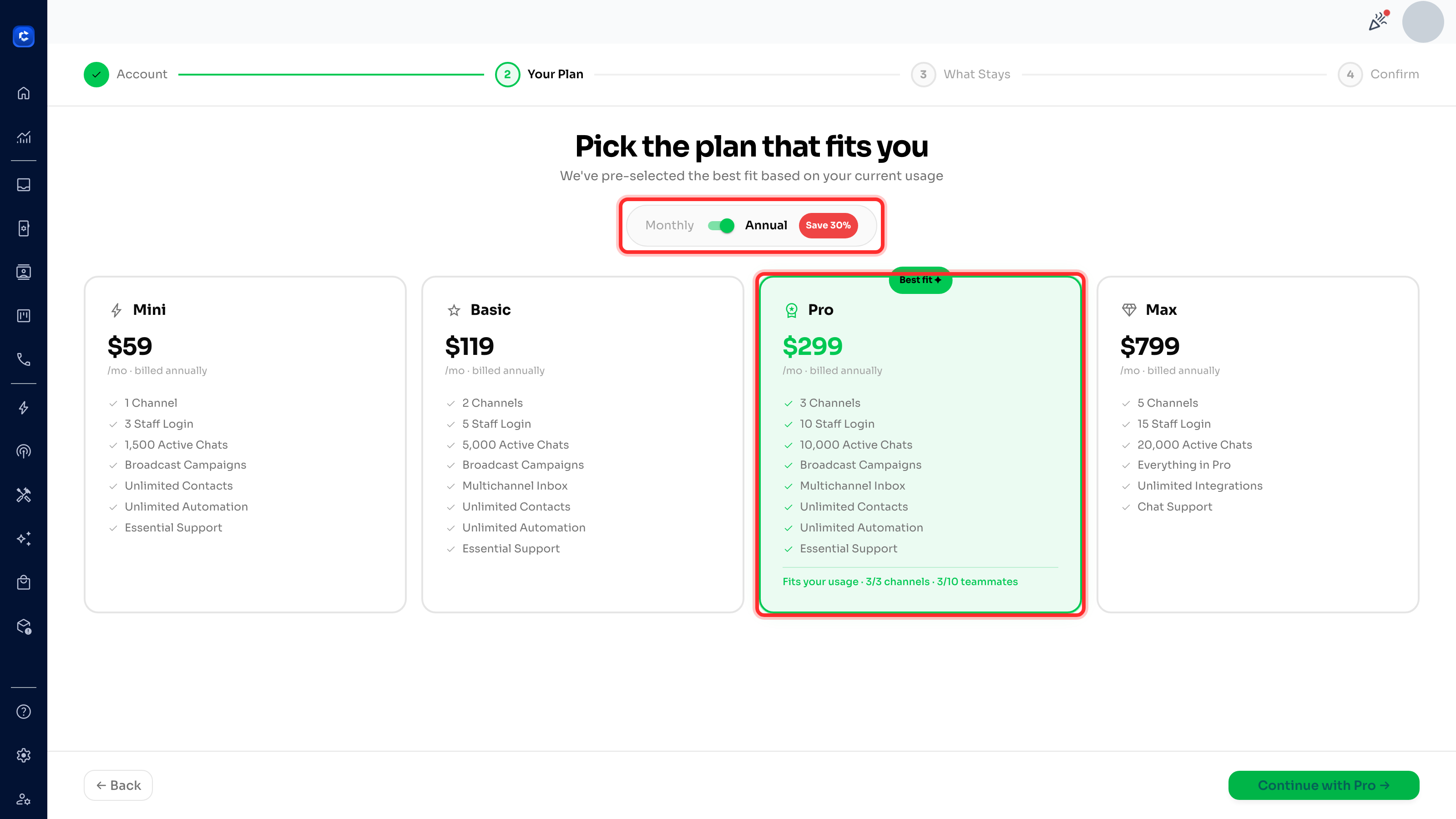
On the Your Plan screen, ChatDaddy pre-selects the plan that best fits your current usage (marked Best fit ✦). Use the Monthly / Annual toggle at the top to switch billing cycles — Annual saves you up to 30%. Each card lists what's included (channels, staff logins, active chats, and more). Click any card to choose a different plan, then click Continue with [Plan] →.
✅ The line at the bottom of the recommended card (e.g. "Fits your usage · 3/3 channels · 3/10 teammates") confirms the plan comfortably covers what you're already using.
Step 3 — Confirm what carries over
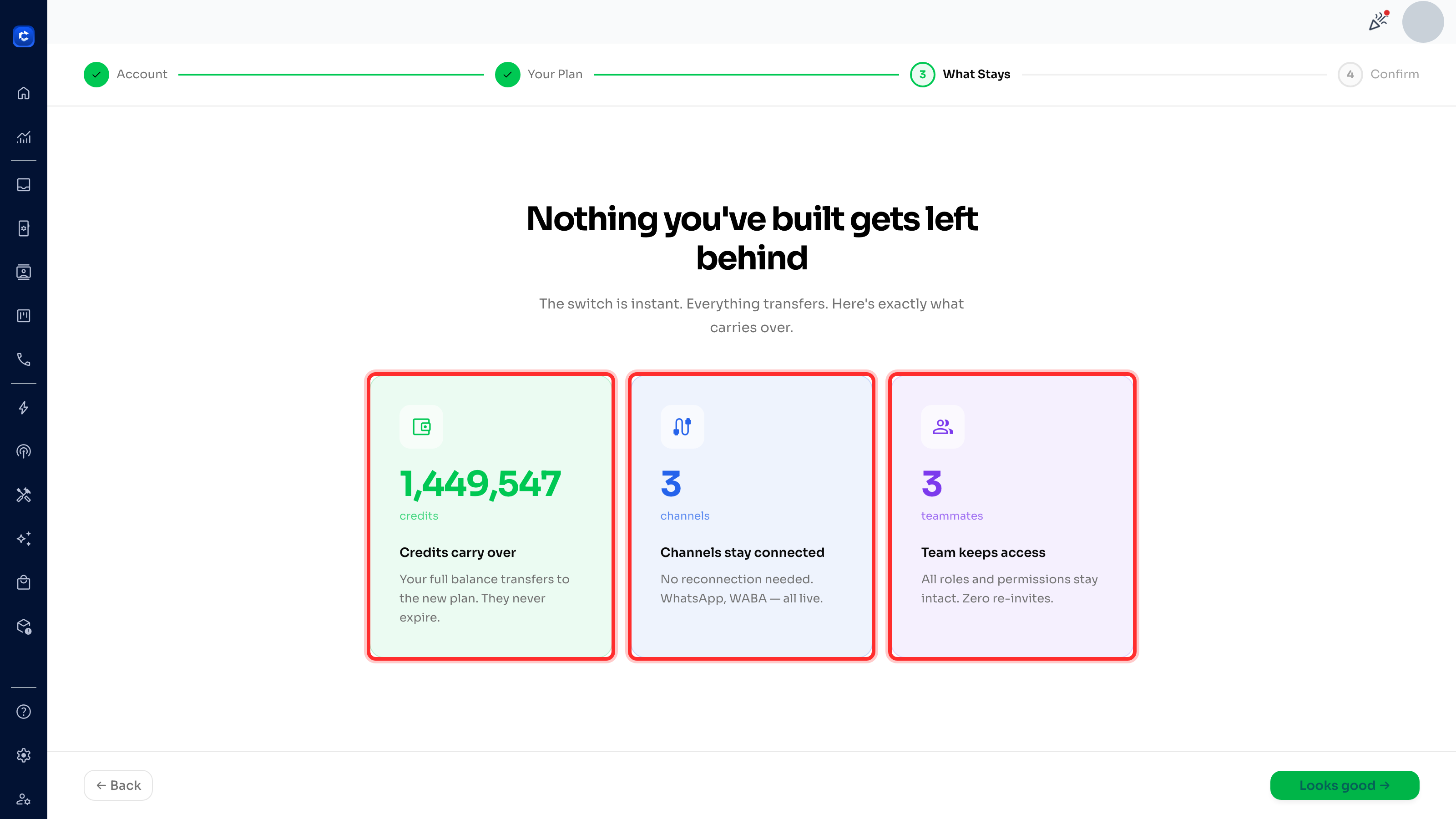
The What Stays screen reassures you that the switch is instant and nothing is lost. Three cards confirm exactly what transfers:
- Credits carry over — your full credit balance moves to the new plan and never expires.
- Channels stay connected — no reconnection needed; WhatsApp, WABA and all channels stay live.
- Team keeps access — all roles and permissions stay intact, with zero re-invites. When you're happy, click Looks good →.
Step 4 — Review & switch
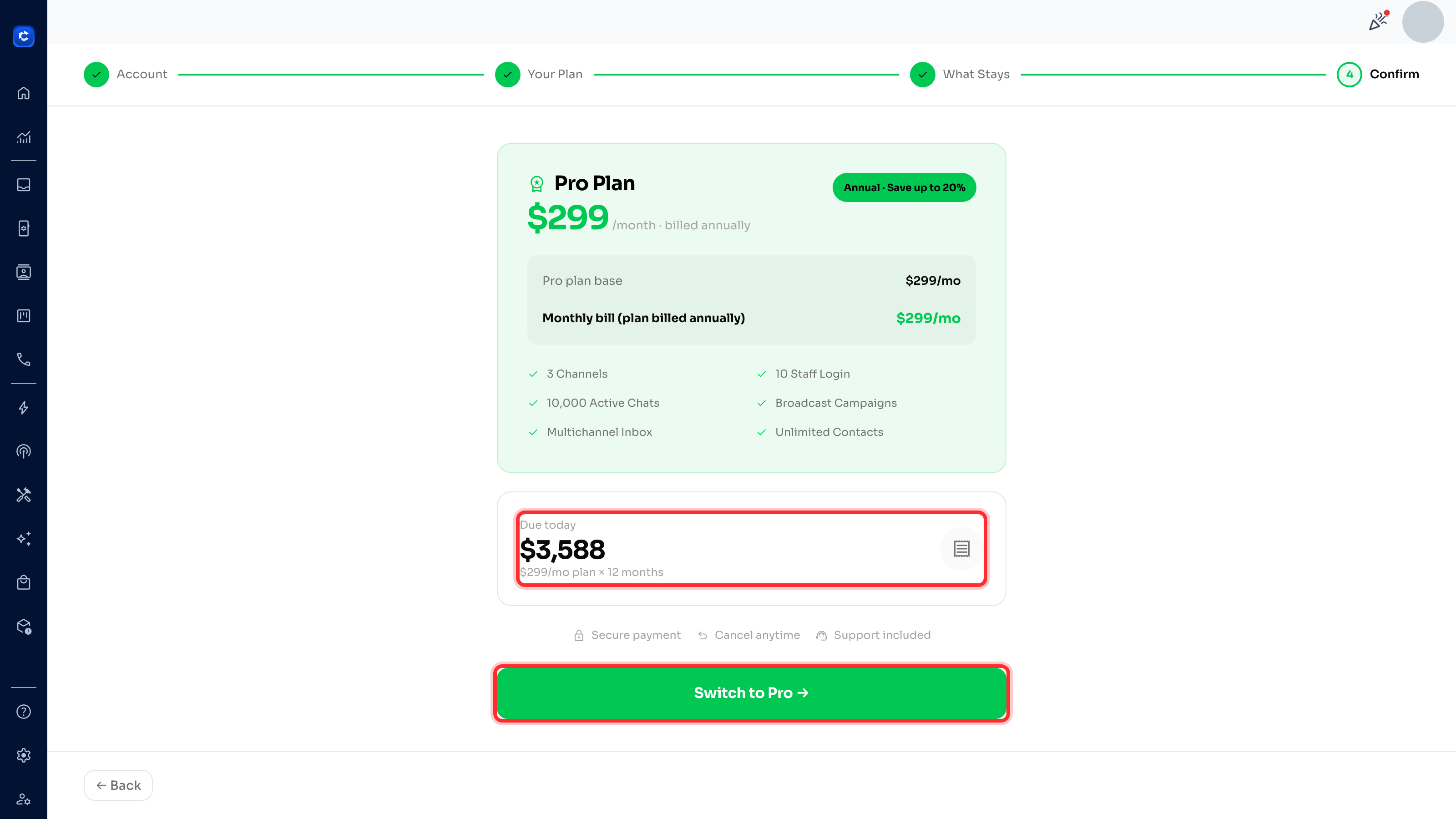
The final Confirm screen summarises your chosen plan, the included features, and the Due today amount (for annual plans this is the monthly price × 12 months). Review the breakdown, then click the green Switch to [Plan] → button to complete the migration.
⚠️ This is the only step that charges you. Clicking "Switch to [Plan]" confirms the plan change and the amount shown under "Due today." Make sure the plan and total are correct before you click. Use ← Back if you want to change anything.
What happens after you switch?
- Your account moves to the new plan immediately — no downtime and no re-setup.
- Your existing credit balance stays in your wallet and is used for usage beyond your plan's included limits.
- You can review or change your plan any time from Settings → Billing.
Frequently asked questions
Will I lose my credits?
No. Your full credit balance carries over to the new plan and never expires.
Do I need to reconnect my WhatsApp / WABA channels?
No. All connected channels stay live through the migration — there is nothing to reconnect.
What if I'm not ready to migrate?
Click Skip for now on the first screen. You can return to the migration wizard whenever you're ready.
Can I choose monthly instead of annual?
Yes. Use the Monthly / Annual toggle on the "Your Plan" step. Annual billing is discounted (up to 30% off).
Note: the credit balances, channel counts and plan figures shown in the screenshots above are from a demo account and are for illustration only — your own numbers will differ.