
How to Use Smart Reply AI (Auto-Suggested Replies) in the Inbox
Let ChatDaddy AI draft a reply for every incoming chat. Learn how to enable Auto-Suggest Replies in Inbox Settings, then send, edit, regenerate, or write your own from the Suggested Reply card.
🤖 Smart Reply AI lets ChatDaddy AI read the conversation and draft a ready-to-send reply for you automatically — so your team can answer customers in one click. This guide shows you how to switch it on in Inbox Settings and how to use it inside a chat.
What is Smart Reply AI?
When enabled, every time you open a chat with a new incoming message, ChatDaddy AI generates a Suggested Reply based on the conversation. You can send it as-is, edit it first, regenerate a different version, or open the chatbox to write your own.
Before you start
-
You need an active ChatDaddy account with access to the Inbox.
-
Suggested replies are powered by ChatDaddy AI. You can also connect your own trained AI Chatbot so suggestions match your brand’s tone and knowledge base.
-
Generating suggestions uses AI credits, so we recommend turning the feature on when you actively want AI drafts.
Step 1 — Open your Inbox Settings
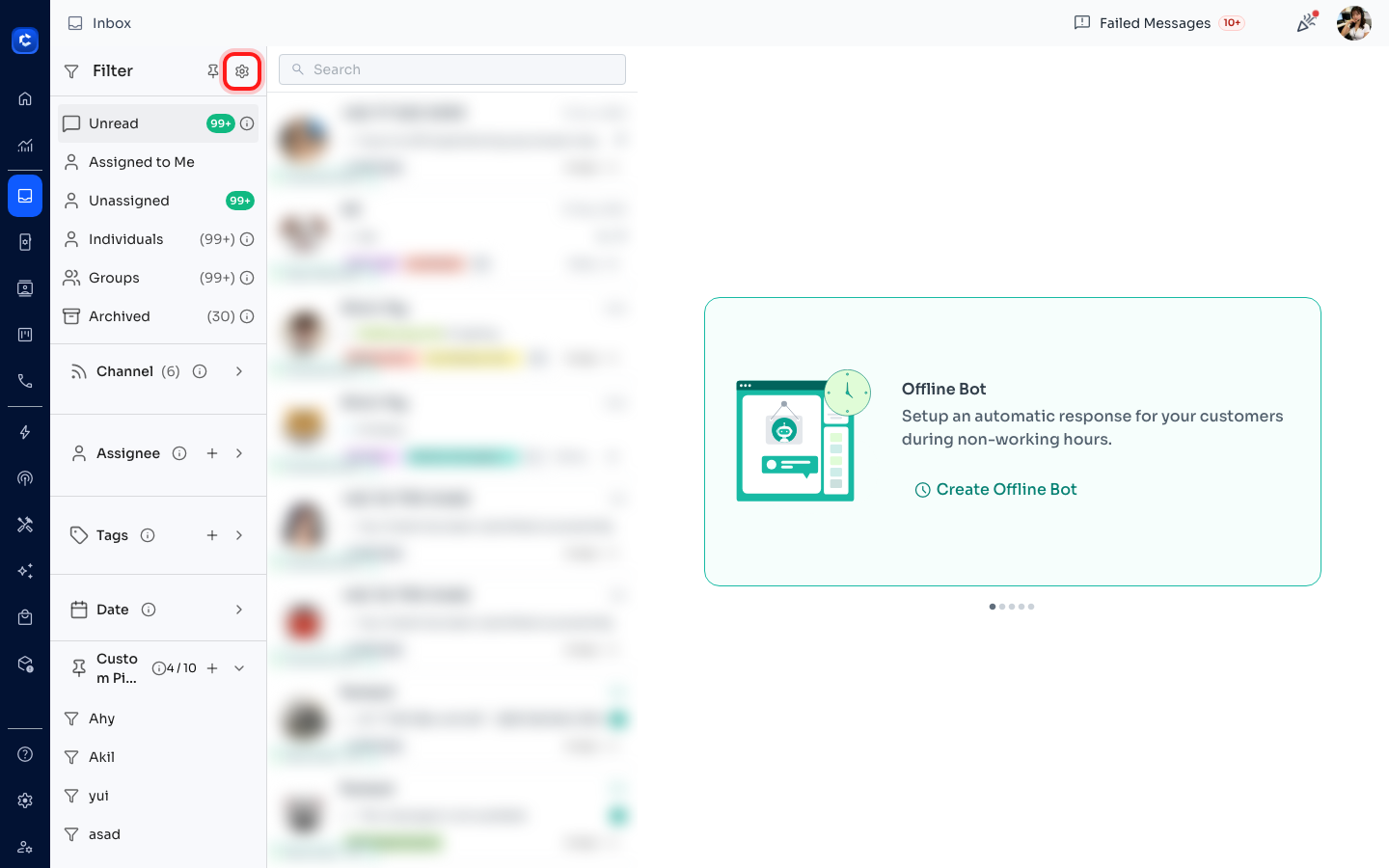
- Go to the Inbox. On the left filter sidebar, hover to expand it, then click the Settings (gear) icon at the top.
Step 2 — Turn on Auto-Suggest Replies
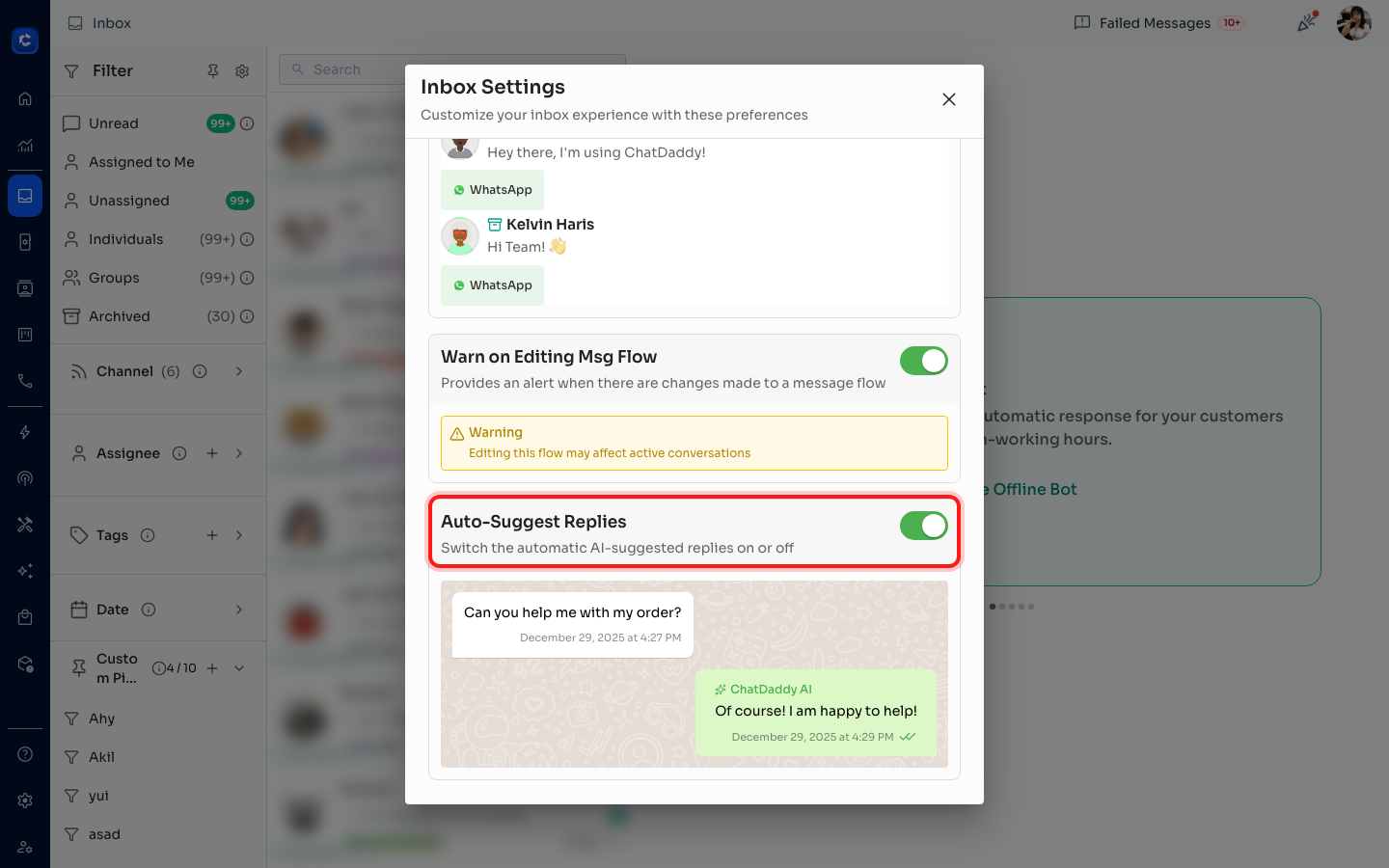
- In the Inbox Settings dialog, scroll down to Auto-Suggest Replies and switch the toggle ON. This enables automatic AI-suggested replies for your chats.
Step 3 — Open a chat and let AI draft a reply
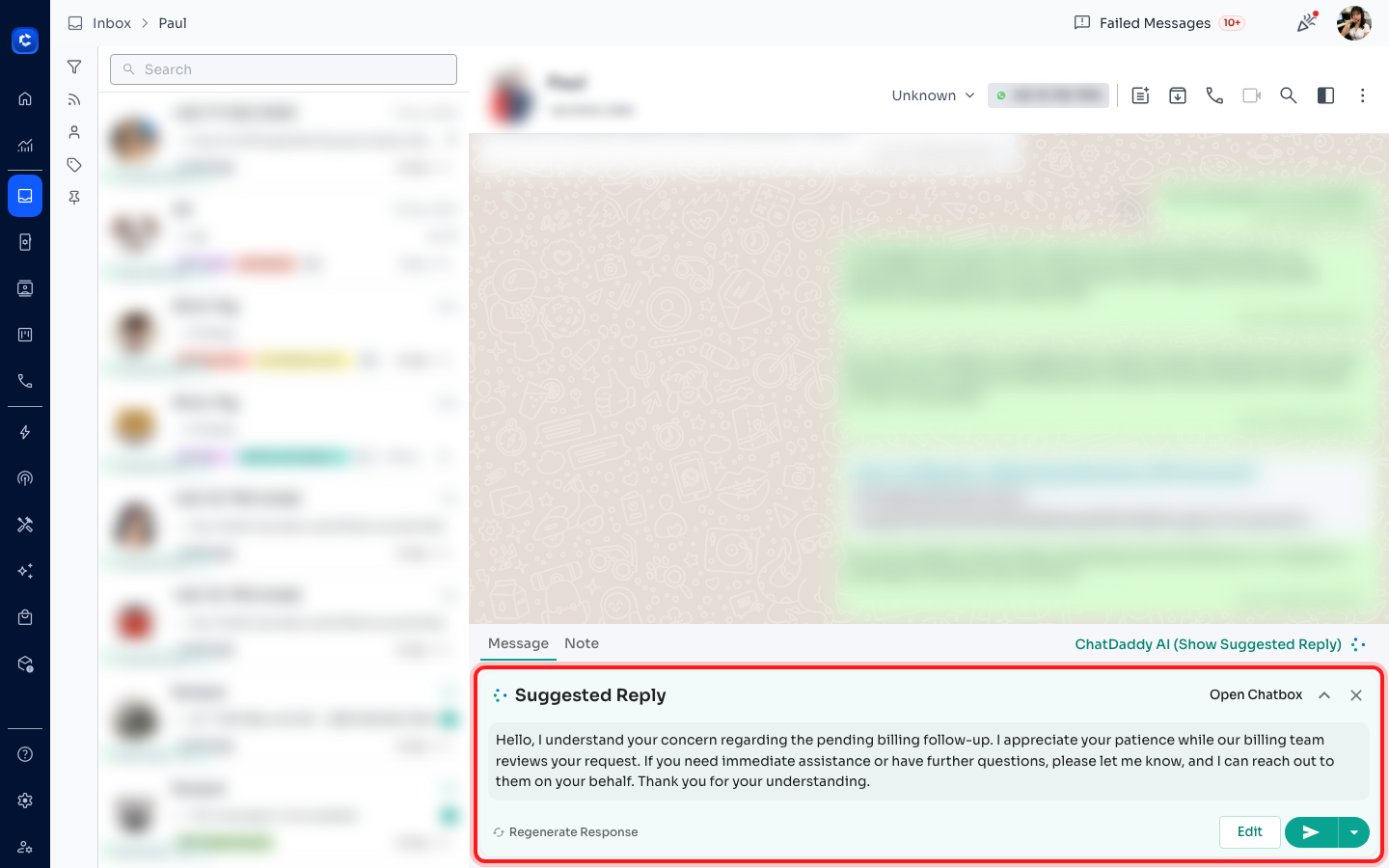
- Open any chat that has an incoming message. A Suggested Reply card appears above the message box. ChatDaddy AI thinks for a moment, then shows a draft reply tailored to the conversation.
Step 4 — Send or edit the suggestion
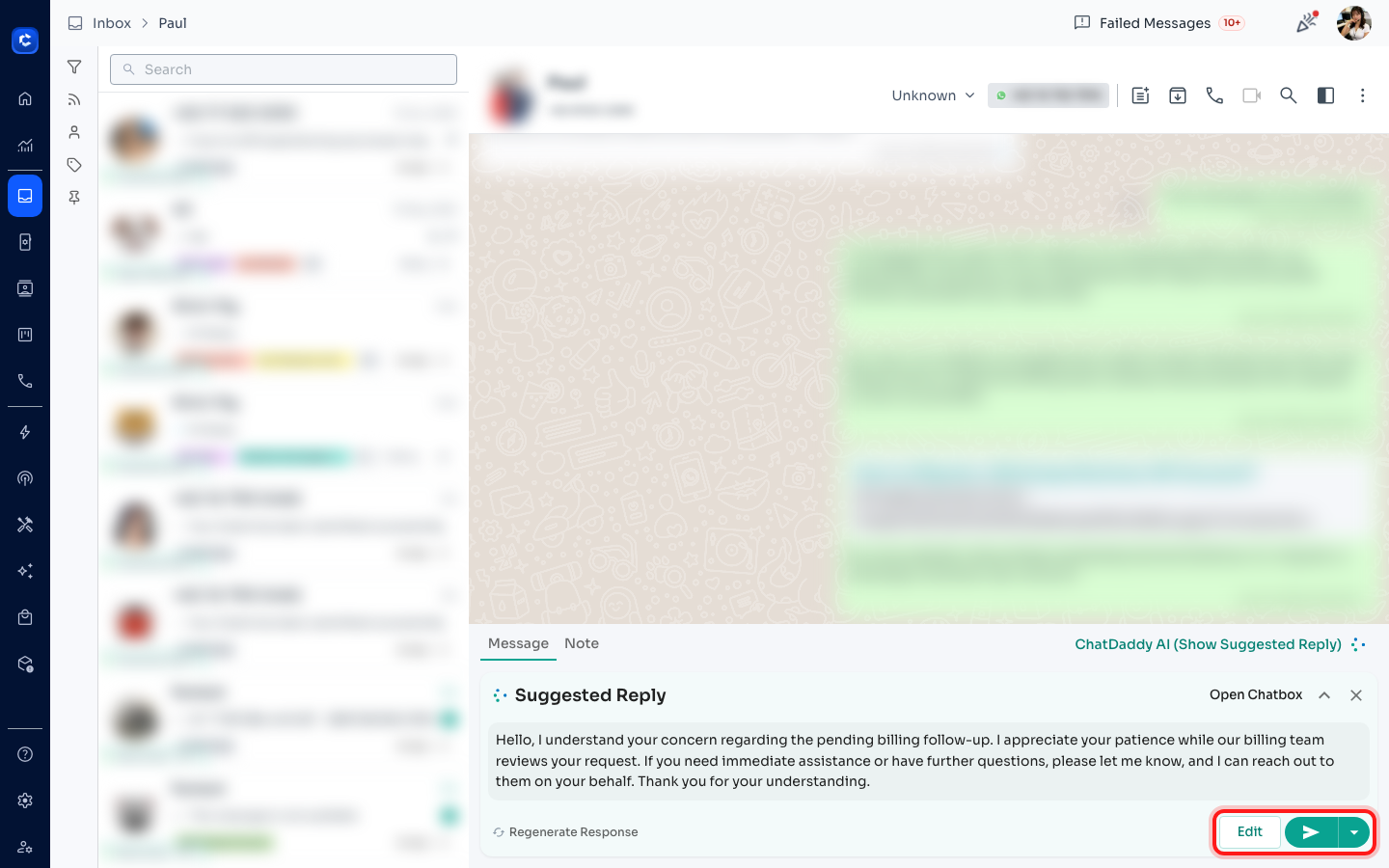
- If the draft looks good, click Send to reply instantly. Want to tweak it first? Click Edit to drop the text into the chat box and adjust it before sending. (Use the small arrow next to Send to schedule the reply for later.)
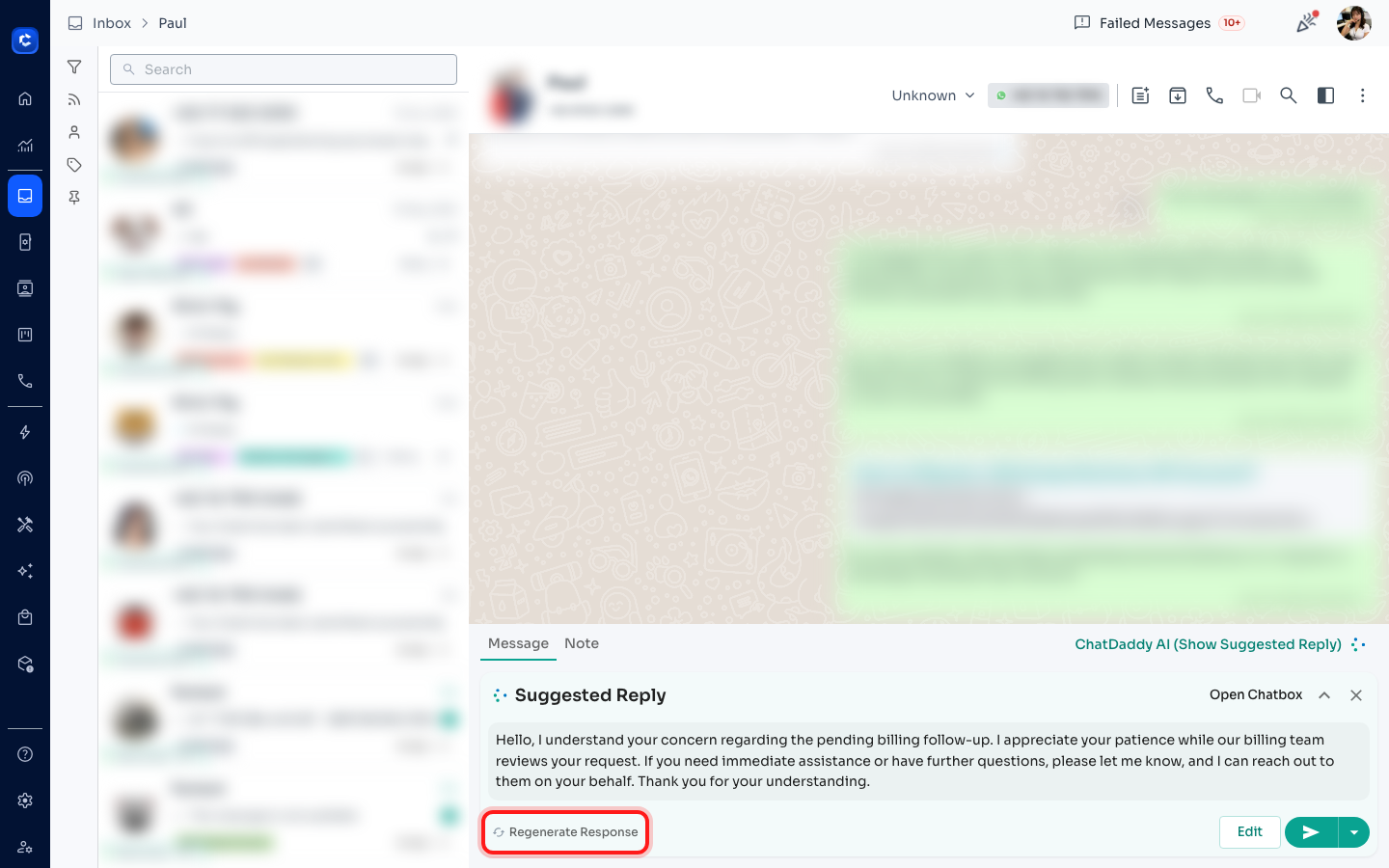
Step 5 — Not happy with it? Regenerate
- Click Regenerate Response to have ChatDaddy AI produce a fresh suggestion. You can regenerate as many times as you like until the reply feels right.
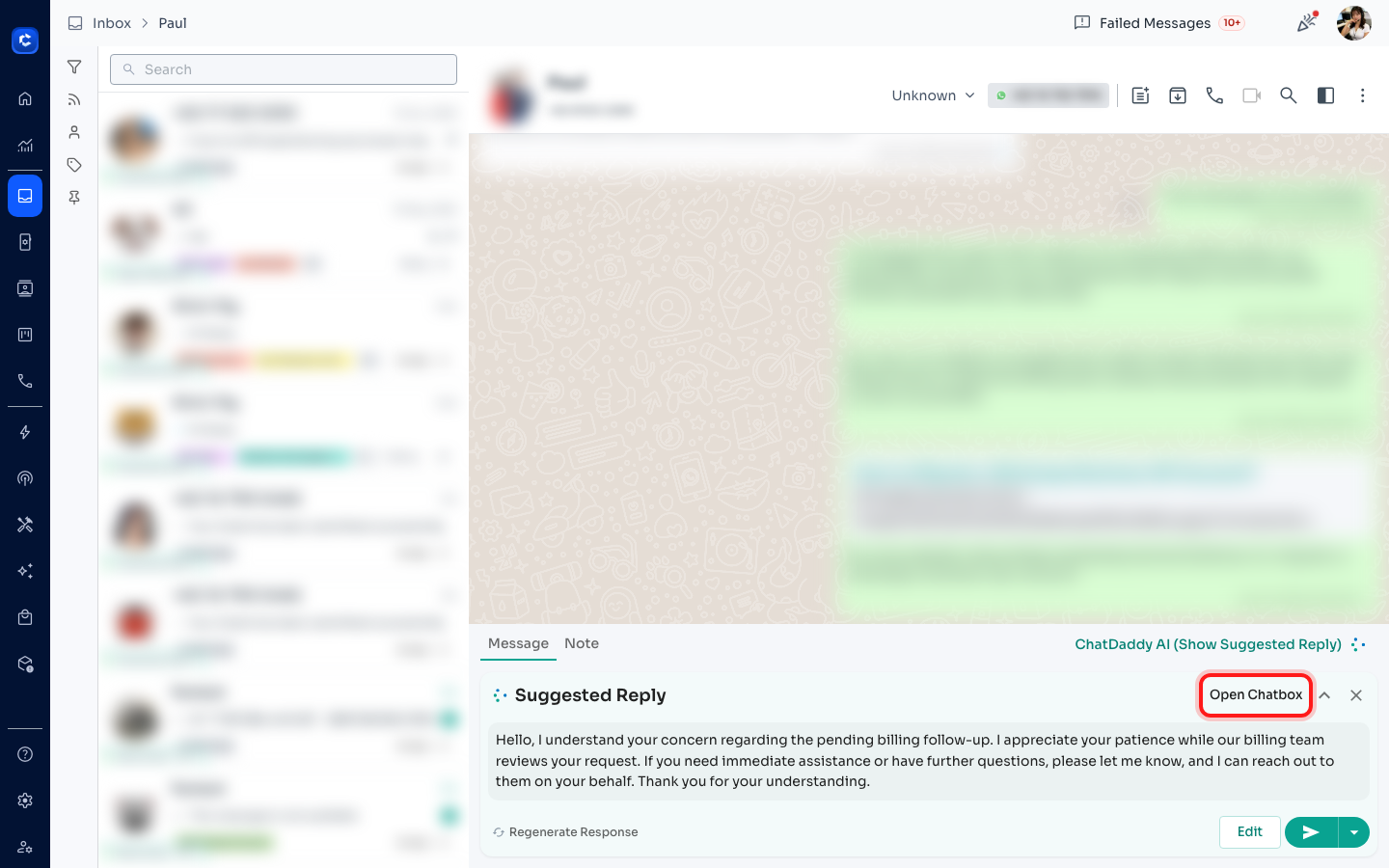
Step 6 — Prefer to write your own? Open Chatbox
- Click Open Chatbox to dismiss the suggestion and type your own message instead. You can re-open suggestions anytime from the ChatDaddy AI (Show Suggested Reply) toggle above the chat box.
Tips
-
Train your own AI Chatbot (under AI → Chatbot) so suggestions reflect your products, pricing, and tone. The Suggested Reply card will show which bot generated the reply.
-
You can turn Auto-Suggest Replies on or off anytime from Inbox Settings, or from the checkbox inside the suggestion panel.
FAQ
Where do the suggestions come from?
From ChatDaddy AI by default, or from your own connected AI Chatbot. If your bot uses a knowledge base, relevant source links may also appear with the suggestion.
Why don’t I see a Suggested Reply?
Make sure Auto-Suggest Replies is enabled in Inbox Settings, the chat has at least one message, and you haven’t dismissed the card by opening the chatbox to type your own reply.
Does it send automatically?
No. Suggestions are only drafts — nothing is sent until you click Send (or Edit and then send). You’re always in control.