
Understanding the Meta Fee in the Inbox Contact Panel
Learn how to check the estimated Meta conversation fees for a contact directly from the Inbox Contact panel — available for WhatsApp Business API (Meta) channels only.
💰 The Meta Fee shows the estimated billable WhatsApp (Meta) conversation charges for a contact's number over the last 7 days. It appears in the Inbox Contact panel and is available only for WhatsApp Business API (Meta) channels.
What is the Meta Fee?
When you message customers through the official WhatsApp Business API (Meta), Meta charges you per 24-hour conversation. ChatDaddy lets you check, right inside the Inbox, how much those Meta conversation fees have added up to for an individual contact over the last 7 days — so you can keep an eye on what each number is costing you.
The fee is an estimate of the billable Meta conversation fees for that contact, shown in US dollars (USD). It is fetched on demand — nothing is loaded automatically, so you only fetch data when you click the button.
Step 1 — Open a WhatsApp conversation and the Contact panel
Go to the Inbox and open any conversation from a WhatsApp Business API (Meta) channel. The Contact panel appears on the right-hand side. If it is hidden, click the panel toggle icon in the chat header (or click the contact's name) to open it.
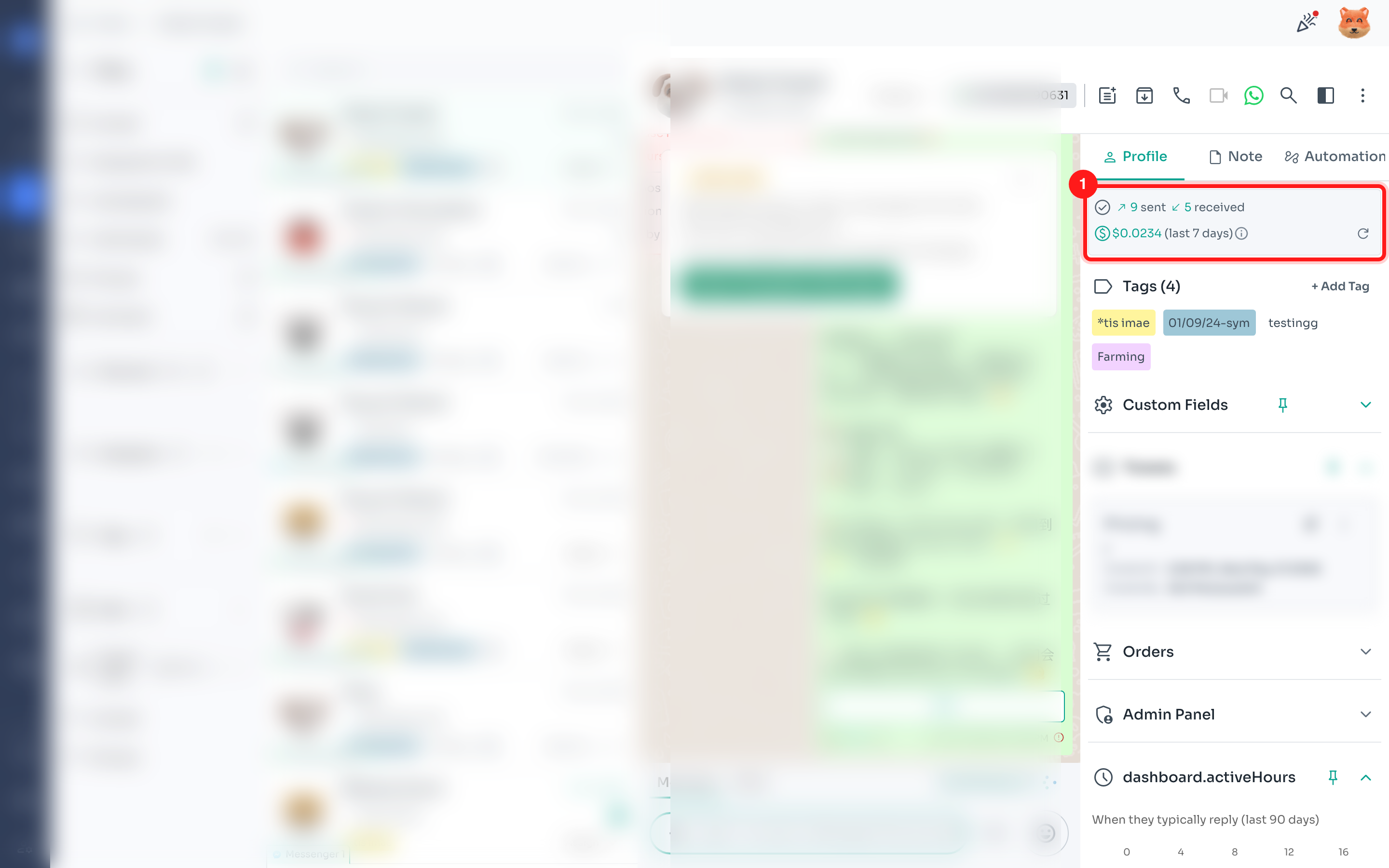
Step 2 — Click "Check Meta fee spent"
In the Contact panel, just under the sent / received message counts, click the "Check Meta fee spent" button. This appears only for WhatsApp Business API (Meta) contacts.
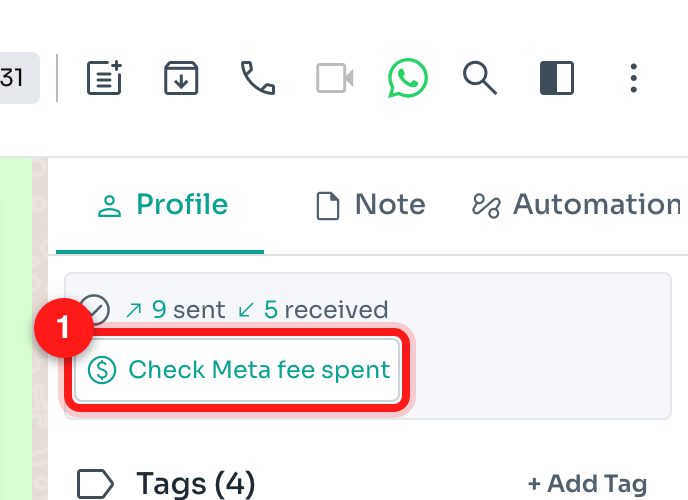
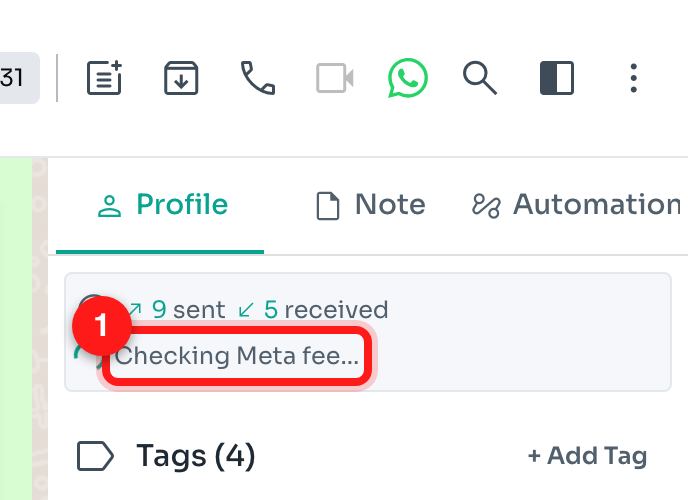
Step 3 — ChatDaddy checks the last 7 days
ChatDaddy fetches this contact's messages from the last 7 days and adds up the billable Meta conversation fees. You'll briefly see "Checking Meta fee…" while it loads.
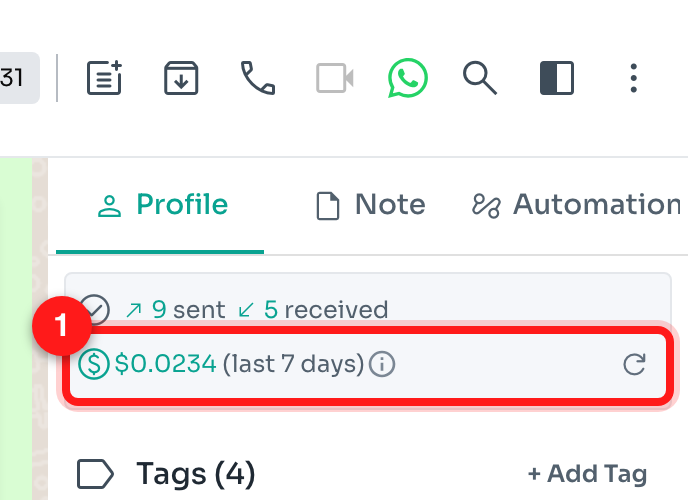
Step 4 — View the Meta fee for the last 7 days
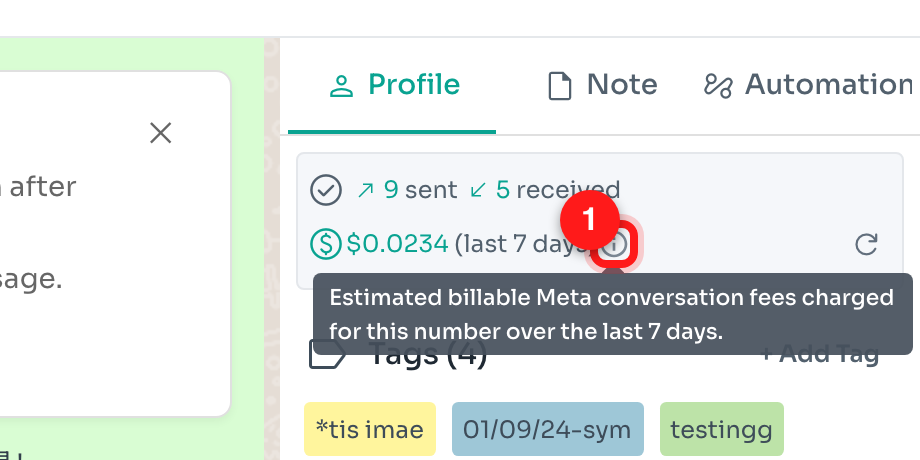
The total billable Meta conversation fee for this contact's number over the last 7 days is shown in USD. A value greater than zero is shown in green.
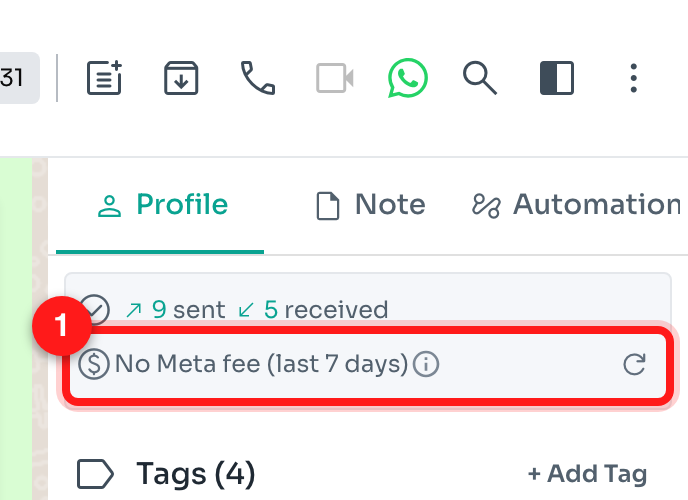
If the contact had no billable Meta conversations in the last 7 days, you'll see "No Meta fee (last 7 days)" instead.
Step 5 — Get more detail and refresh
Hover the info icon ⓘ next to the amount to see exactly what it means: “Estimated billable Meta conversation fees charged for this number over the last 7 days.” Use the refresh icon ↻ to re-check the latest figure at any time.
Good to know
- Available only for WhatsApp Business API (Meta) channels. Personal / QR-code WhatsApp channels do not incur Meta conversation fees and won't show this option.
- The figure is an estimate of Meta's conversation-based charges (in USD) for that contact's number, covering the last 7 days.
- It is fetched on demand only — switching to another chat resets it until you click to check again.
- Use it to spot which customers or numbers are generating the most Meta conversation costs.