
Understanding the New Plan & Billing Page — Plan, Wallet, Credits & Usage (Full Walkthrough)
A complete walkthrough of ChatDaddy's new Plan & Billing page — how your plan, Wallet credits, extra usage, support plans, and payments work together. Includes billing FAQ and example scenarios.
🧭 This guide walks you through the new Plan & Billing experience in ChatDaddy — how to read your plan, your Wallet and credits, how usage is charged, and how to top up, change plans, and find your invoices. Each step includes a screenshot with the key area highlighted in red.
ℹ️ Note: the plan names, prices, credit balances and usage figures in the screenshots are examples from a demo account. Your own numbers will differ. Customer details have been blurred.
What is the new Plan & Billing page?
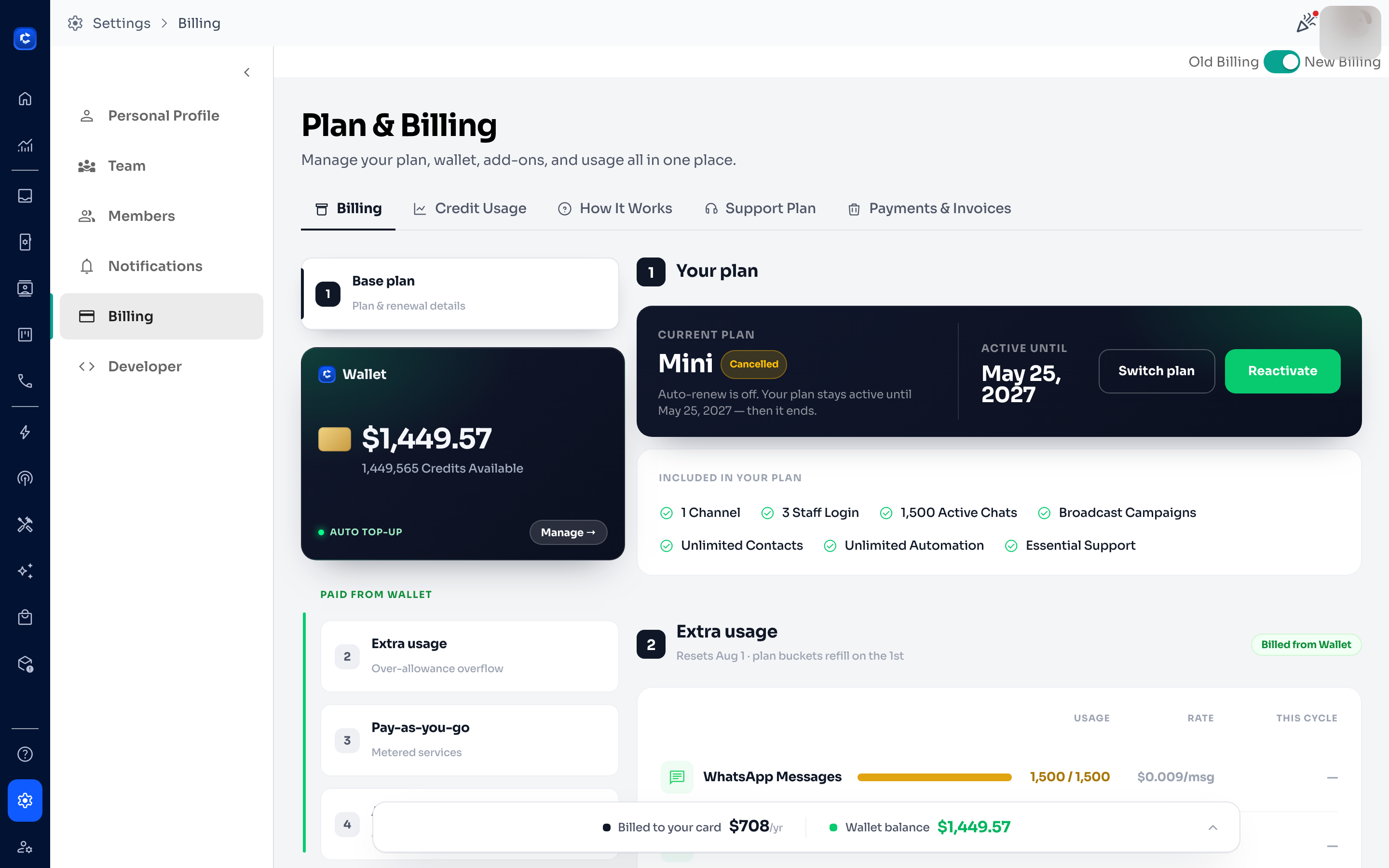
Plan & Billing is your single place to manage everything money-related in ChatDaddy — your subscription plan, your Wallet (prepaid credits), extra usage, add-ons, support plans, and invoices. The tagline at the top says it best: “Manage your plan, wallet, add-ons, and usage all in one place.”
The core idea: your plan (paid by card) covers a generous bucket of included usage. Anything beyond that is covered by your Wallet (prepaid credits). Auto top-up keeps the Wallet from ever running dry.
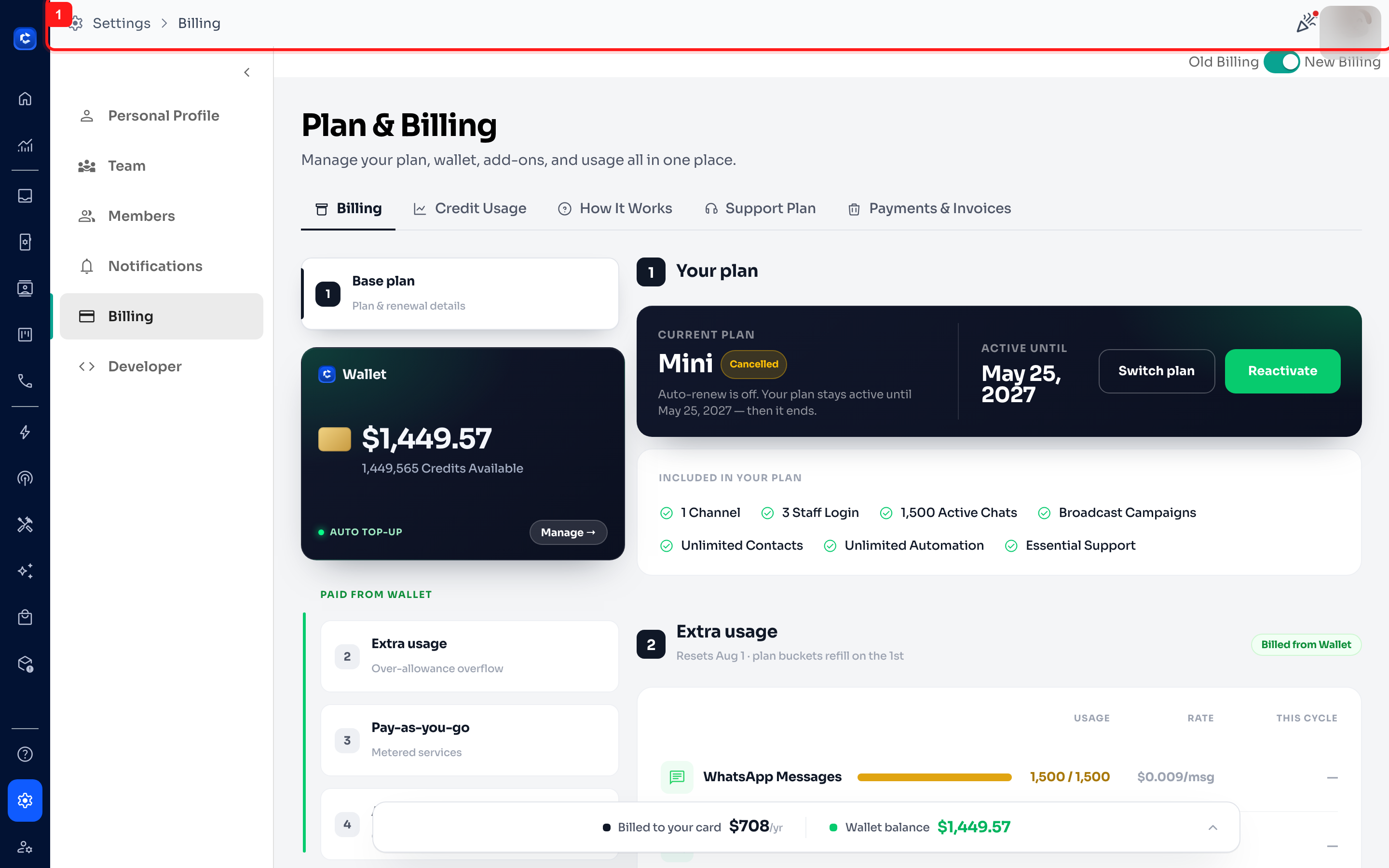
Step 1 — Open the Billing page
- Click the Settings (gear) icon, then choose Billing from the left sidebar. You’ll land on the Plan & Billing page. If your account shows an Old Billing / New Billing toggle in the top-right corner, make sure it is set to New Billing to see the experience described here.
Step 2 — Get oriented: the dashboard at a glance
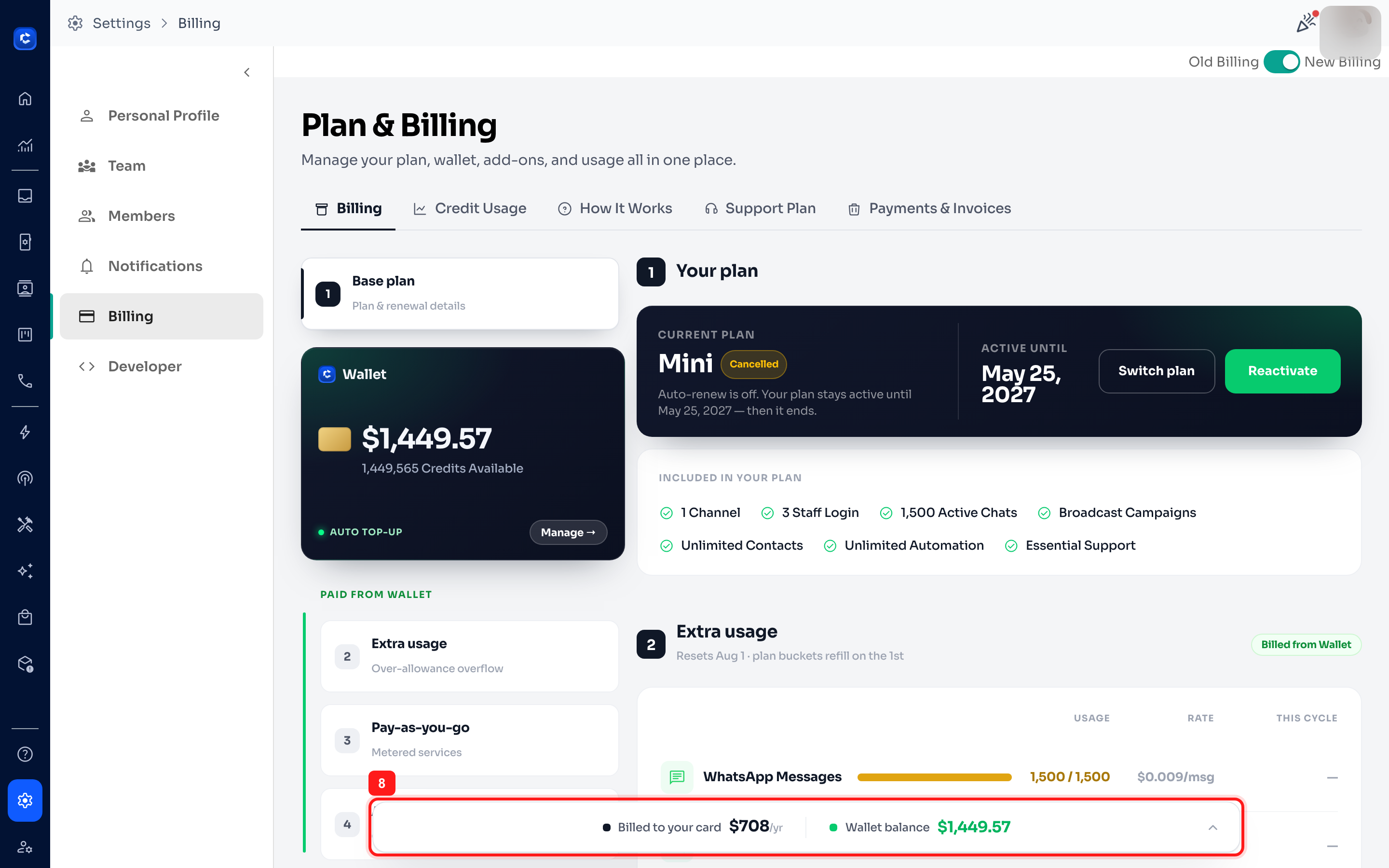
The Billing tab is organised into a left navigator (numbered sections) and a main panel on the right. A summary bar is pinned at the bottom showing what you pay by card versus what comes from your Wallet.
The five tabs
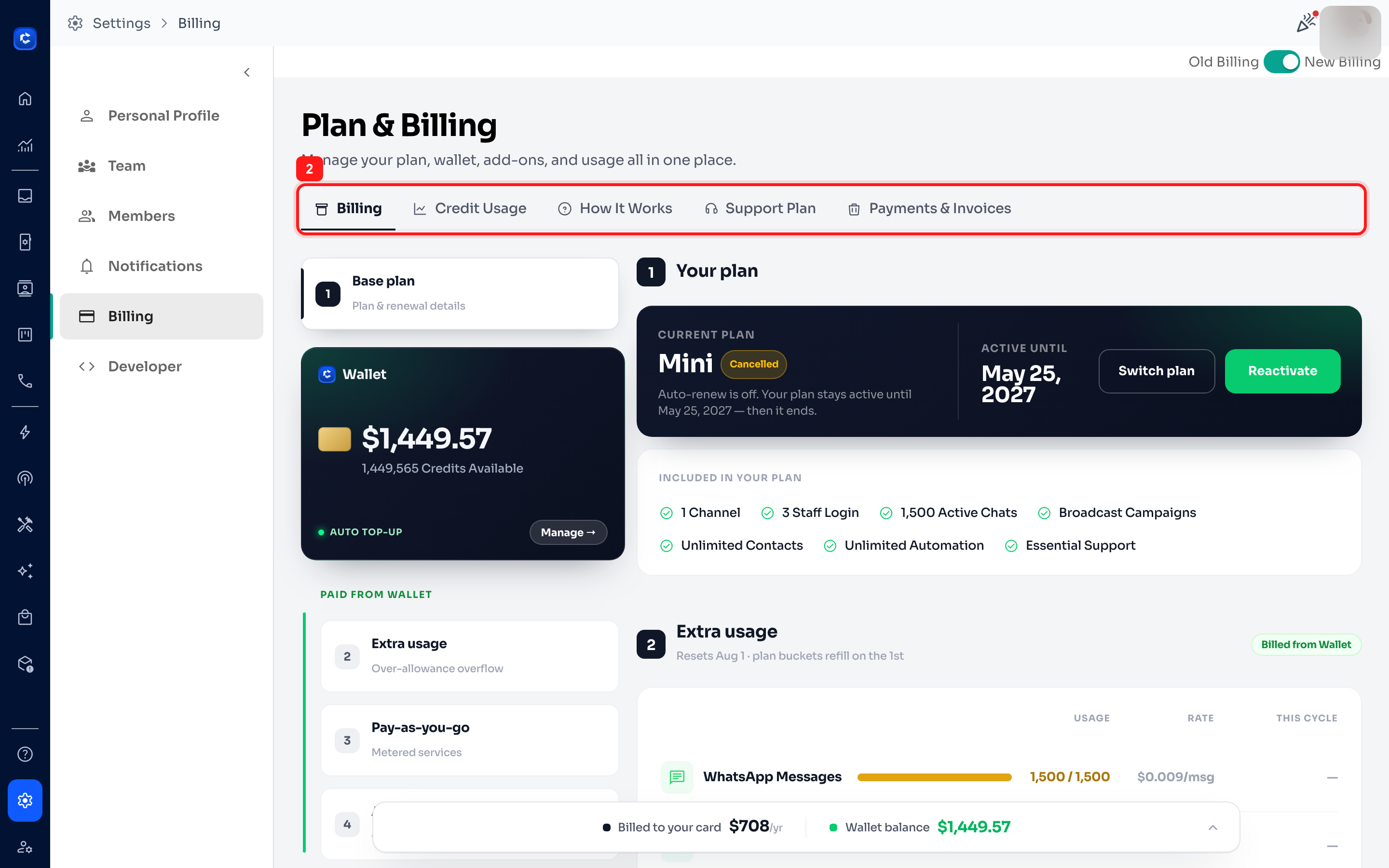
Across the top you’ll find five tabs, each covering a different part of billing:
- Billing — your plan, Wallet, extra usage and add-ons.
- Credit Usage — a detailed breakdown of everything charged from your Wallet.
- How It Works — a plain-language explanation of the billing model.
- Support Plan — optional paid support tiers and professional services.
- Payments & Invoices — your payment method, invoices and purchase history.
The section navigator (left rail)
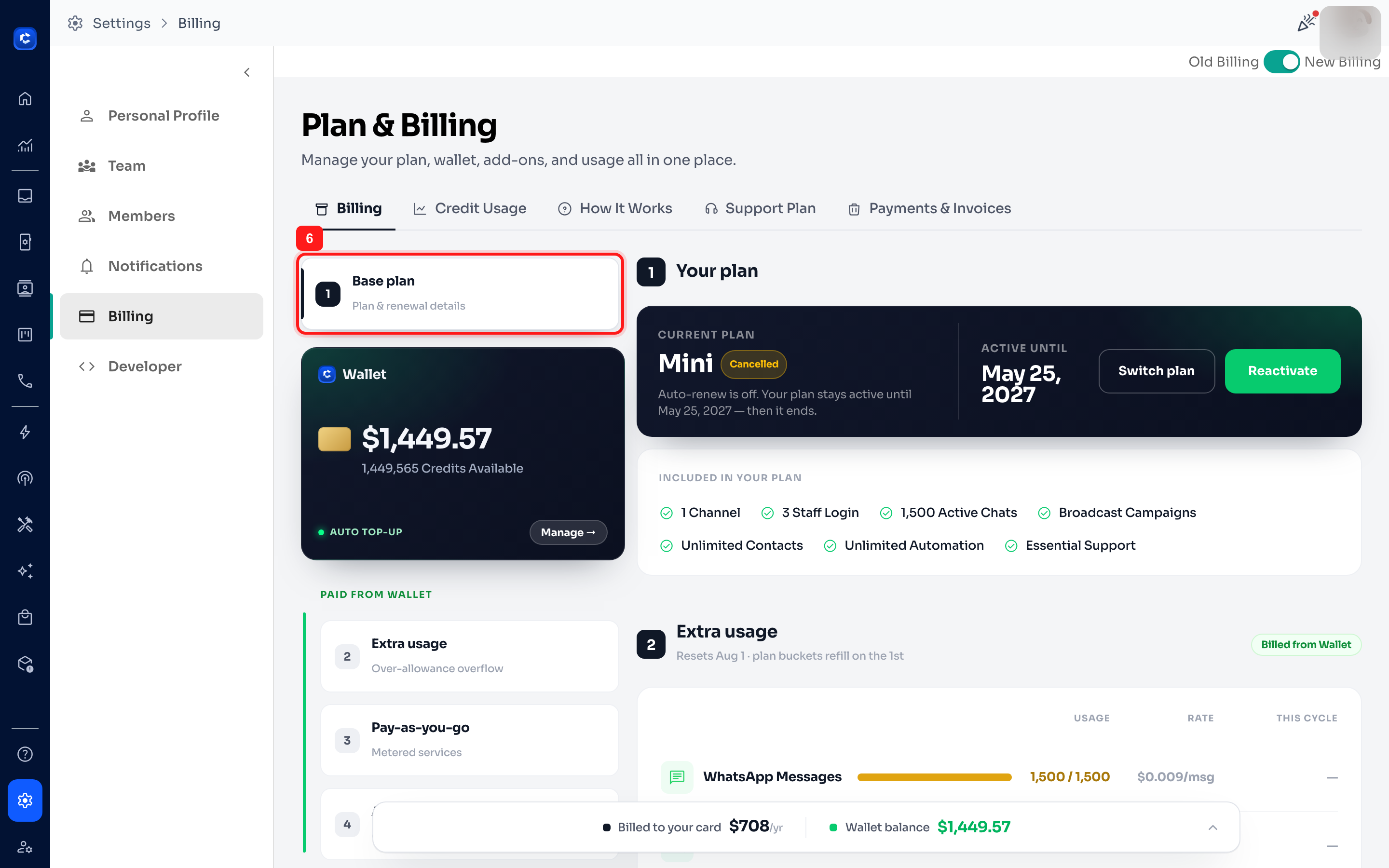
On the Billing tab, the numbered cards on the left act as a quick jump-menu: 1 Base plan, Wallet, then under PAID FROM WALLET — 2 Extra usage, 3 Pay-as-you-go, and 4 Add-ons. Click any of them to scroll straight to that section.
How ChatDaddy billing works (the model in 4 steps)
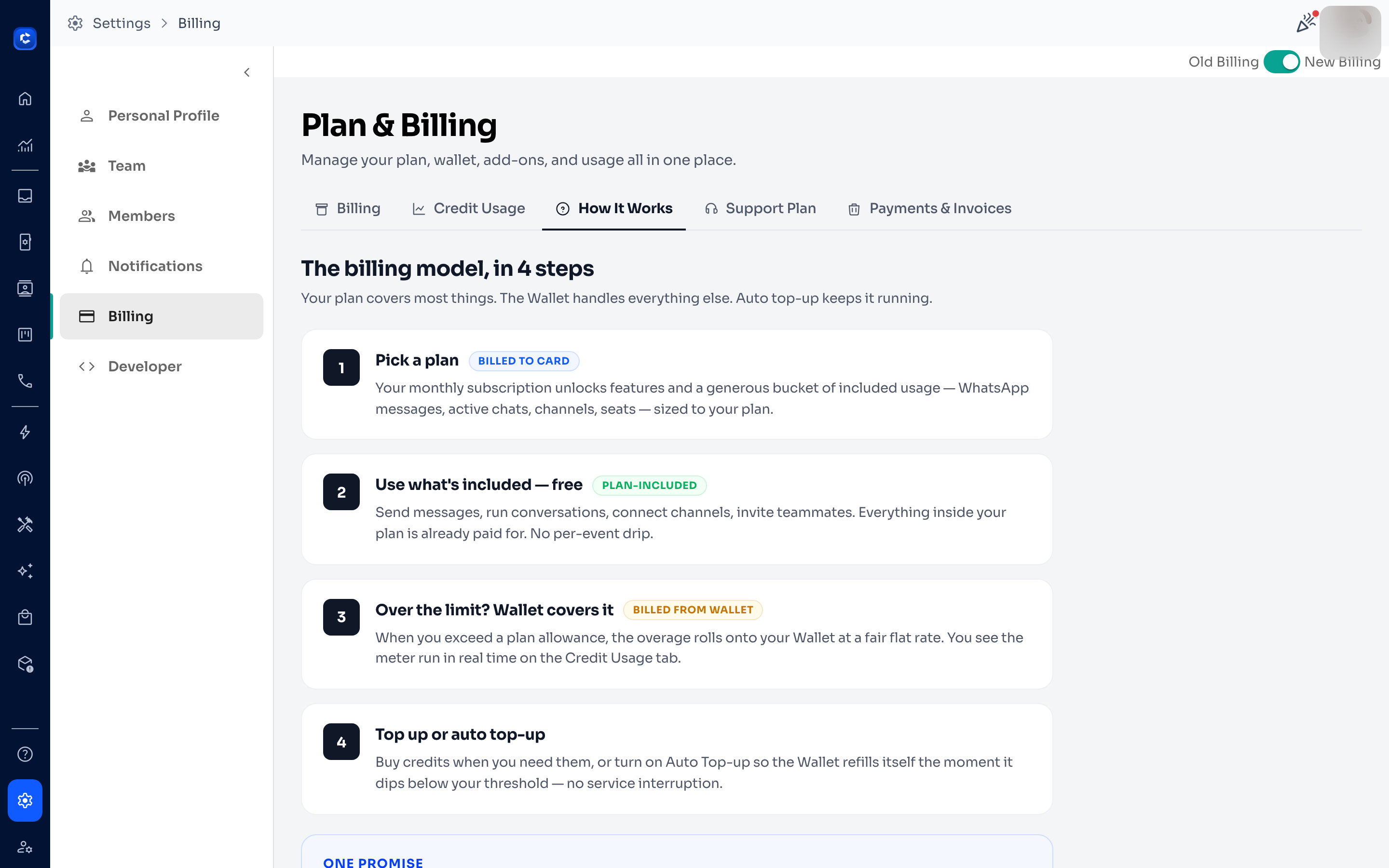
Open the How It Works tab for the simplest explanation. The billing model has four steps:
- Pick a plan (billed to card). Your monthly subscription unlocks features and a generous bucket of included usage — WhatsApp messages, active chats, channels and seats — sized to your plan.
- Use what’s included — free (plan-included). Send messages, run conversations, connect channels and invite teammates. Everything inside your plan is already paid for — no per-event drip.
- Over the limit? The Wallet covers it (billed from Wallet). When you exceed a plan allowance, the overage rolls onto your Wallet at a fair flat rate. You can watch the meter in real time on the Credit Usage tab.
- Top up or auto top-up. Buy credits when you need them, or turn on Auto Top-up so the Wallet refills itself the moment it dips below your threshold — no service interruption.
✅ One promise: no surprise charges. Every cent that comes out of your Wallet shows up on the Credit Usage tab in real time — by service, and by event.
Step 3 — Read your plan
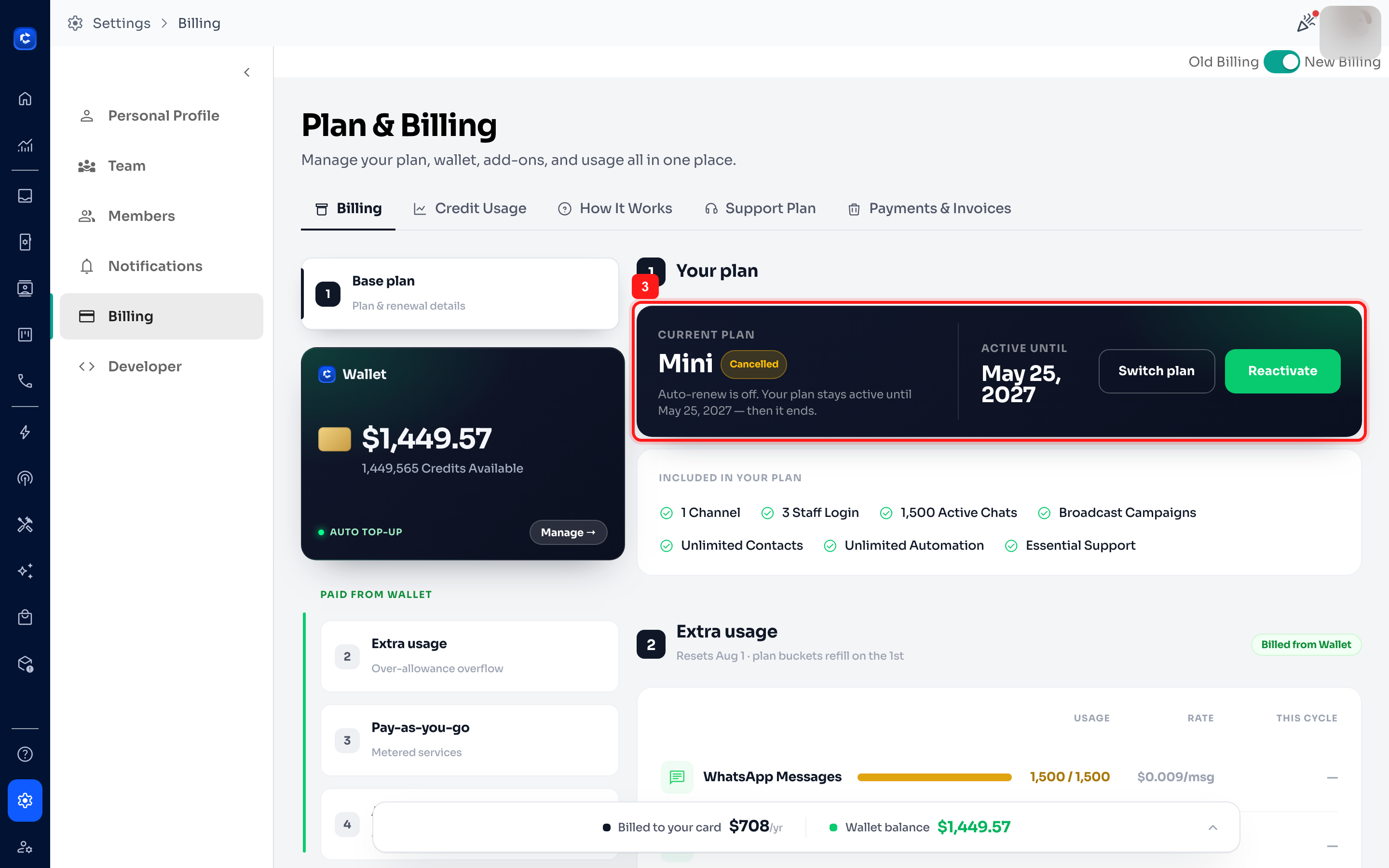
In the Your plan card you’ll see your current plan, its status (Active, Cancelled, or No Active Plan), and when it renews or ends (Active until / Upcoming bill). Use Switch plan to change tiers, or Reactivate if your plan was cancelled.
What’s included in your plan
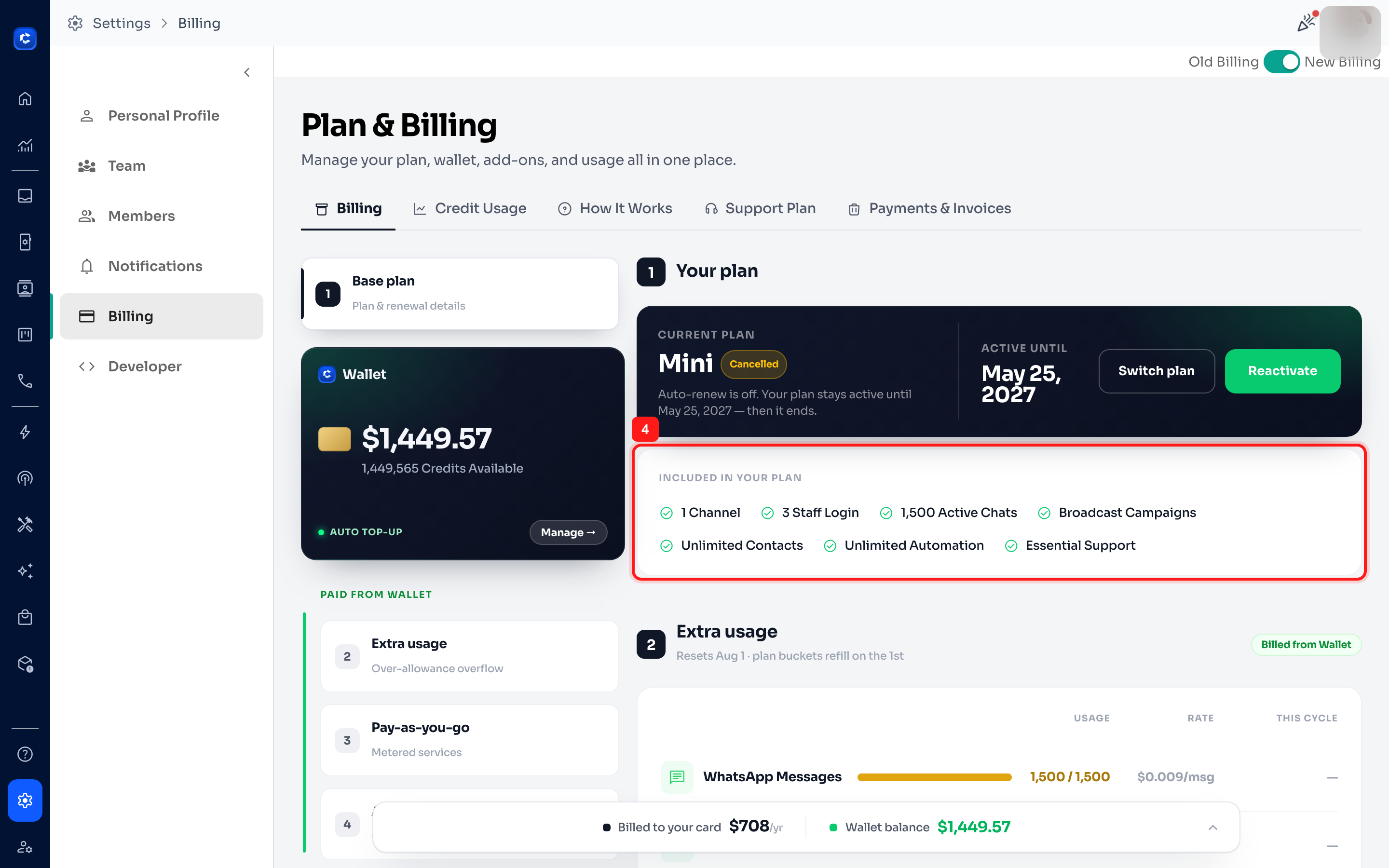
Just below, Included in your plan lists your allowances and features — for example: 1 Channel, 3 Staff Login, 1,500 Active Chats, Broadcast Campaigns, Unlimited Contacts, Unlimited Automation, and Essential Support. Higher plans include more channels, seats and active chats.
Step 4 — Your Wallet & credits
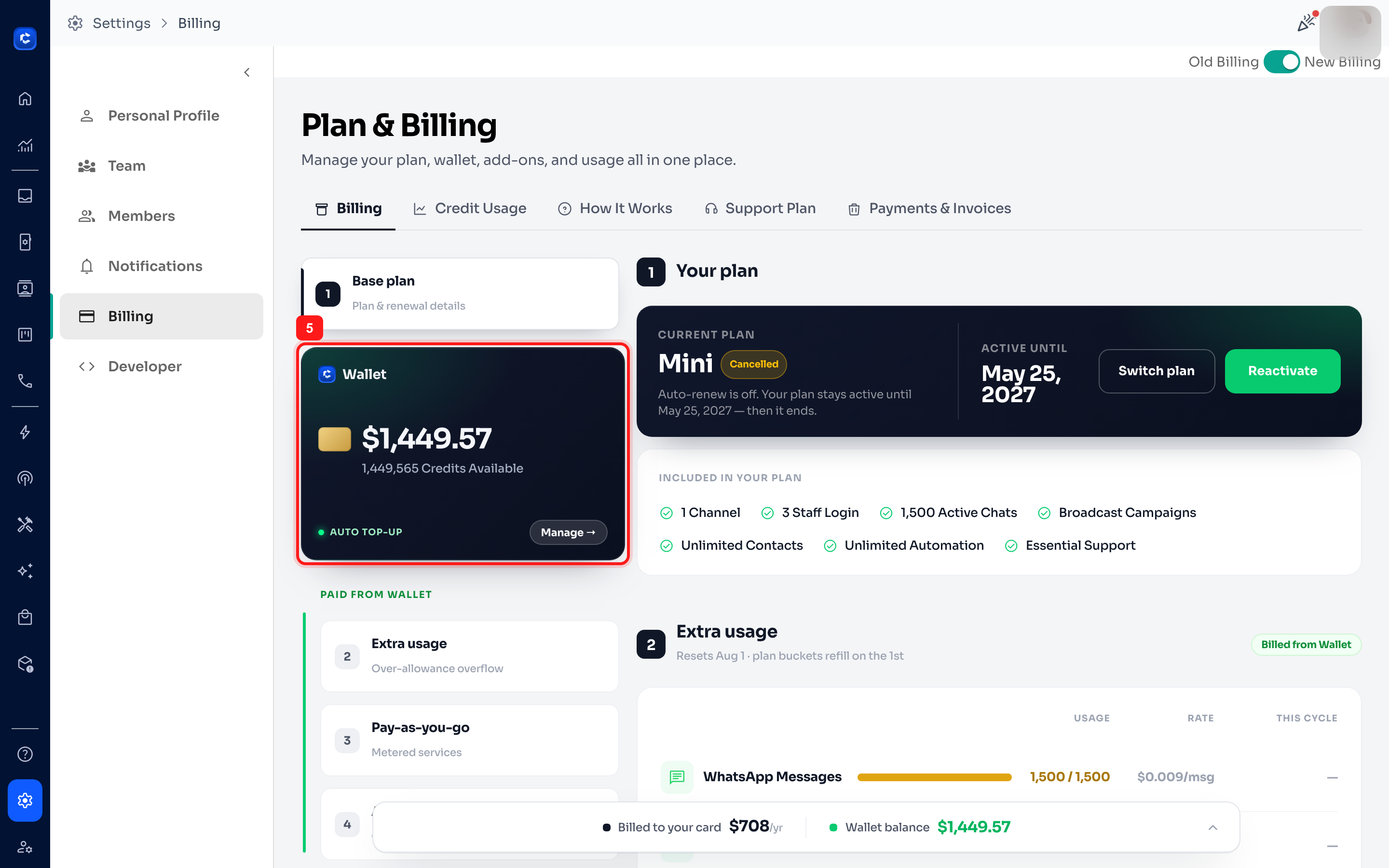
The Wallet card shows your prepaid balance in both dollars and credits. As a rule of thumb, $1 ≈ 1,000 credits. The Wallet pays for anything beyond your plan’s included usage. The AUTO TOP-UP indicator shows whether automatic refills are on.
Top up or manage your Wallet
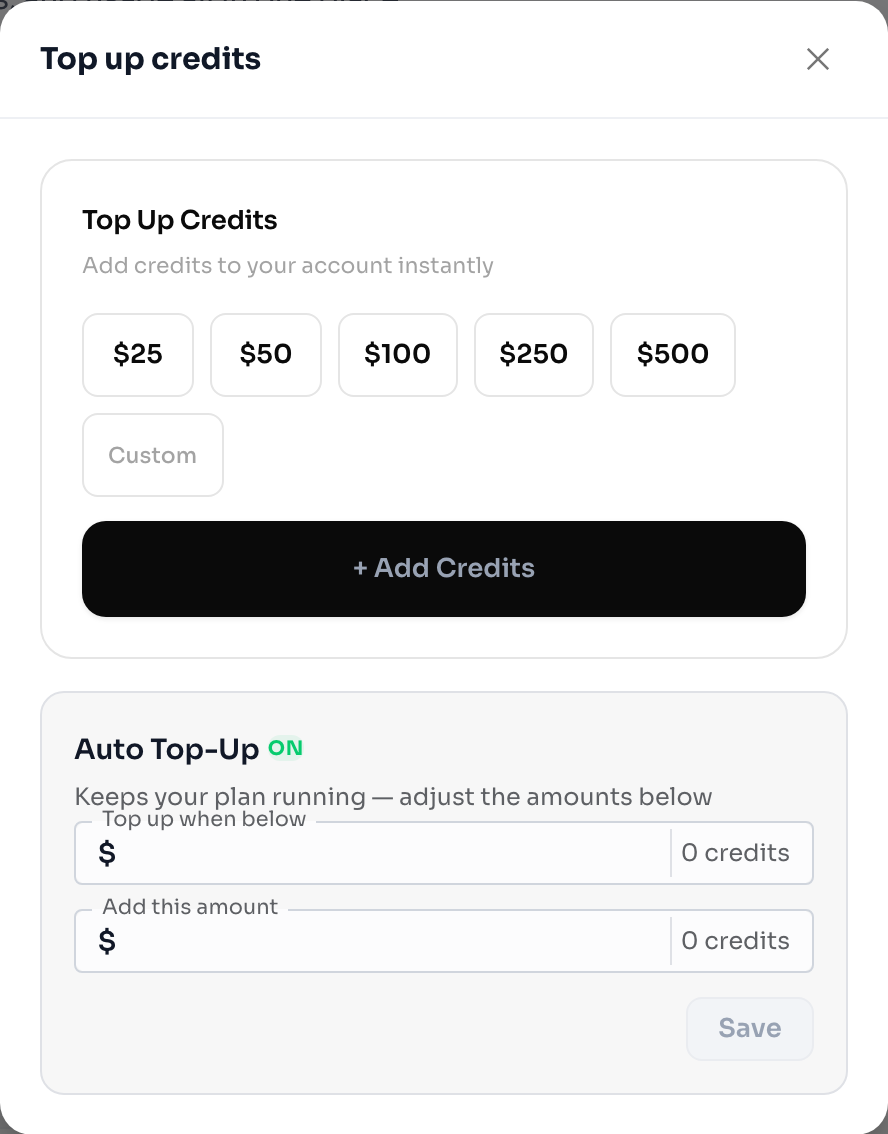
Click Manage → on the Wallet card to open Top up credits. Pick a quick amount ($25 / $50 / $100 / $250 / $500) or enter a Custom amount, then choose + Add Credits. You can also switch on Auto Top-Up here so your Wallet refills automatically when the balance runs low.
Step 5 — Extra usage (overage billed from your Wallet)
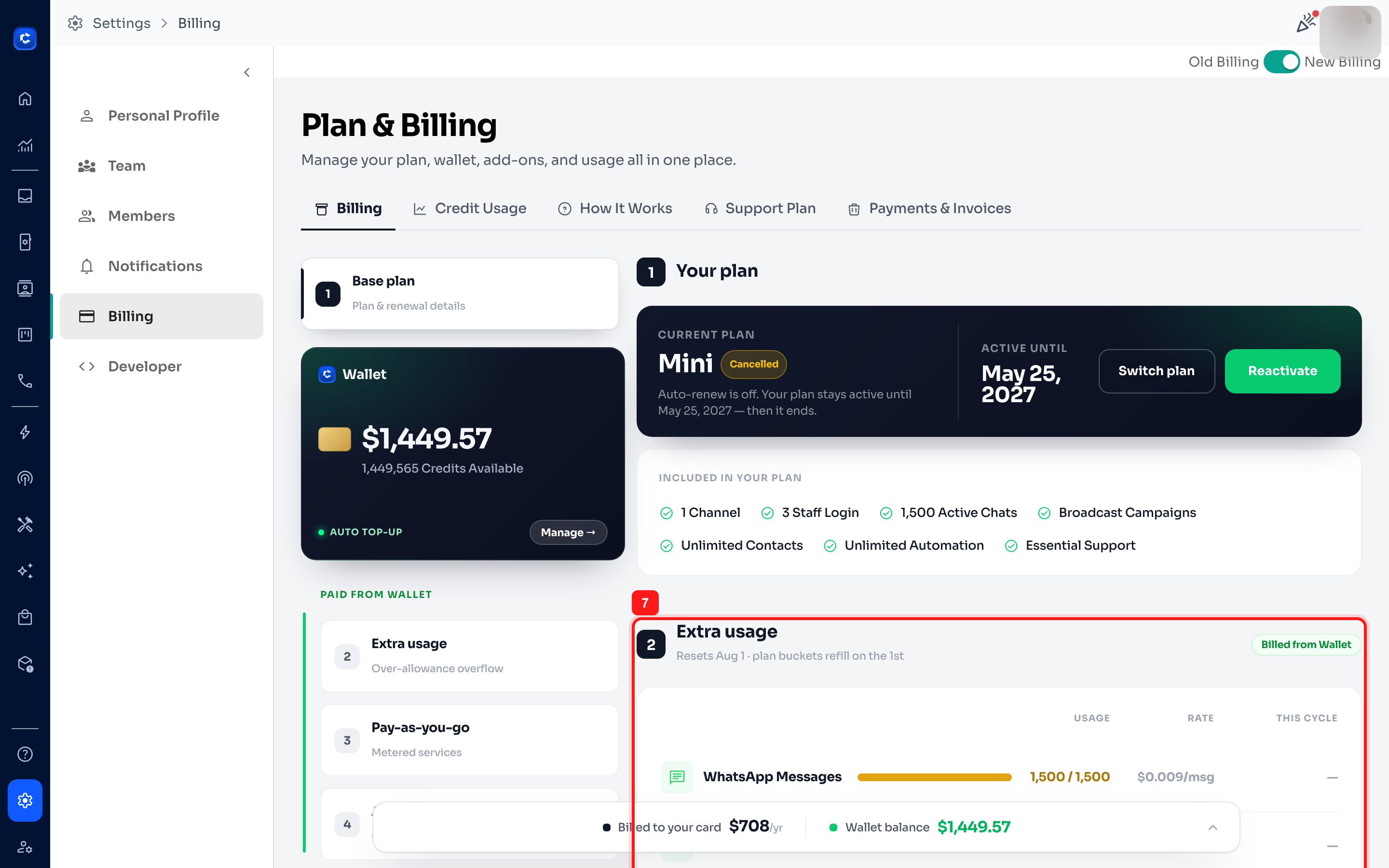
The Extra usage section shows how much of each plan allowance you’ve used this cycle and the flat rate charged from your Wallet once you go over. Plan buckets refill on the 1st of each cycle. For example you may see: WhatsApp Messages at $0.009/msg, Active Chats at $0.015/chat, extra Channels at $29/ch, and extra Teammates at $29/seat. A note such as “+2 from wallet” means those extras are being billed from your Wallet.
Billed to card vs. Wallet balance
The bar pinned to the bottom of the page summarises the two sides of your bill at a glance: Billed to your card (your recurring subscription) and your current Wallet balance (what covers extra usage).
Step 6 — Track spend on the Credit Usage tab
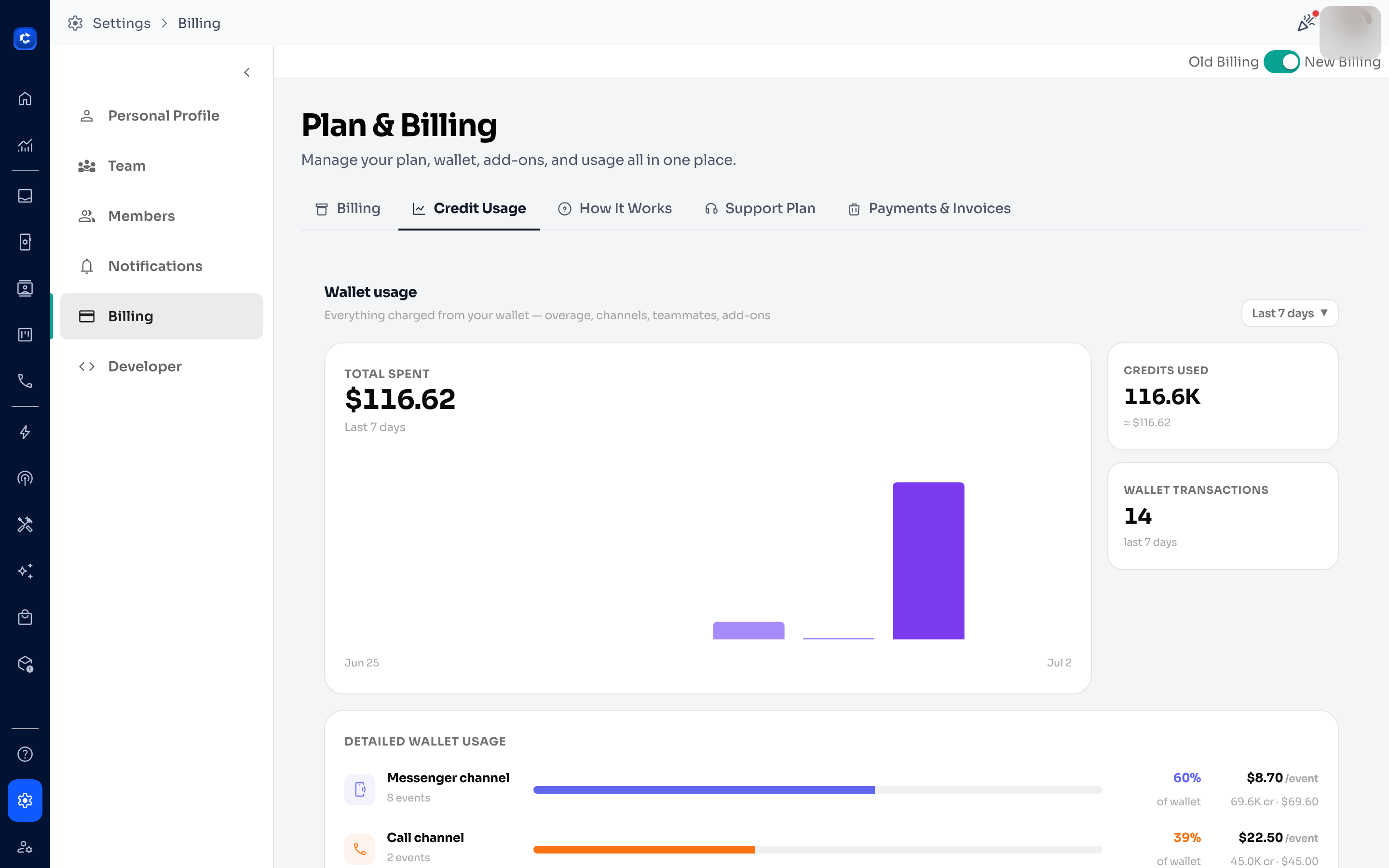
Open Credit Usage to see exactly what your Wallet paid for. At the top you get Total spent, Credits used, and Wallet transactions for the selected date range (e.g. Last 7 days), plus a spend chart. Detailed wallet usage breaks it down by service — each line shows the number of events, its share of total wallet spend, the rate per event, and the credits/dollars spent. Below that, Plan bucket usage shows how much of your included WhatsApp messages and active chats you’ve consumed this cycle.
Step 7 — Change or upgrade your plan
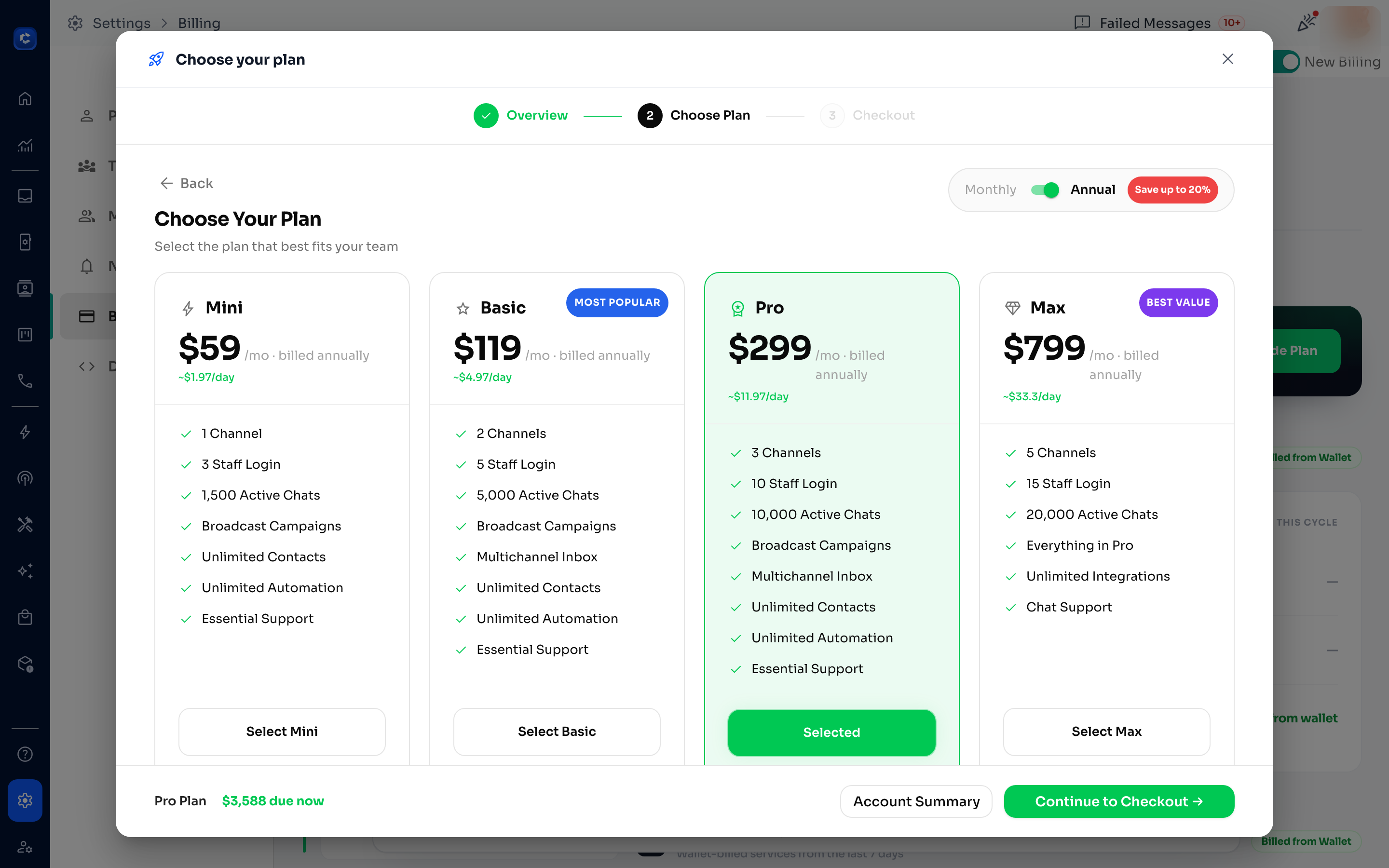
Click Switch plan (or Upgrade Plan if you have no active plan) on the Your plan card to open Choose Your Plan. Toggle between Monthly and Annual (annual saves up to 20%) and compare tiers — for example Mini, Basic (Most popular), Pro, Max (Best value) and Enterprise — each with its channels, seats and active-chat allowances. Select a plan and choose Continue to Checkout → to complete payment securely.
Step 8 — Support plans (optional)
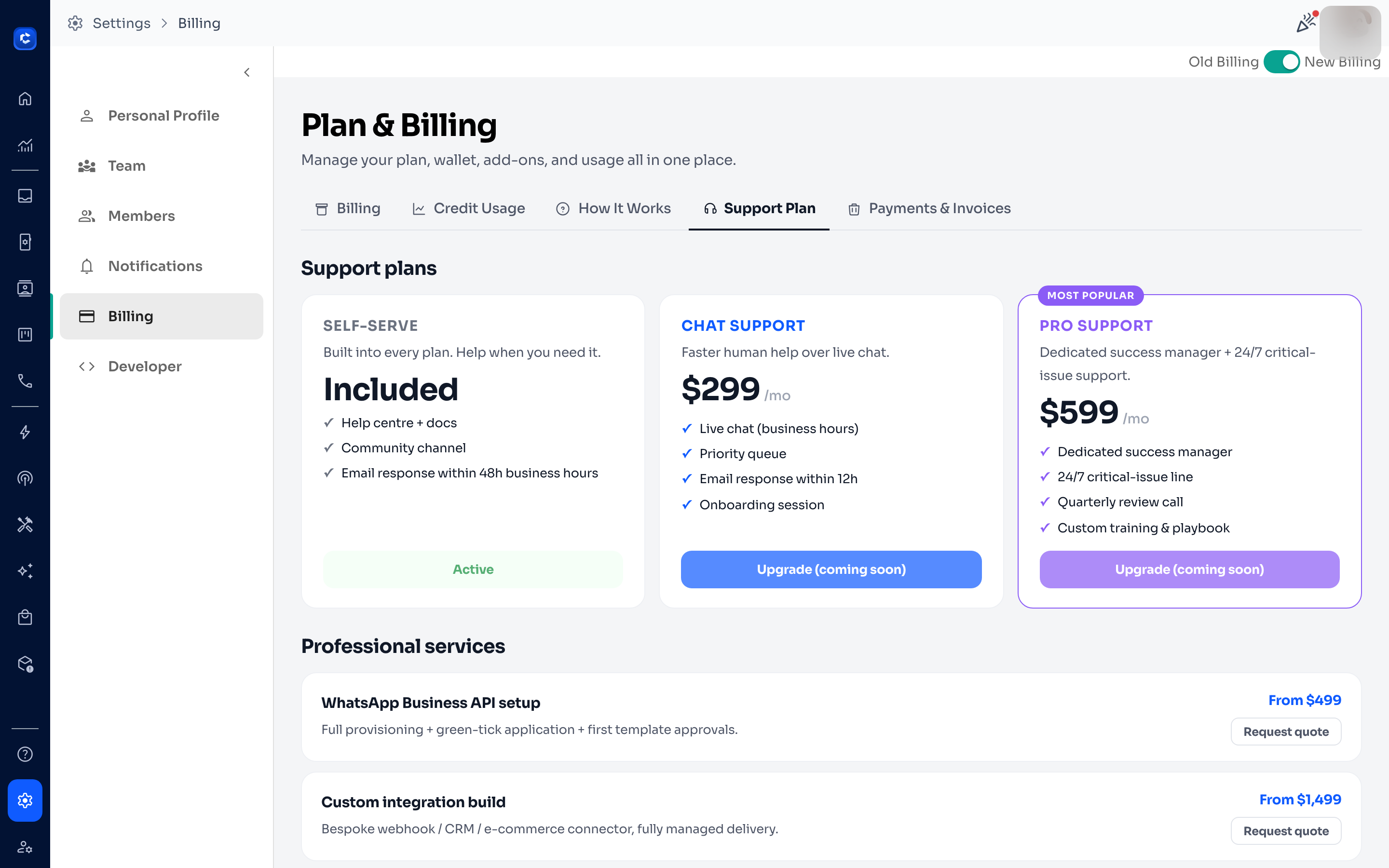
The Support Plan tab shows the free, self-serve support included with every plan, plus optional paid tiers — for example Chat Support and Pro Support (dedicated success manager + 24/7 critical-issue support). It also lists Professional services you can request a quote for, such as WhatsApp Business API setup, custom integration builds, and migration & data import.
Step 9 — Payment method, invoices & purchase history
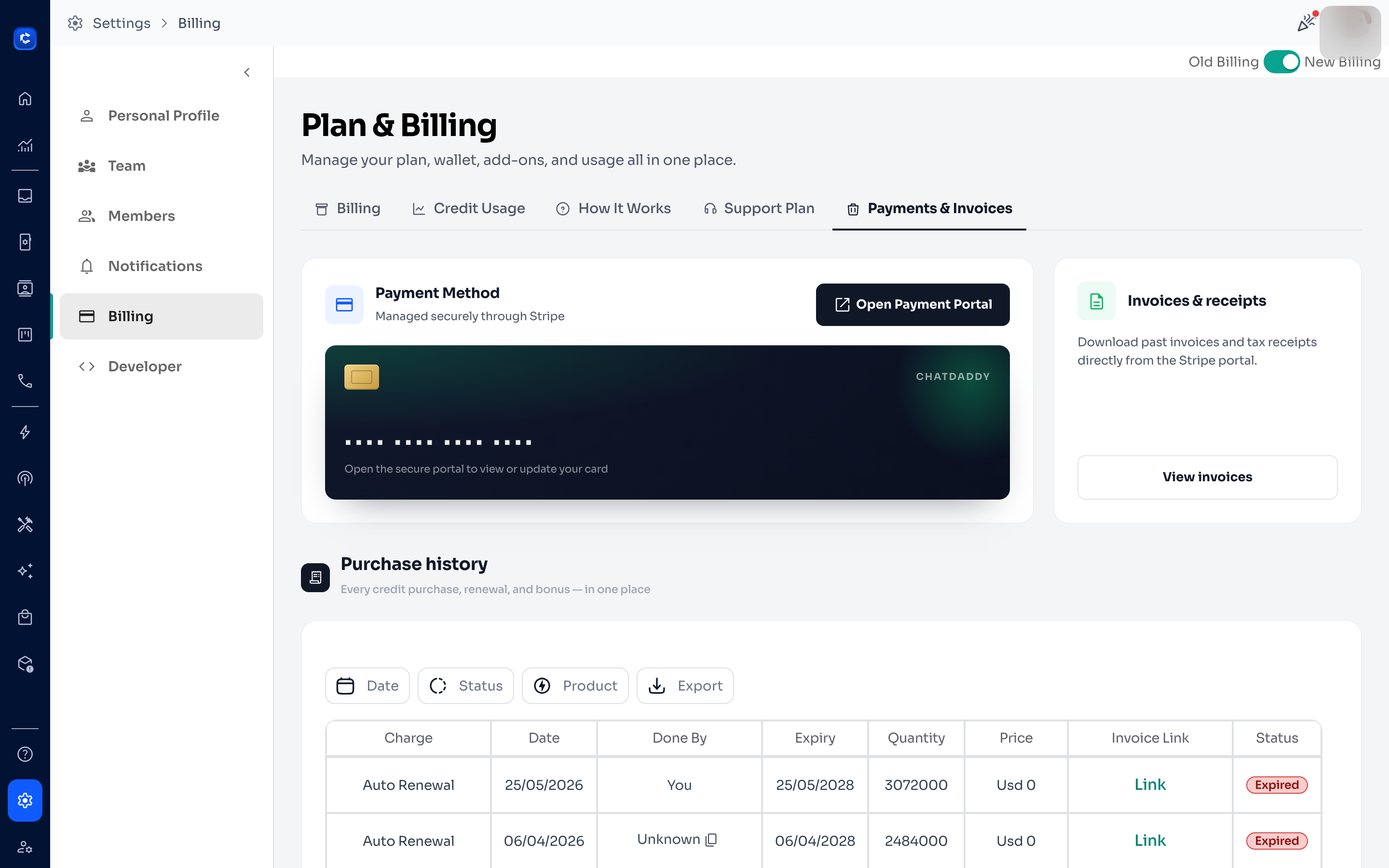
The Payments & Invoices tab manages the money trail. Payment Method is handled securely through Stripe — click Open Payment Portal to view or update your card. Use View invoices under Invoices & receipts to download past invoices and tax receipts. The Purchase history table lists every credit purchase, renewal and bonus, with invoice links.
How and when you're billed (plans, buckets & extras)
If you're on a paid plan, three billing tracks run in parallel — and they all bill automatically. You never have to lift a finger unless you want to change plans or remove resources.
1. Your plan subscription
- Monthly plans are charged to your card (securely via Stripe) on the same date each month as your sign-up day. Example: sign up June 26 on Pro monthly → you're charged again July 26, August 26, and so on.
- Yearly plans are charged once a year on your sign-up anniversary. Example: sign up June 26 on a yearly plan → your next charge is June 26 the following year.
- Annual billing is discounted compared with paying monthly, so it's usually the better value for higher-volume accounts.
2. Your included messages & active chats refresh every month
Every plan includes a monthly quota (a "bucket") of WhatsApp messages and active chats.
- Monthly customers: buckets reset on your renewal day each month.
- Yearly customers: buckets reset on the 1st of every calendar month. You pay once a year, but the message allowance is monthly by design — otherwise a whole year's messages could be used up in the first week.
3. Recurring extras (extra channels, teammates & analytics)
If you use more channels or teammates than your plan includes, each extra one costs $29/month. The Analytics dashboard is a flat $50/month add-on. These are paid automatically from your Wallet.
- Extras are charged on the 1st of every calendar month — for both monthly and yearly customers — so you get one predictable extras billing day, no matter when you signed up.
- Example: 8 channels on a plan that includes 3 → 5 extra channels × $29 = $145/month taken from your Wallet each 1st.
Adding a channel or teammate mid-month (pro-rata)
Add an extra channel or teammate partway through the month and you only pay for the days remaining in that month, then the full rate from the 1st onward.
- Example: you add your 5th channel on June 16 (your plan includes 3). You're charged about $14.50 right away (15 of ~30 days × $29), then the full $29 on July 1 and each 1st after that.
ℹ️ Legacy accounts without a plan keep the older rolling 30-day billing cycle for their channels and teammates — they don't use the calendar-1st schedule or pro-rata.
Auto top-up keeps everything running (required on plans)
Because extras are paid from your Wallet, auto top-up is required while you're on a plan so your services never stop mid-cycle.
- Default threshold: when your Wallet balance drops below about $10, auto top-up fires.
- Default top-up: about $50 is added from your card on file.
- You can change the threshold and top-up amount under Settings → Billing → Wallet → Manage, but you can't switch it off while on a plan.
Why you might see two billing dates
Your plan fee follows your sign-up date (for example, the 26th), while your extras are billed on the 1st. So a plan customer with extras will see the plan charge on their anniversary day and the extras charge on the 1st — that's expected.
Billing FAQ
- I just paid on the 26th for monthly Pro — when does it renew? Your plan renews on the 26th each month. Any extras bill separately from your Wallet on the 1st.
- Will I be double-charged if I migrate to the new billing? No. Migration charges your plan fee once today, reprices your existing channels/teammates under the new plan, and debits only the pro-rated extras for the remaining days of the month. From the next 1st you bill on the normal schedule.
- What happens if my Wallet runs out? Auto top-up refills it automatically from your card on file, so you won't experience an interruption.
- I'm on an annual plan — why do my message buckets refill every month? The plan fee is annual, but the message allowance is a monthly entitlement by design.
- Why is there both a plan date and a 1st-of-month date? Your plan follows your sign-up date so the subscription is managed cleanly, while extras use a calendar-1st schedule to give you one predictable extras day.
- Can I switch from yearly to monthly mid-cycle? Yes — the switch takes effect at your next renewal (when your prepaid period ends), with no double charge.
- Can I cancel my plan? Yes. Cancellation sets your plan to end at the period you've already paid for, and your Wallet still works for top-up usage after that.
Example billing scenarios
A few end-to-end examples (figures are illustrative — see your own plan for exact prices):
- Brand-new Pro Monthly, no extras: the plan fee is charged on your sign-up day and every month after. No Wallet activity; auto top-up sits idle.
- Monthly plan with extras: your plan fee on your renewal day, plus your extras from the Wallet on the 1st (e.g. 5 extra channels = $145/mo).
- Yearly plan, no extras: the plan is charged once for 12 months; your message buckets refill on the 1st of each month.
- Yearly plan with 2 extra channels: the plan is charged once a year; about $58 (2 × $29) comes from your Wallet on the 1st each month, alongside your bucket refills.
Quick tips
- Keep Auto Top-up on so extra usage never interrupts your messaging.
- Watch the Credit Usage tab to understand which services consume the most credits.
- $1 ≈ 1,000 credits — a handy conversion when planning top-ups.
- Annual billing saves up to 20% compared to monthly.
- If your plan is Cancelled, you keep access until the Active until date — use Reactivate to keep it running.
Need a hand choosing the right plan or understanding a charge? Reach out to ChatDaddy support from the Support Plan tab or the in-app help menu.
How to Cancel Your Plan
You can cancel your subscription at any time directly from the Plan & Billing page. Cancelling doesn't cut off your access immediately — you keep everything until the end of your current billing period.
Step 1 — Open the plan options menu
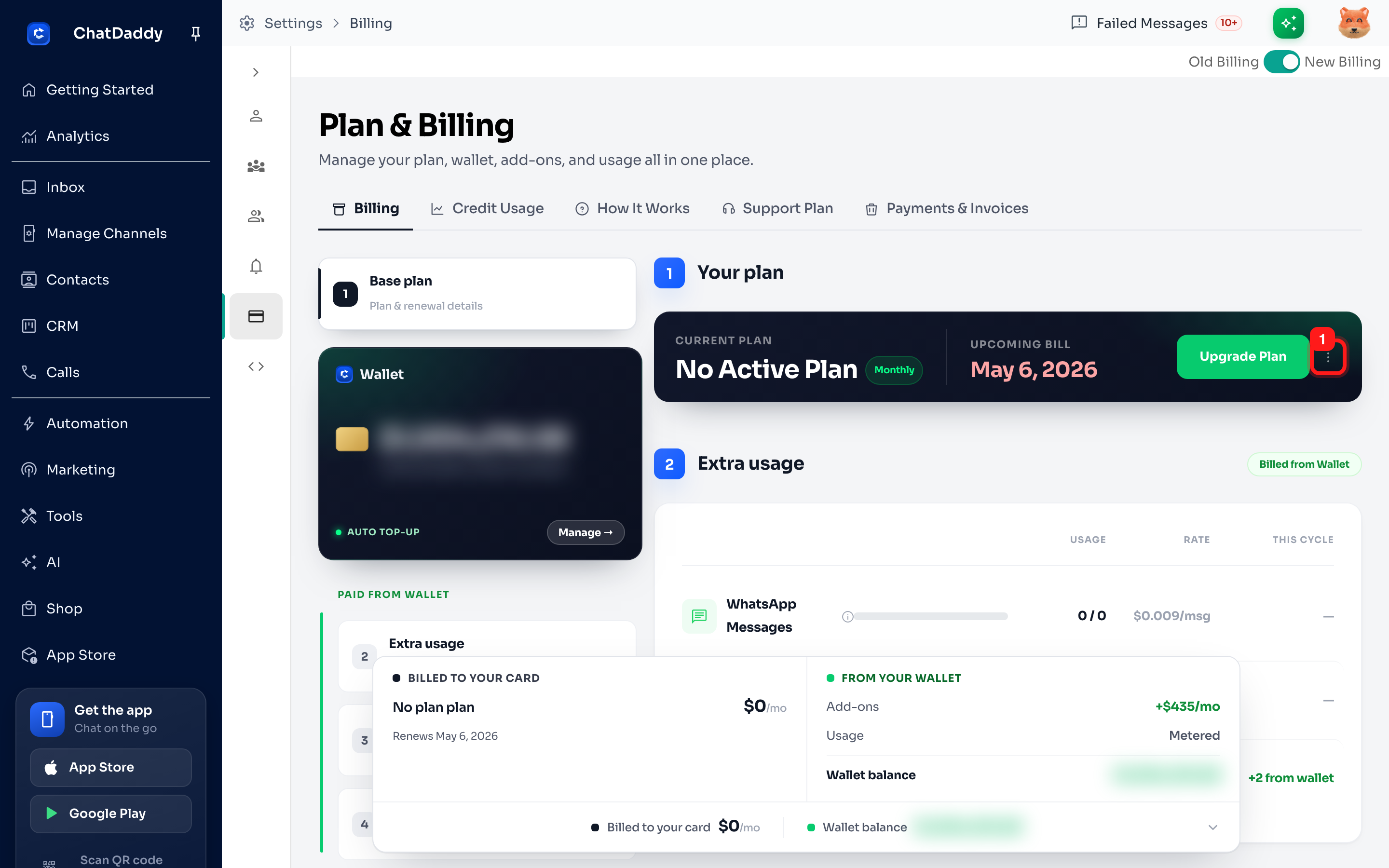
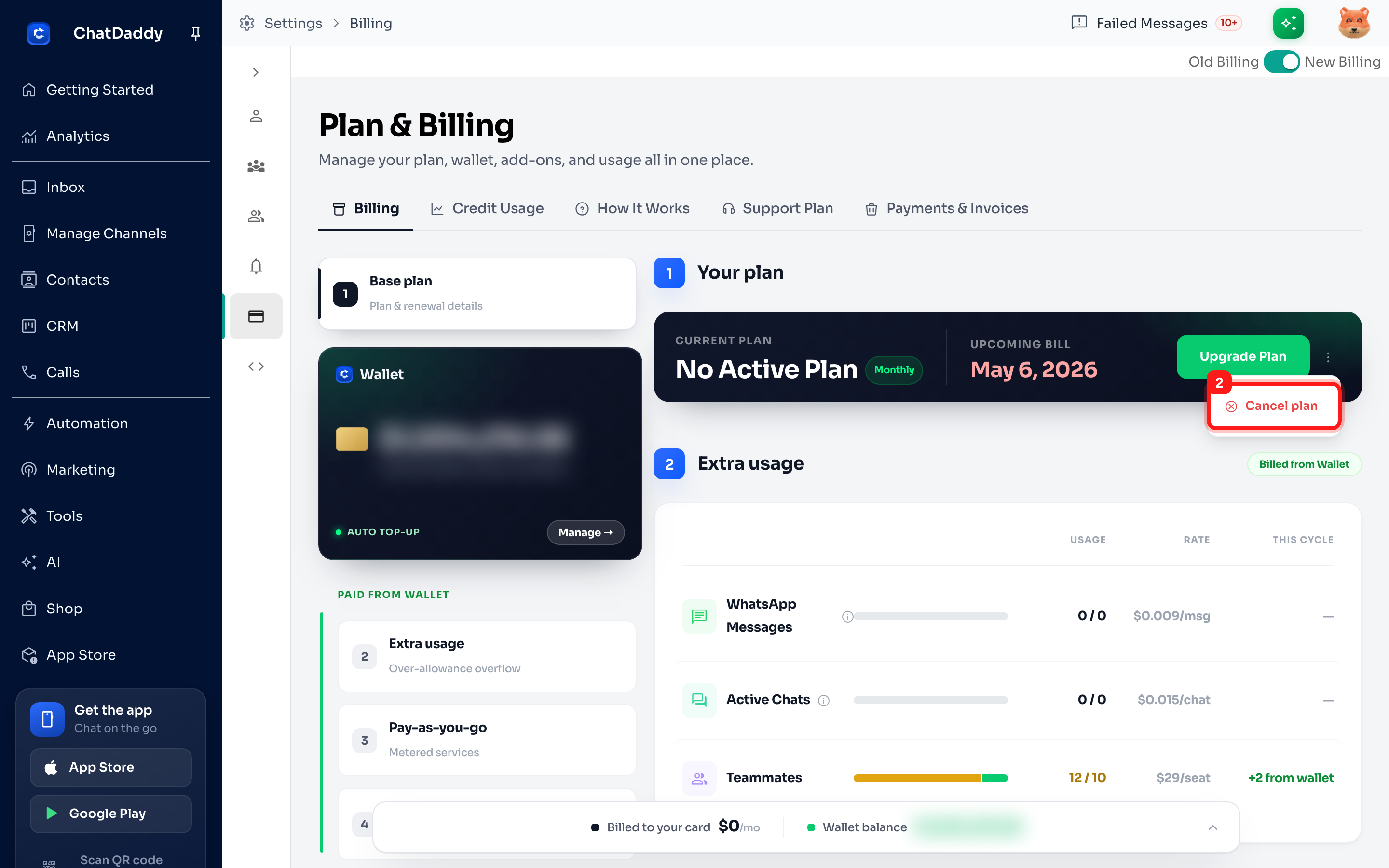
Go to Settings → Billing and stay on the Billing tab. In the Your plan card (top right), click the three-dot menu (⋯) or the options button to open the plan actions dropdown.
Step 2 — Select "Cancel plan"
In the dropdown that appears, click Cancel plan.
Step 3 — Review the confirmation
A confirmation popup titled "Cancel your plan?" appears. It confirms that:
- You keep your plan access until your current period ends (the date shown in the popup).
- After that date, plan features pause — but your Wallet balance and purchase history stay intact.
- You can reactivate anytime before then with no extra charge.
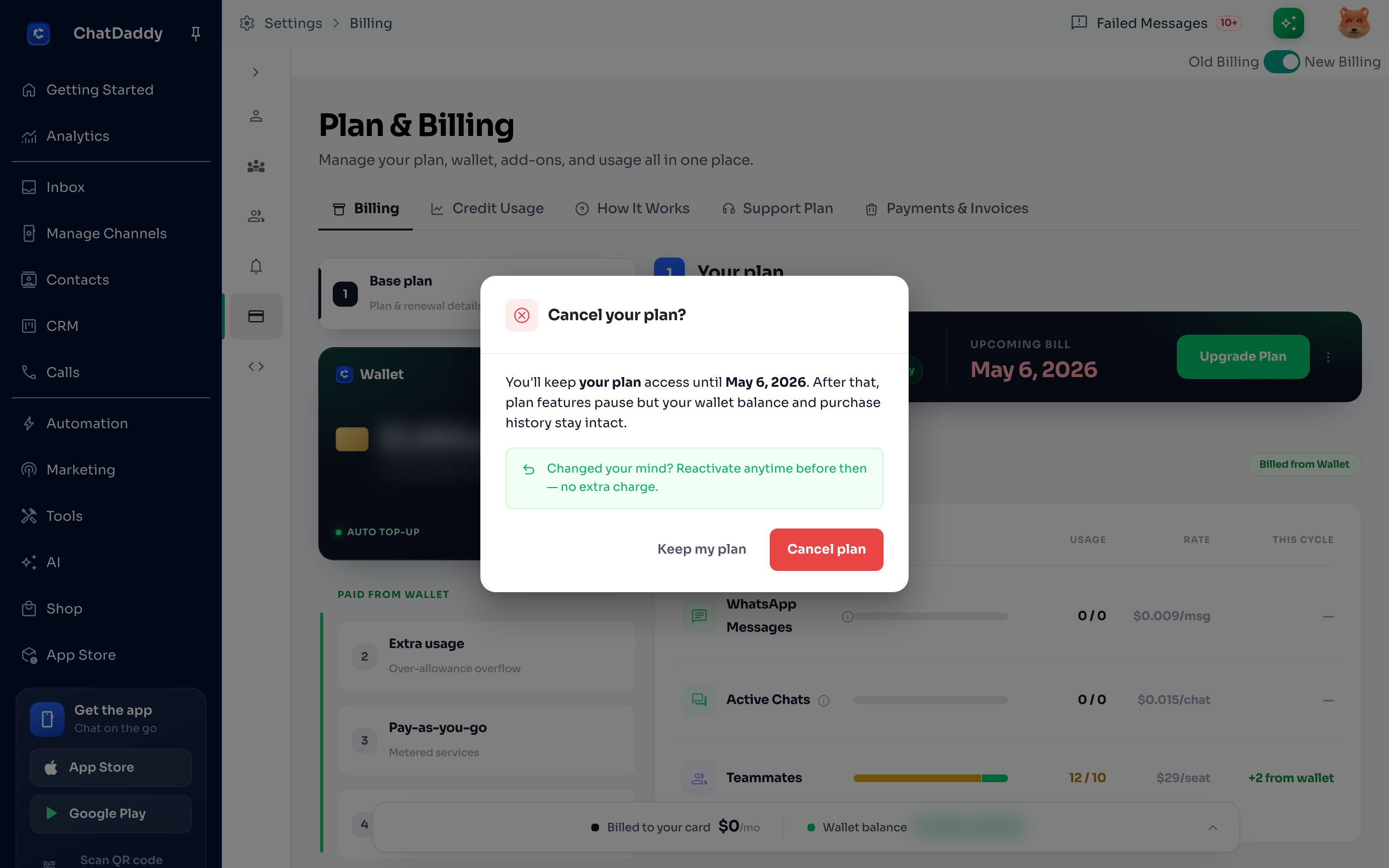
To confirm, click the red Cancel plan button. To back out and keep your subscription, click Keep my plan.
Note: Cancelling schedules your plan to end at the close of the current billing period — you are not charged anything extra and you are not cut off immediately.