
What Is Inside a Contact Export File (Columns, Tags and Phone Numbers)
Exporting contacts gives you a spreadsheet with a fixed set of columns plus one column per custom field. Learn what each column holds, why every tag now lands in the Tags column whatever it is named, and where the phone number comes from when a contact has none saved.
Also searched as: What Is Inside a Contact Export File (Columns, Tags and Phone Numbers), Open Contacts and click Export, Choose how many contacts and which file format, Review the list before you export, Download the file, What each column contains, Tags come out in full, How the formats differ, Inside, Contact, Export, File, Columns, Tags, Phone
You can download your ChatDaddy contacts at any time as a spreadsheet or a phone contact file. This article explains what you get in that file — the exact columns, where each value comes from, and what changes when you pick a different file format.
It is useful if you are moving contacts into another tool, keeping a backup, or building a report and you need to know which column to look in.
🏷️ Every tag on a contact now lands in the Tags column, whatever the tag is called. Tag names containing a quote mark or a comma used to cut a row short and push the remaining tags into the Assignee column. Re-export any old file you were relying on.
Step-by-step
Step 1 — Open Contacts and click Export
Go to Contacts in the left-hand menu. Export sits in the top right of the page, next to Create. You can either tick specific rows first and export just those, or click Export with nothing selected to work from your whole contact list.
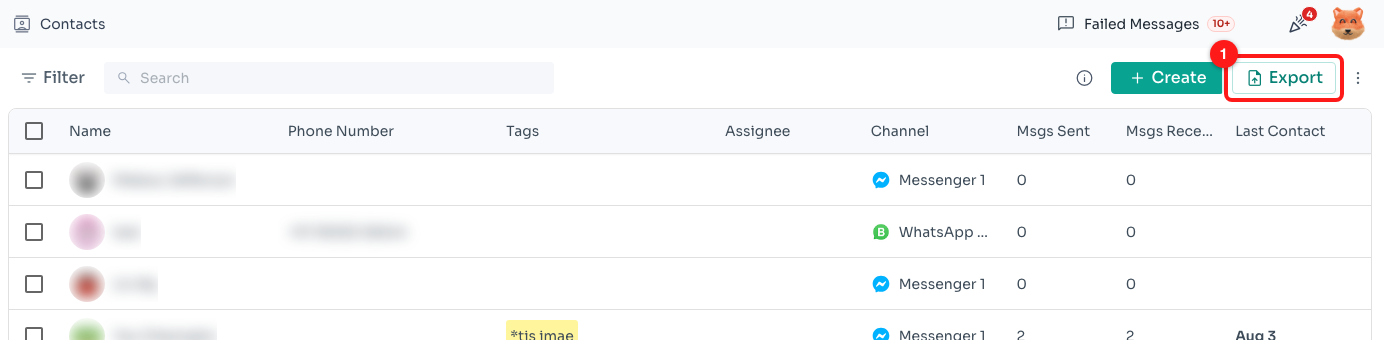
Step 1 — the Export button on the Contacts page (1).
Step 2 — Choose how many contacts and which file format
The Export Contacts dialog opens on two choices. Export limit sets how many contacts the file may contain, and File format sets what kind of file you get. The formats available depend on the limit you picked, so choose the limit first.
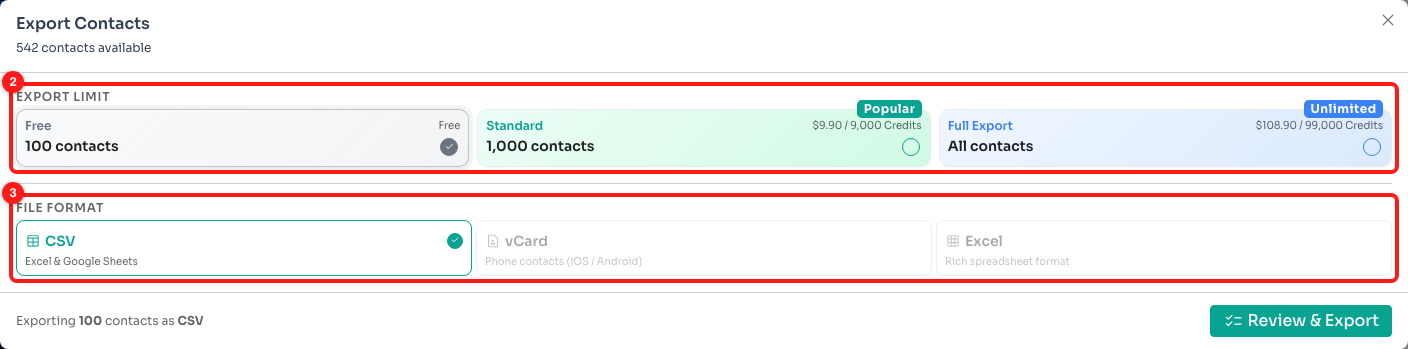
Step 2 — Export limit (2) and File format (3). Free is selected here, so only CSV is available.
- Free — up to 100 contacts, CSV only. Costs nothing.
- Standard — up to 1,000 contacts, CSV or vCard. $9.90, or 9,000 credits.
- Full Export — all your contacts, CSV, vCard or Excel. $108.90, or 99,000 credits.
Pick a paid limit and a How would you like to pay? section appears, where you choose between Use my plan (deducts credits from your balance) and Pay once (a one-off card payment through Stripe). You can select more than one file format and ChatDaddy will download one file per format.
Step 3 — Review the list before you export
Click Review & Export and ChatDaddy shows you exactly which contacts are about to go into the file, each with a tick you can clear. Search by name or phone number, or narrow the list with the Tags, Assignee, Channel, Msgs sent and Last contacted filters.
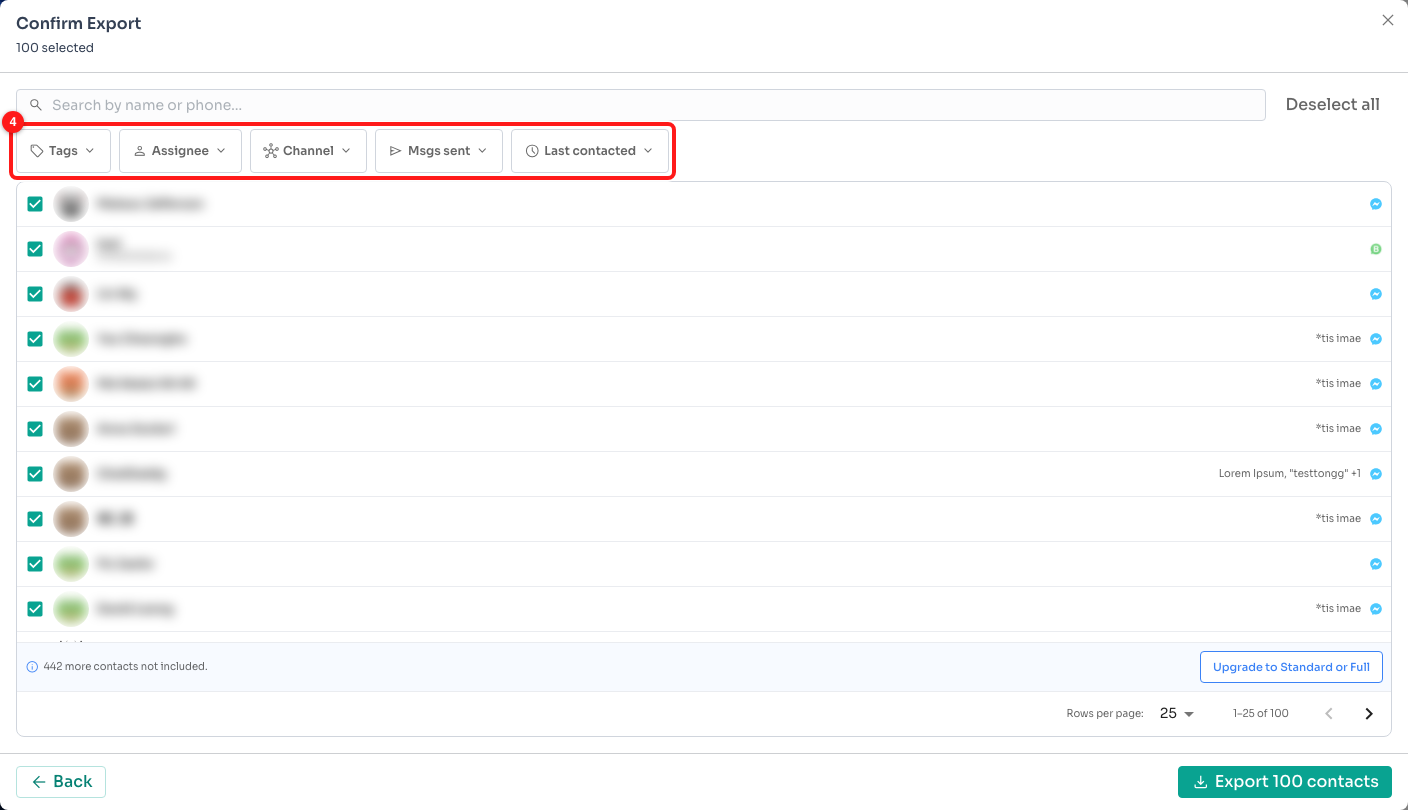
Step 3 — the filters on the Confirm Export screen (4). Contact names are hidden here for privacy.
ℹ️ If you have more contacts than your chosen limit allows, a line at the bottom reads “N more contacts not included.” with an Upgrade to Standard or Full button. The contacts included are the first ones in the list, so filter down to the ones you actually need before exporting.
Step 4 — Download the file
The button in the bottom right names what will happen — Export 100 contacts when you are paying with credits or using the free limit, or Pay & Export for a one-off card payment. Click it and the file downloads to your device as contacts_<date>.csv (or .vcf / .xlsx), with a contacts exported confirmation in the dialog.
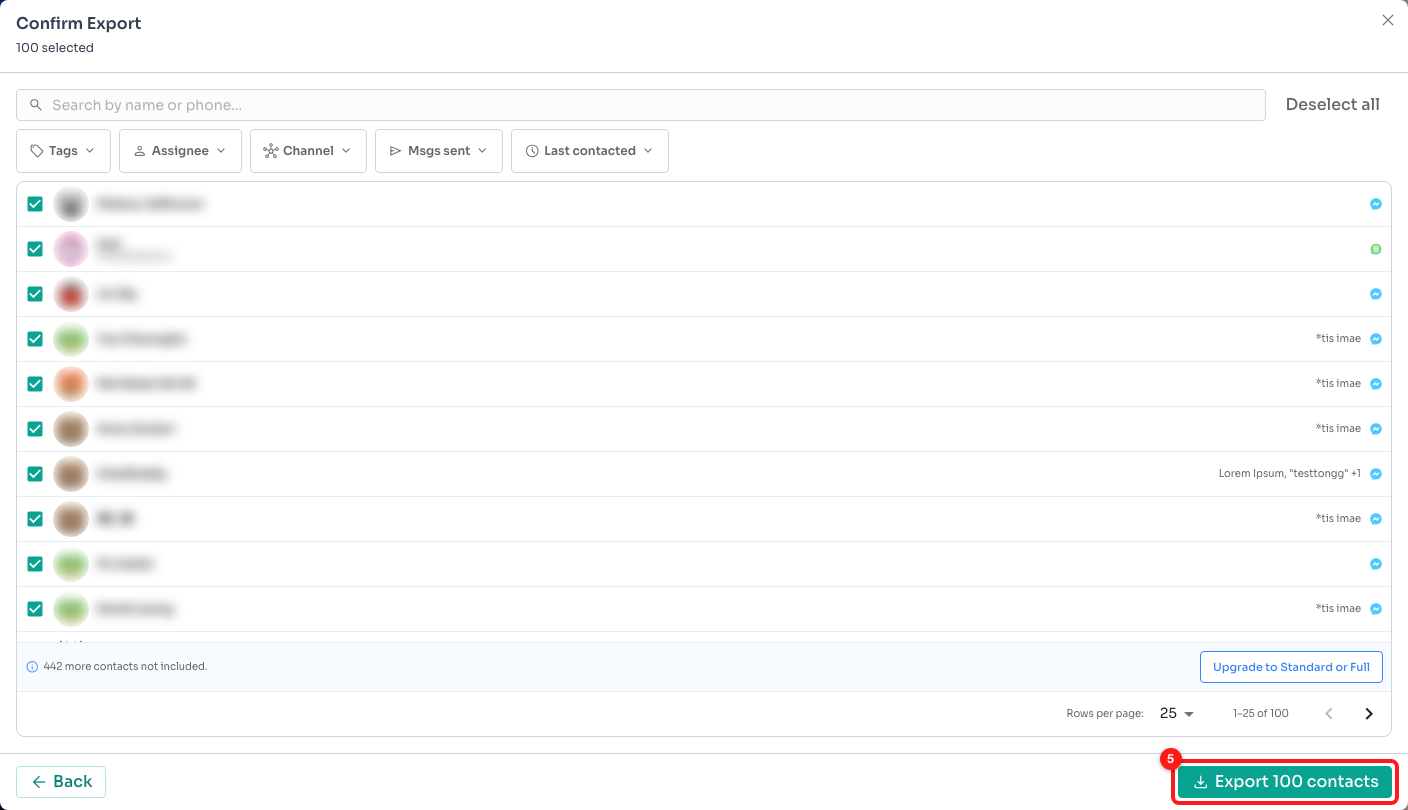
Step 4 — the download button carries the number of contacts (5).
What each column contains
CSV and Excel files both carry the same columns, in this order:
- Account — the channel the contact belongs to, as an account ID.
- ID — the contact's internal ChatDaddy ID. Keep it if you plan to import the file back.
- Name — the saved contact name. If there is none, the name the contact uses on the channel is exported instead.
- Phone Number — the saved number. If nothing is saved, the number from the contact's chat is used, so the cell is no longer blank for contacts created automatically by an ad click or an import.
- Email — the saved email address, if any.
- Messages Sent and Messages Received — the message counts you see on the Contacts page.
- Tags — every tag on the contact, separated by commas.
- Assignee — the full name of the teammate the contact is assigned to. Empty when nobody is assigned.
- Last Message — the date of the last message in the contact's chat.
After those, the file adds one extra column per custom field in use across the contacts you exported. The column heading is the custom field name and each row holds that contact's value, or an empty cell if the field was never filled in.
Tags come out in full
Tag names can contain anything — punctuation, quote marks, numbers, emoji. Whatever they are called, all of a contact's tags now appear together in the Tags column, separated by commas, and the columns after Tags stay lined up.
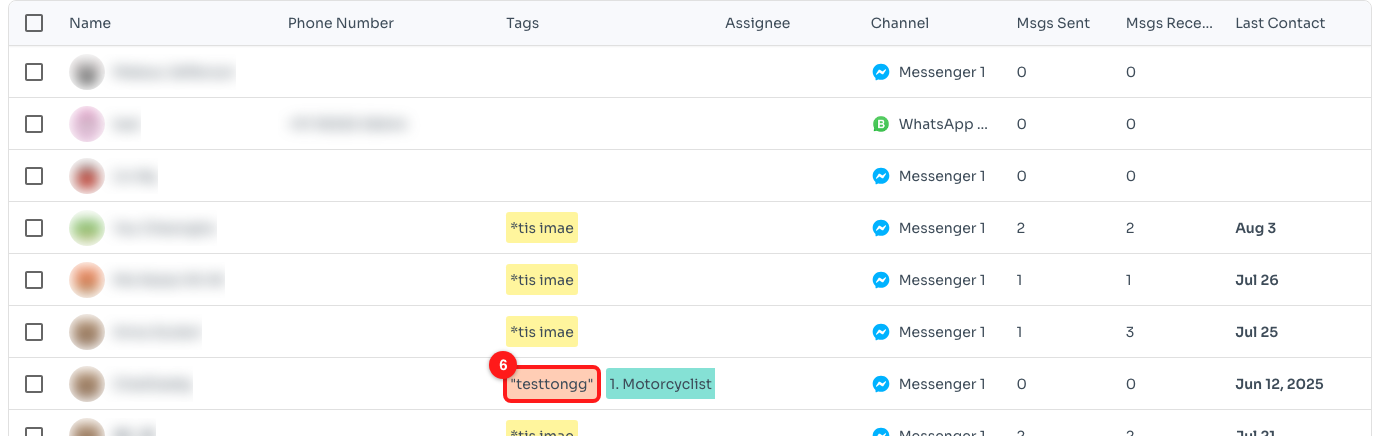
A tag whose name includes quote marks (6). Tags like this used to break the row; they now export correctly.
💡 When a spreadsheet opens the file, a tag name that contains a comma stays inside the Tags cell — it will not be split into a new column. If a cell looks wrong, check that you opened the file as a CSV with UTF-8 encoding rather than pasting it into a blank sheet.
How the formats differ
- CSV — the full column set. Opens in Excel, Numbers and Google Sheets. Available on every limit.
- Excel (.xlsx) — the same columns as CSV, with the heading row frozen so it stays visible while you scroll. Phone numbers keep their leading + and any leading zeros. Available on Full Export.
- vCard (.vcf) — for importing into a phone's address book. It carries only the name, phone number and email of each contact; tags, assignees and custom fields are not part of the vCard standard. Available on Standard and Full Export.
Troubleshooting
My Tags column is empty but the contact clearly has tags.
Check that you are looking at the Tags column and not a custom field column. Custom fields are added after Assignee and Last Message, and a custom field with a value is reported in its own column rather than in Tags.
An older export has tags spilling into the Assignee column.
That was a fault with tag names containing a quote mark, and it is fixed. Export the same contacts again and the new file will be correct. Old files cannot be repaired — delete them and use the fresh export.
The Phone Number column is blank for some contacts.
A blank now means there genuinely is no number to export — for example a Messenger or Instagram contact, where the channel never gives us a phone number. Contacts that have a number only in their chat, and not saved on the contact record, do get exported.
I exported fewer contacts than I expected.
Your export limit caps the file. Free stops at 100 contacts and Standard at 1,000, and the Confirm Export screen tells you how many were left out. Either filter down to the contacts you need, or pick a larger limit.
Excel says the file cannot be opened or asks to repair it.
Make sure you downloaded the Excel format rather than renaming a CSV to .xlsx. If the download was interrupted, run the export again — the file is generated in your browser, so a dropped connection can leave it incomplete.