
How to Ask a Customer for Permission to Call Them on WhatsApp
On the WhatsApp Business API you cannot simply dial a customer — they have to allow calls first. Learn how ChatDaddy sends the permission request, what the customer sees, how long permission lasts, and what to do when the 24-hour messaging window has closed.
Also searched as: How to Ask a Customer for Permission to Call Them on WhatsApp, Open the chat and click the WhatsApp call button, Run through the calling setup (first time only), Send the permission request, Wait for the customer to answer, If the 24-hour window has closed, Customer, Permission, Call, Them, WhatsApp
WhatsApp does not let a business ring a customer out of the blue. On a WhatsApp Business API (WABA) channel the customer must grant call permission first, and that permission expires. ChatDaddy handles this for you: when you press the call button on a contact who has not allowed calls yet, it offers to send the request instead of failing silently.
This article is for anyone in your team who places outbound WhatsApp calls from the Inbox — agents, sales reps and support leads.
📩 The permission request is sent as an ordinary WhatsApp message inside the chat. That means the customer's 24-hour messaging window must still be open — if they have not messaged you in the last 24 hours, send an approved template first to reopen it, then ask for call permission.
Step-by-step
Step 1 — Open the chat and click the WhatsApp call button
Go to your Inbox and open the conversation you want to call. The green WhatsApp call button sits in the row of icons at the top right of the chat header, next to the search icon.

Step 1 — the green WhatsApp call button in the chat header (1).
ℹ️ The button only works on chats that belong to a WhatsApp Business API channel. On any other channel it is locked and shows “WhatsApp calling needs WABA — place and receive WhatsApp voice calls once you connect a WhatsApp Business API channel.”
Step 2 — Run through the calling setup (first time only)
The very first time you call from a channel, ChatDaddy shows WhatsApp Calling Setup. It checks three things: that your WABA channel is connected, that your browser has given ChatDaddy microphone access, and that calling is switched on for the account. If the microphone row is not ticked, click Grant Access and accept your browser's prompt. Then click Start Calling.
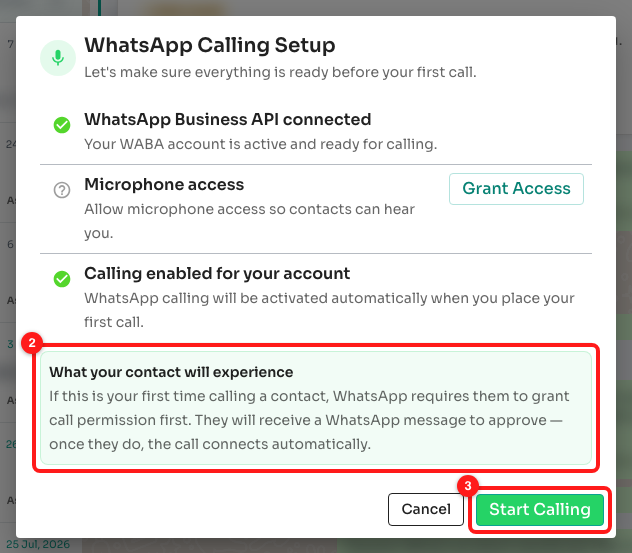
Step 2 — the setup checklist. The green note explains what the customer will see (2); Start Calling continues (3).
Step 3 — Send the permission request
ChatDaddy checks the contact's permission before it dials. If they have never allowed calls — or their permission has expired — the call panel switches to Call Permission Required:
Call Permission Required — [name] hasn't allowed calls yet. Send them a request first. [ Request Permission ] [ Cancel ]
Click Request Permission. The message that goes out reads: “Hi [name], we'd like to call you to assist you better. Please allow calls from us.” The customer taps a button in WhatsApp to allow or decline.
Step 4 — Wait for the customer to answer
While the request is outstanding the panel reads “Waiting for [name] — permission request sent via WhatsApp”, then closes so you can watch the conversation. In the chat itself you will see your request appear as a Call permission requested message.
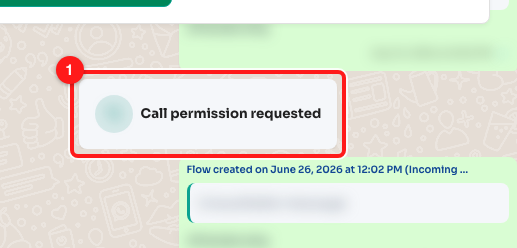
Step 4 — the request appears in the conversation as “Call permission requested” (1).
The customer's answer lands in the same conversation:
- Call permission granted — a green tick. Click the WhatsApp call button again and the call goes straight through.
- Call permission declined — a red cross. Nothing is sent again automatically; ask in the conversation before you try once more.
Permission is time-limited. When ChatDaddy knows the expiry it shows it on the call panel as “Expires in 6d 3h.” Once it lapses, the next call starts this same flow again.
If the 24-hour window has closed
Because the request is a normal WhatsApp message, it cannot be delivered once the customer's 24-hour messaging window has expired. You will see the 24h Limit banner above the message box: “WhatsApp doesn't allow messages 24h after they last messaged you. You can however send a template message.”
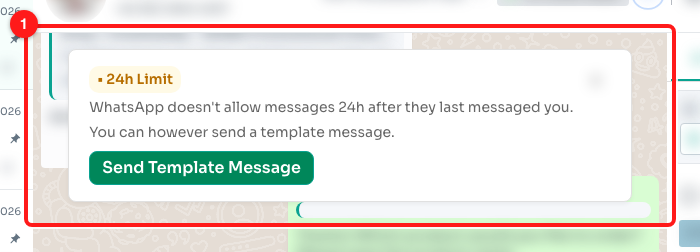
The 24h Limit banner in the chat, with the Send Template Message button (1).
The same limit applies to the permission request itself, so ask for call permission while the window is still open — for example straight after the customer has written to you.
Click Send Template Message, choose an approved template and send it. When the customer replies, the window reopens and you can ask for call permission as normal.
Troubleshooting
“You've reached the permission request limit. Try again later.”
WhatsApp caps how many call-permission requests a business may send to one person. When you hit that cap the Request Permission button disappears and only Cancel is left. Wait before trying again, and in the meantime ask the customer in the conversation to allow calls or to call you.
The call button is missing or locked
Calling is a WhatsApp Business API feature. On chats from WhatsApp Personal, Messenger, Instagram or any other channel the button is locked with the note “WhatsApp calling needs WABA”. Connect a WhatsApp Business API channel to use it.
The customer accepted but the call did not start
Accepting only unlocks calling — it does not dial for you. Once you see “Call permission granted” in the chat, click the WhatsApp call button again and the call is placed straight away.
The microphone row says “Blocked”
Your browser is refusing microphone access to ChatDaddy, so ChatDaddy cannot ask again from inside the app. Open your browser's site settings for app.chatdaddy.tech, allow the microphone, then reload the page.
Do I need to ask every time I call?
No. Permission lasts until it expires, and any call you place in that period goes through without a new request. When it expires, the Call Permission Required panel appears again.