
How to auto-assign chats?
Streamline workflow with automated chat distribution. Assign incoming chats to teammates efficiently, either by specific criteria or through round-robin…
Updated Nov 21, 2025
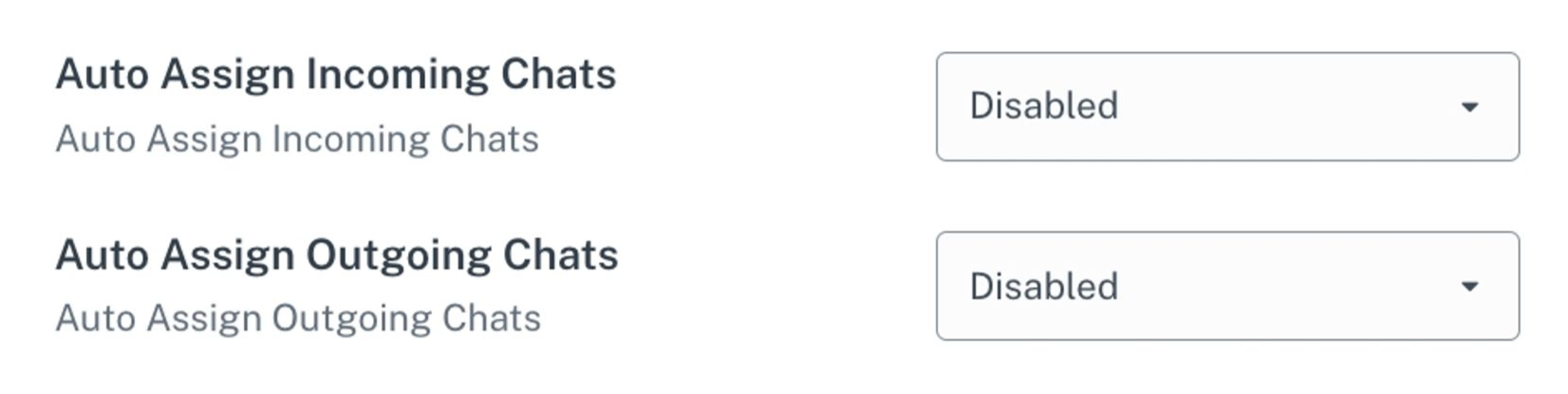
Streamline workflow with automated chat distribution. Assign incoming chats to teammates efficiently, either by specific criteria or through round-robin allocation. Let's optimize productivity!
Steps
Step 1: Access Channel Settings
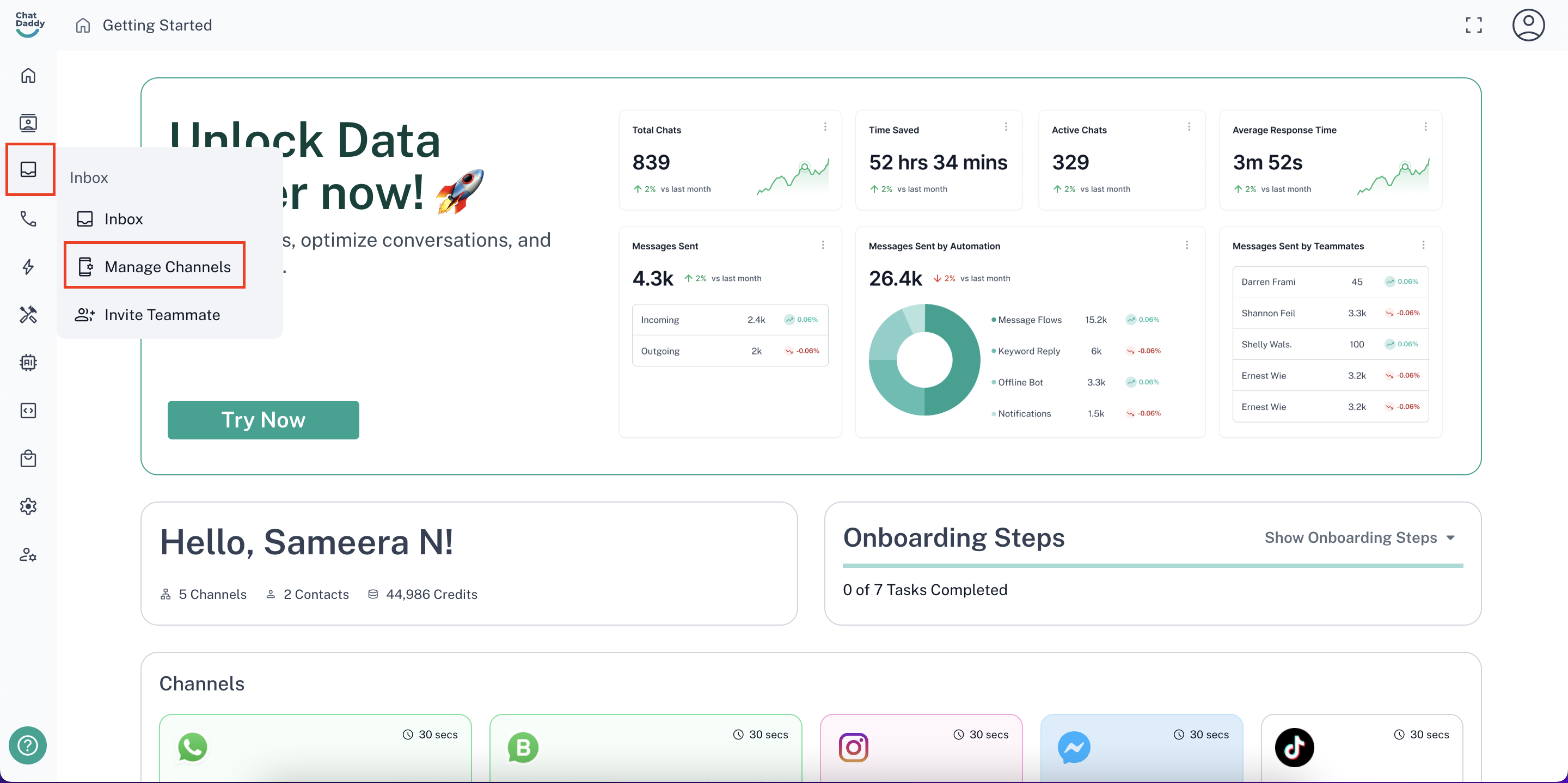
- On the ChatDaddy dashboard, hover over the menu on the left-hand side. Find the “Inbox” section and the click “Manage Channels”.
Step 2: Open Advanced Settings
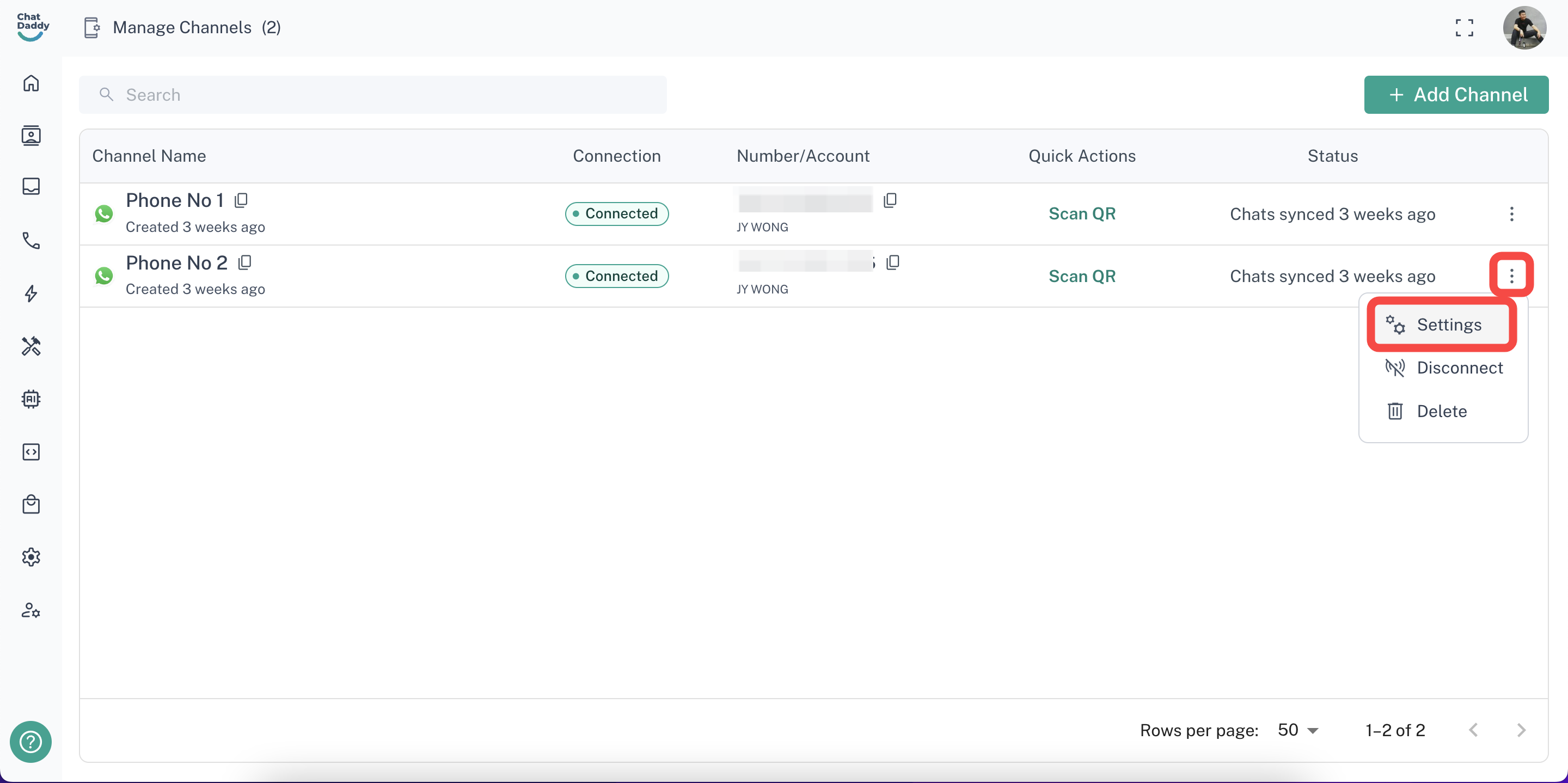
- If you manage multiple channels (accounts), you’ll see a list of channels.
- Locate the channel you selected and tap on the three dots menu in the top right corner of its row.
- From the menu, select "Settings".
Step 3: Configure Auto-Assignment
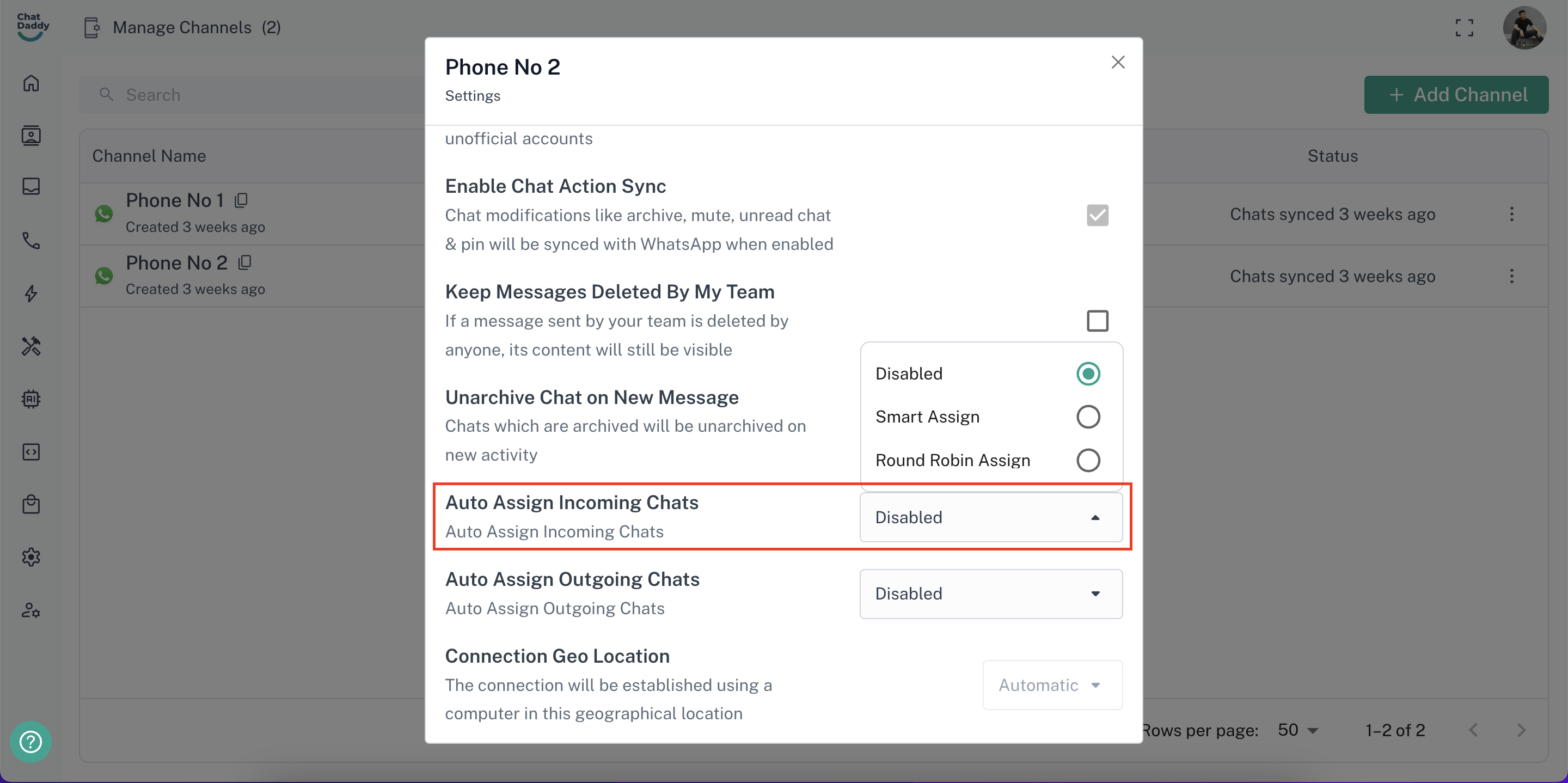
- Scroll down to find the section labeled "Auto-Assign Incoming Chats".
Step 4: Choose Assignment Method
- You'll see options for auto-assigning teammates. Here are the two common methods:
- Smart Assign: This option automatically assigns chats to the teammate with the fewest currently assigned chats.
- Round Robin Assign: Select multiple teammates for this method. Chats will be automatically assigned to each teammate in a sequential order, ensuring a balanced workload.
Was this article helpful?