How To Clear Pending Message
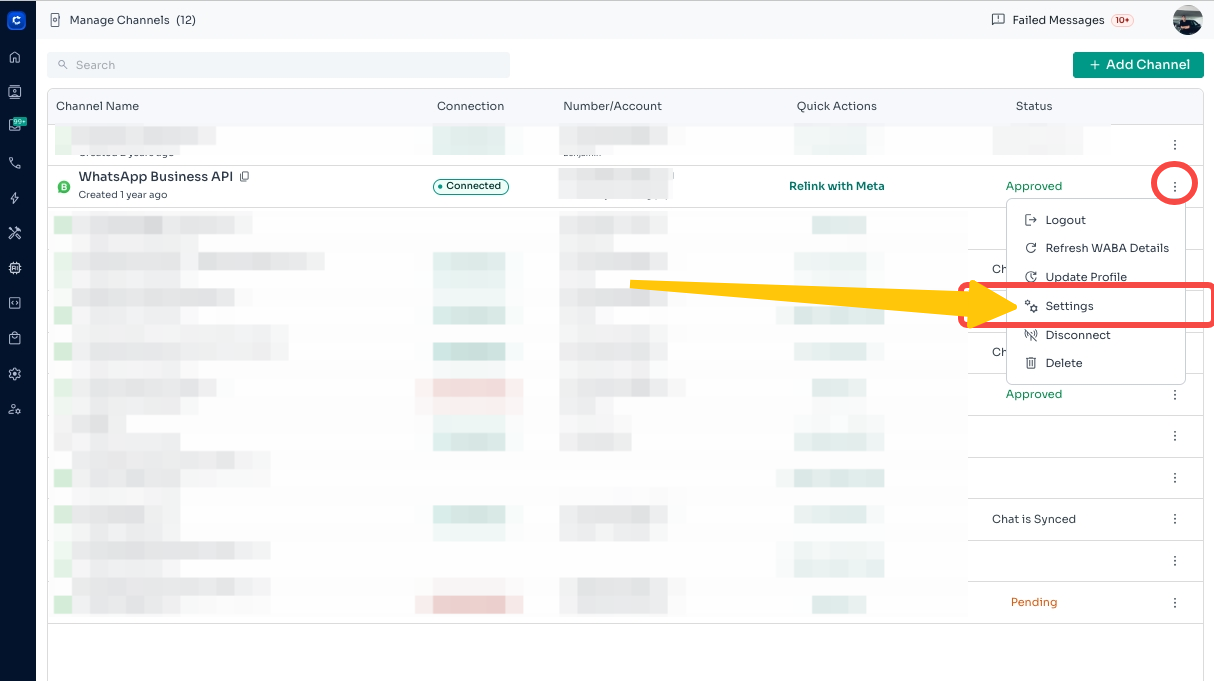
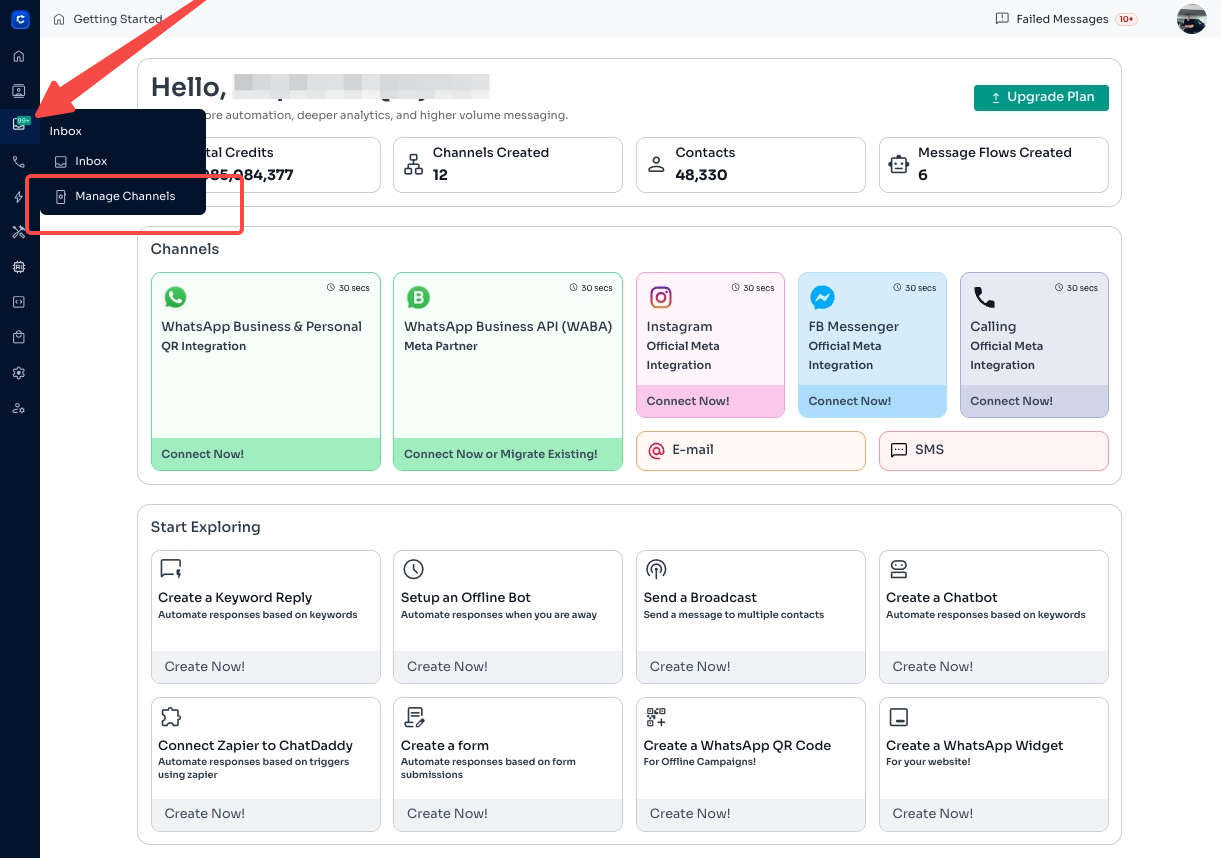
Follow the steps below to remove any pending or scheduled messages from your channel: 1️⃣ Go to Manage Channels !Image Navigate to the channel where the messages are pending and op…
Follow the steps below to remove any pending or scheduled messages from your channel:
1️⃣ Go to Manage Channels
Navigate to the channel where the messages are pending and open** Settings**.

2️⃣ **Select “Clear Message Queue” **Look for the Clear Message Queue option and click on it.
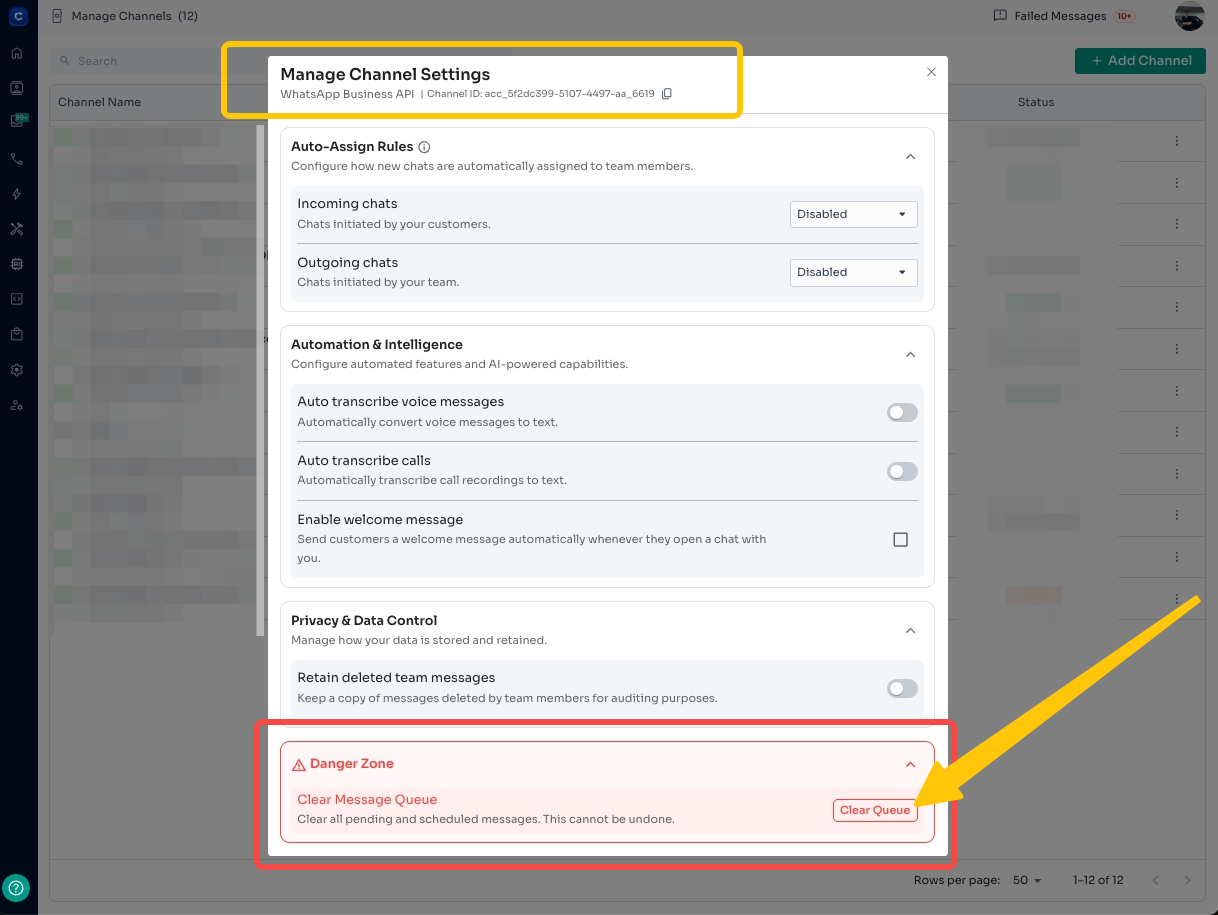
3️⃣ Confirm the Action 🧹
Confirm when prompted to remove all pending or scheduled messages from the queue.
Clearing the message queue helps prevent delayed or unintended messages from being sent.
SMS Channel
How to Integrate SMS Channel?
💡 Note: Note: The user has the flexibility to choose any name they prefer as the sender ID to be displayed on the recipient's end.
How to use SMS channel?
Using the SMS channel is as easy as integrating it.
Step 1: On the ChatDaddy dashboard, hover over the menu on the left-hand side and dind the “Inbox” option

Step 2: Click on the filter button, select “Channel” and click the checkbox for the SMS Channel you just created
💡 Note: You can import contacts for SMS just like you upload contacts for a WhatsApp channel. Just select the SMS channel’s name at the time of importing.

Step 3: Type in the Phone Number that you want to send your message to or search for it(if you already have the contacts imported). Then, send them a personalised SMS of your choosing!
❗ Note: SMS Channel can just send messages but not receive them. As in real world situations, SMS is only used for promotional and marketing purposes.

Instagram Channel
Introduction
This page will show you how to connect your Instagram to ChatDaddy. When you connect, you can easily manage your Instagram messages and comments right here in ChatDaddy!
Before You Start
- You will only be able to receive and send messages through the Instagram channel if you have a page connected to your Facebook account.
Let's Get Started
Tutorial video
Steps
-
Go to "Channels": In ChatDaddy, find and click on the "Channels" section.
-
Add a Channel: Click the button that says "+ Channel."
-
Pick Instagram: Choose "Instagram" from the list.
-
Log In to Instagram: You'll be taken to Instagram to sign in to your account.
-
Give ChatDaddy Permission:
-
Choose the Instagram Business account and Facebook Page you want to use with ChatDaddy.
-
You'll see a list of things ChatDaddy needs permission to do. This is normal, and it lets ChatDaddy manage your Instagram messages.
-
Save Everything: Click "Save" or "Confirm" to finish connecting.
-
All Done! Your Instagram Channel is now connected to ChatDaddy! You'll see it in your "Channels" section.
Important Things to Know
-
Business Account Only: Remember, you need an Business account, not a personal one.
-
Linked to Facebook: Your Instagram Business account must be connected to a Facebook Page.
-
The 24-Hour Rule: Instagram has a rule that says:
-
You can message someone freely within 24 hours after they messaged you.
-
After 24 hours, you can't message them first unless they message you again.
-
-
Old Messages: Messages that existed before connecting to ChatDaddy will not appear in ChatDaddy.
-
Using Meta Business Suite: If you use the Meta Business Suite to message people, those messages might not appear in ChatDaddy. It's best to use ChatDaddy for your Instagram messages after you connect.
-
File Size Limits:
-
Pictures: 8MB limit
-
Other Files: 25MB limit
-
Help! I'm Having Trouble!
-
Channel Connection Problems:
-
Make sure you're logged in to the right Instagram Business account.
-
Double-check that your Instagram Business account is linked to a Facebook Page.
-
Make sure you've allowed all the permissions that ChatDaddy needs.
-
-
Message Problems:
- Manage your messages only in ChatDaddy to avoid sync issues with other platforms like Meta Business Suite.
-
Billing:
- If you're redirected to the payment page, your account has run out of credits.
Email Channel


Intro
Elevate Your Marketing Strategy with ChatDaddy's brand-new email integration. You can now seamlessly integrate your email marketing efforts with your overall communication strategy.
Steps
Access Manage Channels
- Click on your user icon in the top right corner of the ChatDaddy dashboard or head over to inbox from the side panel. Then, select “Manage Channels”

Add a New Channel
- Click the Add Channel button.

Choose Email Channel
- Select Email from the available channel options.

Configure Email Channel
-
Ensure you use a private domain email address associated with your company name.
-
For example info@chatdaddy.tech
-
Public domain addresses like gmail.com won't work.
-

Confirm your email ID and Start Sending Emails
-
You will be receiving an email from Postman to confirm your email ID
-
Once you've confirmed and configured the email channel, you should be able to send emails through ChatDaddy.
Messenger Channel
Introduction
This guide will show you how to connect your Facebook Messenger to ChatDaddy so you can manage your messages all in one place.
Before You Start
- You will only be able to receive and send messages through the Instagram channel if you have a page connected to your Facebook account.