
How to Check Your WhatsApp Business API (WABA) Account Quality
Learn how to find and read your WABA account quality rating (High/Medium/Low), messaging limit, and account health directly from the ChatDaddy Manage Channels page.
📊 Your WhatsApp Business API (WABA) account quality and messaging limit decide how many people you can reach and whether Meta restricts your number. This guide shows you where to find them in ChatDaddy and how to read every part of the Account Quality view.
**What you'll learn: **how to open the Account Quality view, read your quality rating (High / Medium / Low), check your daily messaging limit and usage, review your account health, and understand what each rating level means.
Before you start
- Account Quality is only available for WhatsApp Business API (WABA) channels. QR-based WhatsApp, Messenger and Instagram channels show "N/A".
- You need access to the Manage Channels page (admin or a role with channel access).
- Quality and limit data is provided by Meta and updates automatically — there is nothing to configure.
Step 1 — Open the Manage Channels page
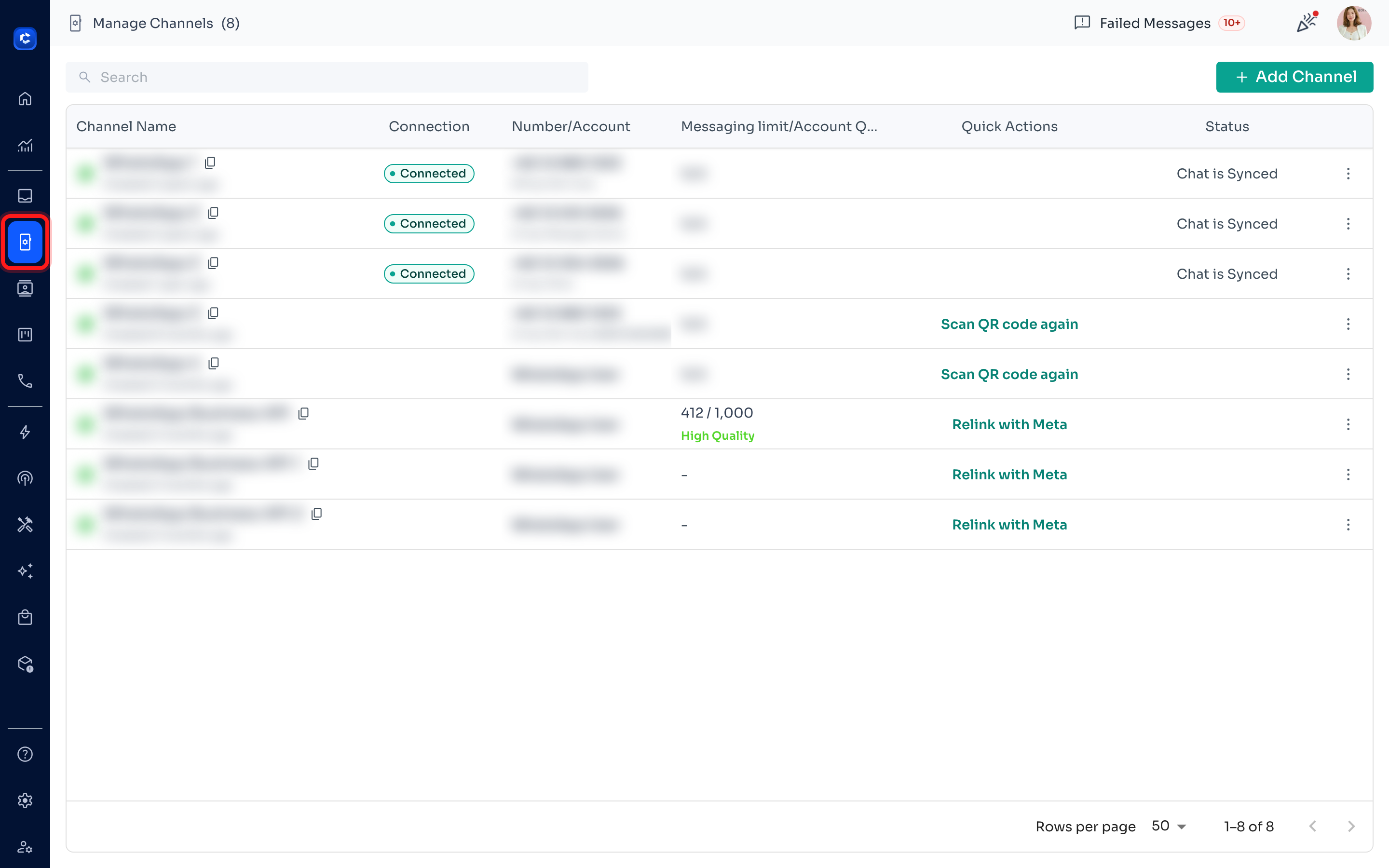
In the left-hand sidebar, click the Channels icon to open the Manage Channels page. This page lists every channel connected to your team.
Step 2 — Find the “Messaging limit / Account Quality” column
Locate your WhatsApp Business API channel in the list and look at the Messaging limit / Account Quality column. For WABA channels it shows your current usage (e.g. 412 / 1,000) and your quality rating (e.g. High Quality). Click anywhere on this cell to open the full Account Quality view.
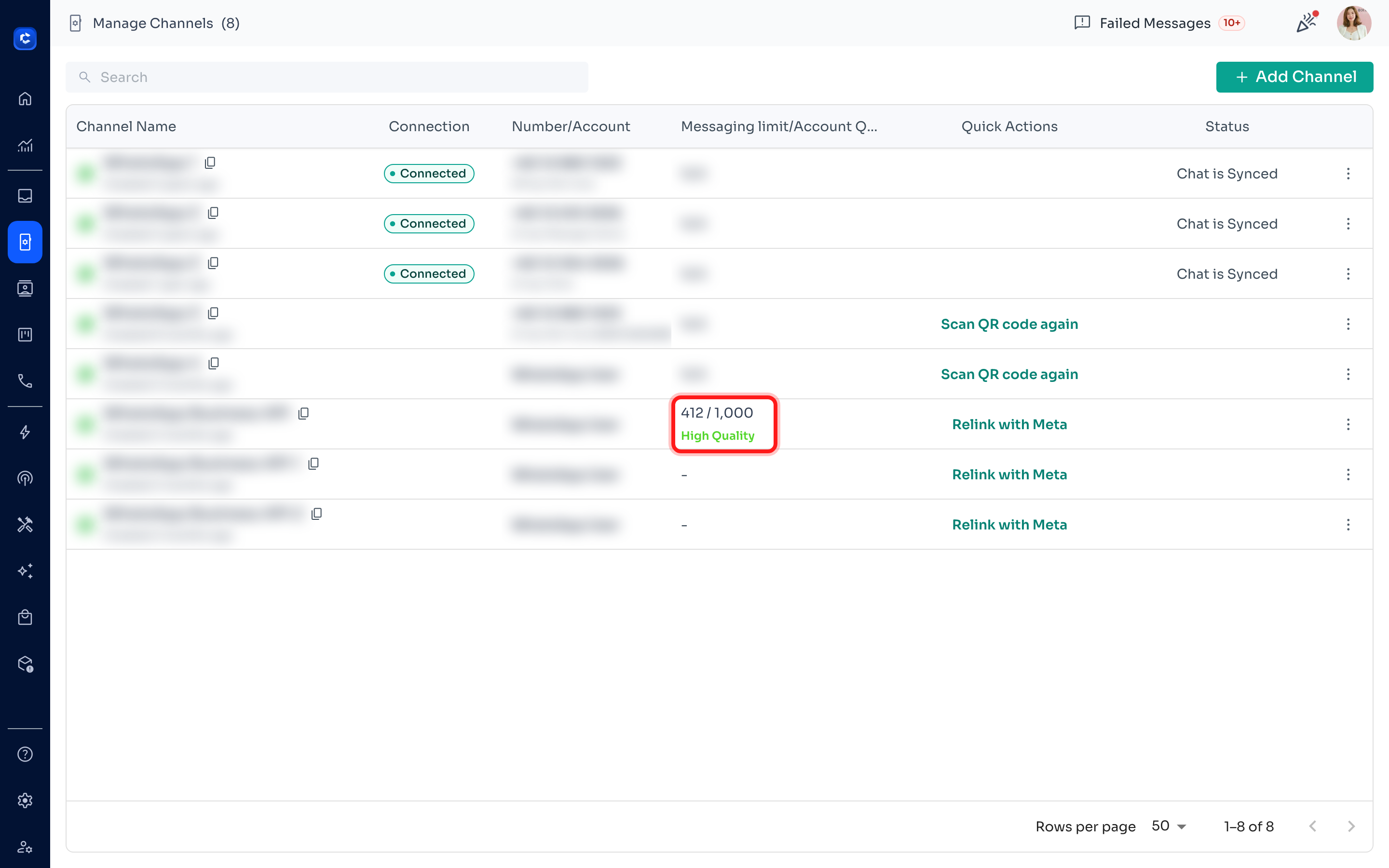
ℹ️ If the cell shows just a dash (–) or “N/A”, that channel has no quality data yet (for example a newly connected number, or a non-WABA channel). Quality appears once Meta has enough sending history.
Step 3 — Read your Quality Rating
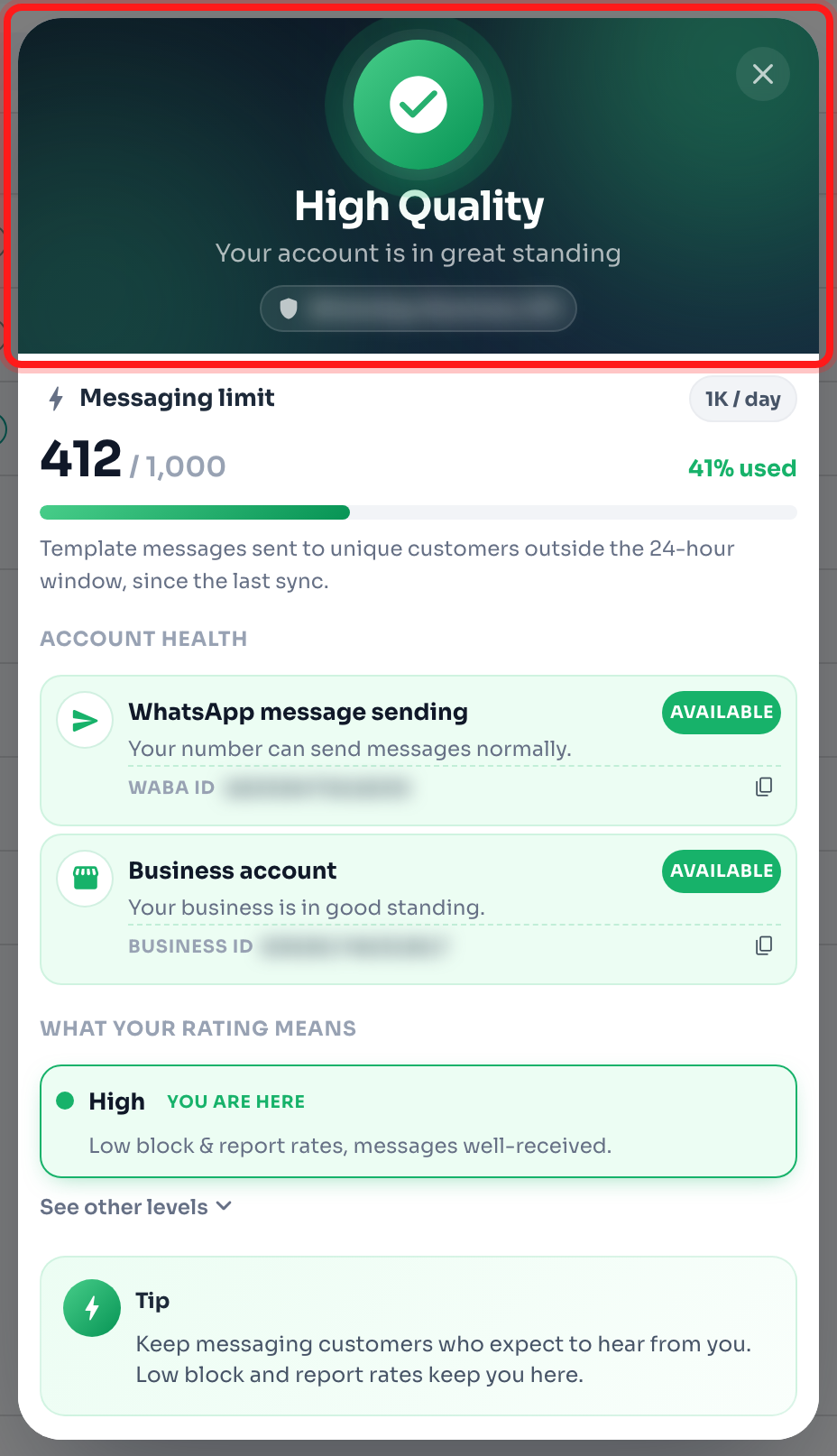
At the top of the Account Quality window you'll see your overall quality rating. This is Meta's health score for your number, based on how recipients react to your messages (blocks and reports lower it).
Ratings:
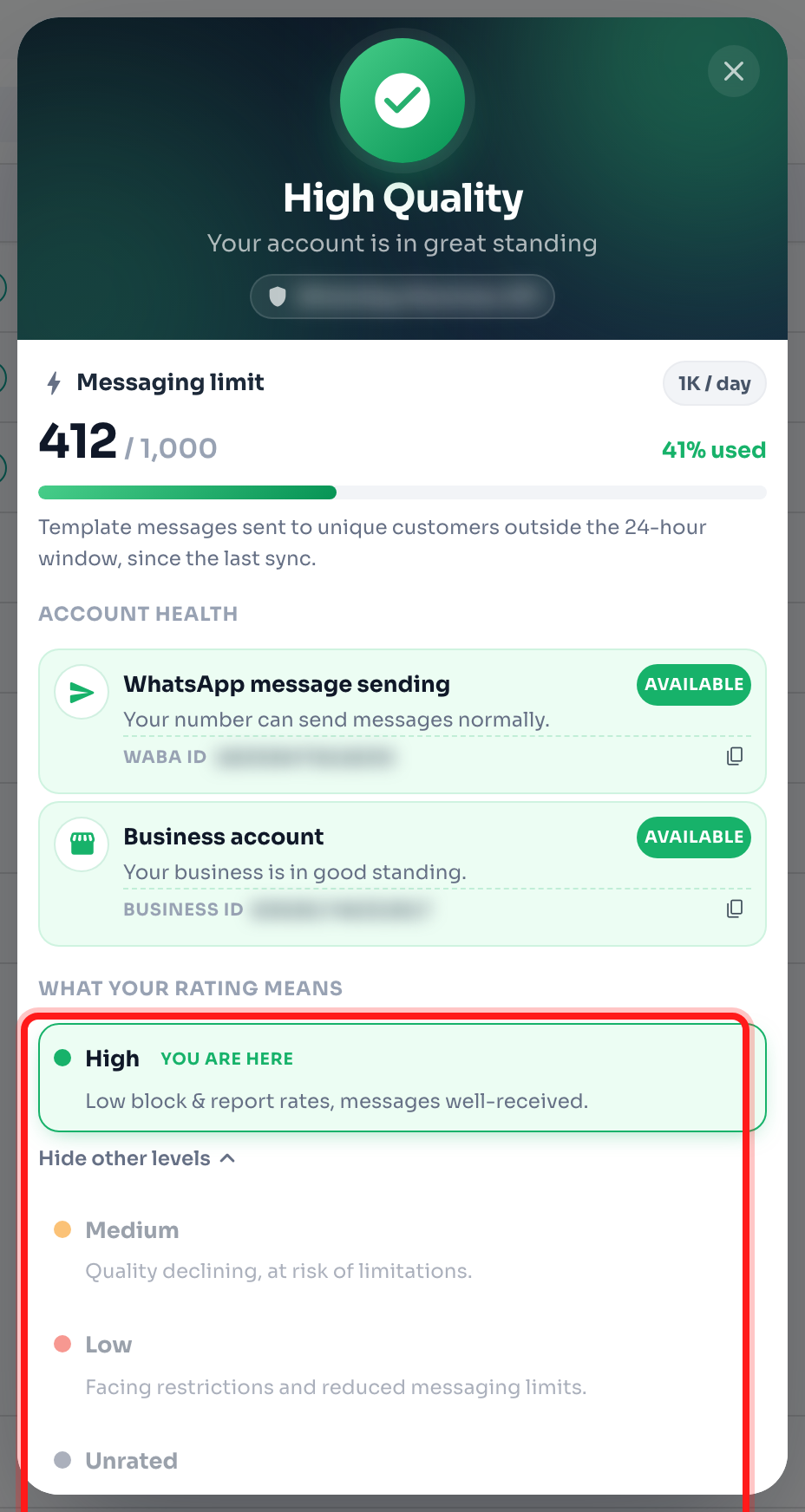
- High (green) — Your account is in great standing. Low block & report rates.
- Medium (yellow) — Quality is slipping; act early to avoid tighter limits.
- Low (red) — Your messaging is being restricted. Pause broadcasts and message only engaged customers.
- Unrated / Unknown — Not enough data yet for Meta to assign a rating.
Step 4 — Check your messaging limit and usage
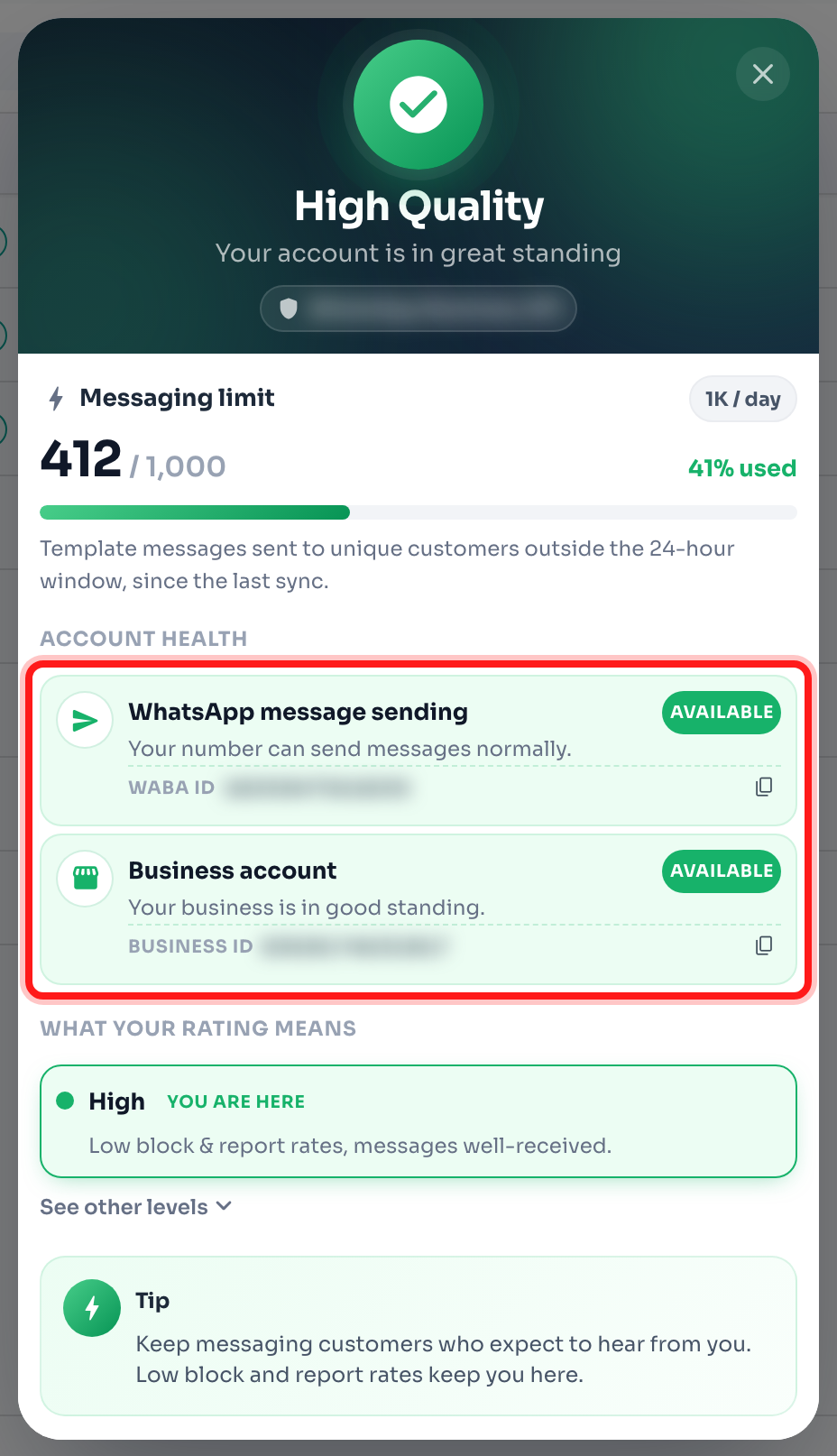
The Messaging limit section shows your daily tier (e.g. 1K / day), how many unique customers you've already messaged, and the percentage of your limit used. The progress bar fills as you approach your daily cap.
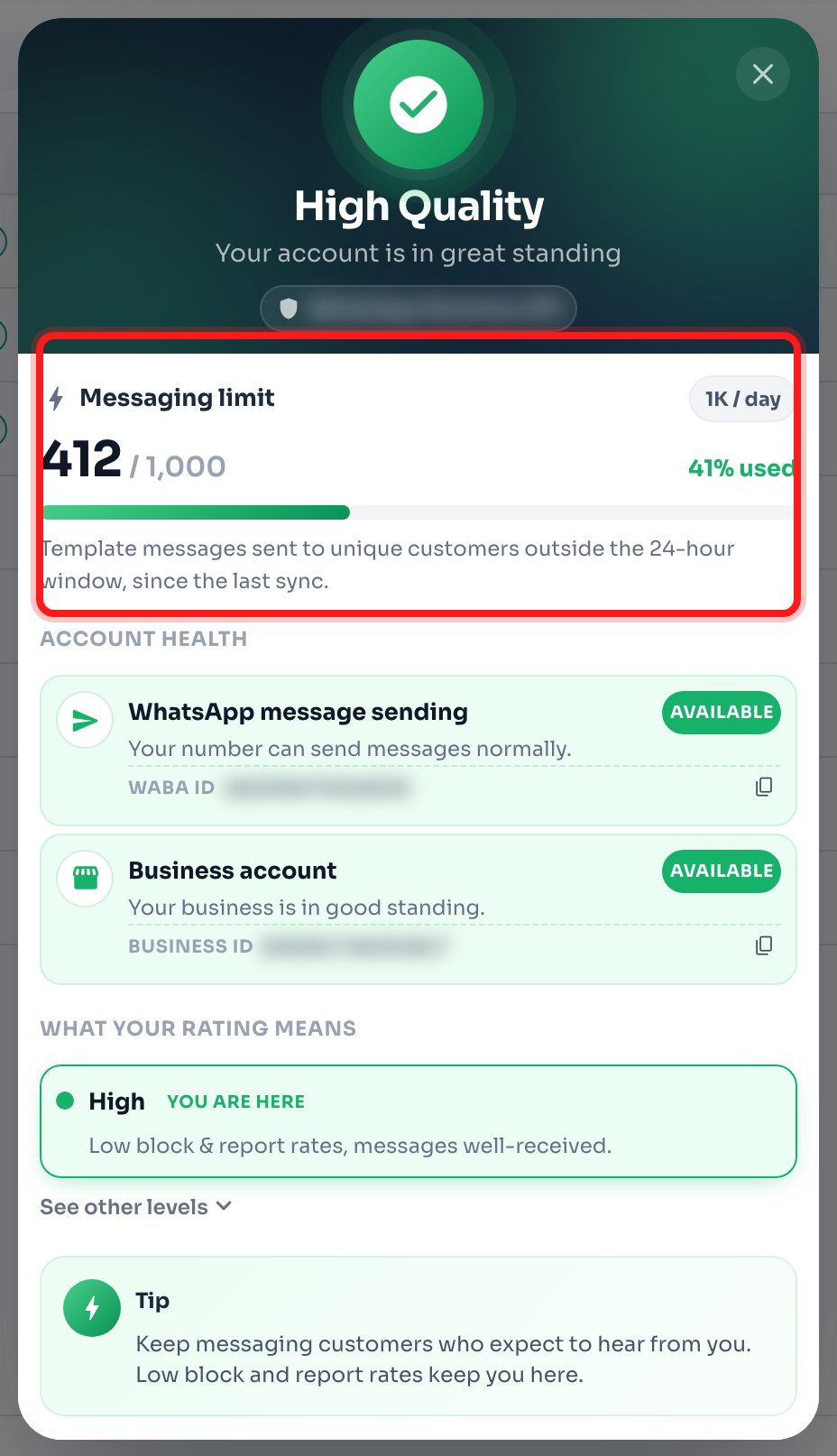
📈 This counts template messages sent to unique customers outside the 24-hour window since the last sync. Keeping a High quality rating lets Meta automatically raise your tier over time (250 → 1K → 10K → 100K → Unlimited).
Step 5 — Review your Account Health
The Account Health section reports whether Meta currently allows your number to send. Look for two rows:
- WhatsApp message sending — whether your phone number can send messages.
- Business account — the overall standing of your Meta Business account. A green Available badge means everything is healthy. Limited or Restricted badges flag an issue you should resolve in Meta Business Manager.
Step 6 — Understand the rating levels and tips
Under What your rating means, your current level is marked You are here. Click See other levels to expand the full scale (High, Medium, Low, Unrated) and read what each one signals. ChatDaddy also shows a Tip tailored to your current rating.
How to keep your account quality high
- Only message customers who opted in and expect to hear from you.
- Avoid sending the same broadcast to large, unengaged audiences.
- Personalise messages and give people an easy way to opt out.
- If your rating drops to Medium or Low, pause broadcasts and message only active, engaged chats until it recovers.
✅ Check your Account Quality regularly — especially before and after large broadcasts — so you can react before Meta lowers your messaging limit.