
How to Choose a Chat History Export Plan (Standard, 500 or All)
Bulk chat-history export now has named plans. Learn what Standard, 500 and All each include, how much they cost, whether to pay with credits or a one-off card charge, and why a plan is sometimes greyed out.
Also searched as: How to Choose a Chat History Export Plan (Standard, 500 or All), Select the chats you want to export, Open Bulk Actions and choose “Export Chat History”, Pick your plan, Choose how to pay, Confirm, Why is a plan greyed out?, Choose, Chat, History, Export, Plan, Standard
When you bulk export chat histories from your Inbox, ChatDaddy asks you to pick an export plan first. The plans say exactly what you get, so you know the size and the price before you pay for anything.
📦 There are three plans: Standard (up to 10 chats, $19), 500 (up to 500 chats per export, $499) and All (every chat — handled by our sales team). Plans you cannot use for the number of chats you have selected are greyed out.
When you will see this
The plan picker appears in the Export Chat History dialog, which you reach from the Inbox: select the chats you want, then choose Export Chat History from the Bulk Actions menu.
ℹ️ Exporting a single chat from that chat's own menu is a different, free action and does not use a plan. The plans apply to bulk export only.
Step-by-step
Step 1 — Select the chats you want to export
Open the Inbox, then tick the checkbox on the avatar of each chat you want to include. A “N Selected” bar appears at the top of the chat list, with a green Bulk Actions button next to it.
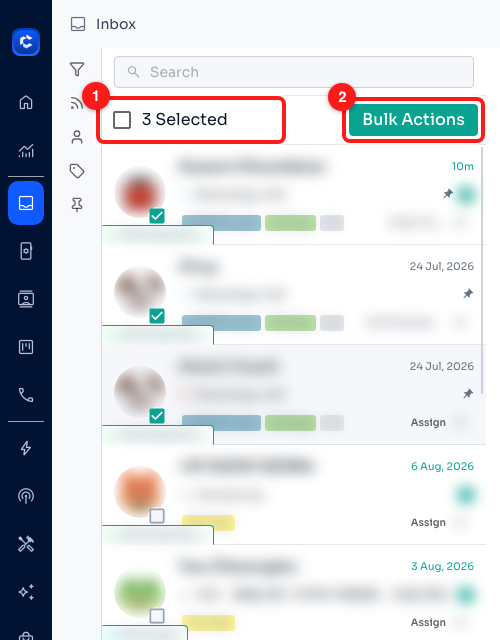
Step 1 — the selection bar shows how many chats you picked (1); Bulk Actions appears next to it (2).
Step 2 — Open Bulk Actions and choose “Export Chat History”
Click Bulk Actions, then click Export Chat History at the bottom of the menu. This opens the export dialog.
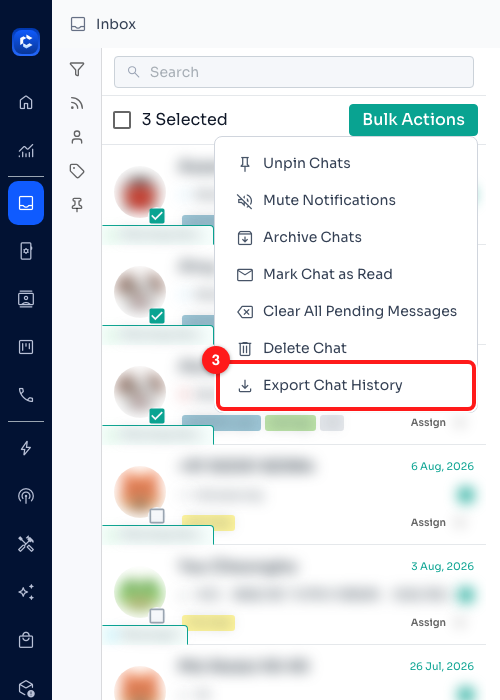
Step 2 — “Export Chat History” is the last item in the Bulk Actions menu (3).
Step 3 — Pick your plan
The dialog header repeats how many chats you selected, and the Plan section lists your three options with their prices. ChatDaddy pre-selects the smallest plan that fits your selection, so most of the time you can leave it as it is.
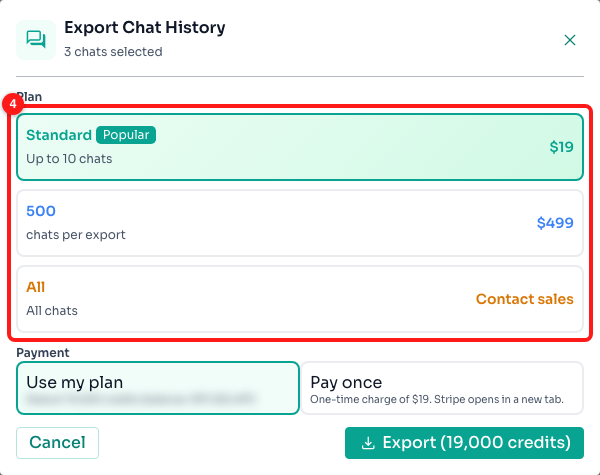
Step 3 — the Plan section (4). Standard is pre-selected here because only 3 chats were chosen.
- Standard — $19. Up to 10 chats in one export. Marked Popular because it covers most one-off backups.
- 500 — $499. Up to 500 chats per export. Use this for a bulk run across a whole label, campaign or team hand-over.
- All — Contact sales. Every chat in your account. Exports this large are prepared by our team rather than in your browser, so this option opens an email to sales@chatdaddy.tech instead of charging you.
Step 4 — Choose how to pay
Under Payment you have two ways to pay for the export:
- Use my plan — deducts the credits for that plan from your existing credit balance. The dialog shows the exact number of credits and your current balance.
- Pay once — a single card charge for the plan price. Stripe opens in a new tab; once the payment lands, the export starts on its own.
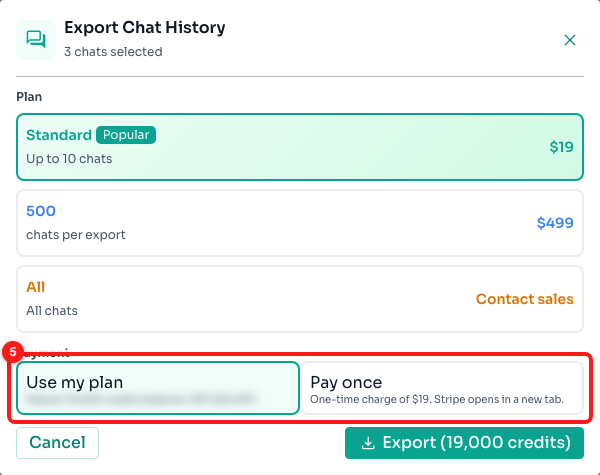
Step 4 — Use my plan (credits) or Pay once (card) (5).
⚠️ If your balance is short, Use my plan dims and you will see “Not enough credits — pick 'Pay once' or top up.” Either switch to Pay once or top up your credits first.
Step 5 — Confirm
The button at the bottom right always names what is about to happen — Export (19,000 credits) when paying with credits, Pay $19 & Export for a one-off charge, or Contact sales on the All plan. Click it to start.
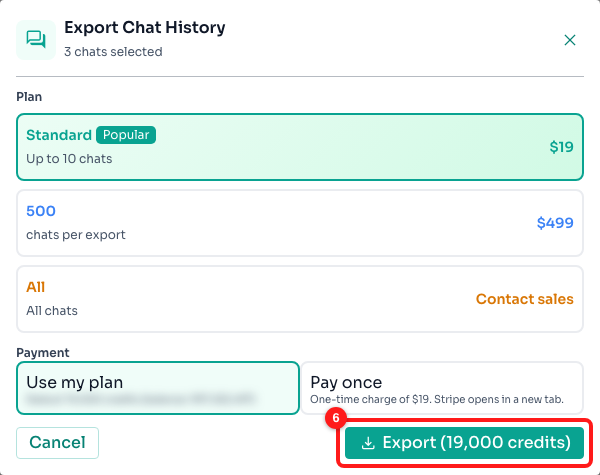
Step 5 — the confirm button carries the plan and the amount (6).
ChatDaddy then fetches each conversation (you will see a “Fetching chats X / Y…” progress bar) and downloads a chat_history_<date>.zip containing one .txt file per chat.
Why is a plan greyed out?
A plan is disabled when you have selected more chats than it allows, so you cannot accidentally buy an export that is too small for the job. In the example below, 135 chats are selected: Standard is greyed out because it stops at 10, and ChatDaddy has moved the selection to 500 on its own.
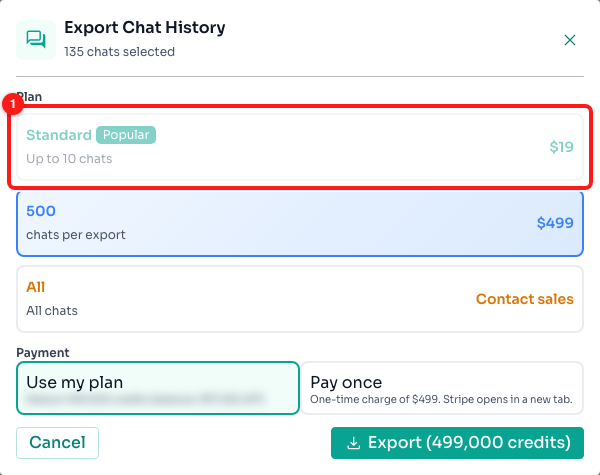
With 135 chats selected, Standard is unavailable (1) and the 500 plan is selected instead.
- Selected 11–500 chats? Standard is greyed out; use 500.
- Selected more than 500 chats? Both paid plans are unavailable and a note reads “You've selected N contacts. Use the All plan to export more than 500.” Choose All to reach sales.
- Want a smaller, cheaper export instead? Close the dialog and untick chats until you are inside the limit.
Frequently asked questions
Am I charged per chat or per export?
Per export. A plan covers one export run up to its chat limit — exporting 4 chats and exporting 10 chats both cost the Standard price.
What happens if I pick “All”?
Nothing is charged. ChatDaddy opens an email to sales@chatdaddy.tech so our team can prepare the full export for you, because exports that large are generated on our servers rather than in your browser.
The Export Chat History option is greyed out or says “Contact support to enable exports”.
Bulk export is permission-controlled. Ask your team owner to give your user the export permission, or contact ChatDaddy support to switch exports on for your team.
Are photos and files included?
No. The export contains the text of every message; attachments appear as [attachment omitted]. To download media, use Export Attachments on an individual chat instead.