
How to Create a Broadcast
A full walkthrough of the broadcast builder as it works today: choosing who receives it, cleaning up the audience, picking the flow, channel and schedule, setting a safe sending speed, and what happens after you hit Save.
Also searched as: How to Create a Broadcast, Open the Broadcasts page, Click Create, Section 1 — Select Contacts, Check (and edit) who is selected, Narrow the audience with a filter, Or import a fresh list from CSV, Clean the audience with the Contact Health Filter, Read the Audience Quality Summary, Section 2 — Settings, Select the message flow, Send now, or schedule for later, Pick the channel type, Choose the channel to send from, Name the broadcast
A broadcast sends one message flow to many contacts at once, from a channel you choose, at a speed you control. It is what you use for a promotion, an announcement, a reminder or a re-engagement campaign — anything you want to put in front of a whole list of people rather than one chat at a time.
This guide walks through the builder exactly as it appears in ChatDaddy today, screen by screen. Every red rectangle in the screenshots marks the thing the step is talking about.
✅ Before you start, make sure you have: a connected channel (WhatsApp Business API, a non-WABA WhatsApp number, Messenger or Instagram), a message flow that has a starting message, and contacts in your account. The Save button stays greyed out until all three are in place.
Step 1 — Open the Broadcasts page
In the left sidebar click the Marketing icon, then open Broadcasts. You can also go straight to app.chatdaddy.tech/marketing/broadcasts.
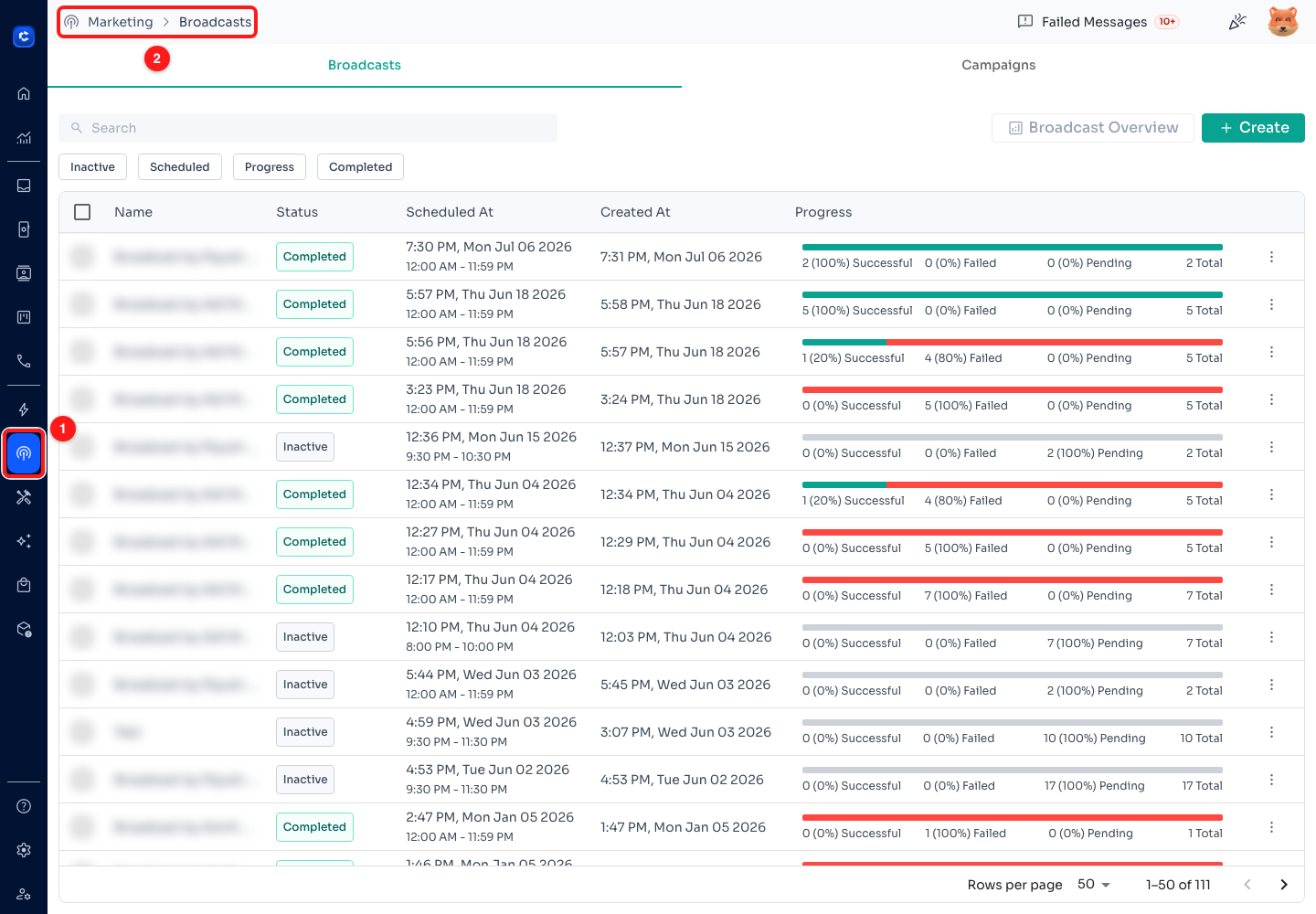
Step 1 — the Marketing icon in the sidebar (1) opens the Broadcasts page; the breadcrumb at the top (2) confirms where you are. Existing broadcast names are blurred here for privacy.
The page lists every broadcast you have created, with its Status, when it was Scheduled At, when it was Created At, and a Progress bar showing how many messages were successful, failed or still pending. The chips above the table — Inactive, Scheduled, Progress, Completed — filter the list, and the Campaigns tab next to Broadcasts is a separate feature.
Step 2 — Click Create
The + Create button sits at the top right of the list and opens a blank broadcast. Next to it, Broadcast Overview opens the analytics dashboard for broadcasts you have already sent — useful later, not needed now.
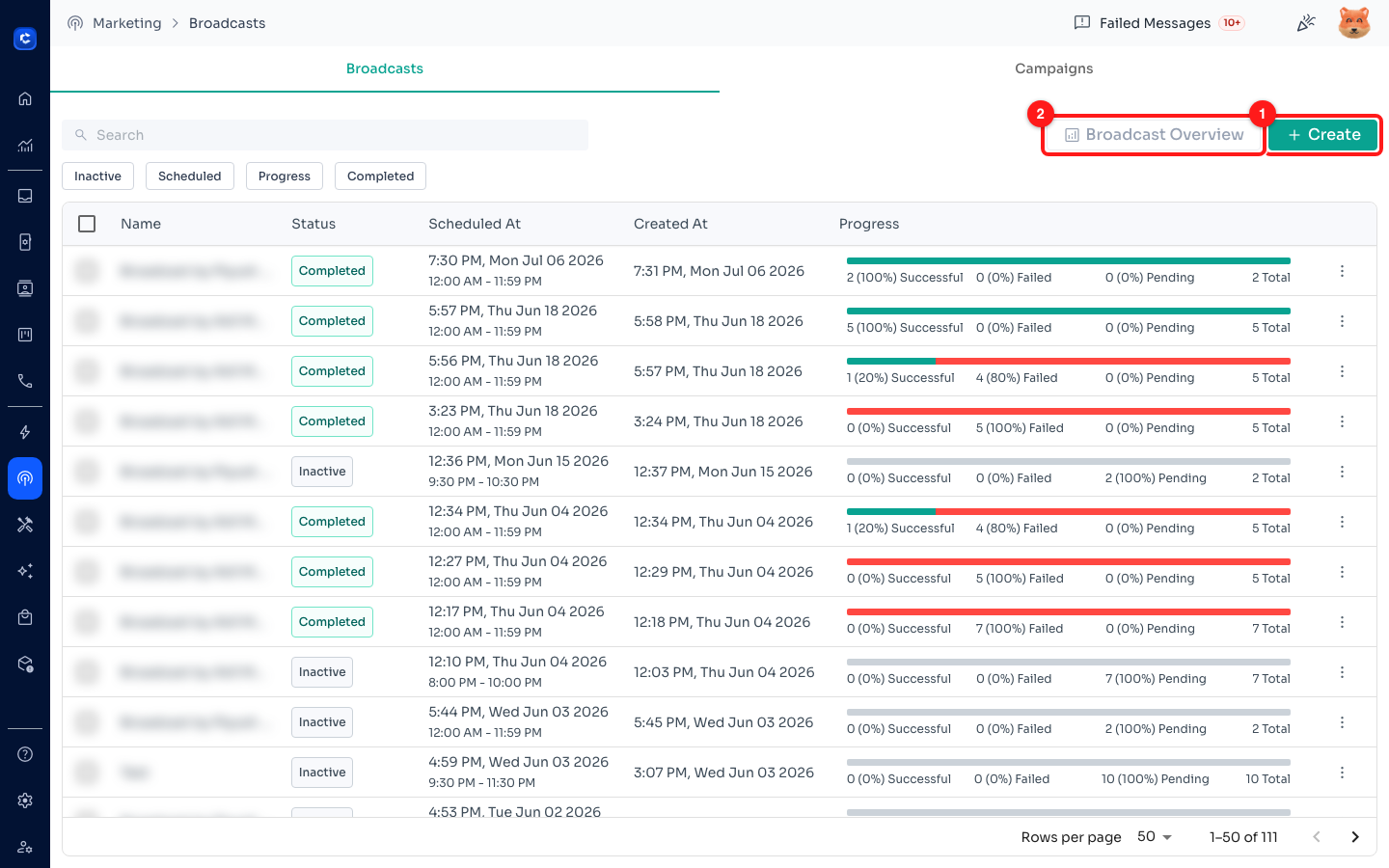
Step 2 — click + Create (1) to start a new broadcast. Broadcast Overview (2) is the reporting dashboard for past broadcasts.
The builder opens with three sections, and you can work through them in any order: 1 Select Contacts, 2 Settings and 3 Advanced Settings. Nothing is sent until you press Save and confirm.
Section 1 — Select Contacts
This is where you decide who receives the broadcast. There are three ways to build the audience, and they stack: you can filter, then import, then hand-pick.
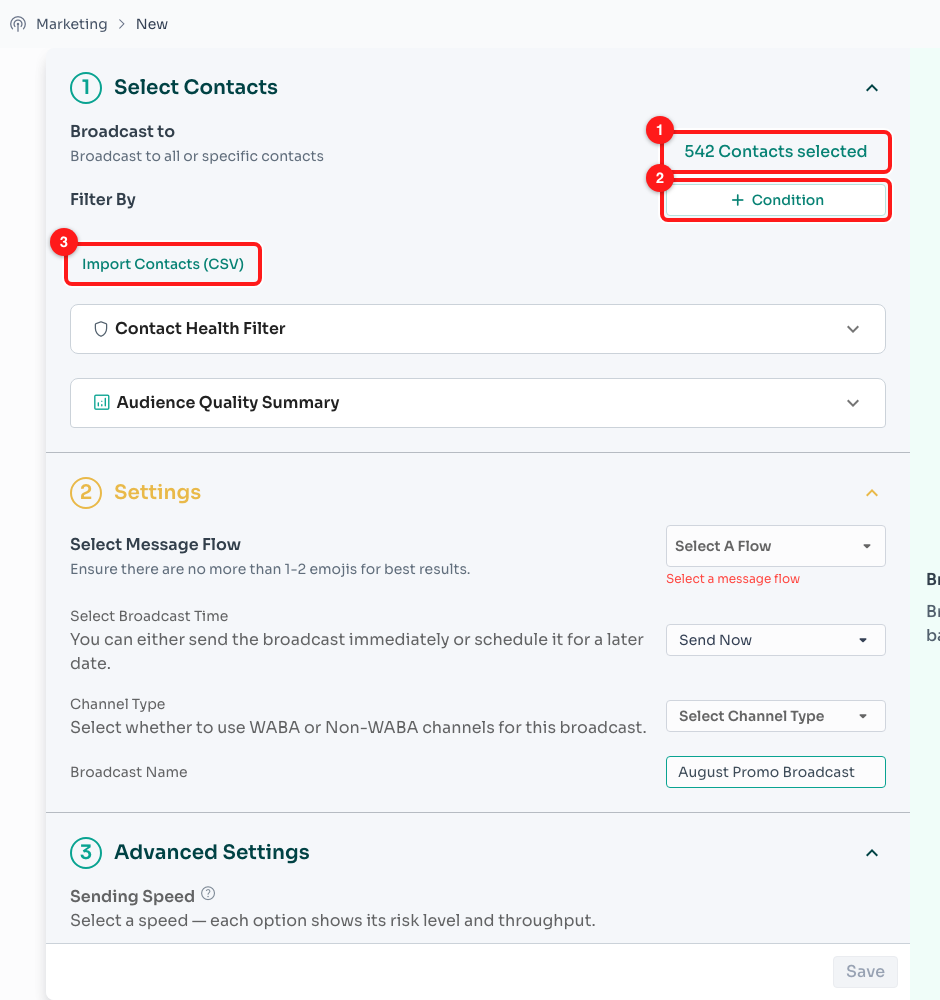
Section 1 — the recipient count (1) opens the contact picker, + Condition (2) adds a filter, and Import Contacts (CSV) (3) uploads a new list.
Step 3 — Check (and edit) who is selected
The green “N Contacts selected” line is both a live count and a button. By default it is everyone in your account, so always check it before going further. Click it to open the contact picker, search for individual people and untick anyone who should not receive this broadcast.
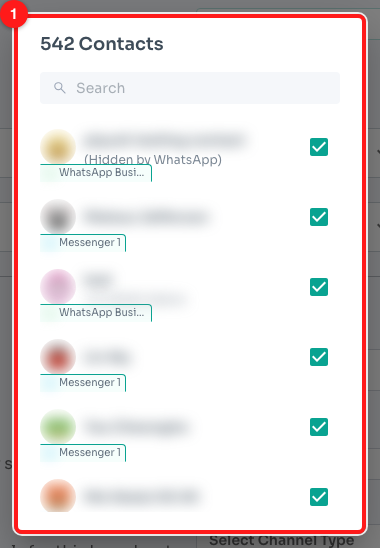
Step 3 — the contact picker. Contact names and photos are blurred in this screenshot for privacy; in your account you will see the real names.
⏳ While the count is recalculating it reads Counting… and the picker is disabled. Large audiences take a few seconds — wait for the number before you judge your filters.
Step 4 — Narrow the audience with a filter
Under Filter By, click + Condition to build the audience from your CRM data instead of picking people by hand. The filter types are:
- Chat — Individuals, Groups, or chats that are unread.
- Tag — anyone carrying (or missing) a tag, e.g. vip, abandoned-cart.
- Custom Fields — any custom field you have defined on contacts.
- Channel — contacts who came in through a particular channel.
- Assignee — contacts assigned to a specific team member.
- Ticket — contacts attached to a CRM ticket.
- Messages Received — how many messages that contact has sent you.
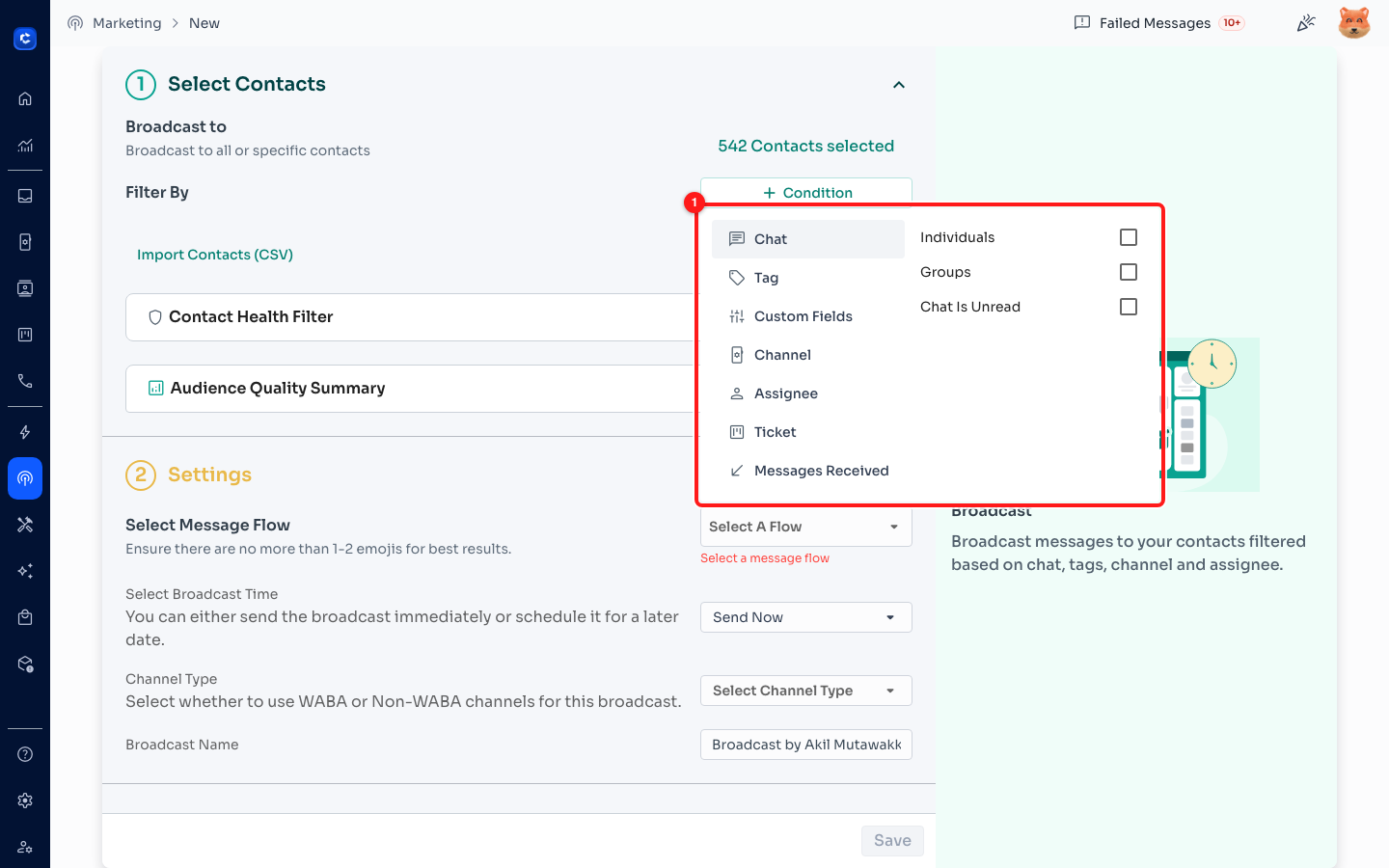
Step 4 — the filter menu opened from + Condition (1). Each filter you apply appears as a chip under Filter By, and the recipient count updates immediately.
💡 Filters combine — a Tag filter plus a Messages Received filter gives you tagged contacts who have actually replied to you, which is a far safer audience than “everyone”.
Step 5 — Or import a fresh list from CSV
Click Import Contacts (CSV) to upload a list you already have. The dialog gives you two ready-made templates — WhatsApp Contacts and Email Contacts — so your columns line up with what ChatDaddy expects. Fill one in, then drag the file in or click to upload.
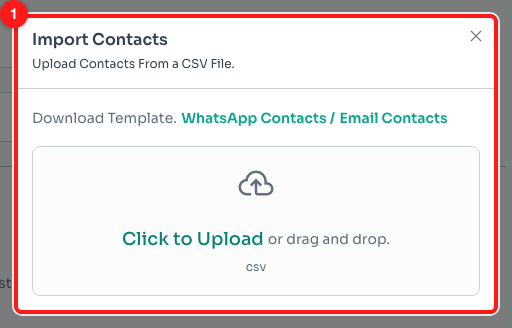
Step 5 — the import dialog (1). Download a template first, fill it with your contacts, then upload it.
🏷️ Every CSV import is given its own unique tag, and that tag is added to this broadcast’s filter automatically. That is how the broadcast targets exactly the people you just uploaded — and how you can re-use the same list later.
Step 6 — Clean the audience with the Contact Health Filter
Expand Contact Health Filter to drop the contacts least likely to engage. Each option shows, in brackets, how many contacts it would remove from your current selection:
- Exclude inactive > 60 days — nobody you have not spoken to in two months.
- Exclude no engagement history — contacts with no back-and-forth at all.
- Exclude opted-out contacts — people who received messages but never replied.
- Exclude WhatsApp invalid numbers — numbers that are not registered on WhatsApp.
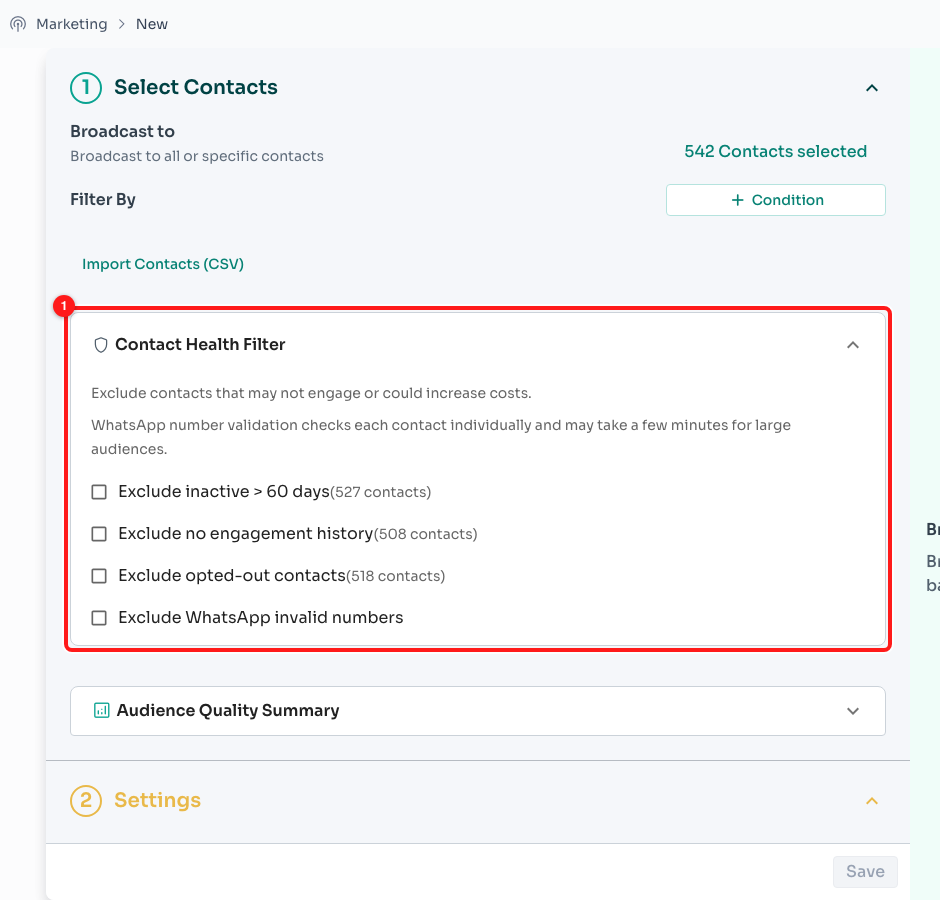
Step 6 — the Contact Health Filter (1), with the live impact of each exclusion shown next to it.
⚠️ WhatsApp number validation checks each contact individually and can take a few minutes on a large audience — the checkbox shows (checking 120/540…) while it works. Excluding invalid numbers costs you nothing and protects your delivery rate, so it is worth the wait.
Step 7 — Read the Audience Quality Summary
Expand Audience Quality Summary for a health check on the audience you have just built: total contacts, how many were active in the last 30 days, how many are inactive 90+ days, previous delivery failures, opted-out contacts, invalid WhatsApp numbers — and an estimated cost for the send.
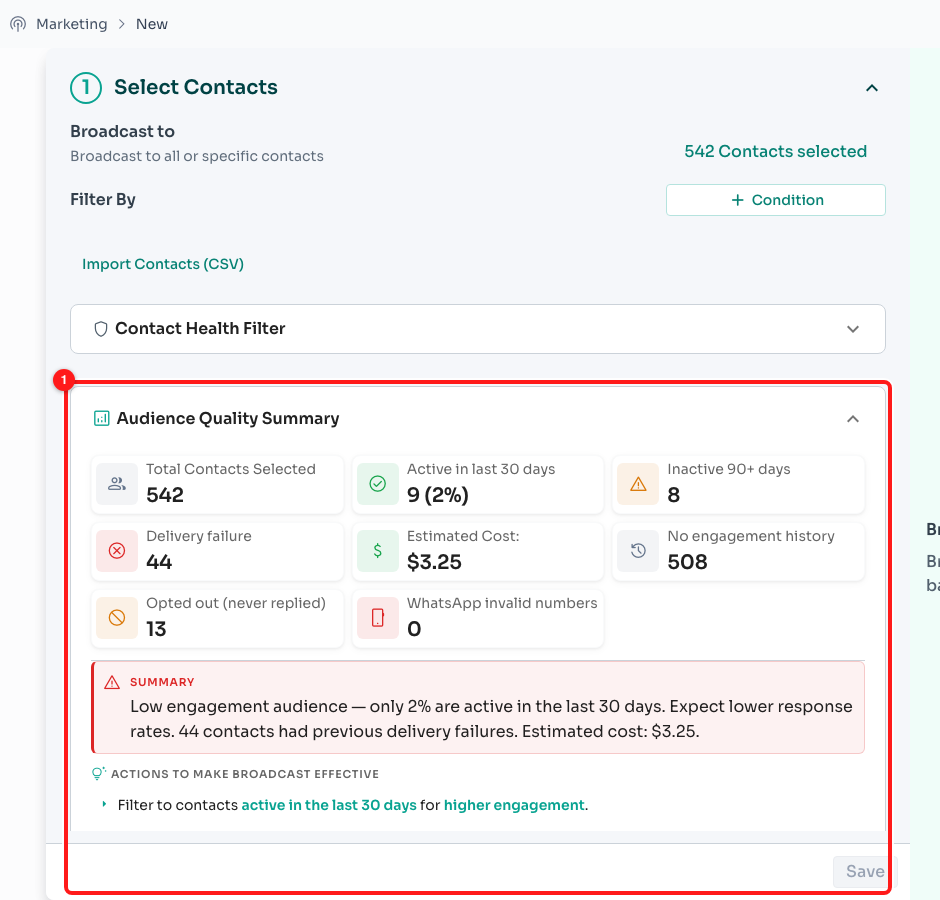
Step 7 — the Audience Quality Summary (1). The red SUMMARY box explains what the numbers mean, and “Actions to make broadcast effective” suggests concrete fixes.
📉 A summary like “only 2% are active in the last 30 days” is a warning, not a detail. Sending to a cold list is the fastest way to collect spam reports — go back to Step 6 and trim before you send.
Section 2 — Settings
This section decides what is sent, when, and from where.
Step 8 — Select the message flow
Click Select A Flow and choose the flow to send. The picker has a search box, sorting, a Template Status filter, and a preview (eye) icon so you can read the message before committing. Once chosen, the flow is previewed live in a phone mock-up on the right of the builder.
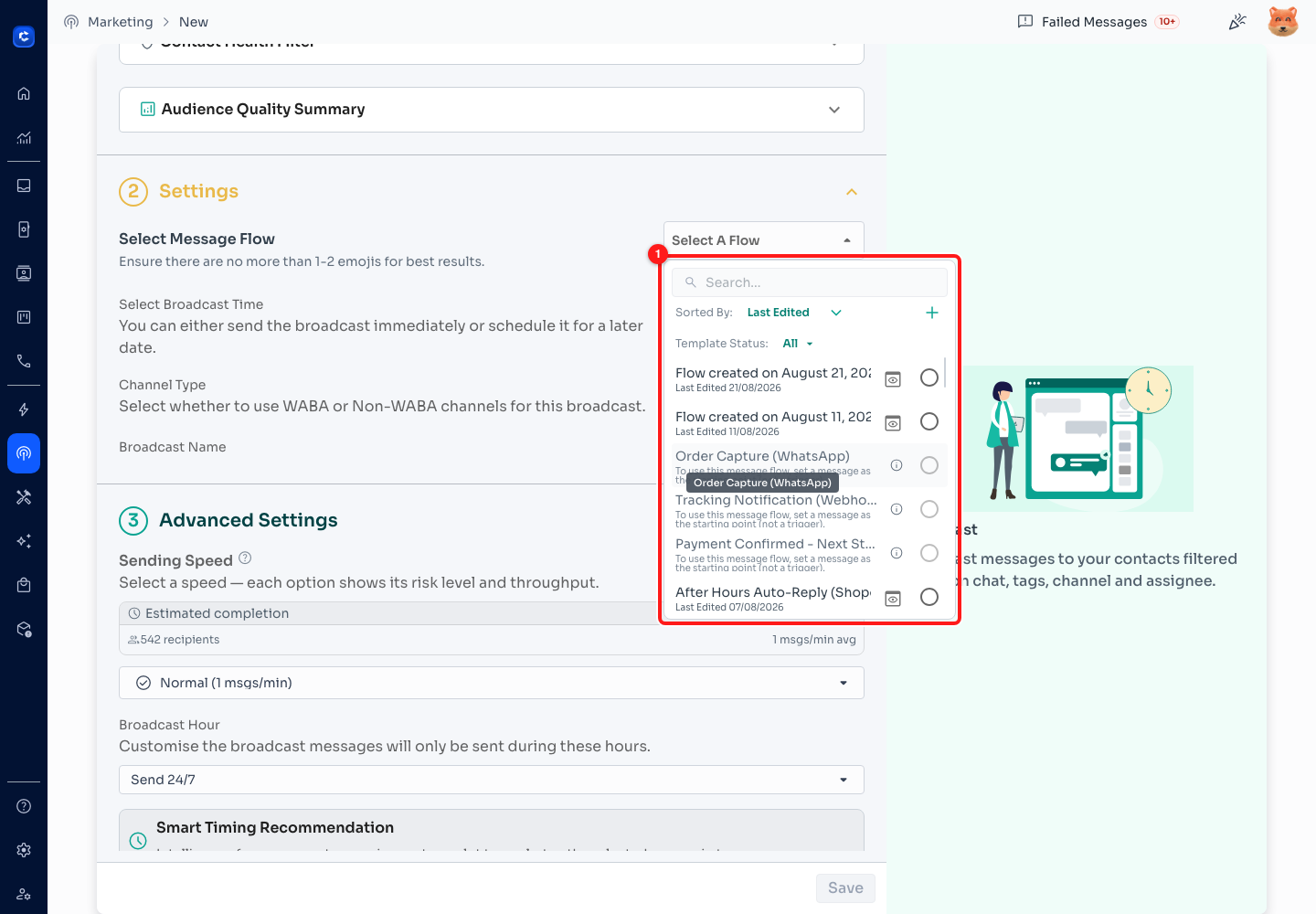
Step 8 — the flow picker (1). Pick the radio button on the right of a row to select that flow; the eye icon previews it instead.
🚫 Flows that have no starting message cannot be broadcast — they appear greyed out with “To use this message flow, set a message as the starting point (not a trigger)”. Open the flow in the builder and give it a starting message first. Keep the copy to 1–2 emojis maximum for the best delivery results.
Step 9 — Send now, or schedule for later
Under Select Broadcast Time, choose Send Now to start as soon as you confirm, or Schedule for Later to pick a date and time.
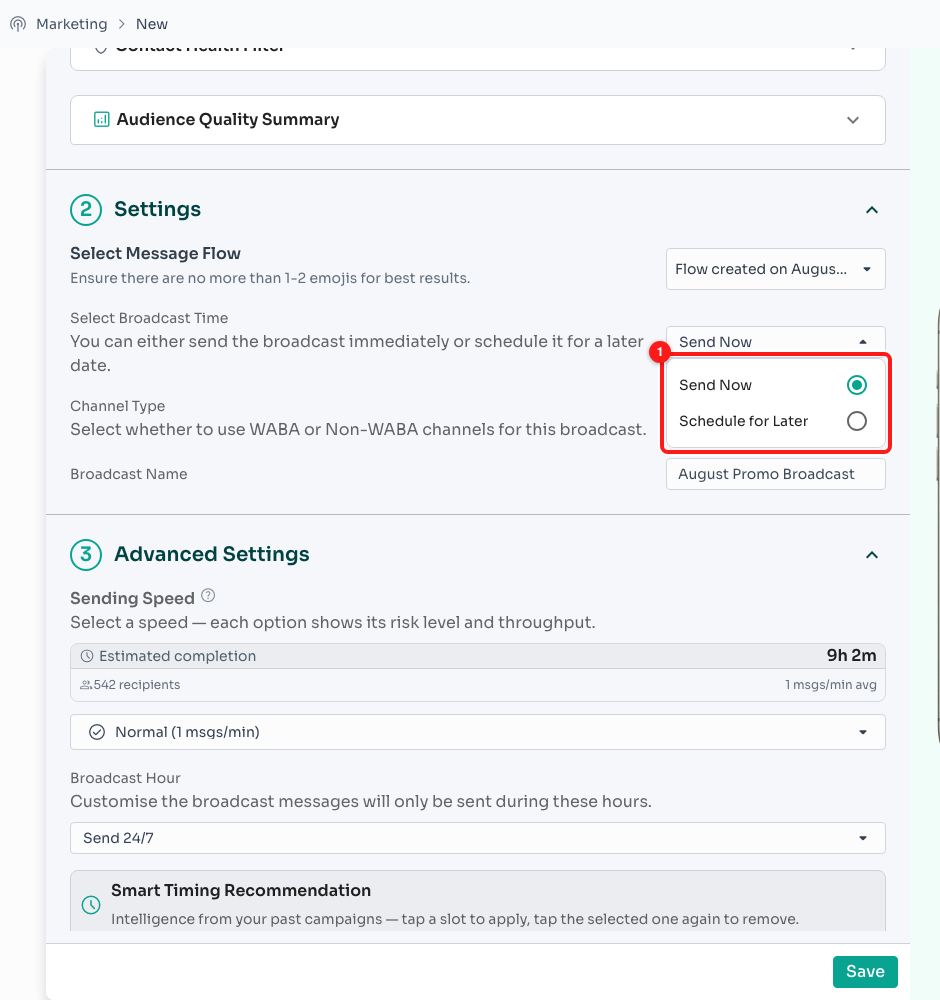
Step 9 — Send Now or Schedule for Later (1).
Choosing Schedule for Later adds a date-and-time field just below, in DD/MM/YYYY hh:mm AM/PM format. It defaults to an hour from now and accepts any time up to a year ahead.
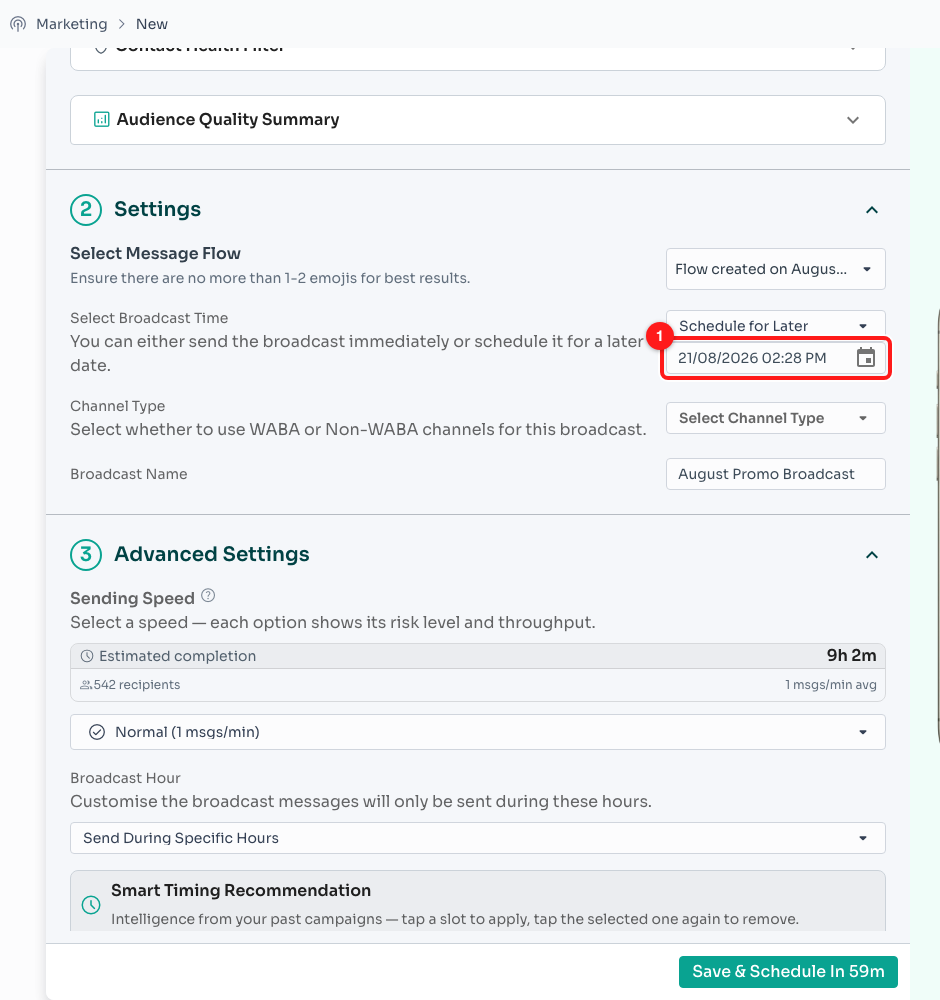
Step 9 — the scheduled date and time (1). Notice the button at the bottom right now reads “Save & Schedule In 59m”.
Step 10 — Pick the channel type
Channel Type decides which of your connected channels this broadcast can use. There are four options:
- WABA Channel — your WhatsApp Business API numbers. Locked with a padlock until you connect a WABA channel.
- Non-WABA Channel — a regular WhatsApp number connected by QR code.
- Messenger — a connected Facebook Page.
- Instagram — a connected Instagram account.
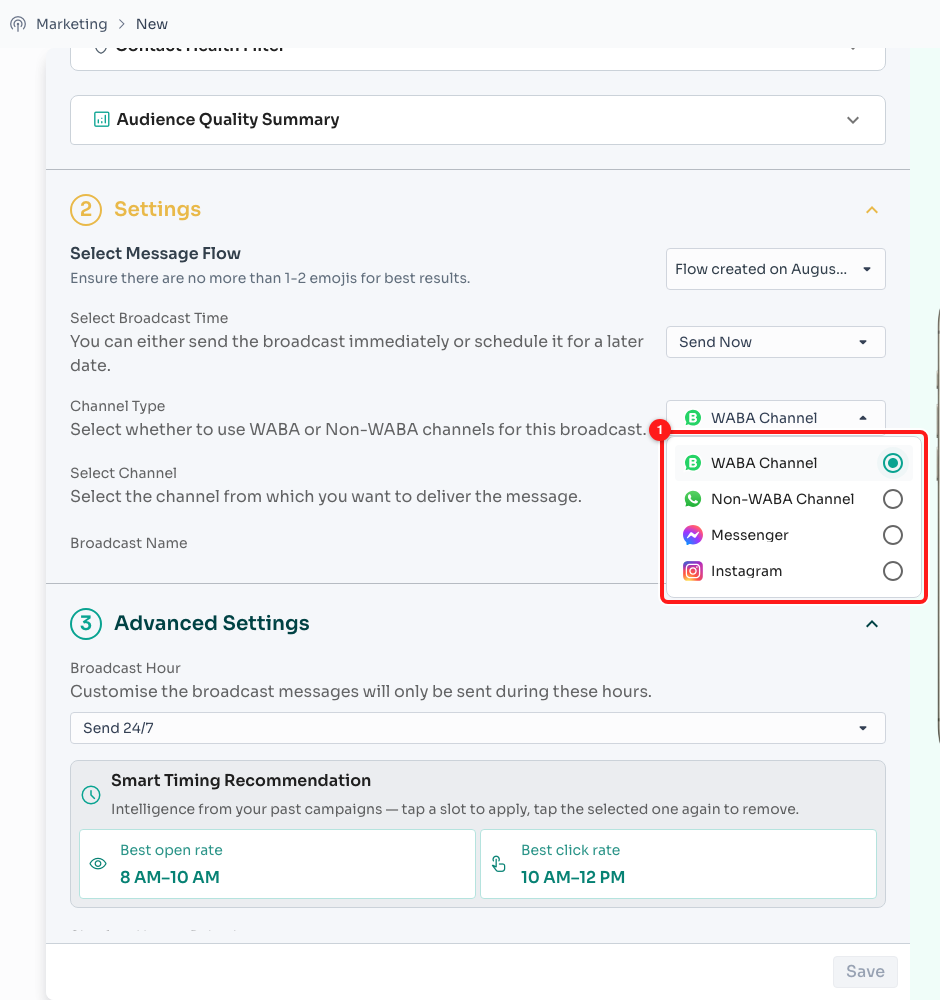
Step 10 — the four channel types (1). Click the radio button on the right of the row to select one.
🔄 Changing the channel type clears any channels you had already selected, because the two lists are different. Pick the type first, then the channel.
Step 11 — Choose the channel to send from
Select Channel lists only the channels that match the type you chose. For WABA and non-WABA you can tick more than one channel and ChatDaddy will spread the sending across them. For Messenger and Instagram you may pick only one, because recipients on those platforms belong to a single Page or account.
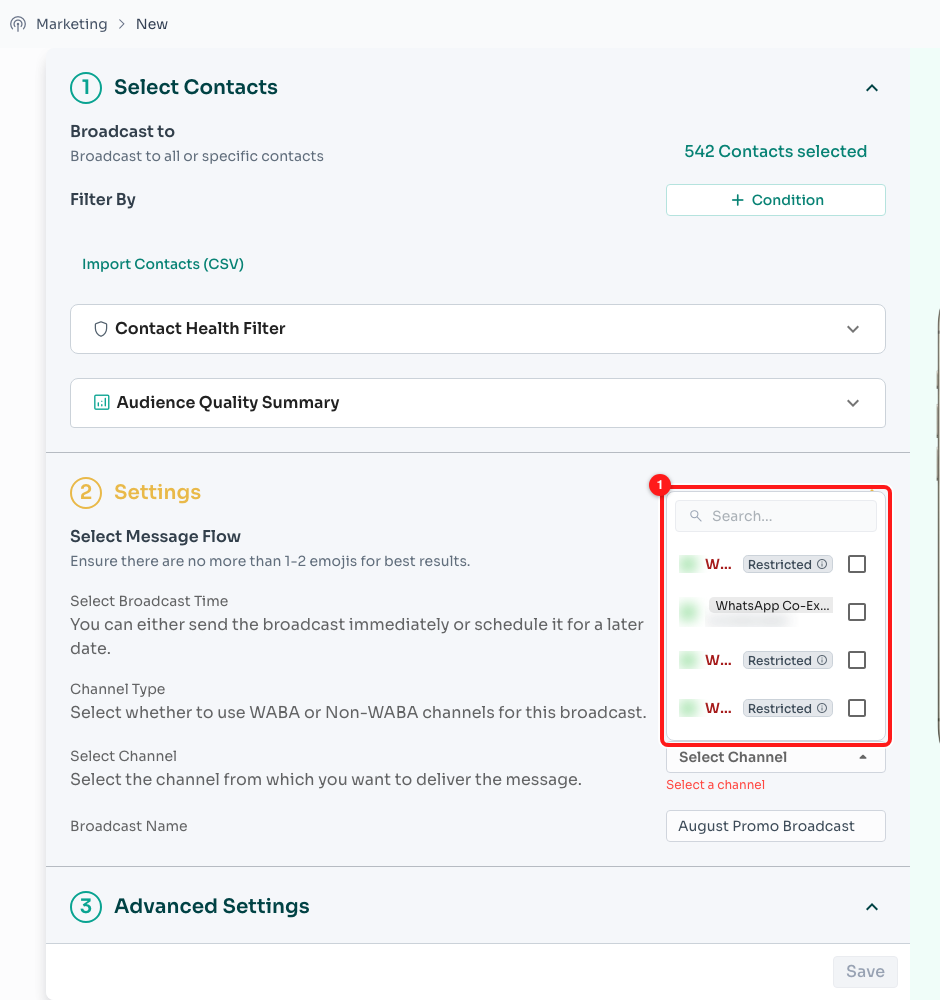
Step 11 — the channel list (1). Phone numbers are blurred in this screenshot; channels marked Restricted cannot be used until the restriction is cleared.
Step 12 — Name the broadcast
ChatDaddy pre-fills a name like “Broadcast by
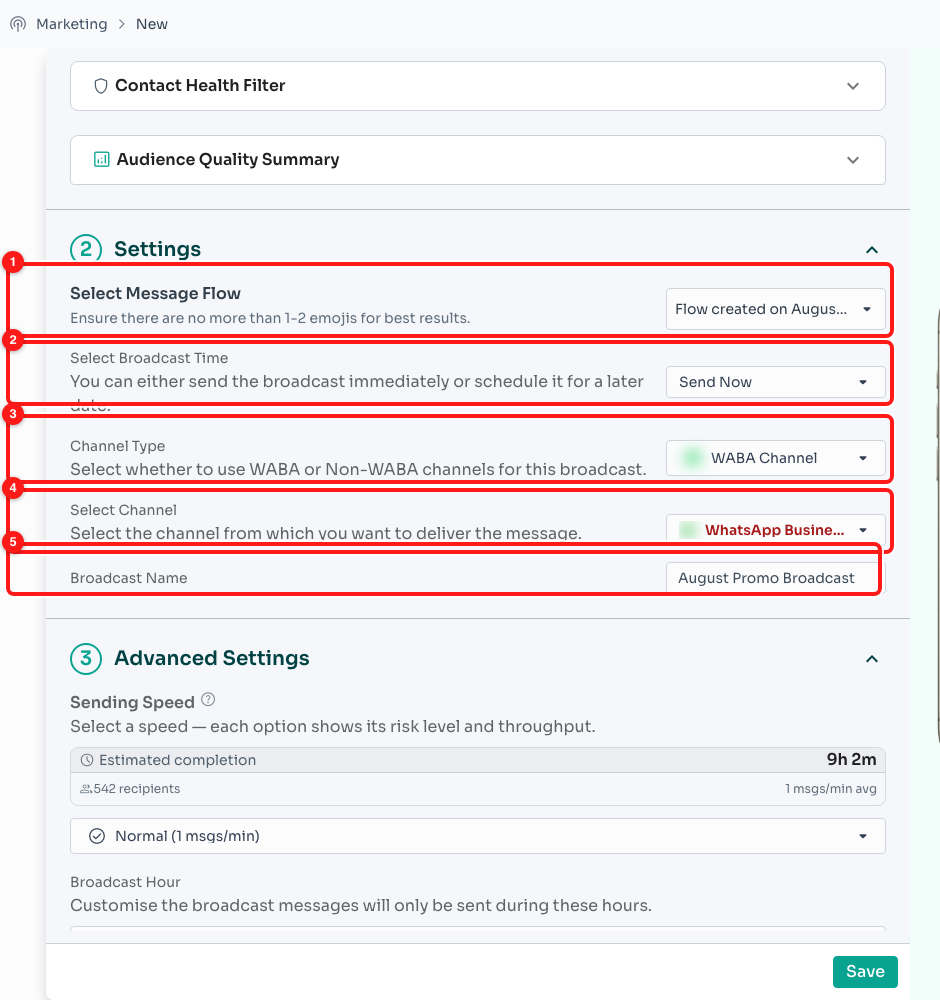
Section 2 complete — message flow (1), broadcast time (2), channel type (3), channel (4) and broadcast name (5).
Section 3 — Advanced Settings
These options control how fast messages go out and when they are allowed to go out. They matter more than they look: sending speed is the single biggest factor in whether a number gets flagged.
Step 13 — Set the sending speed
Above the speed selector, Estimated completion tells you how long the whole broadcast will take at the current speed, for the current number of recipients. Adjust the speed and the estimate updates.
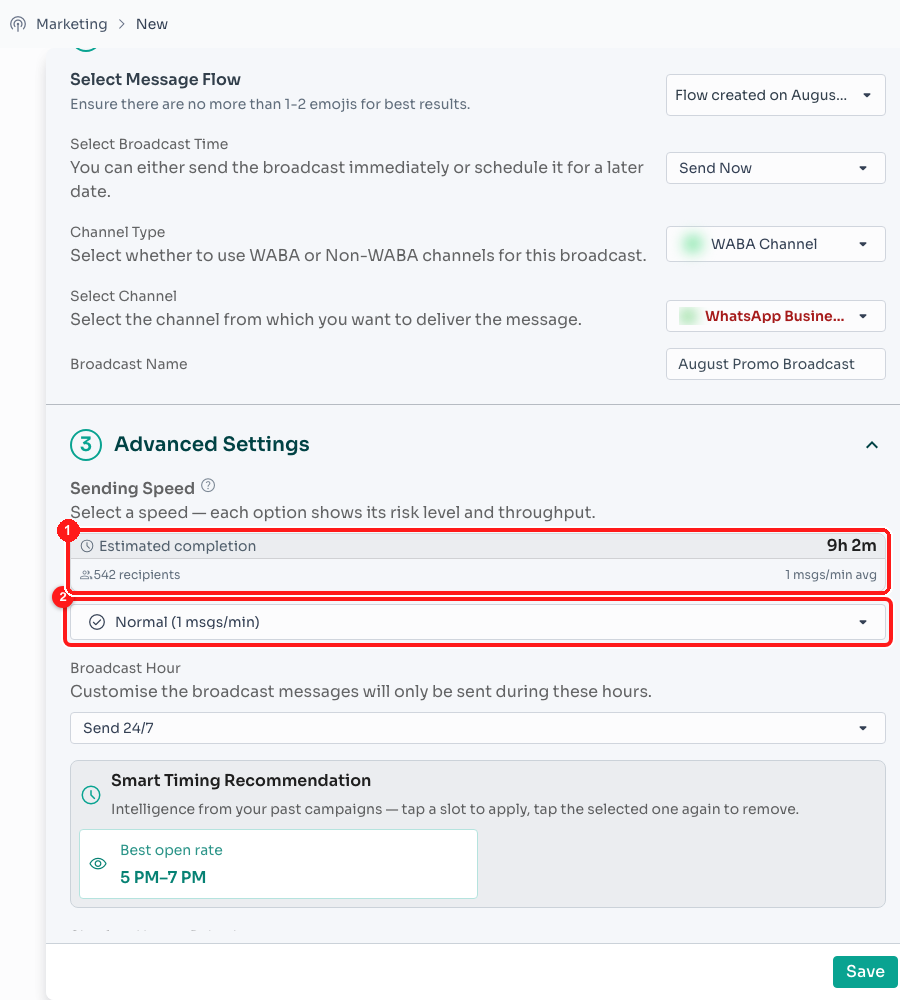
Step 13 — the estimated completion panel (1) and the sending-speed selector (2).
Open the selector and every option shows its throughput and its risk level:
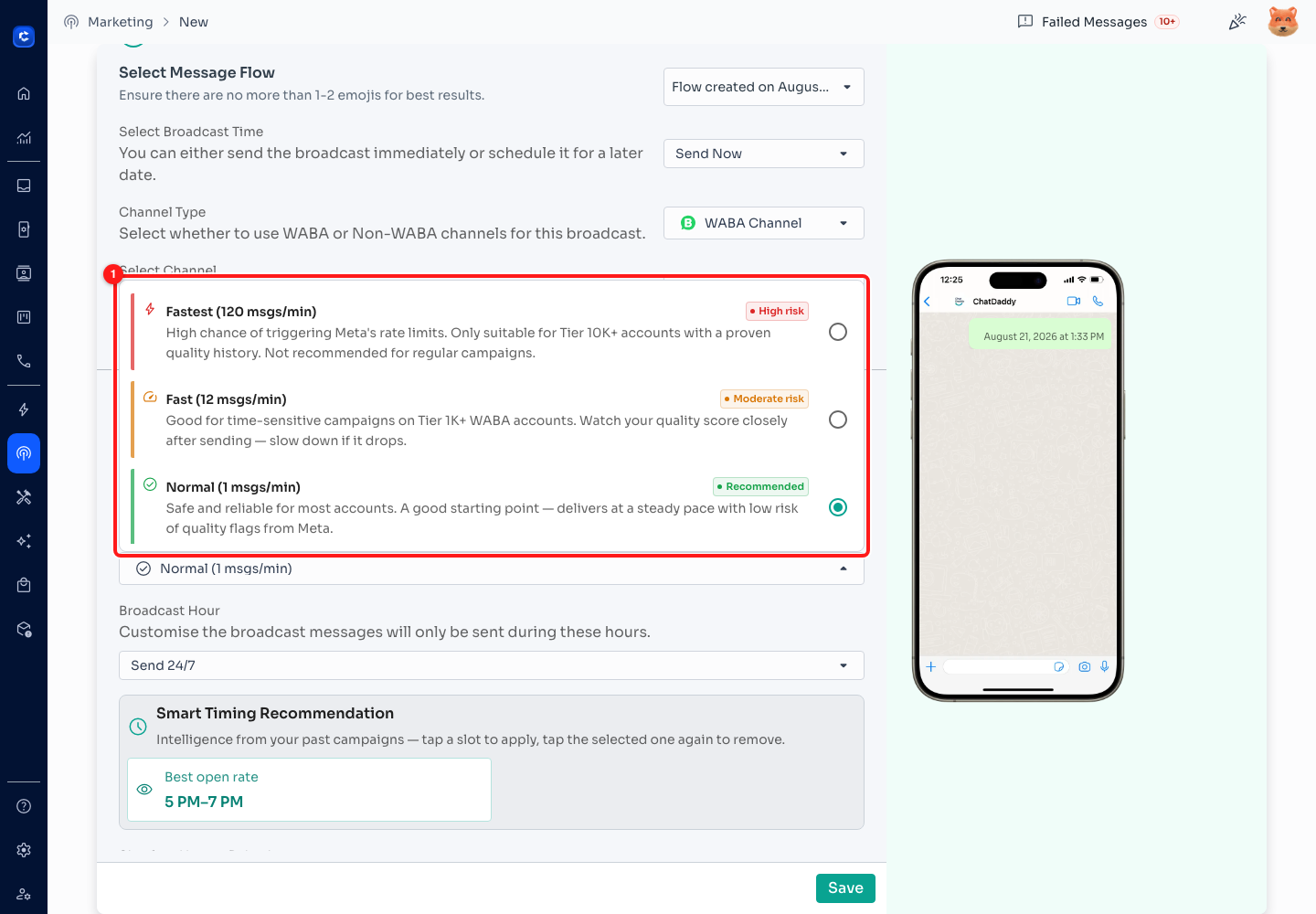
Step 13 — the speed options (1), each with a coloured risk badge and an explanation of who it suits.
- WABA Max — 480 msgs/min · Extreme risk. Enterprise throughput, Tier 10K+ only.
- Fastest — 120 msgs/min · High risk. High chance of hitting Meta’s rate limits.
- Fast — 12 msgs/min · Moderate risk. For time-sensitive campaigns on Tier 1K+ accounts.
- Normal — 1 msg/min · Recommended. The default, and the right answer for most sends.
- Safe — 1 msg/3 min · Very safe. For Tier 250 numbers or any number that has had a quality warning.
- Safest — 1 msg/5 min · Safest. For brand-new numbers, or one recovering from a restriction.
- Custom — set your own rate with the slider that appears underneath.
🛡️ On a WABA channel the speeds you are offered depend on your messaging tier, shown as a Tier: N/day chip next to the Sending Speed heading. Tier 250 may only use Normal, Safe and Safest; Tier 1K and 2K unlock Fast and Custom; Tier 10K and above unlock Fastest and WABA Max. Click the chip for the upgrade guide.
📊 Your tier is also a daily cap on unique recipients — 250, 1,000, 2,000, 10,000, 100,000 or unlimited per 24 hours. If your audience is bigger than the cap, ChatDaddy warns you and the extra contacts are queued for the next 24-hour window rather than dropped. Selecting channels on different tiers shows a mixed-tier warning, because the lower-tier number may fail at faster speeds.
Step 14 — Restrict the sending hours
Broadcast Hour decides when in the day messages may go out. Send 24/7 lets the broadcast run continuously; Send During Specific Hours adds a from/to time picker so nothing is delivered at 3 a.m.
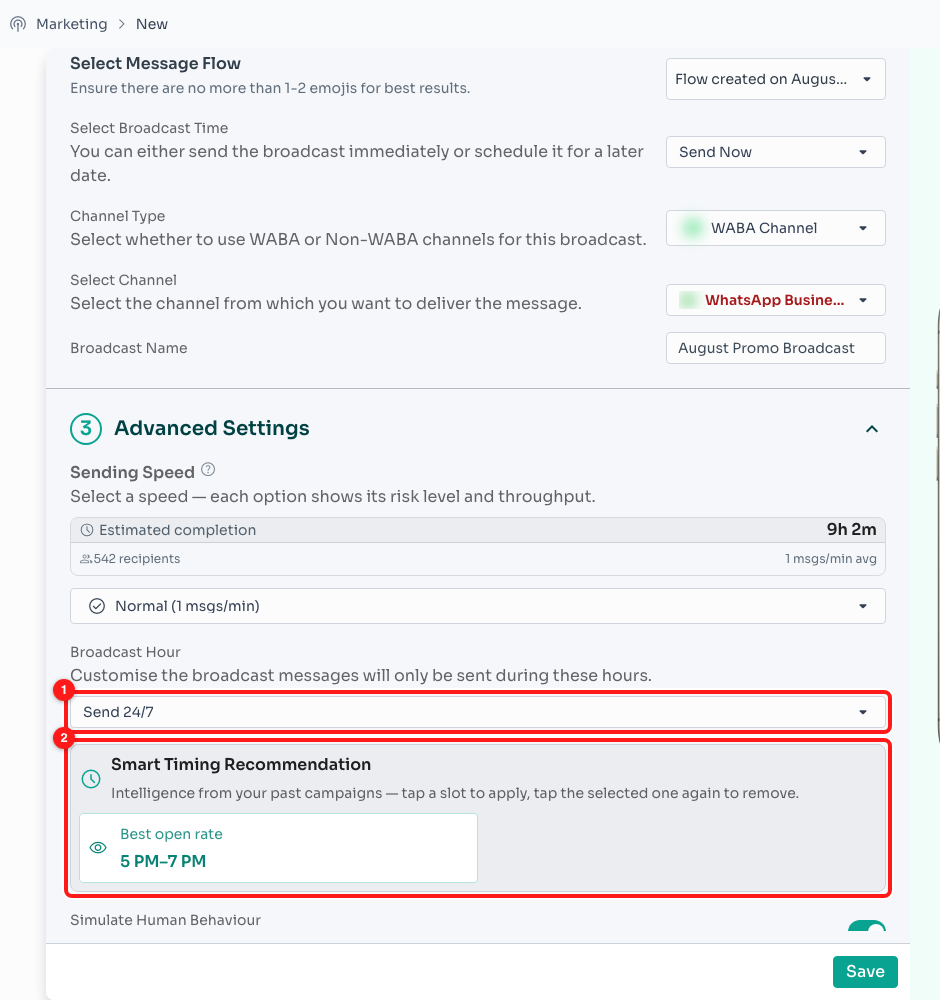
Step 14 — the sending-hours selector (1) and the Smart Timing Recommendation card (2).
The Smart Timing Recommendation card underneath is calculated from your own past campaigns: it shows the window with the best open rate and the one with the best click rate. Tap a slot to apply it as your broadcast hours; tap it again to remove it. For scheduled broadcasts, the best-open-rate window is applied automatically if you have not set hours yourself.
Step 15 — The two behaviour switches
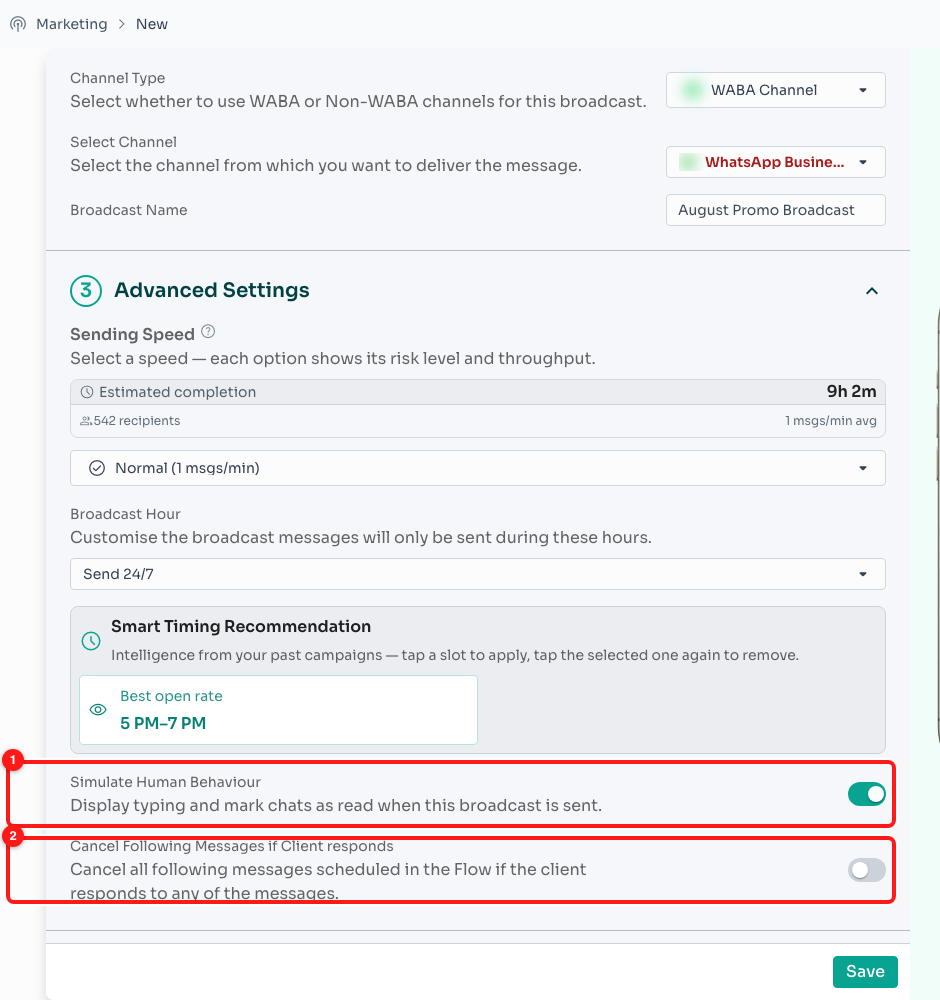
Step 15 — Simulate Human Behaviour (1) and Cancel Following Messages if Client responds (2).
- Simulate Human Behaviour — displays a typing indicator and marks chats as read as the broadcast is sent, so it looks less like a bulk send. On by default.
- Cancel Following Messages if Client responds — if a contact replies part-way through, the remaining scheduled messages of the flow are cancelled for that person. Useful for anything that starts a conversation you intend to continue by hand.
Step 16 — Save and confirm
The button at the bottom right changes with what you configured: Save for a draft, Save & Send Now for an immediate send, or Save & Schedule In … for a scheduled one.
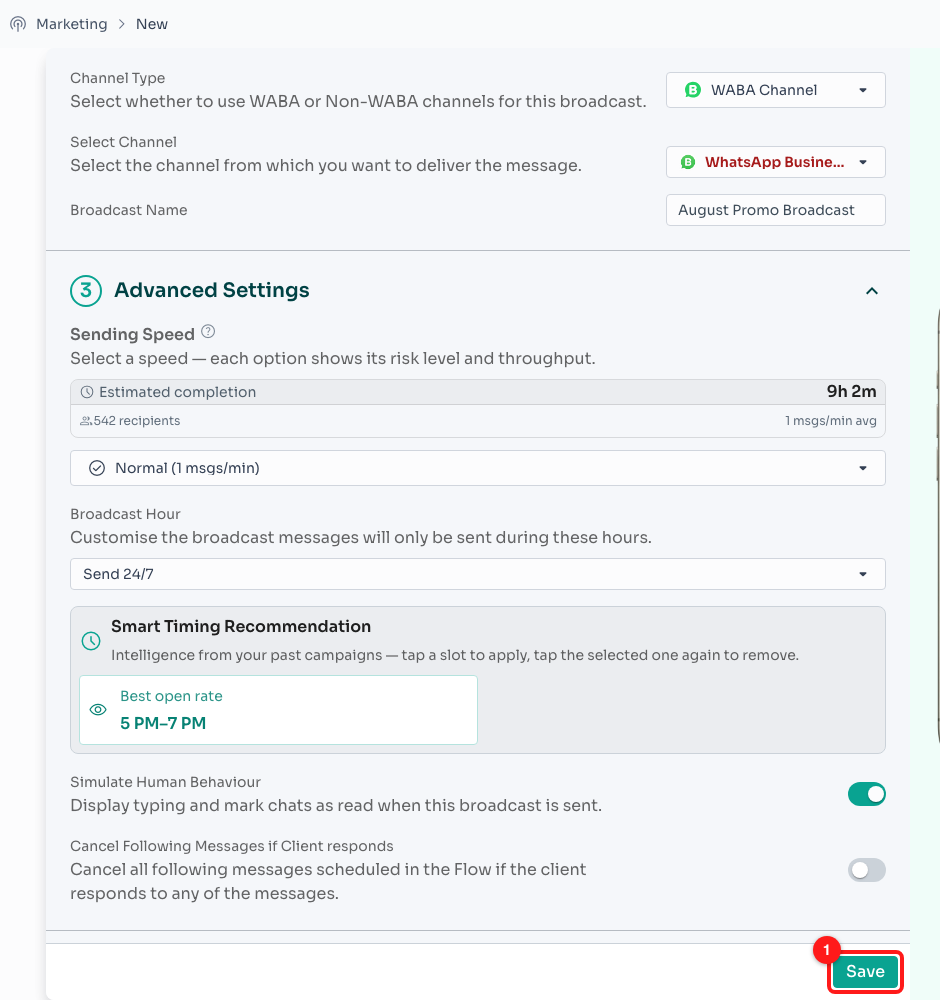
Step 16 — the Save button (1). Hover it while it is greyed out and the tooltip tells you what is still missing.
🔒 The button stays disabled until all four of these are true: at least one recipient, a message flow chosen, at least one channel chosen, and a broadcast name. A completed broadcast cannot be edited at all.
The first time you save a broadcast, an Important Notice appears. Read it, then click I Understand to send — or Cancel to go back and change something.
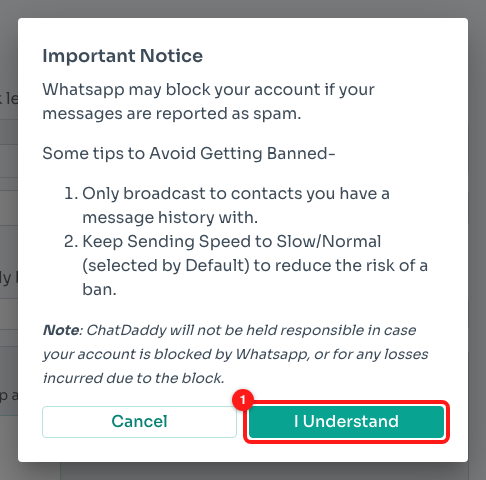
Step 16 — the Important Notice. Click I Understand (1) to send, or Cancel to keep editing.
🚨 The notice is not boilerplate. WhatsApp may block a number whose messages get reported as spam: only broadcast to contacts you have a message history with, and keep the sending speed at Normal or slower. ChatDaddy cannot un-block a number for you. If your audience is over your WABA tier limit, the notice also spells out how many messages go out today and how many are queued.
After you send: tracking the broadcast
You land back on the Broadcasts list, where your new broadcast appears at the top. The Status column moves through:
- Inactive — saved but not started (or stopped).
- Scheduled — waiting for its scheduled time.
- Progress — sending right now; a live progress bar appears at the top of the broadcast.
- Completed — finished. Completed broadcasts can no longer be edited.
The Progress column breaks the run down into Successful, Failed, Pending and Total. The ⋮ menu at the end of each row gives you:
- View Recipients — the full list of who it went to and what happened to each message.
- Start — begin (or resume) a broadcast that still has pending or failed recipients.
- Stop — halt a broadcast that is scheduled or in progress.
- Edit / Delete — available on anything that is not completed.
For the bigger picture — delivery rates over time, cost efficiency, best-performing hours — open Broadcast Overview from the top of the list.
Troubleshooting
The Save button is greyed out
Hover over it: the tooltip names the missing piece. It is always one of — no recipients selected, no message flow chosen, no channel chosen, or an empty broadcast name. A completed broadcast is read-only and cannot be saved again.
The flow I want is greyed out in the picker
That flow has no starting message — it begins with a trigger instead. Open it in the Flow Builder and set a message as the starting point, then come back.
WABA Channel has a padlock on it
No WhatsApp Business API channel is connected to this team yet. Connect one under Channels, or pick Non-WABA, Messenger or Instagram instead.
My recipient count is far higher than I expected
The default audience is every contact in the account. Add a condition under Filter By, or open the recipient count and untick people, until the number matches the list you actually meant to message.
Messages are failing
Open View Recipients on the broadcast to see the per-contact reason. The usual causes are invalid WhatsApp numbers (use the Contact Health Filter to exclude them up front), a restricted channel, or sending faster than your tier allows.
📌 Rule of thumb: a smaller, engaged audience at Normal speed beats a huge cold list at Fastest, every time. The Contact Health Filter and Audience Quality Summary exist to make that trade-off visible before you send, not after.