
How to Restart a Broadcast
If a broadcast was stopped, failed, or stuck in pending due to a payment issue, it will not resume automatically after payment is settled. You will need to…
Updated Jul 18, 2026
If a broadcast was stopped, failed, or stuck in pending due to a payment issue, it will not resume automatically after payment is settled. You will need to manually restart it.
📌 Important Notes
- Broadcasts affected by payment issues must be re-sent manually.
- Once restarted successfully, the broadcast status should change to Scheduled.
- Any user can restart a broadcast as long as they have the required access permissions.
🛠️ Steps to Restart a Broadcast
- Go to Settings.
- Navigate to Broadcasts.
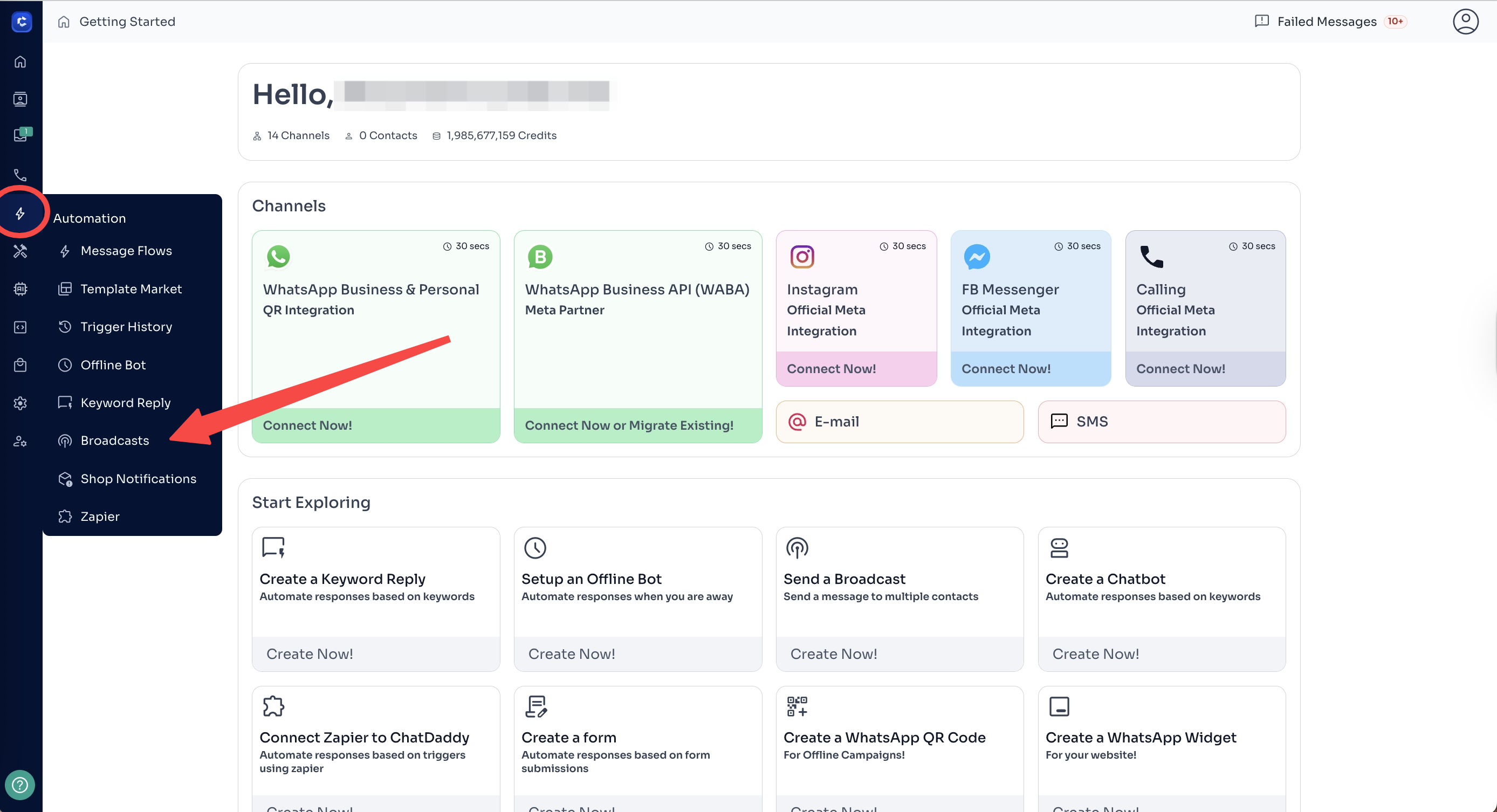
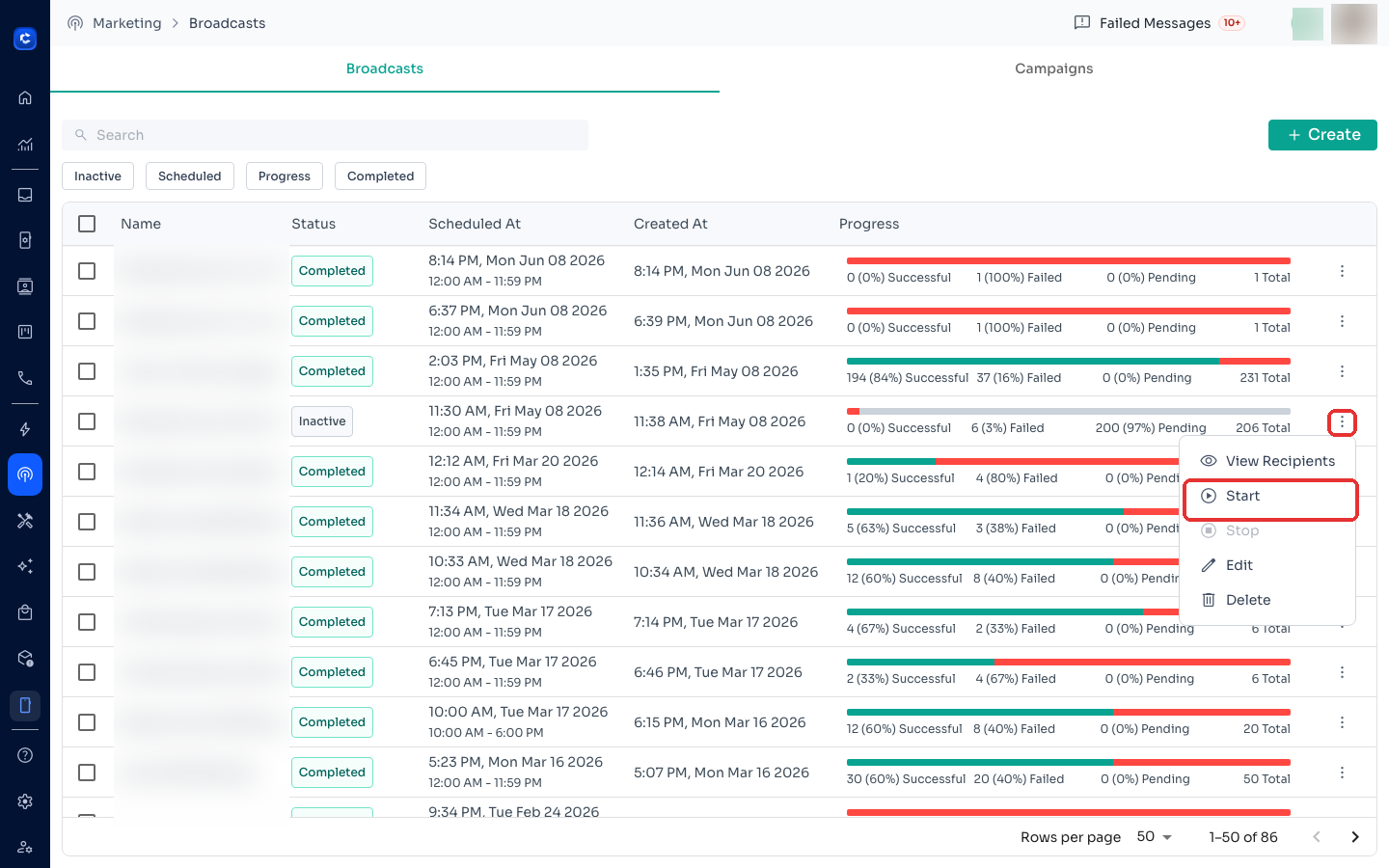
- Locate the broadcast that was stopped or failed.
- Click Restart.
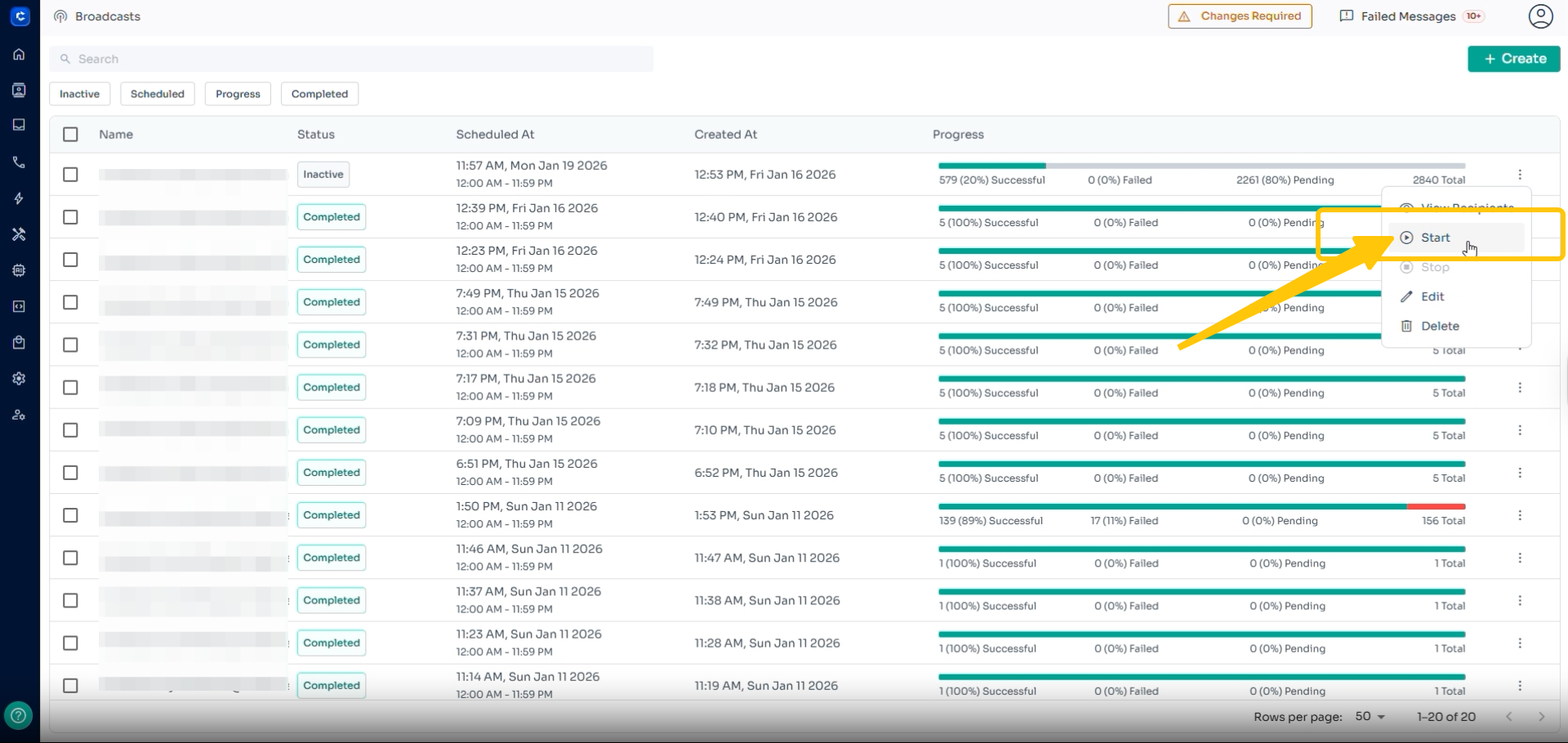
- Confirm the action. ✅ After restarting, verify that the broadcast appears with a Scheduled status.
🔐 Access Requirement
- Ensure the user performing the action has broadcast management access.
- If the user does not have access, an admin must grant the required permission first.
If you need further assistance, feel free to reach out 😊
Where to click
Was this article helpful?