
How to Setup a Keyword Reply
https://drive.google.com/file/d/17Dq67h48sRTjxCnZyRRzC7zM3td65DY8/view?usp=sharing
Updated Nov 21, 2025
Steps to Create a Keyword Reply
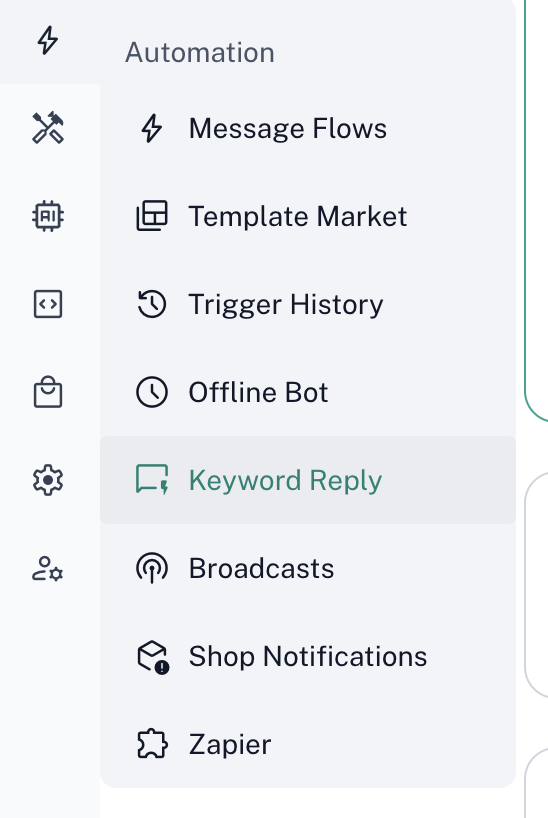
1. Navigate to Keyword Reply
- On your Dashboard, hover over the sidebar on the left.
- Go to “Automation” and select “Keyword Reply”.
2. Start a New Keyword Reply
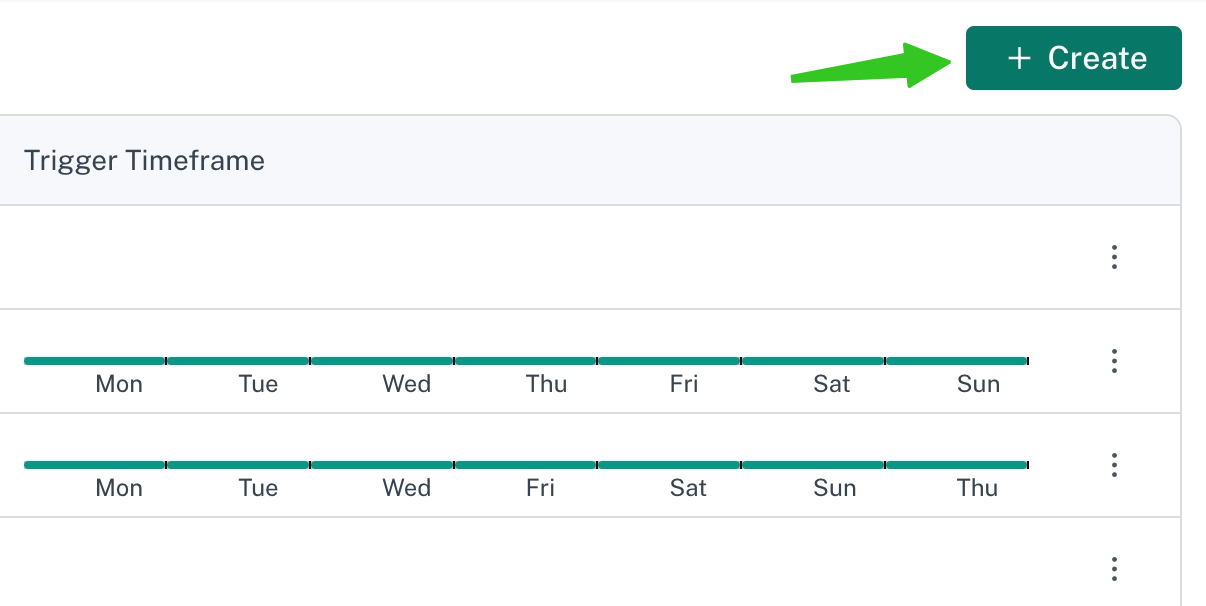
- Click on “New Keyword Reply” at the top-right corner to begin setting up your automation.
3. Define Your Keyword
- In the Keyword field, type the word or phrase you want ChatDaddy to recognize.
- For example: "Hi", "Support", or any relevant phrase for your use case.
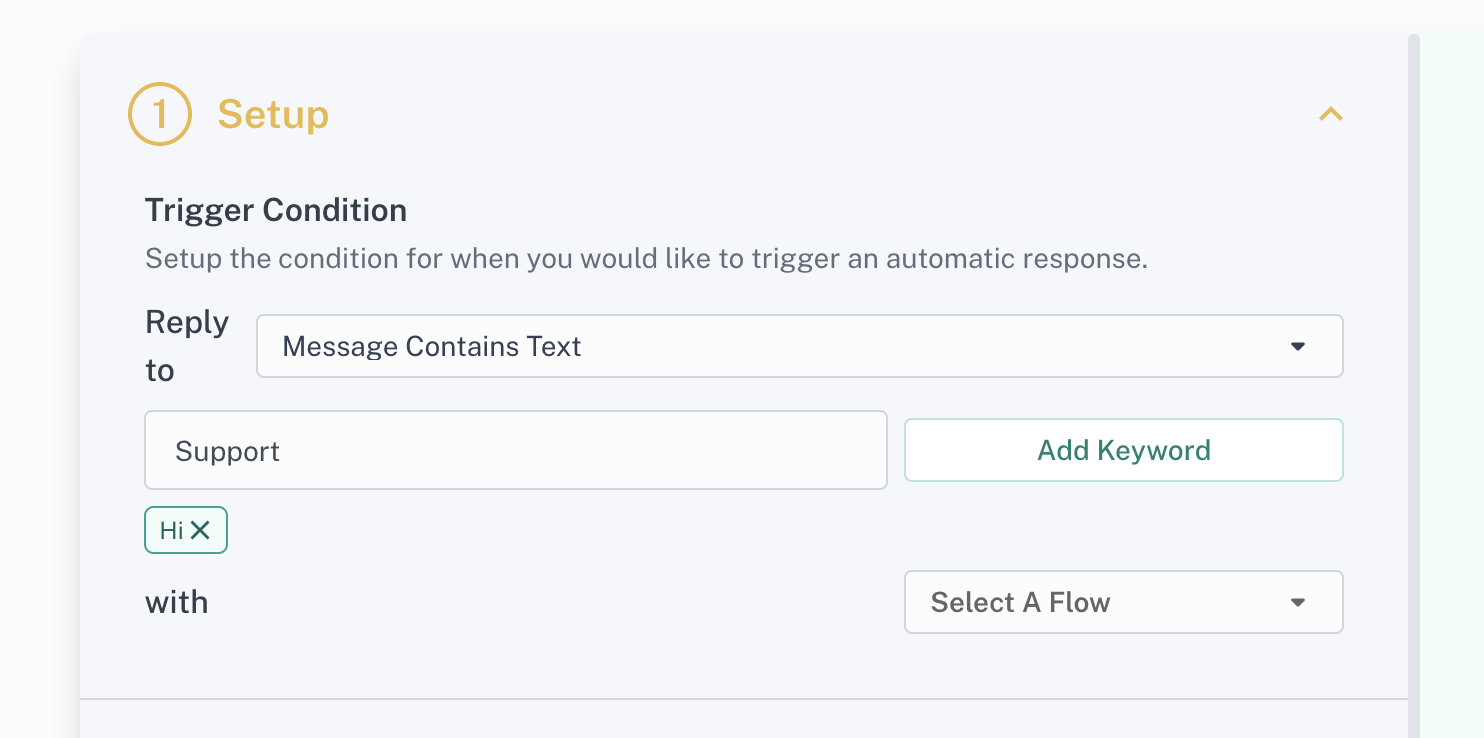
- For example: "Hi", "Support", or any relevant phrase for your use case.
4. Select a Message Flow
- Click on “Select Message Flow” and choose the flow where this keyword reply will apply.
5. Save and Activate
- Once everything is set up, click “Save” to activate your keyword reply.
6. Test Your Keyword Reply
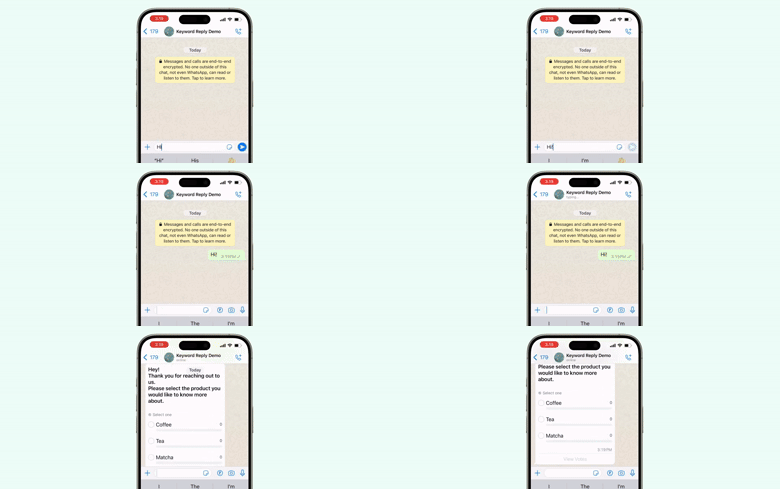
- Send a message with your chosen keyword to confirm that the automation works as expected.
Was this article helpful?