
How to export Broadcast contacts and details
Follow these steps to export contacts who received your broadcast.
Updated Nov 21, 2025
Follow these steps to export contacts who received your broadcast.
Steps to Export Contacts
1. Locate Your Broadcast
- Navigate to the Broadcast section within your ChatDaddy Dashboard.
2. Identify the Target Broadcast
- Find the specific broadcast you want to export contacts from.
3. Access Broadcast Recipients
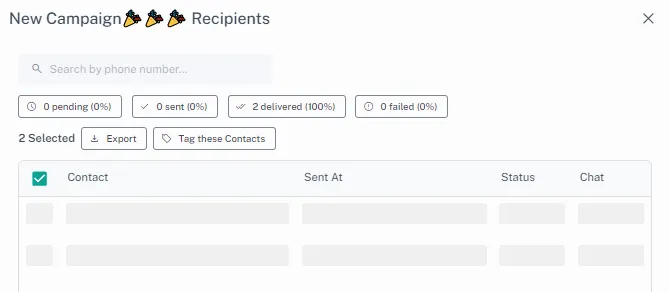
- Click on the progress bar of the chosen broadcast.
- This will open a detailed view of the broadcast's status.
Alternative Way: View Recipients
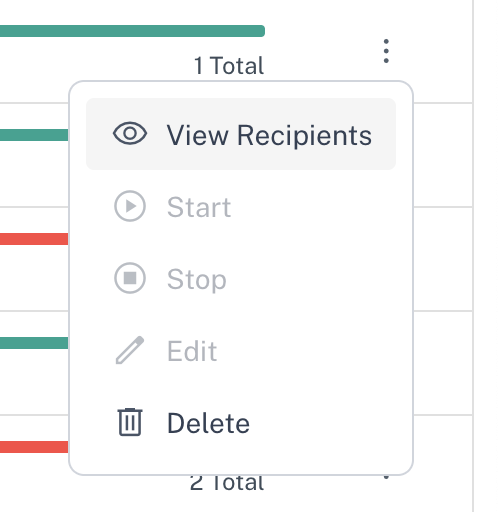
- Click on the three-dot menu next to the broadcast you want to view.
- Select View Recipients from the dropdown menu.
4. Select Contacts for Export
In the detailed view, you’ll see a list of contacts who received the broadcast. You have two options:
- Export All Contacts
- Leave all filters blank and select all contacts.
- Filter and Export Specific Contacts
- Use the filter options to narrow down contacts based on their delivery status (e.g., Delivered, Failed).
- Tick the checkboxes next to the specific contacts you want to include.

5. Export Selected Contacts
- Once you’ve selected your contacts, the Export button will appear.
- Click Export to download the contact details as a CSV file.
By following these steps, you can efficiently export all or specific broadcast contacts for further analysis.
Was this article helpful?