
Settings in Keyword Reply
You can turn your keyword reply off/on using this setting. If it is off, the automated responses will not be sent even if the chat matches the keyword
Settings
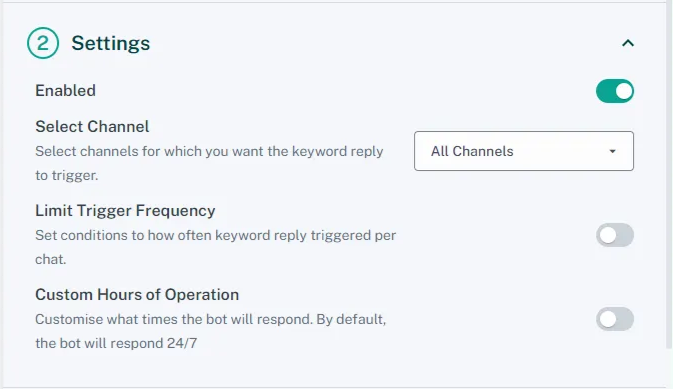
Enabled
You can turn your keyword reply off/on using this setting. If it is off, the automated responses will not be sent even if the chat matches the keyword
Select channel
If you have multiple channels, you can select which channel(s) should trigger the keyword reply and which shouldn't
Limit trigger frequency
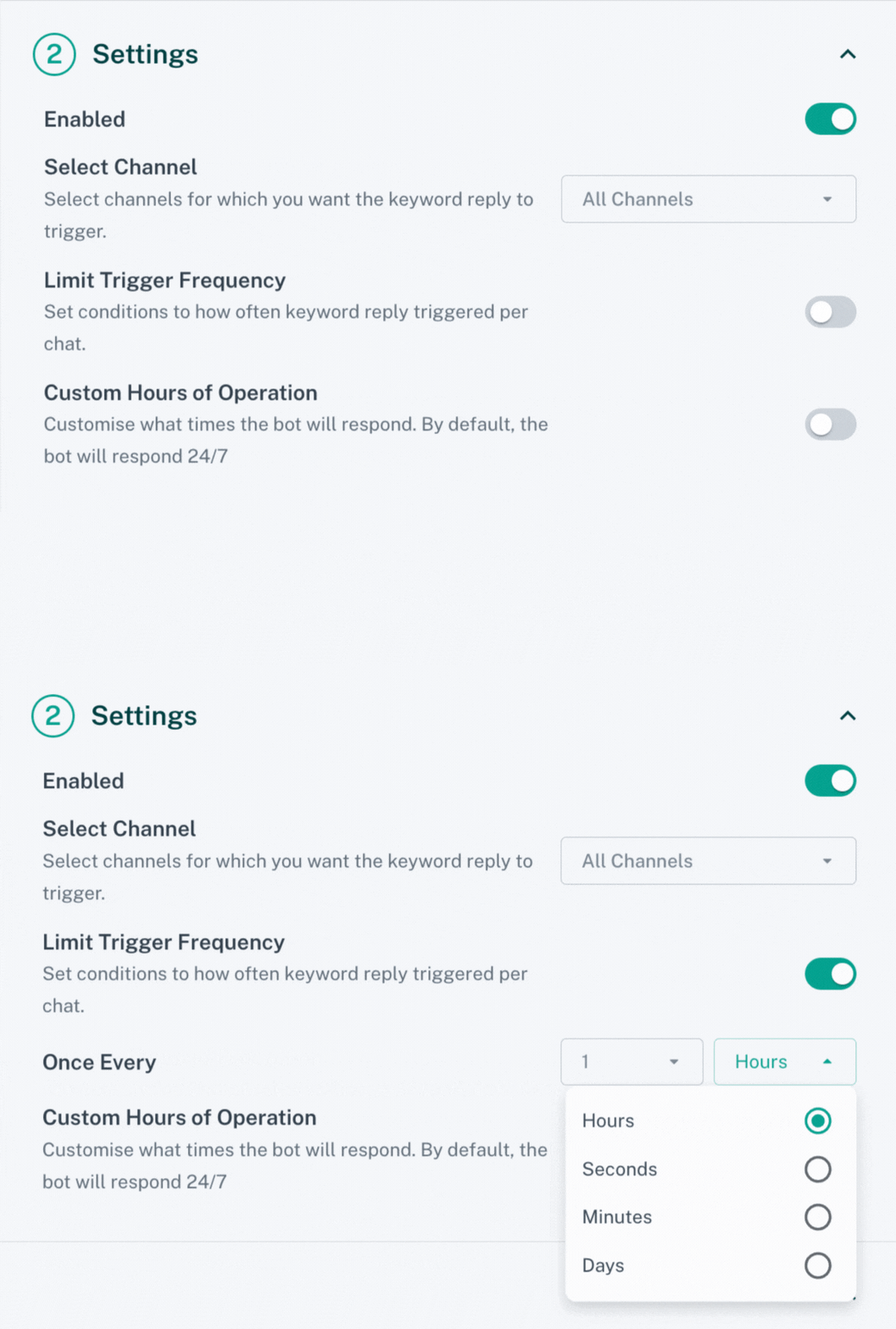
This setting can be used to limit the number of times a keyword reply is triggered in one chat. This means if you set the limit to once every day and the same keyword was sent twice, it will not trigger the automated response the second time
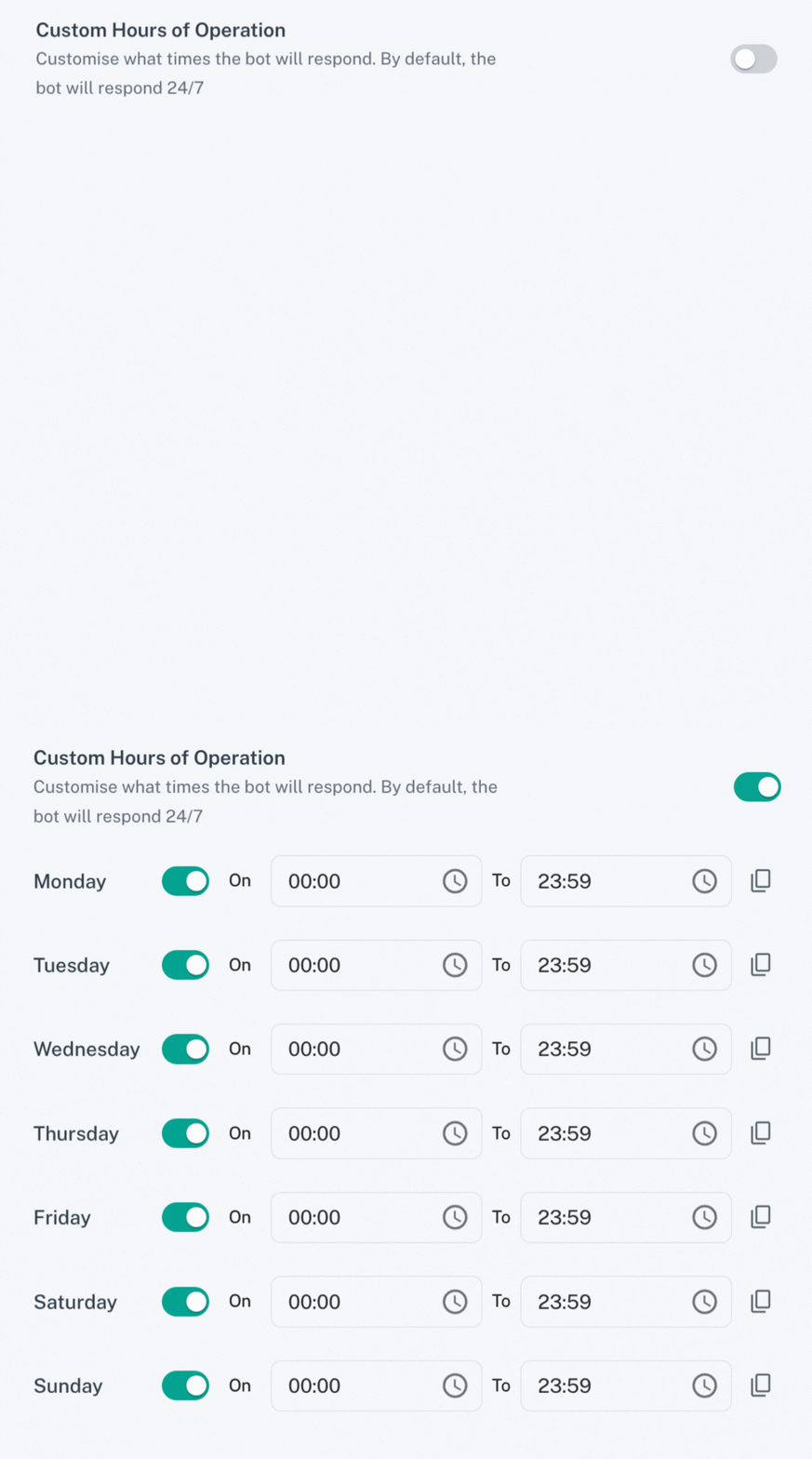
Custom hours of Operation
By default, the bot will respond to keywords sent at any time. However, you can set certain times so that the bot will only work during those times
Advanced Settings
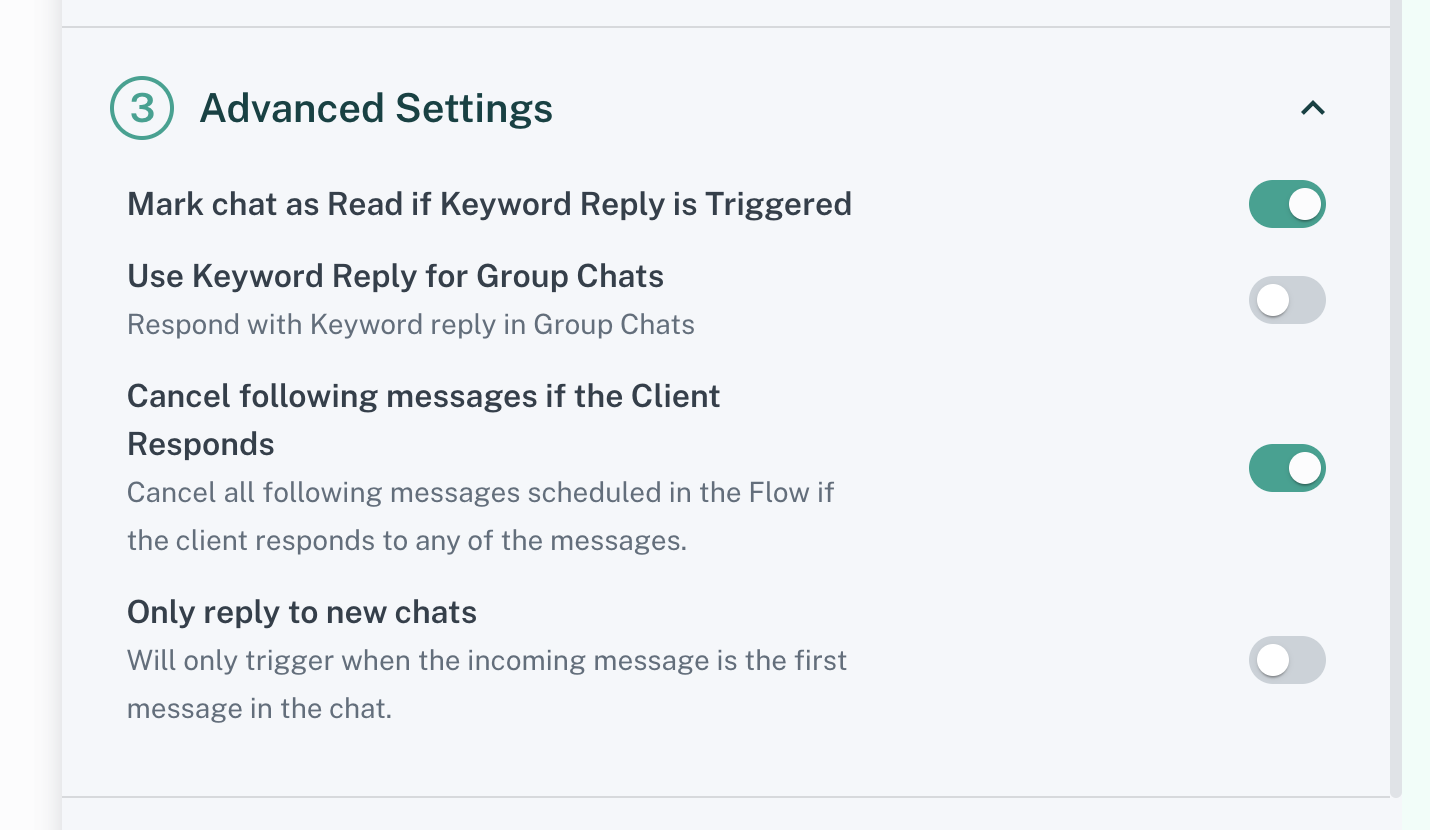
Mark Chat as Read if Keyword reply is Triggered
If this setting is unchecked, your chat will not be marked as read even if the keyword reply bot sends an automated message to the customer
Use Keyword Reply for Group Chats
Using this setting, you can decide whether you want to enable keyword reply for group chats or not. If disabled, automated responses will only be sent to individual chats
Cancel following messages if the Client Responds
When enabled, it will cancel all following messages scheduled in the Message Flow if the client responds to any of the messages
Only Reply to New Messages
When enabled, the keyword reply will only be triggered when a new contact sends the message