
How to Export Your Meta Template Mapping in Bulk (CSV)
Download one CSV that maps every Meta (WhatsApp) template to the flow, step and channel that created it — ideal for billing audits and bulk reviews.
ChatDaddy lets you export a single CSV that maps every Meta (WhatsApp) message template to the flow, step and channel that created it. It's the fastest way to audit your template setup and attribute Meta billing charges to the right flow — all in one download.
📍 **Where to find it: **Automation → Message Flows → ⋮ (3-dots menu) → Meta Template Mapping. This option appears once you have a connected WhatsApp Business API (Meta) channel.
What you'll get
The export is a single .csv file with one row per Meta template. It includes these columns:
-
**Flow Name — **the flow that owns the template
-
**Step Name — **the step within the flow
-
**Meta Template Name — **the name on Meta (the billing key)
-
**Meta Template ID — **Meta's numeric template ID
-
**Status — **approval status on Meta (Approved, Pending, Rejected)
-
**Category — **Marketing, Utility, etc.
-
**Language — **the template language
-
**Channel — **the WhatsApp account it belongs to
-
**In ChatDaddy — **whether it currently maps to a flow
Step-by-step
Step 1 — Open Message Flows
From the left sidebar, open Automation (⚡) and select Message Flows.
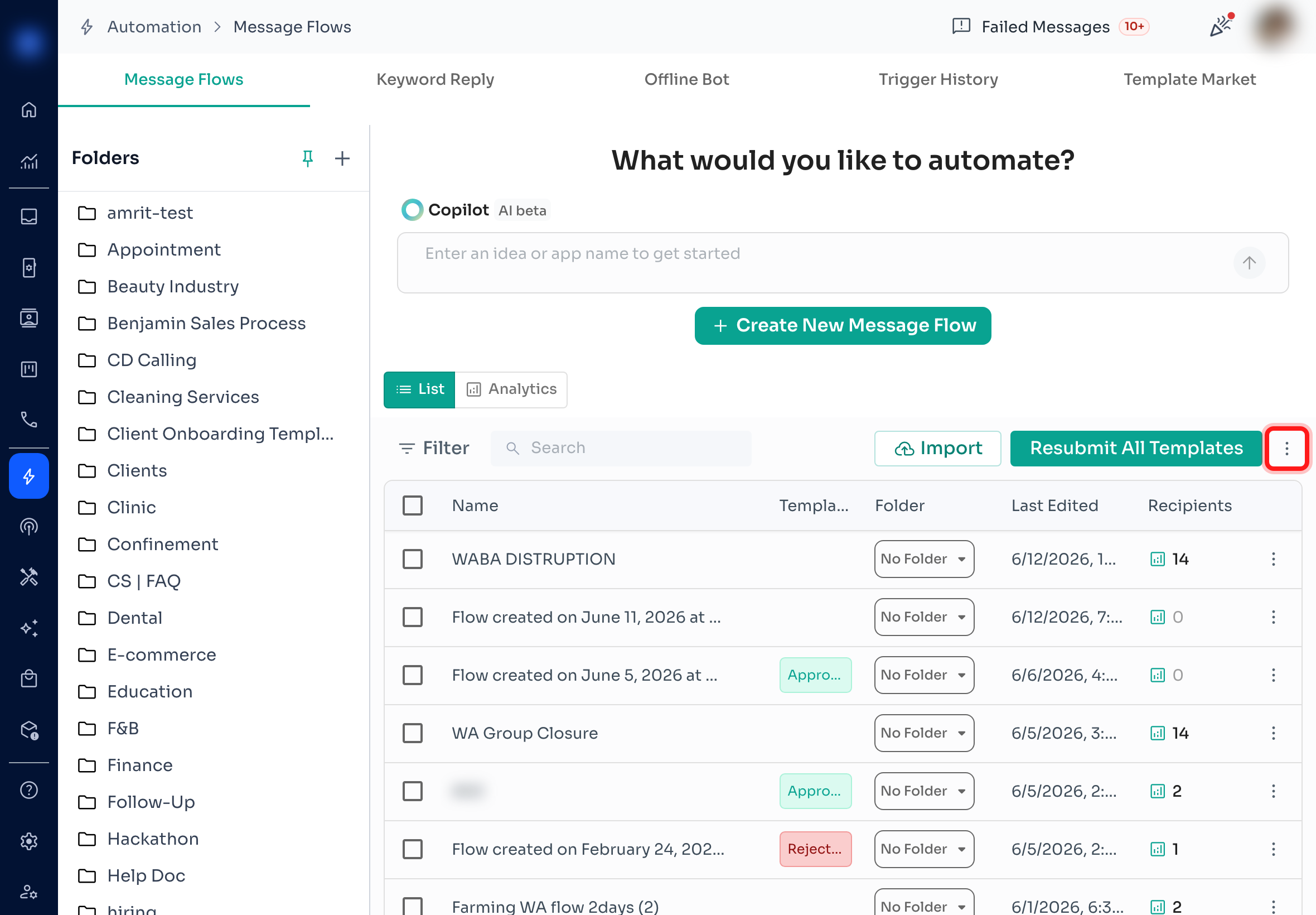
Step 2 — Open the 3-dots (⋮) menu
On the Message Flows toolbar (top-right), click the 3-dots (⋮) “More actions” button.
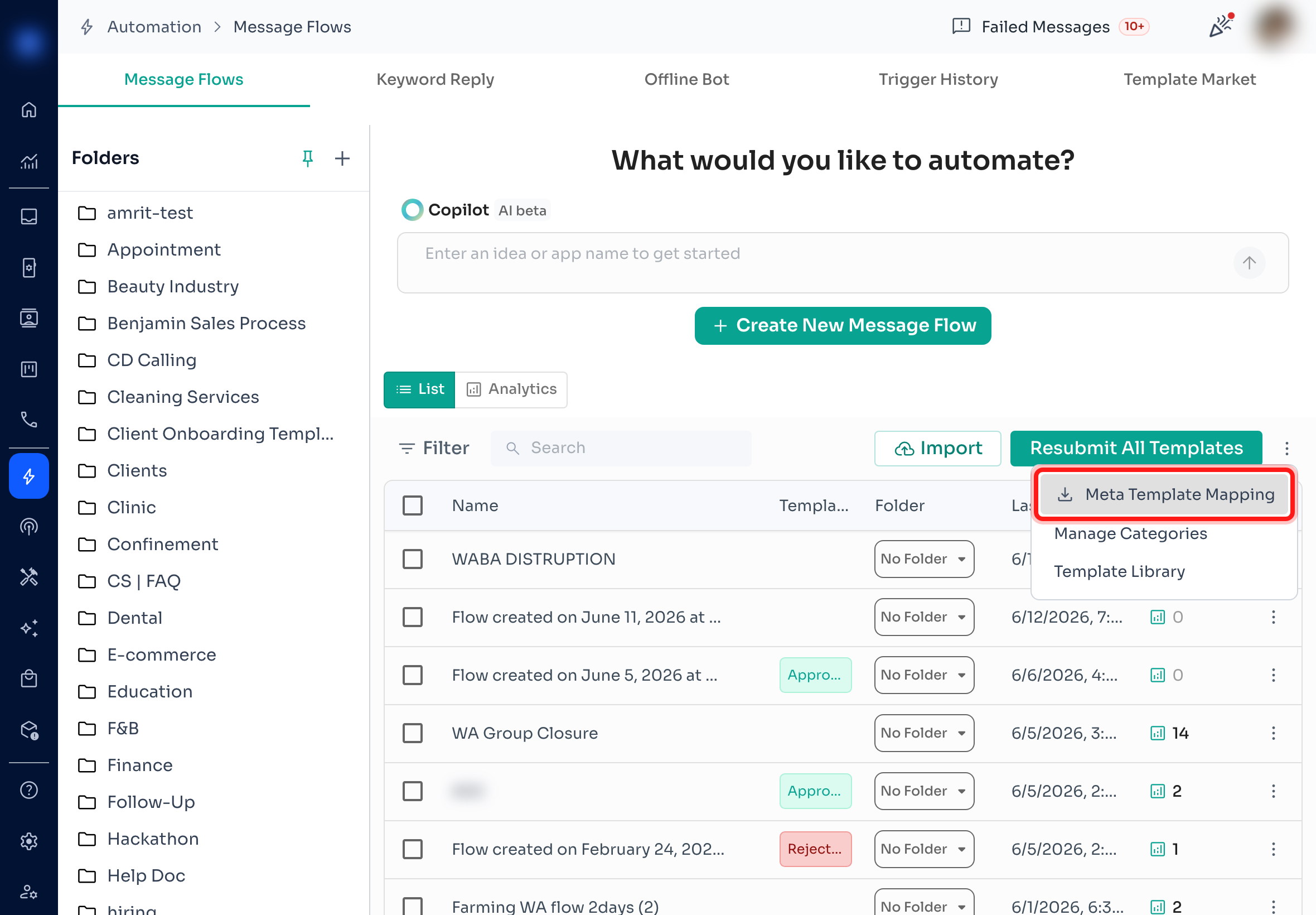
Step 3 — Choose “Meta Template Mapping”
In the menu that opens, click Meta Template Mapping.
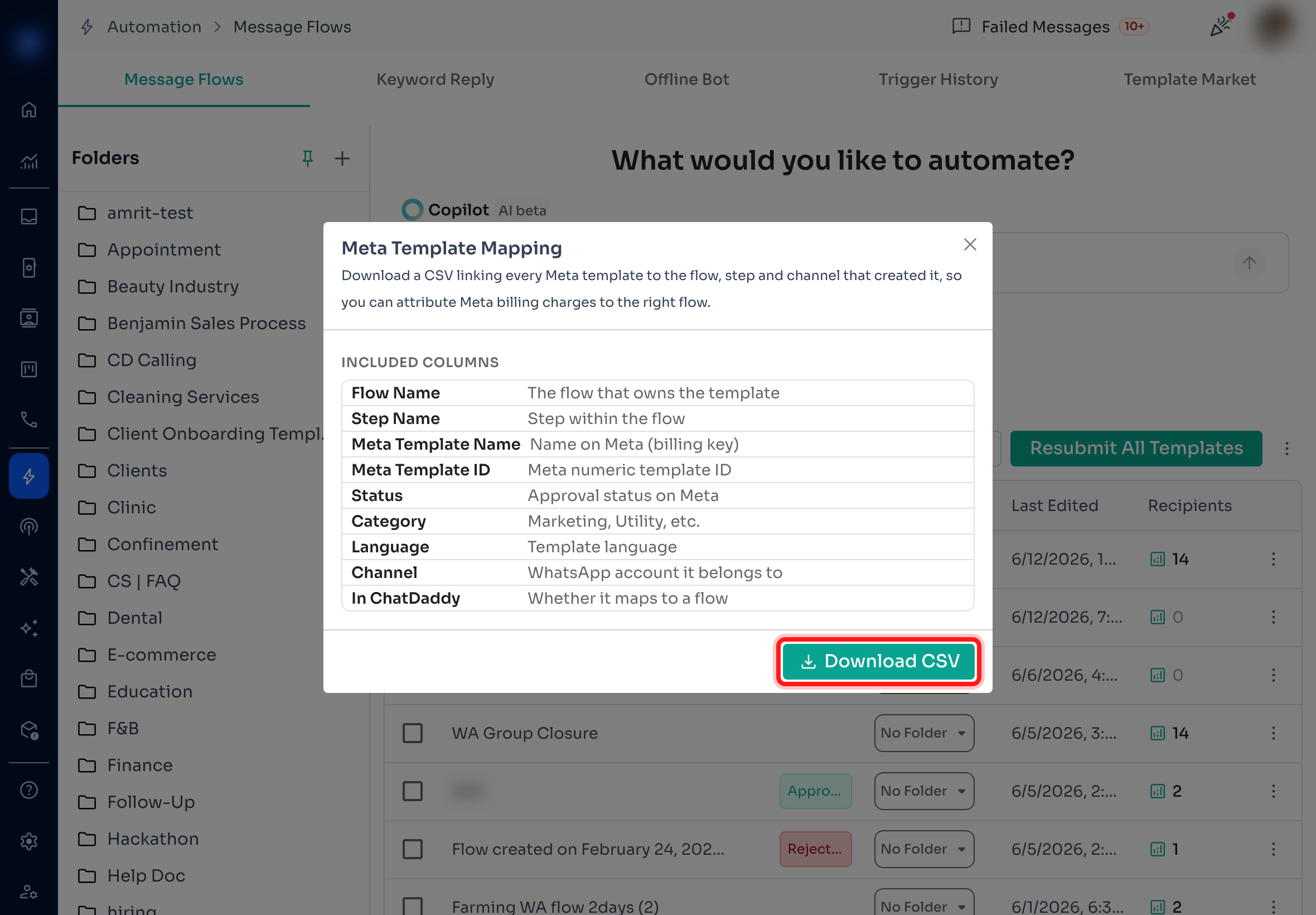
Step 4 — Review the columns and download
A dialog shows exactly which columns the CSV will include. Click Download CSV to generate and download the file.
⏳ For large accounts the export can take a few seconds — ChatDaddy fetches your templates from Meta and matches them to your flows before the download starts.
Your exported file
The file downloads as meta-template-mapping-
