
How to fix WhatsApp channel disconnecting frequently
Different channel types disconnect for different reasons. Find your channel type below.
Different channel types disconnect for different reasons. Find your channel type below.
1️⃣ QR Connection (Personal WhatsApp / WhatsApp Business App)
Why it disconnects
Works like WhatsApp Web — your phone must stay on and online at all times. WhatsApp can break the session anytime:
- 📱 Phone battery died or lost internet
- 🔄 WhatsApp app updated on your phone
- 🖥️ Too many linked devices (max 4 allowed by WhatsApp)
- ⚠️ WhatsApp detected unusual automation activity
- 💤 WhatsApp was closed or inactive for too long
How to reconnect
- Go to app.chatdaddy.tech → Inbox → Manage Channels
- Find the disconnected channel → click the ⋮ menu on the right
- Select Reload WA
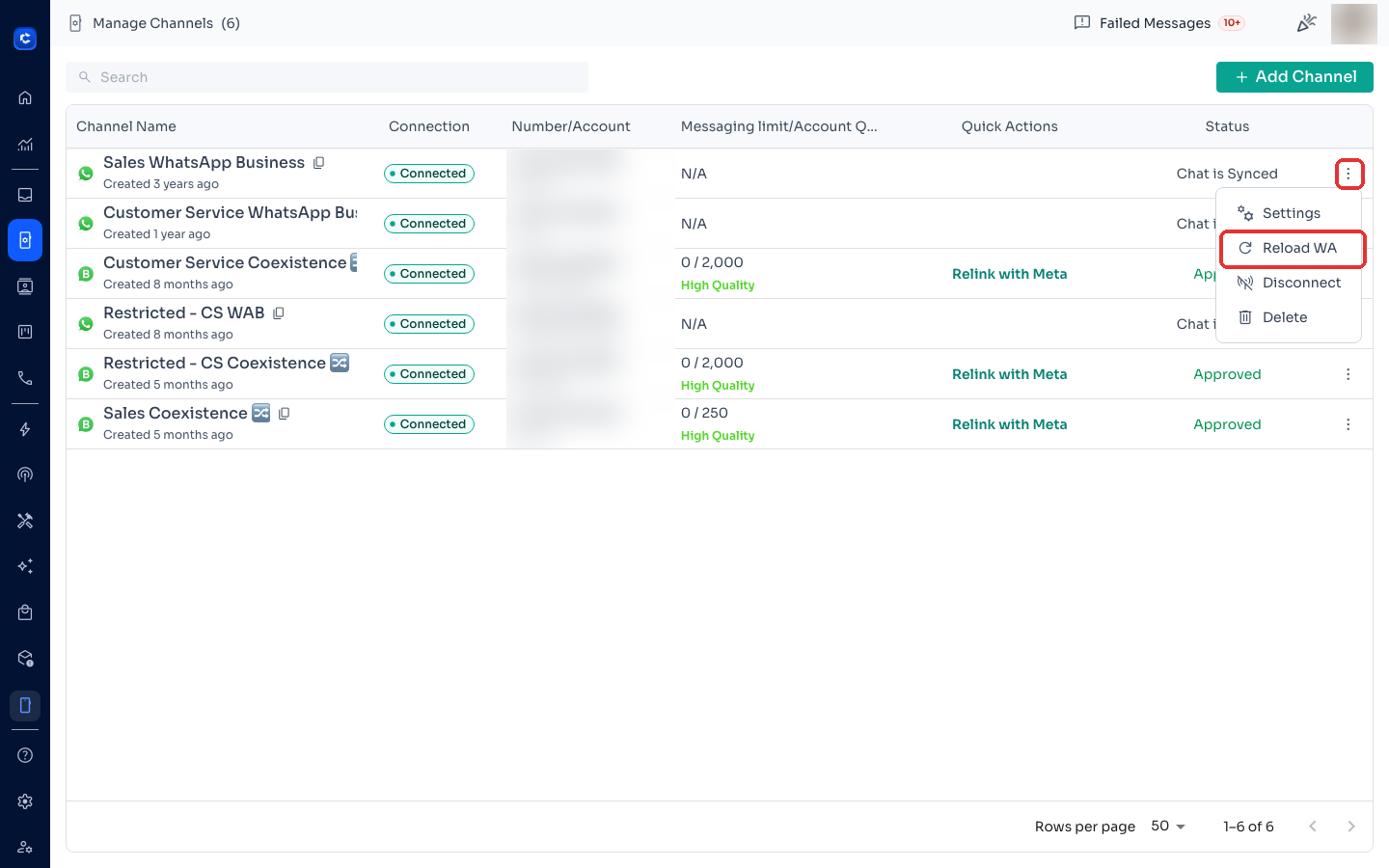
- Open WhatsApp on your phone → Settings → Linked Devices → Link a Device → scan the QR Need visual steps? View the reconnect guide →
⚠️ Meta is continuously tightening restrictions on unofficial WhatsApp connections. A QR/Personal channel will ALWAYS be inherently unstable — this is a WhatsApp limitation that cannot be fixed.
Why QR connections are always risky
- 🚫 Ban risk — WhatsApp may ban numbers that use unofficial automation
- 🔄 Messages not syncing — incoming messages may not arrive in ChatDaddy
- 💬 Chats not syncing — new chats may not appear until next reconnect
- 📵 Message history unavailable — past messages may be lost after reconnect
- ⚙️ Actions not syncing — read receipts, tags, and assignments may lag or fail
Permanent fix: upgrade your channel
- WhatsApp Coexistence (COX) — More stable, works alongside your WA Business App. How to upgrade →
- WhatsApp Business API (WABA) — Official Meta API. Most stable, best for scale.
2️⃣ WhatsApp Coexistence (COX)
Why it disconnects
- 📅 Didn't open WhatsApp Business App in 14 days — Meta removes the connection automatically
- 💳 Payment method failed on Meta Business Manager
- 🚫 Meta account restricted or under review
- 📲 WhatsApp Business App was uninstalled or signed out
How to reconnect
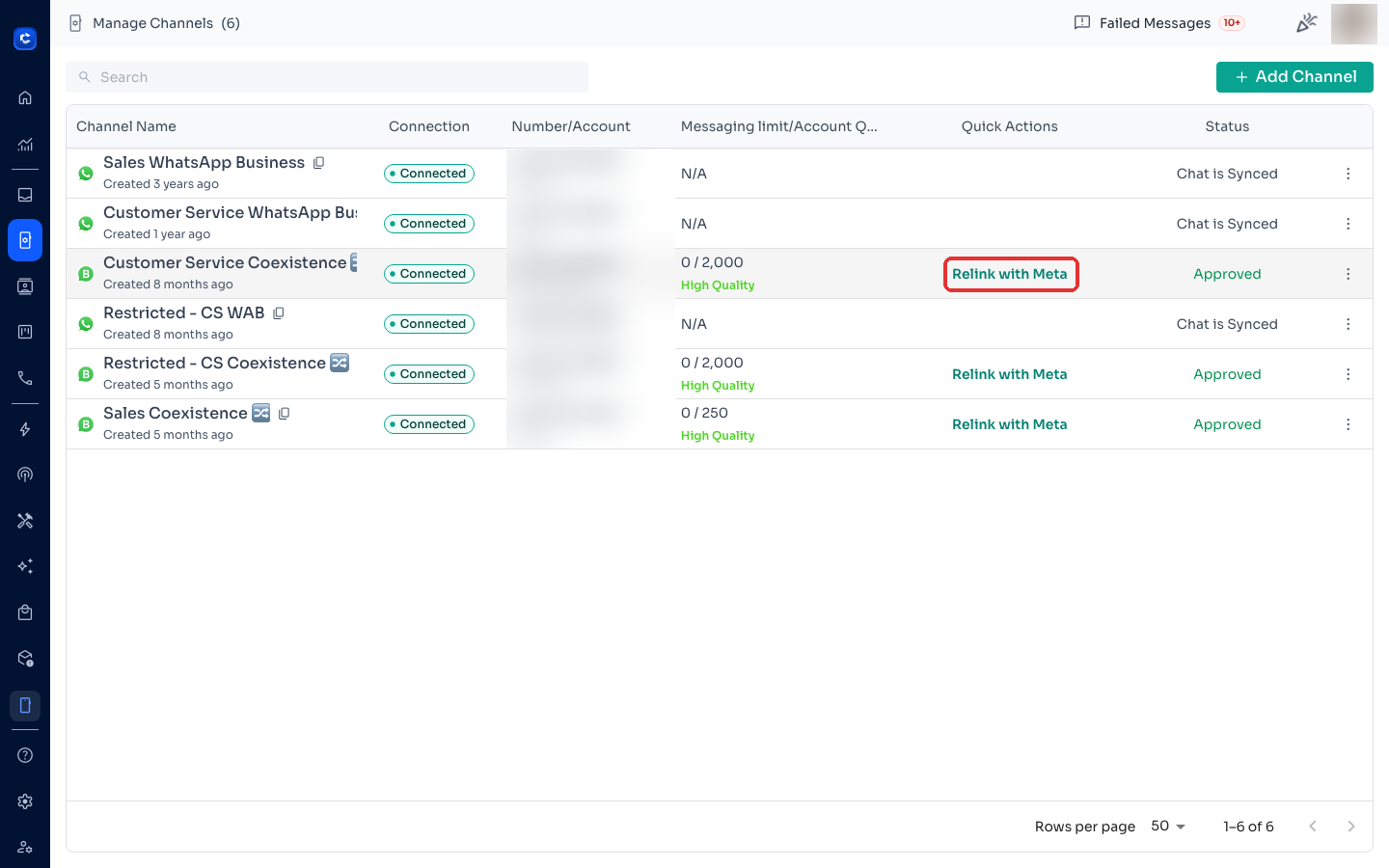
If disconnected within 14 days:
-
Go to Manage Channels → find the disconnected COX channel
-
Click Relink with Meta in the Quick Actions column
-
Wait for the reconnection to complete, then follow any prompts in your WhatsApp Business App If disconnected for more than 14 days:
After 14 days without opening the WA Business App, the connection cannot be recovered. You must add it as a NEW COX channel.
- Delete the old disconnected channel from Manage Channels
- Add a new COX channel and go through the full setup
- Full setup guide: Step-by-Step: Connect WhatsApp Coexistence on ChatDaddy →
- Quick reference: WhatsApp Business App Quick Start (COX) → 📹 Video walkthrough: Watch on YouTube →
Prevention
- ✅ Open WhatsApp Business App at least once every 14 days
- ✅ Keep your Meta Business Manager payment method active Pending messages before reconnecting? Handle them here →
3️⃣ WhatsApp Business API (WABA — Official)
WABA almost never disconnects on its own. If it does, the cause is always on the Meta side.
Why it disconnects
- 💳 Payment method failed or missing in Meta Business Manager
- 🚫 Meta account restricted or flagged
- 📵 Phone number banned or restricted by Meta
- 🔗 WABA was manually disconnected in Meta Business Manager
How to fix
- Go to Meta Business Manager → WhatsApp Accounts
- Check for warnings, restrictions, or payment errors
- Verify payment under WhatsApp Manager → Settings → Payment
- If restricted: submit for Meta review (usually 24–72 hours)
- Full recovery guide: WABA Phone Number Disconnected — Recovery Steps → WABA account banned? How to Appeal a WABA Ban →
🚀 Stop the disconnections — upgrade today
Still on QR? Upgrade to a stable connection:
→ How to Upgrade to Coexistence / WABA