
How to Grow Your WhatsApp Messaging Limit with the AI Tier Assistant
Learn how to use ChatDaddy's AI Tier Assistant and Messaging Tier Guide to check your current WABA messaging tier, track progress toward the next limit, and take action to grow your daily messaging cap.
Also searched as: WhatsApp messaging limit, increase messaging limit, WABA tier upgrade, WhatsApp daily limit, messaging tier guide, AI tier assistant, grow WhatsApp limit, messaging cap increase, WhatsApp tier ladder, quality rating upgrade, Meta tier upgrade, ChatDaddy messaging limit, WhatsApp business API limit, broadcast limit increase, unique customers limit
Every WhatsApp Business API (WABA) number has a daily messaging limit set by Meta — how many unique customers you can start conversations with in a rolling 24-hour window. ChatDaddy's AI Tier Assistant (in the Inbox) and Messaging Tier Guide (in Broadcasts) give you a live read of where you stand and what to do next.
What is a messaging limit (tier)?
Meta assigns every WABA number a messaging tier. The tier is the number of unique customers you can message in a rolling 24-hour window. The ladder is:
250 → 1,000 → 2,000 → 10,000 → 100,000 → Unlimited contacts / day
Your quality rating — High (Green), Medium (Yellow) or Low (Red) — decides whether you can move up. Meta auto-upgrades your tier once you send close to your current limit while maintaining a high quality rating.
Two ways to open it
- AI Tier Assistant — in the Inbox, per WhatsApp Business channel. Adds a live progress bar and a personalised, AI-written next step.
- Messaging Tier Guide — inside the broadcast composer's Advanced Settings. Best when you're about to send a broadcast.
Part A — The AI Tier Assistant (Inbox)
Step 1 — Open the assistant from a WhatsApp Business chat
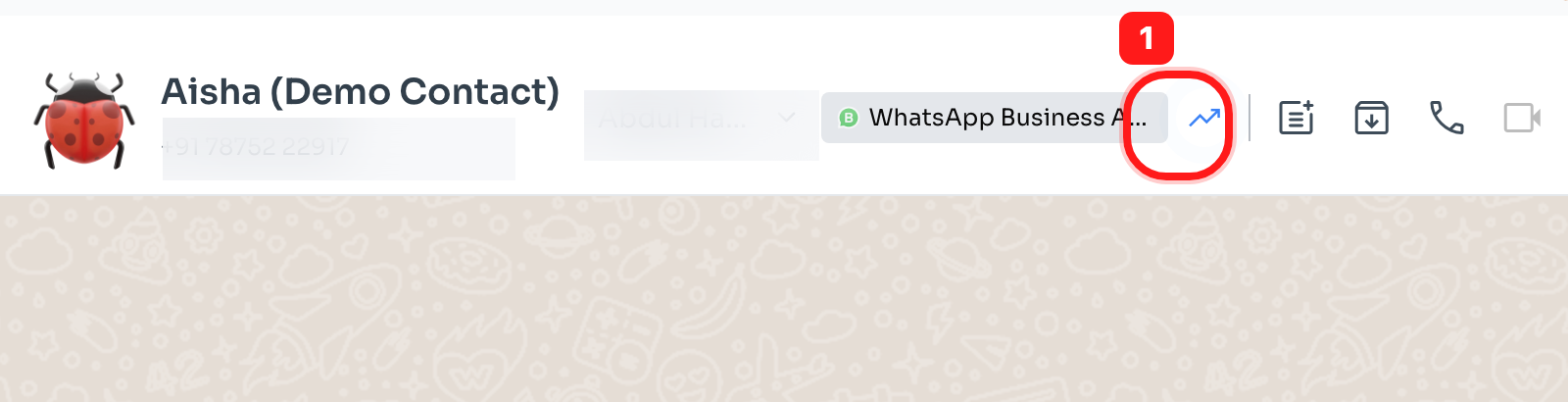
Go to Inbox and open any chat on a WhatsApp Business API channel. In the chat header, next to the channel name, you'll see a glowing trending-up (↗) icon. Click it to open the AI Tier Assistant panel.
Step 2 — Read your tier, quality and live progress
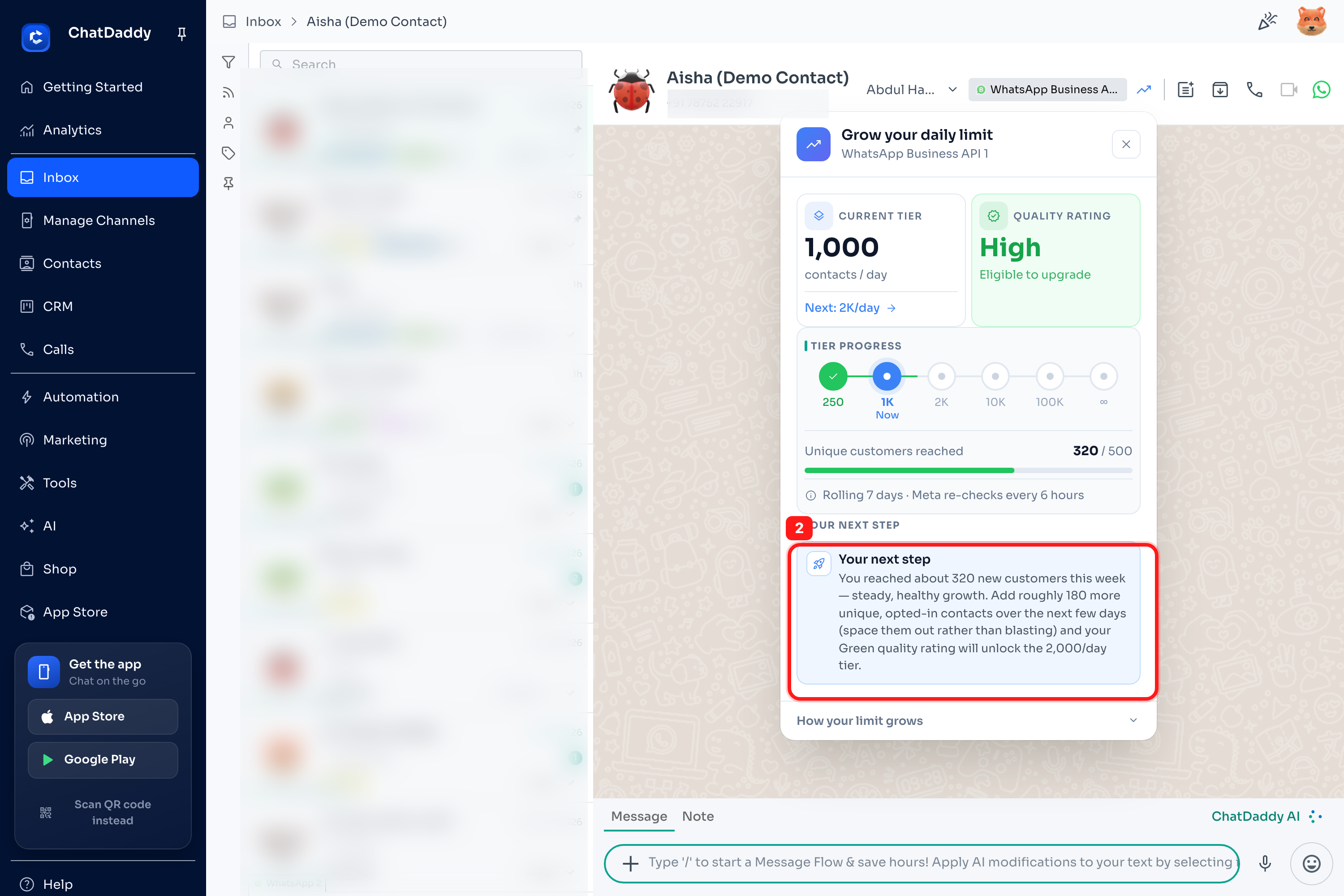
The card shows your Current Tier (contacts per day), your Quality Rating, the full tier ladder with your position, and Unique customers reached this week — a live counter tracking your progress toward the next upgrade.
Step 3 — Follow "Your next step"
Under Your next step, the assistant gives one paced, AI-personalised action based on your account's recent sending — for example, how many more unique customers to reach this week to trigger a tier upgrade.
Step 4 — Learn how your limit grows
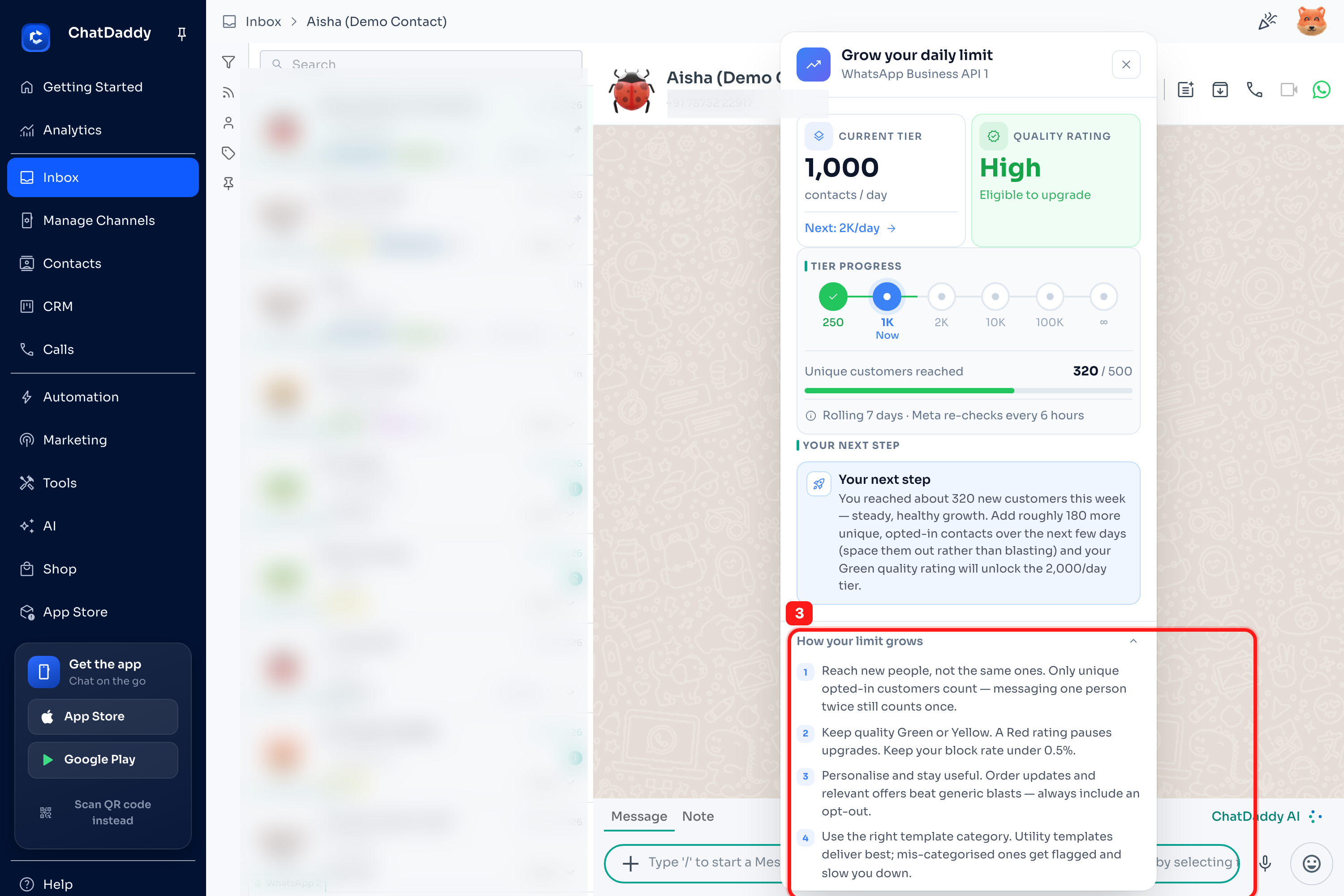
Click How your limit grows at the bottom to expand the full checklist of what moves you up a tier.
Part B — The Messaging Tier Guide (Broadcasts)
Step 5 — Open it from a broadcast's Advanced Settings
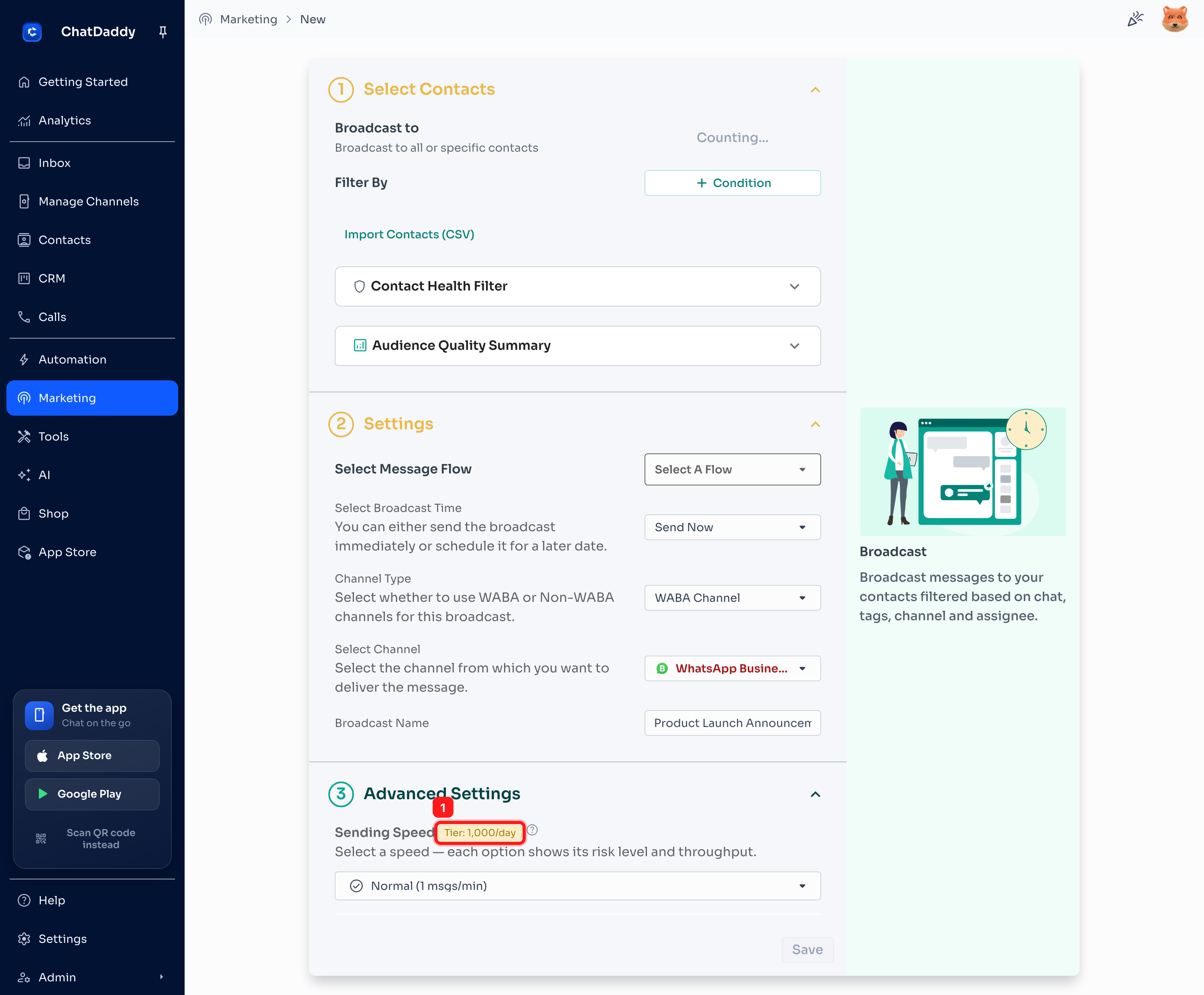
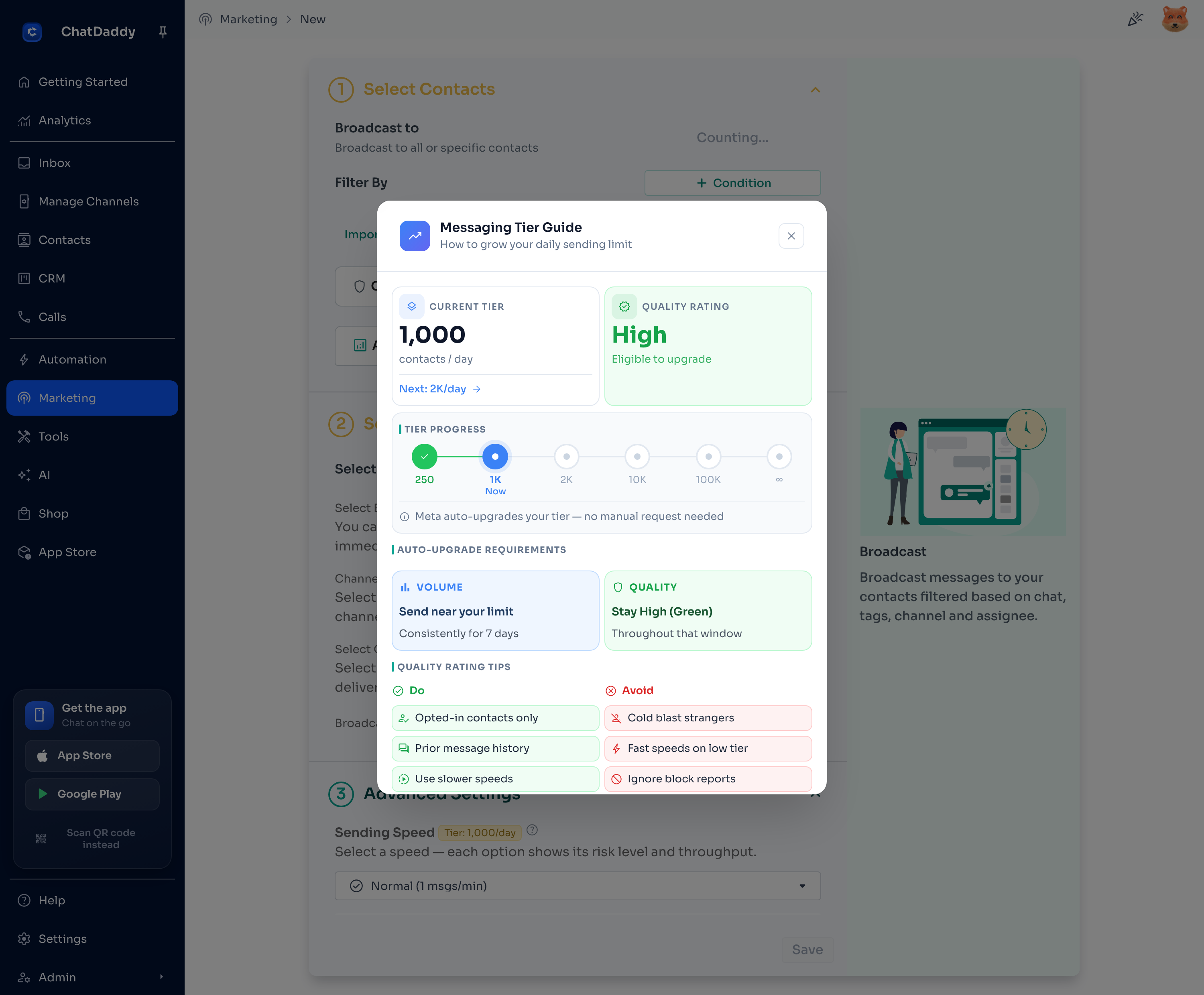
Go to Marketing → Broadcasts and create or open a broadcast. In Settings, set Channel Type to WABA Channel and choose your WhatsApp Business channel. In Advanced Settings, click the Tier: X/day chip or the Upgrade button to open the Messaging Tier Guide.
Step 6 — Review the tier ladder and best practices
The guide shows your current tier and the next rung, the two auto-upgrade requirements (send near your limit + keep quality High), and a Do / Avoid checklist for keeping quality green.
How to grow your limit faster
- Reach new people, not the same ones. Only unique opted-in customers count — messaging one person twice still counts once.
- Keep quality Green or Yellow. A Red rating pauses upgrades. Keep your block rate under 0.5%.
- Personalise and stay useful. Order updates and relevant offers beat generic blasts — always include an opt-out.
- Use the right template category. Utility templates deliver best; mis-categorised ones get flagged and slow you down.
- Complete Business Verification. It unlocks the higher tiers faster once your quality holds.
If your quality drops
A Low (Red) rating pauses upgrades until it recovers. When quality is low, focus on recovery:
- Pause bulk sends until your rating recovers — volume alone never fixes it.
- Message opted-in contacts only. Stick to people who recently engaged; never cold or purchased lists.
- Personalise every message and make it easy to reply or opt out.
- Check your block reasons. WhatsApp Manager shows why people blocked you — fix what it says.
Meta re-checks your tier about every 6 hours and upgrades it automatically — there is no manual request. Keep sending near your current limit with high quality, and the upgrade happens on its own.
The tier, quality and progress figures in screenshots are illustrative sample data for demonstration. Your own numbers will reflect your account's actual activity.