How to import/export Message Flows
Learn how to import or export existing message flows them for backup or reuse
Message Flows allow you to automate conversations based on specific triggers and conditions. To streamline workflow management, you can import existing message flows or export them for backup or reuse.
Exporting a Message Flow
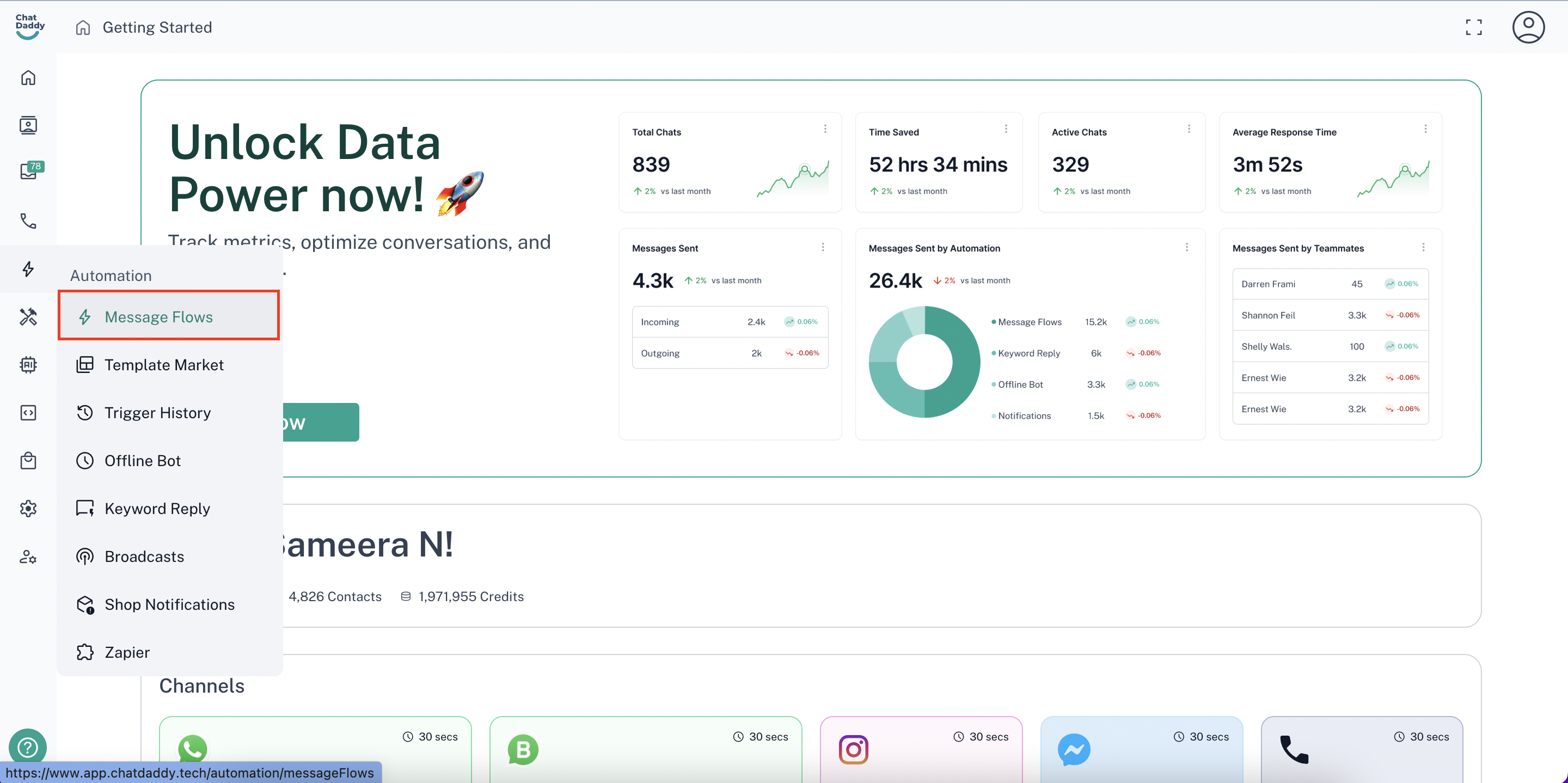
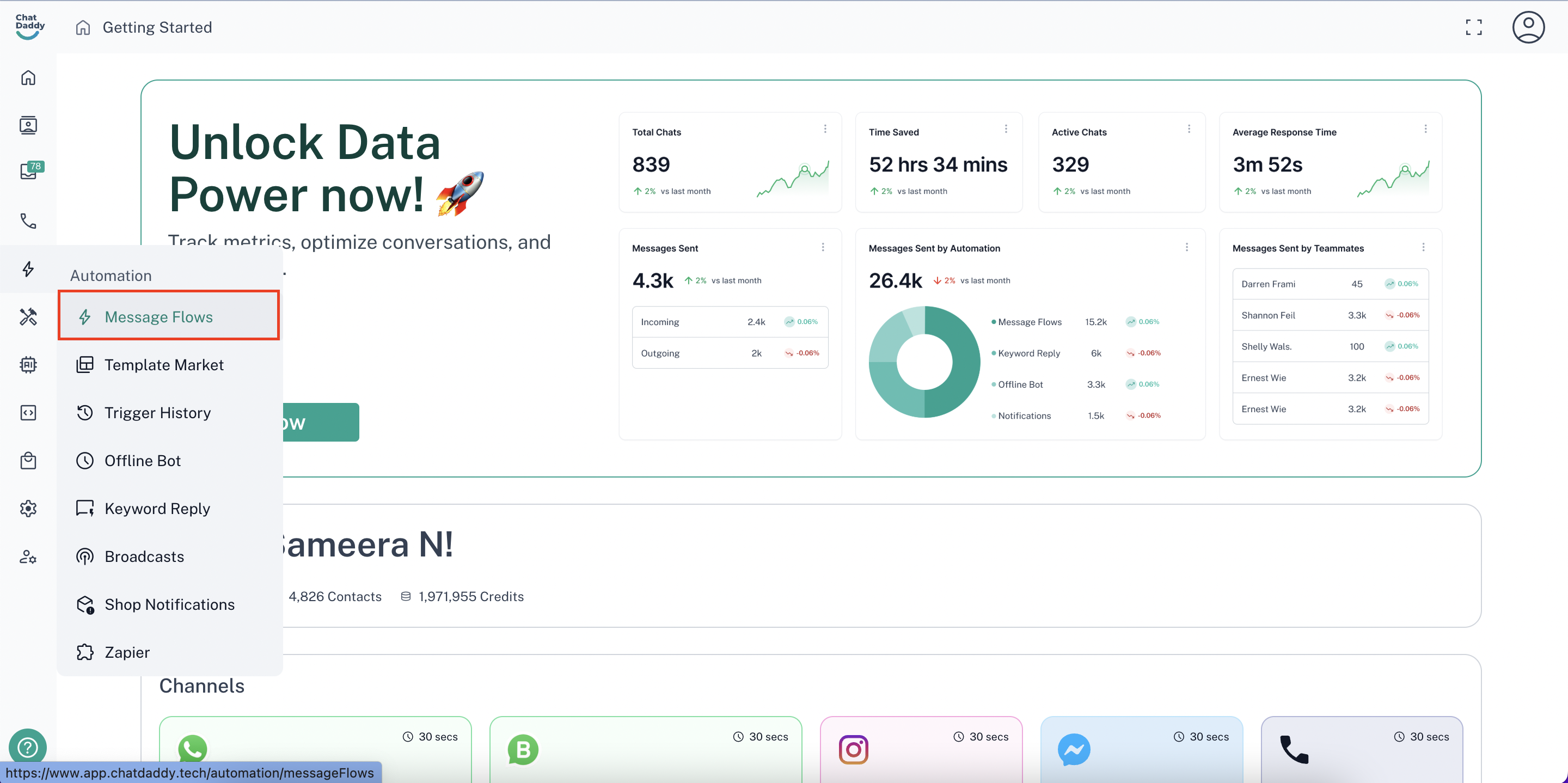
Step 1: Hover over the navigation bar on the left side to find the “Automation” section. Then, navigate to Message Flows
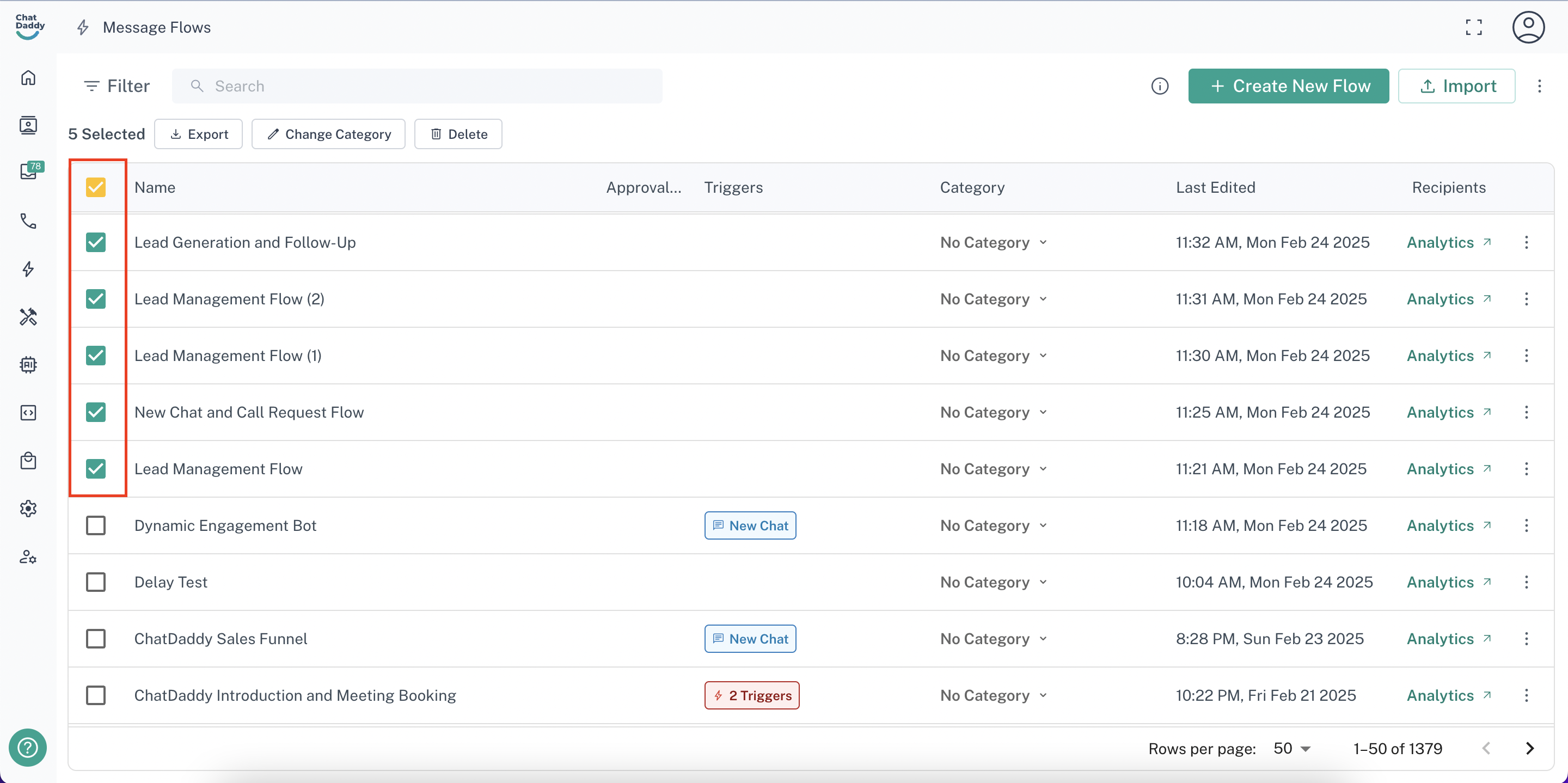
Step 2: Locate the message flow(s) you want to export and select them using the checkbox on the left side
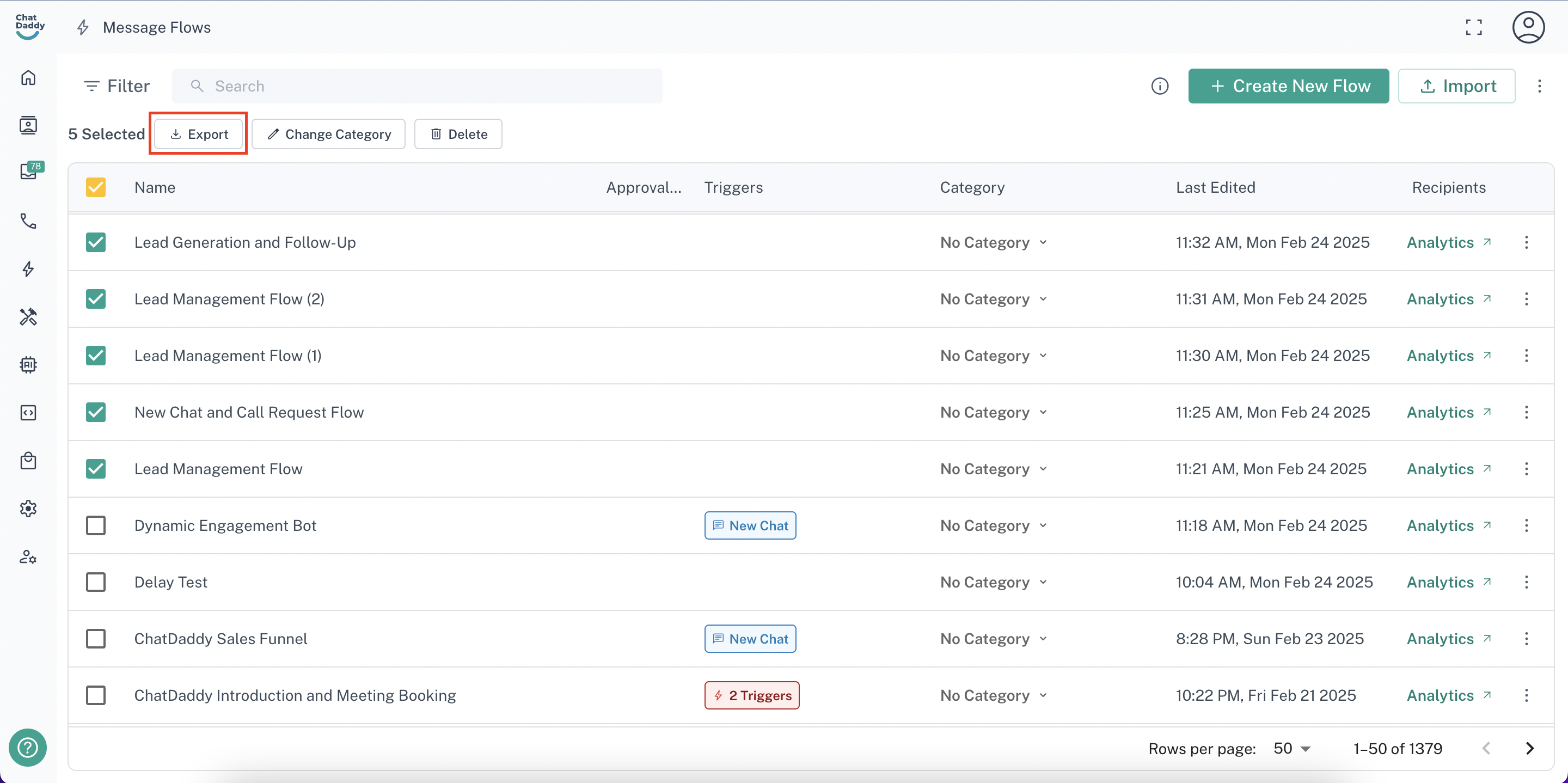
Step 3: Click on the “Export” button below the search bar
Step 4: Select whether you want to include the values of the flow variables with your export or not. Find out more about flow variables here. Then, click “Export”
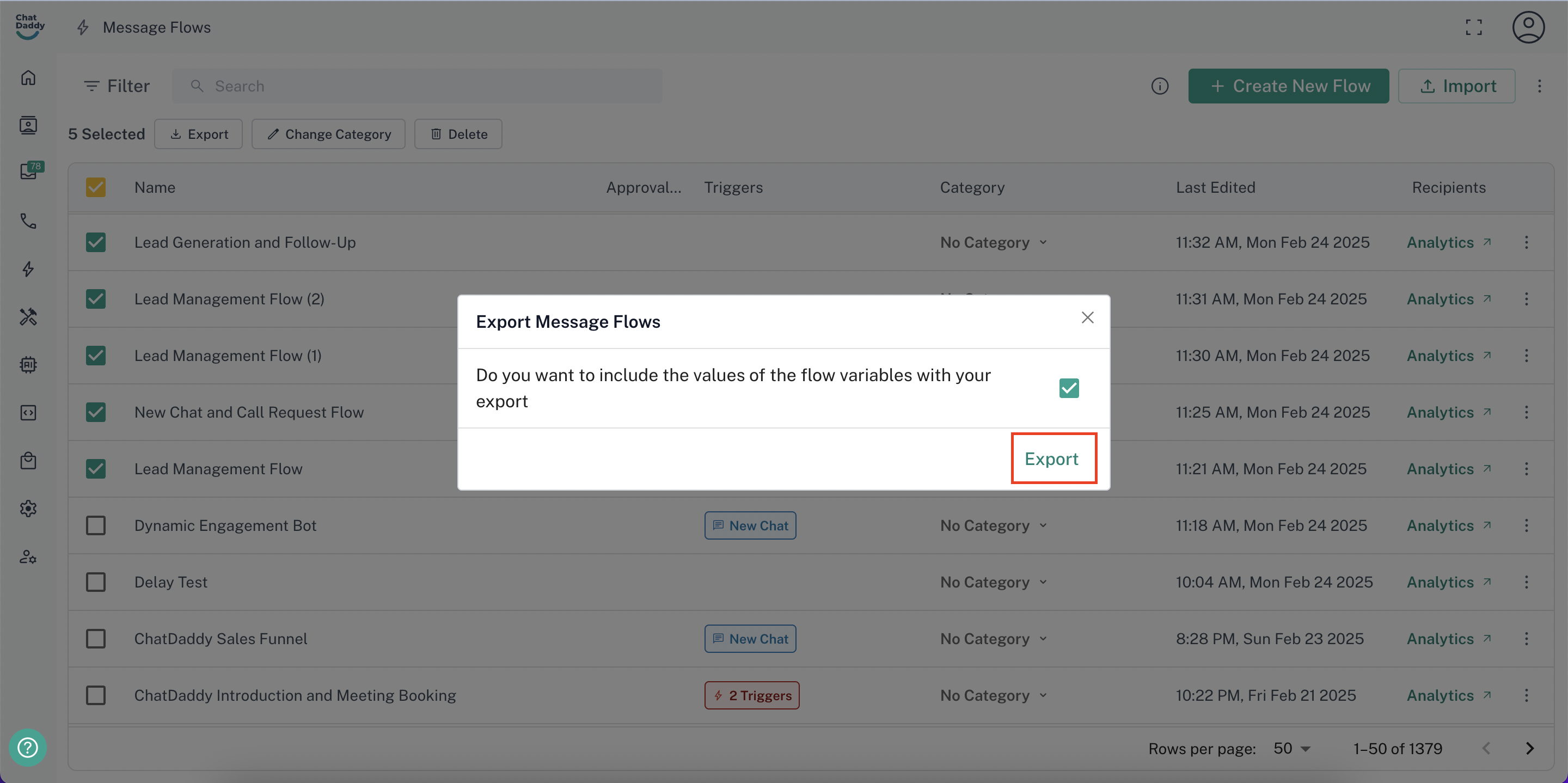
You will now have a “.yaml” file downloaded. You can use this as a backup of your flows or to import them into a different team
Importing a Message Flow
Step 1: Hover over the navigation bar on the left side to find the “Automation” section. Then, navigate to Message Flows
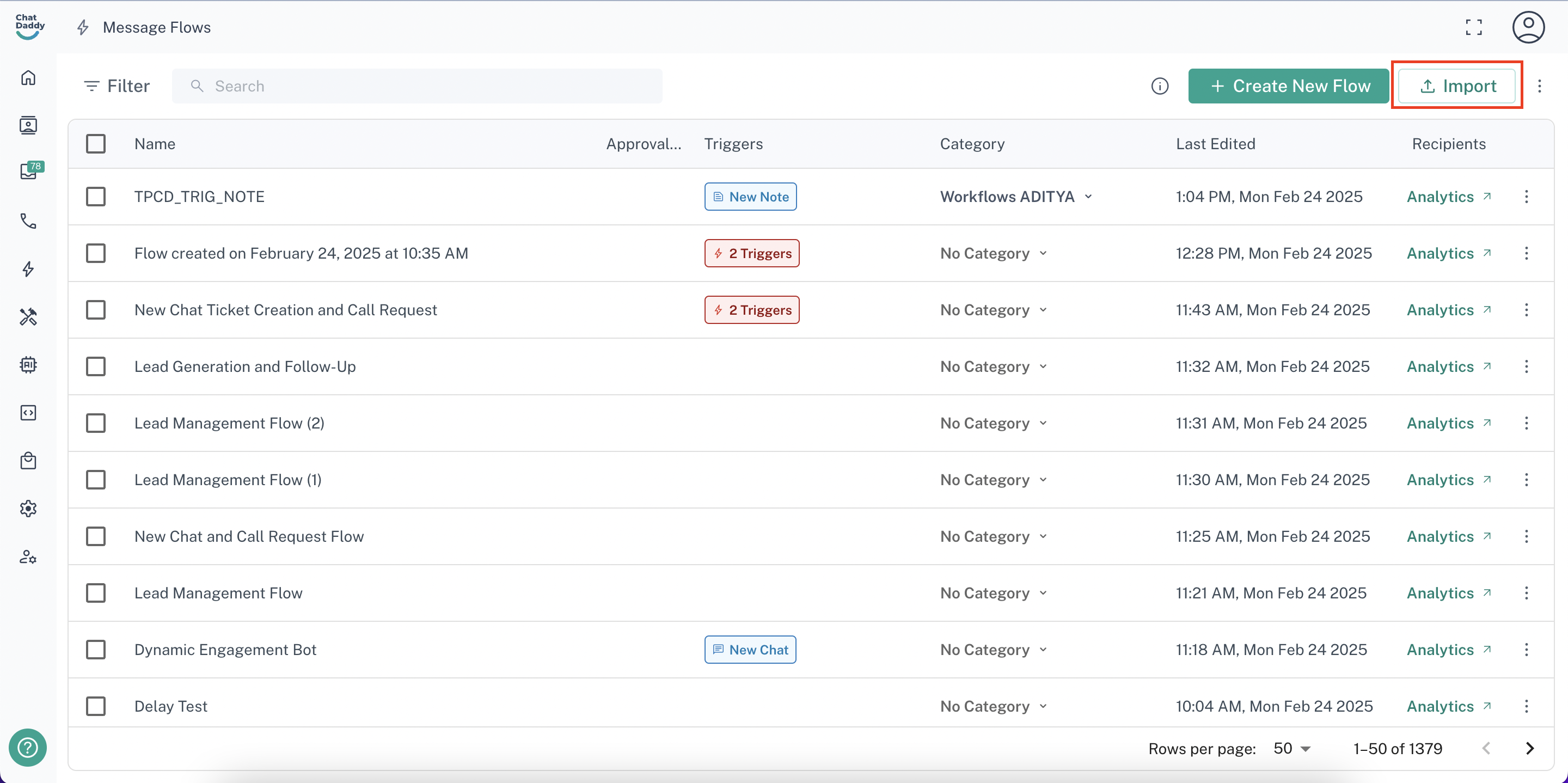
Step 2: Click on the “Import” button on the top right
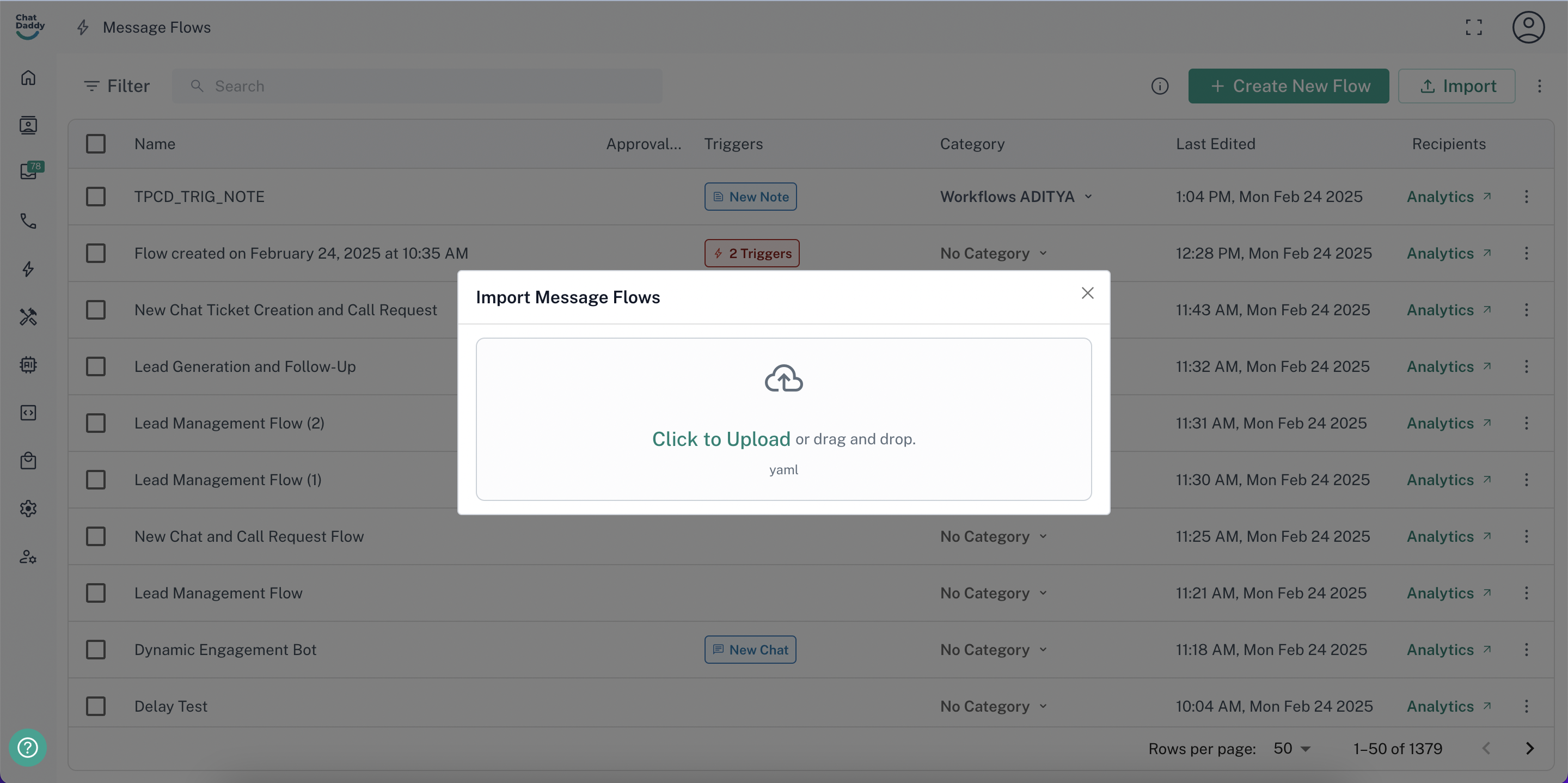
Step 3: Upload your “.yaml” file of the flows you had previously exported.
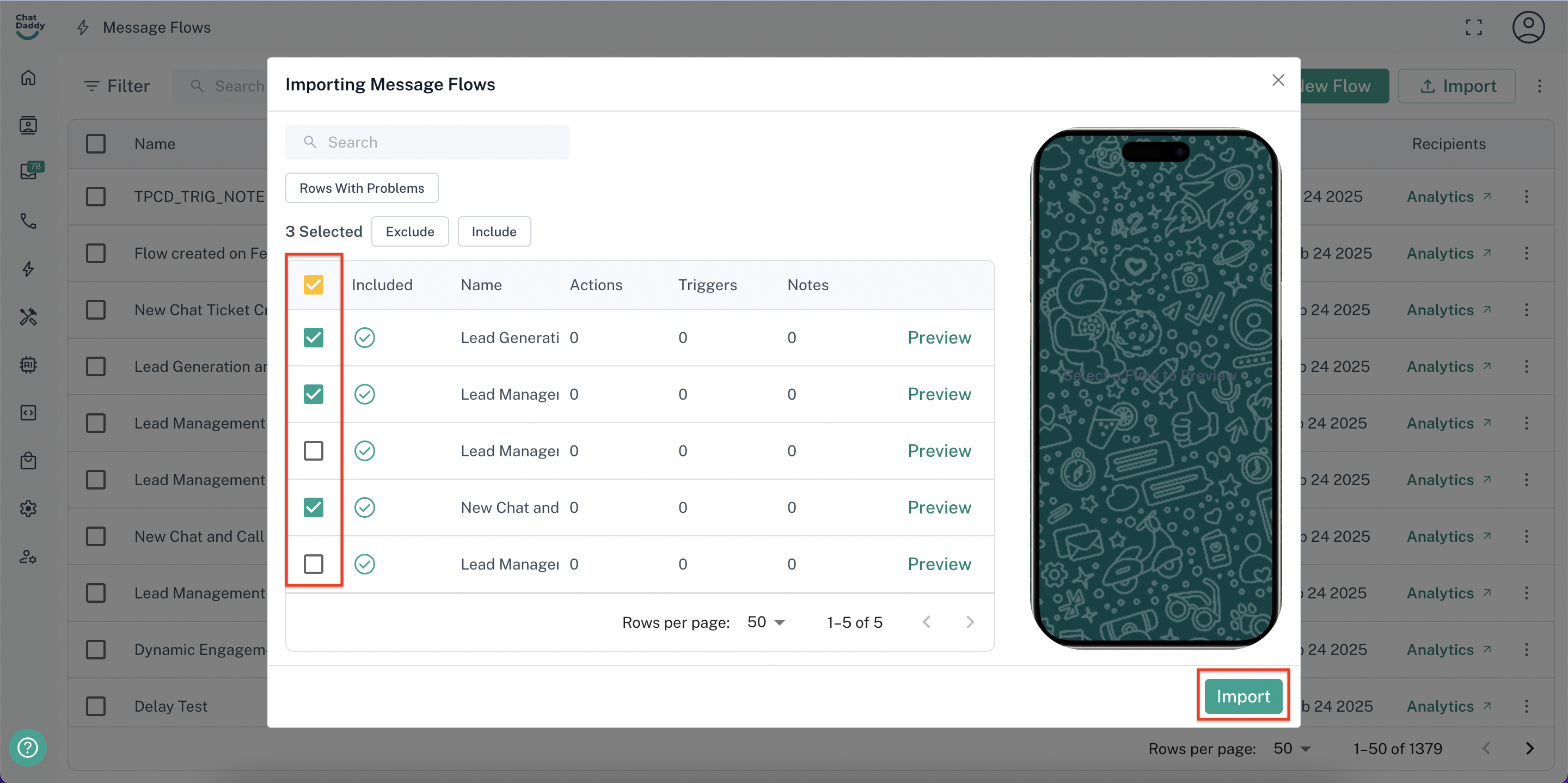
Step 4: Select which flows you want to upload from the file and then click “Import”.
- You can also preview the flows before uploading them
- Select “Include” to import all the selected flows
- Select “Exclude” to import all the flows other than the selected ones