
How to install Boutir
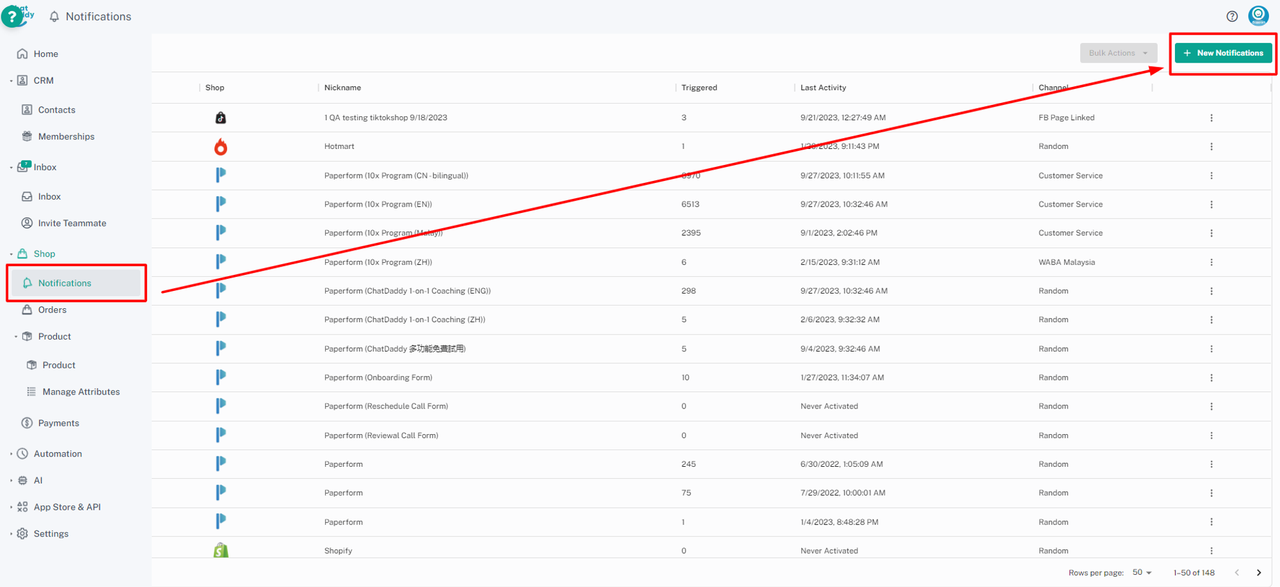
Step 1: Go to ChatDaddy notifications, then click on “+New Notifications” on the top right part of your ChatDaddy page.
Step 1:
- Go to ChatDaddy notifications, then click on “+New Notifications” on the top right part of your ChatDaddy page.
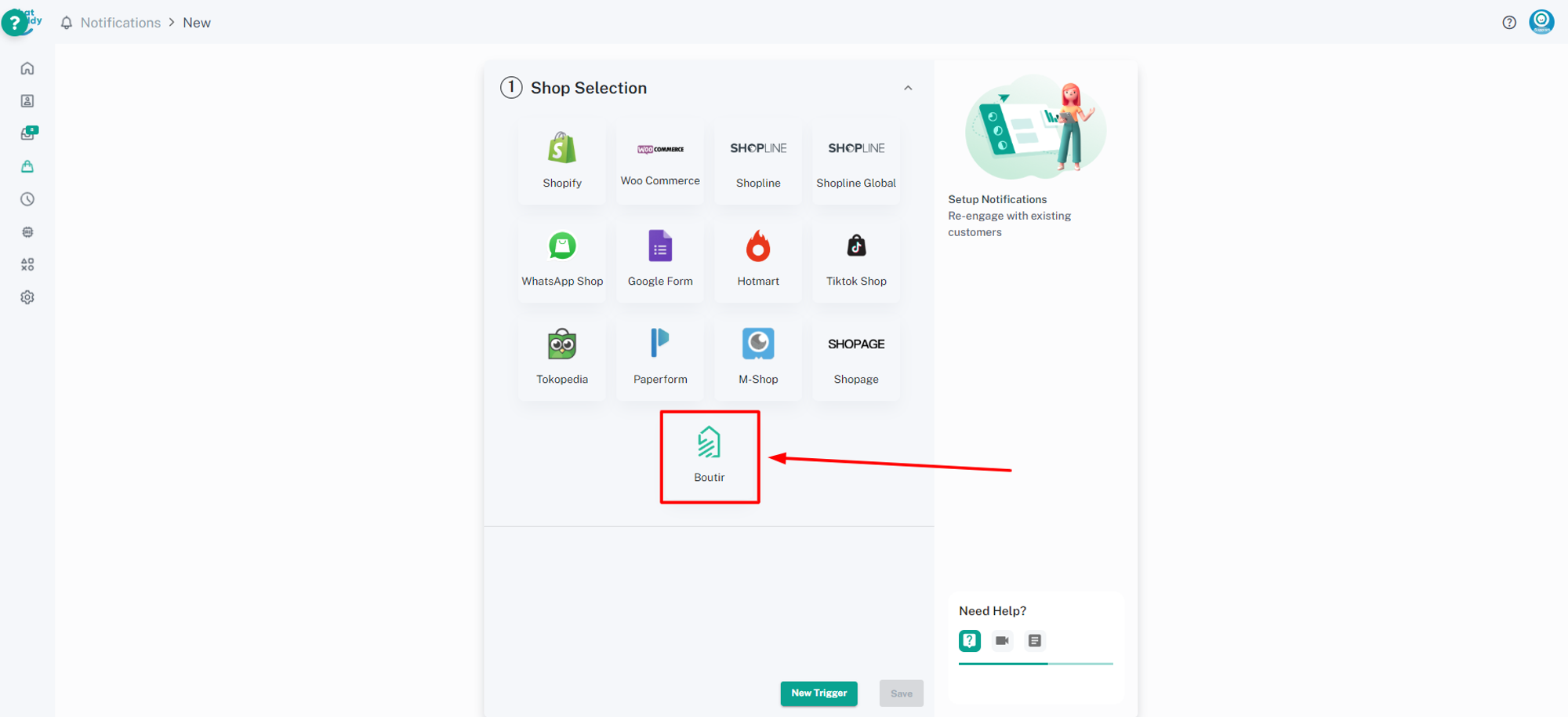
click "Boutir"
Step 2:
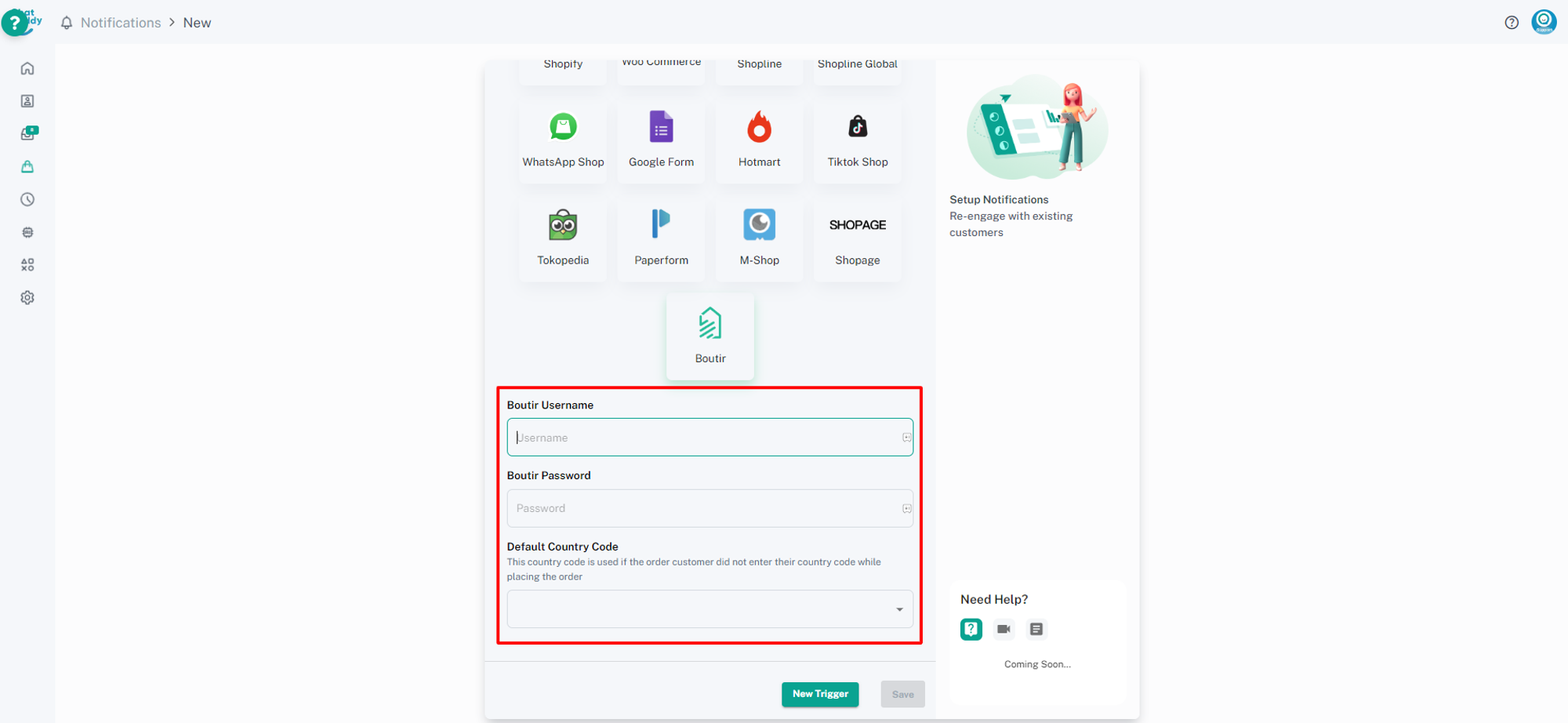
Enter your credentials
Boutir login username (email)
Boutir login password
Notice: If you change your Boutir username and password later, you'll need to integrate it again
Step 3:
You may click the arrow next to each type of notification to check your trigger settings
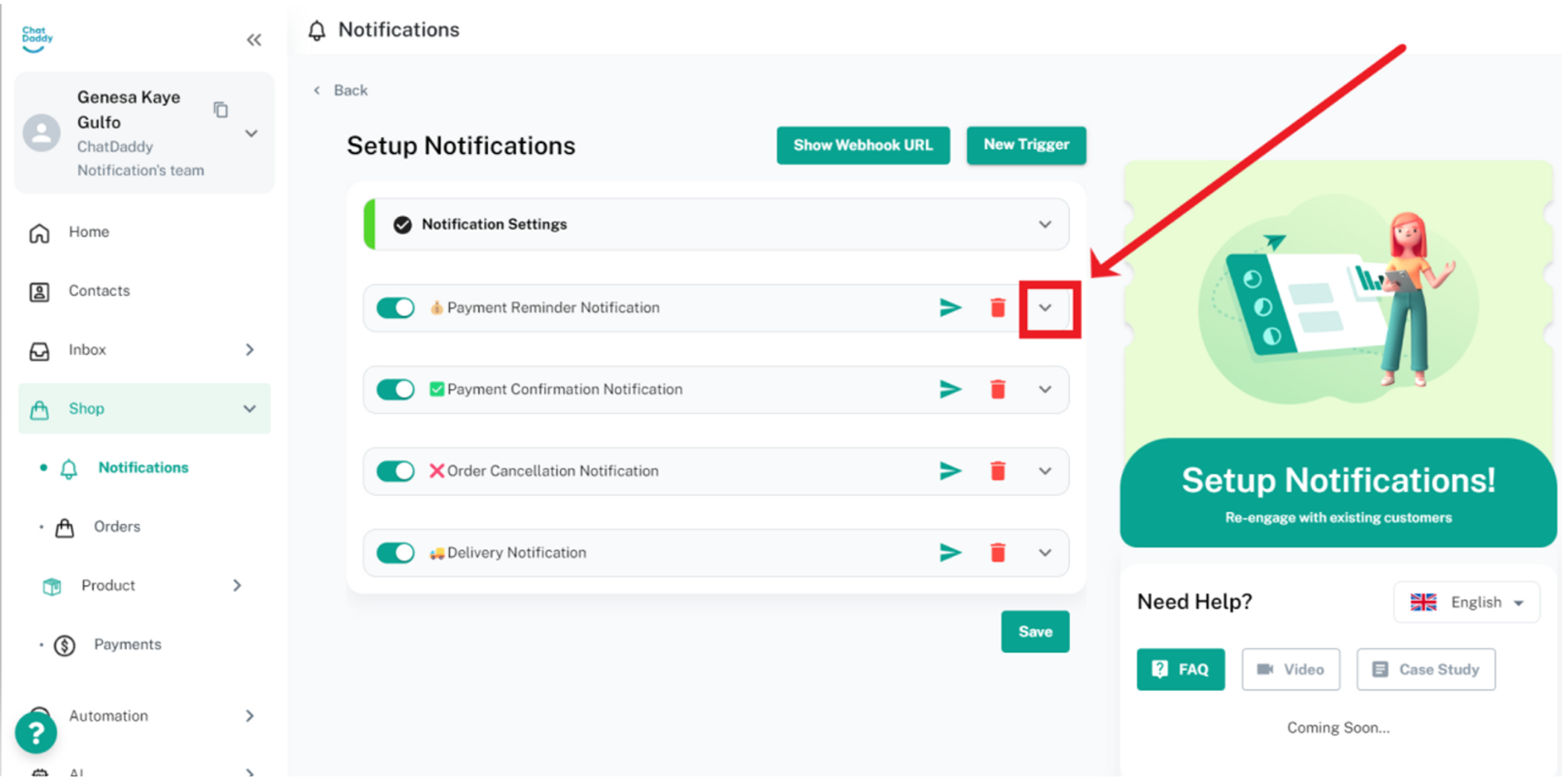
To setup the triggers for [Payment Reminder], [Payment Confirmation], and [Delivery] notification triggers, users may follow the steps as follows:
Payment Reminder:
Step 1:
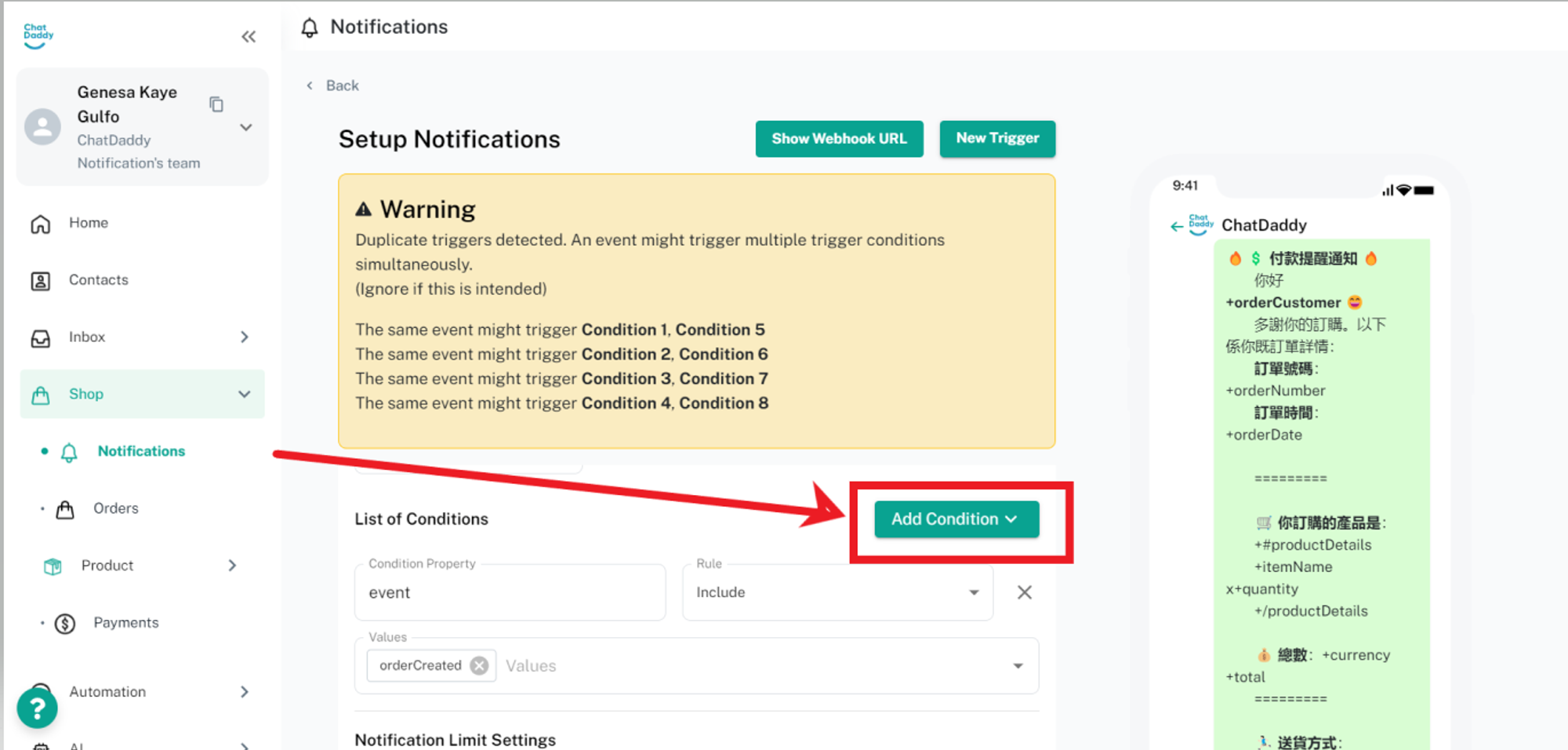
Use the default message template for Payment Reminder, then click [Add Condition]: 👇🏻
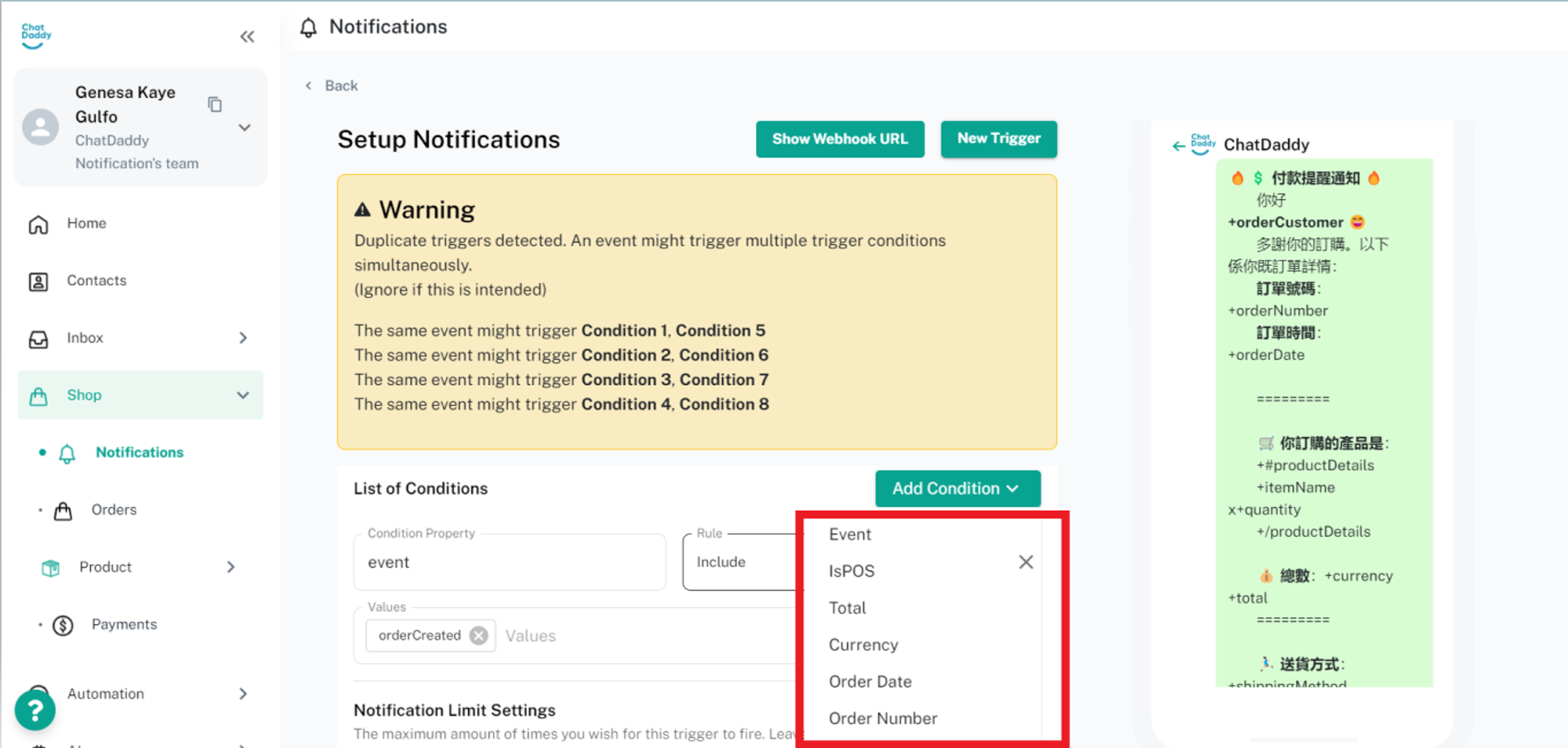
Step 2: Select [Event] as the condition property: 👇🏻
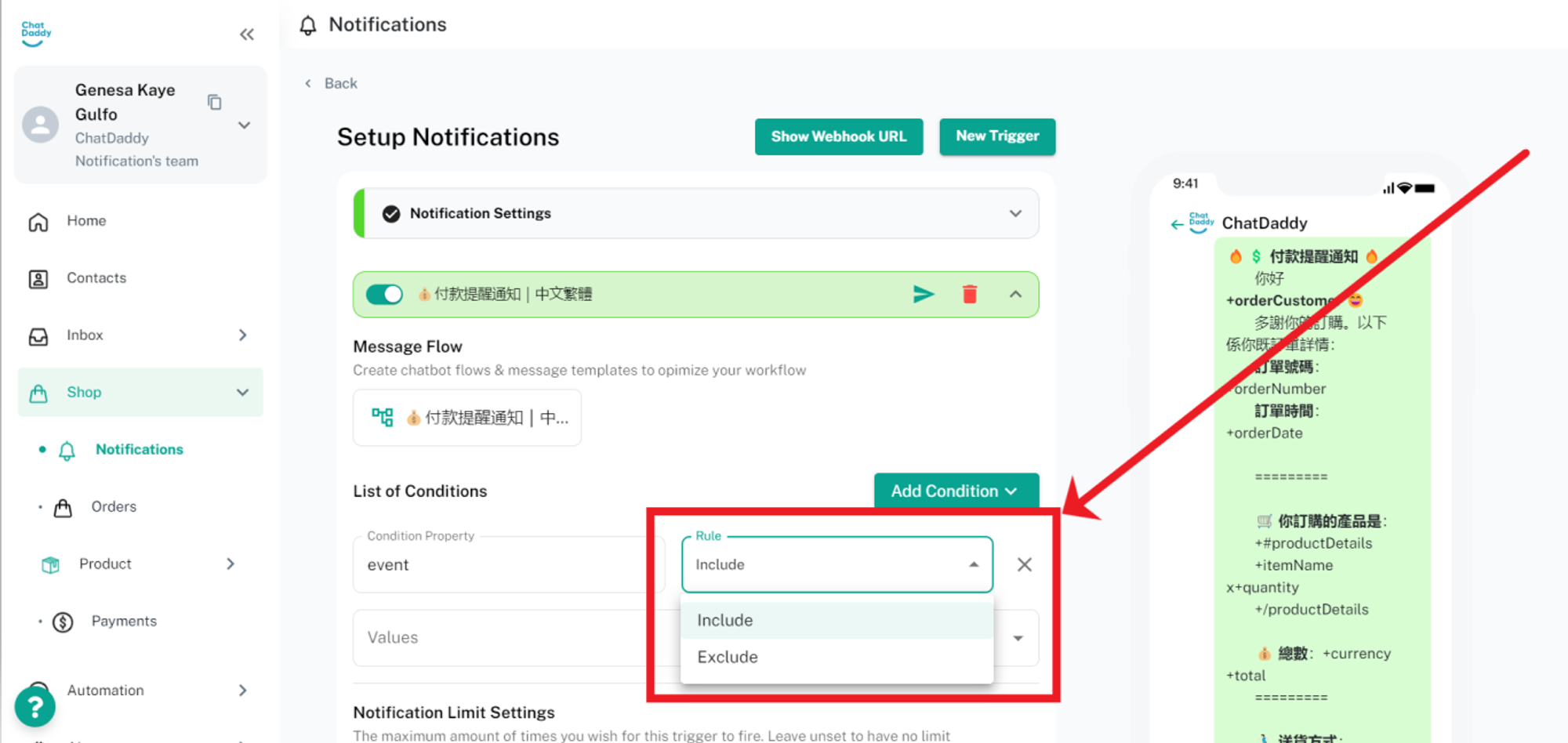
Select the Rule of the condition as [Include]:👇🏻
Step 3:
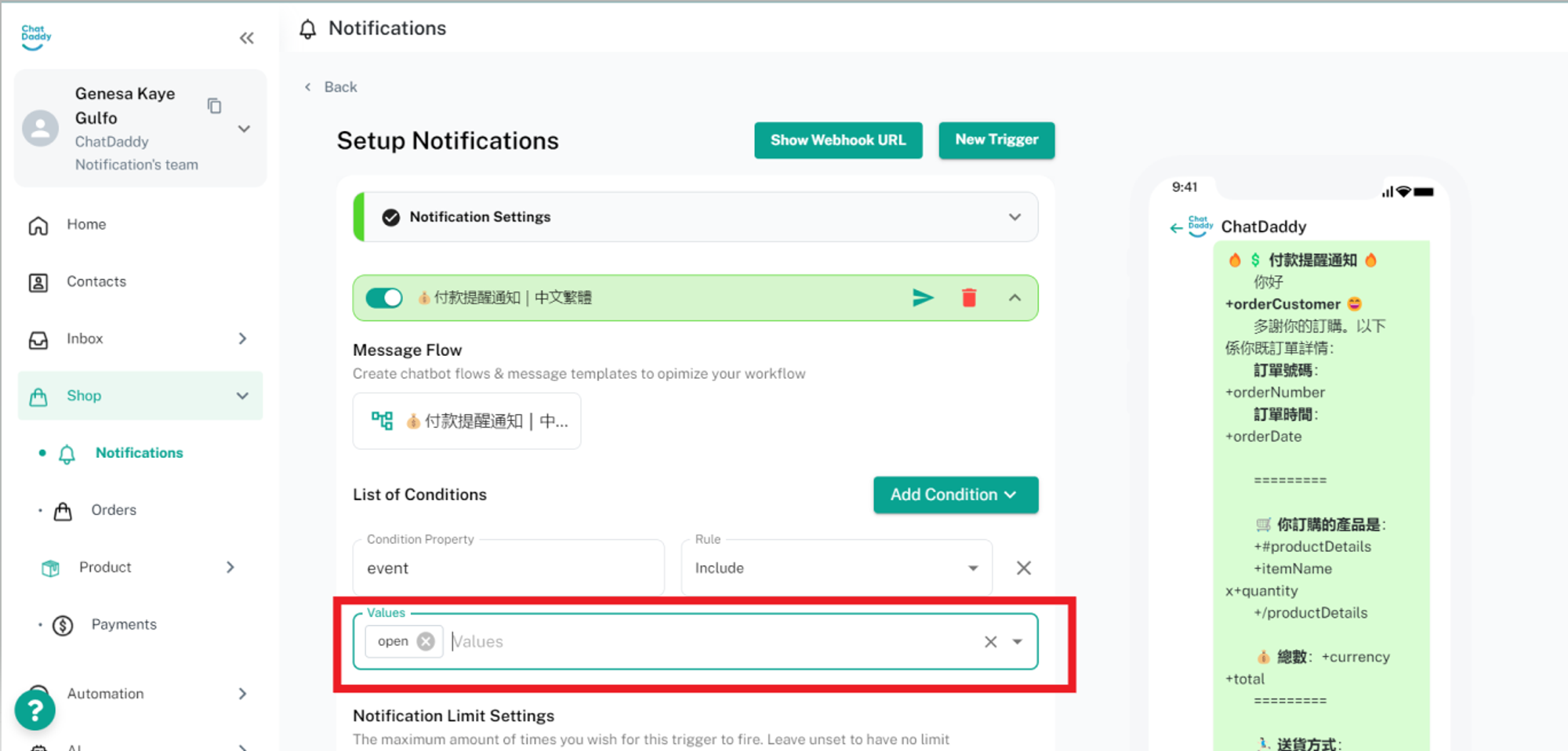
Select the Value for the condition as [open]:👇🏻
Payment Confirmation
Step 1: Use the default message template for Payment Confirmation, then click [Add Condition]:👇🏻
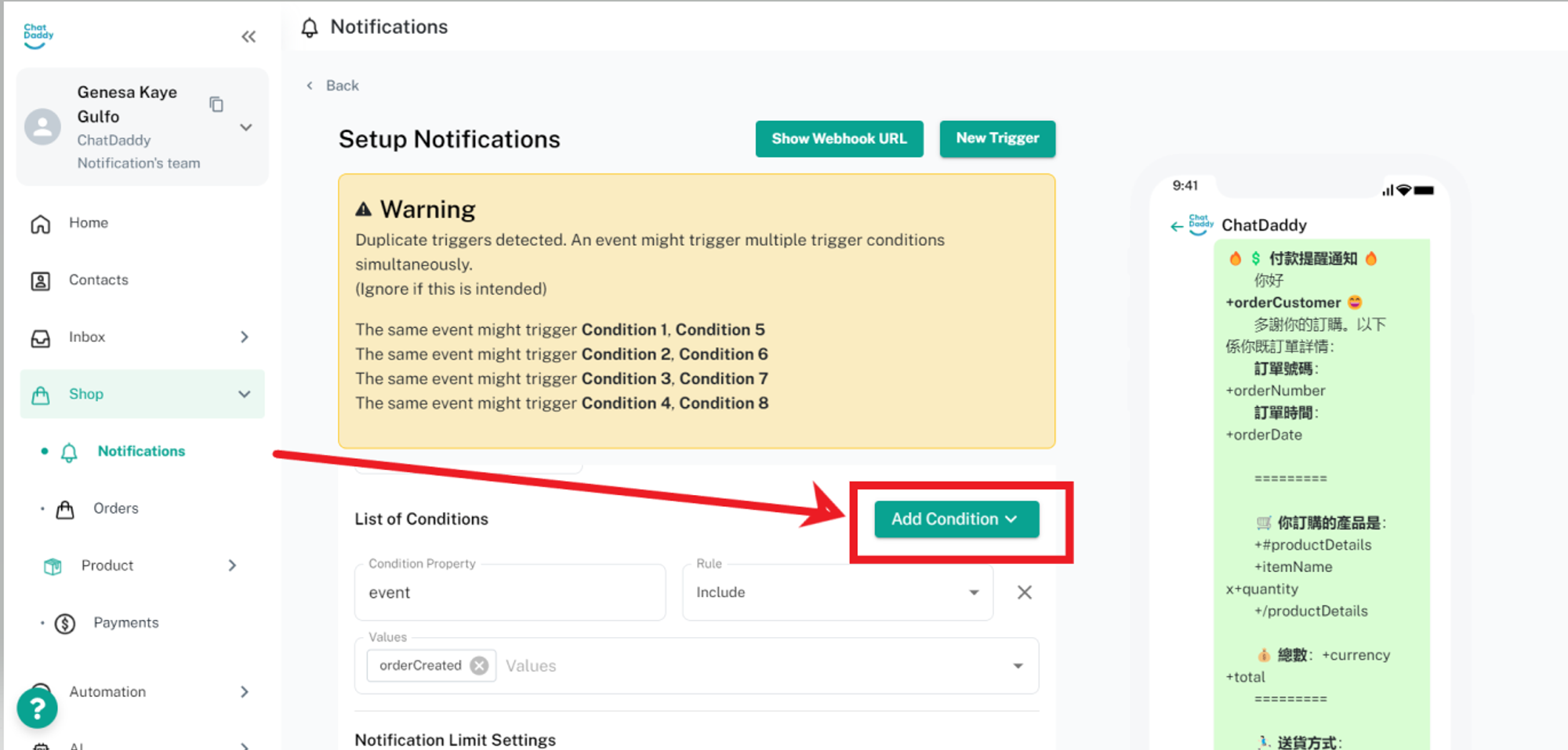
Step 2: Select [Event] as the condition property: 👇🏻
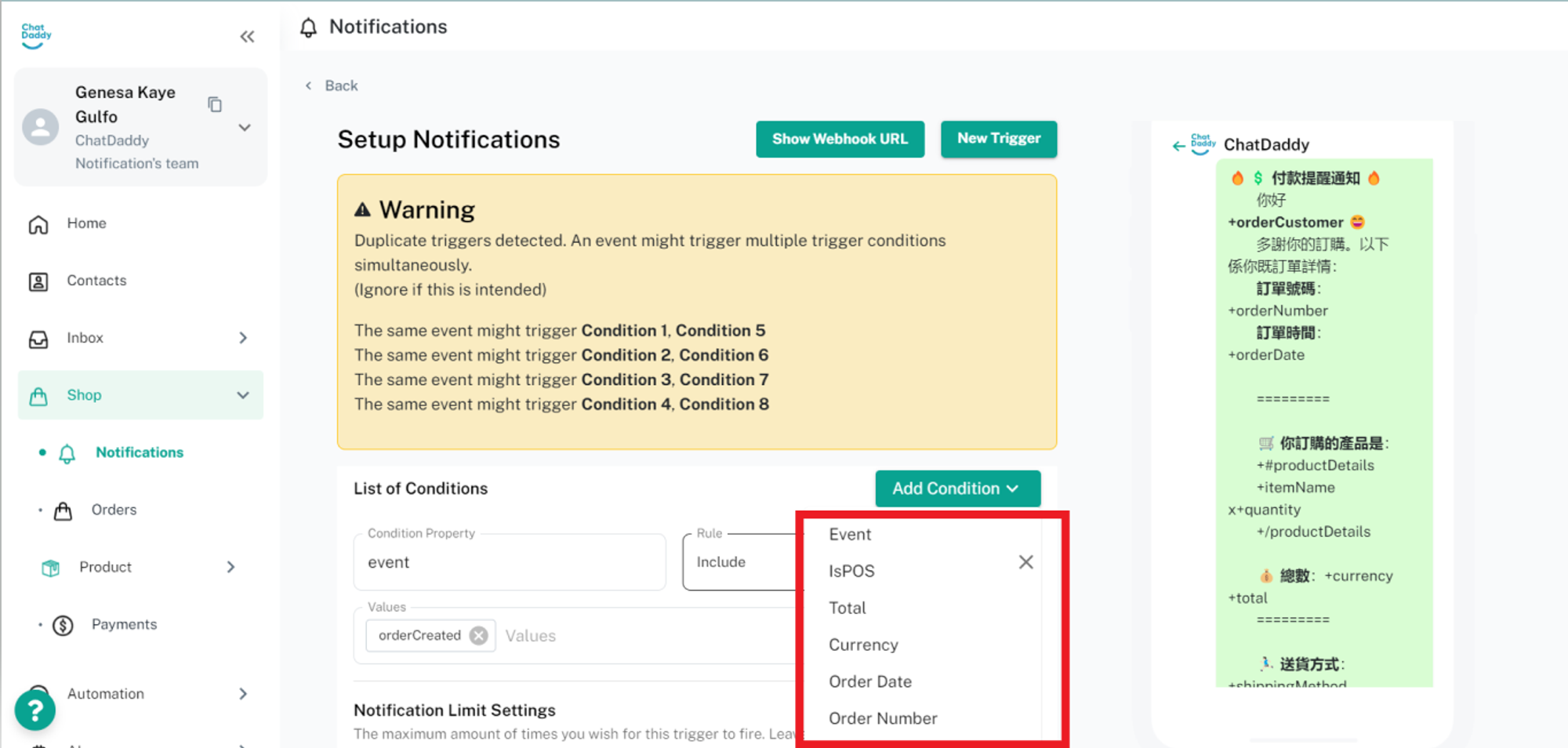
Select the Rule of the condition as [Include]:👇🏻
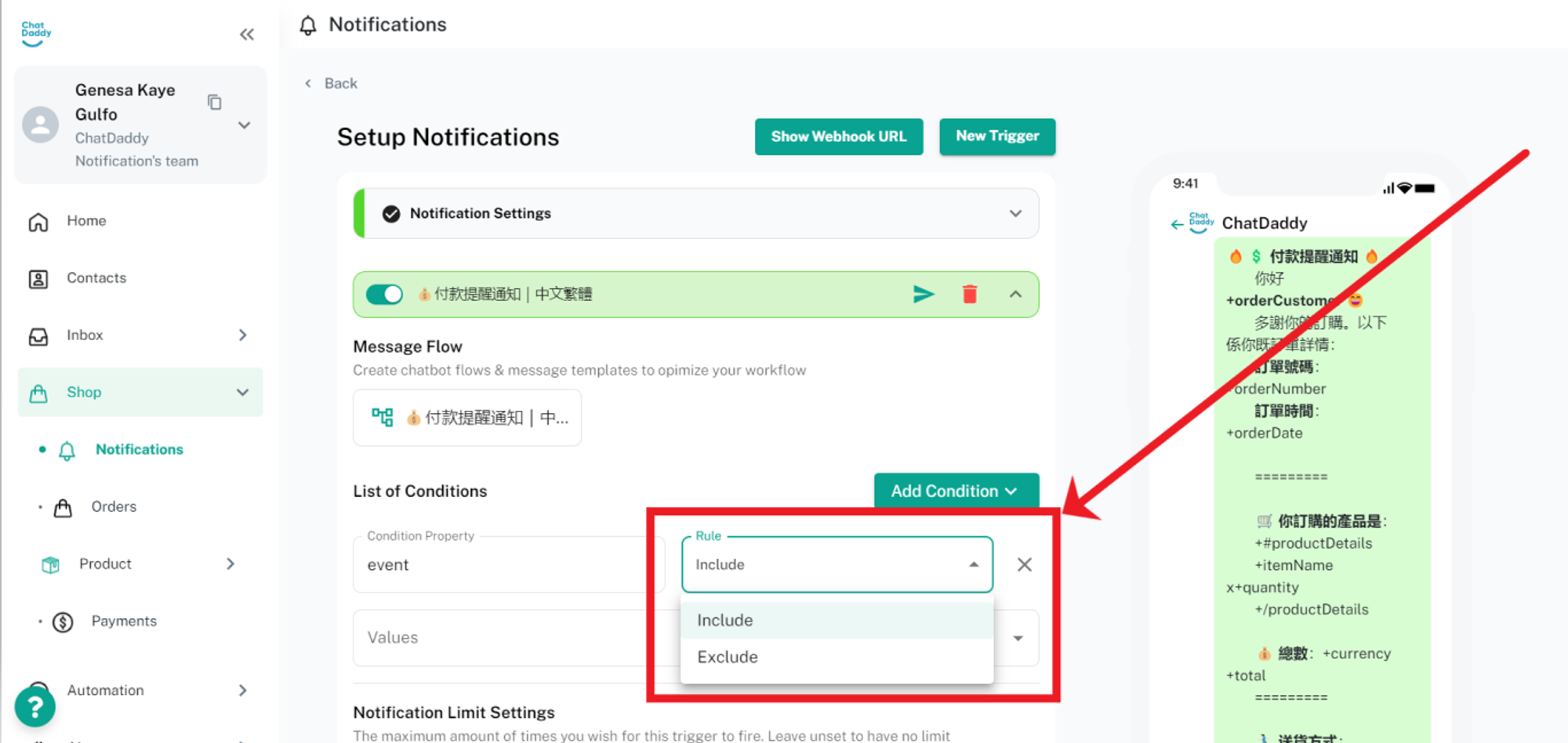
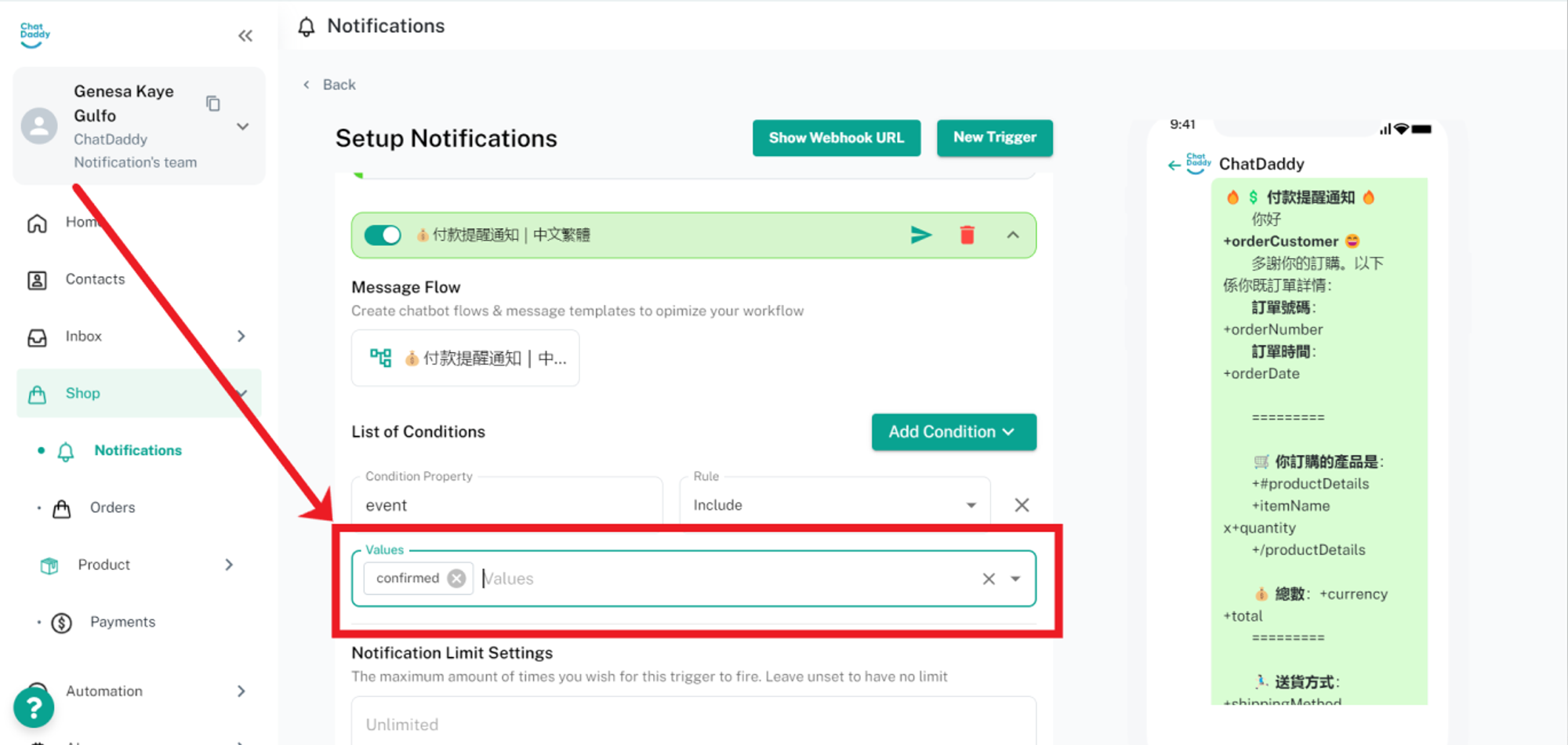
Step 3: Select the Value for the condition as [confirmed]:👇🏻
Delivery Notification Step 1: Use the default message template for Delivery notification, then click [Add Condition]:👇🏻
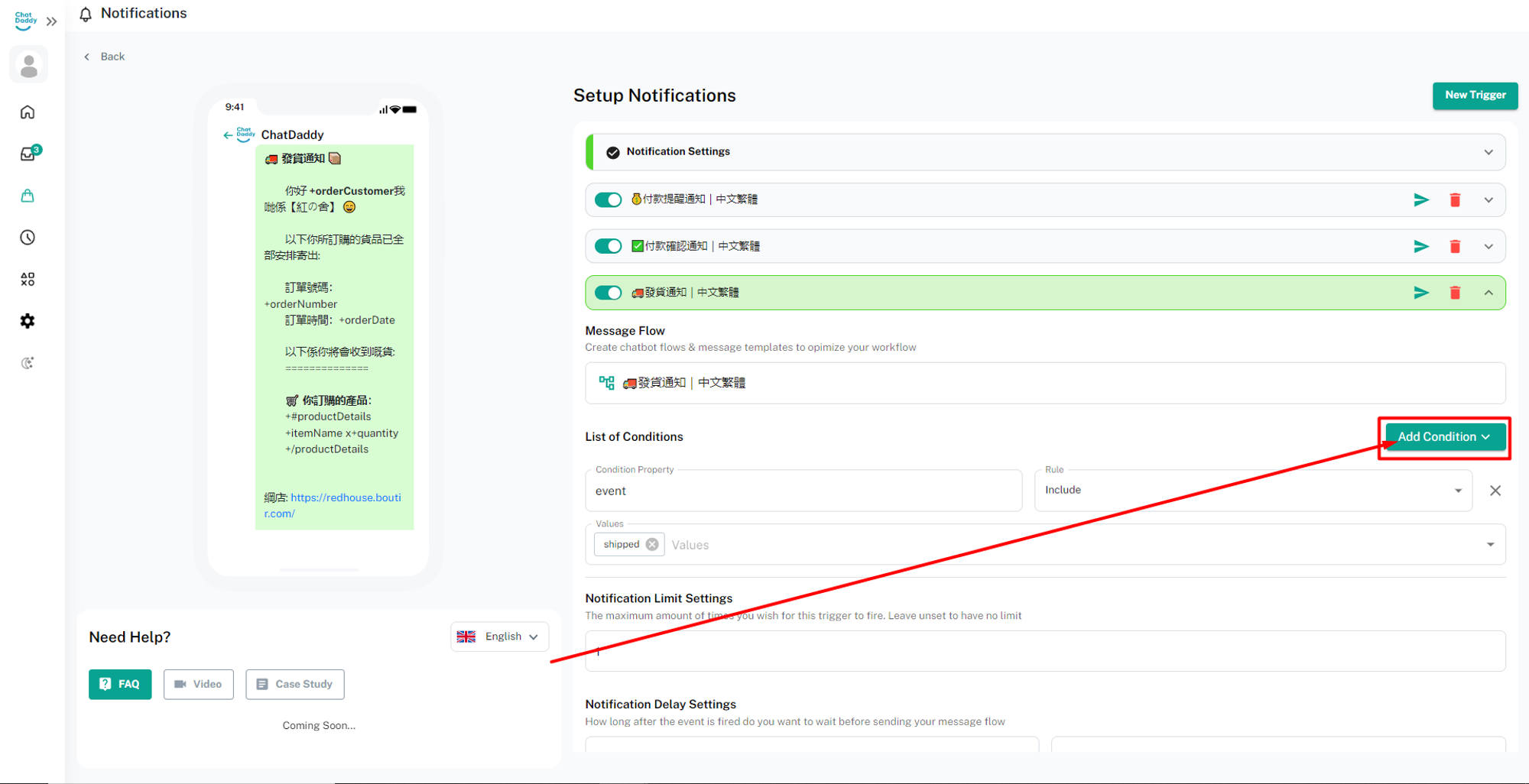
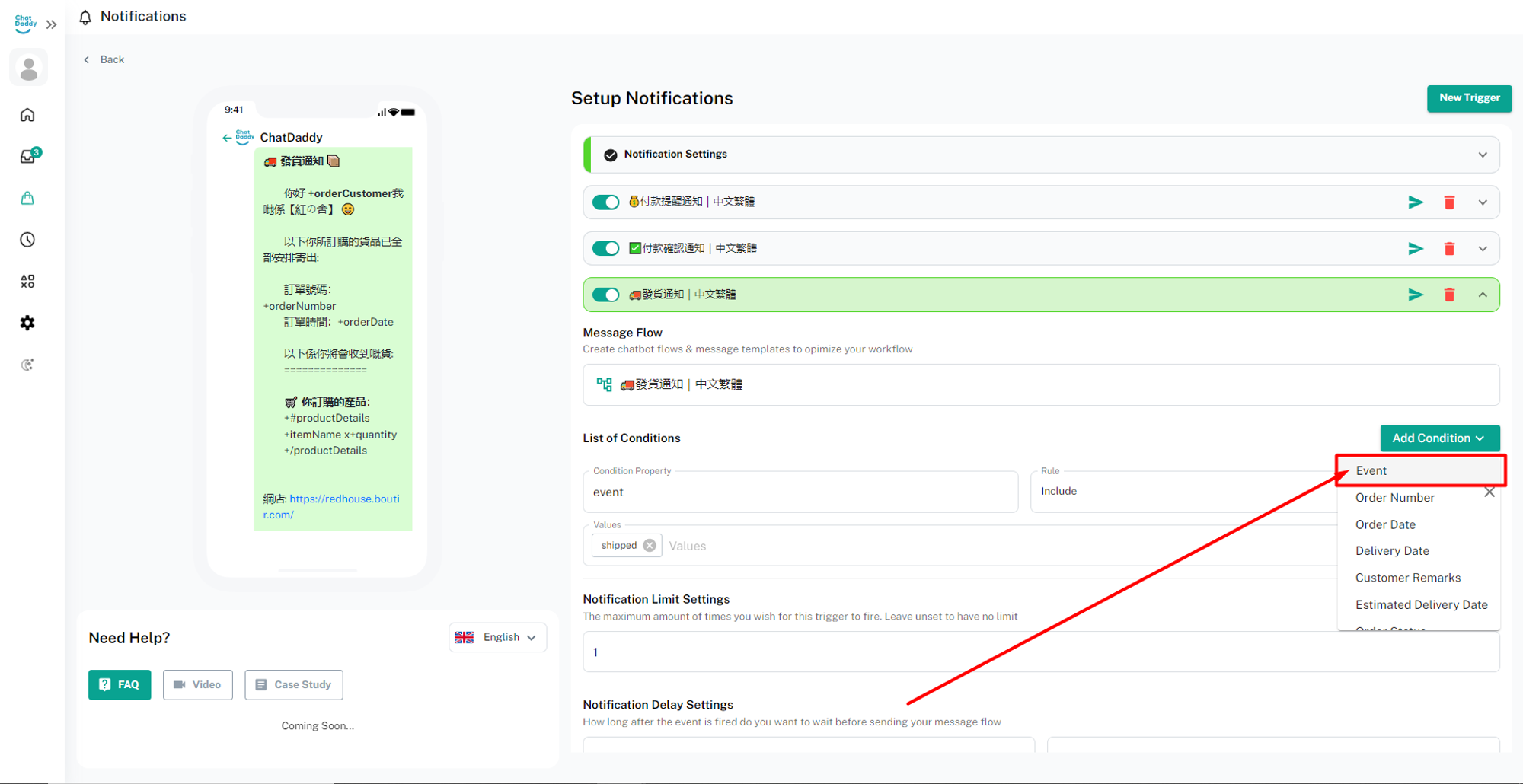
Step 2: Select [Event] as the condition property: 👇🏻
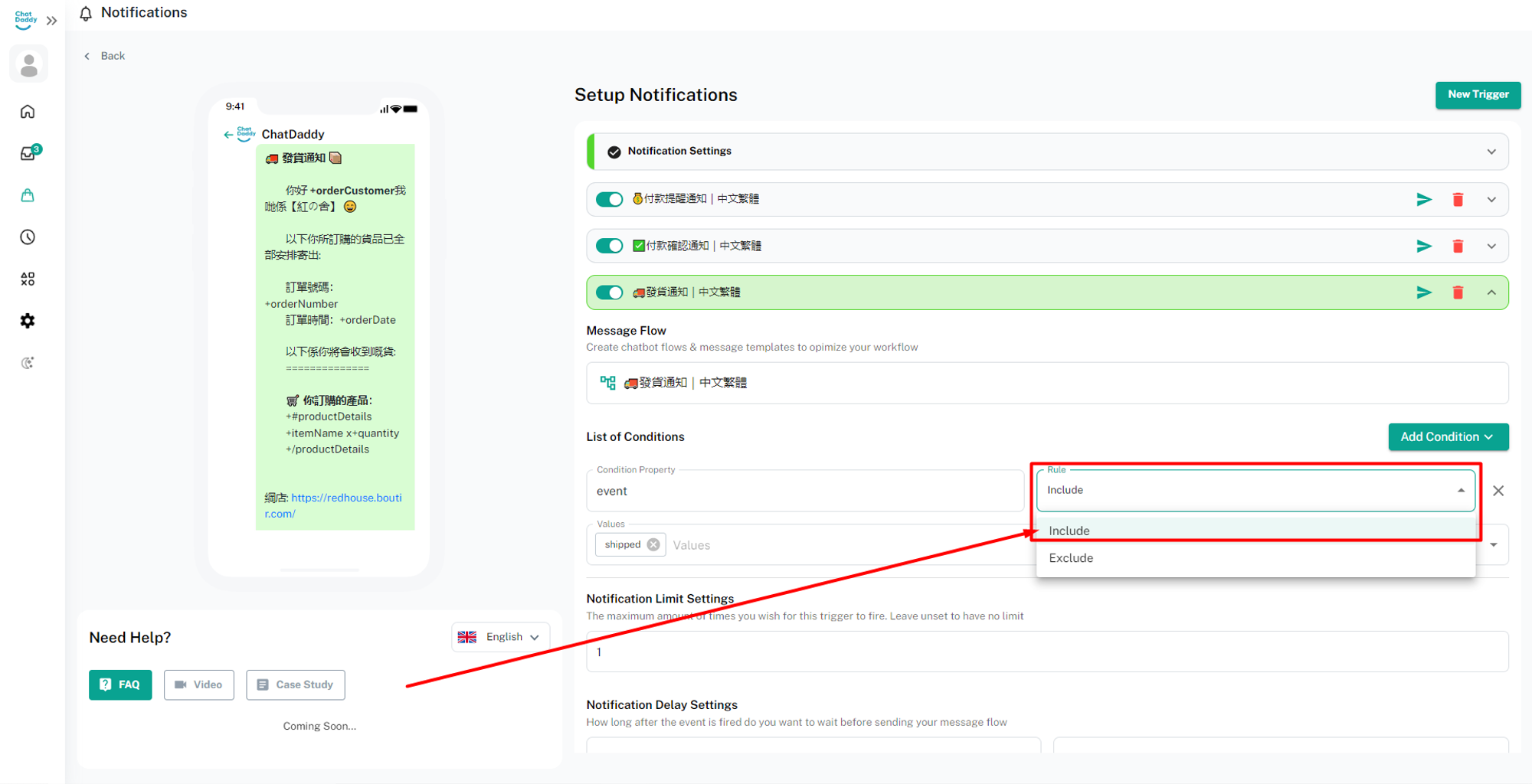
Select the Rule of the condition as [Include]:👇🏻
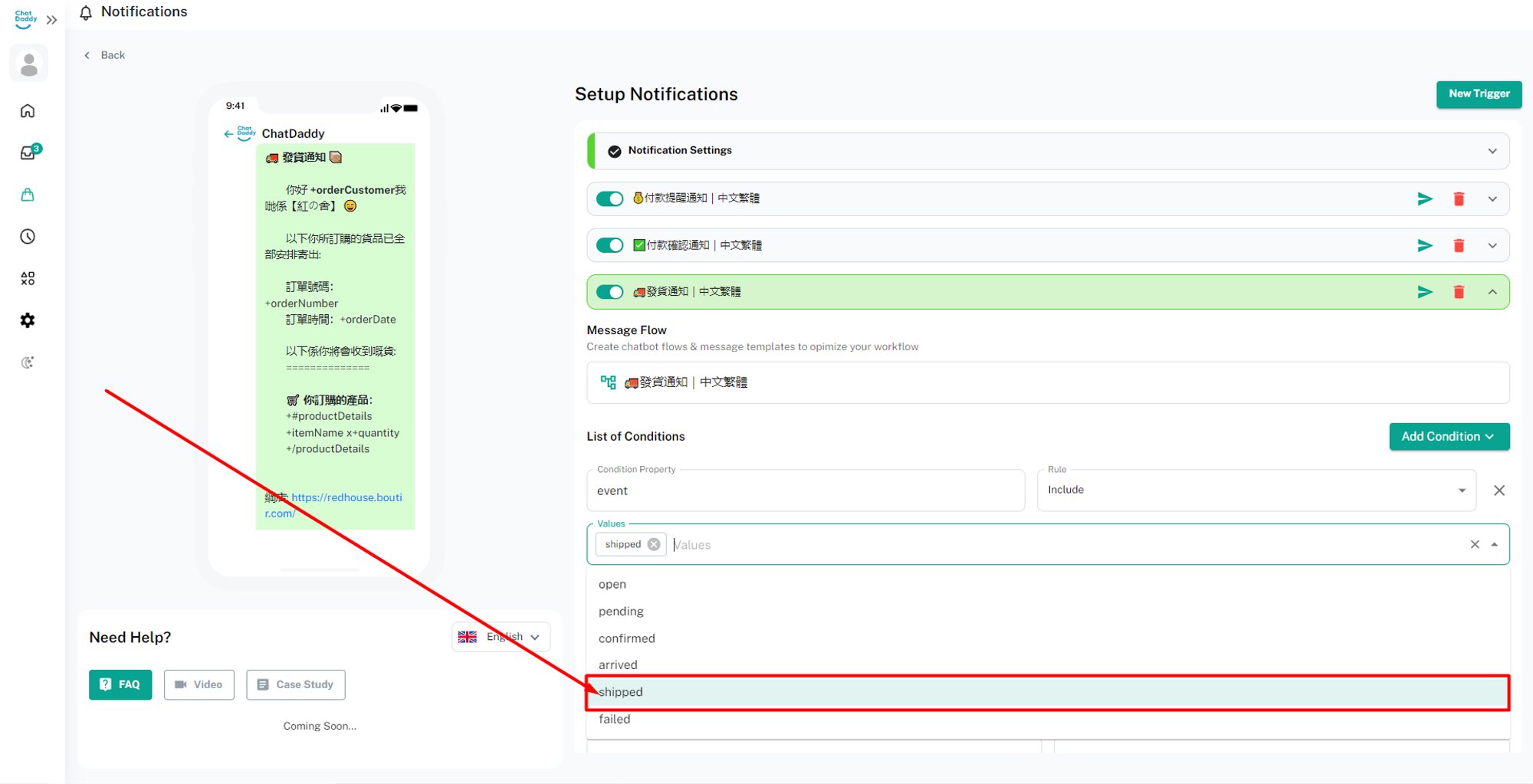
Step 3: Select the Value for the condition as [Delivered or to-be-delivered]:👇🏻
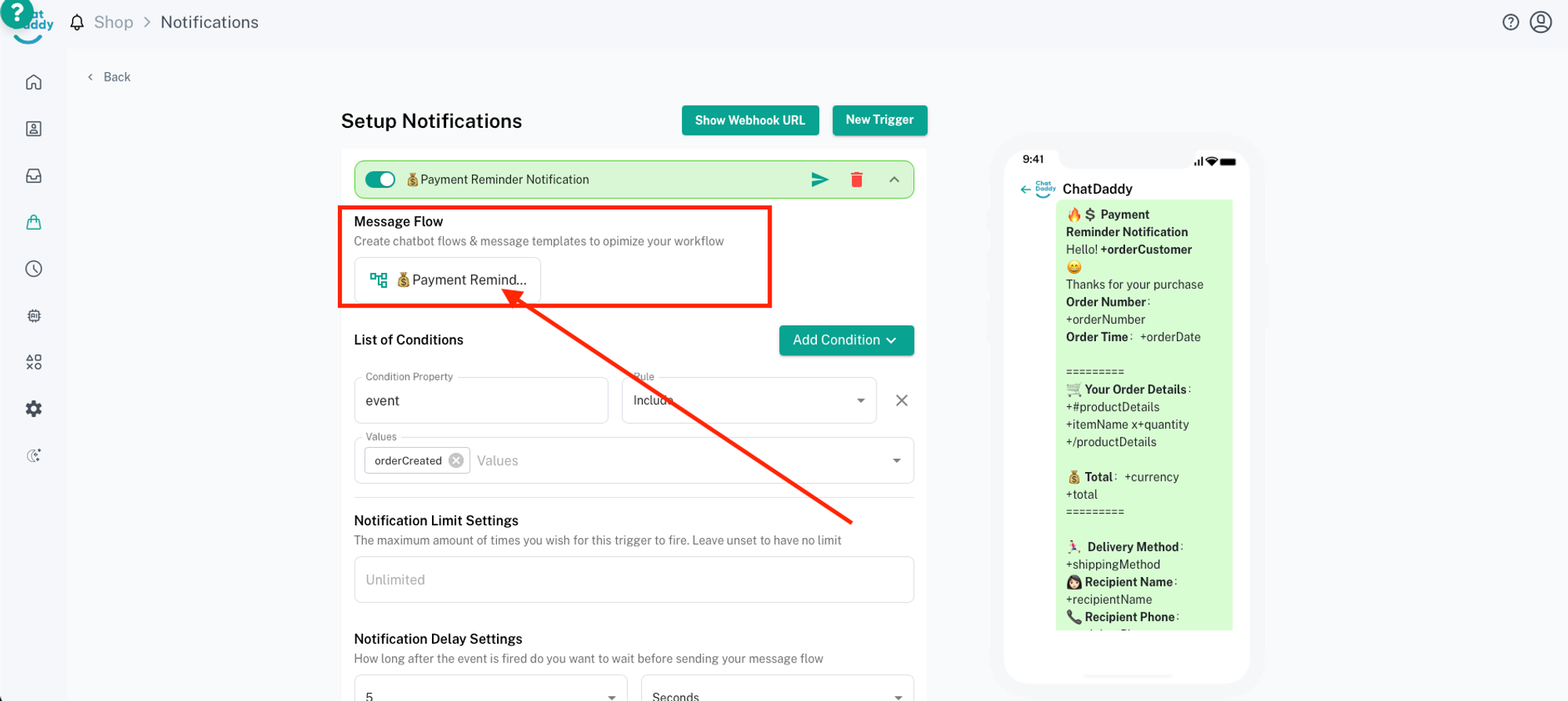
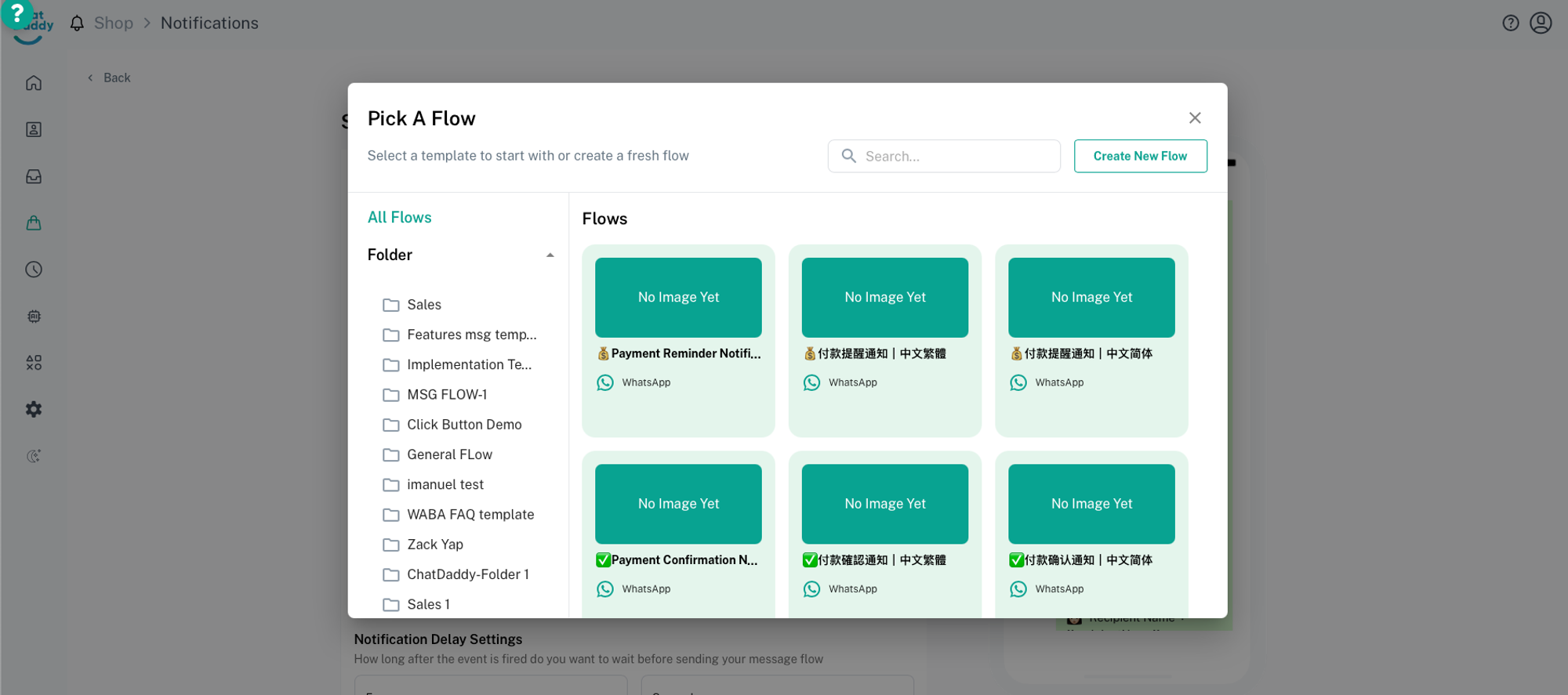
Step 4:
You could edit your message template content here
Step 5:
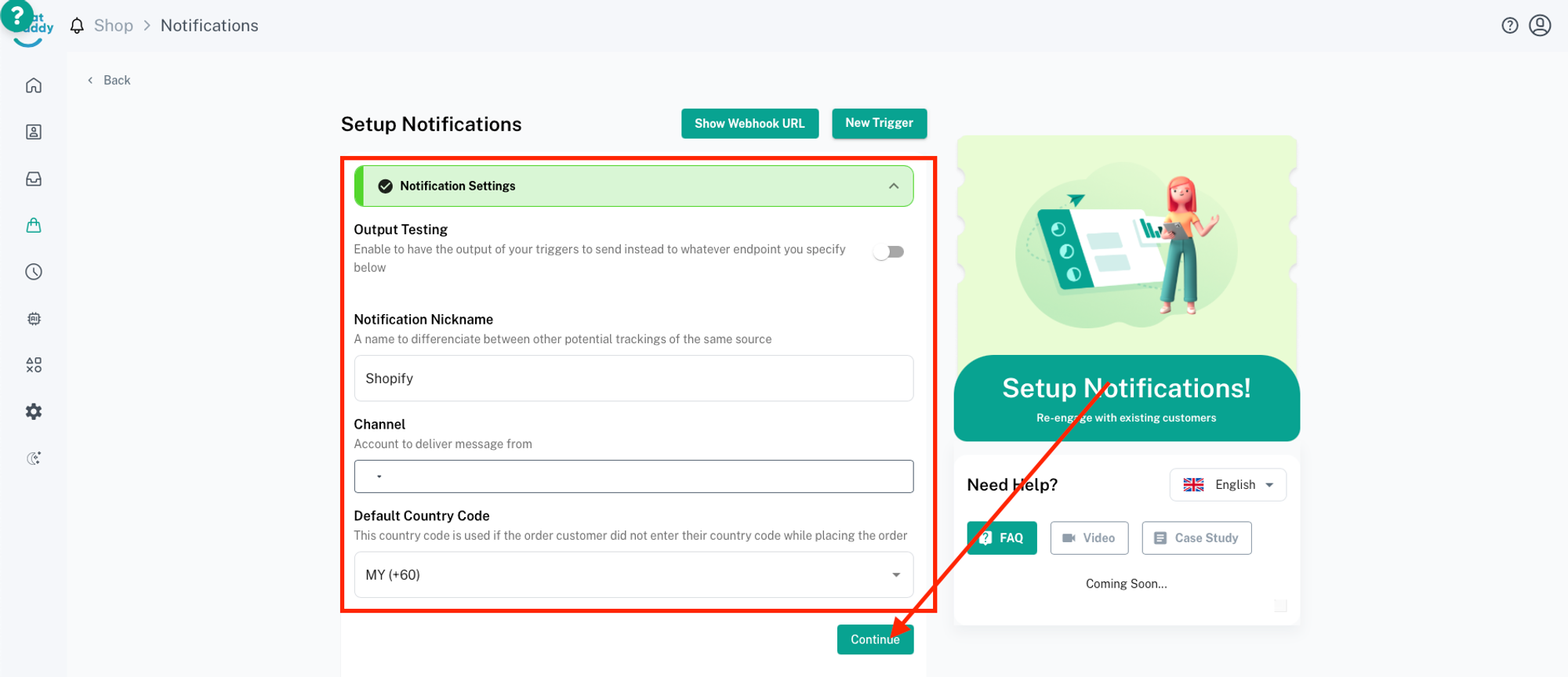
Check Notification Settings and click Continue
「Channel」 - To choose which device to send message from
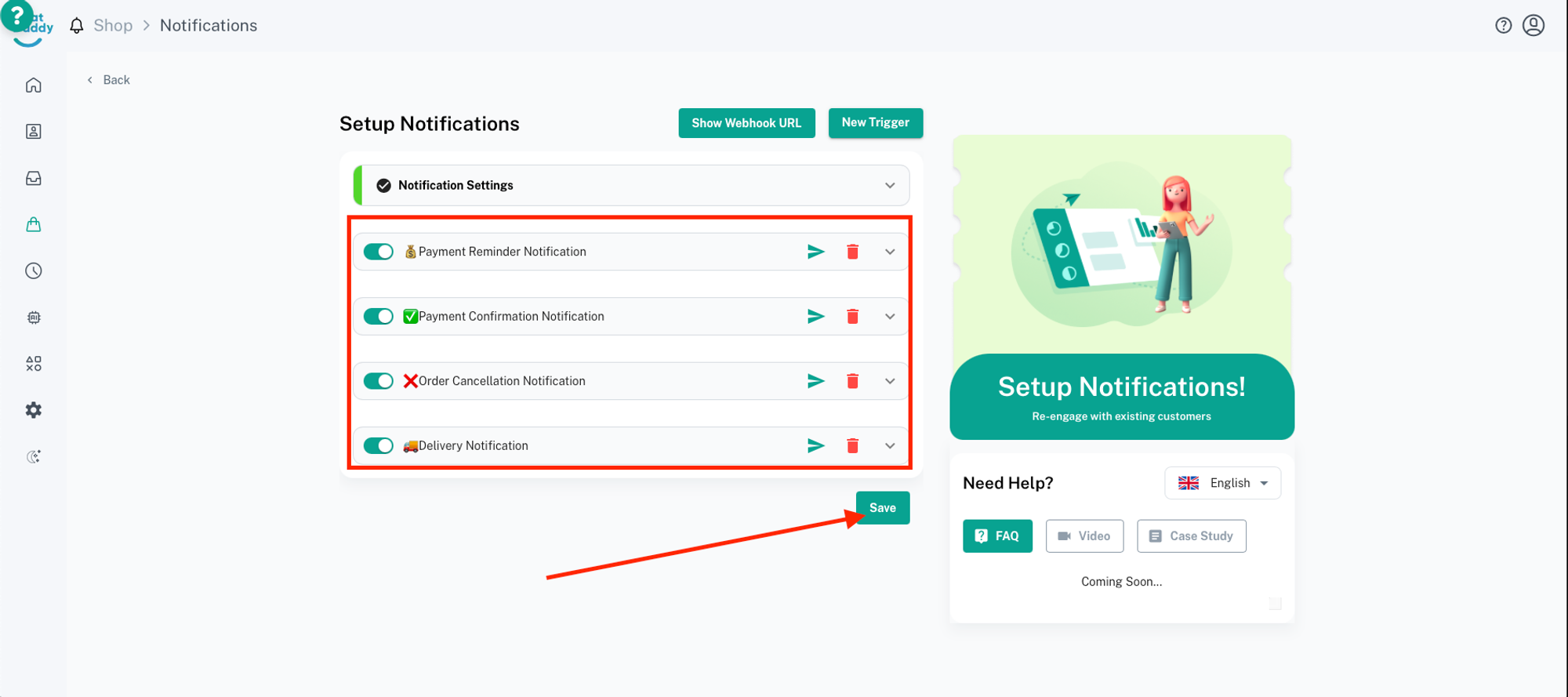
After done checking for all triggers, click Save and integration is successfully installed!
More Information
What are all this buttons?
「Add Default Trigger」- Used to add trigger messages templates that is made by Chatdaddy 「Add Custom Trigger」- Used to self design trigger with own message template and conditions
How to enable testing mode
「Output Testing」- This is used to enable testing or send to different receiver’s phone number
Here you can also set up if you want to send all messages to which type of recipient
How to delay messages
Notification Delay Settings - How long after the event is fired do you want to wait before sending your message flow (used to delay triggered message)
Delay Type - Used to set up the condition of the delay
Simple
This function is to send the notification even if the condition is not met.
Example : if the “payment reminder” trigger is set to notify the client in 4 days, it will send even if the condition of the order status is “delivered”
Stale
This function is to send the notification when the condition is met.
Example : if the “payment reminder” trigger is set to notify the client in 4 days, it will not send if the condition is anything other than “payment reminder”
After done checking for the trigger you may click Continue.
How to change message template
Step 1:
From the Notifications, select an existing integration, click on the 3 dots option icon next to the integration and click [Edit]👇🏻
Step 2:
Look for the trigger that you would like to amend your message content, and click on the small arrow on the right side next to trash icon
Step 3:
Once the dropdown panel appears, look for your message template and edit your message template
Once complete edit, ensure your message template is autosaved.