
How to Reconnect a Channel on ChatDaddy
Don’t worry—reconnecting them is quick and easy.
Updated Nov 21, 2025
Don’t worry—reconnecting them is quick and easy.
Sometimes your WhatsApp channels may get disconnected. Just follow the steps below:
✅ Step 1: Access Manage Channels
- Log in to your ChatDaddy dashboard.
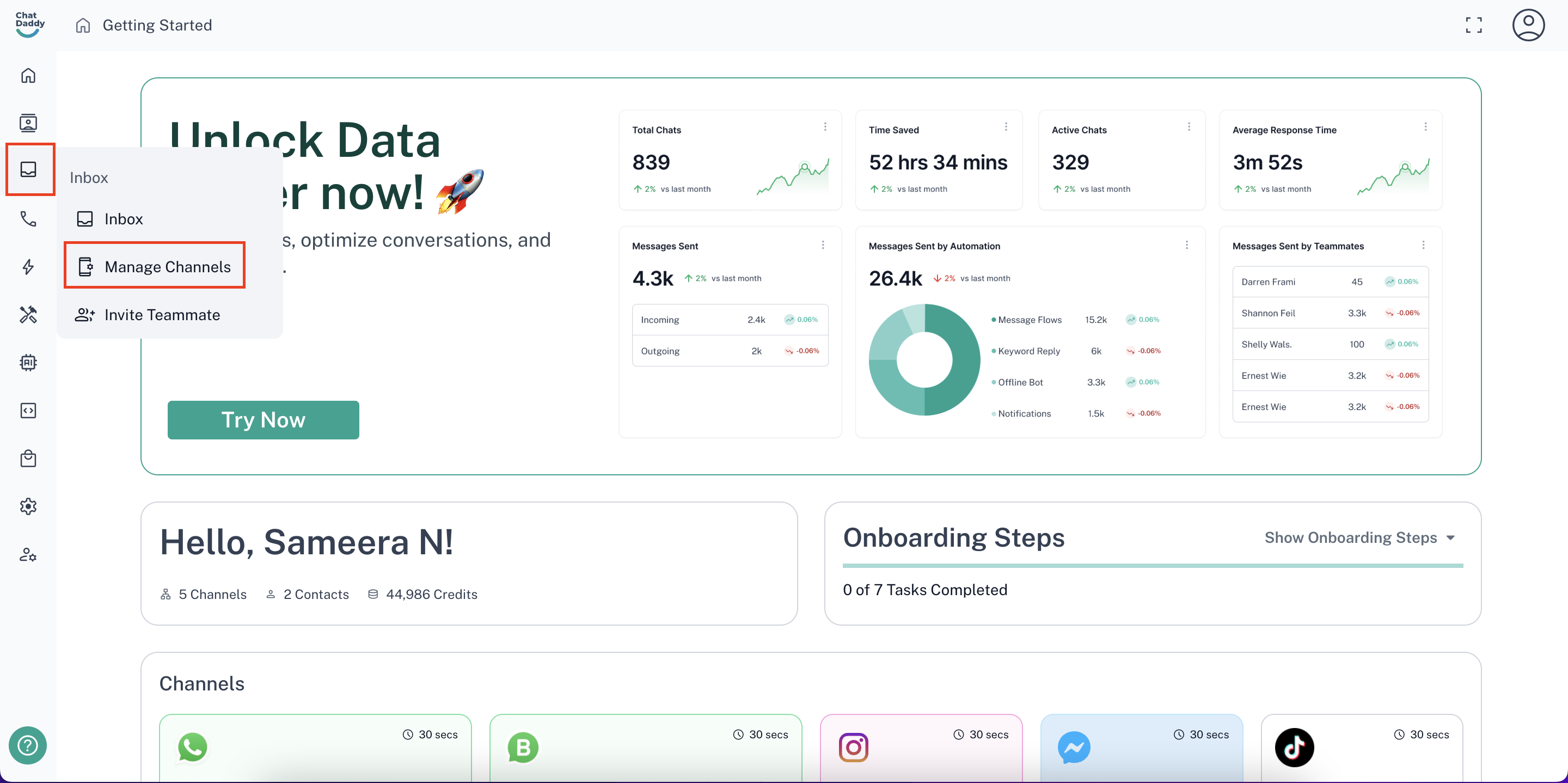
- On the left-hand side menu, hover over the Inbox section.
- Click on Manage Channels.
🔍 Step 2: Identify the Disconnected Channel
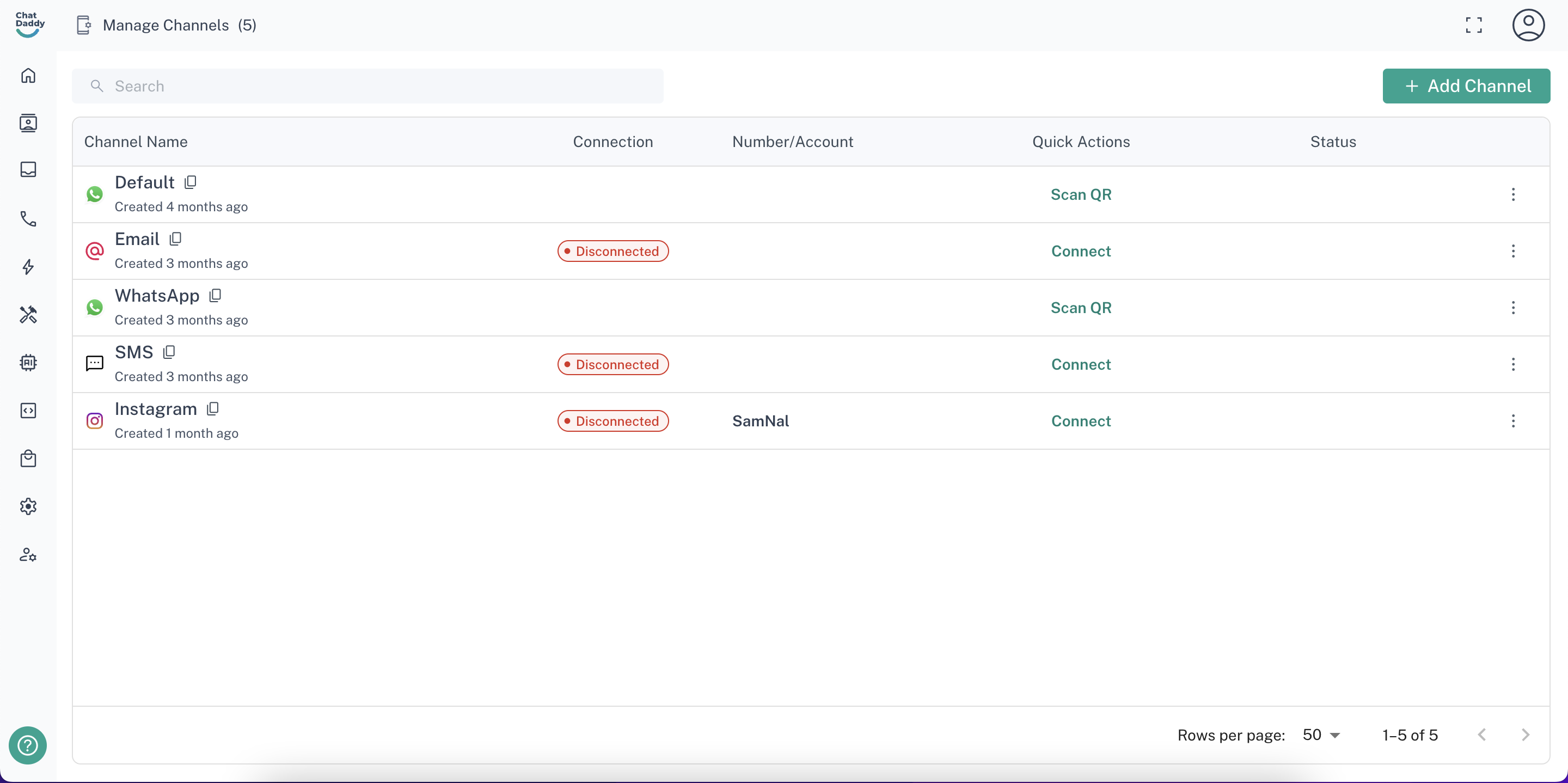
- In the Manage Channels page, scroll through your list of channels.
- Find the one that shows as Disconnected.
🔄 Step 3: Initiate Reconnection
Next to the disconnected channel, click on the “Scan QR” or “Connect” button.
📱 Step 4: Choose a Reconnection Method
You'll see two options to reconnect your channel:
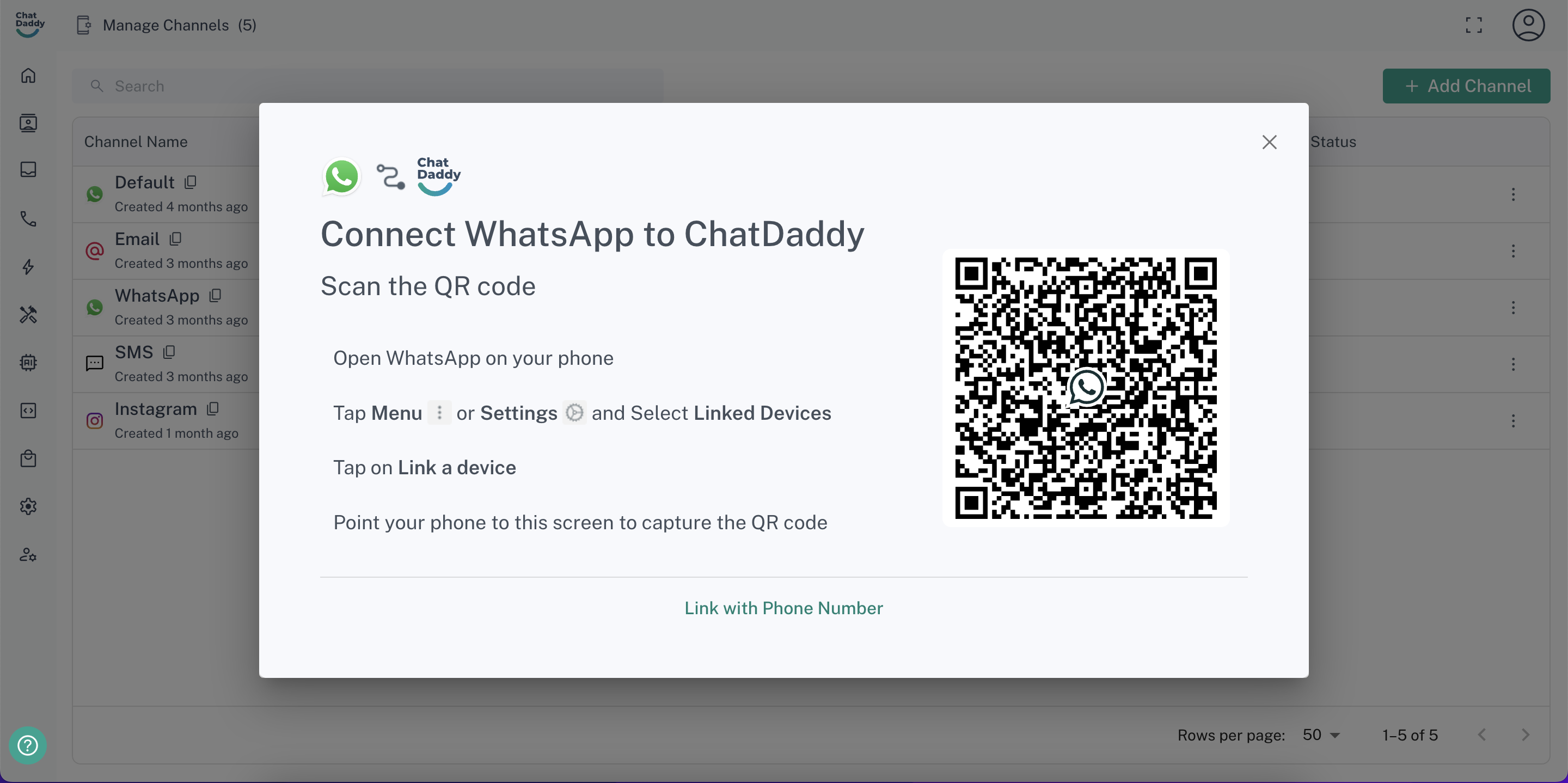
Option 1: Scan QR from WhatsApp
- Open the WhatsApp app on your phone.
- Go to Linked Devices in WhatsApp settings.
- Tap Link a Device and scan the QR code shown on your ChatDaddy screen.
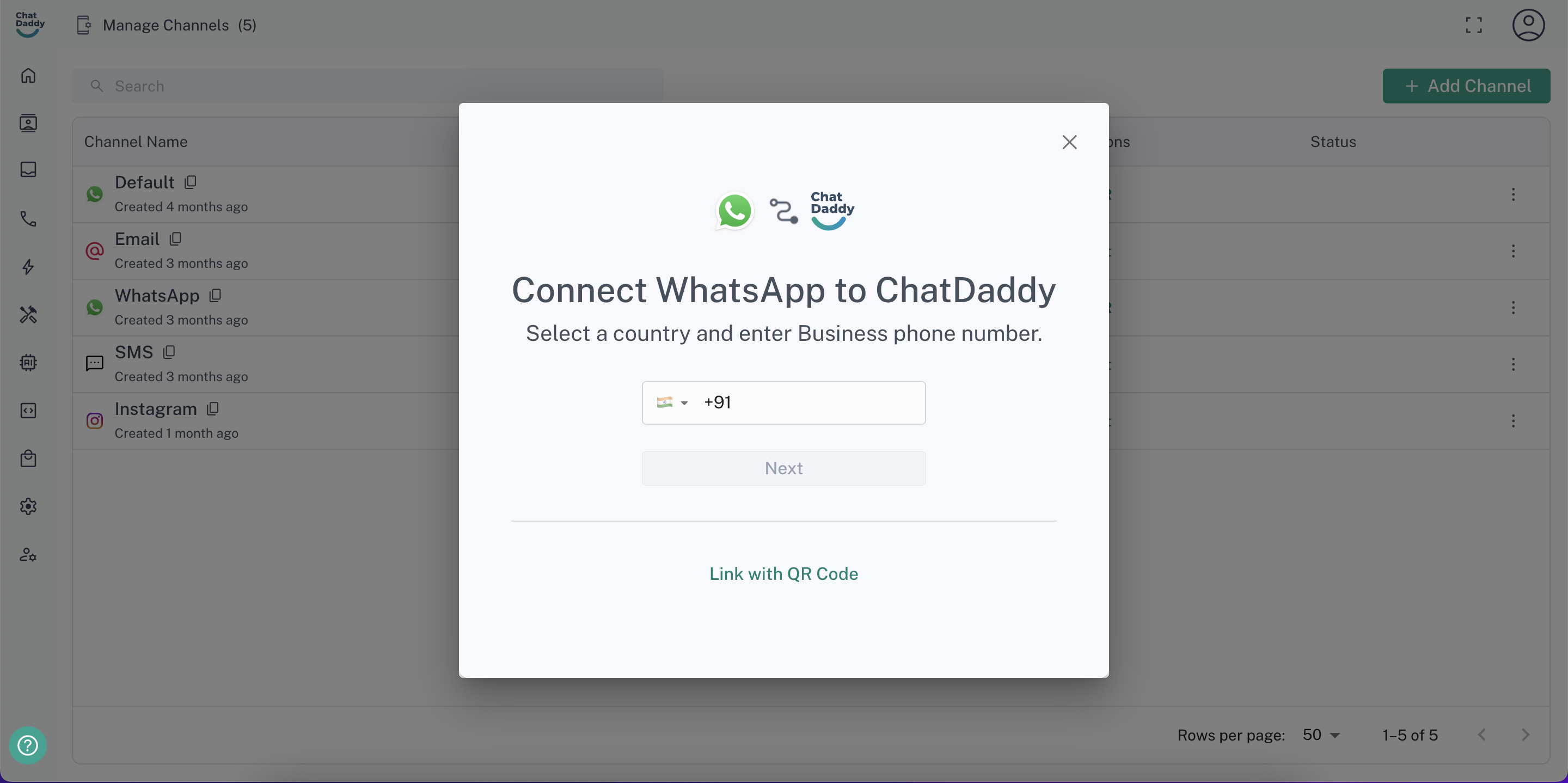
Option 2: Link with Phone Number
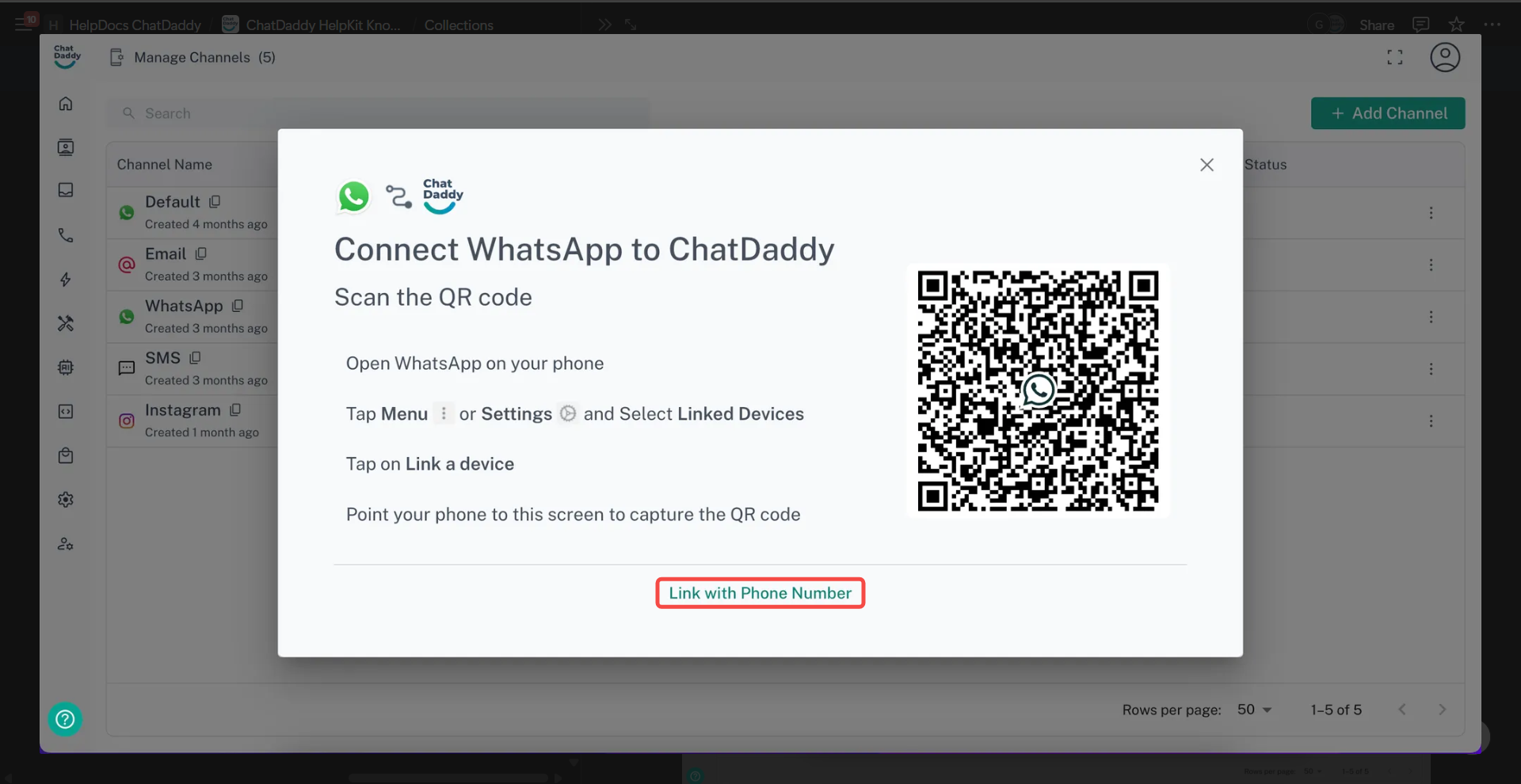
- Click on “Link with Phone Number”
- Enter the phone number associated with your WhatsApp account.
- On WhatsApp, you'll receive a code—enter this code on ChatDaddy to complete reconnection.
How to Reactivate a Channel
If your channel is disconnected, you can easily reactivate it by following these steps:
- Go to the Manage Channels page.
- Scroll through your list of channels to find the one you want to reactivate.
- Click the three dots (⋮) on the right side of the channel.
- Select "Settings" from the dropdown menu.
- Click the "Re-activate" button.
If you encounter difficulties reconnecting, please refer to our guide on Troubleshooting here.
Was this article helpful?