
How to Send a Carousel Message in a Message Flow
Send one WhatsApp message carrying up to 10 swipeable cards, each with its own picture, text and buttons. End to end: building one in the Flow Builder, getting Meta to approve it, sending it to a real phone, the rules WhatsApp will not bend on, and what to do when your channel disconnects.
Also searched as: How to Send a Carousel Message in a Message Flow, Create a new Message Flow, Start from scratch, Add a message step, Write the opening line, Click "Add carousel cards", You get two cards to start, Add a picture to every card, Write each card's text, Add a button, and watch the warning appear, Name the button, Repeat the buttons on every other card, Decide what each button does, Add more cards, Finish every new card
A carousel is a single WhatsApp message that carries a row of cards your customer swipes through sideways. Each card has its own picture, its own line of text and its own buttons — but they all arrive together, in one message, and you are charged for one marketing message, not ten.
You build one inside a Message Flow, on any message step. This guide walks through the whole thing end to end: creating the flow, adding the cards, connecting the buttons, getting Meta to approve the template, and sending it to a real phone.
🧭 Three steps people miss, so they are worth knowing up front: Save does not submit — approval is a separate step in the ⋯ menu; nothing sends until Meta approves; and once approved, the shape of a carousel is locked.
Before you start
- An official WhatsApp Business API channel connected. Carousels are a WhatsApp Business API feature — they do not work on a personal WhatsApp channel, and the carousel section in the Flow Builder is marked "Only for Official WABA channels" for exactly that reason.
- Your pictures ready as JPG or PNG. WhatsApp rejects WebP. Video cards must be MP4.
- A plan for your buttons before you start. Every card has to carry the same buttons in the same order — you cannot give one card two buttons and another card one.
- Between 2 and 10 cards. Two is the minimum WhatsApp allows, which is why ChatDaddy starts you with a pair.
Step 1 — Create a new Message Flow
Go to Automation → Message Flows and click Create New Message Flow.
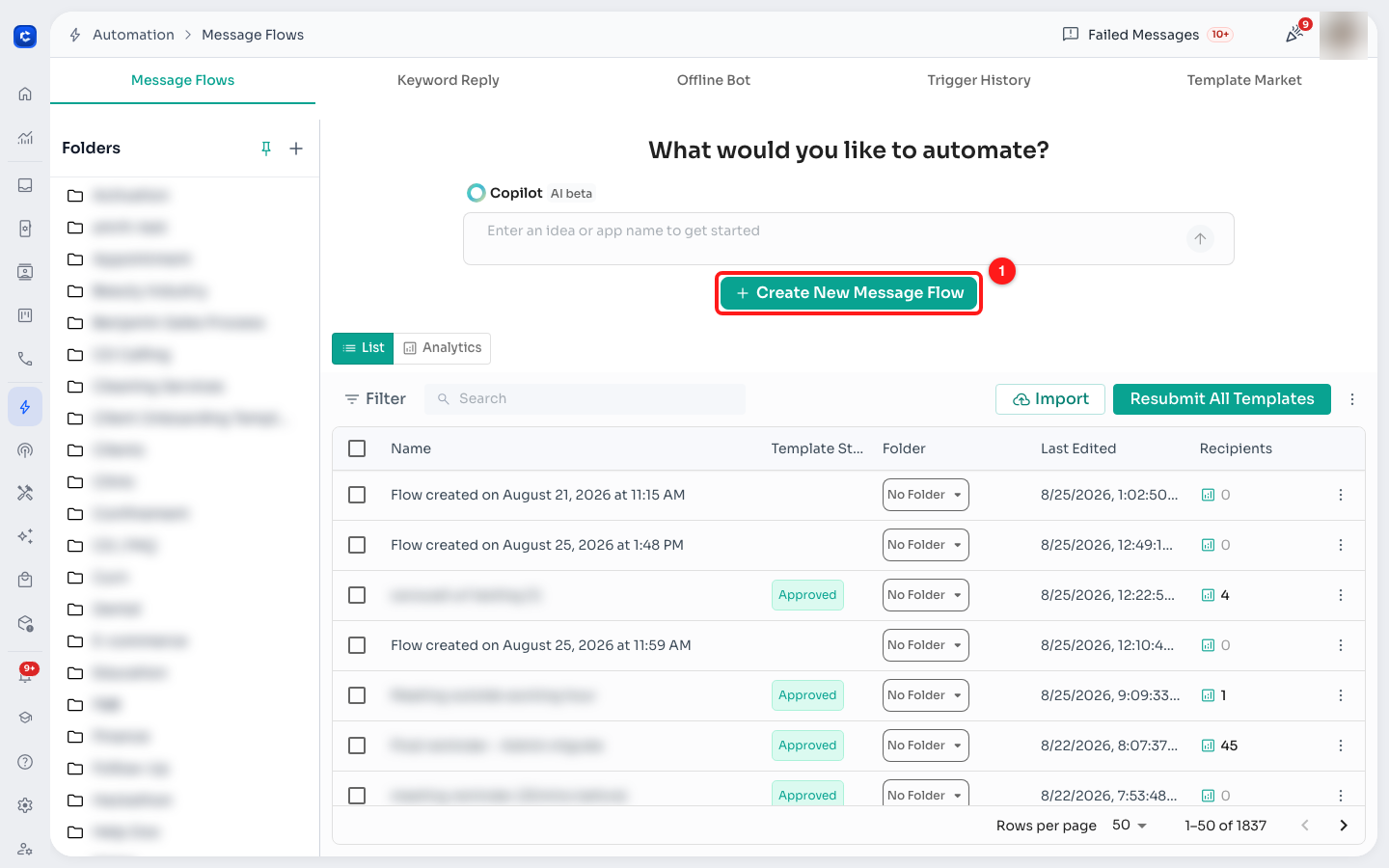
Automation → Message Flows → Create New Message Flow.
Step 2 — Start from scratch
ChatDaddy offers you a set of ready-made goals. A carousel is easiest to build on an empty canvas, so click Start from scratch in the top right of the dialog.
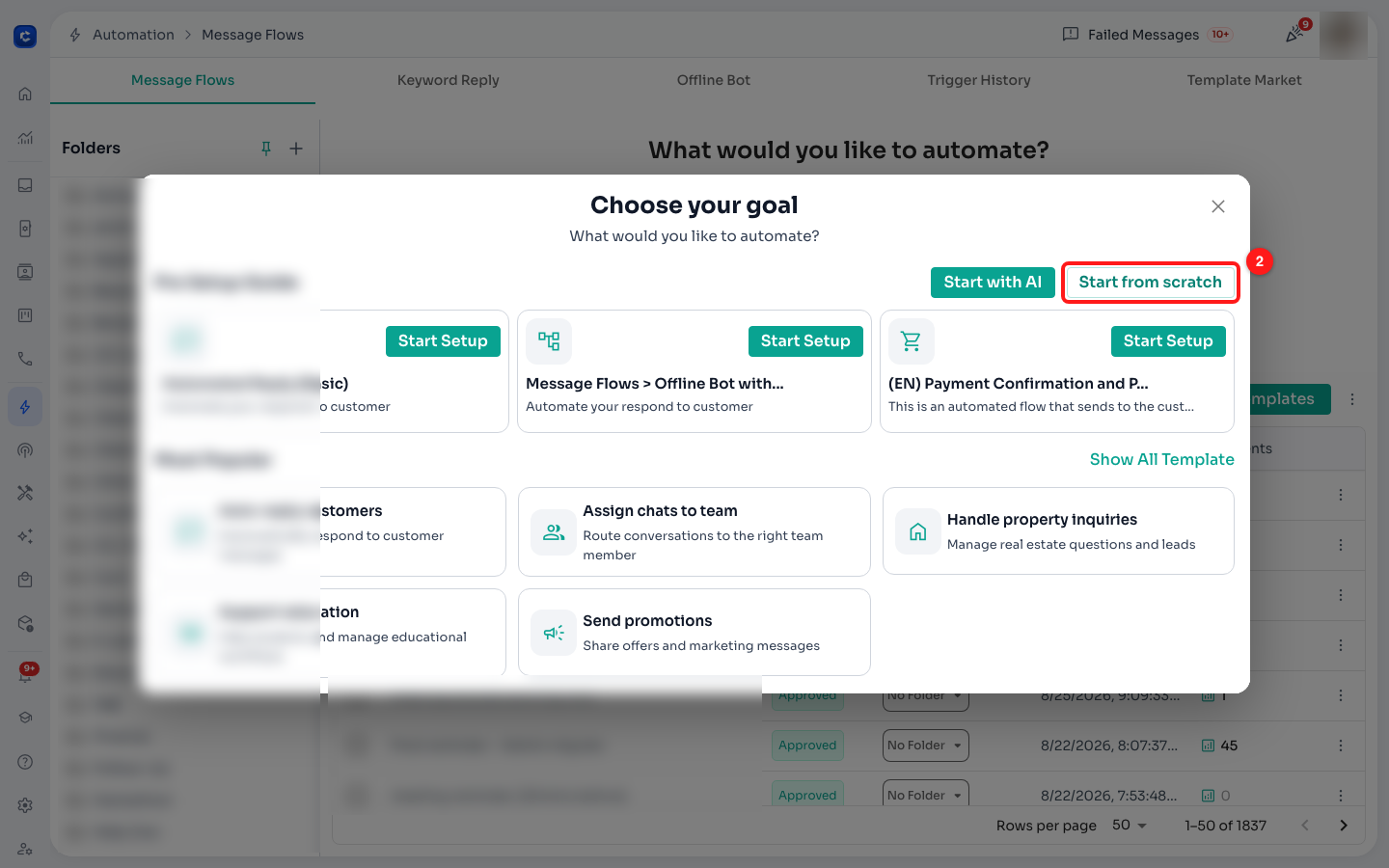
The "Choose your goal" dialog — Start from scratch opens an empty canvas.
Step 3 — Add a message step
On the empty canvas, ChatDaddy asks you to choose a starting step. Click Message. Cards live on a message step — there is no separate "carousel" step to look for.
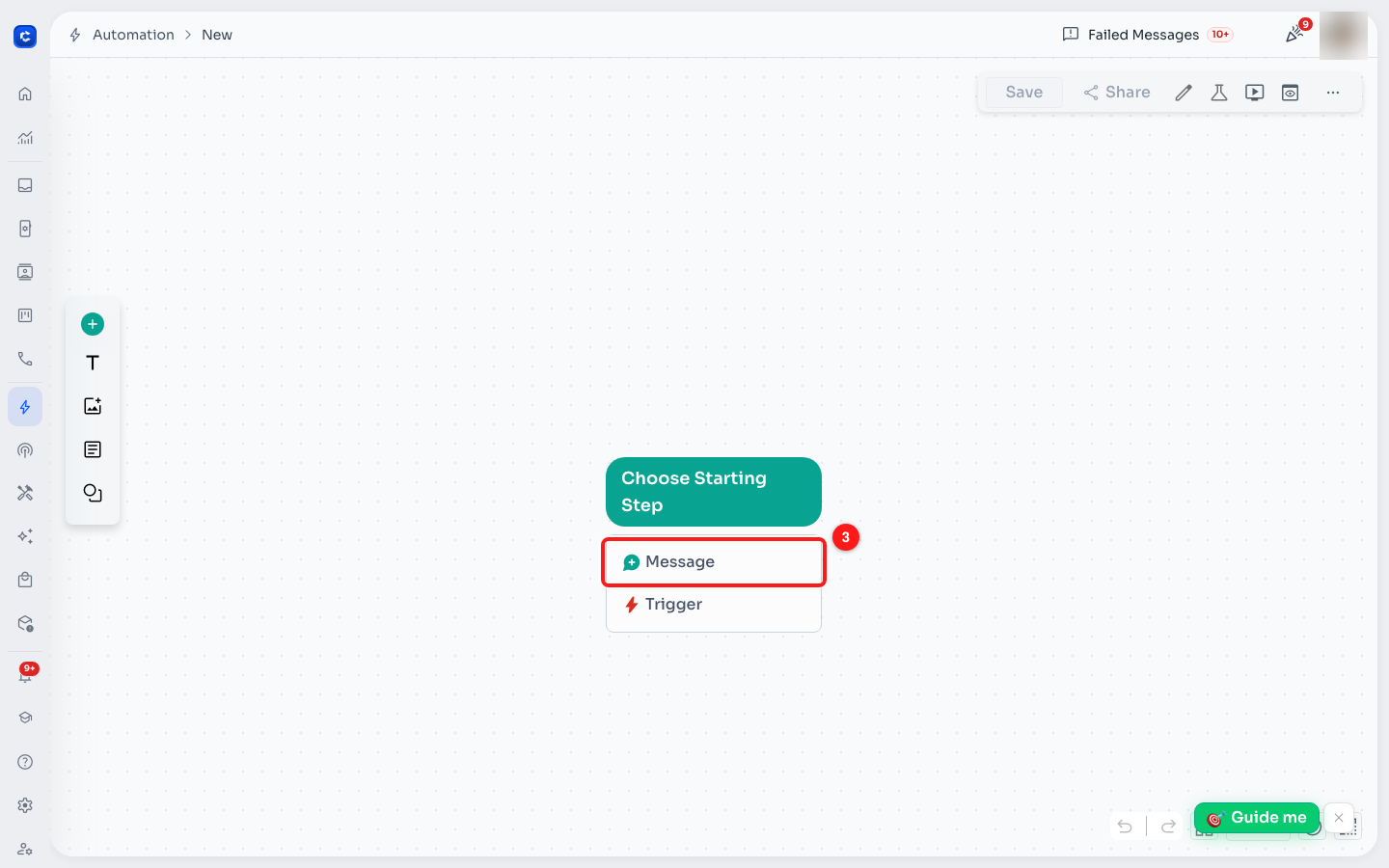
Choose Starting Step → Message.
Step 4 — Write the opening line
Click the new step on the canvas. The settings panel opens on the left. Type your message into Body — this is the text that appears above the cards, and it is the only part of the message your customer reads before swiping.
Type { at any point to drop in a variable such as the contact's name.
📏 The opening line on a carousel is capped at 1,024 characters — tighter than the 2,048 a plain template allows.
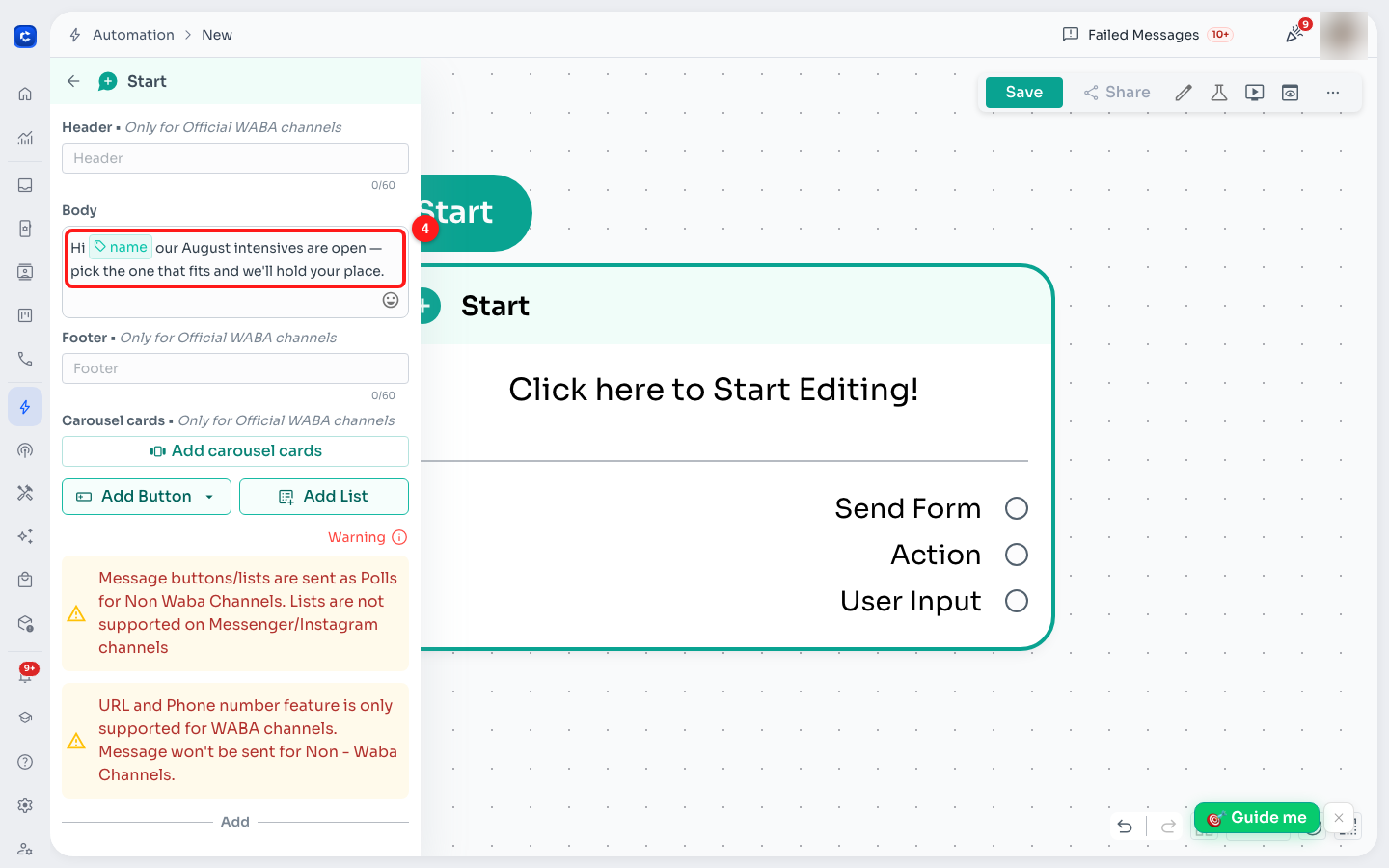
The Body field. Everything above the cards is written here.
Step 5 — Click "Add carousel cards"
Scroll the settings panel down past Header and Footer until you reach Carousel cards, then click Add carousel cards.
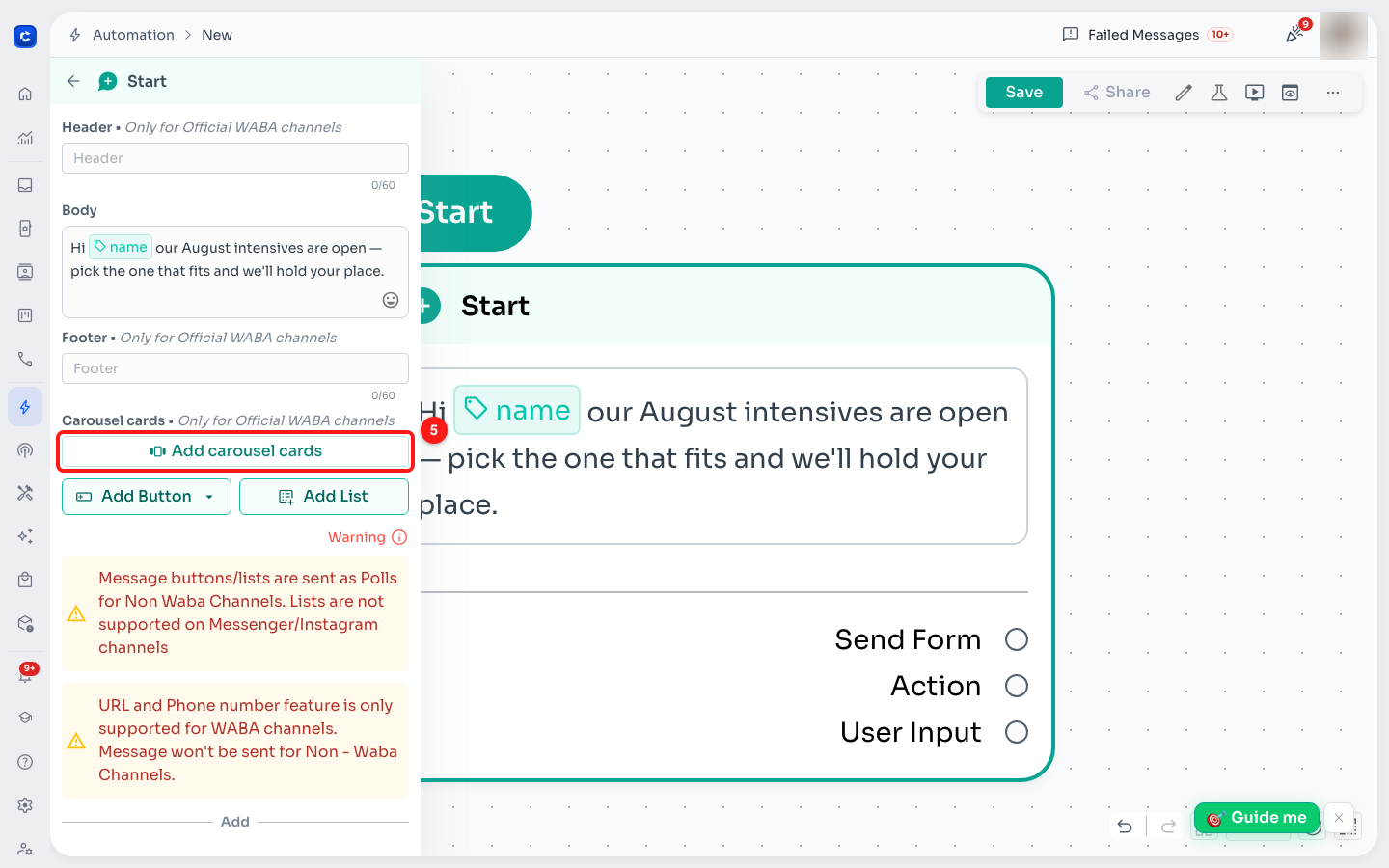
The Carousel cards section, below Footer in the message settings panel.
⚠️ The moment you add cards, Header and Footer switch to Not available on a carousel and stop accepting text. WhatsApp does not allow a header, a footer, a message-level button or a list on a message that carries cards — the cards carry their own buttons instead.
Step 6 — You get two cards to start
ChatDaddy creates Card 1 and Card 2 for you, because a one-card carousel is invalid and WhatsApp would refuse it. Each card has three parts: a picture, a line of text and up to two buttons.
Start with Card 1 and click Add image.
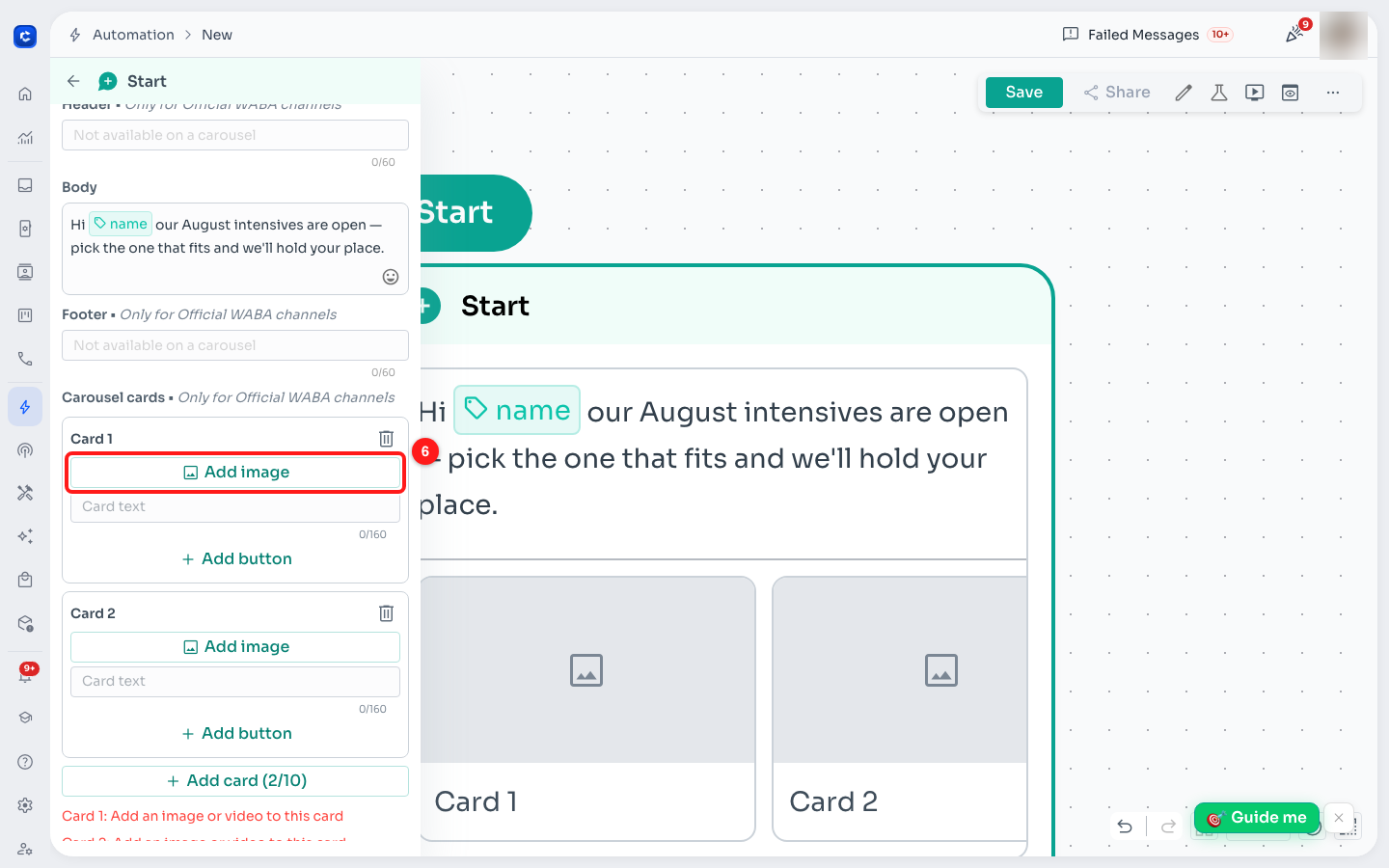
Two empty cards. The red note underneath is the builder telling you each card still needs media.
Step 7 — Add a picture to every card
Choose your file and wait for the upload to finish — the button changes to Replace media and the filename appears underneath. Repeat for every card.
🖼️ Card 1 fixes the media type for the whole carousel. If Card 1 is an image, every other card must be an image too; if it is a video, they must all be videos. You cannot mix the two, and after the first upload the button on the other cards changes to match.
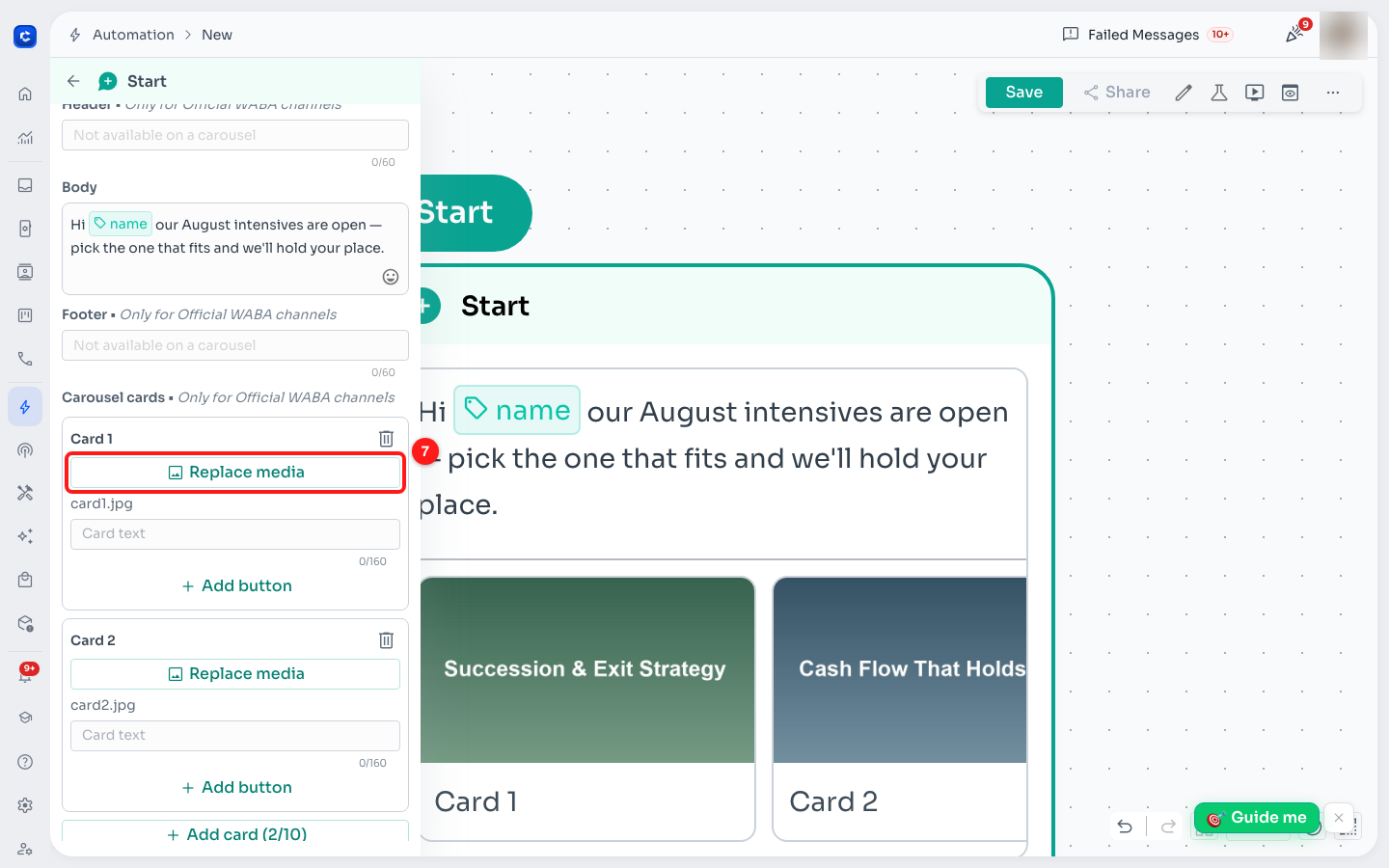
Both cards have media. The canvas on the right previews the carousel as you build it.
Step 8 — Write each card's text
Type into the Card text box on each card. The counter under the box tops out at 160 characters — much shorter than the opening line.
⚠️ Card text is all or nothing. The moment one card has text, every card needs it, or the cards render at different heights and WhatsApp rejects the template. Leave every box empty, or fill every box.
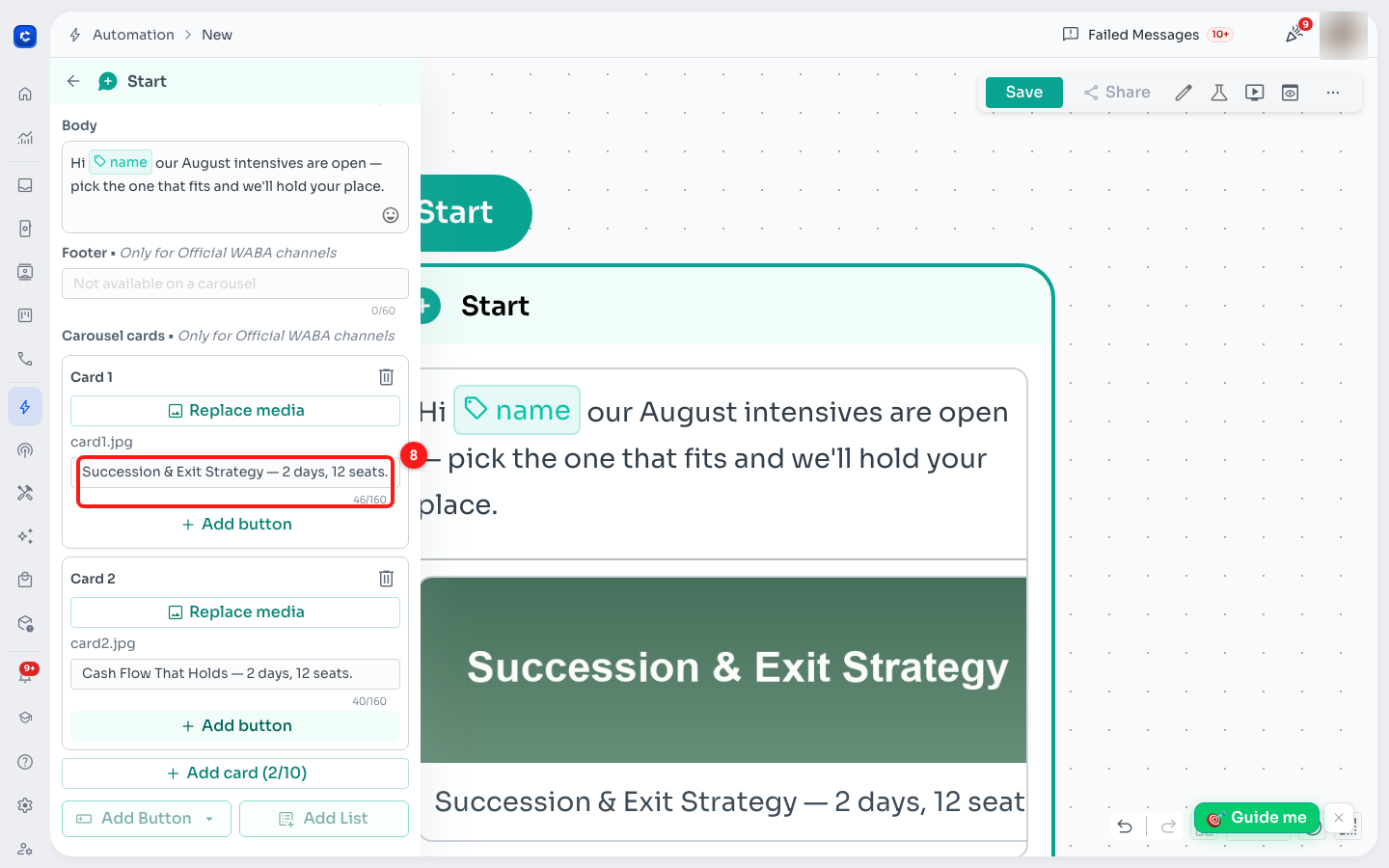
Card text, with its own 160-character counter.
Step 9 — Add a button, and watch the warning appear
Click Add button on Card 1. A button appears — and so does a red line at the bottom of the section: "Card 2: Every card must repeat the same buttons, in the same order."
This is not a bug. It is ChatDaddy checking WhatsApp's rule for you, before you submit rather than several seconds after, when Meta would reject the whole template with an error that explains nothing. Every red line has to be gone before the carousel will send.
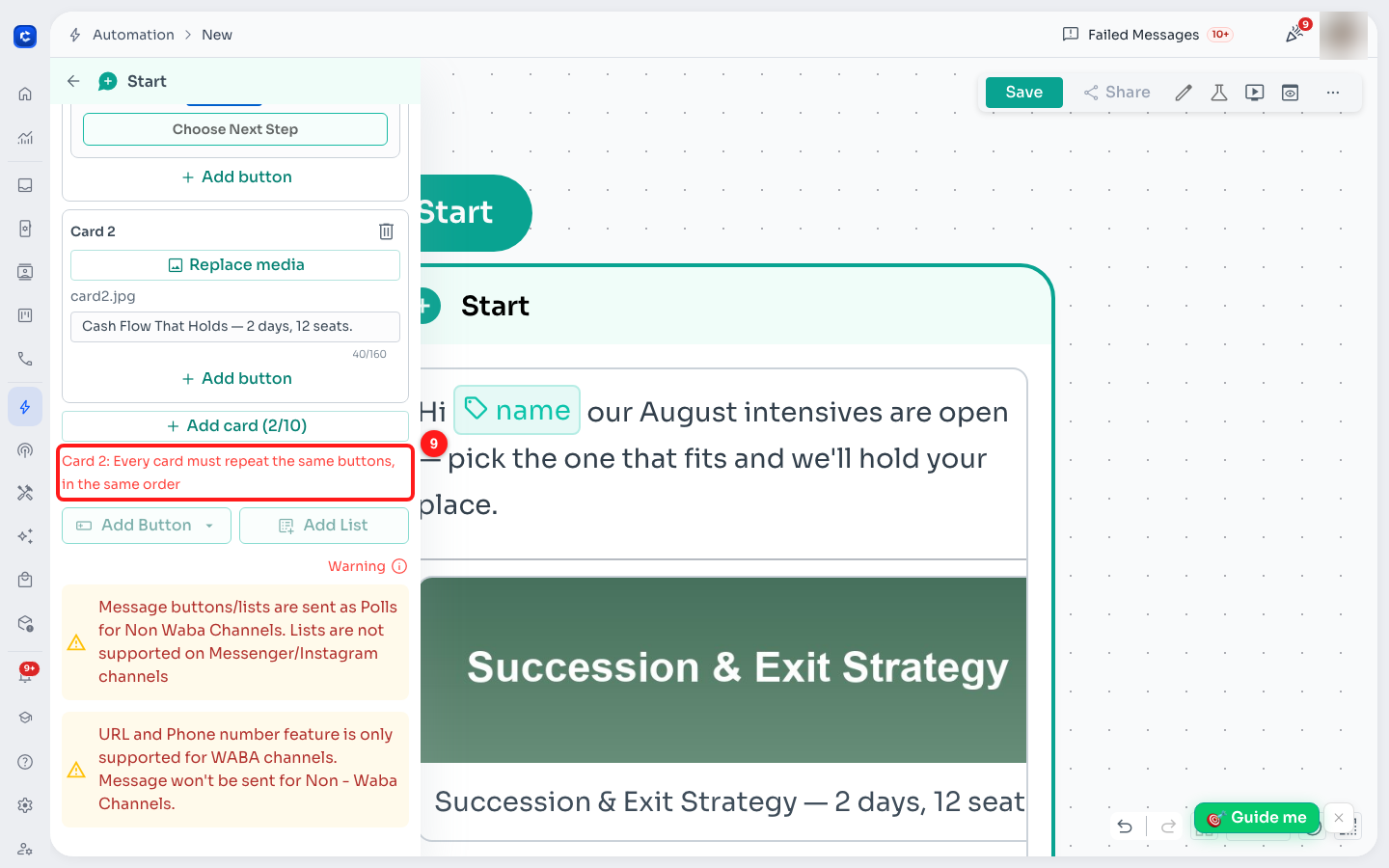
One card has a button and the other does not — the builder says so immediately.
Step 10 — Name the button
Click the button's label to rename it — "Reserve my seat", "Tell me more". Each card takes up to two buttons.
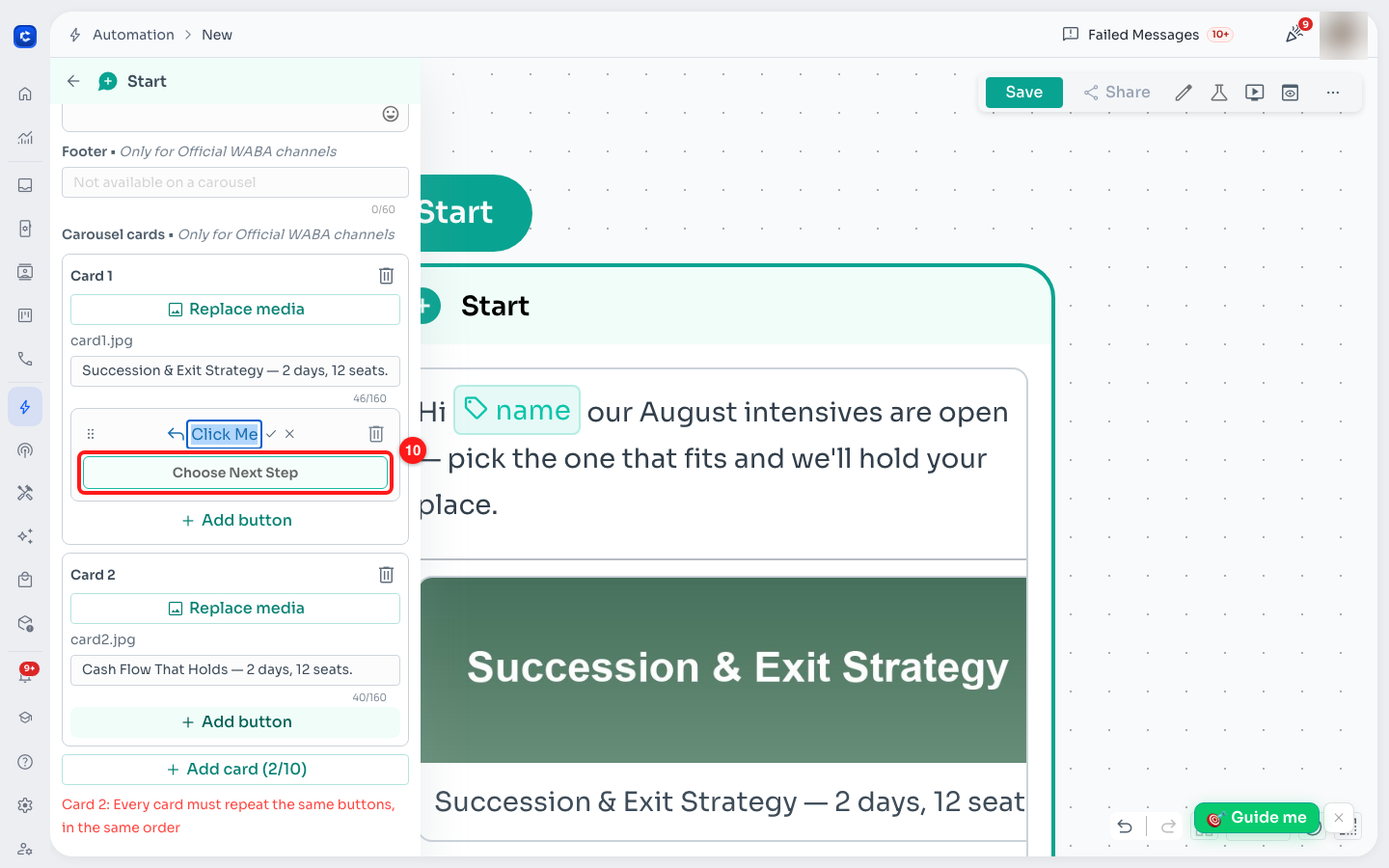
A card button: the label on top, Choose Next Step underneath.
Step 11 — Repeat the buttons on every other card
Add the same buttons, in the same order, to every remaining card. As soon as the cards match, the red warning disappears.
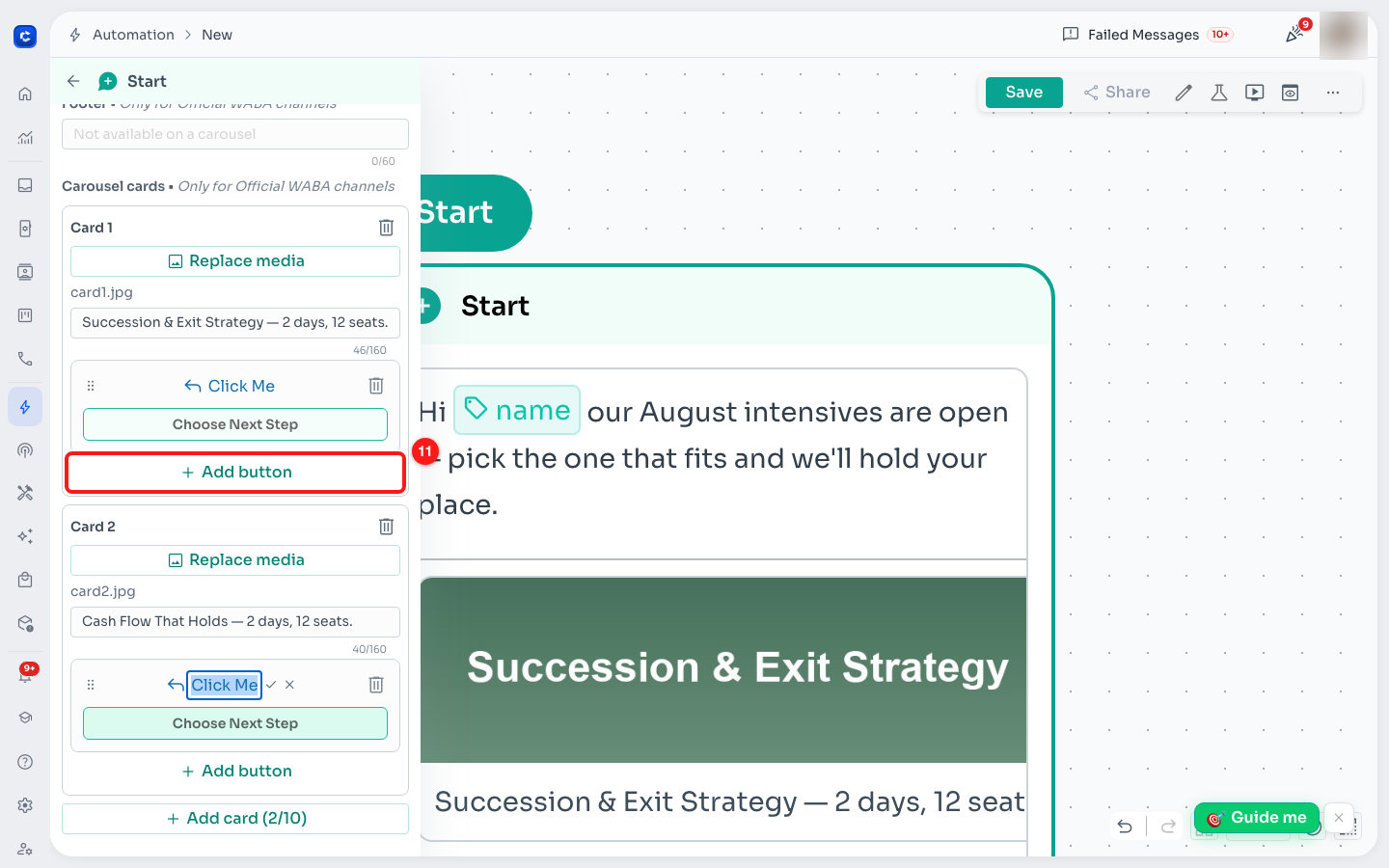
Card 2 now carries the same button as Card 1, and the warning has cleared.
Step 12 — Decide what each button does
Click Choose Next Step under a button. The picker offers both the steps your flow can continue to and the two button types that leave WhatsApp:
- Message, Email, Condition, Start Flow, HTTP Request, AI Chatbot — a reply button. Tapping it continues the flow at the step you pick.
- URL — a link button. It opens in the customer's browser and the click is counted in your reporting.
- Phone Number — a call button. It dials straight from WhatsApp. Nothing comes back into your flow, so there is no next step to connect.
⛔ Request Phone Number is deliberately not offered on a card. WhatsApp supports that button on an ordinary message but not inside a carousel.
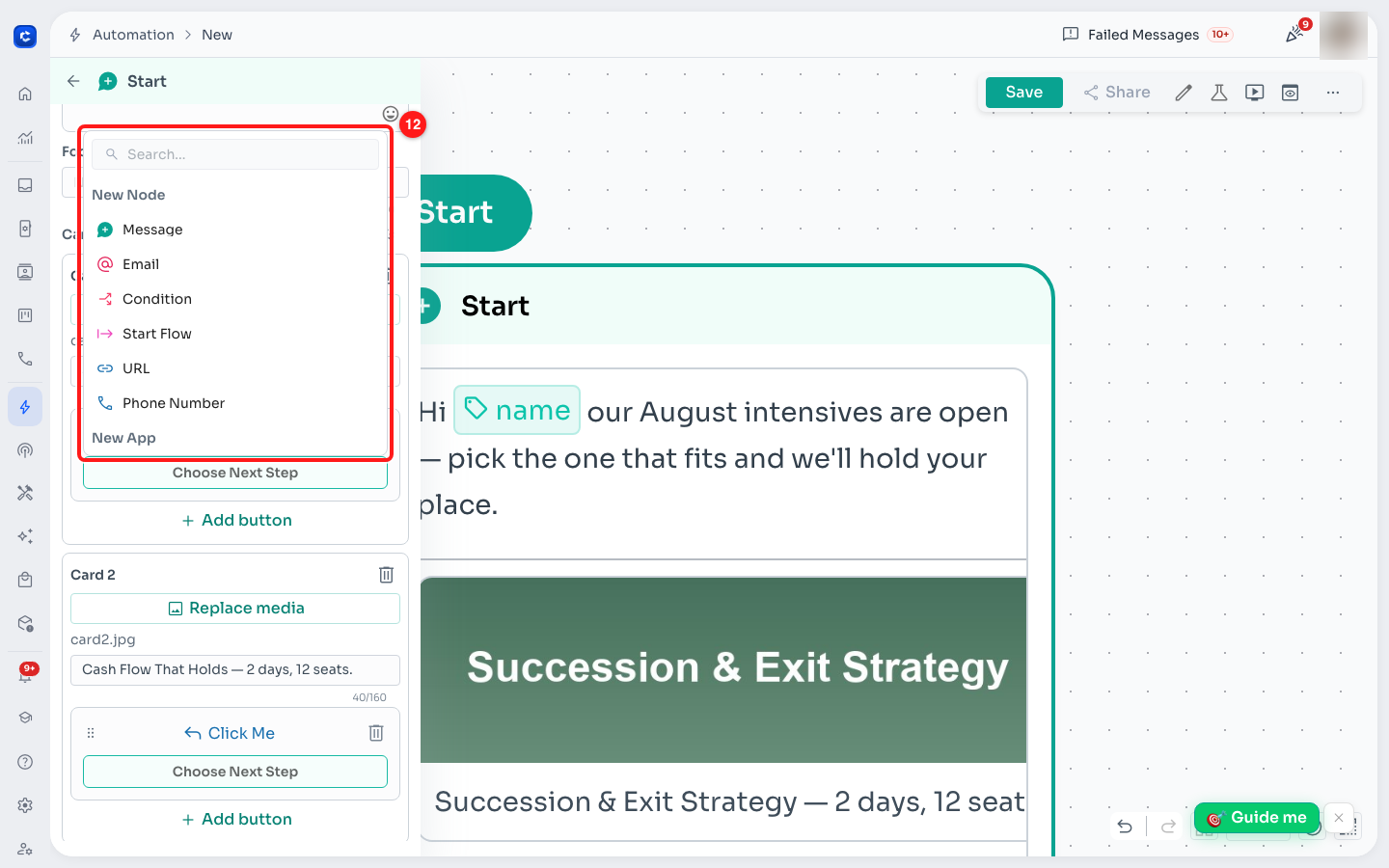
Choose Next Step: reply targets at the top, URL and Phone Number underneath.
Step 13 — Add more cards
Click Add card to add another. The counter on the button — Add card (2/10) — tells you how many you have and how many WhatsApp allows.
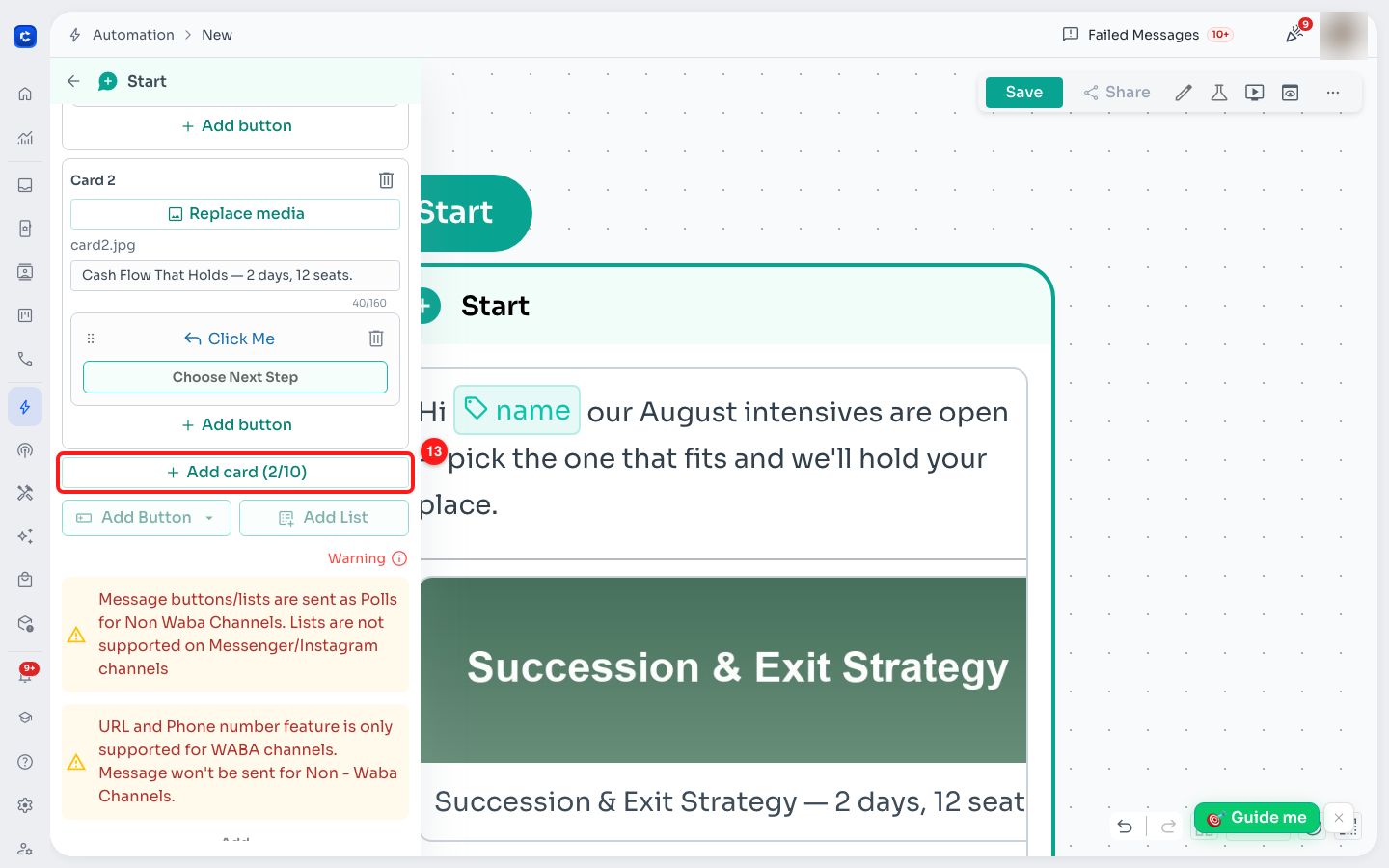
Add card, with the running count against WhatsApp's limit of 10.
Step 14 — Finish every new card
A new card starts empty, so it immediately breaks the rules the others satisfy. Give it its picture, its text and the same buttons as the rest, and the red lines clear again.
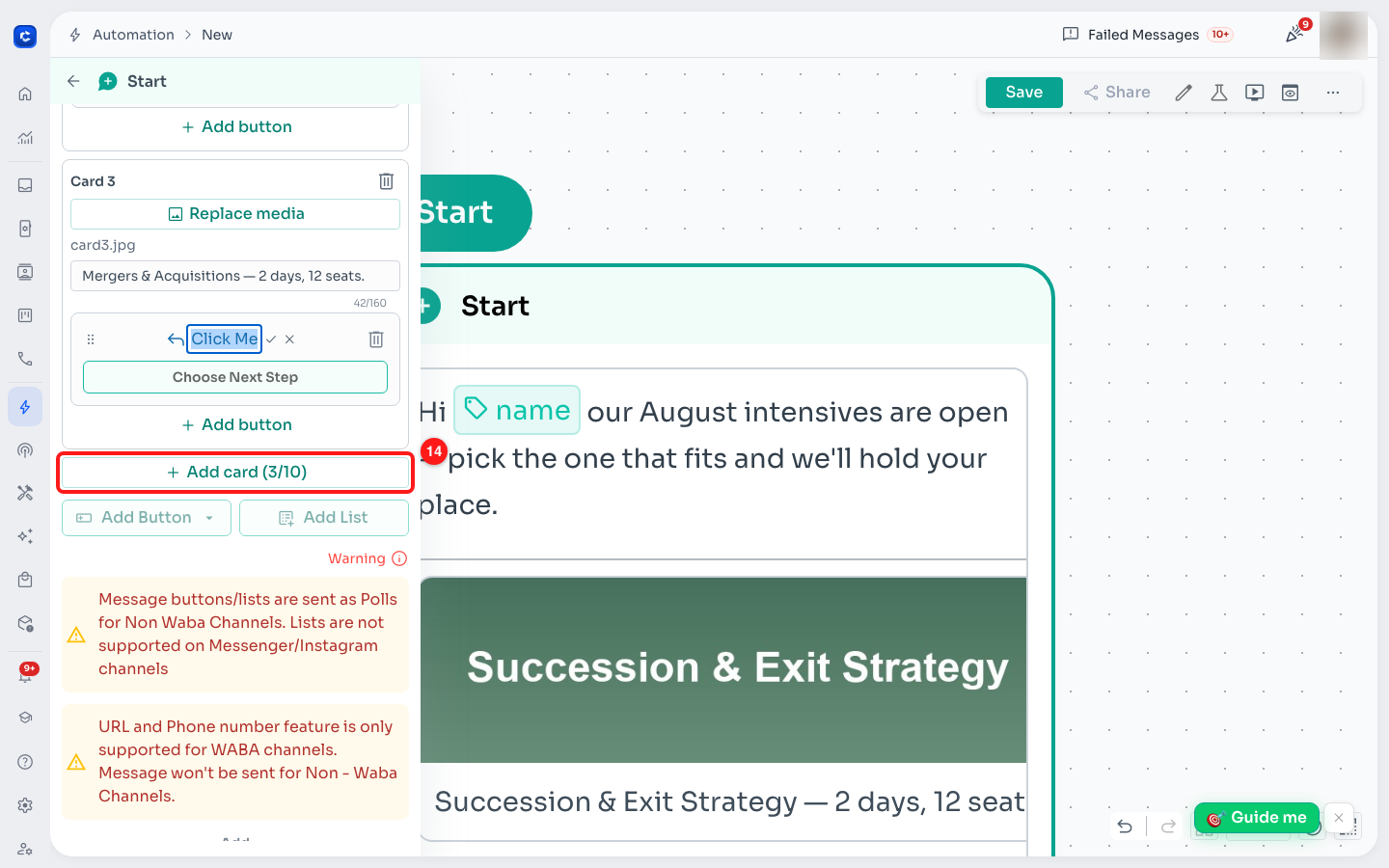
Card 3 completed. No warnings left, so the carousel is structurally valid.
Step 15 — Save your work
Click Save. This stores the flow — it does not send it to WhatsApp for review. Submitting is a separate, deliberate step, which is the next one.
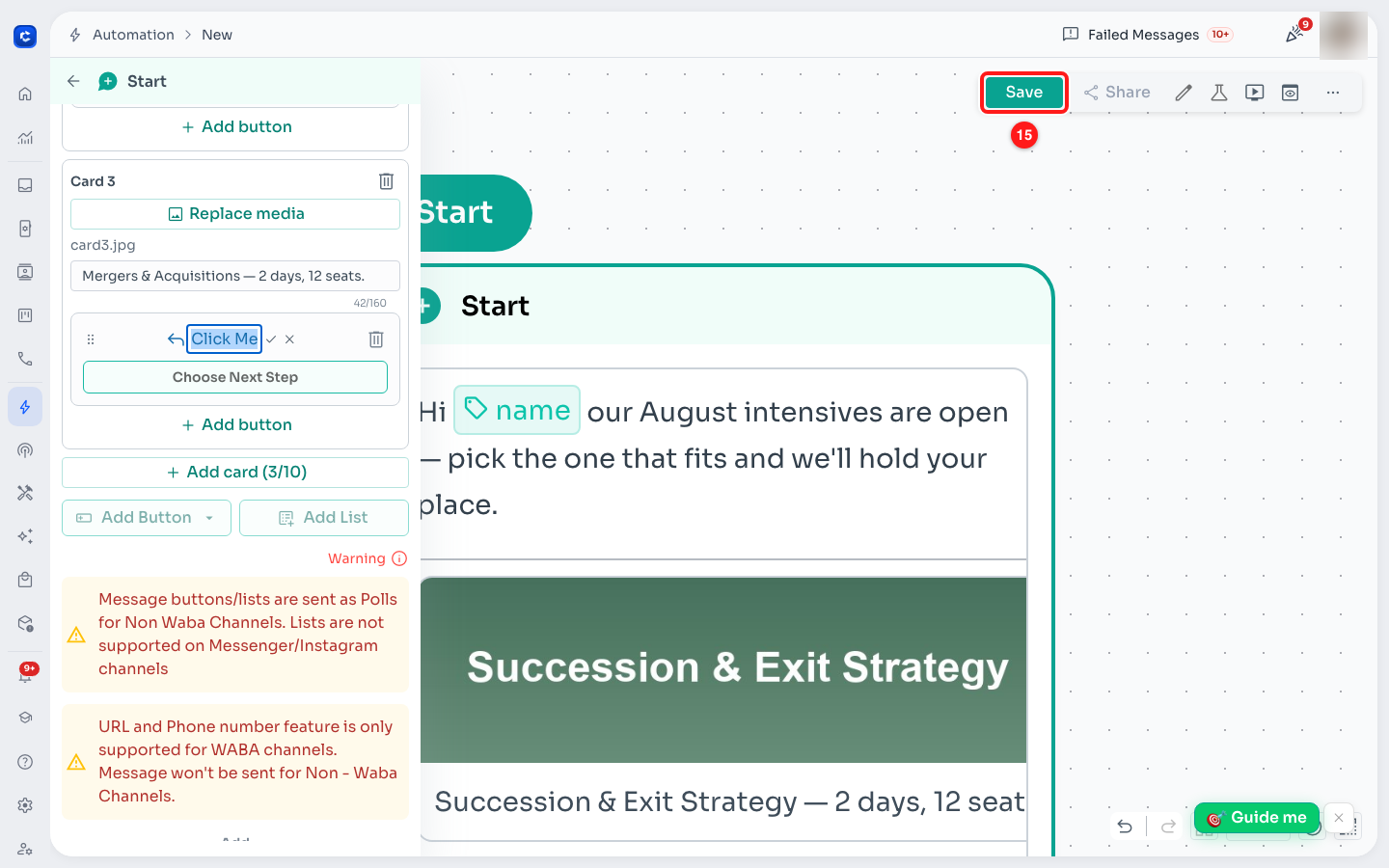
Save, in the top right of the Flow Builder.
What you have built
Close the settings panel and the canvas shows the finished message the way your customer will meet it: your opening line, then the cards.
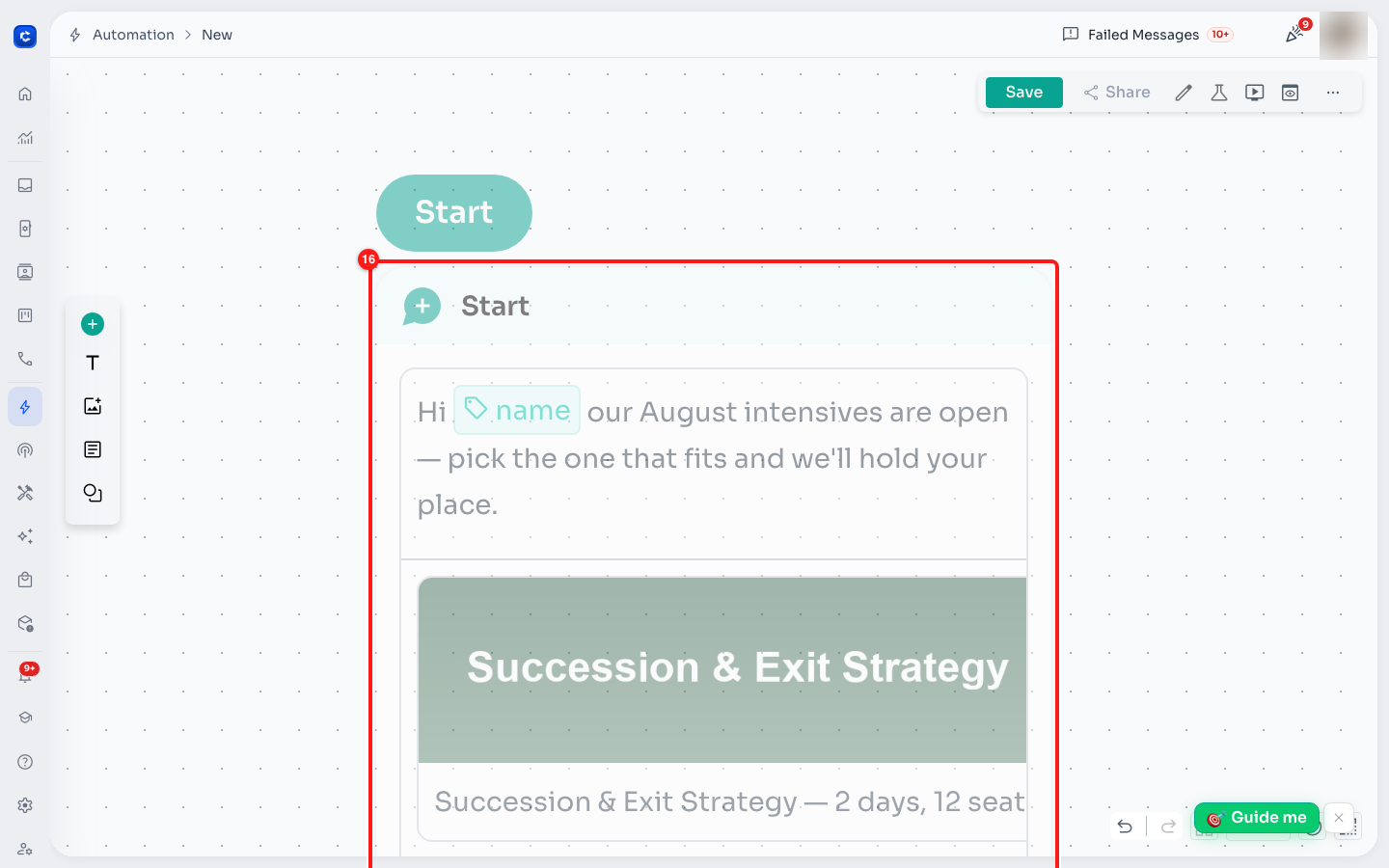
The message step on the canvas, previewing the opening line and the cards.
Step 16 — Submit it for approval
A carousel is a WhatsApp template, and Meta has to approve it before a single one can be sent. Open the ⋯ menu in the top right of the Flow Builder and choose Submit for Approval.
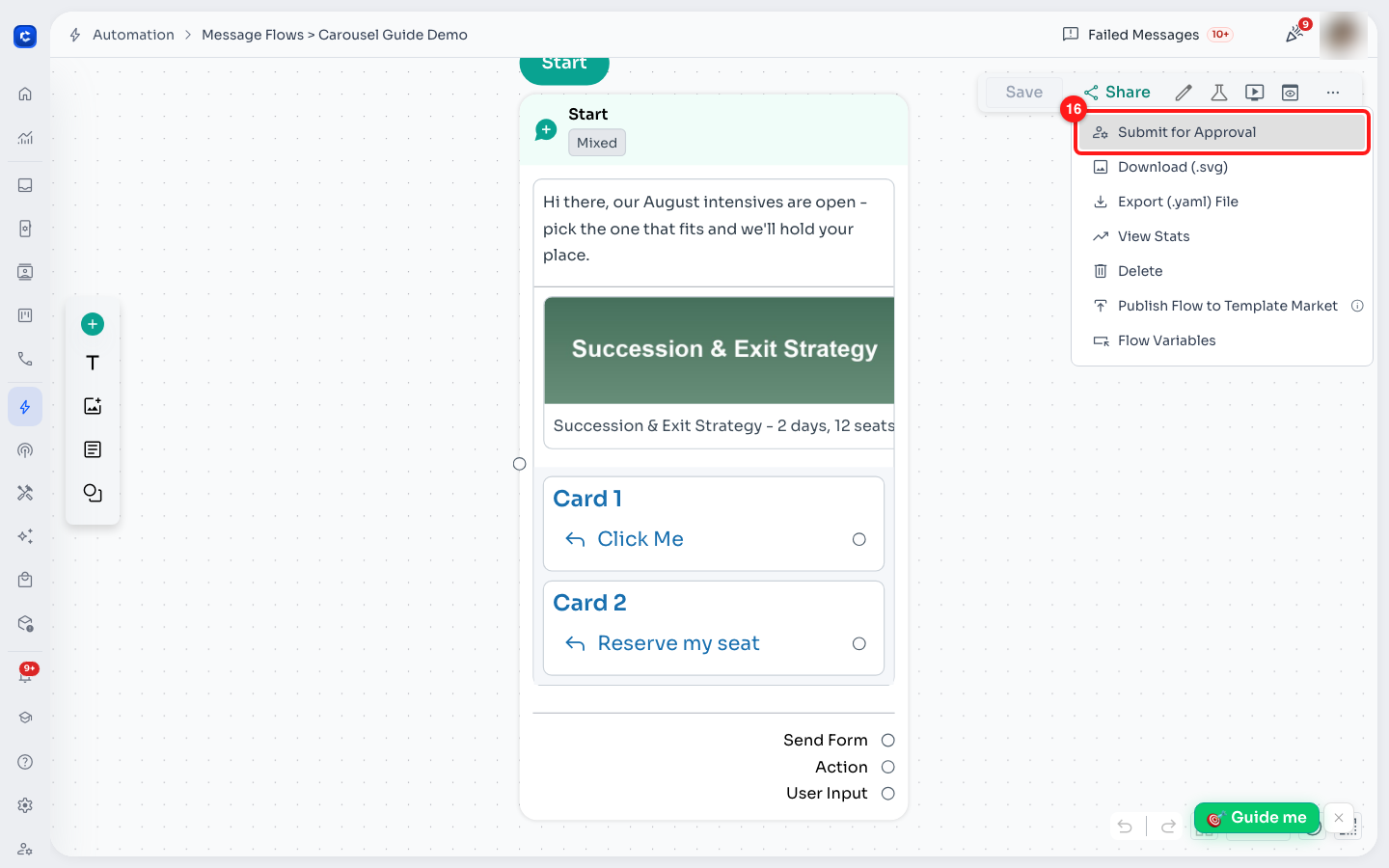
The flow's ⋯ menu. Submit for Approval is the first entry.
💡 If this entry shows a padlock instead, the team has no WhatsApp Business API channel yet — clicking it takes you to channel setup instead of the submit screen.
Step 17 — Choose channel, language and category, then Submit
The submit screen has two halves. On the left you set what you are submitting:
- Channel — every WhatsApp Business API channel you want this template approved on. Meta approves per channel, so a template approved on one channel cannot be sent from another.
- Language — ChatDaddy detects it from your text. Meta requires a separate approval per language.
- Category — a carousel must be Marketing. Utility and Authentication are not allowed to carry cards.
On the right, View Status lists every message step in the flow against every channel. Tick the step you want submitted — the Submit button stays greyed out until at least one is selected. The footer shows your chances of approval, based on how your past templates have fared.
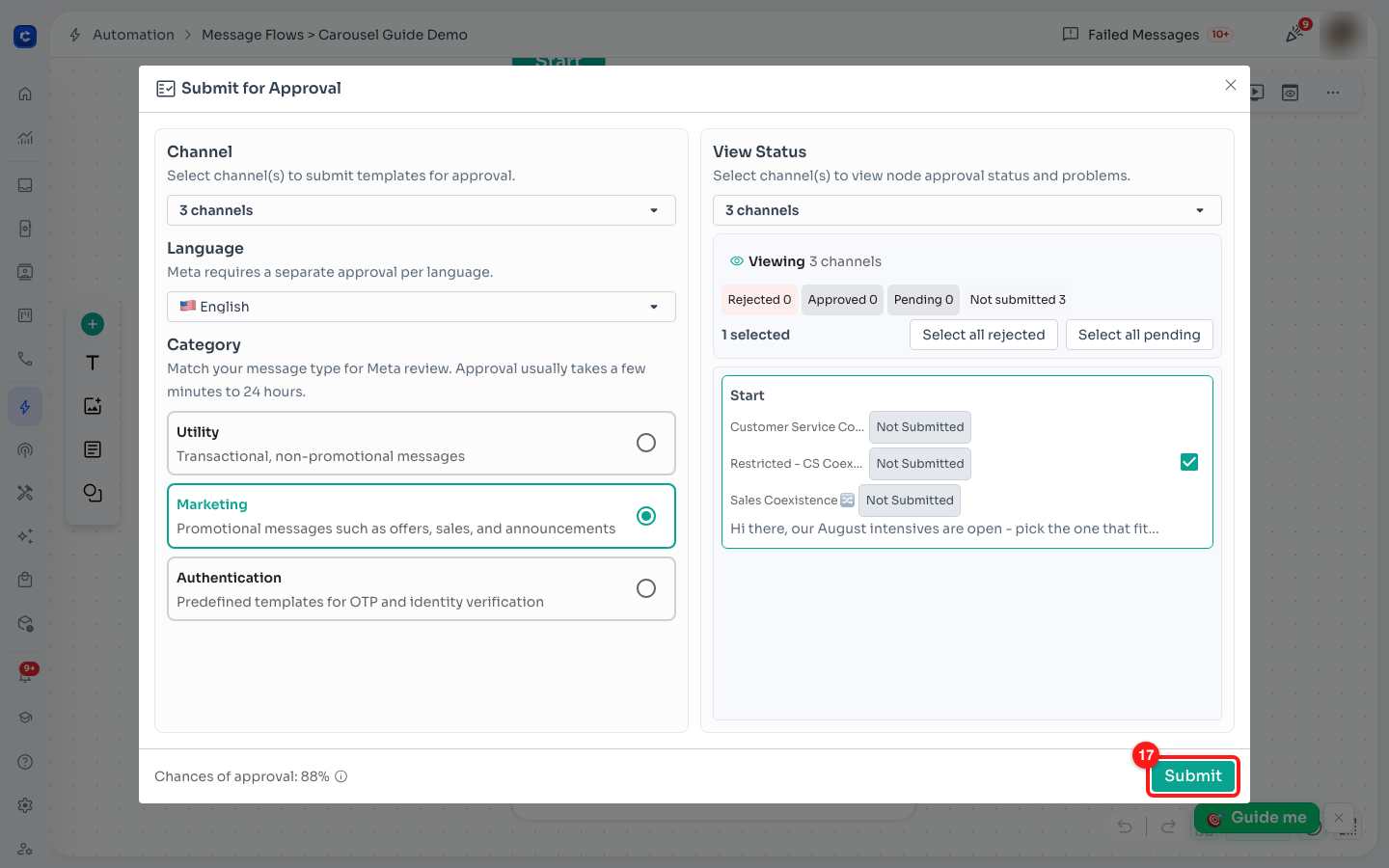
Submit for Approval: channel, language and category on the left; tick the step on the right; Submit.
Step 18 — Wait for Meta
Every ticked step flips to Pending. On Automation → Message Flows, the Template Status column tracks the same thing for the whole flow. Your carousel cannot be sent until this reads Approved.
In practice this is fast — the carousel in this guide was approved about two and a half minutes after submitting — but Meta allows itself up to 24 hours.
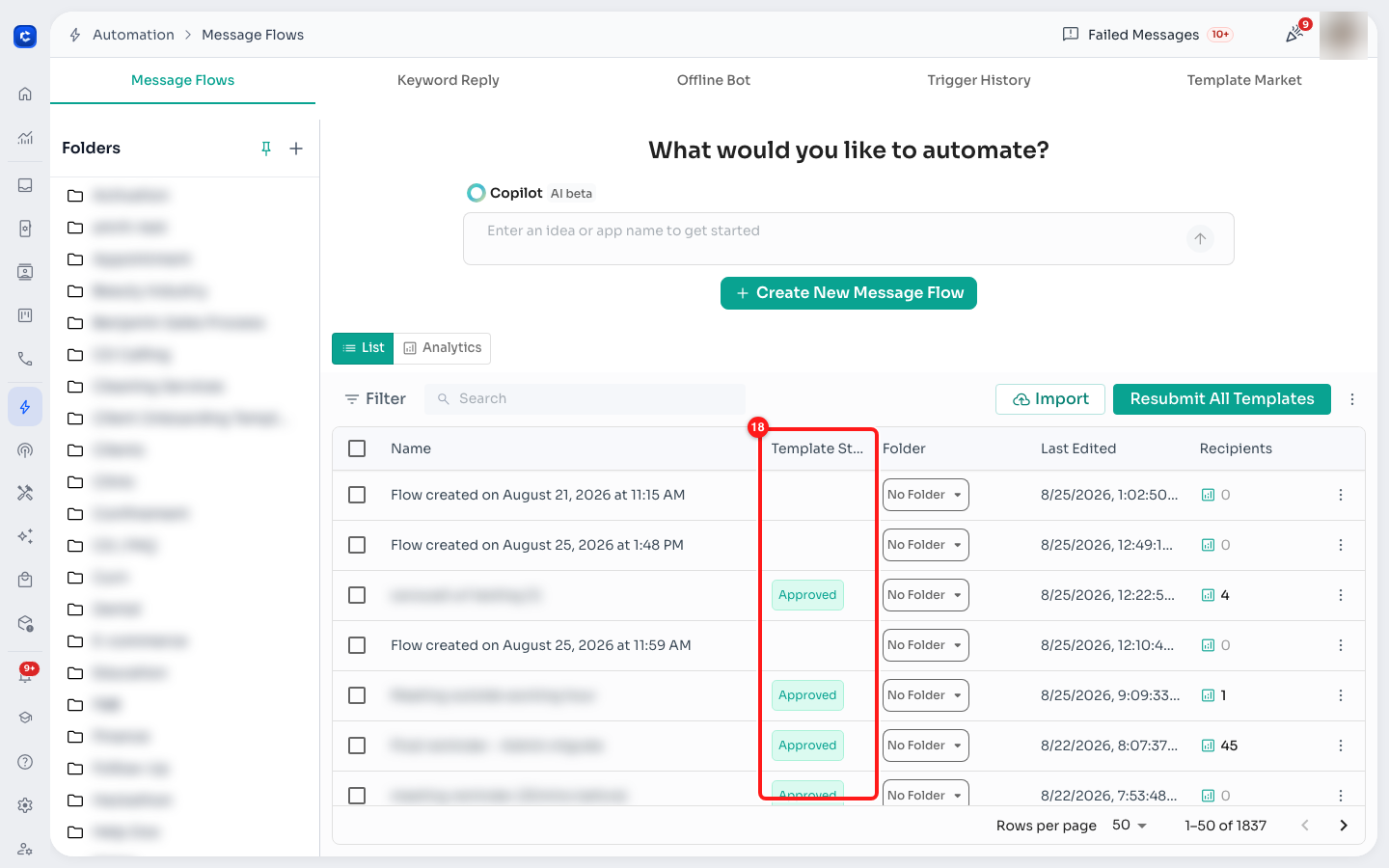
The Template Status column on the Message Flows list.
⚠️ If you submitted to several channels, they do not all come back at once. The flow shows Mixed while some are approved and others are still pending — that is normal, and you can already send from any channel that has come back Approved.
Step 19 — Send it to a real phone
Once the template is approved, click the flask icon in the Flow Builder toolbar. This saves the flow and opens Send Test Message to.
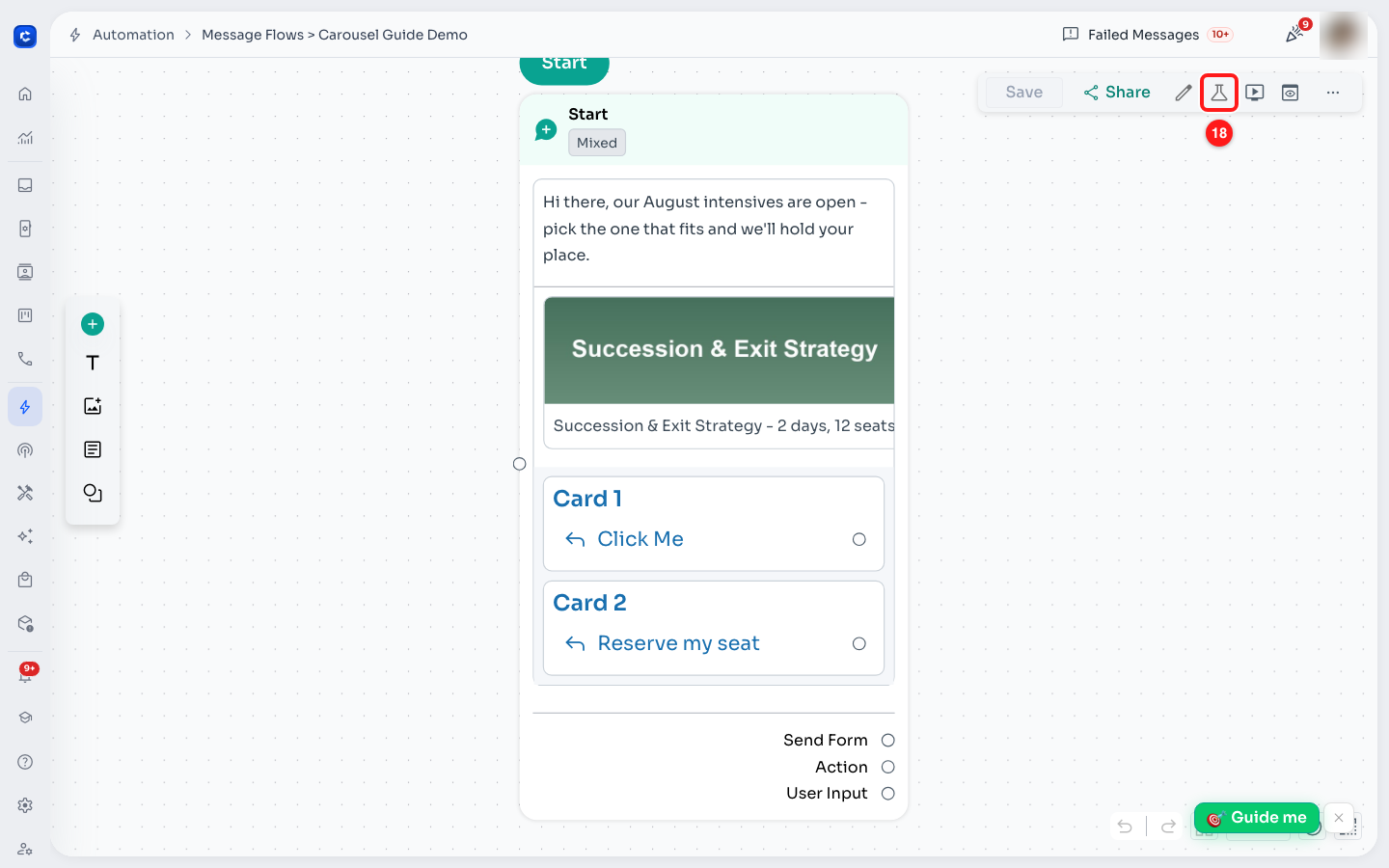
The flask icon runs the flow against one phone number. The chip on the step shows its template status.
Fill in two things:
- Phone Number — in full international format. ChatDaddy prefills your own number, so change it if you are sending somewhere else.
- Select Channel — the WhatsApp Business API channel to send from. Only connected channels appear, and it must be one you had the template approved on. Use the search box in the picker if you have a lot of channels.
Then click Test. The dialog closes and the flow fires straight away.
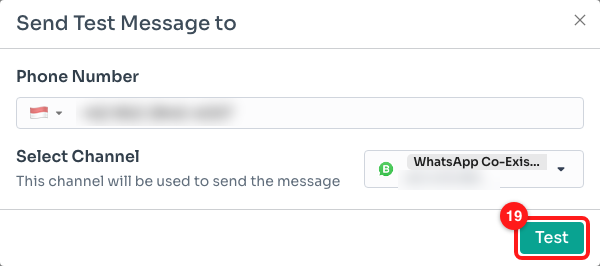
Send Test Message to — phone number and sending channel. The numbers are blurred here.
Step 20 — What lands on the phone
Open the Inbox and search for the number you sent to. The conversation shows the message exactly as your customer received it: the opening line, then the cards side by side with their pictures, their text and their buttons. The small line above the message names the flow it came from, and the double tick means WhatsApp accepted and delivered it.
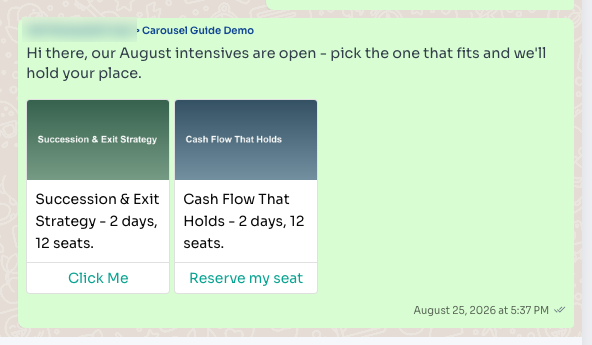
The carousel as delivered on WhatsApp, seen back in the ChatDaddy Inbox.
📌 A test send goes out on the approved template like any other message, so it is a real marketing message to a real phone — not a simulation. Send it to your own number first.
The rules WhatsApp will not bend on
Break any of these and the template is rejected, often with an error that explains nothing. ChatDaddy checks most of them for you as you build.
- Between 2 and 10 cards — and once approved, the number is locked. A three-card template always sends three cards.
- Every card the same shape — all pictures or all videos, never mixed; the same button types in the same order on every card.
- Card text is all or nothing — if one card has text, they all need it.
- The opening line is text only — no header, no footer, no message-level buttons and no list when you are using cards.
- Marketing only — a carousel cannot be a utility or a verification-code message.
- JPG and PNG only — WebP is rejected by WhatsApp. Videos must be MP4, and each file must be under 35MB.
- 160 characters per card — the opening line allows 1,024, but each card's own text is much shorter.
- No "Request Phone Number" on cards — that button works on an ordinary message, not inside a carousel.
The one that catches everyone
🚧 You cannot reshape a carousel after it has been approved. Changing the wording is usually fine. Adding a card, removing a card, adding text to cards that did not have it, or changing the buttons will be refused — and the error just says "Invalid parameter".
It gets more confusing than that. WhatsApp compares your submission against the last version it approved, not against what you edited a minute ago. So if you added card text last week and that submission was rejected, then today you only fix a typo in the opening line, it is still refused — because the card-text change is still sitting there unapproved.
What to do: save it as a new template instead of editing the approved one, and give it a new name. Resubmitting under the same name is refused as well.
Sending it
- Once approved, send it like any other flow — trigger the flow, or use it in a broadcast.
- Broadcasts work normally. A carousel broadcast behaves like any other campaign.
- When someone taps a reply button on a card, your flow continues from the step you connected it to.
- When someone taps a link button, it opens in their browser and the click is counted in your reporting.
- Phone number buttons dial straight from WhatsApp — nothing comes back into your flow.
If your channel disconnects, nothing sends
A carousel is only as reliable as the channel behind it. If WhatsApp disconnects your WhatsApp Business API channel, ChatDaddy shows this popup the next time you open the Inbox:
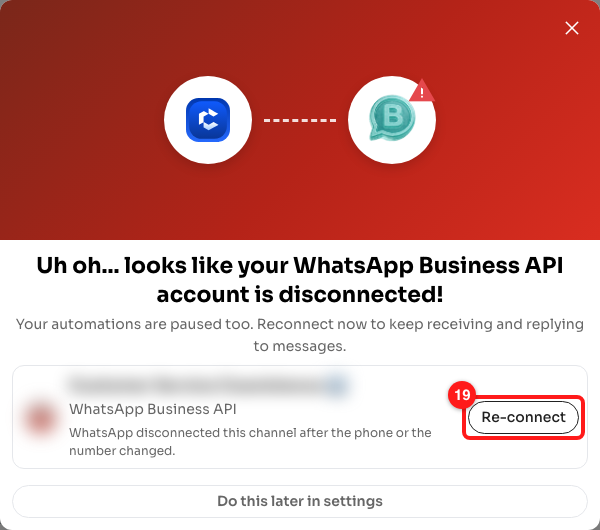
The channel disconnected popup. The channel name and picture are blurred here.
"Uh oh… looks like your WhatsApp Business API account is disconnected!" — and, in smaller type, the sentence that actually matters: your automations are paused too. While the channel is down, your flows do not run and your carousel does not go out, however cleanly it was approved.
Under the channel name the popup explains what WhatsApp told us, in plain words rather than an error code — for example "WhatsApp disconnected this channel after the phone or the number changed", or "The number on this channel was changed in WhatsApp, which disconnects it". Common causes are the number being changed, WhatsApp being set up again on a new phone, long inactivity on the main phone, or the number being moved back to the personal WhatsApp app.
You have two options:
- Re-connect — reruns the Meta sign-up for that channel there and then. This is the one that actually fixes it. Nothing resumes until the channel is back.
- Do this later in settings — dismisses the popup and takes you to Channels, where you can reconnect when you are ready.
💡 Closing the popup with the × only hides it for this session — it returns the next time the Inbox loads, because the channel is still down. If you abandon the Meta sign-up halfway, the popup keeps reminding you; it only stops once the channel genuinely reconnects. If more than one channel is affected the popup lists them all, each with its own Re-connect button.
If something goes wrong
"Meta couldn't upload your file"
One of your pictures is in a format WhatsApp will not take — almost always a .webp file. Save it as JPG or PNG and replace the picture on that card.
"Invalid parameter" when you resubmit
You changed the shape of a template that is already approved. Save it as a new template with a new name rather than editing this one.
The message sent, but no cards showed up
The template was approved as a plain text message, so there are no cards in it to send. Re-sending will not help — delete it and build a new template under a different name.
The template was rejected with no clear reason
Check the strict rules above. Most rejections come down to a mixed picture format, uneven buttons, or text on some cards but not others. Make every card match, then resubmit as a new template.
Nothing is sending at all
Check the Inbox for the channel disconnected popup above, and check Channels. A disconnected channel pauses every automation, not just this one.
Not available yet
So you know what to expect rather than reporting it as broken.
- Older carousels look plain in the Inbox. Carousels sent before this update show their pictures but not the card wording. New ones display in full.
- Some rejections only show up at WhatsApp. A few rules are not checked while you build, so you find out at approval instead of straight away. Checking the rules above first saves the round trip.
- The picker accepts any image. You can currently choose a WebP file and only find out it is unsupported later. Stick to JPG and PNG.
- Product carousels are not supported. Cards that pull items from a shop catalogue are a different feature and are not available.
For WhatsApp's own rules on carousel templates, see Meta's media card carousel documentation.