
How to Send a Message Flow Template from the Inbox
When a customer has not messaged you for over 24 hours, WhatsApp only lets you send an approved template. This walks through both ways to send one from the Inbox — the button on the 24h Limit banner, and the "/" shortcut in the message box — including previews, template variables and what each status chip means.
Also searched as: How to Send a Message Flow Template from the Inbox, Understanding the window banner, Method 1 — from the 24h Limit banner, Open the chat, Click Send Template Message, The Template Message List opens, Read a row, Search for a template, Preview before you send, Fill in the variables, Method 2 — the "/" shortcut, Type / in the message box, Send it, What each template status means, Send
When a customer has not messaged you for more than 24 hours, WhatsApp stops you sending them an ordinary message. The only thing that still gets through is a template — and in ChatDaddy a template is simply a Message Flow whose starting message Meta has approved.
There are two ways to send one from the Inbox: the button on the 24h Limit banner, and the / shortcut in the message box. Both open the same list of approved templates.
Before you start
- A WhatsApp Business API (WABA) channel. The window banner and the Template Message List appear only on WABA chats — not on personal WhatsApp, Messenger or Instagram chats.
- At least one Message Flow whose template status is Approved.
- That flow needs a starting message. A flow without one cannot be sent — clicking it opens the flow editor instead.
Understanding the window banner
Open a WABA chat and look just above the message box. One of three banners tells you what you are allowed to send right now.
- • 24h window active (green) — the customer replied less than 24 hours ago. It shows how long ago they last replied and when the window expires. You can send any message type.
- • FEP active (blue) — a Free Entry Point window is open, so messages are free of cost. Templates stay free while it lasts.
- • 24h Limit (amber) — more than 24 hours since their last message. Approved templates only.
ℹ️ The green and blue banners hide themselves after about 10 seconds. The amber 24h Limit banner stays until you close it, because it is the one that blocks you. Don't see this again hides the green and blue banners for that channel — you can re-enable them in channel settings.
Method 1 — from the 24h Limit banner
Step 1 — Open the chat
Go to your Inbox and select the WhatsApp API conversation you want to reopen. The window banner sits above the message box.
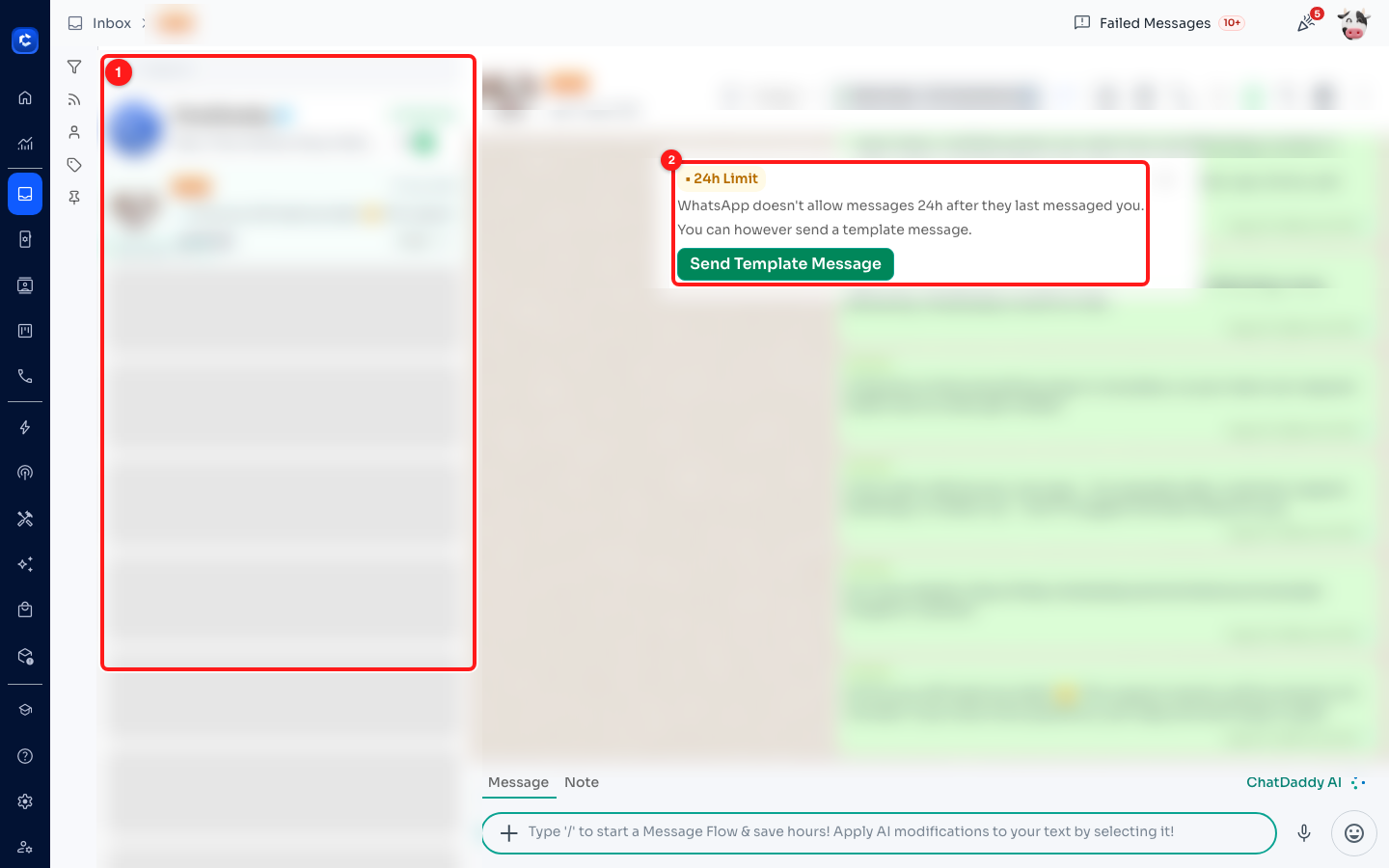
Step 1 — pick the chat from the list (1); the amber 24h Limit banner (2) shows the window has closed. Customer details are blurred here.
Step 2 — Click Send Template Message
The banner explains the limit: "WhatsApp doesn't allow messages 24h after they last messaged you. You can however send a template message." Click Send Template Message.
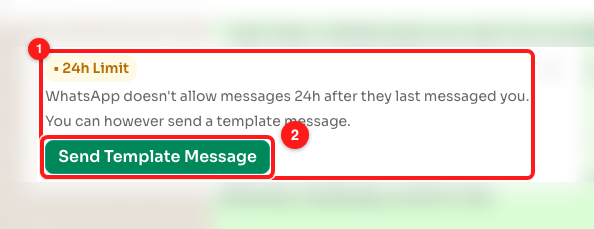
Step 2 — the 24h Limit banner (1) and its Send Template Message button (2).
Step 3 — The Template Message List opens
This list only ever contains approved templates that have a starting message, so everything in it is safe to send outside the window. Use Search templates… to narrow it down, and Sorted By to switch between Last Edited and Name — the arrow next to it flips the direction.
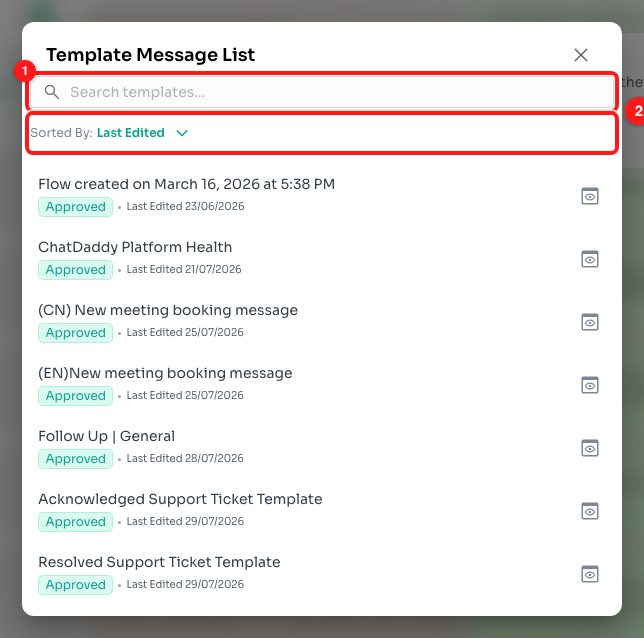
Step 3 — the search box (1) and the Sorted By control (2).
Step 4 — Read a row
Every row carries the same four things: the template name, an Approved status chip, the date it was last edited, and a preview icon on the right.
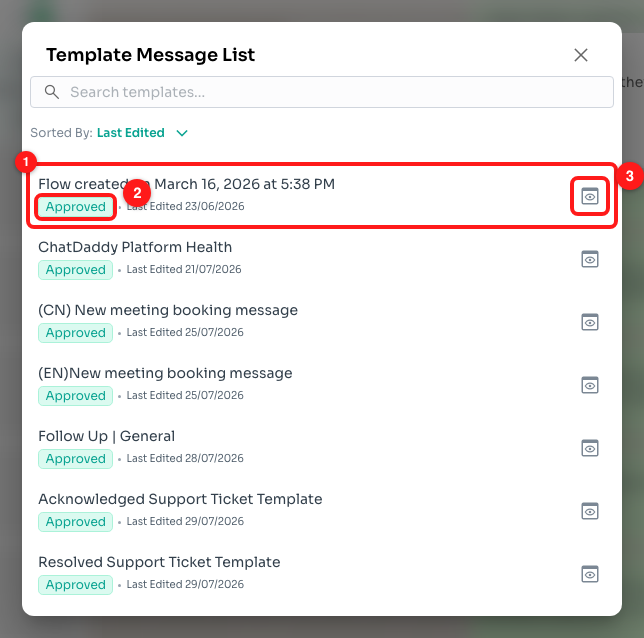
Step 4 — the row (1), its Approved chip (2) and the preview icon (3).
Step 5 — Search for a template
Typing in the search box filters the list by name as you type. If nothing matches you get No templates match your search — clear the box to get the full list back.
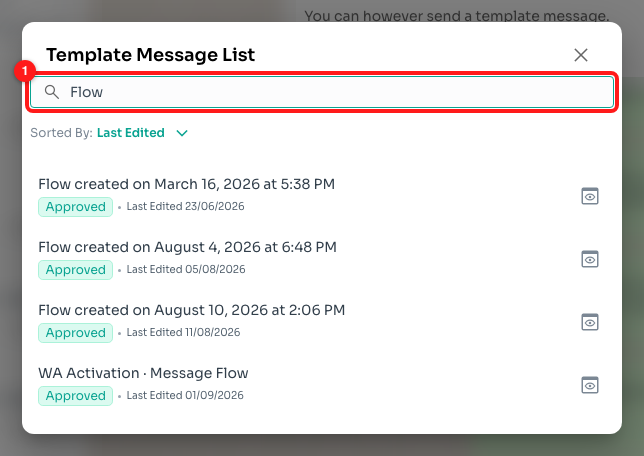
Step 5 — searching narrows the list to matching templates (1).
Step 6 — Preview before you send
Click the preview icon on a row to see exactly what the customer will receive, rendered as a phone mock-up. This is worth doing every time, for the reason in the next step.
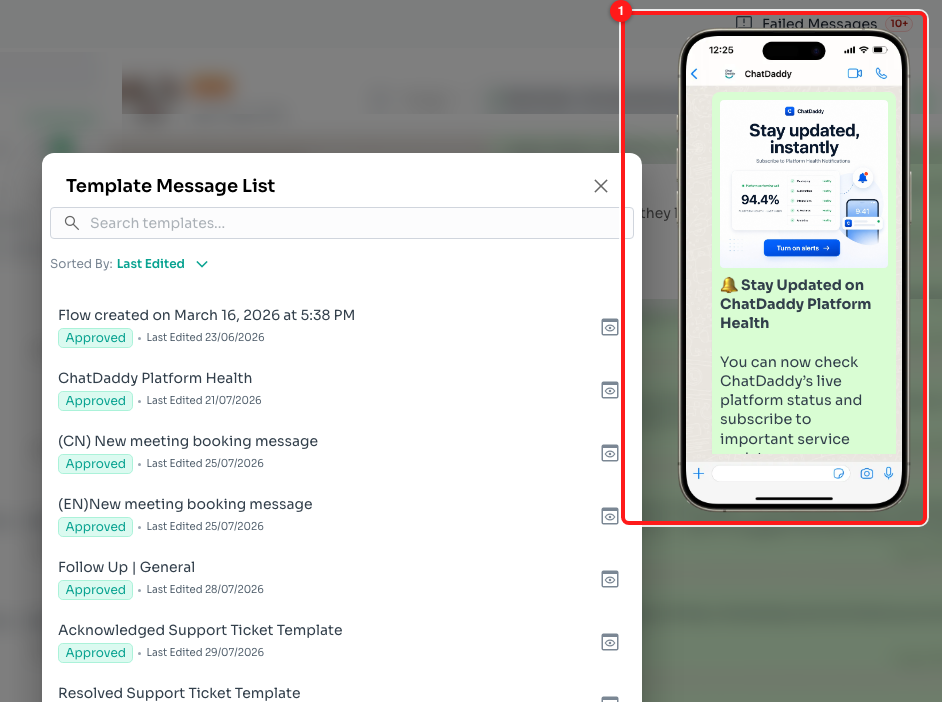
Step 6 — the preview shows the template as the customer will see it (1).
⚠️ A template with no variables sends the moment you click its row — there is no confirmation step. Preview it first if you are not certain which template you are on.
Step 7 — Fill in the variables
If the template contains placeholders such as {{name}}, clicking the row opens the Template Variables dialog instead of sending. It shows a Template Preview at the top and one Input Values box per placeholder. Fill them in, then click Send Message.
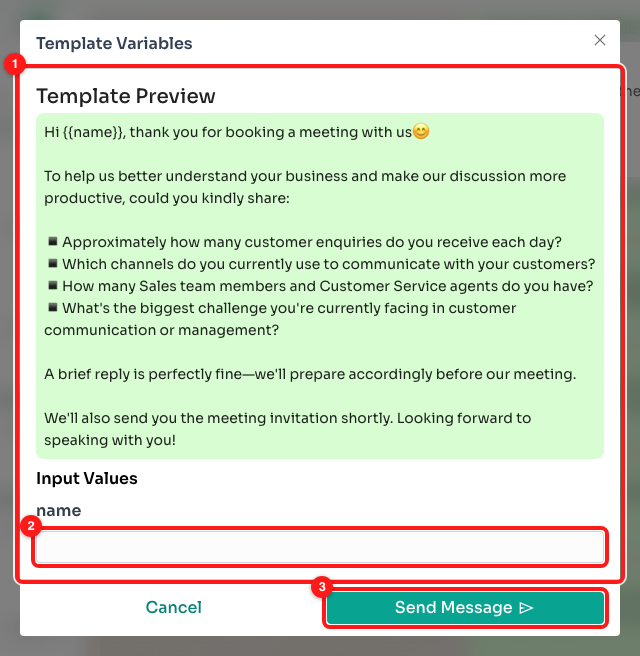
Step 7 — Template Preview (1), one input per placeholder (2), then Send Message (3).
💡 Values already stored on the contact as a tag are filled in for you and are not shown in this dialog — you only ever type the ones ChatDaddy does not already know.
Method 2 — the "/" shortcut
Step 8 — Type / in the message box
The message box says it out loud: "Type '/' to start a Message Flow & save hours!" Typing / as the first character in an empty message box opens the flow picker. Keep typing to search it.
The picker header carries Sorted By and Template Status, which filters the list to All, Approved, Not Approved or Not Submitted. The + button creates a new Message Flow.
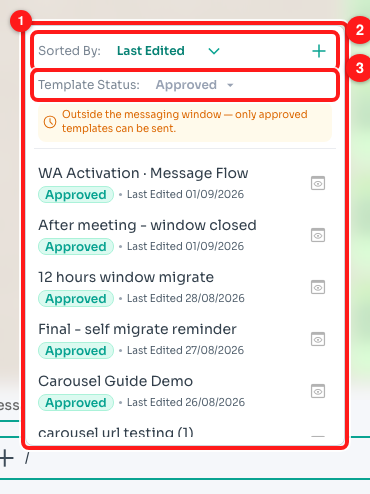
Step 8 — the picker (1), Sorted By (2) and the Template Status filter (3).
ℹ️ Outside the 24-hour window ChatDaddy sets Template Status to Approved for you and shows "Outside the messaging window — only approved templates can be sent." Approval is per channel, so a template approved on one WABA number may not appear on another.
Step 9 — Send it
Choosing a flow turns the message box into a blue card reading Sending Message Flow | Last Edited On … with the flow name under it. Click the send button to send it, or Clear to drop it and go back to writing a normal message.
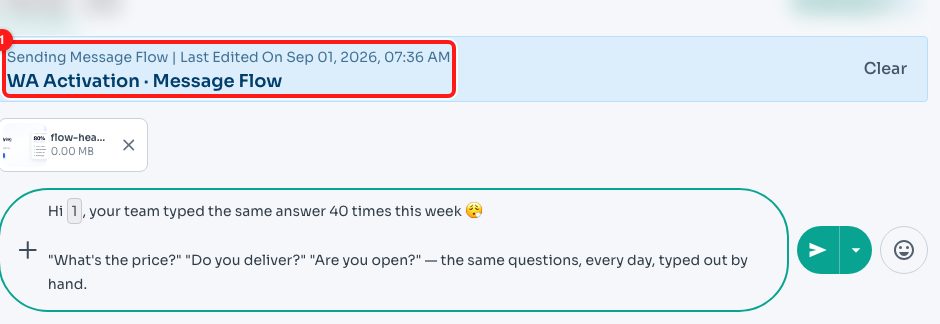
Step 9 — the staged Message Flow (1), with Clear on the right to discard it.
⚠️ Typing into the box after choosing a flow detaches it. ChatDaddy asks first: "Are you sure you want to edit? If so this message will work as a single message and no longer be the selected message flow. Any buttons in this message flow will not work when sent, neither will any scheduled delays be sent out." If you continue, only the plain text is sent — buttons and delays are dropped.
What each template status means
- Approved — ready to send, including outside the 24-hour window.
- Approved (Stale) — approved, but the flow has been edited since. Resubmit it so the approved copy matches what you would send.
- Pending — waiting on Meta's review.
- Rejected — Meta refused it. Fix the content and resubmit.
- Mixed — the template has different statuses across your WABA channels.
- Not Submitted — never sent to Meta for approval.
Troubleshooting
The list says "No approved templates found".
Nothing on this team has an approved starting message yet. Go to Automation → Message Flows, open the flow you want to use, and submit it to Meta for approval. Only flows that come back Approved appear in this list.
The template I want is missing outside the window.
It is either not approved at all, or not approved for the specific WABA channel this chat belongs to. Approval is per channel, so check the status against the number this conversation is on rather than against the flow in general.
Clicking a flow opened the flow editor instead of sending it.
That flow has no starting message, so there is nothing to send. Open it, give it a starting step, and submit it for approval.
There is no banner above my message box at all.
The chat is not on a WhatsApp Business API channel. The 24-hour window, the banner and the Template Message List are WABA-only — personal WhatsApp, Messenger and Instagram chats do not have them.
I sent a template by accident.
A template with no variables sends as soon as you click its row, with no confirmation. Use the preview icon to check a template before clicking the row itself, and remember that clicking the row is the send action — not the preview.