
How to Send a WhatsApp Notification When a Chat is Assigned Using HTTP Request Node
This guide explains how to configure an HTTP Request node in Message Flows to send a WhatsApp notification when a chat is assigned to you.
Updated Jul 19, 2026
This guide explains how to configure an HTTP Request node in Message Flows to send a WhatsApp notification when a chat is assigned to you.
Steps to Configure the HTTP Request Node
1. Add the HTTP Request Node
- Navigate to Automation → Message Flows.
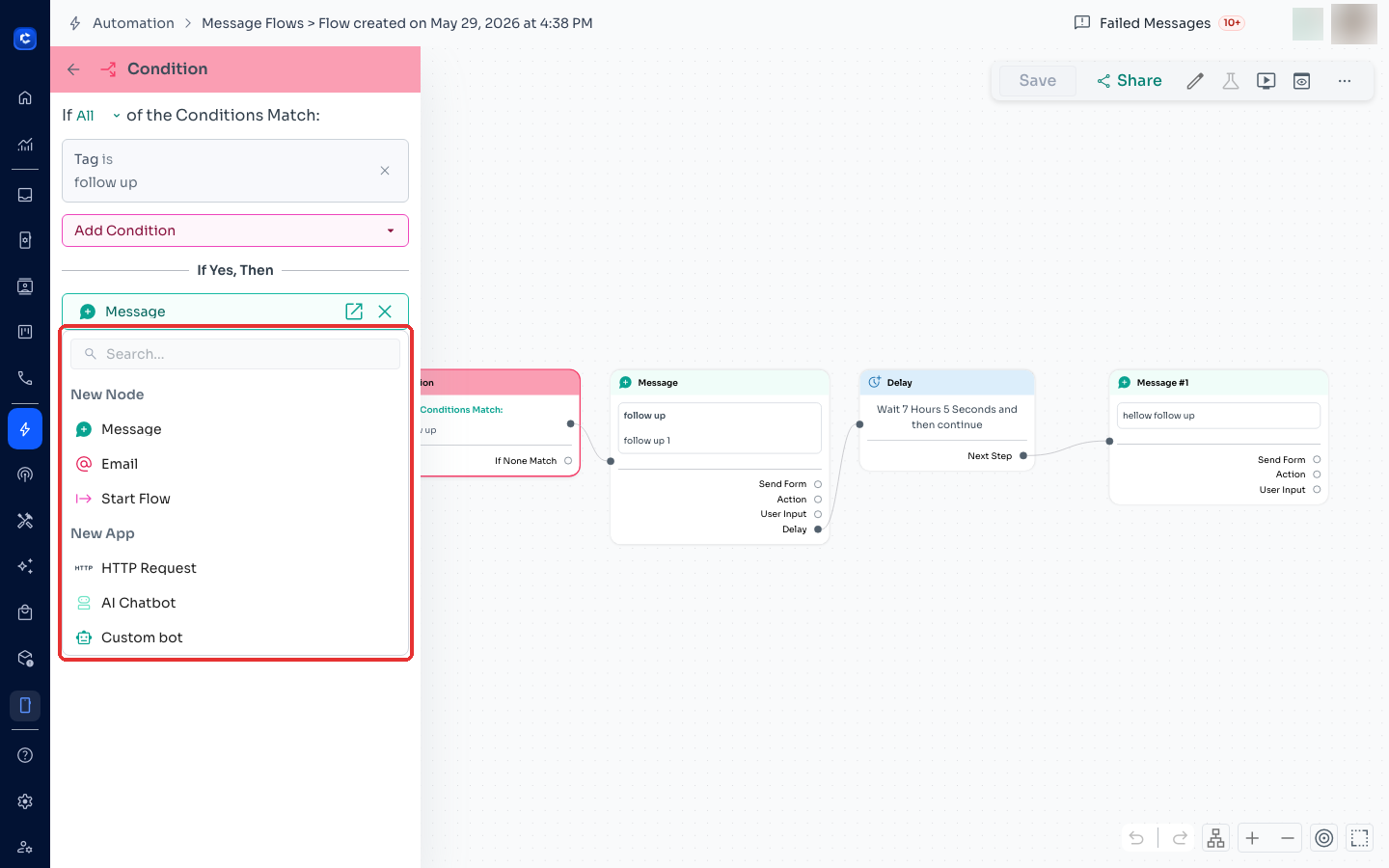
- Click Choose Next Step and select HTTP Request from the options.
2. Add the API URL
https://api-im.chatdaddy.tech/messages/{channel_id}/{recipient_number}@s.whatsapp.net
- Replace {channel_id} with the ID of the channel sending the message.
- Replace {recipient_number} with the recipient's WhatsApp number.
- Go to Manage Channels.
- Copy the Channel ID of the desired channel.
3. Select the HTTP Method
- Set the Method to POST.
4. Add Headers
- Name: Authorization Value: Your API Token.
- Name: Content-Type Value: application/json.
5. Generate the Bearer API Token
- Go to Settings → Developer → API Token → Create → Select All Access → Save.
- For more details, refer to the API Token Creation Guide.
6. Add the Request Body
{
  "text": "Hey Cheryl\nYour teammate has assigned a chat to you!\nVisit https://app.chatdaddy.tech/root-inbox/inbox/acc_xxxx/60123456789@s.whatsapp.net"
}
- acc_xxxx: Your account ID.
- 60123456789: The recipient's WhatsApp number.
7. Save and Test the Configuration
- Once all fields are configured, your HTTP Request node should resemble the example below.
8. Verify the Notification
- When the flow condition is met (e.g., chat assigned), the system will automatically send a WhatsApp notification to the recipient. By following these steps, you can successfully configure an HTTP Request node to send WhatsApp notifications when a chat is assigned.
Where to click
Was this article helpful?