
How to use Input node
The Input Node allows you to collect responses from users during your message flow. It supports various types of inputs to help you structure and capture…
Updated Nov 21, 2025
🧩 How to Use the Input Node
The Input Node allows you to collect responses from users during your message flow. It supports various types of inputs to help you structure and capture information accurately for different use cases like forms, surveys, or lead generation.
✨ What Is the Input Node?
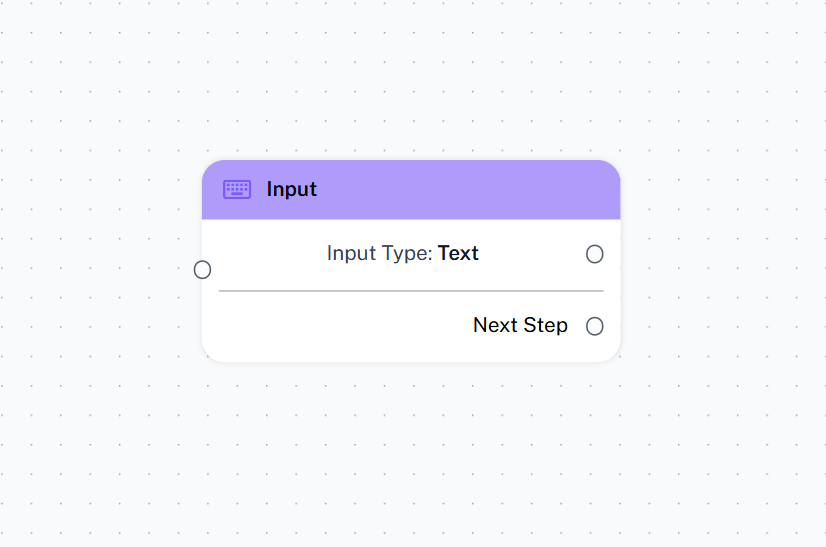
The Input Node is a feature within ChatDaddy’s Flow Builder that waits for a response from the user and stores the reply into a variable. You can then use this data in subsequent messages or integrations.
🧪 Available Input Types
Below is a list of input types the Input Node can recognize:
🛠 How to Configure
- Add an Input Node to your message flow.
- Choose the Input Type from the dropdown based on what information you’re expecting.
- Connect the Next Node to continue the conversation after collecting the input.
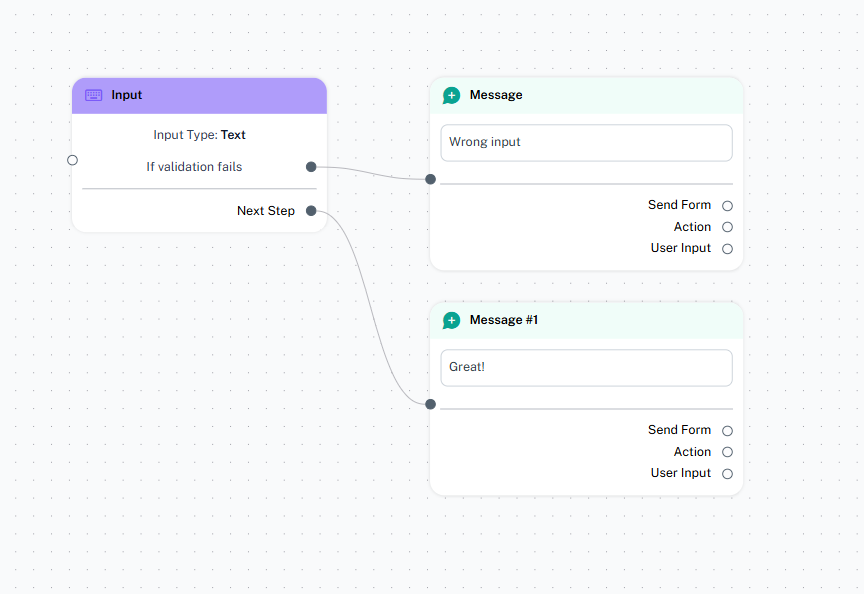
- Optional: Add Validation or Error Message if the input type is incorrect.
💡 Tips
- Use clear instructions in the message to guide users on what to input.
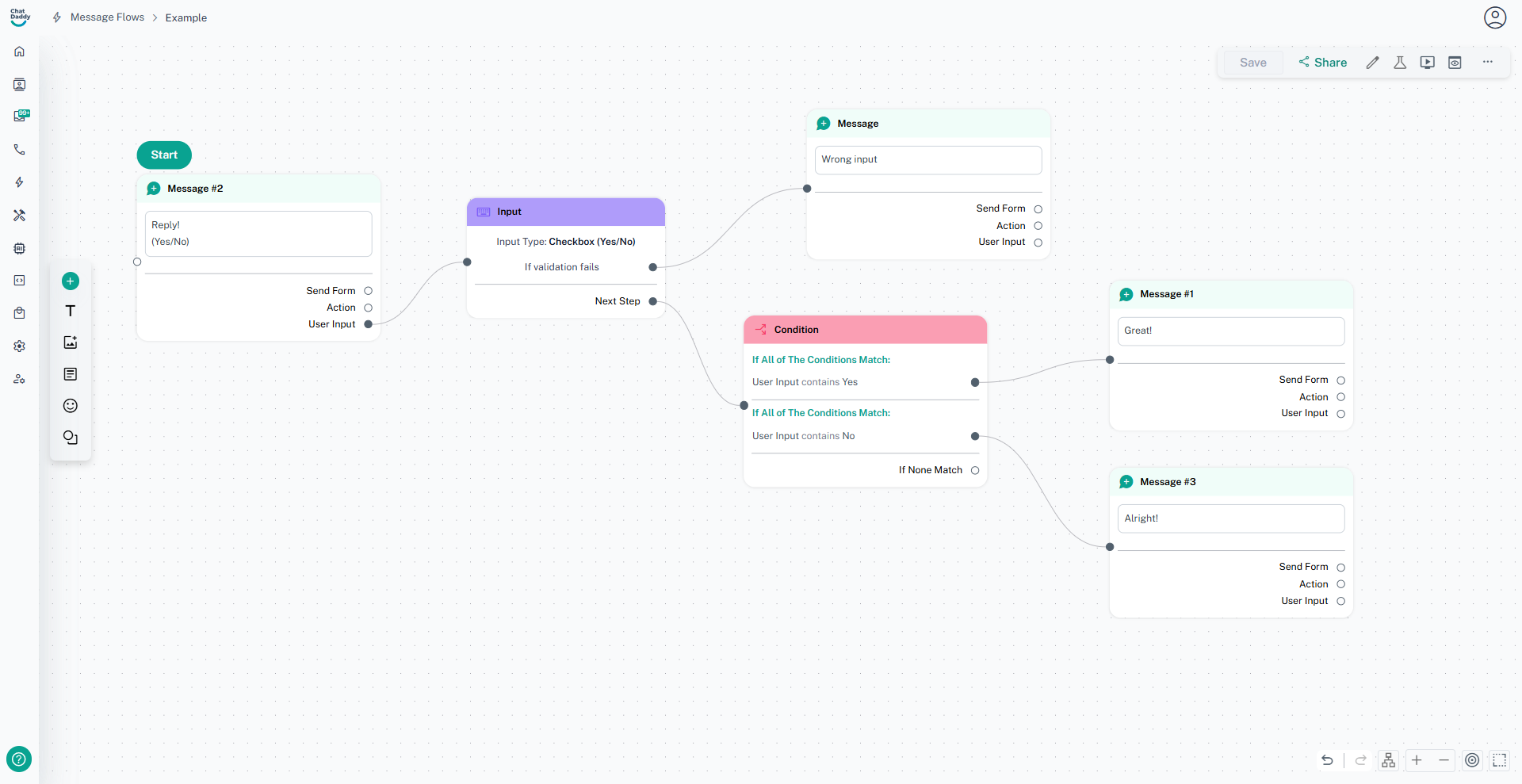
- For checkbox types, use phrasing like "Do you agree? Reply with (Yes/No)".
- Attachments and images should be prompted with a reason or context (e.g., "Please upload your receipt").
✅ Example Use Case
Collecting Customer Info:
- Ask for their name (Text)
- Ask for their age (Number)
- Confirm if they agree to terms, Yes or No replies only. (Checkbox)
- Ask them to upload a document (Attachment)
- Request a selfie for verification (Image) Example 3
Was this article helpful?