How to use the AI Chatbot node
The AI Chatbot node allows you to connect smart chat agents to your automated message flows. These agents can qualify leads, answer FAQs, or handle customer…
The AI Chatbot node allows you to connect smart chat agents to your automated message flows. These agents can qualify leads, answer FAQs, or handle customer conversations—all with AI.
🧭 How to add AI Chatbot node
AI Chatbot node node can be used in after buttons, conditions or triggers
1. Open Your Message Flow
- Navigate to Automation > Message Flows.
- Open or create a new flow
2. Add the AI Chatbot Node
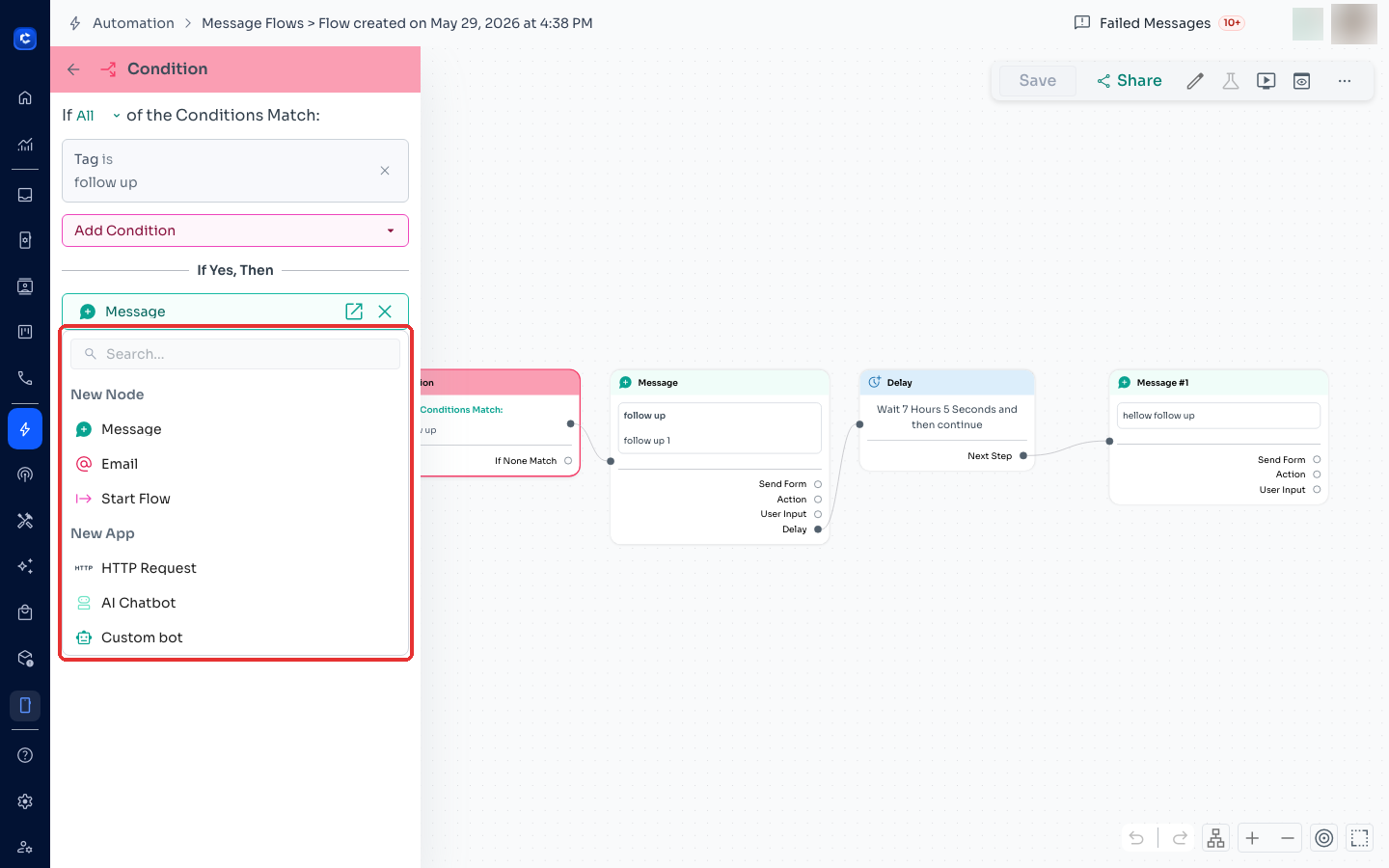
- Click the “Choose next step” button after a trigger, condition, or message button to add a new node.
- Select “AI Chatbot” from the list of available apps.
3. Choose an AI Chat Agent
- Under the Integration section, click the dropdown to select an existing AI chat agent
✅ Tip: If you haven’t created a bot yet, click the ➕ button beside the dropdown to create a new AI agent.
You can click here to learn how to create one
- You’ll see a list of your AI agents (with their creation dates for easy reference).
- Select one to link it to this step.
4. Configure App Inputs
- This should contain the question you want to ask the AI Chatbot. You can either:
- Pass a static question like: “Send the pricing details of Product A” OR
- Use the {{text}} variable from the incoming message trigger to enable the AI Chatbot to have a conversation with your client
5. Add a Condition Node
After the AI Chatbot processes the message, you can check whether the bot successfully handled it.
- Add a Condition node.
- Create two branches using the AI’s response status:
- If “Successful Response” is true → means the bot gave a valid answer. You can go ahead and connect this to a message node with the {{reply}} variable to send the bot’s reply
- If “Successful Response” is false → means the bot didn’t have enough information or there was some error while generating the response. In such cases, we can ddd a Message node with a fallback message like this and follow it with an Action node to assign the ticket to a human agent
“I’m sorry, I do not have the data to answer your question. Please allow me to connect you to a live agent so they can help you with this.”
🧪 Example Use Cases
- 🤖 Qualify leads before assigning to sales
- 💬 Answer product questions
- 🌐 Switch language based on customer input
- 🧠 Helpdesk support before creating tickets
Where to click