
Keep an Eye on Your WhatsApp Account Quality
Learn how to check and understand your WhatsApp Business API quality rating in ChatDaddy — including messaging limits, account health, and tips to maintain a high rating.
Also searched as: WhatsApp account quality, WhatsApp quality rating, WhatsApp messaging limit, WABA account health, WhatsApp message deliverability, WhatsApp number quality, check WhatsApp quality, WhatsApp block rate, improve WhatsApp quality, ChatDaddy account quality, WhatsApp quality score, messaging tier limit, WhatsApp business quality, account quality panel, quality rating levels
Your WhatsApp Business API (WABA) number is given a quality rating by WhatsApp based on how customers respond to your messages over the past seven days. A high rating means your messages are welcome; a low rating means WhatsApp may restrict how many people you can message each day.
Where to find it: Sidebar → Channels → the Messaging limit / Account Quality column on any connected WABA channel.
What is an account quality rating?
WhatsApp continuously monitors the quality of the messages you send. If customers block or report your number, your quality rating drops. If your messages are well-received — opened, replied to, not blocked — your rating stays high or recovers over time. The rating directly controls your daily messaging tier (how many unique users you can message in a 24-hour window).
Step-by-step: check your account quality
Step 1 — Open the Channels page
From the left sidebar, click the Channels icon to open Manage Channels. This lists every channel connected to your team.
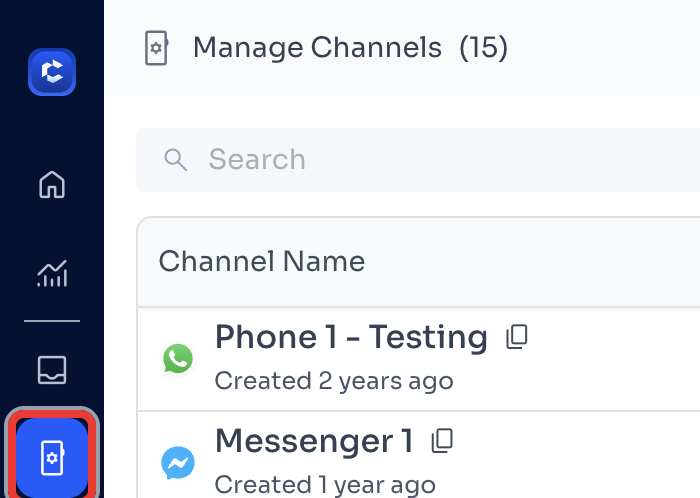
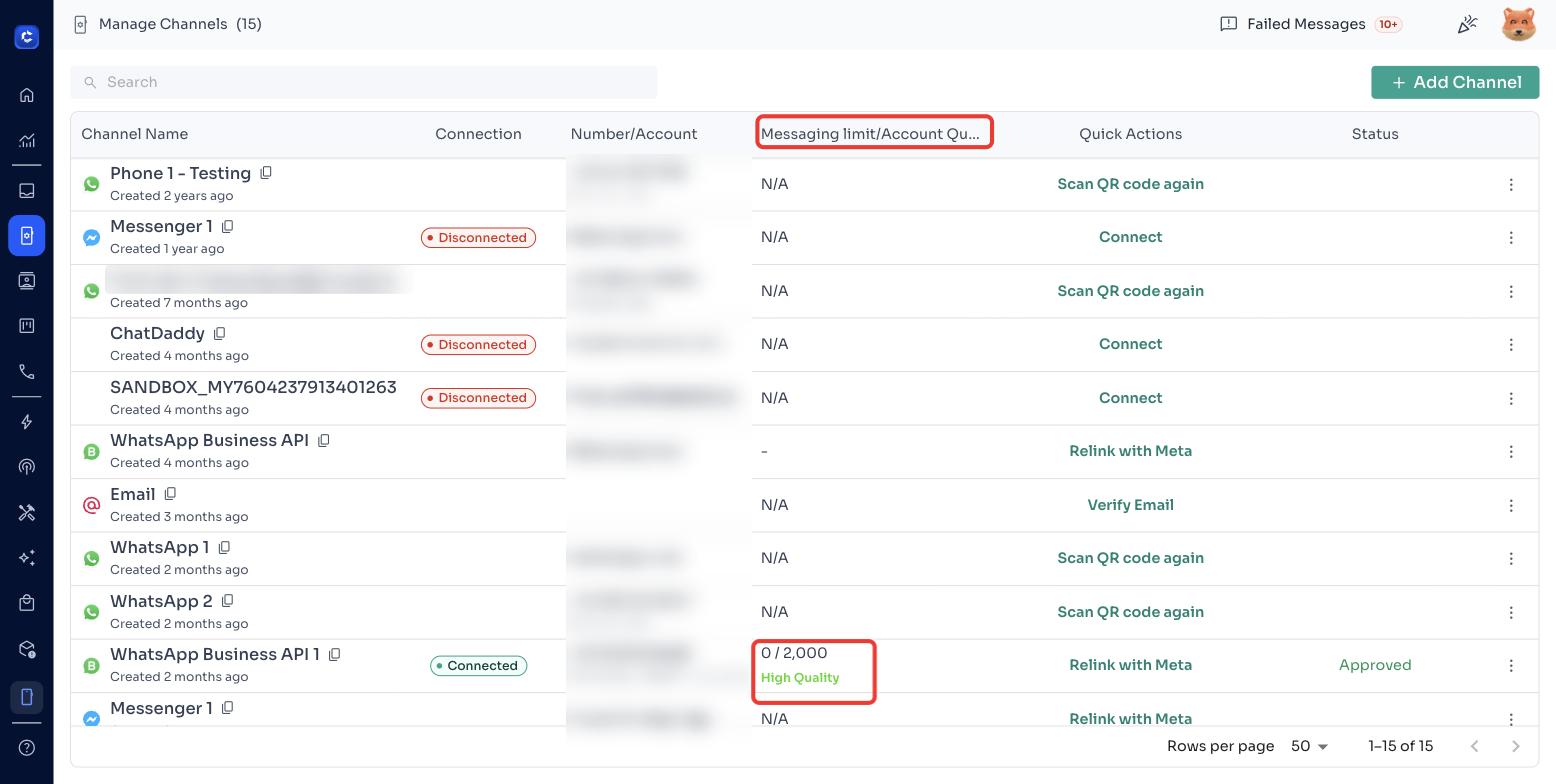
Step 2 — Find the Account Quality column and open the panel
Locate your WhatsApp Business API channel and look at the Messaging limit / Account Quality column. You'll see your daily tier and a colour-coded quality indicator. Click on the indicator or the rating text to open the Account Quality panel.
Note: Only WhatsApp Business API channels have a quality rating. Other channel types show N/A, and a WABA that hasn't sent enough messages yet will show Unrated.
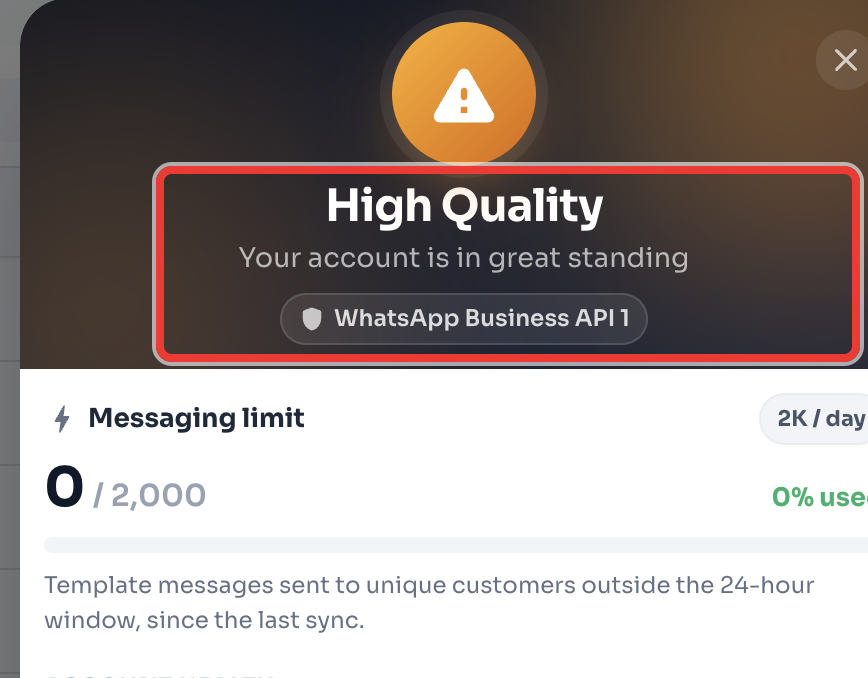
Step 3 — Read your quality rating
The top of the panel shows your rating at a glance — for example High Quality — Your account is in great standing. This colour-coded badge tells you immediately whether action is needed.
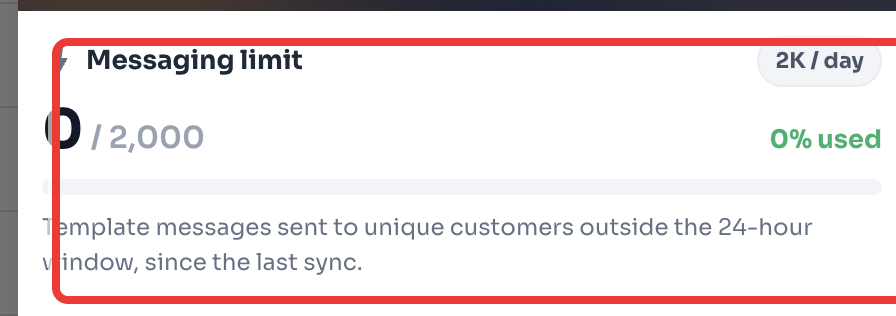
Step 4 — Check your messaging limit
The Messaging limit section shows your daily tier (e.g. 2K / day) and how much of it you've used since the last sync. The tiers rise as your quality rating improves and your account matures.
Step 5 — Review your account health
The Account Health section breaks down two things you can act on: whether your WhatsApp number can send messages, and the status of your linked Meta Business account.
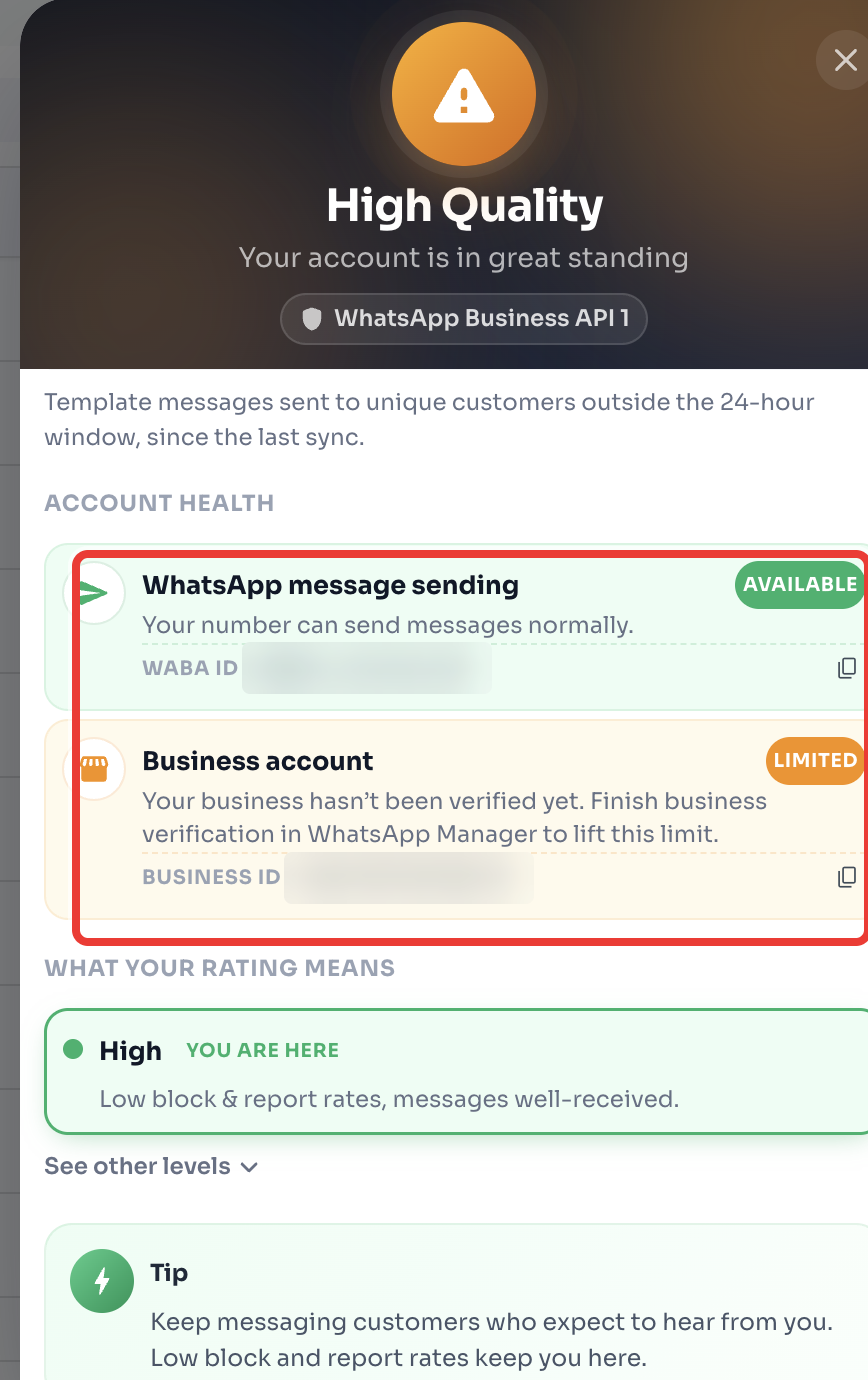
Step 6 — Understand the rating levels and follow the tip
Tap See other levels to see all four ratings and what each one means, with You are here marking your current level. At the bottom of the panel you'll also see a personalised tip to improve or maintain your quality.
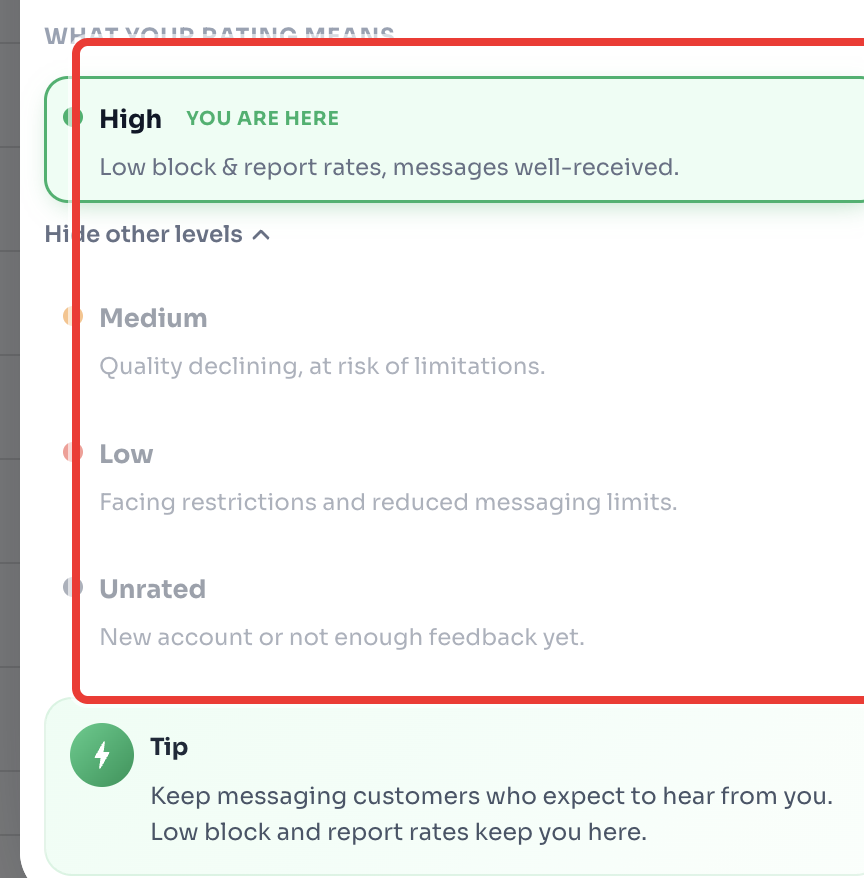
What the ratings mean
| Rating | What it means |
|---|---|
| 🟢 High | Low block & report rates — your messages are well-received. You're eligible for higher messaging limits. |
| 🟡 Medium | Quality is declining and at risk of limitations. Send only to opted-in contacts and trim broad broadcasts to recover. |
| 🔴 Low | Your messaging is being restricted and limits are reduced. Pause broadcasts and message only engaged customers until quality recovers. |
| ⚪ Unrated | New account or not enough feedback yet. Start conversations with customers and a rating will be assigned once enough data comes in. |
Tips to keep a high quality rating
- Message people who expect to hear from you — send only to opted-in contacts.
- Keep broadcasts relevant and avoid sending the same message to large, cold audiences.
- Make it easy for customers to opt out, so they stop the conversation instead of blocking or reporting you.
- Respond quickly within the 24-hour window to keep engagement high.
- Complete Business Verification in WhatsApp Manager to lift account limits.
- Check this panel regularly — recovering early avoids tighter messaging limits later.
A quick weekly check of your Account Quality is the easiest way to protect your WhatsApp deliverability.