
Shop Notification to Avoid Outdated Messages with Two-Step Scheduling
When you schedule a message far in advance (e.g., 21 Dec 2024) for a future event (e.g., 31 Jan 2025), the system saves the original content at scheduling…
Updated Nov 21, 2025
Why Does This Happen?
When you schedule a message far in advance (e.g., 21 Dec 2024) for a future event (e.g., 31 Jan 2025), the system saves the original content at scheduling time. Here's what this means:
- First Message: Once scheduled, messages are "locked" and won't reflect any later edits.
- Follow-Up Messages: Messages that haven't been scheduled yet can be edited and will show the latest version when scheduled closer to the event date.
Solution: Two-Step Scheduling
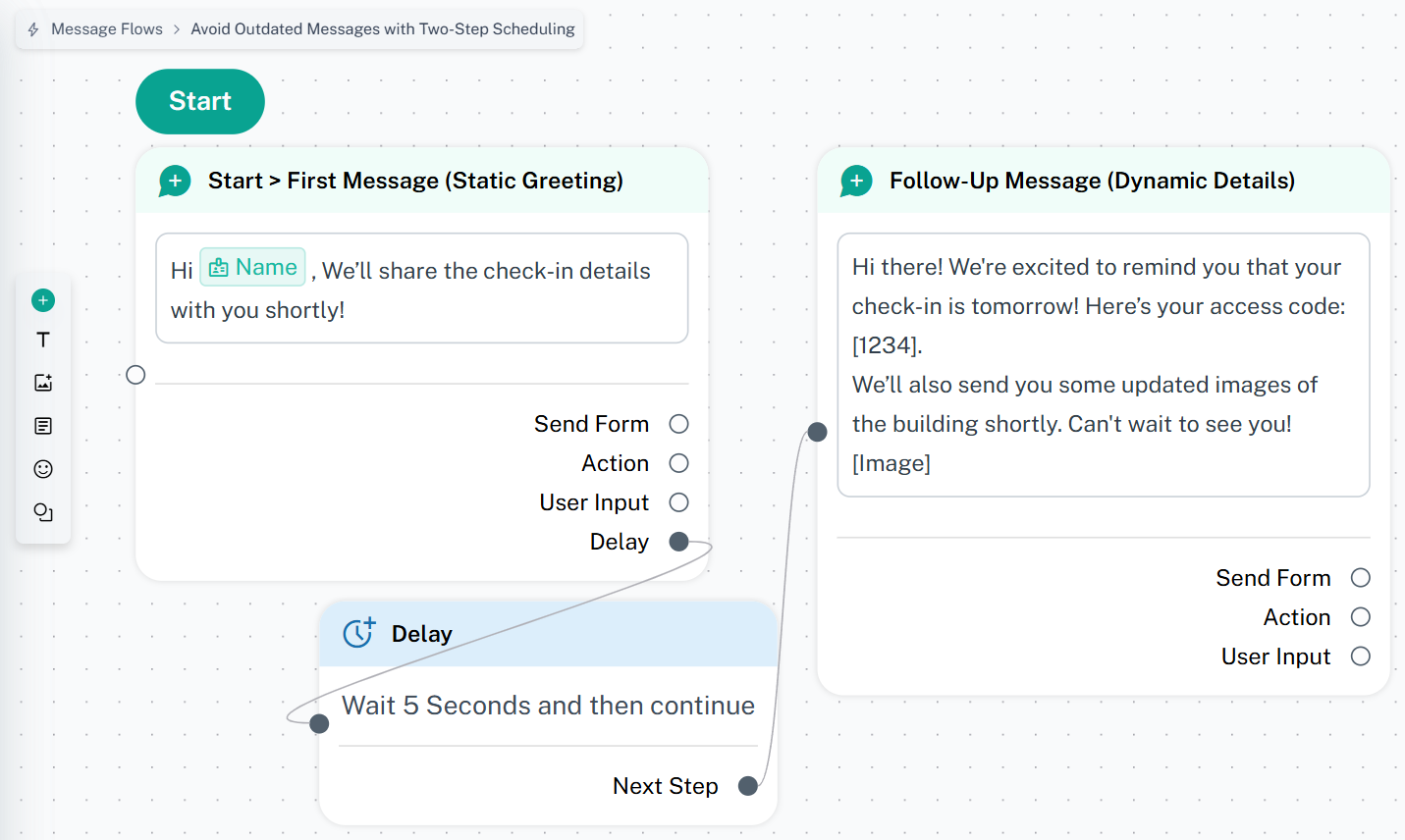
Split your message flow into two parts
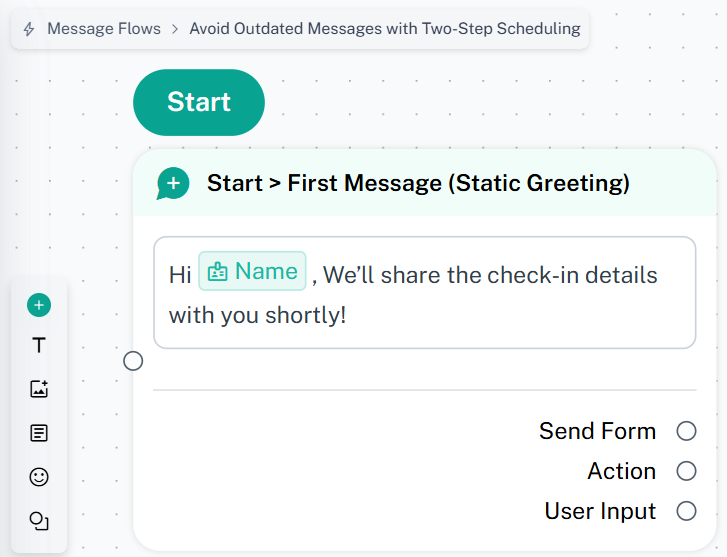
- First Message (Static Greeting)
- What to do: Send a short, generic greeting when scheduling far in advance. Example: "Hi {Name} , We’ll share the check-in details with you shortly!"
- Why:
This message doesn’t require updates, so pre-scheduling won’t cause issues.
- Follow-Up Message (Dynamic Details)
- What to do: Schedule detailed information (check-in instructions, reminders, etc.) closer to the event date. Example: "Hi there! We're excited to remind you that your check-in is tomorrow! Here’s your access code: [1234]. We’ll also send you some updated images of the building shortly. Can't wait to see you! [Image]"
- Why:
Scheduling later ensures edits are reflected, as the system uses the latest version.
For more details on scheduling messages, contact our support team!
FAQ
Can I edit the follow-up message after scheduling it?
Yes! As long as the follow-up message is scheduled closer to the event date, edits will apply until it’s sent.
Was this article helpful?