Using the Action Node in Message Flows
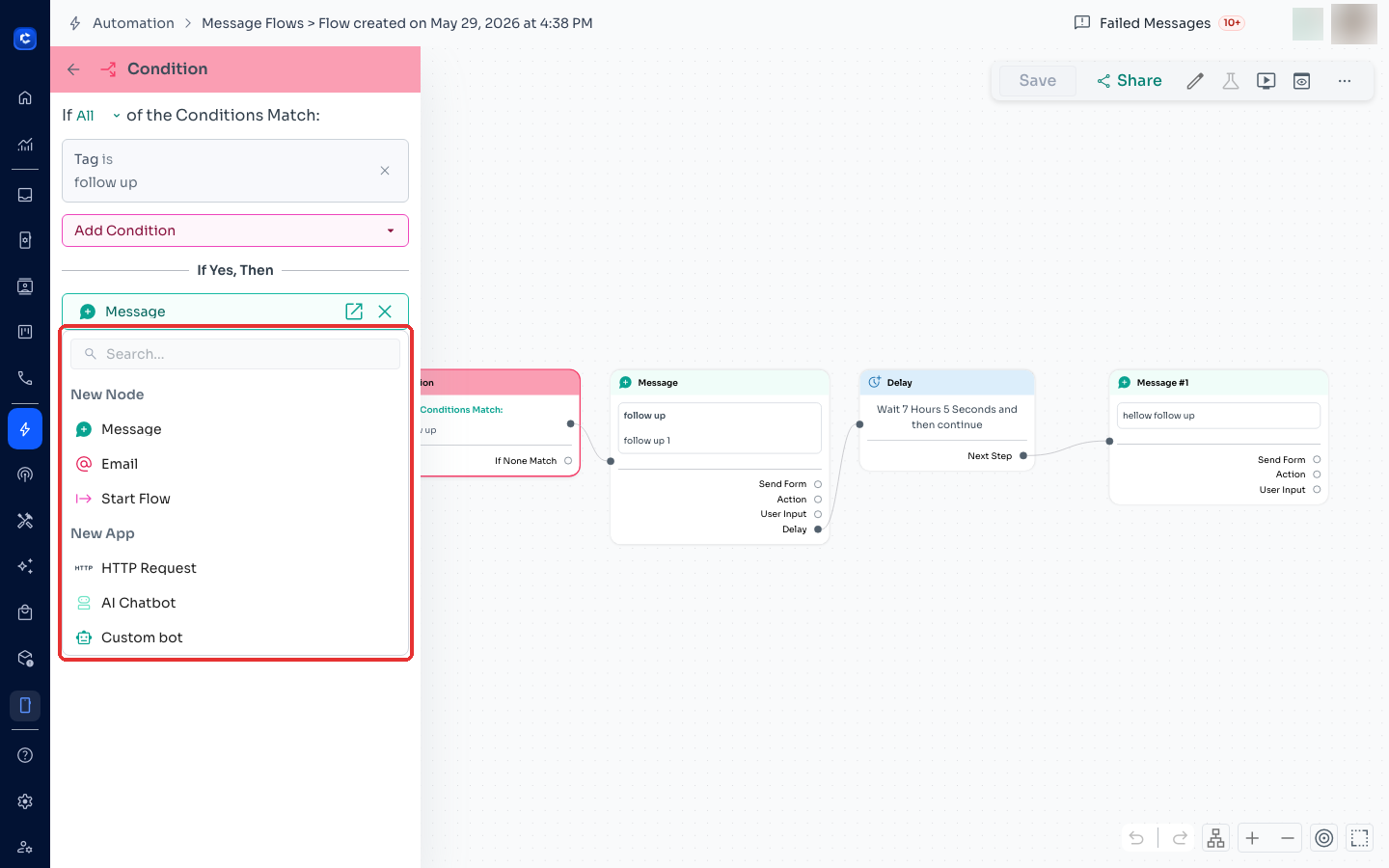
Step 1: Select “Add Action” where you want use your HTTP request Step 2: Within the Action Node, select the “HTTP Request” option Step 3: Fill in the details of your HTTP Request, fire a test reques
Step 1: Select “Add Action” where you want use your HTTP request
Step 2: Within the Action Node, select the “HTTP Request” option
Step 3: Fill in the details of your HTTP Request, fire a test request, and click save after receiving a successful response
They both essentially perform the same tasks, but there are some slight differences as to how you can perform them:
How to fill the HTTP Request details?
Step 1: Input the URL of the API endpoint you want to send your HTTP Request to. You can insert any variables related to the contact or custom field data by inputting a { (curly bracket) and selecting your property
Step 2: Select a method. Currently, we only support POST and GET methods
Step 3: Enter your headers (Name and Values). You can use any variables here as well
💡 Note: We do not automatically add any headers such as “Content-Type” or “Accept”. If your API requires these, please add them manually in the headers section
Step 4: Fill in the body of your API request according to the third party’s documentation. You may use variables if you wish
Step 5(Only for Action Node): After setting up your HTTP Node, click “Fire Test Request”. Only once you receive a successful response, you can save your message flow
Where to click