
Troubleshoot WABA template message rejection
✅ Step-by-Step Guide to Check Rejection Reason
Updated Feb 27, 2026
✅ Step-by-Step Guide to Check Rejection Reason
In this article, we will be guiding you on how to check the template message rejection reason in your business manager. This will help you to rectify your templates when you resubmit them.
Step 1:
Go to your "Business Support Home" in your meta business account. From there, navigate to the WhatsApp Account where the rejected template was submitted. 📍 Make sure you're using the correct Business Account.
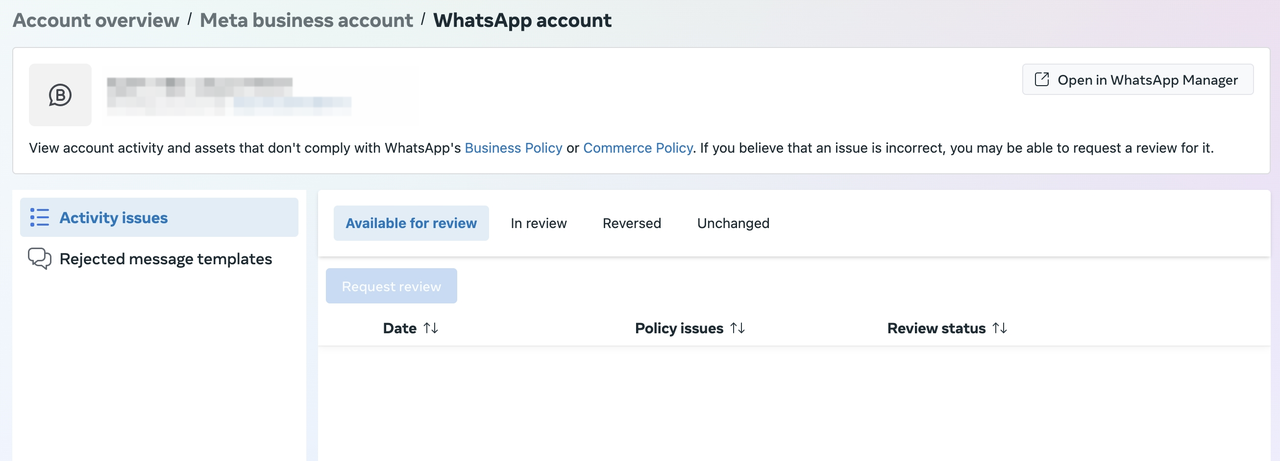
Step 2:
Click on "Rejected template messages" in the left-hand panel.
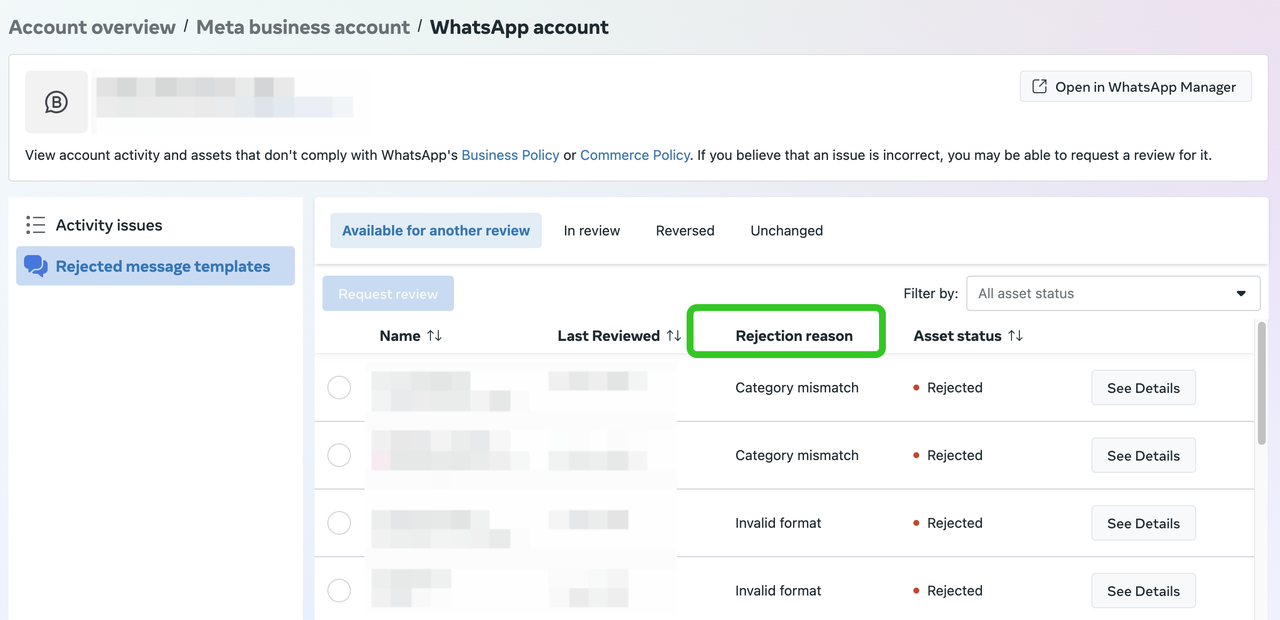
Step 3:
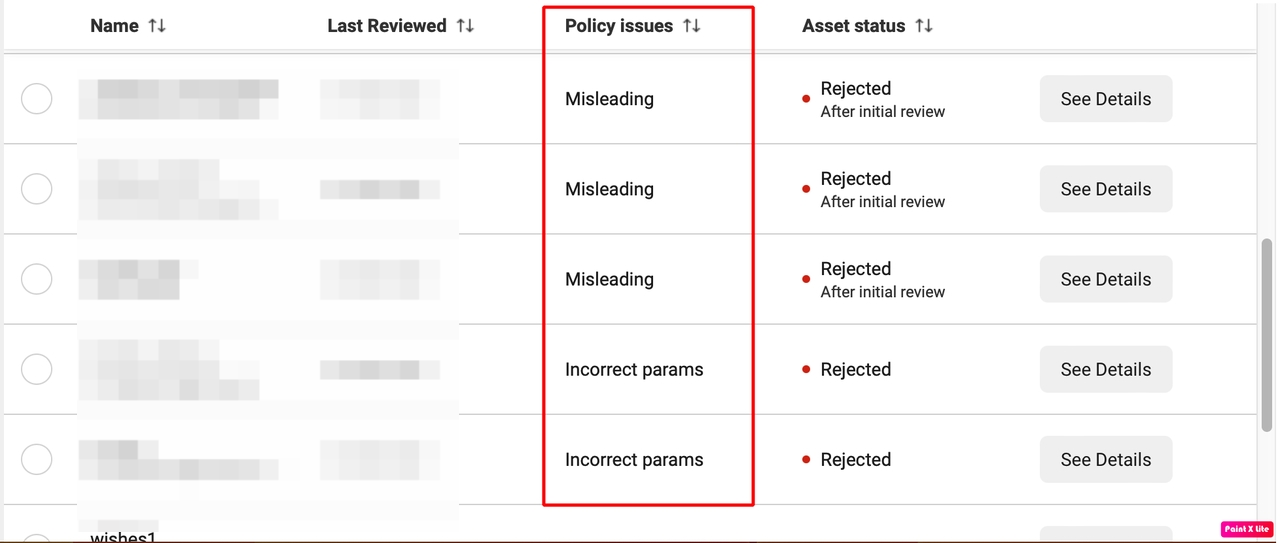
You'll now see a list of all rejected templates along with the policy issue that caused the rejection.
Examples of policy issues might include:
- Content violates WhatsApp’s commerce or business policy
- Use of promotional or misleading language
- Missing required variables or placeholders
🔁 What to Do After Seeing the Rejection Reason
Once you identify the issue, follow these steps to fix and resubmit:
In Summary
📩 How to Resubmit Your Template on ChatDaddy
- Go to the Message Flows section in your ChatDaddy dashboard.
- Click on the three-dot menu next to the rejected flow and select “Duplicate”.
- Give the duplicated template a new name (rejected template names cannot be reused).
- Edit and correct the content based on the rejection reason shown in Meta Business Manager.
- Submit the revised template for approval.
Was this article helpful?