
WhatsApp Channel Disconnected (Coexistence / WABA) — Why It Happens & How to Reconnect
A WhatsApp Coexistence or WABA channel may occasionally show as Disconnected. In most cases, this is caused by changes or restrictions on the Meta side rather than an issue with ChatDaddy itself. ##
A WhatsApp Coexistence or WABA channel may occasionally show as Disconnected. In most cases, this is caused by changes or restrictions on the Meta side rather than an issue with ChatDaddy itself.
Common Causes
- The Meta access token has expired or been revoked.
- Admin permissions for the Meta Business account have changed.
- The Facebook account connected to the channel no longer has sufficient access.
- The WhatsApp Business Account (WABA) or phone number has been restricted or disabled by Meta.
- Billing or payment issues exist in Meta Business Manager.
- The channel was disconnected manually or due to changes made in Meta.
Step 1: Verify the WABA Status in Meta
Go to Meta Business Settings: https://business.facebook.com/settings
Navigate to: Accounts → WhatsApp Accounts
Select the affected WhatsApp account and confirm:
- The WABA is active.
- The phone number is present.
- No restrictions or policy violations are shown.
- Your Facebook profile still has admin access.
[ Annotated screenshot for Step 1 will be inserted here ]
Step 2: Check Billing & Payments
Go to: Meta Business Settings → Billing & Payments
Verify that:
- A valid payment method is assigned.
- There are no outstanding balances.
- No payment failures are displayed.
- The account is not suspended due to billing issues.
[ Annotated screenshot for Step 2 will be inserted here ]
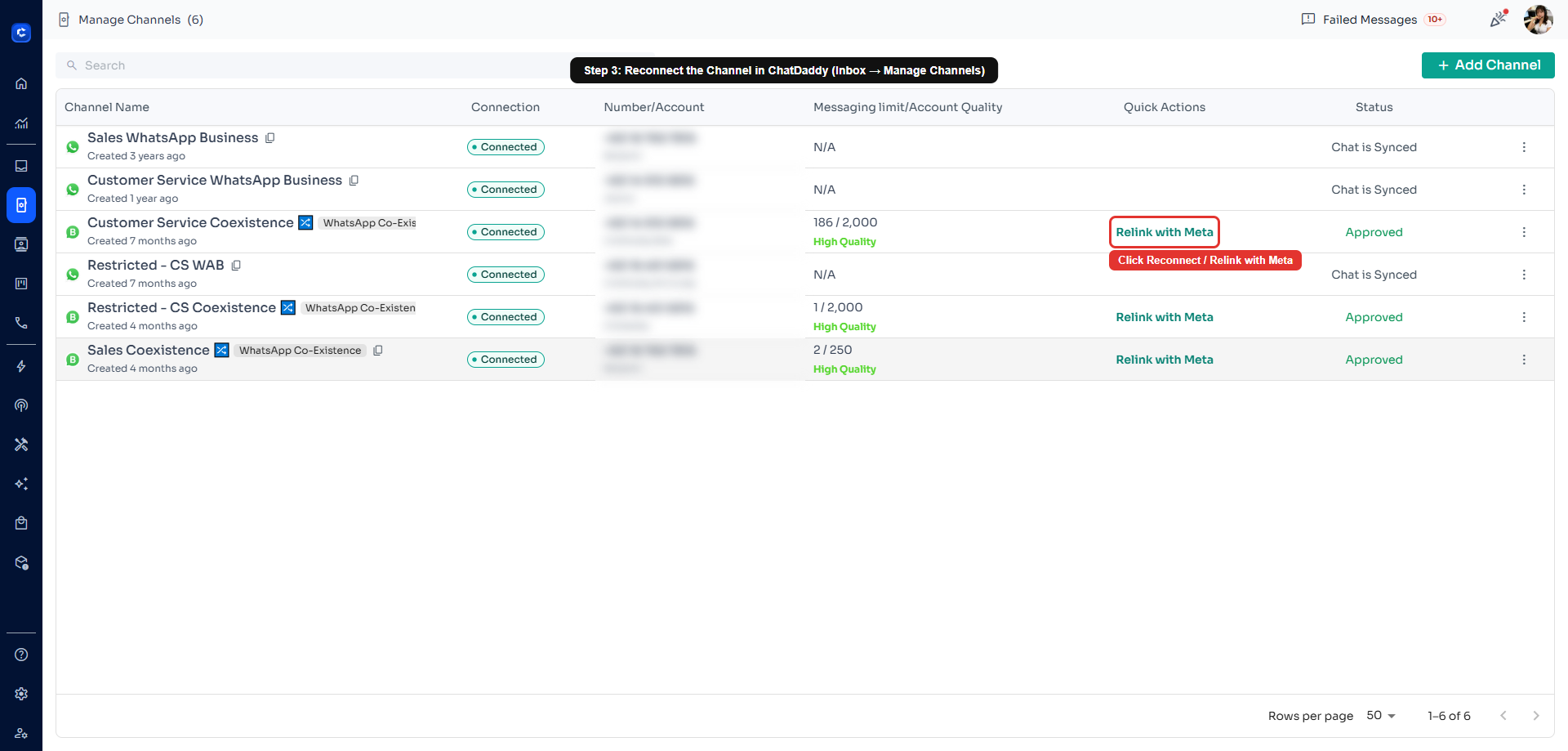
Step 3: Reconnect the Channel in ChatDaddy
-
Log in to ChatDaddy. Go to: Inbox → Manage Channels
-
Locate the disconnected channel.
-
Click Reconnect.
-
Complete the Meta authorization process.
-
After successful authorization, the channel status should change back to Connected.
Step 4: If Reconnection Fails
Please collect the following:
- Screenshot of the error message.
- Screenshot of Meta Business Settings → WhatsApp Accounts.
- Screenshot of Billing & Payments (if applicable).
Step 5: Open a Meta Support Ticket
If all settings appear normal and the channel still cannot be reconnected, the issue is likely on Meta’s side.
Please open a formal support case through: https://business.facebook.com/support
A support ticket allows Meta’s backend team to perform a deeper investigation. Live chat agents may provide general guidance, but only a formal case can trigger a full review of the WhatsApp Business Account.