
Why ChatDaddy Asks You to Refresh (App Updates and the Update Banner)
ChatDaddy runs in your browser, so a tab keeps running the version it loaded until the page reloads. Learn what the blue "New update available" banner means, what happens when you click Refresh, what happens if you ignore it, and how to check which version you are on.
Also searched as: Why ChatDaddy Asks You to Refresh (App Updates and the Update Banner), Look for the banner in the bottom-right corner, Click Refresh when you are ready, Check which version you are on, What happens if you ignore the banner, ChatDaddy, Asks, Refresh, Updates, Update, Banner
ChatDaddy is a web app, so the version running in your tab is the one your browser downloaded when you opened it. When we release a newer version, that tab carries on with the old one until the page is reloaded — which is why a small blue New update available banner appears in the bottom-right corner asking you to refresh.
This article is for anyone who keeps ChatDaddy open all day and wants to know whether the banner is safe to ignore, and what to do if a page misbehaves straight after an update.
✍️ Refreshing reloads the page, so anything you have half-typed and not sent is not kept. Send it, or copy it somewhere safe, before you click Refresh. Messages already sent and work already saved are never affected.
Step-by-step
Step 1 — Look for the banner in the bottom-right corner
While your tab is open, ChatDaddy checks for a newer version every 15 minutes. When it finds one, the banner appears on whatever page you are on and stays there until you act on it. It does not block anything — you can carry on replying to customers with the banner on screen.
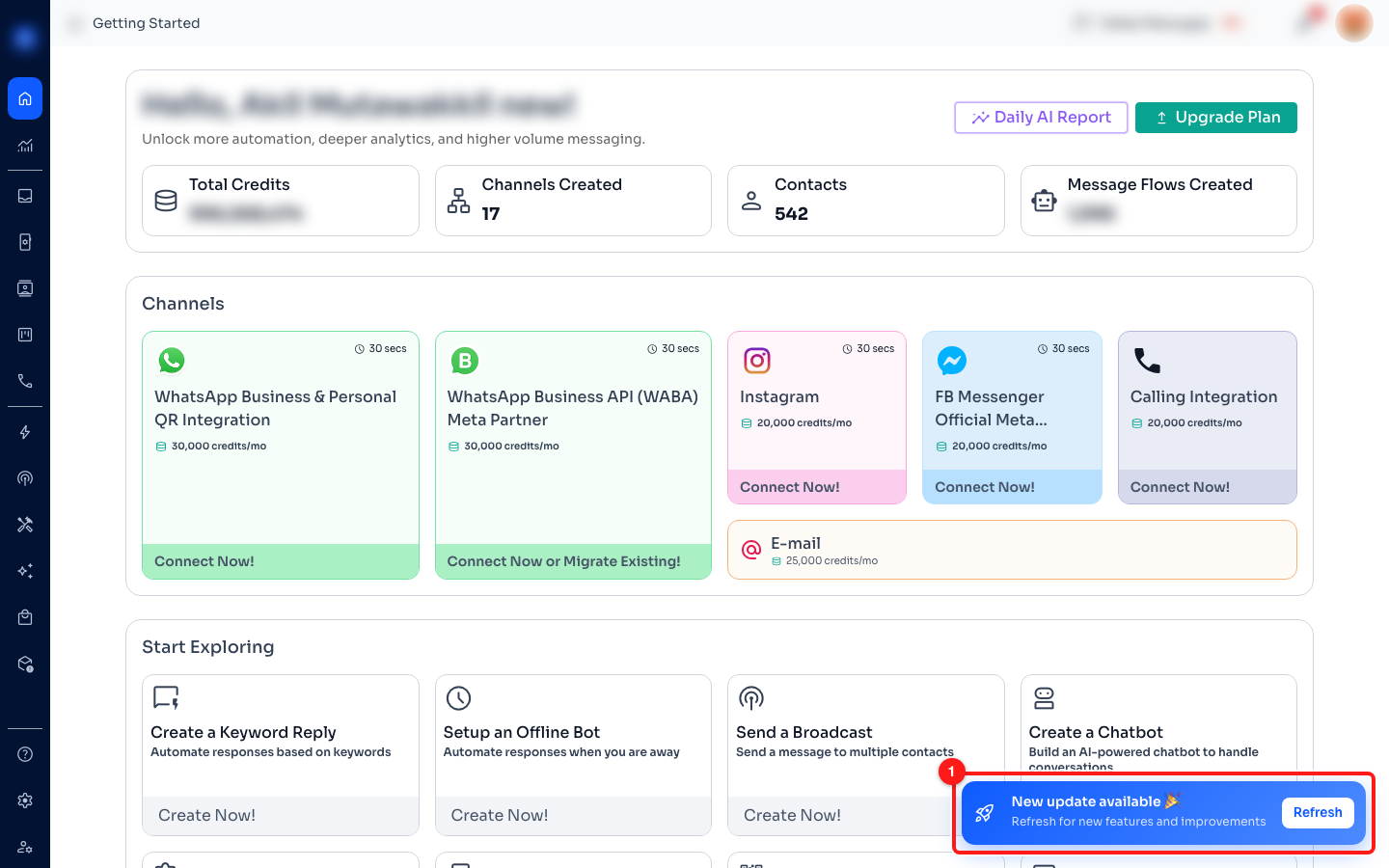
Step 1 — the update banner (1) sits in the bottom-right corner, over whichever page you are working on.
The banner reads New update available 🎉, with the line “Refresh for new features and improvements” underneath. There is nothing to install and nothing to pay for.
Step 2 — Click Refresh when you are ready
Click the white Refresh button on the banner. ChatDaddy clears the copy of the app your browser had saved, loads the new version, and brings you back to the same page you were on. A thin blue progress bar runs along the top of the screen while it happens, and the whole thing usually takes a couple of seconds.
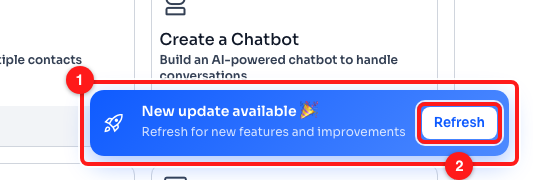
Step 2 — the banner close up (1) and its Refresh button (2).
⏳ Mid-conversation? Finish the reply first. The banner will wait, and ChatDaddy will not reload the page underneath you while you are working in it.
Step 3 — Check which version you are on
If you want to confirm the update went through, click your profile picture in the top-right corner. The version number sits near the bottom of the menu, just above Logout.
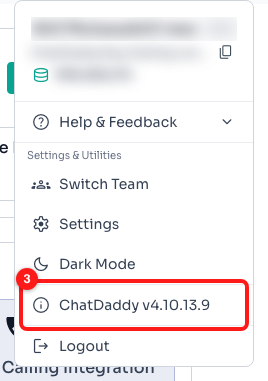
Step 3 — the version you are running is shown in the profile menu (3).
Support may ask for this number when you report a problem, so it is worth knowing where to find it. The same version number appears in the header of the What's new window, where you can read what each release changed.
What happens if you ignore the banner
Nothing breaks, and you will not be interrupted. ChatDaddy quietly moves you onto the new version at the next safe moment instead:
- When you move to another page. With an update waiting, opening a different page — or using your browser's back and forward buttons — loads it fresh from our servers rather than from the copy in your tab. That is why a click sometimes feels like a full page load after an update.
- When you come back to a tab you left alone. A tab left open and untouched for more than four hours with an update waiting refreshes itself when you return to it. If you have been using that tab, it will not do this — so a draft you left open is safe.
- When you close and reopen ChatDaddy. Any new tab starts on the newest version.
💡 The one reason to refresh promptly: a release often contains the fix for whatever you have just reported. If support asks you to refresh, this banner is what they mean.
Frequently asked questions
The banner came back again a few minutes after I refreshed.
That normally means a second release landed — on busy days we ship more than once. If the same tab keeps asking every few minutes and the version number in your profile menu never changes, close the tab and open ChatDaddy in a new one.
I clicked Refresh and lost what I was typing.
Refreshing reloads the page, so an unsent message in the compose box is not kept. Send it or copy it before refreshing. Nothing that was already sent or saved is lost.
I got a blank page or an error page right after an update.
This happens when your browser is still holding on to pieces of the old version. ChatDaddy notices and reloads the page for you — up to three times in 30 seconds — before it gives up and shows the error page. If you land on that page, click Refresh on it once. If it comes back a second time, clear your browser cache and cookies for ChatDaddy and sign in again.
Do I need to install or download anything?
No. The web app updates itself in your browser — refreshing is all it takes. The ChatDaddy mobile app is different: that one updates through the App Store or Google Play like any other app.
Where can I see what actually changed?
Open the What's new window from the top bar. It lists every release with a short description of what was added, improved or fixed, and its header shows the version you are currently running.
I never see the banner, but ChatDaddy looks out of date.
The check only runs while the tab is open, so a tab that has been asleep may not have looked yet. Reload the page yourself, then compare the version in your profile menu. If it still looks wrong, clear your browser cache and cookies for ChatDaddy.