
How to Collect Answers With the Form Node
The Form node sends a short web form to your contact and branches on what they do with it. Learn how to add one to a message, choose or build the form, wire up the submitted and abandoned branches, and find the answers.
Also searched as: How to Collect Answers With the Form Node, Open the message and click Add Form, Choose a form, or start a new one, Reuse a form you already have, Or build a new form without leaving the flow, Add the questions you need, Check the link in your message, Decide what happens after the form, Read the answers, Form node or Input node?, Collect, Answers, Form, Node
A form is a short web page of questions that your contact opens from a link in the chat. The Form node is how you attach one to a message flow: it drops the link into your message, then gives the flow two ways to carry on — one for people who finish the form, and one for people who start it and walk away.
It is the right tool when you need several answers at once — a feedback survey, a booking request, a returns form — and you want them in a tidy table rather than scattered through a conversation.
🔗 The contact does not answer the questions in the chat. They receive a link, tap it, and fill the form in their browser. ChatDaddy adds that link to your message for you as a Form Url variable — but only once you have actually chosen a form.
Before you start
- You need a message flow open in the builder — Automation → Message Flows, then an existing flow or Create New Message Flow.
- The form is attached to a Message node (or an Email node), not dropped onto the canvas on its own. So write the message first, then add the form to it.
- Your saved forms live under Tools → Forms. You can pick one from there, or build a new one without leaving the flow builder.
Step-by-step
Step 1 — Open the message and click Add Form
Click the message node that should carry the form. In the editor panel on the left, scroll down past the attachment buttons to the Send Form divider, and click Add Form.
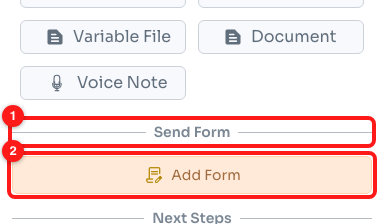
Step 1 — the Send Form section of the message editor (1) and the Add Form button (2).
A Form node appears on the canvas, joined to your message. Click it to open its own editor.
Step 2 — Choose a form, or start a new one
The Form node editor has one job at the top: point the node at a form. You can either open the Select a Form dropdown to reuse something you have already built, or click Create New Form to make one on the spot.
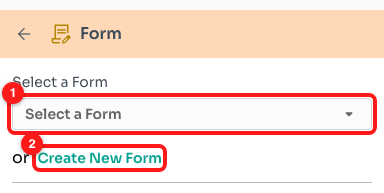
Step 2 — the Select a Form dropdown (1), or the Create New Form link underneath it (2).
Step 3 — Reuse a form you already have
Opening Select a Form lists every form saved on your team, with a search box at the top. Tick the circle next to the one you want — clicking the name alone does not select it.
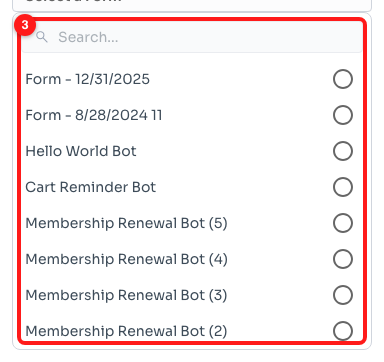
Step 3 — your saved forms, each with a radio button on the right (3).
Once a form is selected, the dropdown button shows its name instead of “Select a Form”, and the same name appears on the Form node on the canvas.
Step 4 — Or build a new form without leaving the flow
Create New Form opens the form builder in a window over the canvas. Give the form a name (ChatDaddy pre-fills one with today's date, which is worth replacing with something you will recognise later), add an optional description and a cover image, then write your first question in the card below.
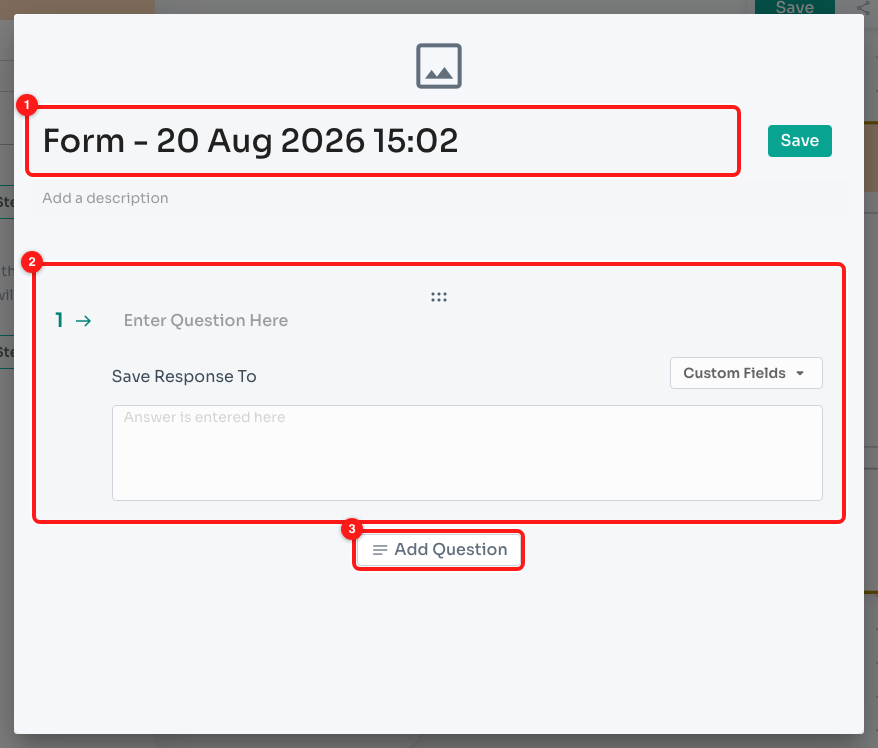
Step 4 — the form name (1), the first question card (2) and the Add Question button (3).
Each question card has a Save Response To row with a Custom Fields dropdown. Pick a custom field there and the answer is written onto the contact's record as well as into the submission table, so you can filter and segment on it later.
Step 5 — Add the questions you need
Add Question opens the list of question types. Drag the cards by the handle at the top to reorder them, and use the bin icon on a card to remove it.
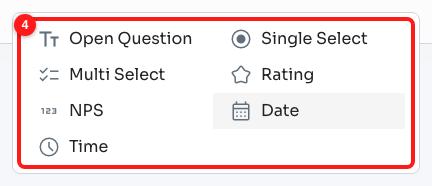
Step 5 — the seven question types you can add (4).
- Open Question — a free-text box.
- Single Select — one answer from a list of options you write.
- Multi Select — any number of answers from your list.
- Rating — a five-star rating.
- NPS — a 1–10 scale, for “how likely are you to recommend us” questions.
- Date — a date picker.
- Time — a time picker.
⚠️ Every question needs its text filled in, and Single Select and Multi Select questions need at least one option each. If anything is missing, Save refuses and you get “Some Validation Issues With Questions, Ensure all Questions/Options are filled in.”
Click Save at the top right. The window closes and the new form is selected on the node automatically.
Step 6 — Check the link in your message
Go back to the message node. As soon as a form is chosen, ChatDaddy appends a Form Url variable to the end of the message body — that is what becomes the tappable link when the message is sent.
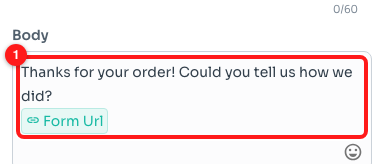
Step 6 — the Form Url variable added to the bottom of the message body (1).
You can type around it, and you can move it, but leave it in the message — without it, the contact gets your text and no way to reach the form.
Step 7 — Decide what happens after the form
Back on the Form node, the lower half of the editor is the branching. Each side has a Choose Next Step dropdown that connects to whatever should happen next — another message, an action, a delay, anything the builder offers.
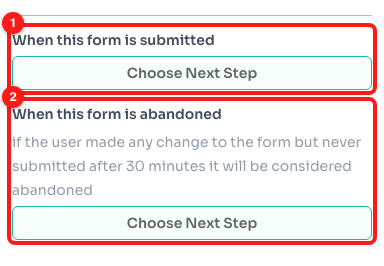
Step 7 — the submitted branch (1) and the abandoned branch (2), each with its own Choose Next Step.
- When this form is submitted — the contact finished the form and sent it. Use this for the thank-you message, a discount code, a ticket, or a hand-off to a teammate.
- When this form is abandoned — the contact changed something on the form but never submitted it, and 30 minutes have passed since. Use this for a gentle nudge.
On the canvas the same two branches appear on the Form node as the On Submit and On Abandon handles, so you can also drag connections there instead.
Step 8 — Read the answers
Answers do not land in the chat. Go to Tools → Forms, find your form in the list, and click View Submissions in the Submissions column.
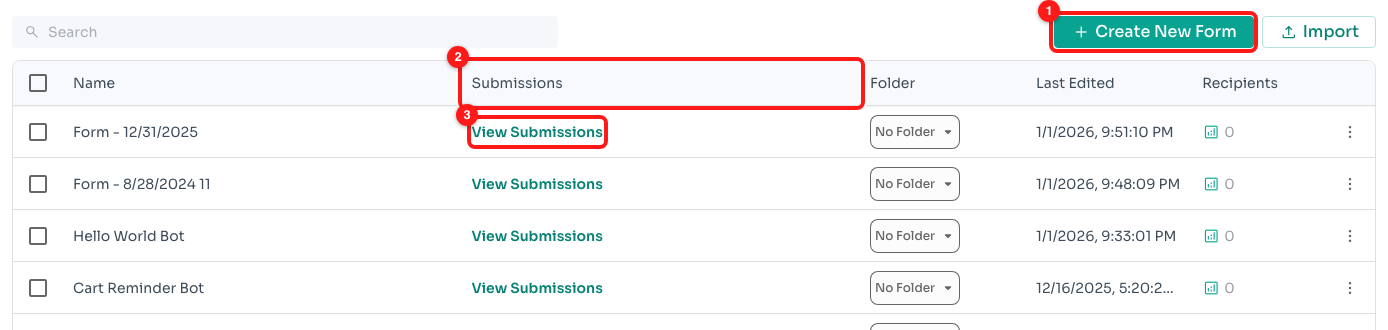
Step 8 — Create New Form (1), the Submissions column (2) and the View Submissions link on each row (3).
The table gives you one row per contact, with their name, phone number and the date they submitted, then one column per question. There is a search box for finding a particular answer or phone number, and an export button that downloads the whole table as a CSV.
Form node or Input node?
Both collect answers, but they are for different jobs.
- The Input node asks for one answer inside the chat. It can check the reply is Text, a Number, a Checkbox (Yes/No), an attachment or an image, save it to a custom field, and branch when the reply fails that check. Best for a single quick question mid-conversation.
- The Form node sends one link covering many questions, with types a chat cannot do well — ratings, NPS scales, multi-select lists, date and time pickers. Answers are collected together and land in a submissions table. Best for anything that would otherwise be five messages in a row.
Frequently asked questions
Can I use the same form in more than one flow?
Yes. The Select a Form dropdown lists every form saved on your team, so you can point as many flows at one form as you like. All of their submissions gather in the same table under Tools → Forms.
What exactly counts as “abandoned”?
The contact opened the form and changed something on it — typed an answer, picked an option — but never submitted it, and 30 minutes have gone by since. Someone who never opens the link at all has not abandoned the form, so the abandoned branch does not fire for them.
I clicked a form in the dropdown but nothing was selected.
Click the circle on the right-hand side of the row, not the form name. The name itself is just a label; the radio button is the control.
My message went out without a link to the form.
Open the Form node and check that a form is actually selected — if the dropdown still reads “Select a Form”, no link was ever added. Then open the message node and confirm the Form Url variable is still in the body; it is added automatically when you pick the form, but it can be deleted like any other text.
Save is greyed out on the form builder.
Save only lights up when there is something unsaved to save, so if you have changed nothing it stays dim. It also locks after a save that failed validation: check every question has its text filled in, and that each Single Select and Multi Select question has at least one option.
Does a half-finished form still record anything?
Each answer is saved as the contact fills it in rather than all at once when they press submit. That is how ChatDaddy knows a form was started but never finished, which is what the abandoned branch runs on.
Can I create a form without building a flow first?
Yes — go to Tools → Forms and click Create New Form. When you save a form this way, ChatDaddy also creates a ready-made message flow called “Send Form: