
How to Download Your ChatDaddy Invoice (Old Billing)
Use this guide if you are on the Old Billing plan. The 'Old Billing / New Billing' toggle in the top-right of the Billing page should be set to Old Billing.
Use this guide if you are on the Old Billing plan. The 'Old Billing / New Billing' toggle in the top-right of the Billing page should be set to Old Billing.
Step 1: Go to the ChatDaddy Dashboard
Log in to your ChatDaddy account at beta.chatdaddy.tech. You will land on the main dashboard.
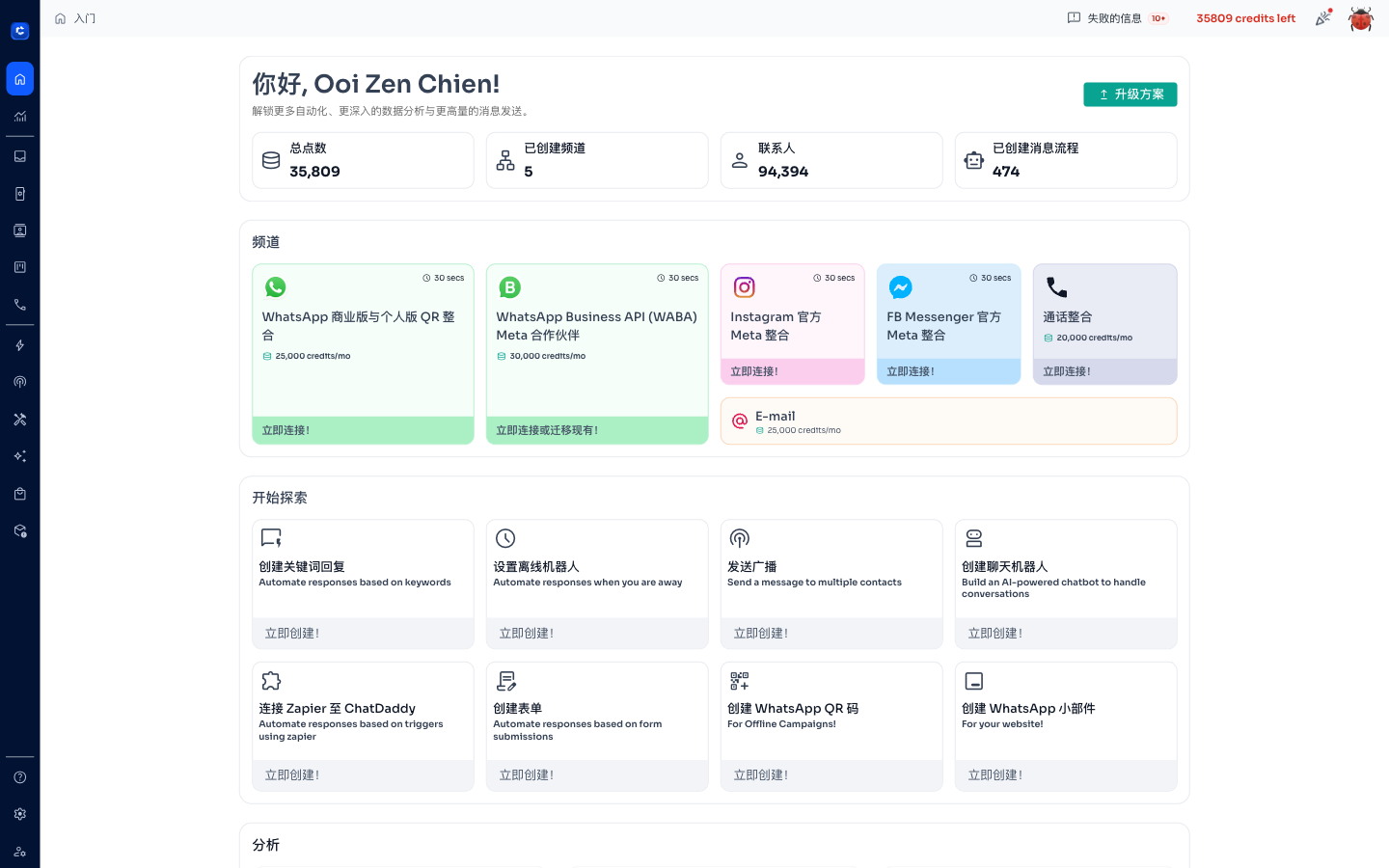
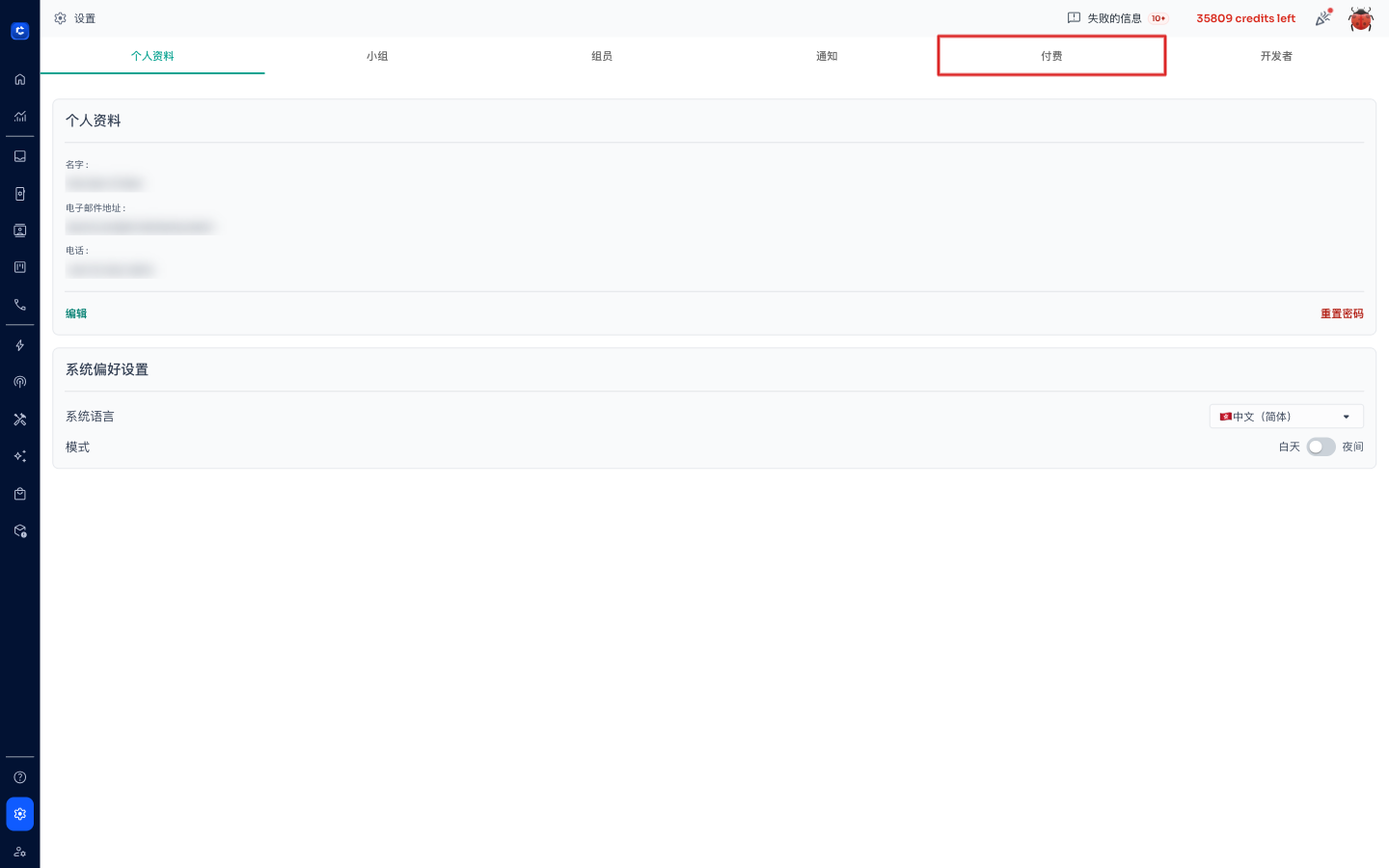
Step 2: Open Settings → 付费 (Billing) Tab
Click the Settings icon on the left sidebar to open Global Settings. Then click the 付费 (Billing) tab at the top.
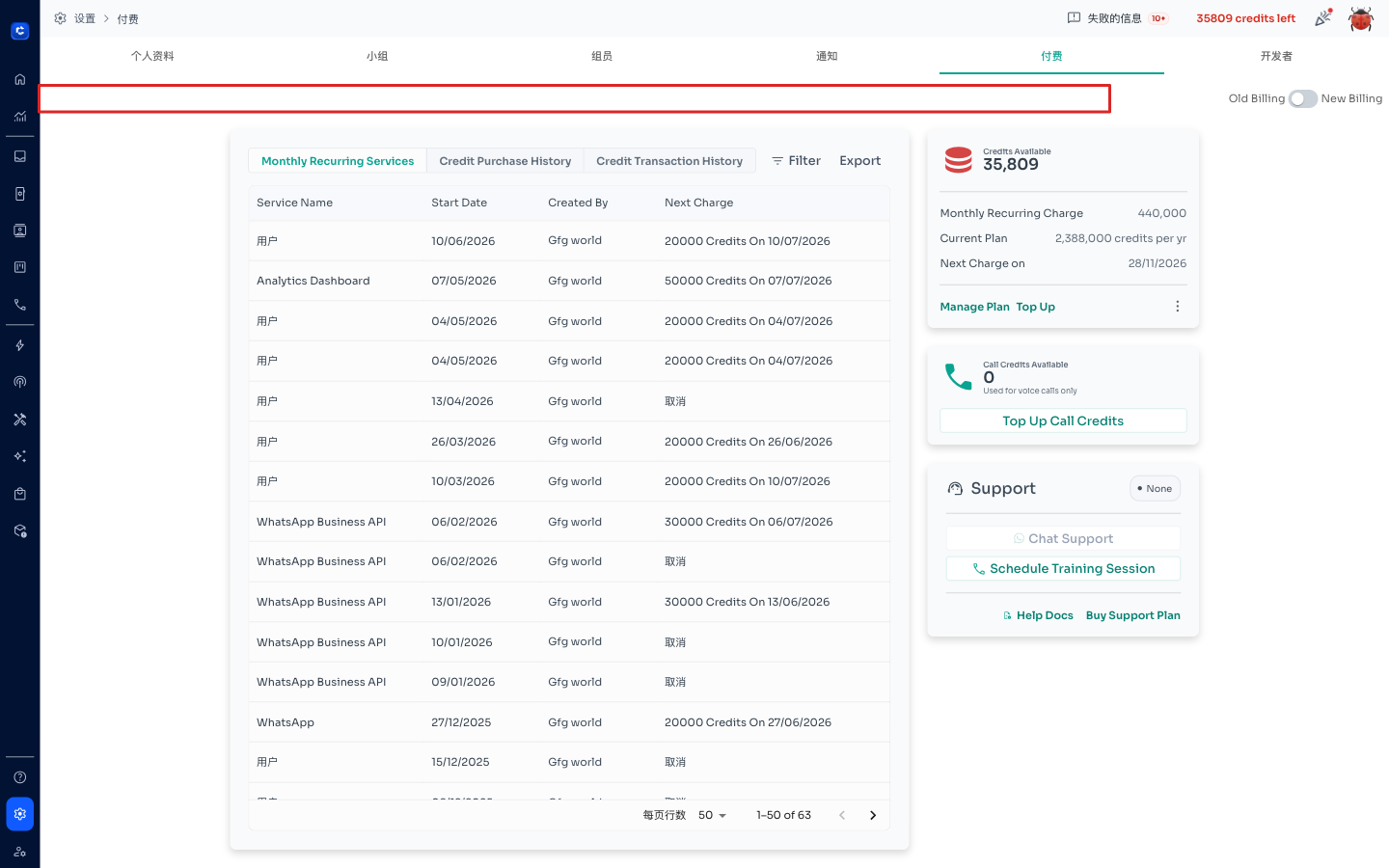
Step 3a: Enable Old Billing Toggle
On the Billing page, look for the 'Old Billing / New Billing' toggle in the top-right corner. Make sure it is switched to Old Billing.
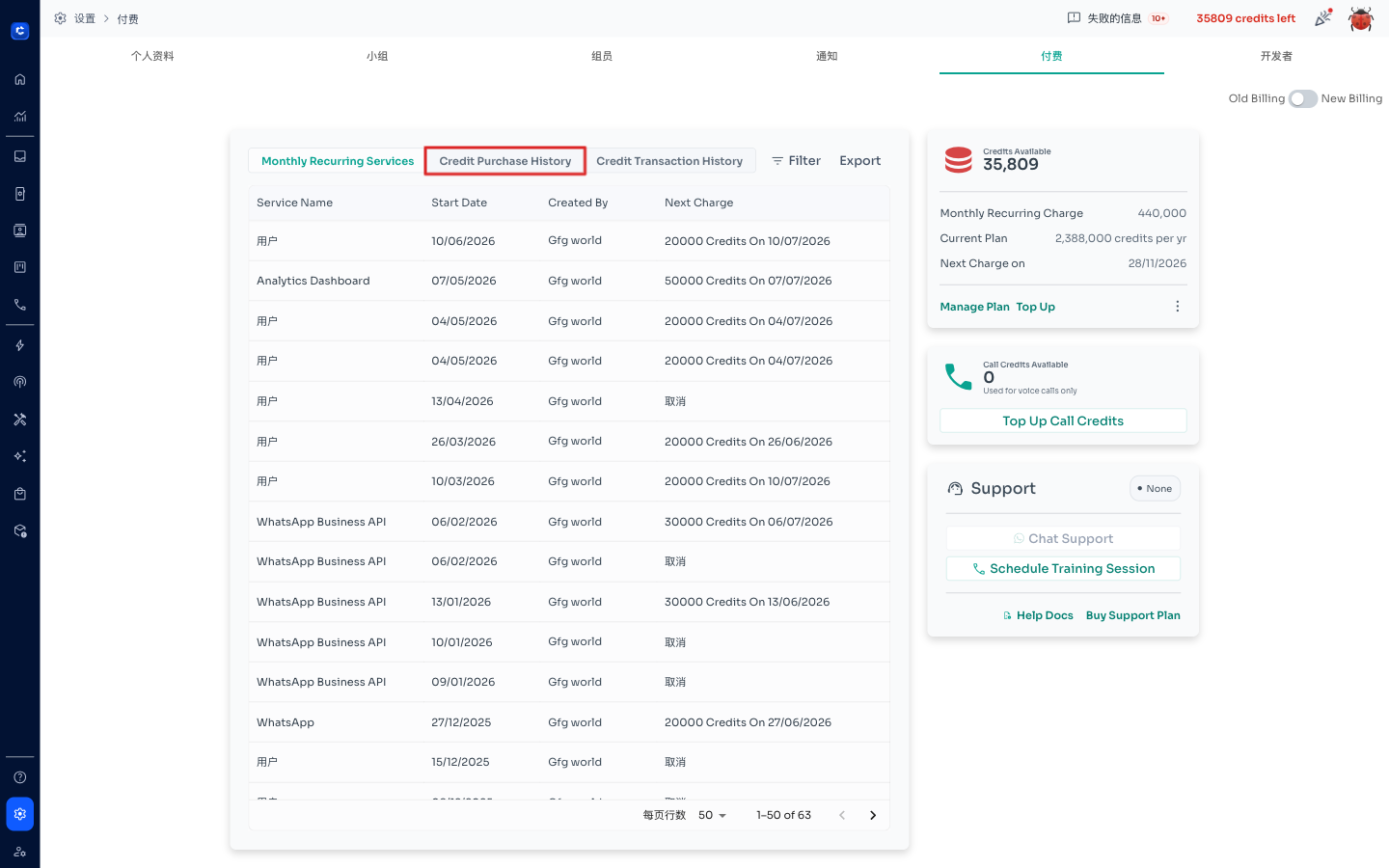
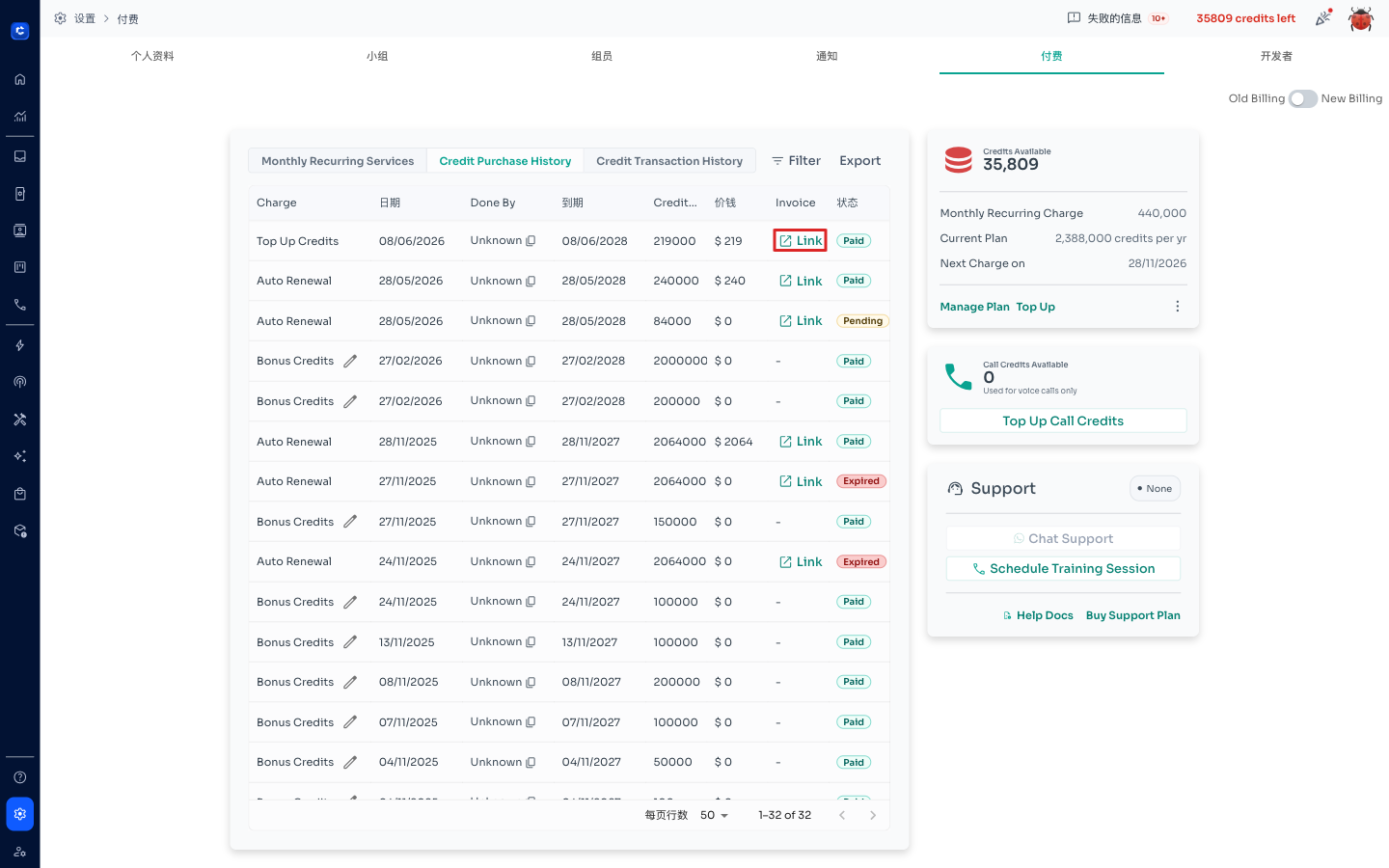
Step 3b: Click 'Credit Purchase History' Tab
After switching to Old Billing, click the 'Credit Purchase History' tab to view your past credit purchases.
Step 4: Click the Invoice Link
In the Credit Purchase History table, find the purchase you want. Click the 'Link' button in the Invoice column to open the Stripe invoice.
Step 5: Download the Invoice
The Stripe invoice page will open. Click 'Download invoice' to save the PDF, or 'Download receipt' for a payment receipt.
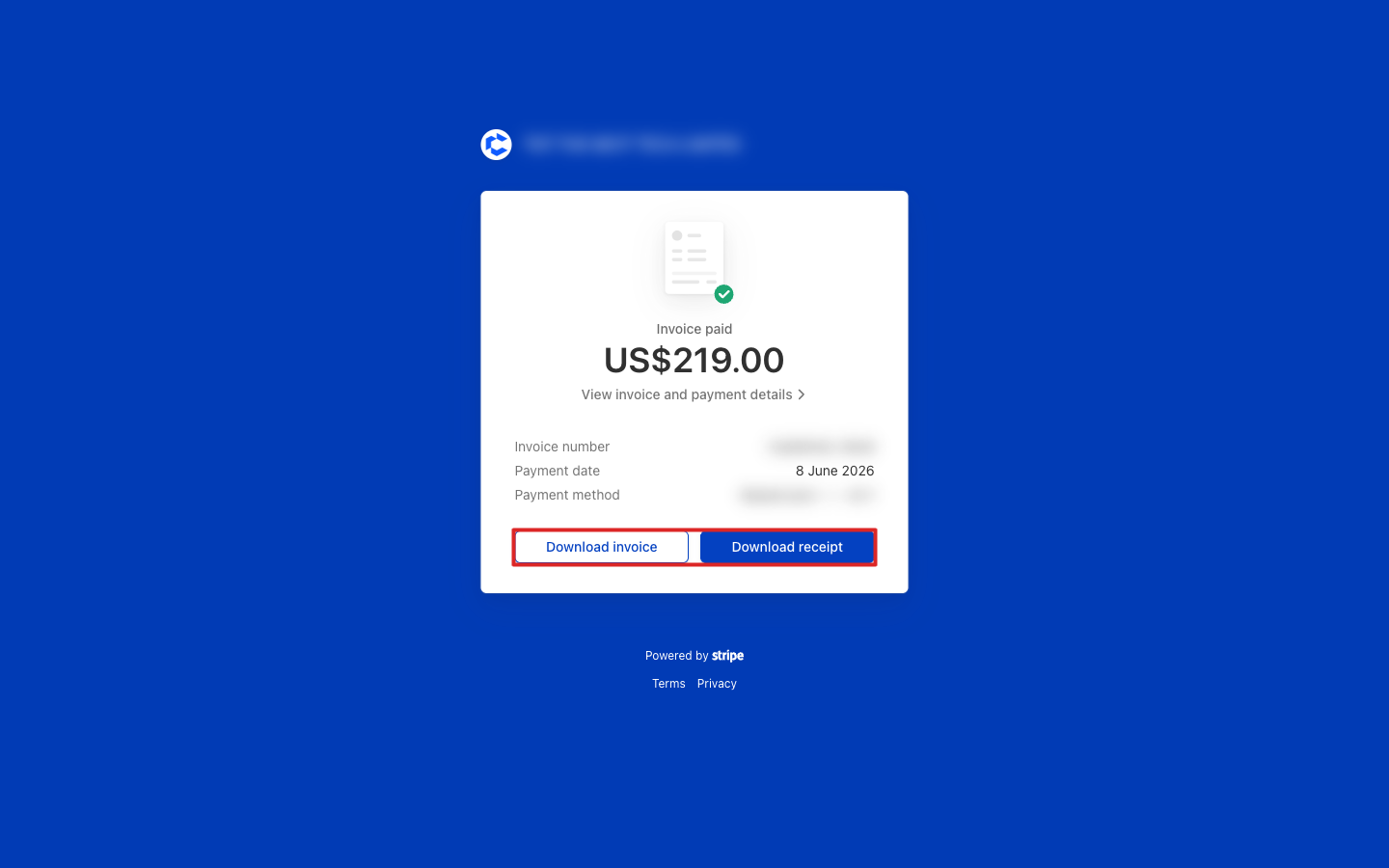
The invoice will be downloaded as a PDF to your device.