
How to Forward Messages to Another Chat
Pass a customer message on to a colleague or another customer without retyping it. Covers selecting up to 15 messages, choosing several recipients at once, and the message types that cannot be forwarded.
Also searched as: How to Forward Messages to Another Chat, Open the message menu and choose Forward Message, Tick every message you want to send, Choose who receives them, Send, Which messages cannot be forwarded?, Forward, Messages, Another, Chat
Forwarding copies messages from one conversation into one or more other conversations, exactly as they were written. It saves retyping an address, a price list or a photo a customer sent you, and it is the quickest way to hand a question to a colleague on another number.
You can forward up to 15 messages at a time, and send them to as many chats as you like in one go — including chats on a different channel.
📨 Forwarded messages are sent for real, straight away. There is no preview and no undo, so check the recipients before you press Send — the same normal sending rules apply, including WhatsApp's 24-hour window.
Step-by-step
Step 1 — Open the message menu and choose Forward Message
Open the Inbox and go to the chat holding the message you want to pass on. Hover over that message: a small arrow (⌄) appears in the top-right corner of the bubble. Click it, then click Forward Message.
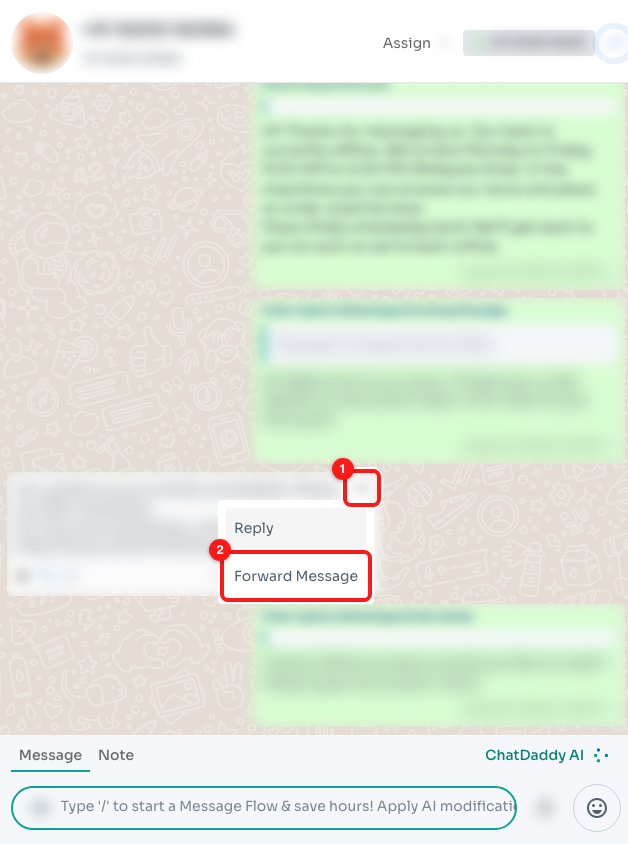
Step 1 — the arrow in the corner of the message bubble (1) opens the menu, where Forward Message sits under Reply (2).
ℹ️ On a phone or a narrow window the arrow is always visible — you do not need to hover.
Step 2 — Tick every message you want to send
The message you started from is ticked for you, and a checkbox appears beside every other message in the chat that can be forwarded. Tick as many as you need. Where the compose box normally sits you now have a selection bar showing a ✕, a running count such as “2 selected”, and a forward arrow on the right.
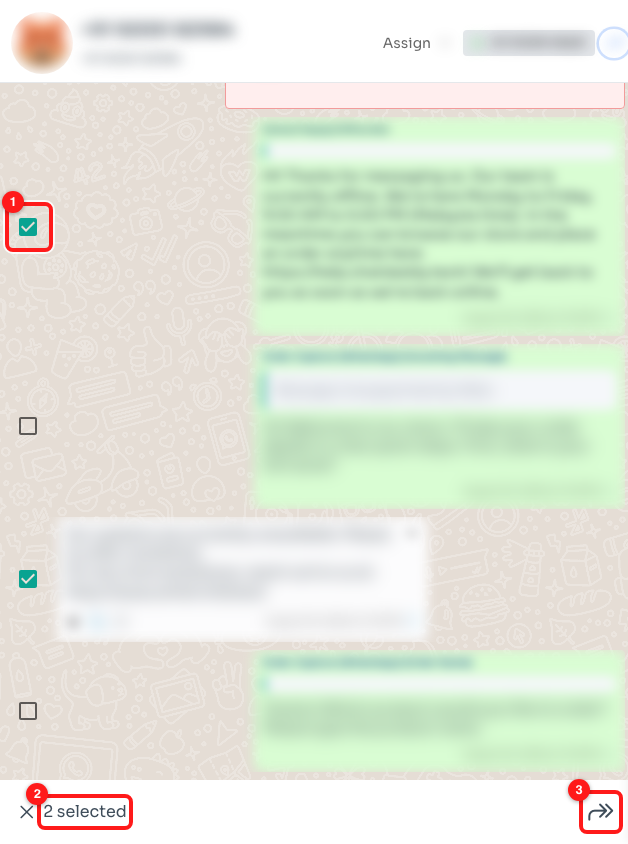
Step 2 — tick each message you want (1), watch the count (2), then click the forward arrow (3).
- The count stops at 15. Once you have ticked 15 messages the remaining checkboxes stop responding — untick something to make room.
- Messages that cannot be forwarded simply have no checkbox. See Which messages cannot be forwarded? below.
- Changed your mind? Click the ✕ on the left of the bar, or just open a different chat — the selection clears on its own.
Step 3 — Choose who receives them
Clicking the forward arrow opens the Forward Message to window. It lists your conversations and contacts across every connected channel, so you can forward from WhatsApp into Messenger or the other way round.
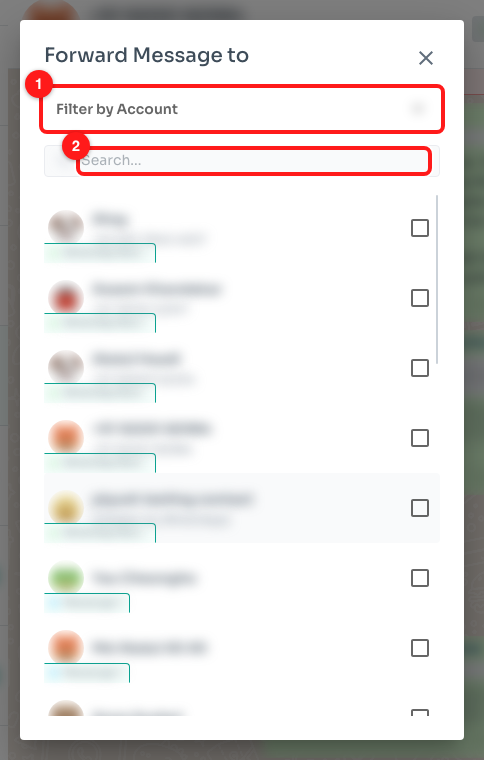
Step 3 — narrow the list to one channel with Filter by Account (1), or type a name or number into Search (2).
- Filter by Account limits the list to one connected channel — useful when the same person appears under two numbers.
- Search matches contact names, phone numbers and email addresses. Type at least three characters to also search inside message content.
- Tick the checkbox beside each recipient. There is no limit on how many you pick.
Step 4 — Send
The line under the title counts your recipients (“1 contact”, “4 contacts”), and the bar at the bottom names them — after three names it shortens to “Ana, Ben, Chris +2”. When it looks right, click Send.
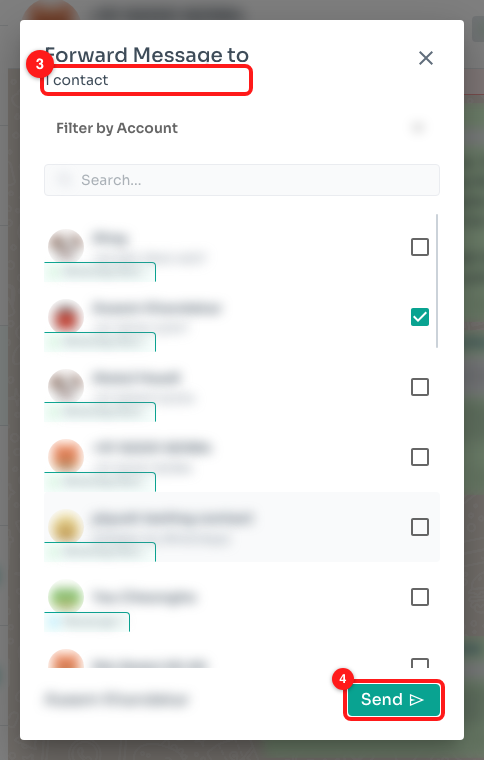
Step 4 — the recipient count sits under the title (3); Send is at the bottom right (4).
ChatDaddy sends the messages one after another and confirms with “N Messages forwarded successfully”. The window closes, the selection clears, and the forwarded messages appear in each recipient's chat as messages from you.
Which messages cannot be forwarded?
If a message has no checkbox in Step 2, and no Forward Message entry in its own menu, it is one of these:
- System entries — call logs, “joined the group”, “message deleted” and similar notices. They are records of an event rather than messages, so there is nothing to send on.
- Messages that have not been sent yet — anything still sending, scheduled, cancelled or failed. Retry or reschedule it first.
- Deleted messages, including ones you have revealed to read again.
- Internal notes. Notes are for your team only and never leave ChatDaddy.
- Polls, button messages and list messages. These are interactive and only work in the conversation they were built for — rebuild them with a message flow instead.
- Messages from a sender WhatsApp has hidden in a one-to-one chat. Hovering shows “Forward Unavailable” — WhatsApp's privacy rules block it. The same message inside a group chat can still be forwarded.
Frequently asked questions
Does the recipient see that the message was forwarded?
They see the message itself, sent from your channel — not the original sender's name or number. Treat a forward as if you had typed it yourself, and add a line of context afterwards if the recipient needs to know where it came from.
Can I forward photos, voice notes and documents?
Yes. Media forwards with the message, exactly as it arrived. Very large files can take a few seconds longer to appear in the recipient's chat.
Why did the forward fail for one recipient but work for the others?
Each recipient is sent separately, so a rule that applies to one chat does not stop the rest. The usual cause on a WhatsApp Business API channel is the 24-hour window: if that customer has not written to you in the last 24 hours, only an approved template may be sent, and a forwarded message is not a template. Send them a template message first, then forward once they reply.
The checkboxes have stopped responding.
You have reached the 15-message limit. Untick a message to free a slot, or send this batch and start a second one.
I picked recipients, then closed the window by mistake.
Closing the window clears the recipients but keeps your ticked messages, so click the forward arrow again and choose them once more. Switching to another chat clears both.
Can I forward a whole conversation?
Not as messages — forwarding is capped at 15 at a time. To hand over a full history, export the chat instead and share the file.